File Juggler: Download, Features, Setup, and the Best Alternatives
If your desktop looks like a junk drawer and your Downloads folder has become a black hole, you’re not alone. Most of us don’t have time to drag files into folders every single day. That’s exactly the problem File Juggler was built to solve — it watches your folders and sorts, renames, or moves files automatically, based on rules you set up once.
This guide walks through what File Juggler actually does, how to download and set it up, how its rules work, what it costs, and which alternatives are worth considering if it’s not quite the right fit for you.
What Is File Juggler?
File Juggler is a Windows utility made by Bitvaerk that automates file organization. Instead of manually sorting every download, screenshot, invoice, or report, you tell File Juggler what to look for and what to do with it — and it handles the rest in the background.
A File Organizer and Automation Tool, Not Just a File Manager
It’s worth separating File Juggler from a typical file manager like Windows Explorer. A file manager helps you browse and move files yourself. File Juggler removes that step entirely by watching folders in real time (or on a schedule) and applying rules automatically, with no manual dragging required.
How It Sorts and Manages Files
Under the hood, File Juggler can act on a file’s name, extension, size, date, folder path, or even the text inside the file. That last part is unusual for this category — most lightweight sorters only look at file names and extensions, while File Juggler can peek into document contents to decide where something belongs.
Who Actually Benefits From File Juggler
File Juggler tends to suit:
- Freelancers and remote workers drowning in client files, invoices, and contracts
- Small business owners who need incoming documents sorted by type or client name
- Power users who download large volumes of files daily and want zero manual cleanup
- Anyone with a chaotic Downloads folder who just wants order without babysitting it
If you only occasionally need to move a handful of files, this might be overkill — but for recurring, repetitive file chaos, it earns its keep quickly.
File Juggler Features
Automatic File Organization
At its core, File Juggler continuously monitors chosen folders and reorganizes new files the moment they appear, so clutter never has a chance to build up.
Sorting by Type, Extension, Date, or Name
You can create rules based on almost any file attribute: extension (.pdf, .jpg, .docx), creation or modified date, file name patterns, or even keywords found inside the document.
Automatically Moving Files to the Right Folders
Once a rule matches a file, File Juggler can move (or copy) it to a destination folder you define — including creating subfolders dynamically based on date or file properties.
Rule-Based Automation That Runs in the Background
Rules run silently once configured. There’s no need to open the app daily; File Juggler keeps working even when you’re focused on other things.
Practical Everyday Use: Taming the Downloads Folder
This is the single most common use case. Point File Juggler at your Downloads folder and let it automatically route PDFs to Documents, images to Pictures, installers to a Software folder, and so on.
Here’s a quick look at the kinds of rule conditions File Juggler supports:
| Condition Type | Example Use |
|---|---|
| File extension | Send all .pdf files to a Documents folder |
| File name pattern | Move files containing “invoice” to an Invoices folder |
| File content | Move files mentioning a client’s name to that client’s folder |
| Date created/modified | Sort files into folders by month or year |
| Folder path | Apply different rules depending on where files land |
File Juggler Download
Getting the Free Trial
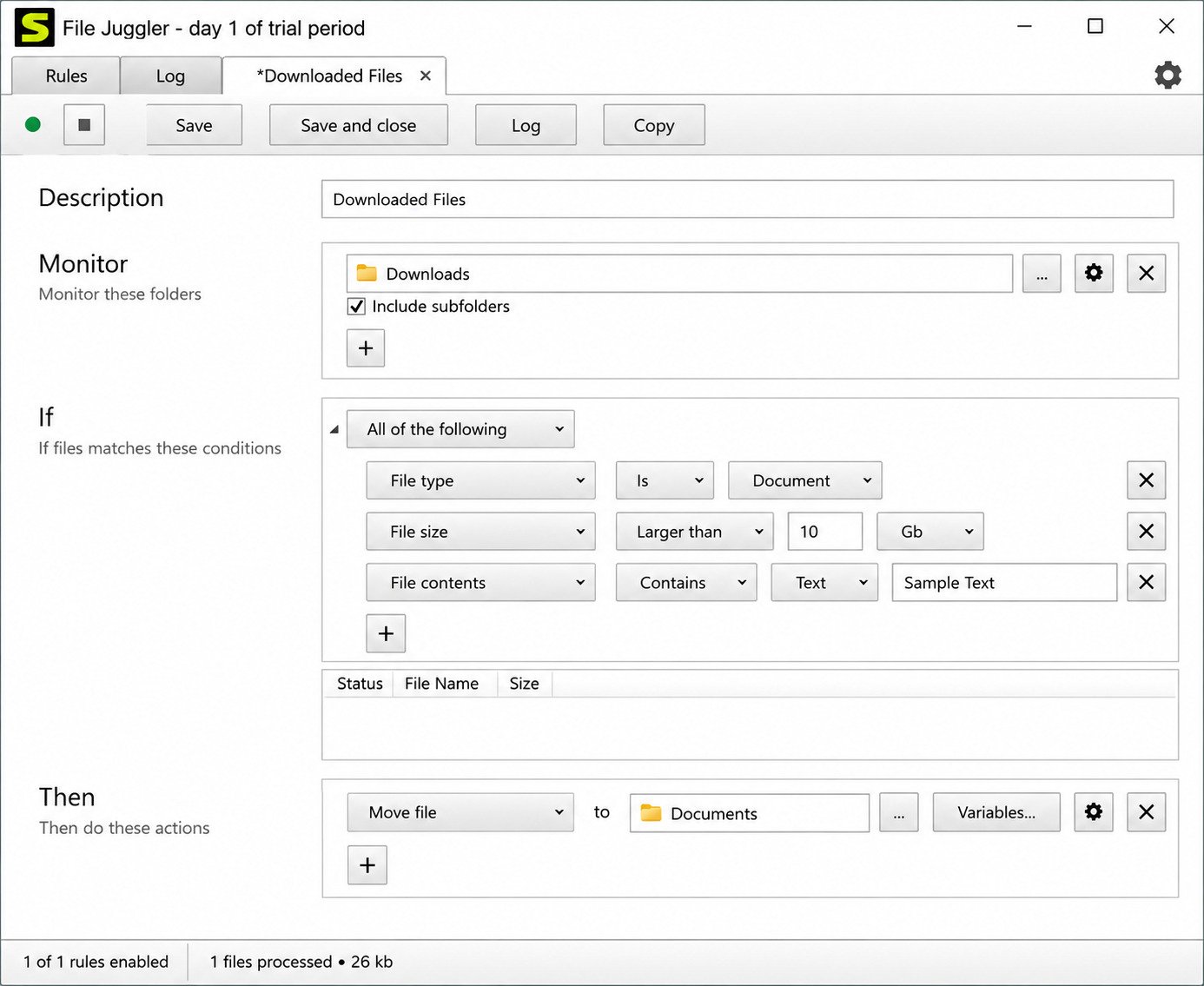
File Juggler offers a 30-day free trial you can download directly from the developer’s official site. This gives full access to test rules and automation before deciding whether to buy a license.
Which Version to Get
The current release supports both 32-bit and 64-bit Windows systems, and installation is a straightforward .exe installer — no separate runtime or dependencies to configure.
Compatibility With Windows 11 and Windows 10
File Juggler runs on both Windows 10 and Windows 11 without any special configuration. It’s a lightweight desktop utility, so it won’t strain older or lower-spec machines either.
How to Use File Juggler
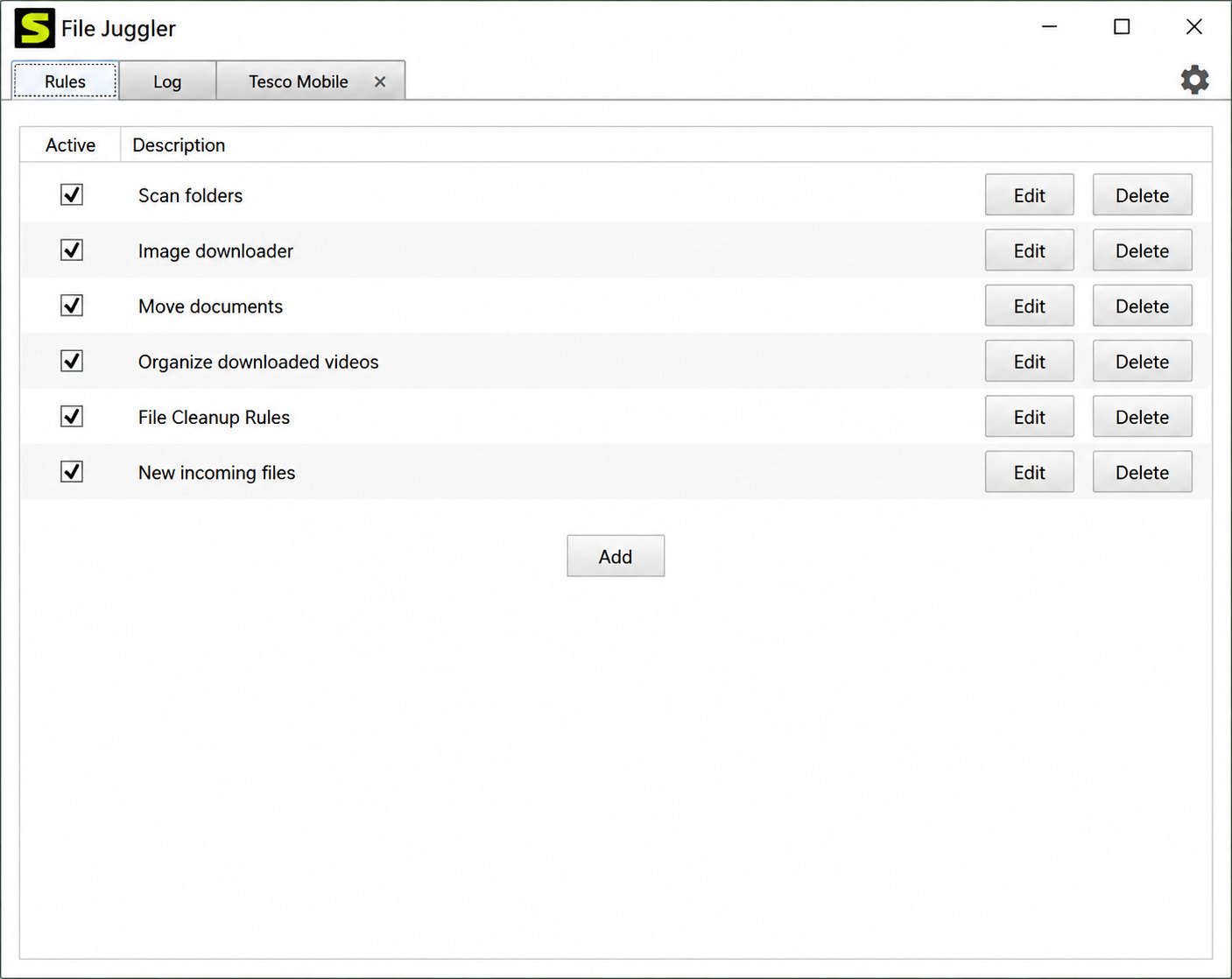
Getting started only takes a few steps once it’s installed.
- Download and install the application from the official site.
- Open File Juggler and choose “Add Folder” to select the folder you want monitored (for example, Downloads).
- Create a rule by clicking “New Rule” and defining the “If” condition — file type, name, date, or content.
- Set the action — move, copy, rename, delete, or run a program — and pick the destination folder.
- Save and activate the rule. File Juggler will now apply it automatically to new and existing files.
- Test it by dropping a sample file into the monitored folder to confirm it moves where expected.
Automatically Sorting the Downloads Folder
A common starter setup: create separate rules for images, documents, archives, and installers, all pointed at your Downloads folder. Within minutes, that folder stops accumulating clutter.
Moving Files Automatically Based on Type
Because rules can stack, you can combine several extension-based rules to route files across an entire folder structure without touching a single file by hand.
How to Create File Juggler Rules
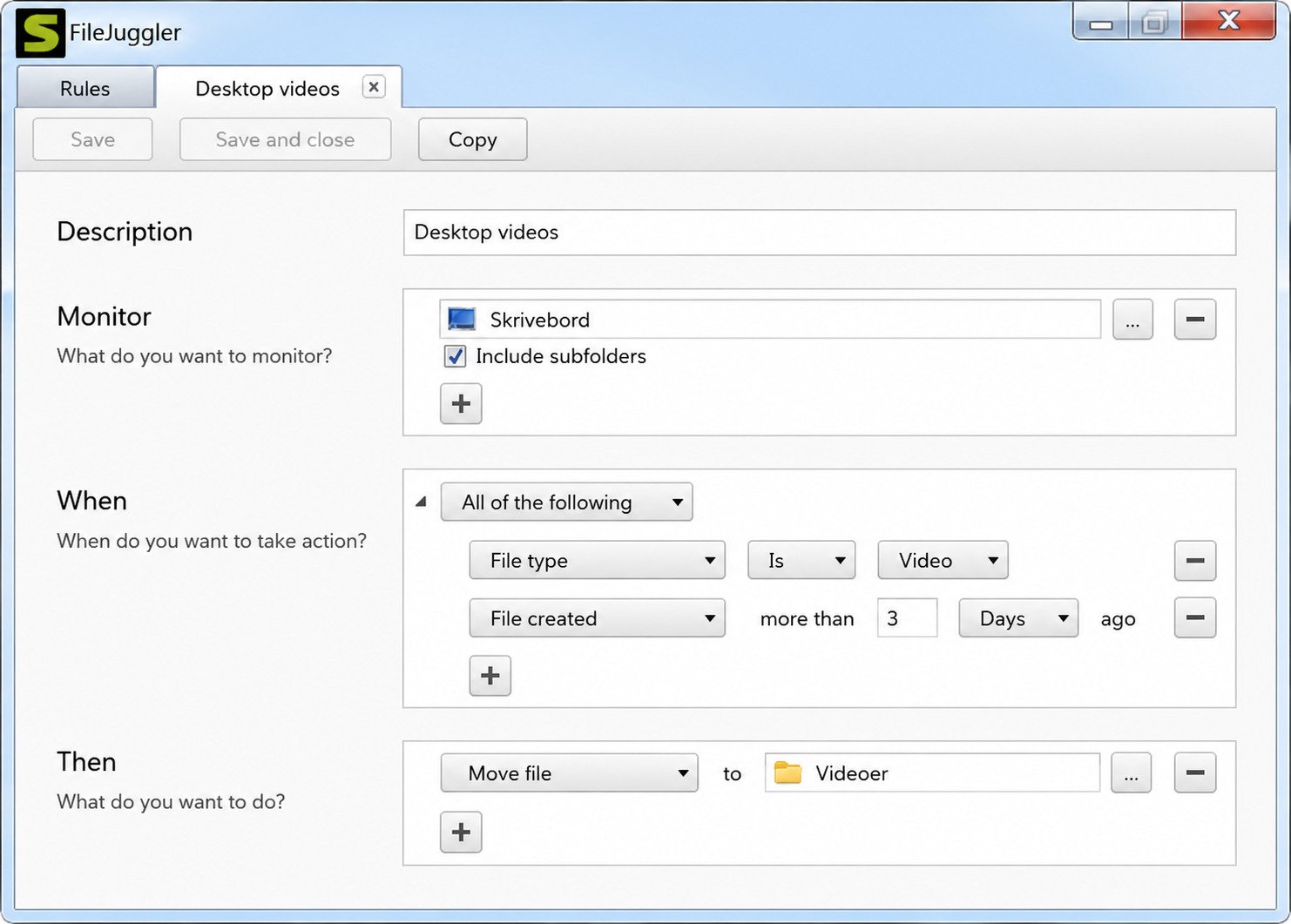
Rules are the heart of the tool, and they’re built with simple dropdown menus rather than code or scripting — a big plus if you’re not technical.
The Basic Rule Structure
Every rule follows an If → Then pattern:
- If: define the condition (file type, name, content, date, size)
- Then: define the action (move, copy, rename, delete, extract, or run a script)
Building a File-Sorting Rule Step by Step
- Click New Rule inside a monitored folder.
- Choose the attribute to match (extension, name, or content).
- Enter the matching value (e.g., .jpg, or the word “receipt”).
- Choose the destination folder for matching files.
- Optionally add file renaming instructions using date or content variables.
- Save the rule — it applies immediately to existing and future files.
Tips for Reliable Automation Rules
Before you automate everything at once: start with one rule at a time and test it before layering more. Use specific conditions to avoid accidentally moving the wrong files. Combine date-based subfolders (e.g., 2026/January) for long-term organization, and revisit rules occasionally as your file habits change.
What Can File Juggler Automatically Organize?
File Juggler isn’t limited to one file type — it can manage almost anything that lands in a monitored folder:
- Documents: PDFs, Word files, spreadsheets
- Images: JPGs, PNGs, screenshots
- Videos and media: MP4s, MOVs, audio files
- Archives: ZIP and RAR files, including automatic extraction
- Software installers: EXEs and MSIs routed to a dedicated folder
File Juggler Use Cases
Cleaning Up the Downloads Folder Permanently
Instead of a monthly cleanup binge, files are sorted the instant they arrive — no backlog ever builds up.
Organizing Documents, Photos, and Videos
Personal and work files can be separated automatically, which is especially useful on shared or family computers.
Managing Client or Project Files Automatically
Because rules can scan file content, incoming documents mentioning a specific client or project name can be routed straight into the correct project folder.
Handling Large Volumes of Files Efficiently
For anyone dealing with hundreds of files a week — researchers, accountants, content creators — this kind of automation saves real hours over a month.
Is File Juggler Free?
File Juggler isn’t a permanently free tool, but it does offer a genuinely usable 30-day free trial with full functionality, so you can test real rules on real files before paying anything.
Free Trial vs Paid License
| Aspect | Free Trial | Paid License |
|---|---|---|
| Duration | 30 days | Lifetime (per version) |
| Feature access | Full features | Full features |
| Price | $0 | Roughly $40–$50 (single license) |
| Support | Included | Included |
| Renewal required | No, expires after trial | One-time purchase |
Is It Worth Paying For?
If you’re organizing files daily and the trial saves you real time, the one-time cost tends to pay for itself quickly compared to the hours lost to manual sorting.
File Juggler Alternatives
File Juggler isn’t the only automatic file organizer out there, and depending on your operating system or budget, another tool might fit better.
How It Compares to Popular Alternatives
| Tool | Platform | Rule Building | Cost | Best For |
|---|---|---|---|---|
| File Juggler | Windows | Dropdown-based rules | Paid (trial available) | Content-aware sorting |
| DropIt | Windows | Manual associations | Free, open source | Budget-conscious users |
| Hazel | macOS | Visual rule builder | Paid | Mac users wanting automation |
| Belvedere | Windows | Simple rules | Free | Lightweight, basic sorting |
| FileFlows | Windows/Linux | Node-based workflows | Free/paid tiers | Media processing pipelines |
| Power Automate | Windows/Cloud | Flow-based automation | Free/paid tiers | Broader workflow automation beyond files |
File Juggler vs DropIt
DropIt is free and open source but requires more manual setup, since it lacks File Juggler’s dropdown-driven interface — you’ll often type folder paths and file patterns by hand.
File Juggler vs Hazel
Hazel is essentially File Juggler’s macOS counterpart. If you’re on a Mac, Hazel is the natural choice; File Juggler is Windows-only.
File Juggler vs Power Automate
Power Automate is far more powerful for cross-app workflows (email, cloud storage, spreadsheets) but has a steeper learning curve if all you need is local file sorting.
Choosing the Best Fit for You
Pick File Juggler if
- You want simplicity and content-aware rules on Windows
Pick something else if
- Free and open source → DropIt or Belvedere
- Using a Mac → Hazel
- Need media-specific automation → FileFlows
- Need automation beyond files (emails, apps, cloud) → Power Automate
If you also work with game or asset files and need a different kind of extraction utility alongside your file organizer, tools like AssetRipper are worth knowing about for unpacking and inspecting game asset files.
File Juggler Frequently Asked Questions
File Juggler automatically sorts, moves, renames, or deletes files on Windows based on rules you define, so folders like Downloads stay organized without manual effort.
Yes, it continuously monitors chosen folders and applies your rules the moment new files appear, keeping everything sorted in real time.
Yes, you can create rules that route files into specific folders based on type, name, content, or date.
Yes, this is one of its most popular uses — pointing a rule at the Downloads folder to sort new files instantly.
Yes, File Juggler runs smoothly on both Windows 10 and Windows 11 without extra configuration.
It offers a full-featured 30-day free trial, after which a one-time paid license is required to keep using it.
DropIt, Hazel (Mac), Belvedere, FileFlows, and Power Automate are the most commonly recommended alternatives, depending on your platform and needs.
File Juggler: Is It Worth Using?
For anyone tired of manually sorting files week after week, File Juggler offers a genuinely simple way to hand that chore over to automation. The rule-building process is approachable even without technical experience, and the ability to sort based on file content sets it apart from more basic tools.
That said, it’s Windows-only and not free long-term, so Mac users or anyone wanting a zero-cost option should look toward Hazel or DropIt instead. For most Windows users battling daily file clutter, though, File Juggler is a small investment that quietly saves real time every single week.
6 Responses