Agent Ransack Download, Features, Setup, and Alternatives
Losing a file inside a messy folder tree is one of those small annoyances that eats up more time than it should. Agent Ransack is a free Windows tool built specifically to solve that problem — it searches file names and file contents at once, so you don’t have to open a dozen documents just to find one sentence. In this guide, you’ll learn exactly what Agent Ransack does, how to install and configure it, how its regex search works, what to do when it stops finding files, and which alternatives are worth a look if it’s not quite right for you.
What Is Agent Ransack and What Is It Used For?
What Is Agent Ransack?
Agent Ransack is a desktop file search utility for Windows, developed by Mythicsoft. Unlike the built-in Windows search box, it’s designed to dig into the actual contents of your files — not just their names — and return results almost instantly, even across large folder structures.
What Is Agent Ransack Used For?
People typically reach for Agent Ransack when they need to:
- Find a document when they only remember a phrase from inside it
- Track down every file that mentions a client name, invoice number, or project code
- Search source code repositories for a specific function or variable
- Locate old files scattered across multiple drives or network folders
It’s popular with IT staff, legal teams, developers, and writers — basically anyone who handles a large volume of files and can’t rely on memory alone.
How Agent Ransack Searches Files and Folders
Instead of relying on a pre-built index (like Windows Search does), Agent Ransack scans folders on demand. This means results are always current — no waiting for an index to catch up after you save a new file — and it also means very large searches can take a little longer, which we’ll cover later.
Agent Ransack as a Windows File Search and File Finder Tool
Think of it as a file finder and text search tool in one. You can search purely by file name, purely by content, or combine both in a single query — something Windows’ native search struggles to do consistently across file types.
Agent Ransack Features
Fast File and Folder Search
Agent Ransack is built for speed. Its scanning engine is lightweight, so it can churn through thousands of files without bogging down your system.
Search Files by Name, Filename, Type, and Extension
You can filter results by:
| Search Criteria | Example |
|---|---|
| File name | invoice_2026 |
| Extension | .docx, .pdf, .log |
| Date modified | Last 7 days |
| File size | Larger than 1MB |
Search Text and Content Inside Files
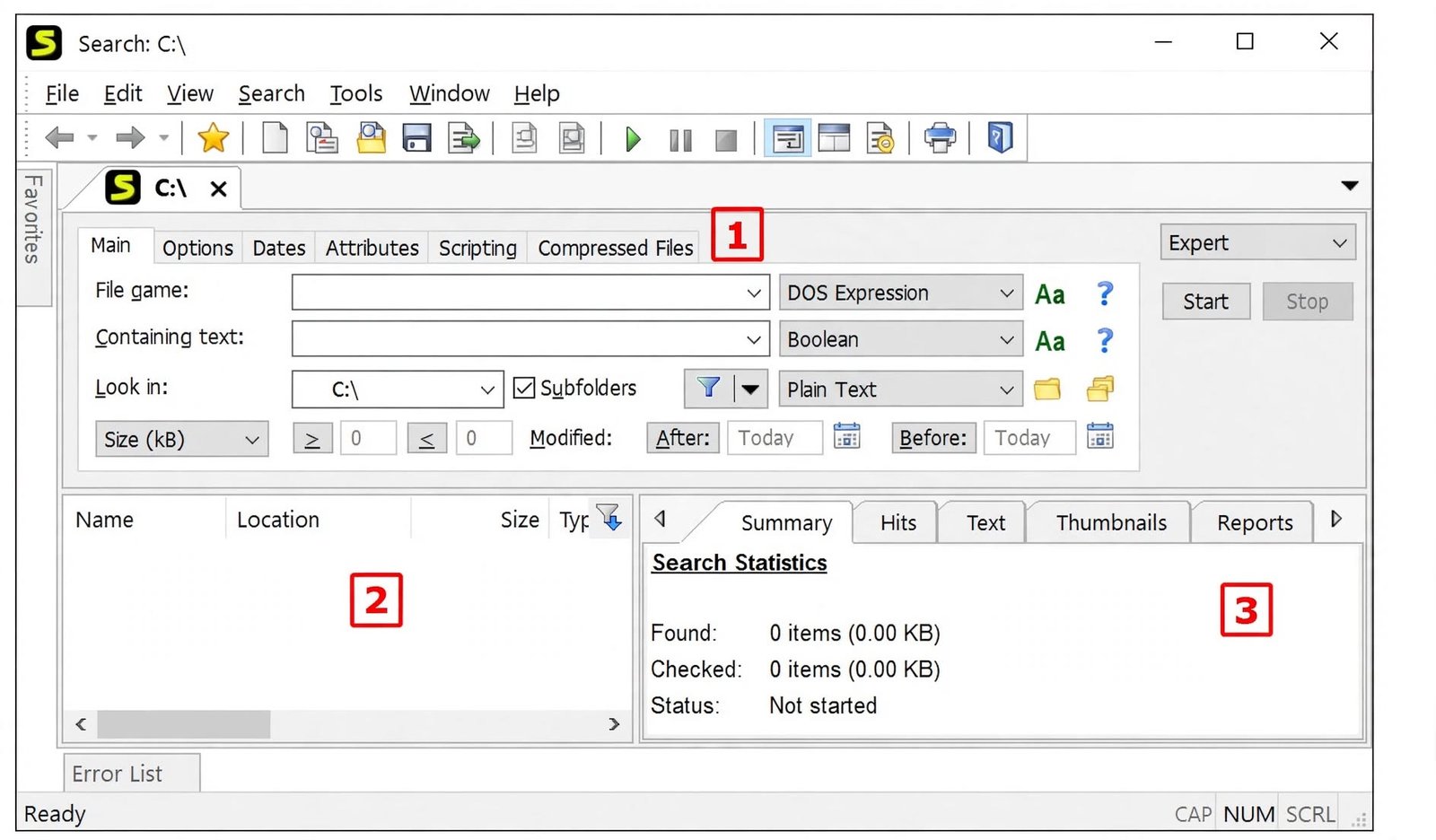
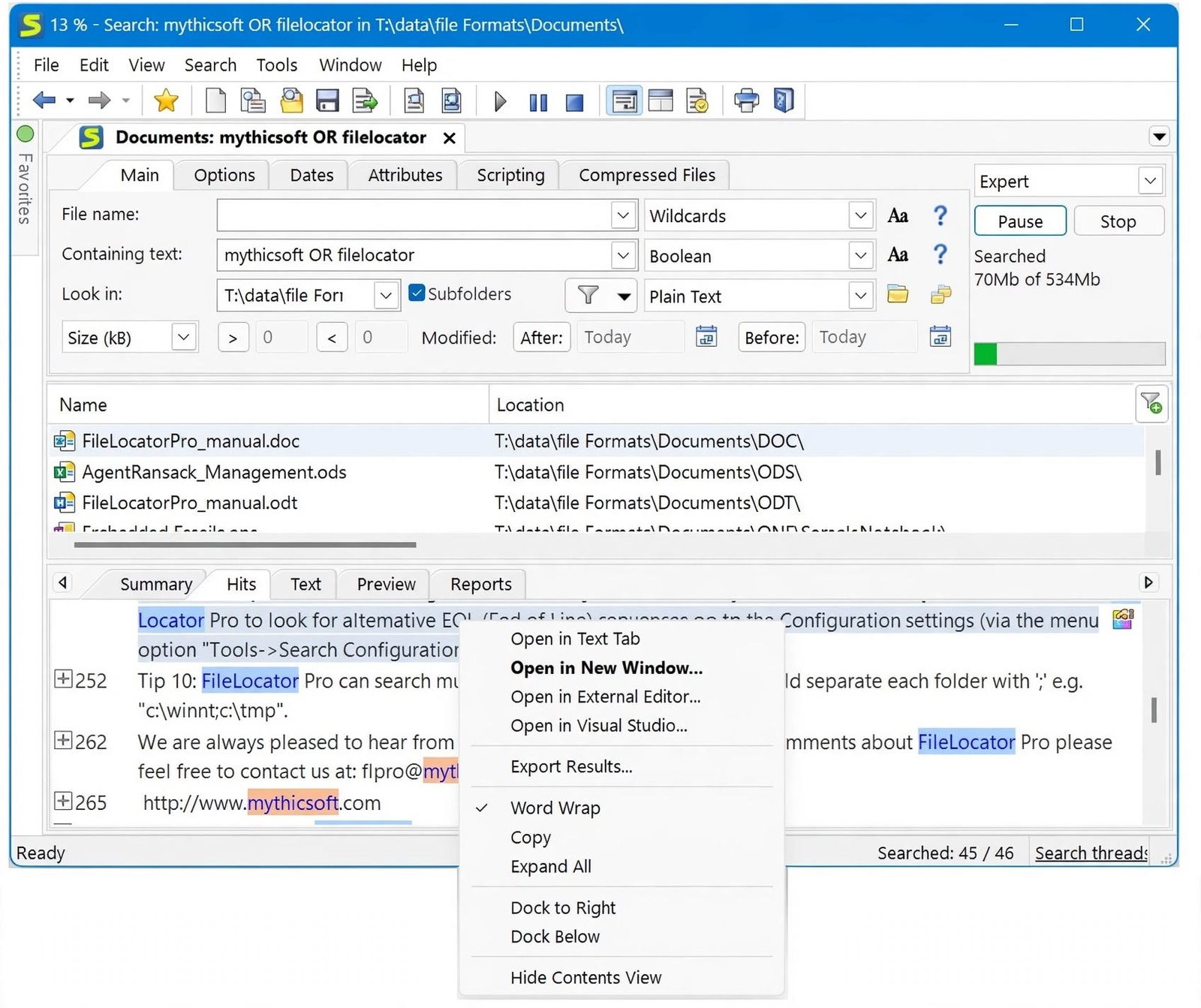
This is the tool’s signature feature. It reads inside documents and highlights the exact matching text, so you can confirm a hit without opening the file.
Advanced File and Document Search
Combine multiple conditions — file type and keyword and date range — to narrow down results fast, even in folders with tens of thousands of items.
Multiple Folder and File Search
You’re not limited to one folder. Agent Ransack lets you search several directories, drives, or even network shares in a single pass.
Search Results and File Location
Results appear in a list with the matching snippet shown alongside the file path, so you can jump straight to the file’s location in Windows Explorer.
Agent Ransack Advanced Search Options
Boolean operators (AND, OR, NOT), wildcard search, and regular expressions are all supported for users who need more precise control.
Search Files and Folders on Windows
Windows File Search and File Finder
Windows’ built-in search is convenient for quick lookups, but it depends heavily on indexing and often misses content inside less common file types. Agent Ransack fills that gap.
Search Files Across Multiple Folders
Add several search paths at once — for example, your Documents folder plus a shared network drive — and run one unified query across all of them.
Find Files by Filename
Type a partial name and Agent Ransack will match anything containing that string, with wildcard support for more flexible patterns.
Find Files by File Type or Extension
Narrow results instantly to just PDFs, spreadsheets, or code files using extension filters.
Search Folder Contents and Files
Search everything inside a folder — subfolders included — with one click of the “include subfolders” option.
Locate Files on Your PC
Once a search completes, double-clicking a result opens the file directly, or you can right-click to open its containing folder.
Search Text Inside Files and Documents
Search Text in Files
Enter a keyword or phrase, and Agent Ransack scans the actual content of every matching file type in your chosen folders.
Find Words and Phrases Inside Files
Exact phrase matching, partial word matching, and case-sensitive options are all available for more accurate results.
Search File Contents Across Folders
The content search works the same way whether you’re searching one folder or fifty — the interface doesn’t change based on scope.
Search Documents by Content
This is especially useful for legal, HR, or research teams who need to find every document referencing a particular term.
Search PDF, Word, Excel, and Text Files
Agent Ransack supports common Office formats and PDFs, in addition to plain text and source code files.
Search Source Code and Other Text-Based Files
Developers often use it to find where a variable, function name, or configuration key appears across an entire codebase.
Agent Ransack Regex Search
What Is Regular Expression Search?
A regular expression (regex) is a pattern-matching syntax that lets you search for structures rather than exact text — like “any email address” or “any file with a date in this format.”
How to Search Files With Regex
In Agent Ransack, you simply toggle the regex option in the search bar and enter your pattern instead of plain text.
Agent Ransack Regular Expression Search
The tool uses Perl-compatible regular expressions (PCRE), which is one of the more widely supported and flexible regex standards.
Regex File Search and Text Search
Regex can be applied to both file names and file contents, giving you very granular control over what counts as a match.
Agent Ransack Regex Search Tutorial
\d{3}-\d{3}-\d{4} will match phone numbers formatted like 555-123-4567. Testing patterns on a small folder first is a good habit before running them across your whole drive.
Advanced File Search With Agent Ransack
Advanced Windows File Search
For power users, stacking Boolean logic with regex and date filters turns Agent Ransack into a genuinely advanced search environment, not just a file finder.
Advanced File and Folder Search
You can save frequently used search configurations so you don’t have to rebuild complex queries every time.
Advanced Document and Text Search
Combine content search with file-type filters to, for example, find only Word documents that mention a specific clause.
Search Multiple File Types and Extensions
Search several extensions at once by separating them, so you can check .doc, .docx, and .pdf files in the same query.
Find Specific Files Quickly
Once you’re comfortable with filters, most searches return results in seconds rather than the minutes a manual folder-by-folder check would take.
Agent Ransack Download and Latest Version
Agent Ransack Download for PC
Agent Ransack is available directly from Mythicsoft’s official website. Always download from the official source rather than third-party mirrors to avoid bundled or altered installers.
Agent Ransack Free Download
The core version is free for personal use, making it an easy tool to try before deciding if you need more advanced features.
Agent Ransack Latest Version
Mythicsoft continues to release updates for both the 32-bit and 64-bit builds, with periodic maintenance releases that fix bugs and improve compatibility.
Agent Ransack Software Download
The installer is a small, single executable — there’s no bloated setup wizard or extra bundled software to click through.
Agent Ransack Installer and Setup Files
Both installer-based and portable options exist, depending on whether you want it permanently installed or running from a USB stick.
Agent Ransack for Windows 11 and Windows 10
Agent Ransack Windows 11
Agent Ransack runs natively on Windows 11 without compatibility mode tricks.
Agent Ransack Windows 10
It’s equally stable on Windows 10, which remains one of its most common environments given how long the tool has been around.
Agent Ransack for Windows
Both 32-bit and 64-bit Windows systems are supported, so the correct build is selected automatically or manually during installation.
Windows File Search on Windows 11 and Windows 10
Whichever Windows version you’re on, the interface and search behavior stay consistent — a nice change from tools that behave differently release to release.
Agent Ransack Portable and Lite Versions
Agent Ransack Portable
A portable build lets you run the tool from a USB drive without installing it on the host machine — handy for IT technicians working across multiple PCs.
Agent Ransack Portable Download
The portable version keeps its settings in a local folder rather than the Windows registry, which is why it’s the go-to option for USB toolkits.
Agent Ransack Lite Download
“Lite” refers to the free edition, which covers the core searching features most people need.
Agent Ransack Free Version and Available Editions
| Edition | Cost | Best For |
|---|---|---|
| Agent Ransack (Lite) | Free | Personal and casual use |
| FileLocator Pro | Paid | Business use, extra export/reporting features |
How to Install and Set Up Agent Ransack
- Agent Ransack Installation — Download the installer, run it, and follow the on-screen prompts; the process takes under a minute on most machines.
- Agent Ransack Setup — Once installed, the app opens directly into its main search window, with no account creation or sign-in required.
- Configure File and Folder Search — Add one or more starting folders using the “Look In” field, and choose whether to include subfolders.
- Set Search Locations and File Types — Save a shortlist of frequently searched locations so you don’t have to browse for them every time.
- Configure Text and Content Search — Turn on “Containing Text” and type your keyword to search file contents alongside file names.
How to Use Agent Ransack: Complete Tutorial
- How to Find Files on Windows — Open the app, set your folder, type a search term, and hit search; that’s the entire basic workflow.
- How to Search Files by Name — Enter a partial or full file name in the “Named” field and leave the content field blank for a name-only search.
- How to Search Files by Extension — Use a wildcard pattern like
*.pdfin the name field to restrict results to one file type. - How to Search for Text Inside Files — Fill in the “Containing Text” field with your phrase, and Agent Ransack will scan file contents for a match.
- How to Search Multiple Folders — Add each additional folder path on a new line, or separate them with a semicolon, depending on your version’s interface.
- How to Search Documents by Content — Combine an extension filter (e.g., .docx) with a content keyword to search only within a specific document type.
- How to Use Advanced Search and Regex — Enable the regex checkbox and replace plain text with a pattern once you’re comfortable with the basics.
Agent Ransack Search Results and Performance
Understanding Agent Ransack Search Results
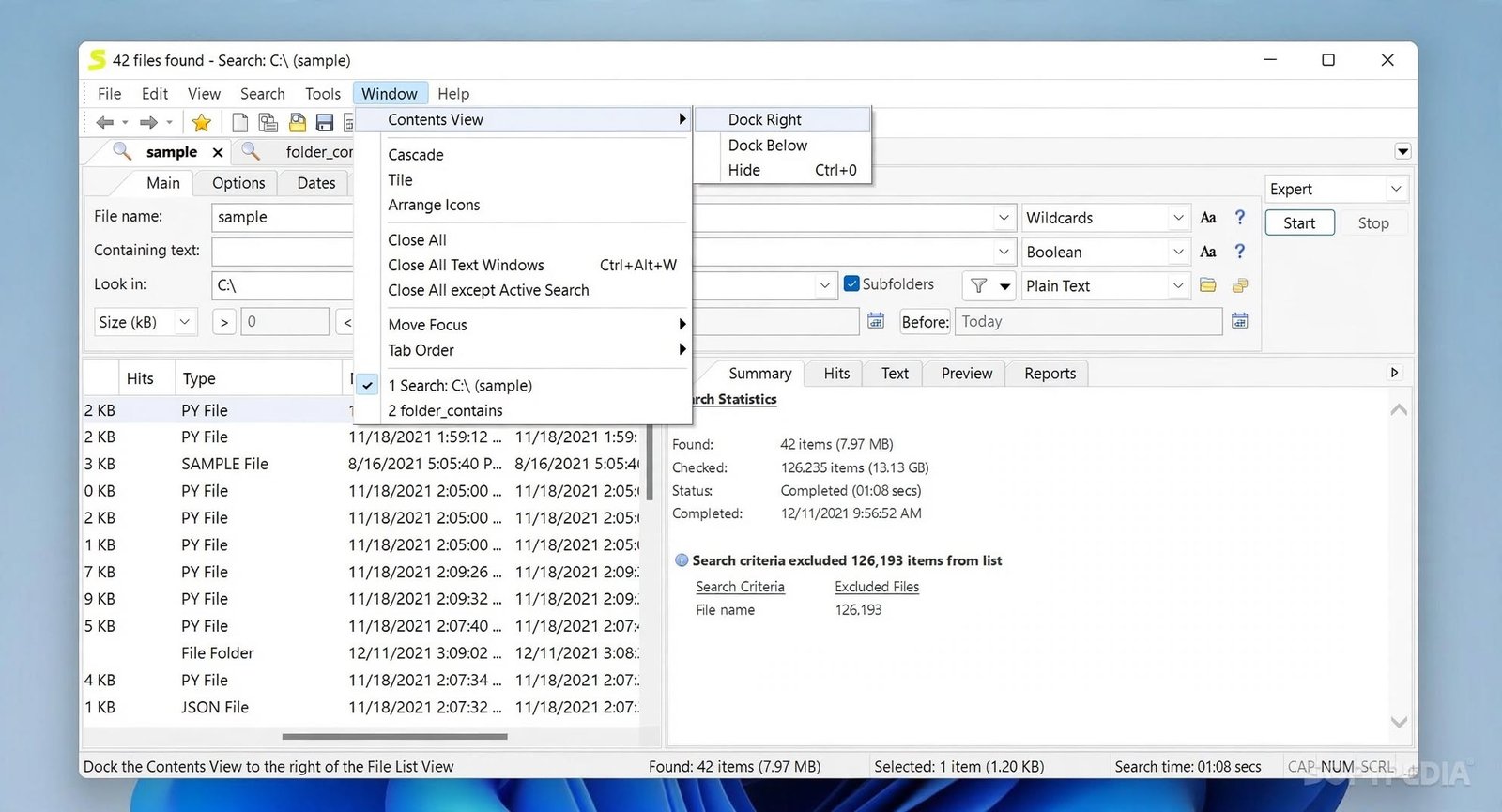
Each result row shows the file name, path, size, date, and a preview snippet of the matching text.
Finding and Opening Matching Files
Double-click any result to open the file in its default application, or use right-click options to reveal it in File Explorer.
Agent Ransack Slow Search
Searches that scan file contents across very large drives naturally take longer than name-only searches — this is expected behavior, not a malfunction.
Search Performance and Large File Collections
Narrowing your search folder, file type, or date range before running a content search will noticeably speed things up.
Agent Ransack Indexing and Search Behavior
Because it doesn’t rely on a background index, results are always fresh, but each search does a live scan rather than pulling from cached data.
Agent Ransack Not Working and Common Problems
Agent Ransack Search Not Working
If a search returns nothing at all, double-check that the correct folder path is selected and that you have read permissions for it.
Agent Ransack Not Finding Files
Confirm the file extension filter isn’t accidentally excluding the file type you’re looking for.
Agent Ransack Not Finding Text
Some file formats need optional filters or add-ons installed to read their content correctly — check the file type support list if content search seems incomplete.
Agent Ransack Cannot Find Files
Network drives that are slow to respond or offline can cause searches to silently skip folders — verify the drive is connected first.
Agent Ransack Search Results Problems
If results look outdated, remember there’s no index to refresh — simply re-run the search after making file changes.
Agent Ransack Regex Not Working
Double-check your pattern syntax; a small mistake in a regex expression (like an unescaped character) is the most common cause of zero matches.
Agent Ransack Indexing Problems
Since indexing isn’t used, “indexing problems” are usually actually permission or path issues worth ruling out first.
Agent Ransack Installation Error
Running the installer as administrator resolves most installation failures related to permissions.
Agent Ransack Windows 10 and Windows 11 Problems
Keeping Windows updated and installing the latest Agent Ransack build together resolves the vast majority of reported compatibility issues.
Is Agent Ransack Safe and Legit?
Is Agent Ransack Safe?
Yes — when downloaded from the official Mythicsoft site, Agent Ransack is a legitimate, long-standing search utility with no history of malware bundling from the developer itself.
Is Agent Ransack Legit?
Mythicsoft has maintained the tool for many years and offers both a free consumer edition and a paid business edition, which is typical of established, above-board software vendors.
Agent Ransack Security and Privacy
The application searches local and specified network locations only — it doesn’t upload your file contents anywhere or require internet access to function.
What Access Does Agent Ransack Need?
It needs standard file-read permissions for whatever folders or drives you point it at, nothing more unusual than that.
Agent Ransack Free, License, and Registration
Is Agent Ransack Free?
Yes, the core Lite edition is free for personal use.
Is Agent Ransack Free for Commercial Use?
Business use typically requires the paid FileLocator Pro edition, which adds reporting, exporting, and licensing suited to organizations.
Agent Ransack License
Licensing is handled per the terms on Mythicsoft’s website, and pricing for the professional edition scales with the number of users.
Agent Ransack Registration and Activation
The free edition doesn’t require registration or activation — it’s ready to use right after installation.
Agent Ransack Registration Code: What You Need to Know
A registration or license code is only relevant if you’ve purchased the paid business edition; the free version skips this step entirely.
Agent Ransack Review: Is It Worth Using?
Agent Ransack Performance and Ease of Use
The interface feels dated compared to modern apps, but it’s genuinely fast and doesn’t require a learning curve for basic use.
Agent Ransack Advantages and Limitations
Advantages
- Free for personal use
- Searches file contents, not just names
- No indexing wait time
- Supports regex and Boolean search
Limitations
- Interface looks a bit old-fashioned
- Content searches on huge drives can take time
- Advanced features are limited to the paid edition
Agent Ransack vs Windows Search
| Feature | Agent Ransack | Windows Search |
|---|---|---|
| Content search accuracy | High | Moderate |
| Requires indexing | No | Yes |
| Regex support | Yes | No |
| Cost | Free (Lite) | Built-in |
| Network drive search | Yes | Limited |
Who Should Use Agent Ransack?
Anyone who regularly digs through documents by content — researchers, legal assistants, developers, and IT support staff — will get the most value from it.
Agent Ransack Alternatives
Best File Search Software for Windows
If Agent Ransack doesn’t fit your workflow, a few solid alternatives are worth comparing:
- Everything (by voidtools) — extremely fast name-based search using an index
- FileLocator Pro — Agent Ransack’s own paid sibling, with export and reporting tools
- File Juggler — useful when your real problem is organizing and automatically sorting files rather than just finding them; you can check it out on File Juggler’s product page
Best Free File Finder Tools
For name-only searches with near-instant speed, indexed tools like Everything are hard to beat, though they don’t search file contents the way Agent Ransack does.
Best Windows Desktop Search Software
The right pick depends on your priority: speed and indexing (Everything), content search depth (Agent Ransack), or ongoing file organization (File Juggler).
Agent Ransack Alternatives for Advanced File Search
Power users who need scripting, automation, or reporting on top of search should look at FileLocator Pro rather than staying on the free Lite edition.
Agent Ransack FAQs
It’s used to find files by name and to search inside file contents, making it useful when you remember a phrase but not the file name.
Yes, it’s developed and maintained by Mythicsoft, a long-established software company with both free and paid product lines.
Yes, provided you download it from the official Mythicsoft website rather than third-party download mirrors.
Visit Mythicsoft’s official site, choose the installer or portable version, and run the setup file.
The free Lite edition is intended for personal use; businesses should use the paid FileLocator Pro edition.
Yes, it can search inside common formats including PDF, Word, Excel, and plain text files.
Yes, you can filter results by extension, such as .pdf, .docx, or .log, using wildcard patterns.
Yes, it supports Perl-compatible regular expressions for both file names and file content.
Yes, it installs and runs natively on both Windows 11 and Windows 10.
Usually it’s a folder path, permission, or file-type filter issue — double-check those settings before assuming something’s broken.
Final Verdict: Should You Use Agent Ransack?
If you’ve ever spent twenty frustrating minutes clicking through folders trying to find one file, Agent Ransack solves exactly that problem. It’s fast, free for personal use, and doesn’t ask much of your system in return.
It won’t win any design awards, and the paid edition is worth considering if you need reporting or commercial licensing. But for straightforward, reliable file and content search on Windows, it remains a dependable tool worth having installed.