Logitech Software Download, Features, Setup, and Alternatives: Complete Guide
If you just plugged in a new Logitech mouse, keyboard, webcam, or headset and you’re wondering which app you actually need, you’re not alone. Logitech makes several different programs — Logi Options+, G HUB, SetPoint, Logi Sync — and picking the wrong one is a common source of frustration.
This guide breaks down every piece of Logitech software, what it does, how to install it, and what to try if something isn’t working. By the end, you’ll know exactly which app fits your setup and how to get it running in minutes.
What Is Logitech Software and What Does It Do?
Logitech software is the driver and configuration layer that sits between your device and your computer. Without it, most Logitech peripherals still work at a basic level — but you lose the features that make them worth owning.
With the right app installed, you can:
- Remap buttons and keys
- Adjust mouse DPI, scroll speed, and pointer behavior
- Create app-specific profiles that switch automatically
- Manage battery life and wireless connections
- Update device firmware
In short: Logitech software turns a plug-and-play peripheral into a fully customizable tool built around how you actually work or play.
Logitech Software for Mice, Keyboards, Headsets, and Webcams
Most modern Logitech gear — including popular mice, keyboards, headsets, and webcams — is designed to work with one of two main apps, depending on whether the device is a productivity product or part of the Logitech G gaming line.
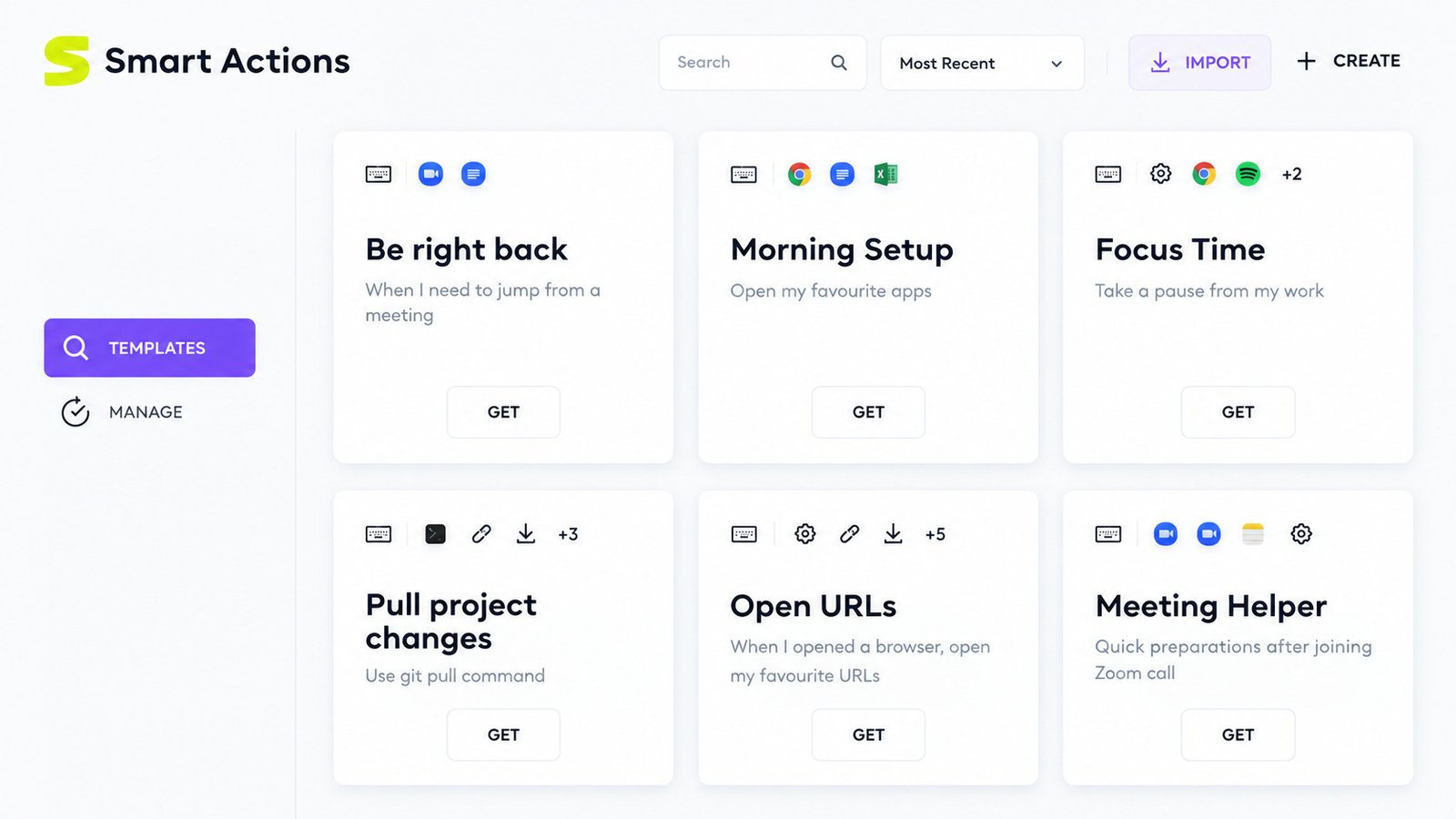
Logitech Drivers, Device Management, and Configuration
Behind the scenes, the app installs lightweight drivers so Windows or macOS recognizes your device correctly and applies your saved settings every time you reconnect it.
Logitech Software for Windows and Mac
Nearly every current Logitech app supports both Windows and macOS, though a handful of advanced settings — like certain keyboard shortcuts — differ slightly between the two systems.
Logi Options+ vs Logitech G HUB: Which One Do You Need?
This is the question most people search for, so let’s settle it quickly.
| Software | Best For | Devices Supported |
|---|---|---|
| Logi Options+ | Everyday mice, keyboards, webcams, and productivity devices | MX Master, MX Keys, Pebble, Ergo series, most business webcams |
| Logitech G HUB | Gaming mice, keyboards, headsets, and racing wheels | G-series mice, G-series keyboards, G-series headsets, racing wheels |
| Logi Sync | IT teams managing multiple business devices at once | Conference room and office device fleets |
| SetPoint (legacy) | Older, discontinued Logitech peripherals | Pre-2019 mice and keyboards |
If your device name starts with “MX,” “Pebble,” or “Ergo,” you almost certainly want Logi Options+. If it starts with “G” — like the G502 or G915 — you want Logitech G HUB.
Logi Options+ for Mice and Keyboards
Logi Options+ replaced the older Options app and combines its features into a cleaner, faster interface. It lets you customize buttons, set up Logi Flow for controlling multiple computers with one mouse and keyboard, and back up your settings automatically.
Logitech G HUB for Gaming Devices
G HUB acts as a single control center for your entire gaming setup — mice, keyboards, headsets, speakers, and webcams. You can fine-tune sensor DPI, remap macro-ready G-keys, sync LIGHTSYNC RGB lighting across devices, and download community-made lighting and macro profiles.
Logitech Onboard Memory Manager
Many gaming mice and keyboards store profiles directly on the device itself. This means your DPI stages, button assignments, and lighting settings travel with the hardware, even on a computer without G HUB installed.
Logi Sync for Business Device Management
Logi Sync gives IT administrators a way to monitor and update conference room cameras, speakers, and collaboration devices remotely, which is especially useful for offices with multiple meeting rooms.
Official Apps — Strengths
- Full onboard memory profile support
- LIGHTSYNC RGB lighting sync across devices
- Automatic firmware updates
- Built and signed directly by Logitech
Official Apps — Trade-offs
- Two separate apps depending on device line
- Background service can occasionally conflict
- No official Linux build
- Heavier than a single lightweight remap tool
How to Download and Install Logitech Software
Getting set up correctly the first time avoids most future headaches.
Identify your device. Check the model name printed on the underside of your mouse or keyboard.
Go to the official Logitech support site and search for that model.
Download the recommended app — the page will point you to either Logi Options+ or G HUB automatically.
Run the installer and allow any system permission prompts (this is normal and required for Bluetooth or USB access).
Restart your computer if the app asks you to, especially on macOS.
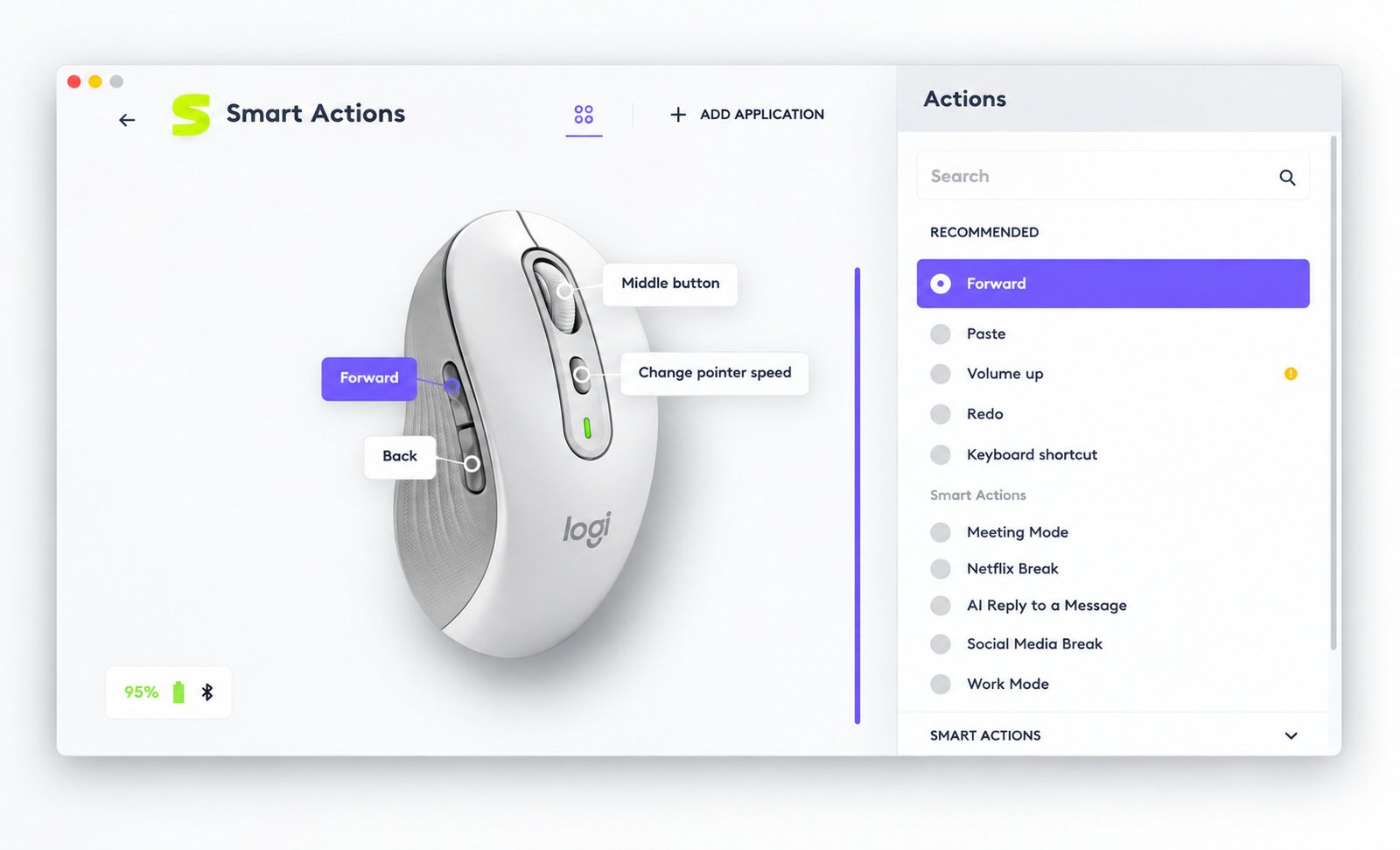
Install Logitech Software on Windows
On Windows, installation is usually a straightforward “Next, Next, Finish” process, and the app will launch automatically once setup completes.
Install Logitech Software on Mac
On Mac, you’ll likely need to grant Accessibility and Bluetooth permissions in System Settings > Privacy & Security before the app can fully control your device.
Connect Logitech Devices After Installation
Once installed, open the app and it should detect your device within a few seconds if it’s paired correctly. If nothing appears, try unplugging and reconnecting the USB receiver or toggling Bluetooth off and on.
Setting Up Your Logitech Mouse and Keyboard
Connect a Logitech Wireless Mouse
Most wireless Logitech mice connect one of three ways: a USB receiver, Bluetooth, or both. Plug in the receiver (or turn on Bluetooth), power on the mouse, and it should pair within seconds.
Logi Bolt and Unifying Receiver Setup
Logitech uses two receiver standards. The newer Logi Bolt receiver offers stronger encryption and is used by business and premium devices. The older Unifying receiver still works with many mice and keyboards released before 2022.
Receivers are not interchangeable. A Bolt-only mouse will not pair with a Unifying receiver, and vice versa — check which standard your device uses before assuming a lost receiver can be swapped for a spare.
Pair a Logitech Mouse or Keyboard With a Receiver
Open Logi Options+, click “Add Device,” select “Add a device with a USB receiver,” and follow the on-screen pairing sequence, which usually just means pressing a small connect button on the underside of the device.
Connect a Logitech Bluetooth Mouse
Put the mouse into pairing mode (usually by holding a small Bluetooth button), then select it from your computer’s Bluetooth menu. Once paired at the system level, Logi Options+ will detect it automatically.
Reset a Logitech Keyboard
If your keyboard stops responding, turn it off, remove and reinsert the batteries (or hold the power button for 10 seconds on rechargeable models), then turn it back on and re-pair it.
Logitech G HUB for Gamers
Configure Logitech Gaming Mice and Keyboards
Inside G HUB, each connected device gets its own dashboard where you can adjust DPI stages, button assignments, polling rate, and lighting — all saved to a profile that can switch automatically per game.
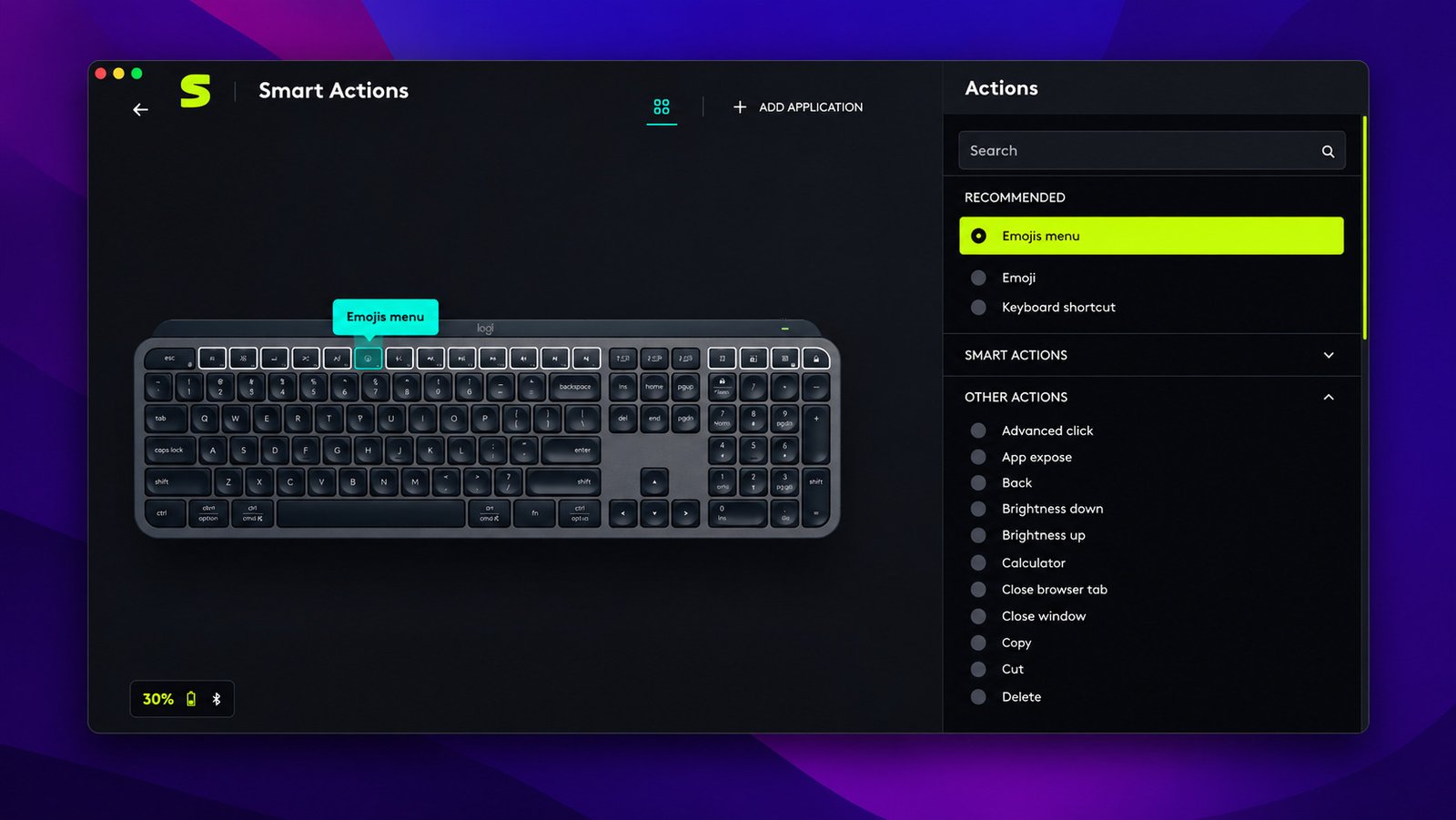
Logitech Racing Wheel and Pedal Software
Racing wheels like the G29 and G920 also run through G HUB, which handles force-feedback strength, pedal calibration, and button mapping for sim racing titles.
Logitech G HUB on Linux
G HUB doesn’t officially support Linux, but many G-series devices can be partially configured using community tools like Piper or OpenRGB, though features will be more limited than on Windows or Mac.
Logitech Webcam and Headset Software
Webcams such as the Brio series use Logi Options+ or the dedicated Logitech Capture app to adjust field of view, exposure, and background effects for video calls and streaming. Headsets connect the same way, with EQ and microphone settings available through whichever app matches the device line.
Tip: If you’re using a Logitech webcam for content creation and end up with hundreds of recorded clips or photos to organize afterward, a lightweight file-organizing tool like File Juggler can automatically sort new recordings into the right folders as they’re saved, which saves a surprising amount of manual cleanup.
Logitech Software Not Working: Common Errors and Fixes
| Problem | Likely Fix |
|---|---|
| Logi Options+ won’t open | Restart the background service or reinstall the app |
| App shows “backend connection problem” | Restart your computer, then relaunch the app |
| Mouse or keyboard not detected | Re-seat the USB receiver in a different port |
| G HUB won’t detect device | Fully uninstall, restart, then reinstall the latest version |
| Bluetooth device keeps disconnecting | Update Bluetooth drivers and remove/re-pair the device |
If none of these fixes work, a clean uninstall — removing the app plus any leftover files in the installation folder — followed by a fresh download from Logitech’s official support site resolves the vast majority of persistent issues.
Is Logitech Software Safe to Use?
Yes. Logi Options+ and G HUB are developed and digitally signed by Logitech, and they only request the permissions needed to manage connected devices, such as Bluetooth access and input monitoring.
As with any software, it’s worth downloading only from Logitech’s official site rather than third-party download portals, which sometimes bundle unwanted extras.
Keeping the app updated also matters, since updates frequently include firmware improvements and security patches for wireless connections.
Best Logitech Software Alternatives
If you’d rather not run Logitech’s own app — or you’re using the device with non-Logitech gear — a few alternatives cover similar ground:
- X-Mouse Button Control — lightweight button remapping for any mouse brand
- SharpKeys — simple keyboard key remapping on Windows
- Piper / OpenRGB — open-source options for Linux users with G-series gear
- Karabiner-Elements — advanced keyboard customization on macOS
None of these fully replicate onboard memory profiles or LIGHTSYNC lighting sync, so most Logitech owners still get the best experience from the official apps.
Frequently Asked Questions
If it’s an MX, Pebble, or Ergo mouse, use Logi Options+. If it’s a G-series gaming mouse, use G HUB.
No. G HUB is built for Logitech G gaming gear, while Logi Options+ is built for everyday mice, keyboards, and webcams.
Open the app, click “Add Device,” then follow the pairing steps for your receiver or Bluetooth connection.
Insert the receiver, open Logi Options+, select “Add a device,” and follow the short pairing prompt.
Usually a background service conflict — restart your computer, or fully reinstall the app if that doesn’t help.
Try a different USB port for the receiver, or remove and re-pair the device over Bluetooth.
Logi Options+ and G HUB both support macOS. Linux support is unofficial and limited to community tools.
Final Verdict: Which Logitech Software Is Best for Your Device?
Choosing the right Logitech software really comes down to one question: is this device for work or for gaming? Everyday mice and keyboards belong with Logi Options+, while anything from the G-series lineup runs best on G HUB.
Once you’ve matched the app to the device and gone through setup, most people never think about it again — it just quietly keeps buttons mapped, batteries monitored, and firmware current in the background. And if something ever does go wrong, a quick reinstall solves the overwhelming majority of problems.