BullZip PDF Printer Download, Features, Setup, and Alternatives
If you just need to turn a Word document, webpage, or invoice into a PDF without buying a full PDF suite, BullZip PDF Printer has quietly been one of the go-to free tools for that job for almost two decades. It installs like a printer and works from literally any Windows program that can print. This guide covers what BullZip PDF Printer actually does, how to download and set it up, its security and automation features, common problems, and how it compares to alternatives like PDFCreator and Microsoft Print to PDF.
What Is BullZip PDF Printer and How Does It Work?
BullZip PDF Printer Software Overview
BullZip PDF Printer is a free virtual printer for Windows that converts any printable document into a PDF file, developed by BullZip (also known commercially as bioPDF).
What Is a Virtual PDF Printer?
A virtual printer behaves like a physical printer inside Windows, except instead of sending pages to paper, it saves the output as a digital file — in this case, a PDF.
How BullZip PDF Printer Creates PDF Files
Direct answer: you select BullZip PDF Printer from any application’s print dialog, and instead of printing on paper, it generates a PDF file using the Ghostscript engine behind the scenes.
BullZip PDF Printer vs a Traditional PDF Creator
Unlike apps that only convert specific file types (like Word-to-PDF tools), a print-based converter works with any application that has a print function, which is a much broader use case.
Who Is BullZip PDF Printer Best For?
BullZip suits:
- Home and small business users who need occasional, free PDF creation
- IT admins deploying a PDF printer across a network or terminal server
- Developers who want to automate PDF generation via command line or API
BullZip PDF Printer Features
Virtual PDF Printer for Windows
Once installed, BullZip PDF Printer appears as a printer option that runs on Windows and supports 64-bit operating systems, making it usable from essentially any desktop app.
Print to PDF From Any Windows Application
Whether you’re in a browser, a word processor, or an accounting program, if it has a Print command, it can output to BullZip.
PDF Creator, Generation, and Output Management
Core creation options include directing output to the same file each time or prompting for a destination, plus control over whether the resulting PDF opens automatically after creation.
PDF Security and Password Protection
BullZip supports password protection using AES-256/128-bit encryption or standard 128/40-bit encryption, letting you lock sensitive documents before sharing them.
PDF Watermarks and Custom Branding
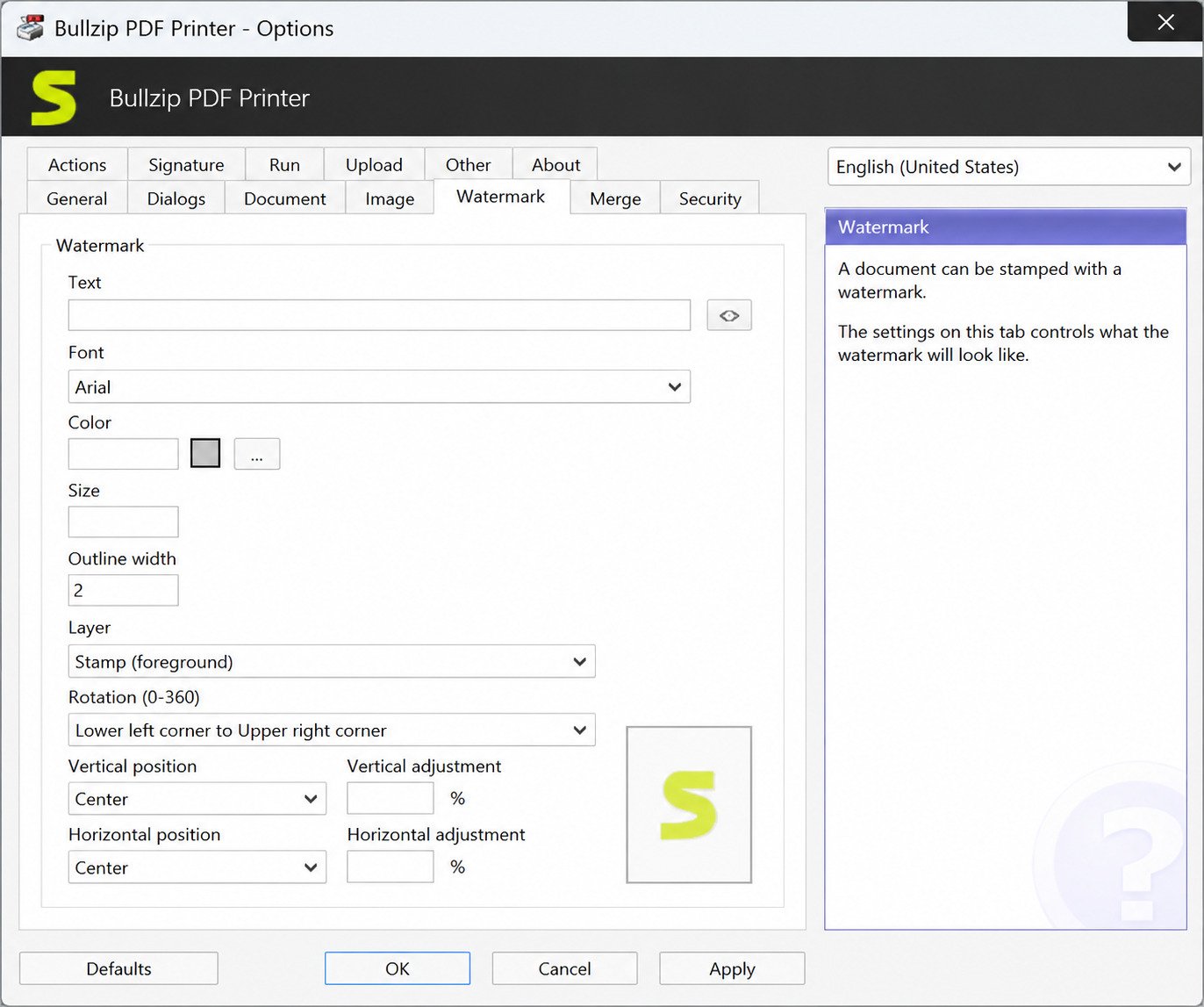
You can add watermark text with custom size, rotation, and transparency, useful for marking drafts, confidential files, or branded client documents.
PDF/A Support for Long-Term Archiving
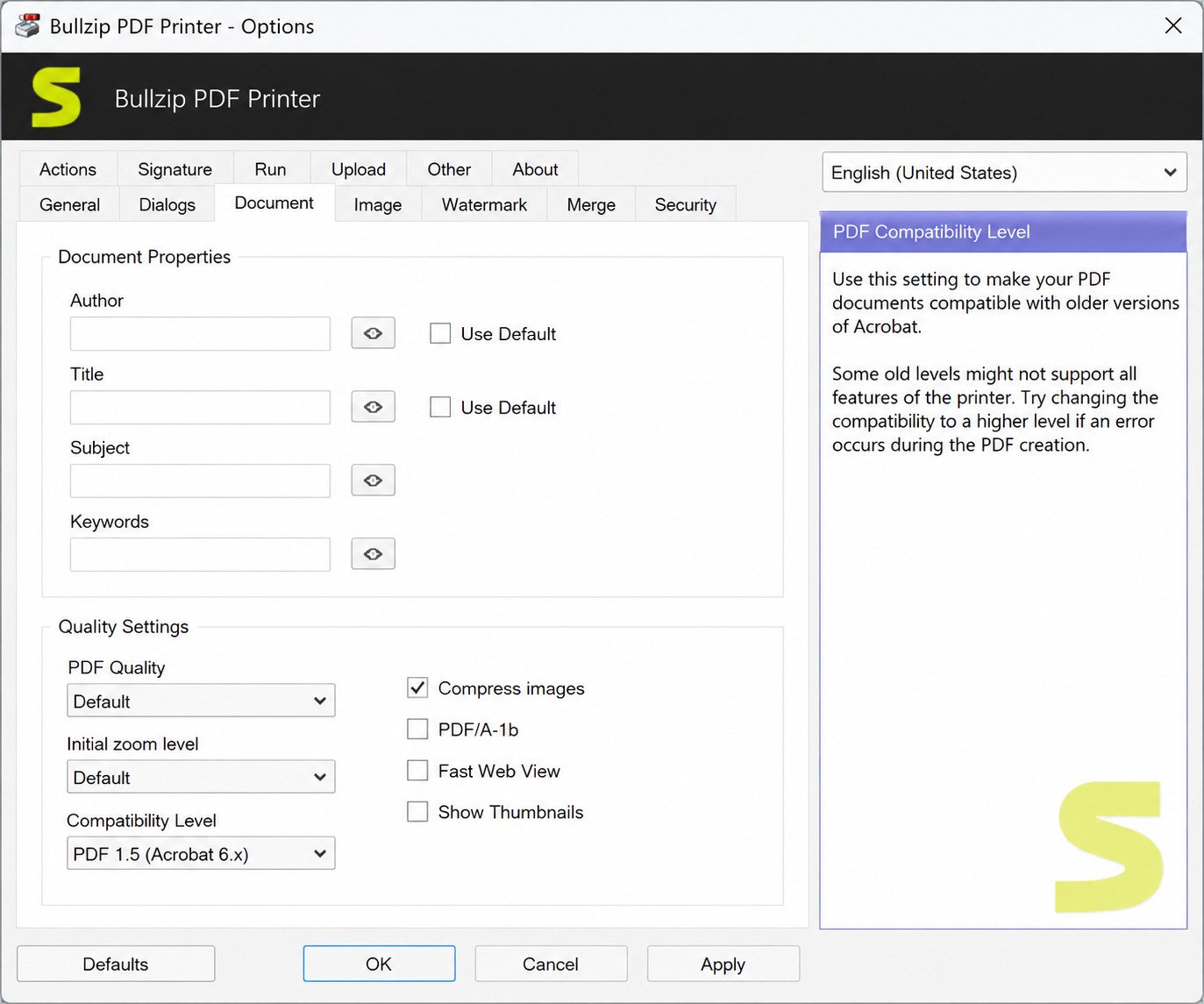
BullZip includes PDF/A-1b support, a format designed specifically for long-term document archiving where future readability matters more than file size.
Merge and Append PDF Documents
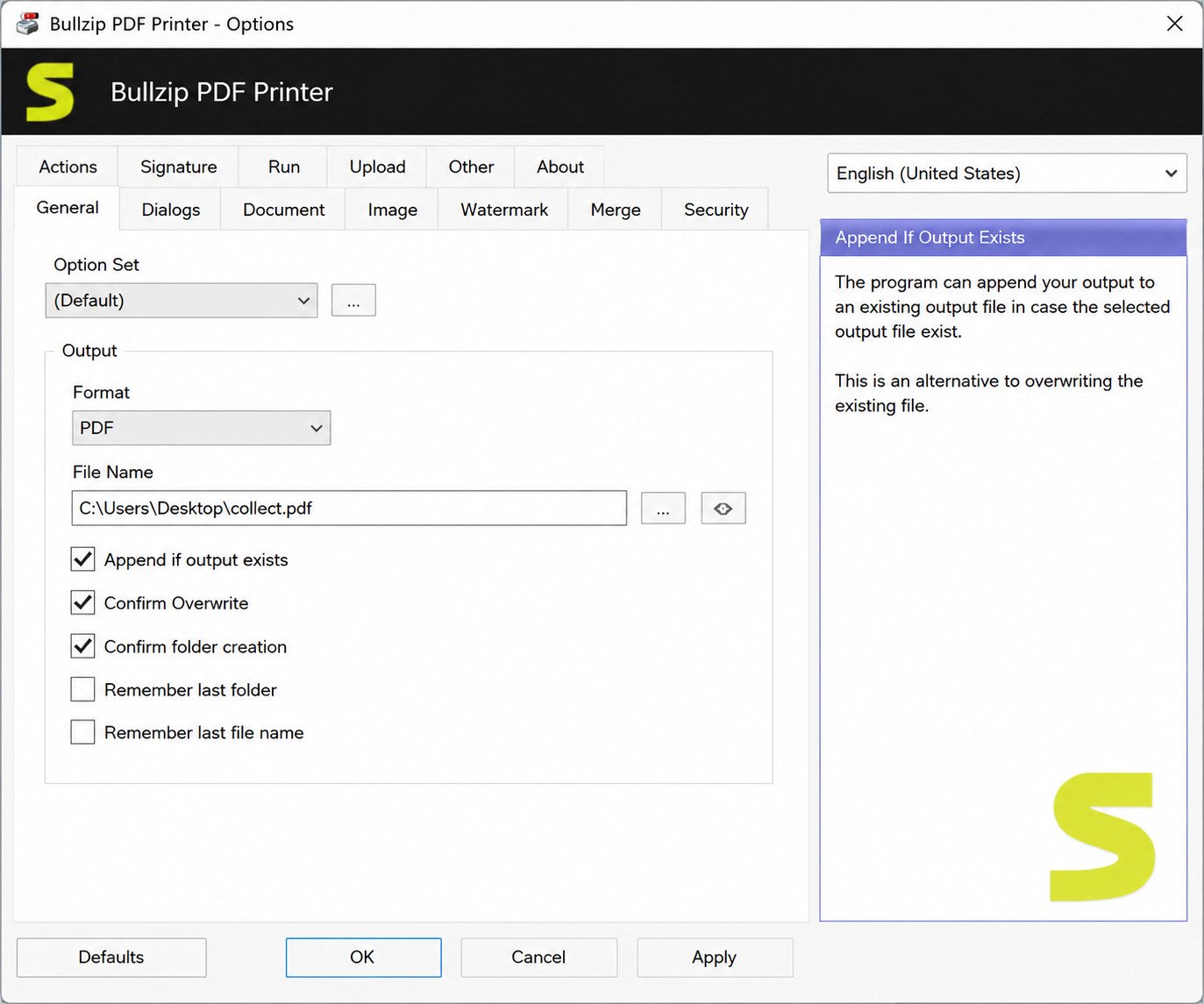
An unusual feature for a free tool: BullZip can append new content directly to an existing PDF file, which is handy for building a single combined document from multiple print jobs.
Digital Signatures and PDF Security
Documents can be signed with digital certificates, adding a layer of authenticity for business or legal documents.
Output PDF Files as Images
Beyond PDF, the tool can output BMP, JPEG, PCX, PNG, and TIFF files instead of a PDF, which is useful when you need an image version of a printed document.
How to Print to PDF With BullZip PDF Printer
How to Print to PDF on Windows
- Open the document or webpage you want to convert
- Choose Print from the application’s menu
- Select BullZip PDF Printer as the printer
- Click Print, then choose a filename and save location
How to Save Any Document as PDF
Because it works at the printer level, this same process applies whether you’re saving a report, a spreadsheet, or a scanned image.
How to Create a PDF Using a Virtual Printer
The key advantage of a virtual printer over “Save As PDF” menu options is consistency — one printer works the same way across every app, instead of each program needing its own export feature.
Print Different File Types to PDF
| Source File Type | How to Convert | Notes |
|---|---|---|
| Word documents | Print > BullZip PDF Printer | Preserves formatting, fonts, and layout |
| Excel spreadsheets | Print > BullZip PDF Printer | Set print area first to avoid oversized output |
| Webpages | Print > BullZip PDF Printer | Works from most browsers’ print dialog |
| Emails | Print > BullZip PDF Printer | Useful for archiving important correspondence |
| Images | Print > BullZip PDF Printer | Converts to PDF or another image format |
Since the process is identical across file types, you only need to learn it once to convert almost anything printable on your PC.
BullZip PDF Printer Download
BullZip PDF Printer Latest Version
Direct answer: as of early 2026, the current stable release is version 2026.0.0.2993, distributed as a free download for Windows.
BullZip PDF Printer Free Download
BullZip is free of charge for personal or commercial use by up to ten users, with a separate paid commercial version called bioPDF available for larger deployments.
BullZip PDF Printer Installer Options
The download is available as a standard installer, and BullZip also offers an offline installer and MSI package for environments that need to deploy without an internet connection or through Group Policy.
BullZip PDF Printer Old Versions
Older builds remain archived on some download mirrors, which can be useful if you’re supporting legacy systems that require an earlier version for compatibility.
BullZip PDF Printer for Windows
BullZip PDF Printer Windows 11 and Windows 10
BullZip PDF Printer runs on Windows 10 and Windows 11, in addition to both 32-bit and 64-bit systems.
Free PDF Printer Software for Windows
It remains one of the more fully featured free options, since many competing free tools strip out security or watermarking features that BullZip includes at no cost.
Windows Virtual PDF Printer Requirements
BullZip PDF Printer requires the free Ghostscript engine, version 8.54 or later, which is typically bundled with or downloaded during setup.
BullZip PDF Printer Installation and Setup
How to Install BullZip PDF Printer
- Download the installer from the official BullZip website
- Run the setup file and accept the license terms
- Allow the installer to add the Ghostscript component if prompted
- Complete setup, then find “BullZip PDF Printer” listed under your installed printers
Configuring PDF Output Options
After installation, an options dialog lets you set default output folders, file naming behavior, and whether to prompt for a destination on every print job.
Setting BullZip as Your Default PDF Printer
Right-click the BullZip PDF Printer icon in your Windows printer list and choose Set as default printer if you convert to PDF frequently.
Silent and Unattended Installation Options
For IT teams, setup can run unattended, and output and prompts can be controlled programmatically, which matters when deploying across many machines at once.
BullZip PDF Printer Security: Passwords, Encryption, and Signatures
How to Password Protect a PDF
During the print process, open the BullZip options and set an owner or user password before completing the job — the resulting PDF will require that password to open or edit.
Keep the encryption level in mind. Older 128/40-bit encryption is more compatible with legacy PDF readers, but AES-256/128-bit is the stronger choice for genuinely sensitive files.
PDF Encryption and Security Settings
Encryption choices include the stronger AES-256/128-bit option or the older 128/40-bit standard, depending on compatibility needs with the PDF reader on the receiving end.
Digital Signing for Authenticity
Signing a PDF with a digital certificate confirms who created the document and whether it has been altered since signing — a useful safeguard for contracts or official records.
PDF/A Creation and Document Archiving
What Is PDF/A and Why Does It Matter?
Direct answer: PDF/A is an ISO-standardized version of PDF built for archiving, designed to render identically decades from now regardless of software changes.
How to Create PDF/A Documents in BullZip
Selecting the PDF/A-1b output option during printing embeds fonts and color profiles directly into the file, which keeps it self-contained for long-term storage.
Merge, Combine, and Append PDF Files
Unlike many print-to-PDF tools, BullZip lets you build a single file across multiple print jobs:
- Append mode adds new pages to the end of an existing PDF
- Superimpose/background overlays one document on top of another
- This makes it possible to combine scanned pages, cover sheets, or multi-source reports into one file without a separate PDF editor
Print PDF Files and Documents as Images
If you need an image instead of a document, BullZip can output BMP, JPEG, PCX, PNG, and TIFF formats directly from the same print dialog, which is a quick way to turn a single-page document into a shareable image file.
BullZip PDF Printer for Business and Enterprise
Enterprise Deployment and Network Printing
BullZip supports Citrix MetaFrame, Windows Terminal Server, and RDP environments, making it viable for shared or virtualized desktop setups common in larger organizations.
Group Policy and Silent Deployment
The MSI package allows administrators to push installation through Group Policy, avoiding the need to manually install on each workstation.
BullZip PDF Printer Automation and API
Command-Line and Programmatic PDF Generation
Direct answer: BullZip includes a command-line interface and COM/ActiveX API, so PDF creation can be triggered automatically from scripts or other software.
.NET API for Developers
A Microsoft .NET API is available for developers building in C#, VB.NET, or other .NET languages, enabling fully automated PDF generation inside custom applications.
Common Automation Use Cases
- Automatically generating invoice PDFs from an accounting system
- Batch-converting a folder of reports on a schedule
- Uploading finished PDFs via FTP or SFTP as part of an automated workflow
BullZip PDF Printer Review: Pros, Cons, and Everyday Use
Strengths
- Genuinely free for personal and small business use, with no ads or nagware
- Works from any Windows application with a print function
- Includes encryption, watermarking, and digital signing features many free tools charge for
- Strong scripting and API support for automation
Limitations
- Windows-only, with no Mac or Linux version
- Output PDFs are not searchable and tend to be larger than files from some other converters
- Requires the separate Ghostscript component to function
Is BullZip PDF Printer Worth Using?
For anyone who just needs reliable, no-cost PDF creation with a few advanced options thrown in, BullZip remains one of the more complete free tools available for Windows.
BullZip PDF Printer Problems and Troubleshooting
| Problem | Likely Fix |
|---|---|
| Not showing in Printers list | Reinstall and confirm Ghostscript installed correctly |
| Installation failed | Run installer as administrator; temporarily disable antivirus |
| Driver not installed | Manually reinstall the print driver component from setup |
| Not creating PDF files | Check the configured output folder still exists and is writable |
| Errors on Windows 11 | Update to the latest BullZip version, since older builds may lack full Windows 11 support |
| Print jobs failing silently | Check application event logs and confirm Ghostscript path settings |
How to Uninstall BullZip PDF Printer
Use Windows Settings > Apps, locate BullZip PDF Printer, and select uninstall — this also removes the associated printer driver entry.
BullZip PDF Printer Alternatives
If BullZip isn’t quite the right fit, a few other free and paid tools cover similar ground:
- Microsoft Print to PDF — built into Windows, no installation needed, but very limited features
- PDFCreator — similar free virtual printer with a more modern interface
- CutePDF Writer — lightweight and simple, but fewer advanced options
- doPDF — another free virtual printer alternative with basic customization
BullZip PDF Printer vs Other PDF Printers
| Tool | Free Tier | Notable Strength |
|---|---|---|
| BullZip PDF Printer | Yes (up to 10 users) | Encryption, watermarking, automation API |
| PDFCreator | Yes | Modern UI, profile-based workflows |
| CutePDF Writer | Yes | Very lightweight, simple installs |
| doPDF | Yes | Straightforward, minimal setup |
| Microsoft Print to PDF | Built into Windows | Zero installation, very basic output only |
| Adobe PDF (via Acrobat) | Paid | Full PDF editing suite, not just printing |
Which PDF Printer Is Best for Windows?
If you only need occasional, basic PDFs, Microsoft’s built-in option is enough. If you want security, watermarking, and automation without paying, BullZip is hard to beat.
If your workflow also involves managing and organizing the files you create along the way, a tool like File Juggler can automatically sort your newly generated PDFs into the right folders. For a trusted technical reference on the PDF/A archival standard, the ISO official page on PDF/A is a solid authority source.
Frequently Asked Questions About BullZip PDF Printer
Yes, it’s free for personal or commercial use by up to ten users, with a paid commercial edition available for larger teams.
Yes, current versions support Windows 11 alongside Windows 10.
Yes, it supports both AES-256/128-bit and standard 128/40-bit encryption during PDF creation.
Yes, you can add custom text watermarks with adjustable size, rotation, and transparency.
Yes, it can append new print output directly onto an existing PDF file.
Yes, it includes a command-line interface plus COM and .NET APIs for automated PDF generation.
PDFCreator and Microsoft Print to PDF are the most commonly compared alternatives, depending on whether you need advanced features or just basic conversion.
Final Verdict: Is BullZip PDF Printer a Good PDF Printer for Windows?
For a tool that costs nothing, BullZip PDF Printer punches well above its weight. Encryption, watermarking, digital signing, and automation are features you’d normally expect to pay for, yet they’re all built into the free version.
It won’t replace a full PDF editing suite, and the output files can run a bit larger than some competitors. But for straightforward, reliable “print anything to PDF” needs on Windows, it’s a dependable choice that has earned its long-standing reputation. Learn more directly from BullZip’s official product page.
2 Responses