iBoysoft Download, Features, Setup, and Alternatives
Losing a folder full of photos or watching a hard drive turn into an unreadable “RAW” mess is one of those moments that makes your stomach drop. If you’ve landed here after typing “iBoysoft” into a search bar in a bit of a panic, take a breath — you’re in the right place. This guide walks through what iBoysoft actually is, what its different tools do, how to download and set them up, and when you might be better off with something else.
What Is iBoysoft?
iBoysoft is a software brand built around one core problem: getting your data back, and making disks behave the way you need them to. It isn’t a single app — it’s a small family of Windows and Mac utilities that handle data recovery, NTFS compatibility, disk management, and BitLocker encryption.
iBoysoft Software Overview
At its core, iBoysoft makes desktop applications, not browser tools or cloud services. That matters because real recovery work — reading raw sectors off a failing drive, rebuilding a broken partition table, decrypting a BitLocker volume — has to happen locally, with direct access to your storage hardware. A web app simply can’t do that.
The lineup includes:
- iBoysoft Data Recovery (Mac and Windows editions)
- iBoysoft NTFS for Mac
- iBoysoft DiskGeeker
- iBoysoft BitLocker Recovery / DiskGeeker’s BitLocker module
What Can iBoysoft Do?
Broadly, iBoysoft products cover three jobs: recovering lost or deleted files, bridging the gap between Mac and Windows file systems, and giving you disk-management powers your operating system doesn’t normally offer (like BitLocker on Windows Home editions).
iBoysoft Data Recovery, NTFS for Mac, and DiskGeeker
These three are the products people search for most. Data Recovery focuses purely on getting files back. NTFS for Mac solves the annoying “why can’t my Mac write to this Windows drive” problem. DiskGeeker is the all-rounder — disk cloning, space analysis, secure wiping, partition resizing, and BitLocker management rolled into one app.
Is iBoysoft Safe to Use?
Based on independent listings on marketplaces like GetApp, Capterra, and Techjockey, iBoysoft is a legitimate, established vendor rather than a fly-by-night download. That said, treat it the way you’d treat any recovery tool: download only from the official iboysoft.com site or a verified store listing, and avoid third-party “cracked” download links, which are a common source of malware bundled with pirated recovery software.
Only download iBoysoft from iboysoft.com or a verified store listing. Cracked or “pre-activated” mirrors are a common source of malware bundled with pirated recovery software.
iBoysoft Features
Data Recovery and File Recovery
The recovery engine scans for deleted photos, videos, Office documents, emails, and audio files, then rebuilds them even when the original file table is damaged.
Mac and Windows Data Recovery
Separate builds exist for macOS and Windows, each tuned to that platform’s file systems (APFS/HFS+ on Mac, NTFS/FAT32/exFAT on Windows).
Hard Drive and SSD Recovery
The software also lets you pause a scan and pick it back up later, which genuinely matters on large hard drives and SSDs where a full scan can take hours.
USB and External Drive Recovery
USB flash drives, external hard drives, SD cards, and CF cards are all supported storage types.
Partition and Disk Recovery
Beyond individual files, iBoysoft can search for and rebuild lost or deleted partitions — useful after a botched repartitioning job or a corrupted partition table.
APFS Data Recovery
On the Mac side, APFS (Apple’s modern file system) is fully supported, alongside older HFS+ volumes.
BitLocker Encrypted Drive Recovery
It’s built to handle missing partitions, corrupted volumes, and even data trapped behind BitLocker encryption. That last one is a genuinely rare feature among consumer recovery tools.
NTFS Read and Write Support on Mac
This is handled by the separate NTFS for Mac product, which unlocks full read-write access to Windows-formatted drives that macOS would otherwise only let you read.
Disk Management and Storage Tools
DiskGeeker rounds things out with cloning, wiping, resizing, and speed-testing tools that go beyond what Disk Utility or Windows Disk Management offer out of the box.
iBoysoft Data Recovery Software
iBoysoft Data Recovery for Mac
The Mac edition targets Time Machine-formatted drives, internal SSDs on Apple Silicon and Intel Macs, and external volumes, with support for APFS, HFS+, and exFAT.
iBoysoft Data Recovery for Windows
The Windows edition can build a bootable USB recovery drive so you can pull files off a PC or laptop that won’t even boot, and its disk-imaging and cloning tools help speed up recovery from fragmented drives with bad sectors. It can even pull data from scratched optical discs.
Recover Deleted and Lost Files
Whether a file was emptied from the Recycle Bin/Trash or vanished after a sync error, the deep-scan mode looks for file signatures even when the file system entry is gone.
Recover Data From Hard Drives and SSDs
Both spinning HDDs and modern SSDs (including NVMe drives) are supported, though SSD recovery odds drop quickly once TRIM has run — more on that below.
Recover Files From USB and External Drives
This is one of the most common real-world use cases: a USB stick or external drive that suddenly shows “0 bytes” or asks to be formatted.
Recover Data From Formatted Drives
Quick-formatted drives (as opposed to a full low-level format) generally leave underlying data intact long enough for recovery software to find it.
Recover Data From Corrupted or Inaccessible Drives
By reading raw sectors directly from the hardware instead of going through the normal file explorer, it can often pull directories and files off drives that look completely dead or that Windows insists need to be formatted.
APFS File and Partition Recovery
APFS containers, snapshots, and volume groups on Mac get dedicated handling, which matters since APFS structures data quite differently from older HFS+ drives.
If your SSD has TRIM enabled (the default on modern Macs and Windows PCs), deleted blocks are often wiped by the drive’s firmware within seconds, not hours. No recovery tool — iBoysoft included — can bring back data that TRIM has already erased. Stop using the drive immediately if you suspect accidental deletion; every extra write reduces your odds.
iBoysoft NTFS for Mac
What Is iBoysoft NTFS for Mac?
It’s a small Mac utility whose whole job is unlocking full read-write access to Microsoft NTFS drives on macOS, so files move between a Windows PC and a Mac without friction.
How to Read NTFS Drives on Mac
macOS can already read NTFS drives natively — that part isn’t the problem. The frustration starts the moment you try to copy, edit, or delete something.
How to Write to NTFS Drives on Mac
There’s no reformatting or fiddly configuration involved. Once installed, NTFS drives behave like any native Mac volume in Finder.
Mount NTFS External Drives on macOS
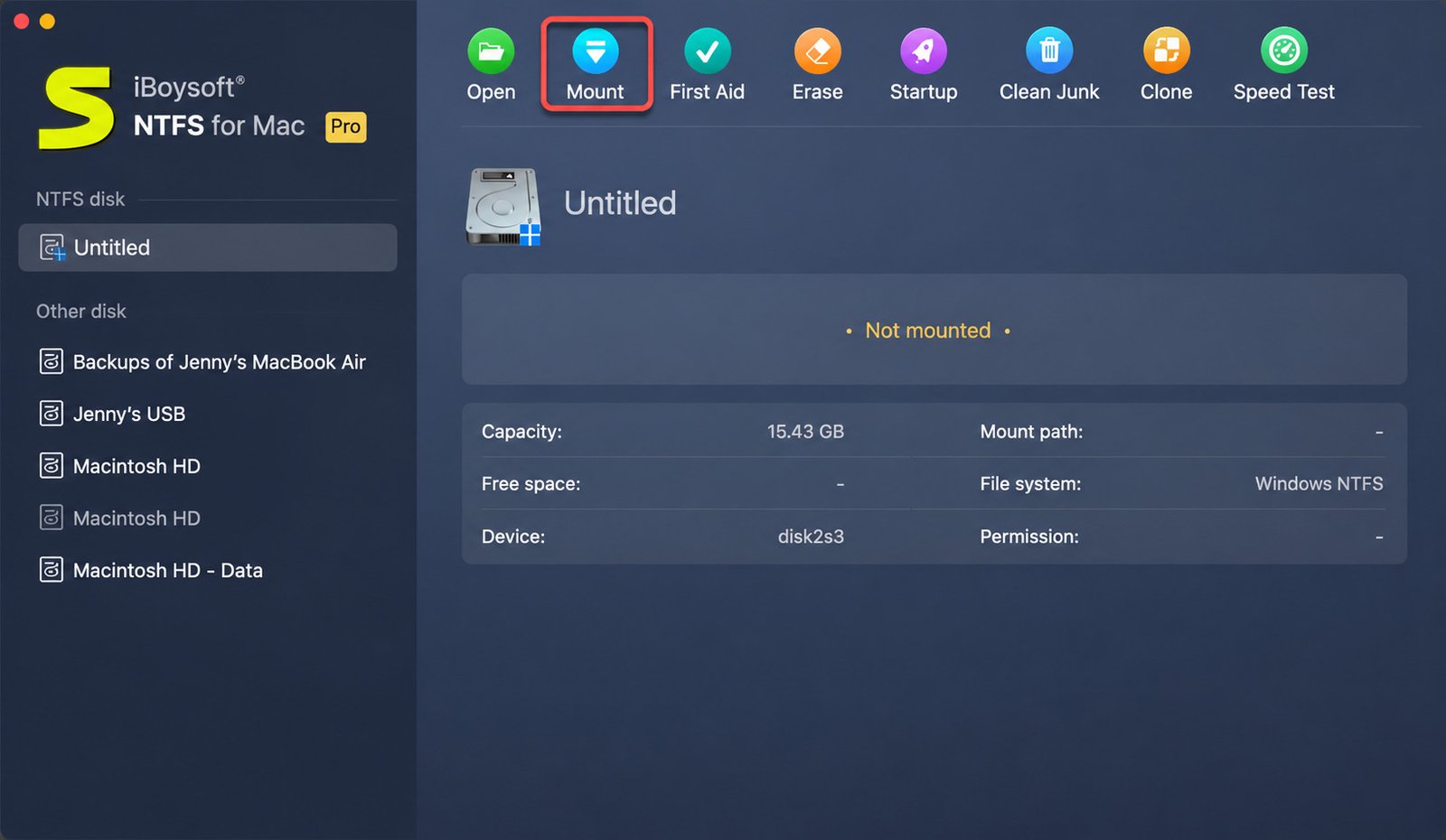
Plug an NTFS drive in and it mounts on its own in the background — you don’t even need to open the app first. From there you can copy, rename, tag files, or use the drive for a Time Machine backup, just like a native Mac volume.
NTFS USB and Hard Drive Support
Both external hard drives and USB flash drives formatted as NTFS are covered under the same driver.
iBoysoft NTFS for Mac Features
Beyond read-write access, it doubles as a small disk manager, letting you open, eject, mount, unmount, repair, and format both NTFS and non-NTFS drives connected to a Mac.
iBoysoft NTFS for Mac Compatibility
Compatibility runs from macOS 10.13 all the way up through the newest macOS Tahoe release, and covers Apple Silicon from the M1 through the M5 generation. Setup does require approving a system extension and granting Full Disk Access — a normal part of how Apple handles any third-party file system driver, though a few reviewers find the step more involved than they expected.
iBoysoft DiskGeeker
What Is iBoysoft DiskGeeker?
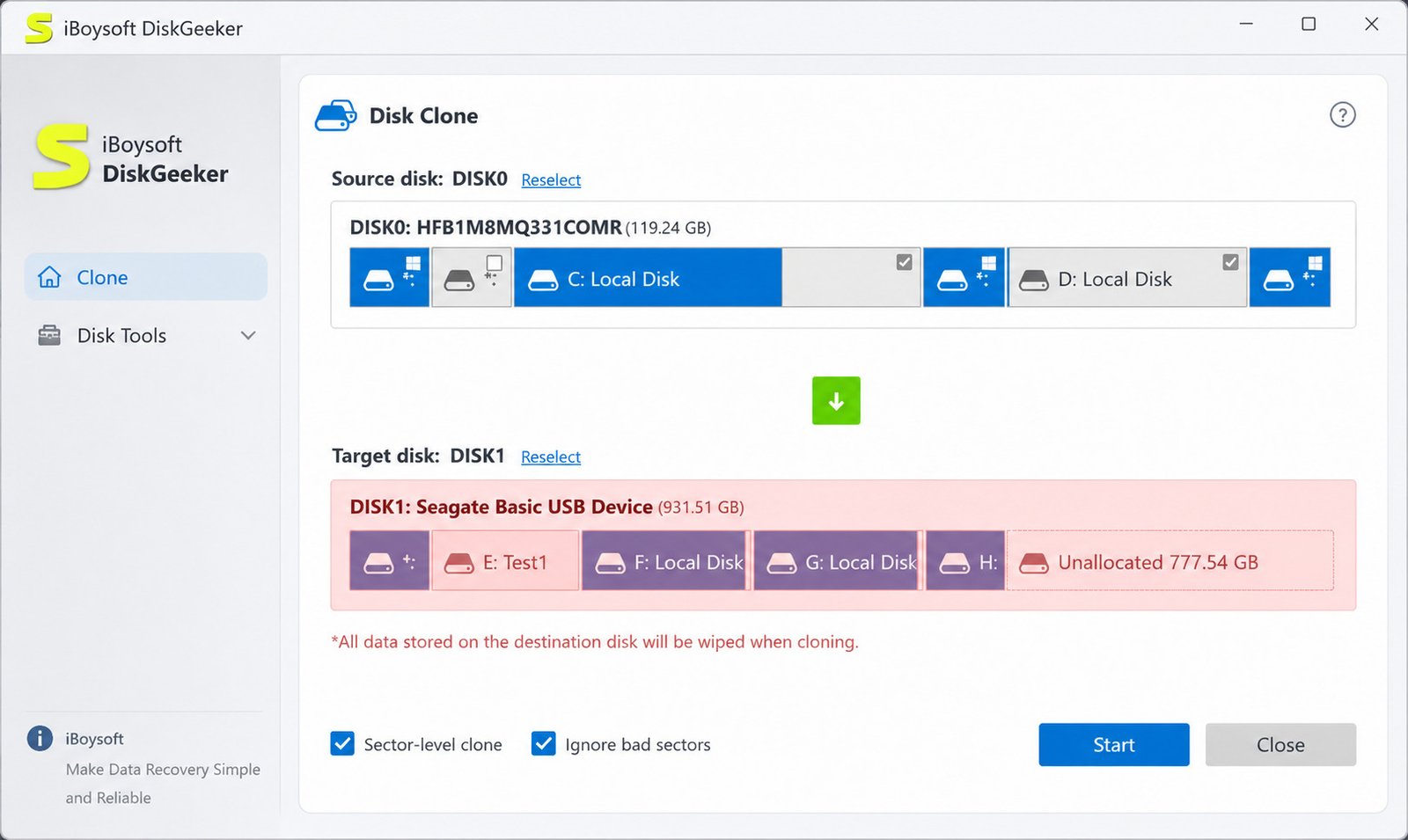
DiskGeeker packages disk cloning, BitLocker encryption, a storage-space analyzer, secure data wiping, a speed test, partition resizing, and lost-partition recovery into one app.
Disk Management and Storage Tools
Think of it as the “Swiss Army knife” of the iBoysoft lineup — less specialized than Data Recovery, but broader in scope.
Disk Partition Management
You can resize, format, and reorganize partitions without needing separate third-party tools for each job.
External Drive and Volume Management
Connect external drives and manage them the same way you would internal ones, including formatting and repair.
Disk Repair and File Management Features
A built-in cleaner scans for junk files and oversized items and breaks down space usage across a system partition, a user folder, or any folder you point it at.
iBoysoft DiskGeeker for Mac and Windows
The Windows build leans heavily into BitLocker and cloning; the Mac build focuses more on volume and space management given how differently macOS handles disks.
iBoysoft BitLocker Recovery
What Is BitLocker Recovery?
BitLocker is Microsoft’s built-in drive encryption. BitLocker recovery, in this context, covers two different scenarios: getting data off a corrupted encrypted drive, and enabling BitLocker-style encryption on Windows editions that don’t normally support it.
Recover Data From a BitLocker Encrypted Drive
iBoysoft can run a full scan on a BitLocker-encrypted drive to recover lost or deleted files from it. You’ll need the correct password or recovery key to unlock the volume first — no legitimate tool can bypass BitLocker encryption without it, and you should be suspicious of any that claims otherwise.
BitLocker Recovery Key and Password Issues
If you’ve lost your recovery key, check your Microsoft account online, your organization’s IT department (for work devices), or a printed copy you may have saved during setup — this is standard Microsoft guidance, not something recovery software can substitute for.
Recover Files From an Encrypted Disk
Once unlocked, the drive is scanned the same way any other volume would be, looking for deleted or lost files within the decrypted file system.
iBoysoft BitLocker Recovery Features
Windows Home editions normally leave out the full BitLocker management interface, so DiskGeeker fills that gap, letting you encrypt NTFS, exFAT, and FAT32 drives without paying for a Pro upgrade. Its partition-management mode also covers resuming an interrupted encryption, rolling a partition back to its original state, backing up or looking up a recovery key, and locking or unlocking encrypted partitions.
iBoysoft Download for Mac and Windows
iBoysoft Latest Version
Always grab the current build from iboysoft.com rather than a mirror site — recovery software is a common target for bundled adware on third-party download portals.
iBoysoft Free Download
The Windows edition is built to pull back deleted or lost photos, videos, audio, documents, and emails from HDDs, SSDs, SD cards, CF cards, memory sticks, and USB drives. Even the trial covers a wide range of scenarios: emptied recycle bins, corrupted disks, formatted drives, RAW drive repair, BitLocker-locked drives, and lost partitions.
iBoysoft Data Recovery Download
The free download lets you scan and preview recoverable files; you’ll need a license to actually save recovered files past a certain size or count, which is standard practice across the recovery-software category (EaseUS and Disk Drill both work the same way).
iBoysoft Data Recovery for Mac Download
Downloaded as a standard .dmg installer; macOS Gatekeeper may ask you to approve it in System Settings the first time you run it.
iBoysoft Data Recovery for Windows Download
Comes as an .exe installer, and this matters — you should install it onto a different drive than the one you’re trying to recover from, to avoid overwriting the very data you want back.
iBoysoft NTFS for Mac Download
You can grab it directly from iBoysoft or find it bundled inside subscription services like Setapp. A short free trial lets you test read-write access before buying.
iBoysoft DiskGeeker Download
Distributed as a standalone installer for Windows and Mac; avoid “portable” or “pre-activated” versions circulating on file-sharing sites, since these often carry tampered installers.
iBoysoft BitLocker Recovery Download
This isn’t a separate installer — it’s a module inside DiskGeeker (Windows) and a feature inside Data Recovery, so downloading either of those gets you BitLocker capability.
iBoysoft System Requirements and Compatibility
| Product | macOS Support | Windows Support | Notes |
|---|---|---|---|
| iBoysoft Data Recovery (Mac) | macOS 10.13–latest (Apple Silicon & Intel) | — | APFS, HFS+, exFAT, FAT32 |
| iBoysoft Data Recovery (Windows) | — | Windows 7–11, Server editions | NTFS, FAT32, exFAT, ReFS (read) |
| iBoysoft NTFS for Mac | macOS 10.13–macOS Tahoe, M1–M5 chips | — | Requires system extension approval |
| iBoysoft DiskGeeker | Yes | Yes (Home & Pro editions) | BitLocker module is Windows-only |
iBoysoft for macOS
Both Apple Silicon (M1 through M5) and older Intel Macs are supported across the current product line, though very old macOS versions may run into slower performance.
iBoysoft for Windows
Windows 7 through 11 are all covered, including Home editions — which is notable, since Home editions normally lack native BitLocker support that DiskGeeker adds back in.
NTFS Drive Compatibility on Mac
Any drive formatted with the standard NTFS file system works, regardless of whether it was originally set up on a Windows desktop, laptop, or external enclosure.
APFS and Other File System Support
APFS, HFS+, FAT32, and exFAT are all readable and recoverable on the Mac side of the product line.
External Hard Drive and USB Compatibility
Standard USB, USB-C, and Thunderbolt external drives all work, provided the drive itself is mechanically healthy enough for the OS to detect it at all.
How to Install and Set Up iBoysoft
How to Install iBoysoft on Mac
Download the .dmg, drag the app into Applications, then launch it and approve any system extension prompts in System Settings > Privacy & Security.
How to Install iBoysoft on Windows
Run the .exe installer — ideally onto a drive other than the one you plan to recover — and follow the setup wizard’s default options unless you have a specific reason to change them.
iBoysoft Setup Guide
- Download the correct edition for your OS and use case (Data Recovery, NTFS for Mac, or DiskGeeker).
- Install it onto a healthy, separate drive if recovery is the goal.
- Launch the app and grant any permissions it requests (Full Disk Access on Mac is common).
- Select the target drive or partition you want to work with.
- Run a scan (for recovery tools) or open the relevant module (for DiskGeeker/NTFS).
How to Configure iBoysoft Data Recovery
On first launch, you’ll pick the drive to scan and, optionally, a file-type filter (photos, documents, video, etc.) to speed up scanning if you know what you’re looking for.
How to Set Up iBoysoft NTFS for Mac
After installation, connect your NTFS drive — it should mount automatically in Finder. If it doesn’t, open the app once to trigger the driver, then reconnect the drive.
How to Use iBoysoft After Installation
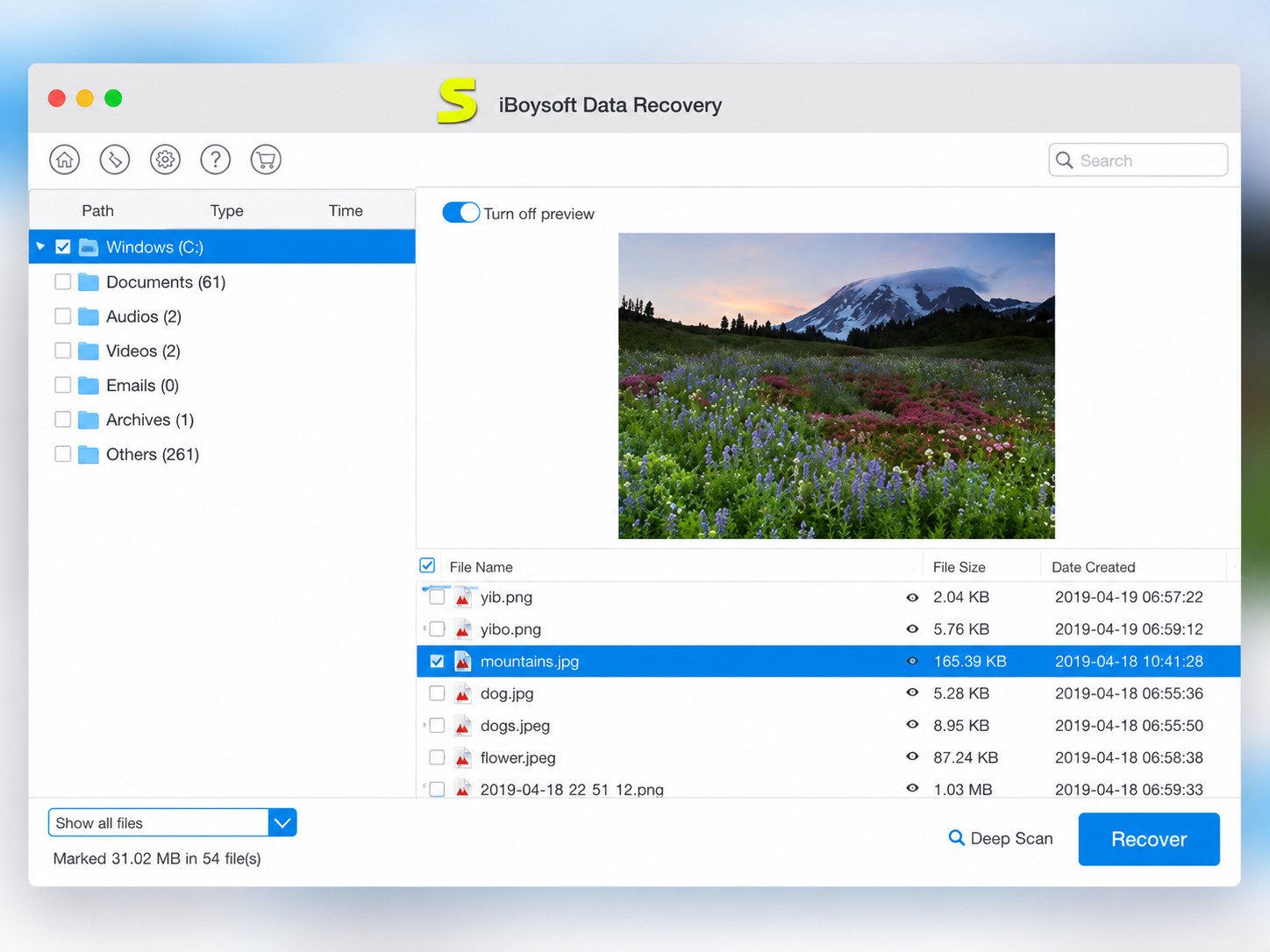
For recovery tools, the general flow is: select drive → scan → preview → recover to a different drive. Never recover files back onto the same drive you scanned.
How to Recover Deleted Files With iBoysoft
How to Scan a Drive for Lost Files
Open the app, select the affected drive or partition, and choose between a quick scan (faster, finds recently deleted files) or a deep scan (slower, finds older or more deeply lost data).
How to Recover Deleted Files on Mac
Preview the results by file type, tick the ones you need, and save them to an external drive rather than back onto your Mac’s internal storage.
How to Recover Deleted Files on Windows
Same principle applies: scan, preview, and export recovered files to a USB drive or a different internal disk.
How to Recover Lost Data From a Hard Drive
For a full hard drive that’s failing or was reformatted, a deep scan is usually necessary since the standard file index may already be gone.
How to Recover Data From an External Hard Drive
Connect the drive, confirm it’s detected in the app’s drive list, and run the same scan-preview-recover flow.
How to Recover Deleted Files From USB
USB drives recover the same way as external hard drives; just be aware smaller flash drives sometimes fail electronically rather than logically, in which case no software can help.
How to Recover Data From a Formatted Drive
Choose the drive, run a deep scan, and look through results organized by file type — formatted drives often preserve underlying data structures that a quick scan alone would miss.
How to Recover Data From a Corrupted Drive
If the drive shows as RAW or asks to be formatted, don’t format it. Run the recovery scan first; formatting can overwrite the file table you’re trying to rebuild.
If a drive shows as RAW or prompts you to format it, run a recovery scan first. Formatting can overwrite the file table you’re trying to rebuild.
How to Recover Data From a BitLocker Drive
How to Scan a BitLocker Encrypted Drive
Unlock the drive with your password or recovery key first, then point the recovery tool at it just as you would an unencrypted volume.
How to Recover Files From an Encrypted Drive
Once unlocked and scanned, recovered files are decrypted automatically as part of the normal file system read — there’s no separate decryption step needed after unlocking.
What to Do If a BitLocker Drive Is Inaccessible
Double-check you’re using the exact recovery key tied to that specific drive (each BitLocker volume has its own unique key) before assuming the drive itself has failed.
BitLocker Recovery Troubleshooting
If the drive won’t unlock at all, the issue may be a failing drive controller rather than BitLocker itself — in that case, professional data recovery services may be the safer route rather than repeated scan attempts.
How to Use iBoysoft NTFS for Mac
How to Connect an NTFS Drive to a Mac
Plug the drive in via USB, USB-C, or Thunderbolt, exactly as you would any other external drive.
How to Read Files From an NTFS Drive
This works out of the box on any Mac, with or without additional software — macOS has native read-only NTFS support built in.
How to Write Files to an NTFS Drive
This is where iBoysoft NTFS for Mac comes in, unlocking the copy, delete, and rename actions macOS blocks by default on NTFS volumes.
How to Mount an NTFS Drive on Mac
With the app installed, drives mount on their own the moment they’re connected — no need to launch the app manually first.
How to Transfer Files Between Mac and NTFS Drives
Drag and drop works exactly as it would with any native volume once the driver is active — no manual conversion or intermediate steps required.
iBoysoft Data Recovery for Different Storage Devices
Recover Data From HDDs
Traditional spinning drives generally offer the best recovery odds, since deleted data isn’t actively erased the way SSD firmware can erase it via TRIM.
Recover Data From SSDs
Recovery odds drop sharply if the drive has TRIM enabled and time has passed since deletion — act quickly and stop using the drive.
Recover Data From USB Flash Drives
Logical data loss (accidental deletion, formatting) recovers well; physical/electronic failure of the flash controller does not.
Recover Data From External Hard Drives
Handled the same as internal HDDs, just connected externally — enclosure failures are sometimes mistaken for drive failures, so it’s worth testing the drive in a different enclosure if possible.
Recover Data From External SSDs
Same TRIM caveats as internal SSDs apply here too.
Recover Data From Lost or Deleted Partitions
A deep scan can often locate and rebuild partition boundaries even after a partition table has been damaged or deleted.
Troubleshooting iBoysoft
| Problem | Likely Cause | What to Try |
|---|---|---|
| iBoysoft not detecting a drive | Drive not mounted at OS level, faulty cable, or dead drive | Test with a different cable/port; check if the OS itself sees the drive |
| Scan finds nothing | Data overwritten (especially on SSDs with TRIM) | Stop using the drive immediately; try a deep scan instead of quick scan |
| NTFS drive not mounting on Mac | System extension not approved | Re-check Full Disk Access and system extension permissions in Settings |
| BitLocker recovery not working | Wrong or missing recovery key | Confirm the key matches this specific drive’s unique BitLocker ID |
| Recovery is very slow | Large drive, deep scan mode, or aging hardware | Let it finish — interrupting a deep scan can produce incomplete results |
iBoysoft Data Recovery vs Other Recovery Tools
| Tool | BitLocker Support | Mac + Windows | Free Trial | Best For |
|---|---|---|---|---|
| iBoysoft Data Recovery | Yes | Yes | Preview-only | BitLocker & broad device support |
| EaseUS Data Recovery | Limited | Yes | Preview-only | Beginner-friendly interface |
| Disk Drill | No | Yes | Limited free recovery | Mac users wanting extra utilities |
| Stellar Data Recovery | Yes (higher tiers) | Yes | Preview-only | Enterprise and RAID scenarios |
| R-Studio | Yes | Yes | Preview-only | Advanced/technical users, RAID rebuilding |
iBoysoft vs EaseUS Data Recovery
Both cover similar ground for everyday deleted-file recovery; iBoysoft’s edge is native BitLocker handling, while EaseUS tends to have a slightly more polished, modern interface.
iBoysoft vs Disk Drill
Disk Drill bundles extra utilities (duplicate finder, app cleaner) that iBoysoft doesn’t; iBoysoft focuses more narrowly on recovery and disk management depth.
iBoysoft vs Stellar Data Recovery
Stellar leans more enterprise, with RAID reconstruction in its higher tiers; iBoysoft is generally the more budget-friendly option for individual users.
iBoysoft vs R-Studio
R-Studio is built for technicians comfortable with manual, low-level control; iBoysoft trades some of that depth for a friendlier, more guided workflow.
Which Data Recovery Software Is Best?
There’s no single “best” — it depends on your drive type, budget, and comfort level. If BitLocker or NTFS-on-Mac compatibility matters to you specifically, iBoysoft’s combination of both is fairly unusual in this price range.
iBoysoft Alternatives
Best iBoysoft Alternatives
EaseUS, Disk Drill, Stellar, and R-Studio all compete directly in the recovery space, each with slightly different strengths as outlined above.
Best Mac Data Recovery Software
For Mac specifically, Disk Drill and iBoysoft are the two most commonly recommended options for everyday users, alongside Stellar for more complex cases.
Best Windows Data Recovery Software
EaseUS and iBoysoft are frequently compared for Windows users who want a straightforward, guided recovery experience.
Free Data Recovery Software
iBoysoft’s free tool includes a Fix Drive feature that repairs minor logical errors and converts a RAW file system back into something your OS recognizes, sometimes restoring files without a full recovery scan. If the file system damage runs deeper, it can also fall back to a dedicated RAW drive recovery process for documents, videos, and images.
Beyond recovery, once you’ve got your files back, staying organized matters just as much. If you’re dealing with a lot of recovered files that need sorting, renaming, or automatic organizing going forward, a tool like File Juggler can automatically move and rename files into the right folders based on rules you set — handy after a big recovery job leaves you with hundreds of loose files to sort through.
iBoysoft Pros and Cons
Advantages of iBoysoft
- Supports BitLocker recovery, which many competitors skip entirely
- Covers both Mac and Windows across its product range
- NTFS for Mac gives genuine, native-feeling read-write access
- Deep scan modes handle formatted and corrupted drives reasonably well
- Lets you pause a scan and resume it later, useful for large drives
Limitations of iBoysoft
- The Windows interface looks and feels dated next to newer recovery tools
- No free trial for the paid Data Recovery tiers, only preview/demo access
- Older Intel Macs on older macOS versions may run slower or hit occasional glitches
- NTFS for Mac setup requires navigating macOS security permissions, which trips up less technical users
Who Should Use iBoysoft?
Anyone dealing with a BitLocker-encrypted drive, or a Mac user who regularly moves files to and from NTFS drives, gets genuine, hard-to-find value from this lineup.
When Should You Choose an Alternative?
If you want a slicker modern interface above all else, or need advanced RAID reconstruction, a tool like EaseUS or R-Studio respectively may suit you better.
Frequently Asked Questions About iBoysoft
Yes, when downloaded from the official iboysoft.com site — avoid third-party “cracked” download mirrors, which can bundle malware.
The scan and preview steps are free; actually saving recovered files, or unlocking full NTFS/DiskGeeker features, requires a paid license.
Yes, with dedicated Mac builds of Data Recovery, NTFS for Mac, and DiskGeeker, all supporting Apple Silicon and Intel Macs.
Yes, Windows 7 through 11 are supported, including Home editions for BitLocker features via DiskGeeker.
Often yes, as long as the underlying data hasn’t been overwritten by new writes to the drive.
Yes, particularly after a quick format; a full low-level format significantly reduces the chances of recovery.
Yes — reading is possible natively, but recovering and writing to NTFS drives requires the NTFS for Mac add-on.
Yes, once the drive is unlocked with its correct password or recovery key.
Yes, that’s the entire purpose of the NTFS for Mac product specifically.
Yes, APFS is fully supported for both reading and recovery on the Mac side.
Disk cloning, partition resizing, secure wiping, space analysis, and BitLocker encryption management, mainly on Windows.
EaseUS Data Recovery is the closest all-around competitor for everyday users, though it lacks the same depth of BitLocker support.
Final Verdict: Is iBoysoft Worth Using?
Who Is iBoysoft Best For?
People dealing with encrypted BitLocker drives, or Mac users who regularly work with NTFS-formatted external drives, get the most distinct value from this software family.
Is iBoysoft a Good Choice for Mac Data Recovery?
Yes — it’s a solid, competent option, particularly for APFS and NTFS-related recovery scenarios that some competitors handle less gracefully.
Is iBoysoft NTFS for Mac Worth Using?
For anyone who regularly plugs Windows-formatted drives into a Mac, yes — the alternative is manually reformatting drives or living with read-only access, neither of which is practical long-term.
Losing files is stressful, and there’s no software on earth that guarantees a full recovery every single time — that’s just the nature of how drives fail. What iBoysoft offers is a genuinely capable, reasonably priced toolkit that covers more ground than most competitors, especially around BitLocker and NTFS compatibility.
If your situation involves a straightforward deleted-file recovery, formatted drive, or an NTFS drive that won’t cooperate with your Mac, it’s a sensible first thing to try before paying for professional recovery services. Just remember the golden rule of any data loss situation: stop using the affected drive immediately, and never install or save recovered files back onto the same drive you’re trying to rescue.
One Response