Print Conductor: Download, Installation, Features, and Batch Printing Guide
Printing fifty files one by one is a special kind of misery. Open, click print, wait, close, repeat. Print Conductor was built to end that routine. This guide shows you how Print Conductor works, how to download and set it up, and how to batch print everything from PDFs to CAD drawings without opening a single file.
Print Conductor is batch printing software for Windows. You add files to a list, pick a printer, and it prints them all automatically, in more than 90 supported formats.
Why does that matter? Because manual printing wastes more time than most people realize. Opening each file, waiting for its application to load, and closing it again can eat several minutes per document. Multiply that by a few hundred files, and a whole afternoon disappears.
What Is Print Conductor and How Does It Work?
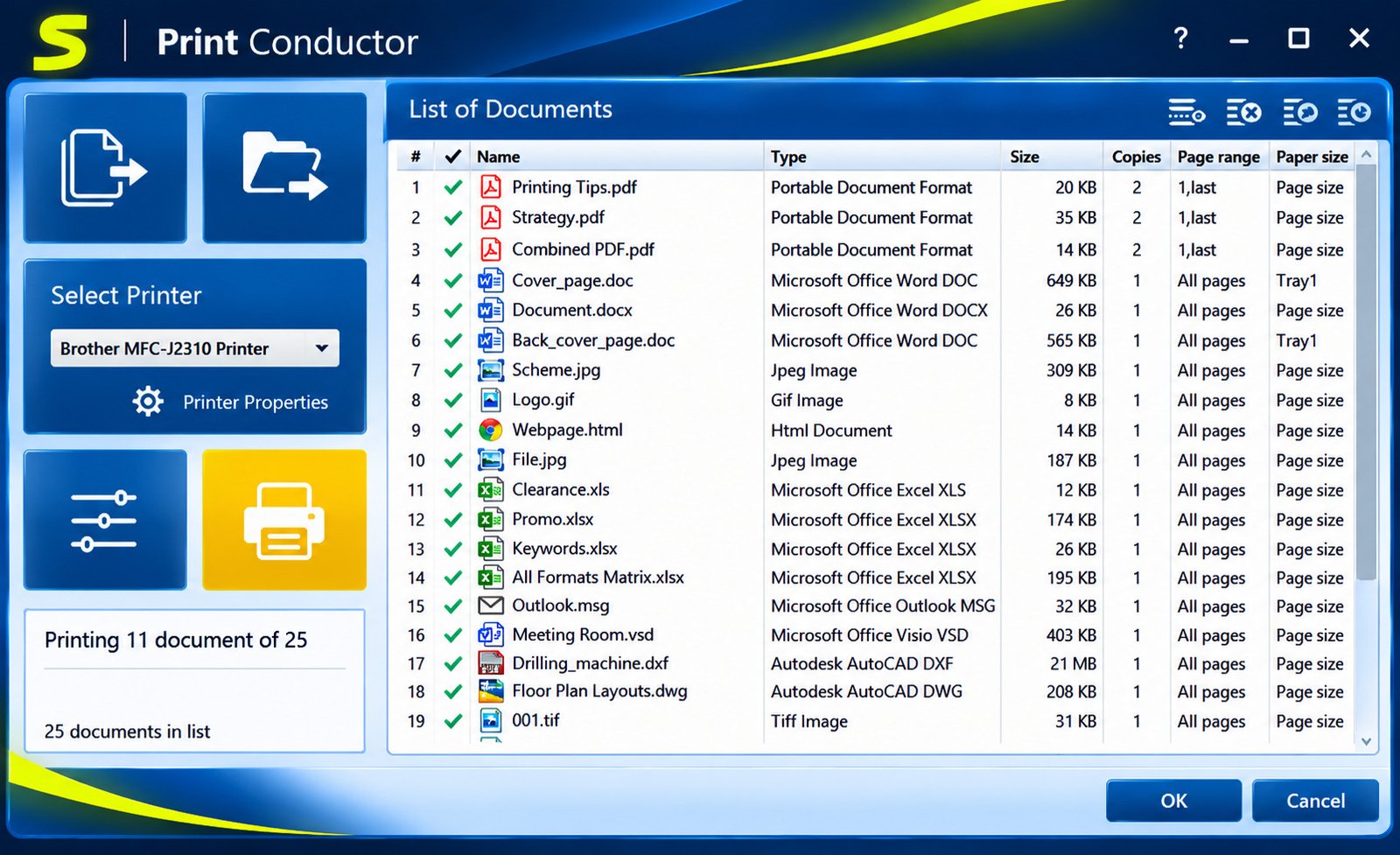
Print Conductor is a Windows program from fCoder that prints many documents in one go. You drag files into a list, choose your printer, and press start. The software handles the rest.
The developer, fCoder, also makes two sister tools, 2Printer and FolderMill, which we compare later. Together they cover desktop, command-line, and server-side printing. That family background is useful to know, because it shows the company has focused on automated printing for many years.
Print Conductor Batch Printing Software Overview
Think of it as a print assistant that never gets bored. It accepts documents, images, spreadsheets, emails, and drawings together in a single list.
Everything runs from one simple window. There is no need to learn separate tools for each file type.
You do not need training, scripts, or an IT department. If you can drag a file into a window and press a button, you can run a batch job.
What Is Print Conductor Used For?
People use it to print invoices, contracts, school handouts, photo batches, and engineering drawings. Anyone who prints in volume benefits.
A typical case: an accountant needs forty PDF invoices plus a few Excel sheets printed before a meeting. One list, one click.
Another example: a school administrator prints weekly worksheets, a few permission slips, and some class photos for a bulletin board. Three different file types, one printing session, and no jumping between programs.
How Does Print Conductor Automate Document Printing?
The program sends each file to your chosen printer in sequence. Depending on the format, it uses its own internal engine or the application installed on your computer.
You can adjust settings such as copies, orientation, and page ranges, then let the job run while you do something else.
Automation here does not mean losing control. You still choose the printer, paper source, and layout. The difference is that you make those choices once for the whole list rather than once per file.
Supported File Formats and Document Types
The official site lists more than 90 formats. Here are the main groups.
| Category | Common formats |
|---|---|
| Documents | DOC, DOCX, RTF, TXT, PDF |
| Spreadsheets | XLS, XLSX, CSV |
| Presentations | PPT, PPTX |
| Images | JPG, PNG, TIFF, GIF, PSD |
| MSG, EML | |
| Technical | DWG, DXF, Visio |
Always check the official format list for your exact file type before buying.
This matters more than it sounds. Print Conductor handles popular types easily, but rare formats occasionally need a companion application. A quick look at the supported formats page can save you an unpleasant surprise after purchase.
Who Should Use Print Conductor?
It suits offices, schools, print shops, accounting teams, law firms, and engineers. Capterra describes it as a fit for small businesses, offices, and schools.
If you print more than a handful of files weekly, you will feel the time savings quickly.
Home users benefit too, especially students and freelancers who print assignments, receipts, and reference material in bulk. Anyone tired of the open-print-close cycle is the target audience.
Print Conductor Download and Installation Guide
Getting started takes only a few minutes. The program is small, and setup follows the usual Windows wizard.
How to Download Print Conductor for Windows
Always use the official website, print-conductor.com. Open the download page and choose the installer.
Avoid random mirror sites. Third-party downloads can carry outdated or bundled software, which is exactly what you do not want on a work computer.
A practical habit: after downloading, check that the file name and publisher look right in the Windows security prompt. It takes five seconds and gives you a quick sanity check. If anything looks unfamiliar, delete the file and start again from the official page.
Print Conductor 12 Download and Latest Version
Versions change often, and the vendor keeps updating the build. Third-party listings have shown builds in the version 11 range, so the newest release may be higher by now.
Check the download page for the current version number and its change notes before installing.
If you search for a specific version, such as Print Conductor 12, remember that numbered builds are released in sequence. Treat any site offering an unofficial build of an unreleased number with suspicion. The official download page is always the safest reference.
Print Conductor Free Download and Trial Version
The download page offers a trial version. It lets you test the full workflow before paying.
Older vendor announcements described the software as free for private use and evaluation. Because licensing terms can change, confirm the current rules on the official site.
Print Conductor Download for Windows 10 and Windows 11
Good news: both are supported. The vendor states that it works on 32-bit and 64-bit editions of Windows 7, 8, 10, and 11.
Download the same installer and run it. No special version is needed for Windows 11.
Windows 11 users sometimes worry about older programs. In this case, the vendor lists Windows 11 as supported, so the usual compatibility tricks should not be necessary. If you hit trouble anyway, try running the installer as administrator.
Print Conductor 64-Bit Download and System Requirements
The program runs on 64-bit Windows without trouble. You also need Microsoft .NET Framework 4.0 or newer, which most modern PCs already have.
| Item | Requirement |
|---|---|
| Operating system | Windows 7, 8, 10, 11 |
| Architecture | 32-bit or 64-bit |
| Framework | .NET Framework 4.0 or newer |
| Printer | Any installed printer |
Missing .NET? Microsoft offers it on its official download page.
How to Install and Set Up Print Conductor
Follow these steps:
- Download the installer from the official site.
- Double-click it and accept the license agreement.
- Choose an install folder or keep the default.
- Finish the wizard and launch the program.
- Pick your default printer in the main window.
That is the whole setup. You are ready to print.
After the first launch, spend a minute exploring the main window. Look at the printer drop-down, the settings button, and the file list columns. Knowing where things live makes your first real batch far less stressful.
How to Update Print Conductor to the Latest Version
Visit the download page, grab the newest installer, and run it over your current copy. Your settings usually stay in place.
Close the program first, and note your license details before upgrading.
How to Use Print Conductor for Batch and Bulk Printing
The workflow is the same for every file type. Add, arrange, set options, print.
How to Add Multiple Documents to a Print List
Drag files from Windows Explorer straight into the window. You can also use the add button to browse.
Mixed types are fine. A PDF, a Word file, and a photo can sit in the same list.
If you add a file by mistake, simply remove it from the list before printing. Nothing is sent to the printer until you press start, so the list works like a safe staging area.
How to Batch Print Multiple Files at Once
Once your list is ready, choose the printer and press the start button. Each file prints in order.
The official site promises printing in about three clicks. In practice, that means add, select printer, print.
How to Print Hundreds of Documents Without Opening Them Individually
This is the main selling point. The software does not make you open each file in its own application window.
For large queues, split the work into sensible batches. A list of a few hundred files is easier to monitor and easier to restart if something fails.
A good rule is to print a small test batch first. Five files will reveal any layout or tray issues in a minute. Once you are happy, load the full list and let it run.
How to Print an Entire Folder of Documents
Add the folder itself rather than selecting files. The program reads the supported files inside and adds them to the list.
Unsupported items are skipped, and you will see a notice about files that could not be added.
How to Print Files From Multiple Folders and Subfolders
Add several folders in one session. You can include subfolders so nothing hides in a nested directory.
This helps when a project spreads files across many places, such as client folders by month.
How to Organize Documents Before Starting a Print Job
Sort the list before printing. Order by name, type, or date so the output stack comes out logical.
Remove duplicates and files you do not need. A two-minute cleanup saves paper and ink.
How to Start, Pause, and Manage Batch Printing Jobs
A progress bar shows how the job is going. You can stop the queue, fix a problem, and continue.
If one file fails, the rest are not wasted. Review the status column, correct the issue, and reprint only the failed items.
Print Conductor PDF Printing and Batch PDF Processing
PDFs are the most common reason people try batch printing. Print Conductor treats them like any other file in the list.
How to Batch Print Multiple PDF Files
Drag your PDFs into the list, select the printer, and start. No PDF reader window needs to be opened by you.
The vendor says most customers use the software mainly for PDF batches.
How to Print an Entire Folder of PDF Documents
Add the folder, and every PDF inside joins the queue. Sort by name if your files are numbered, like invoice-001 to invoice-100.
That way the printed pile matches the order you expect.
How to Print Password-Protected PDF Files
Protected files can be tricky for any batch tool. If a file asks for a password, test it with a single document first.
Where printing is restricted by the author, you may need to remove the restriction legitimately before batch printing.
How to Print Scanned PDF Documents in Bulk
Scanned PDFs are really pictures of pages. They print fine, but they are heavy, so expect slower jobs.
Use grayscale for text scans to save ink and speed up the printer.
Office managers often scan paper archives and later need hard copies. Bulk printing those scans is where the queue view helps, since you can see exactly which pages were done if the printer runs out of paper halfway.
How to Print PDF Files With Annotations
Comments and markups may or may not appear depending on how the file is processed. Print one sample and inspect it.
If notes are missing, flatten the annotations in your PDF editor first.
PDF Portfolio Printing and Document Support
PDF portfolios bundle several files inside one container. Support varies by software, so test a portfolio before relying on it.
When in doubt, extract the inner files and print them as normal documents.
How to Print PDFs From Multiple Folders
Add each folder to the same list, then print once. This works well for month-by-month archives.
Rename files first if names repeat across folders, so you can tell them apart in the queue.
PDF Print Settings and Page Range Configuration
You can set copies, orientation, and page ranges. Printing only pages 1 to 2 of every contract is a classic use.
| Goal | Setting to try |
|---|---|
| Save paper | Duplex plus multiple pages per sheet |
| Save ink | Grayscale |
| Cover signatures only | Custom page range |
| Proof copy | Print one file first |
These choices combine well. For a reading copy of a long report, try grayscale, duplex, and two pages per sheet together. A fifty-page document then uses about thirteen sheets of paper, which is a nice saving across a team.
Print Conductor Microsoft Office and Document Printing
Office files are the everyday workload of most offices. Support is broad.
How to Batch Print Word and DOCX Documents
Add the Word files and print as usual. Since version 8.0, the vendor says DOC, DOCX, and RTF files can print without Microsoft Word installed.
That helps on shared machines that lack an Office license.
It also reduces licensing headaches. A small office may only own Office on a few computers, yet everyone still needs to print finished documents. A tool that renders files on its own makes that easier.
How to Batch Print Excel and XLSX Spreadsheets
Spreadsheets work the same way. The changelog notes that XLS, XLSX, and CSV printing no longer requires Excel.
Check scaling on wide sheets. A column that spills across pages can waste paper.
How to Batch Print PowerPoint Presentations
Add PPT or PPTX files and choose a layout. Handouts with several slides per page save a lot of paper.
Presentations with heavy graphics print more slowly, so be patient.
How to Print Multiple Outlook Emails and Attachments
MSG and EML message files are supported, and the vendor notes that printing them no longer requires Outlook.
Handy for compliance teams that must keep printed records of correspondence.
Bulk Printing Microsoft Office Documents Without Opening Them
You never open Word, Excel, or PowerPoint yourself. The job runs from the list.
Depending on the format, fonts and layout may depend on what is installed. If output looks odd, compare it with a manual print.
Supported DOC, DOCX, XLS, XLSX, PPT, and PPTX Formats
All six are supported, along with related types like RTF and OpenOffice documents.
| Format | Type |
|---|---|
| DOC, DOCX | Word documents |
| XLS, XLSX | Excel spreadsheets |
| PPT, PPTX | PowerPoint slides |
Print Conductor Image and Photo Printing
Photo studios and schools love this part. Image batches are quick to set up.
How to Batch Print Multiple Images at Once
Select the pictures, drop them in, and print. Image support has existed since version 3.0, which added JPEG, TIFF, PNG, GIF, BMP, PCX, and DCX.
Choose the printer and paper type before pressing start.
How to Print JPG and JPEG Files in Bulk
JPG is the easiest case. Put hundreds in a folder and add the whole folder.
For glossy paper, set the printer driver to photo quality first.
How to Batch Print PNG and TIFF Images
PNG and TIFF work the same way. TIFF scans can be large, so give the queue time.
Multi-page TIFF files from scanners are common in archives.
How to Print PSD Files and Other Image Formats
PSD files are on the supported list, which surprises many designers. Layered files print as flattened images.
Check the format list for rarer types like DjVu.
Recent release notes mention newer additions such as Apple Pages and DjVu, which shows the format list keeps growing. That is good news if your files are slightly unusual.
How to Print Multiple Photos From a Folder
Add the folder, sort by date, and print. Several photos per page makes a quick contact sheet.
Great for class photos or property listings.
Do a test print on plain paper first. Photo paper is expensive, and a wrong crop or orientation is much cheaper to catch on a sheet of copy paper.
Supported Image Formats and Printing Options
| Format | Typical use |
|---|---|
| JPG | Everyday photos |
| PNG | Screenshots, graphics |
| TIFF | Scans, archives |
| PSD | Design files |
| GIF, BMP | Legacy graphics |
Print Conductor Folder, ZIP, and Archive Printing
Archives are where batch tools save the most time.
How to Print All Supported Documents in a Folder
Add the folder and review the list. Supported files appear; others are flagged.
Remove anything you do not want before pressing start.
How to Print Files From Multiple Directories
You can mix directories freely. Add each path, and the program merges them into one queue.
How to Include Subfolders in Batch Printing
Turn on the subfolder option when you add a folder. This pulls in every nested file.
Be careful with huge directory trees. A shock of 2,000 pages is no fun.
Before you add a top-level folder, glance at its size in File Explorer. A project directory with years of history can hold thousands of files, and you probably do not want them all.
How to Print Documents From ZIP Archives
Archive support is mentioned across the product materials, but formats vary by version. Test with a small ZIP first.
If it does not work, extract the archive to a folder and add that folder instead.
How to Print Files From RAR and 7Z Archives
The same advice applies. Extract with a tool like 7-Zip, then print the extracted folder.
That method works with any version.
Folder-Based Bulk Printing and Archive Support
Folder printing is built in. For constant, automatic folder watching, the vendor offers FolderMill, covered later in this guide.
Print Conductor CAD and Technical Drawing Printing
Engineers waste a lot of time opening drawings just to print them. This section fixes that.
How to Batch Print AutoCAD DWG Files
Add DWG files to the list like any other. The vendor lists AutoCAD among supported formats.
Some CAD formats may rely on installed software, so check the help menu for requirements.
How to Print Multiple DXF Drawings
DXF files work the same way. Put the whole drawing set in a folder and add it.
Confirm paper size in your plotter settings first.
Engineering offices often keep standard sheet sizes like A3 and A1 loaded in separate trays. Matching the drawing to the correct tray before you start avoids wasted large-format paper.
How to Print CAD Files Without Opening Them Individually
That is the point of the tool. Your CAD application is not launched by hand for each sheet.
Result: a full drawing package prints while you review the next revision.
How to Batch Print Engineering and Technical Drawings
The program also lists SolidWorks, STEP, and CorelDRAW among its formats. Mixed engineering packages are fine.
Test one large-format sheet before sending a hundred.
Large drawings also depend on plotter settings, so match the paper size in the printer properties. A drawing scaled to the wrong sheet is the most common and most expensive CAD printing mistake.
How to Print Multiple Visio Drawings
Visio diagrams are supported. Add them next to your Office files in the same queue.
Supported CAD and Technical Document Formats
| Format | Software family |
|---|---|
| DWG, DXF | AutoCAD |
| STP (STEP) | 3D CAD exchange |
| SLDPRT, SLDDRW | SolidWorks |
| VSD, VSDX | Visio |
| CDR | CorelDRAW |
The list changes between versions, so verify before buying.
Print Conductor Advanced Printing Features and Settings
Beyond plain batch printing, the program offers several extras that make output look professional.
Combining Multiple Documents Into a Single Print Job
You can treat many files as one job, which keeps them together at the printer. This helps on shared network printers where other people’s pages might get mixed in.
Multiple Pages Per Sheet and Page Layout Settings
Print two, four, or more pages per sheet to cut paper use. Good for drafts and reading copies.
Duplex and Double-Sided Printing
If your printer supports duplex, enable it. Paper use drops by nearly half.
Grayscale and Color Printing Options
Use grayscale for internal papers and color only when needed. Ink savings add up fast across big batches.
Adding Watermarks to Batch Printed Documents
Stamp text like CONFIDENTIAL or DRAFT on every page. This is useful for legal and review copies.
Creating and Adding Cover Pages
A cover page can mark where one document ends and the next begins. Handy when printing for several clients.
Print Preview and Page Range Selection
Check one file before launching the full run. Set page ranges if you only need certain pages.
Automatic Printer and Paper Tray Selection
Pick a printer and tray once for the batch. Make sure the tray matches the paper, such as letter versus A4.
Document Sorting and Print Queue Management
Sort, reorder, and remove entries before starting. The queue is fully visible, so there are no surprises.
Custom Printing Profiles and Reusable Settings
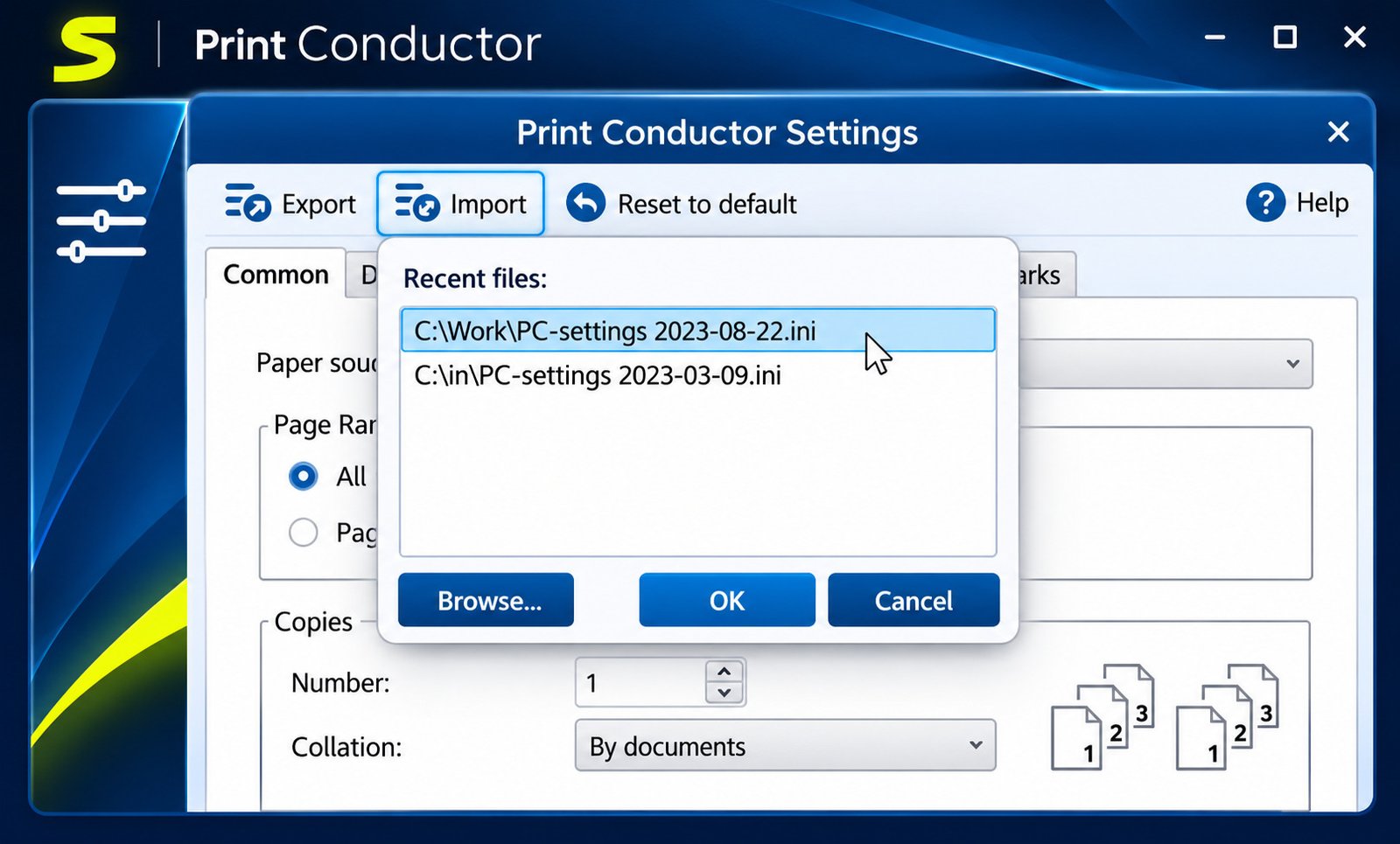
Save settings you use often so you do not repeat the setup. Monthly report runs become two-click jobs.
Over time, a handful of profiles can cover nearly all your work: one for double-sided drafts, one for color client copies, and one for quick single-page references.
Print Reports and Job History
A status view shows which files succeeded and which did not. Keep notes if you need proof of what was printed.
Print Conductor Command-Line Options
Print Conductor is mainly a graphical tool. For scripted or scheduled printing, the same vendor makes 2Printer, a command-line tool that works with Windows Task Scheduler.
Print Conductor Printer Support and Business Printing Workflows
A tool is only useful if it plays well with your printers.
Printing Documents With Local and Network Printers
Any printer installed in Windows appears in the list. That covers USB desk printers and shared office machines.
Print Conductor Virtual Printer Support
Virtual printers work too. The vendor notes that printing to virtual printers turns batch conversion to PDF, JPG, TIFF, or PNG into a simple print job.
How to Print Files to Multiple Printers
Run separate batches for different printers, or split the list by department. Keep a clear naming habit so nothing lands on the wrong device.
Some teams create a naming rule, such as adding the department to the file name. It looks small, but it makes sorting lists by name behave like sorting by destination.
Network Printer Management and Print Job Distribution
For more advanced routing across many printers, FolderMill is the better fit. Print Conductor is a desktop tool, not a print server.
Automated Office Document Printing
Month-end packs, onboarding forms, and class materials become routine. Set up once, then reuse.
Batch Printing Solutions for Businesses and Organizations
Organizations can buy multi-user licenses, and the vendor lists volume discounts. Offline activation is also possible, which suits strict security environments.
Managing Large-Scale Printing Workloads
For heavy loads, split jobs into batches, watch printer memory, and keep spare toner nearby. A simple plan prevents mid-job panic.
Also schedule big jobs for quiet hours when possible. Printers shared with a whole office are busy in the morning, and a 500-page batch will block everyone else’s urgent pages.
Print Conductor Configuration and Troubleshooting
Most problems have simple causes. Work from the easy checks to the hard ones.
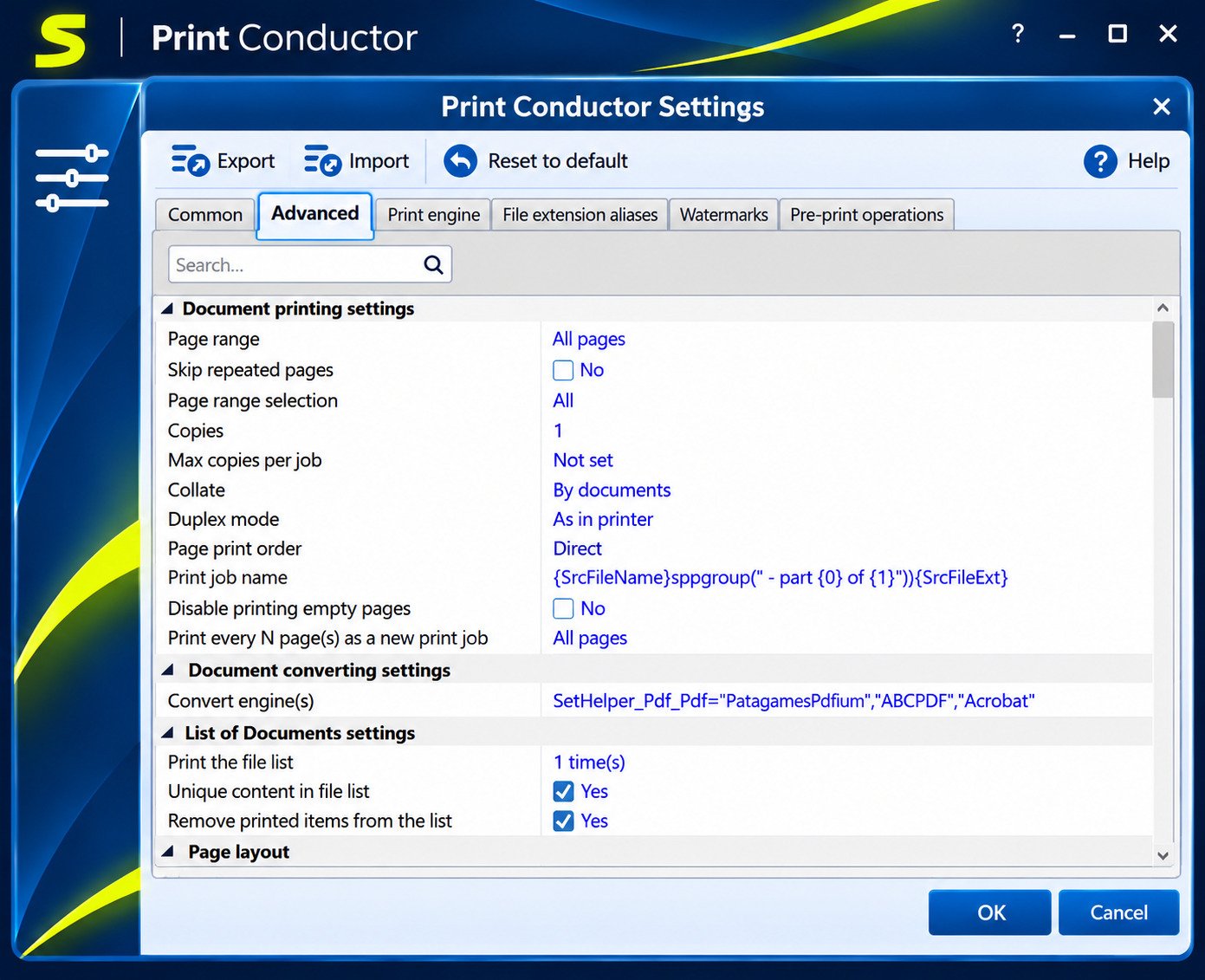
How to Configure Print Conductor Settings
Open the settings, choose your default printer, and set common options like copies and orientation.
How to Save and Reuse Batch Printing Profiles
Save a profile after you have a setup that works. Name it by task, such as Weekly Invoices.
Print Conductor Not Printing Files: Causes and Fixes
Check these first:
- The printer is online and has paper.
- The file type is supported.
- The required application is installed for that format.
- The Windows print queue is not stuck.
How to Fix Print Conductor PDF Printing Problems
Update your PDF reader, test one file, and see if it opens normally. A damaged or protected PDF is a frequent culprit.
Print Conductor Cannot Detect Printer: Troubleshooting Guide
Confirm the printer shows in Windows settings. Restart the Print Spooler service, then relaunch the program.
How to Resolve Print Queue and Printing Errors
Clear the Windows queue, restart the spooler, and retry with one file. If one file fails repeatedly, remove it.
Keep a short checklist taped near the printer: paper, toner, queue, then software. Most problems get solved in the first two checks, long before you need to reinstall anything.
Print Conductor Installation and Compatibility Problems
Confirm .NET Framework 4.0 or newer is installed. Run the installer as administrator if permissions block it.
How to Fix Failed or Incomplete Batch Printing Jobs
Read the status list, fix the failed files, and reprint only those. Do not restart the whole batch.
If the same file fails twice, open it manually. A corrupted download, a locked document, or a missing font is often the real reason, and the batch tool is only telling you about it.
Print Conductor License, Pricing, and Free Version
Pricing details have shifted over the years, so treat this section as a guide and confirm on the official site.
Is Print Conductor Free to Use?
Older vendor announcements say it is free for private use and evaluation. Current download pages emphasize a trial version.
Read the current license terms before using it for work.
Print Conductor Free vs Paid Version
| Point | Trial or free use | Commercial license |
|---|---|---|
| Purpose | Testing, personal use | Business use |
| Cost | None | Paid per user |
| Support | Limited | Professional |
Print Conductor Free Trial and Limitations
The trial lets you test the real workflow. Limits depend on the current version, so test with a typical batch before you decide.
Print Conductor Pricing and Commercial License
Review sites such as Capterra list a starting price of $149 per user. The vendor also lists volume tiers.
| Licenses | Price per user |
|---|---|
| 1 | $149 |
| 5 or more | $99 |
| 20 or more | $79 |
| 50 or more | $59 |
Discounts are mentioned for education, government, and non-profit buyers.
How to Purchase and Activate a Print Conductor License
Buy from the official site, then enter your key in the program. Offline activation is available if your computer has no internet access.
Is Print Conductor Worth Buying?
If you print batches weekly, yes, because the time saved pays back fast. Casual users may be fine with the trial.
Do a quick calculation. If you print two hundred files a week and save even thirty seconds per file, that is nearly two hours saved weekly. At that rate, a license cost is recovered quickly for any paid employee.
Print Conductor Review: Features, Pros, and Cons
Here is an honest summary after comparing the vendor information with independent listings.
Key Features of Print Conductor
- Batch printing in 90+ formats
- Drag-and-drop file list
- Printer settings per job
- Works with local, network, and virtual printers
- Optional offline use
Advantages of Using Print Conductor
It is simple, fast, and focused. Reviewers describe it as easy to use and time-saving.
You also avoid opening each file, which reduces mistakes.
Limitations of Print Conductor
It is Windows-only. It is a desktop tool, not a server, and some formats may need other software installed.
Independent review sites currently show few user ratings, so real-world feedback is thin.
That is not necessarily a red flag. Utility software like this often has a quiet user base that simply gets the job done. Still, it is smart to rely on the free trial rather than on ratings alone, and to test it with your own typical files.
Supported File Formats and Printing Capabilities
Documents, images, email, and CAD are all covered, along with watermarking and layout options.
Is Print Conductor Safe to Install and Use?
Download only from the official site and keep Windows protected. The vendor says online features can be disabled, which helps privacy-minded teams.
Is Print Conductor a Good Batch Printing Solution?
For Windows users who print mixed files in bulk, yes. It is a strong pick for its simplicity.
The deciding factor is workflow. If your printing happens in bursts and you want direct control, it fits perfectly. If your printing happens continuously, consider a folder-watching tool instead.
Best Print Conductor Alternatives for Windows
Same company, different tools, for different needs.
2Printer: Command-Line Batch Printing Software
2Printer runs from the command line and pairs with Task Scheduler. System administrators and developers like it for overnight jobs.
FolderMill: Automated Document Processing and Printing
FolderMill watches hot folders on a server. Drop a file in, and it prints or converts it automatically.
Imagine a front desk where staff drop invoices into a shared folder, and a printer in the accounts office prints them at once. That is the kind of always-on flow FolderMill was designed for.
Other Batch and Bulk Printing Software for Windows
AlternativeTo lists several options, including AcroTeX PDF Print Monitor. If you also need a virtual printer to create PDFs, read our guide to Bullzip PDF Printer.
Free Batch Printing Software Alternatives
Free tools exist, but most cover fewer formats. Test them with your real files before committing.
Print Conductor vs 2Printer
| Point | Print Conductor | 2Printer |
|---|---|---|
| Interface | Graphical | Command line |
| Best for | Everyday users | Admins, developers |
| Automation | Manual start | Scripts, scheduler |
Print Conductor vs FolderMill
| Point | Print Conductor | FolderMill |
|---|---|---|
| Setup | Desktop | Server |
| Trigger | You press start | Files arrive in folder |
| Best for | Occasional bulk jobs | Constant workflows |
Which Batch Printing Software Should You Choose?
Pick Print Conductor for hands-on batches. Pick 2Printer for scripts. Pick FolderMill for always-on folders.
Frequently Asked Questions About Print Conductor
It prints many files at once without opening them. It handles PDFs, Office files, images, and drawings.
There is a trial, and older notes mention free private use. Commercial use needs a paid license.
Go to print-conductor.com and open the download page. Run the installer and follow the prompts.
Yes. It supports Windows 7, 8, 10, and 11 in both 32-bit and 64-bit editions.
Yes. Add the PDFs or a folder, choose a printer, and start.
Yes, AutoCAD files are listed among supported formats. Check the help menu for requirements.
It is safe when downloaded from the official site. Online features can be turned off if needed.
Conclusion
Print Conductor turns a boring, repetitive chore into a quick job you can start and walk away from. It handles PDFs, Office files, photos, and drawings in one clean list. That alone saves hours every month.
Try the trial, test it on a real batch, and judge the results yourself. If it fits, buy a license and enjoy quieter workdays. Your printer will be busy, but you will not be.