Kutools for Outlook: Download, Features, Setup, and Alternatives
If your inbox feels like a second job, you’re not alone. Most Outlook users spend hours every week doing the same repetitive tasks — forwarding emails one by one, hunting for duplicate messages, or saving attachments manually. Kutools for Outlook was built to fix exactly that problem.
It’s a Windows add-in that bolts more than 100 extra tools onto Microsoft Outlook, aiming to turn tedious, multi-click chores into single-click actions. In this guide, you’ll learn what Kutools for Outlook actually does, how to download and install it, what it costs, and which alternatives are worth a look if it’s not the right fit.
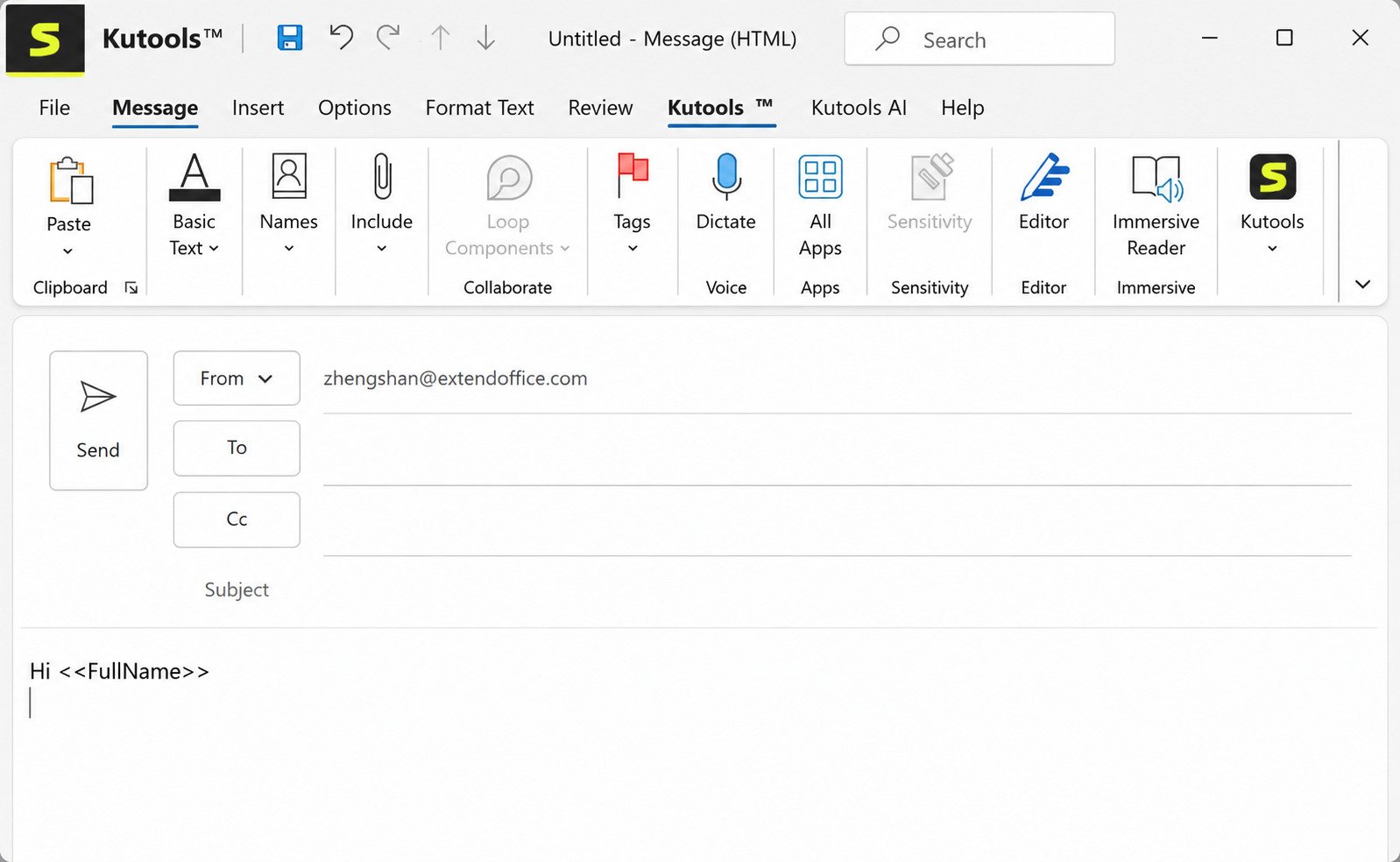
What Is Kutools for Outlook and How Does It Work?
Kutools for Outlook Overview
Kutools for Outlook is a third-party add-in developed by ExtendOffice, the same company behind Kutools for Excel and Kutools for Word. Instead of replacing Outlook, it sits inside it as an extra ribbon tab, adding shortcuts for tasks Outlook doesn’t handle well on its own.
Outlook Email Management and Productivity Tool
At its core, it’s a productivity layer. Rather than learning macros or VBA scripting, you get ready-made buttons for bulk actions, templates, cleanup routines, and search filters — all things that would normally take several manual steps.
Kutools for Outlook Add-In for Microsoft Outlook
The add-in installs directly into the Outlook ribbon, so there’s no separate app to open. Once it’s active, its tools appear alongside your normal Outlook commands.
What Can You Do With Kutools for Outlook?
In short, you can:
- Automate repetitive tasks like auto-reply and CC/BCC rules
- Process emails in bulk (delete, move, forward, print)
- Manage attachments across your whole mailbox
- Build reusable email templates and quick text snippets
- Clean up inboxes and remove duplicate emails or contacts
Kutools for Outlook System Requirements
Before downloading, check compatibility. Kutools for Outlook runs on:
| Requirement | Supported |
|---|---|
| Operating System | Windows 7–11, Windows Server 2008–2025 |
| Outlook Versions | Outlook 2010–2024, Microsoft 365 |
| Mac Support | Not compatible with macOS |
| Installation Type | Desktop add-in (32-bit and 64-bit) |
Kutools for Outlook does not run on macOS or in web-based Outlook. Mac and browser users will need to look at cross-platform alternatives instead.
Kutools for Outlook Features
Outlook Email Management and Organization
The add-in groups its features into logical categories — mail, attachments, templates, and cleanup — so you’re not digging through a cluttered menu to find what you need.
Outlook Email Automation and Productivity
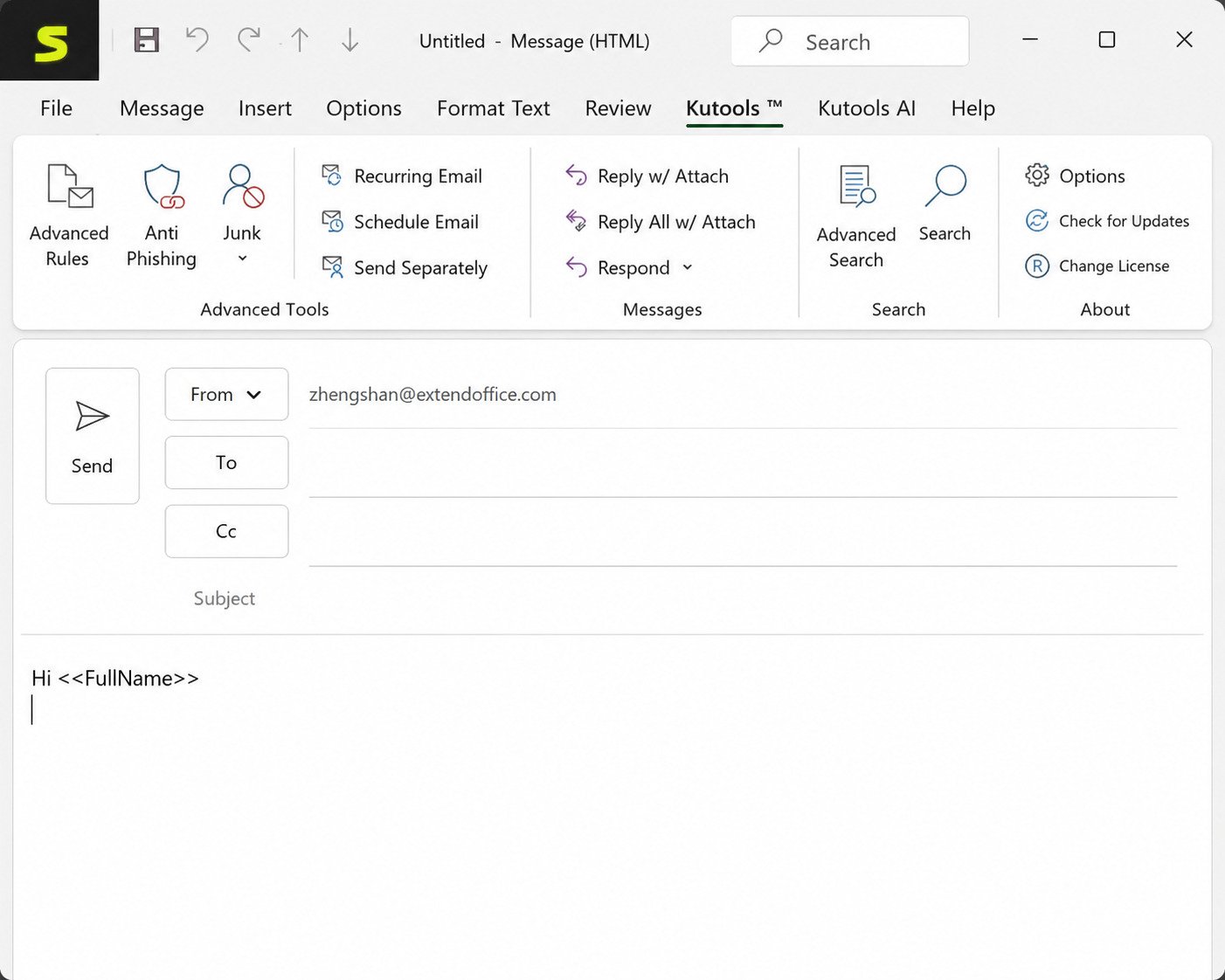
Auto-reply rules, scheduled sending, and CC/BCC automation are built to cut down on the manual babysitting Outlook normally requires for routine correspondence.
Bulk Email Operations
This is arguably the headline feature. Instead of selecting and deleting emails one at a time, you can process hundreds of messages in a single action.
Outlook Attachment Management
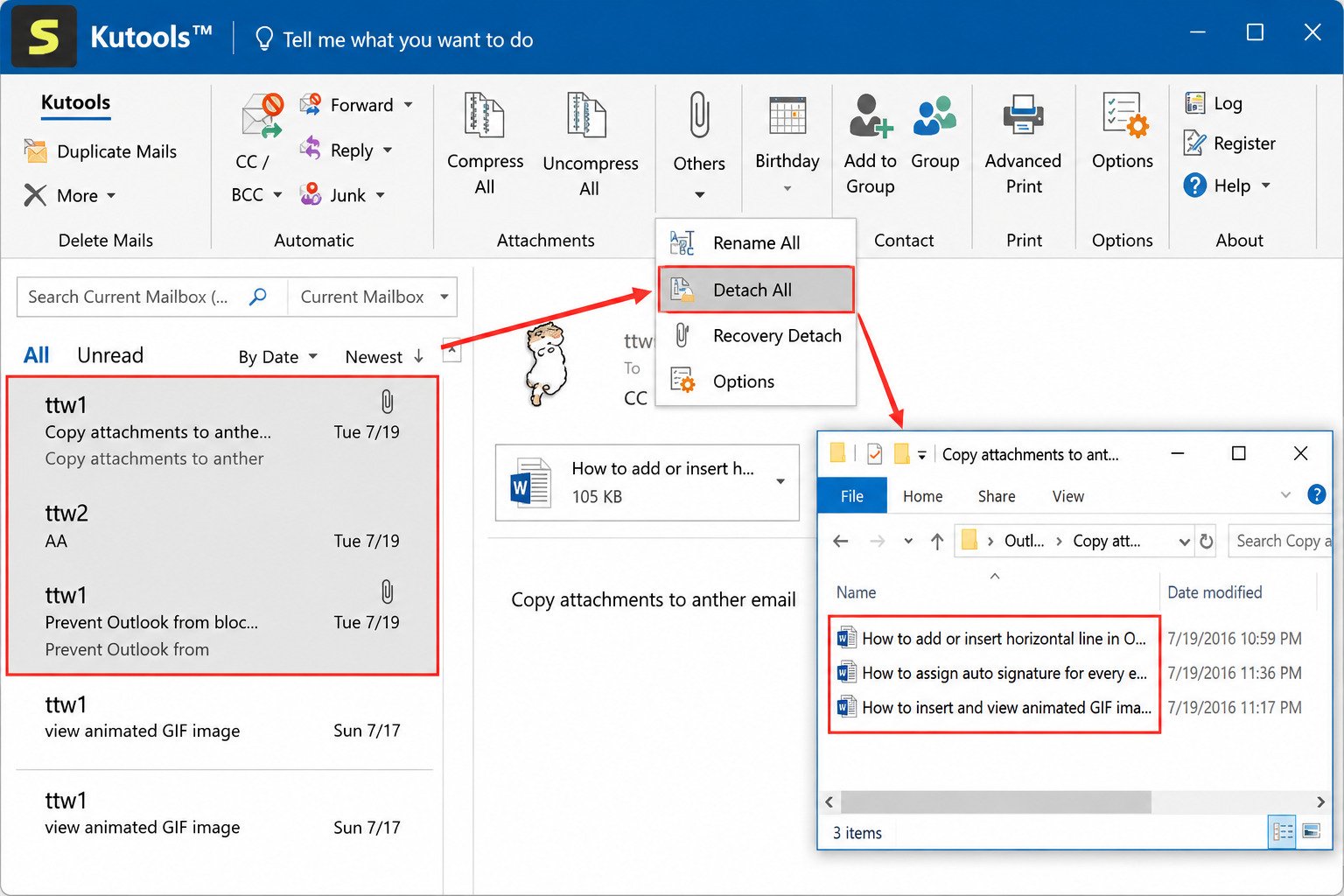
Attachments scattered across thousands of emails are notoriously hard to manage in stock Outlook. Kutools adds dedicated tools to extract, save, or strip attachments in bulk.
Email Templates, Quick Text, and Reusable Messages
If you send similar replies often, saved templates and quick-text snippets save real time — especially useful for support, sales, or HR teams.
Inbox Cleanup and Organization
Sorting rules and cleanup utilities help tame inboxes that have years of accumulated clutter.
Advanced Email Search and Filtering
Search by sender, date, or attachment type with more precision than Outlook’s native search offers.
Duplicate Email Management
Duplicate messages happen more often than people realize — synced accounts, repeated imports, and rule errors all contribute. Kutools scans for and removes them automatically.
Calendar, Meeting, and Contact Tools
Beyond email, it extends into calendar management, meeting organization, and contact cleanup.
Kutools for Outlook Download
Kutools for Outlook Latest Version
ExtendOffice regularly updates the add-in to stay compatible with new Outlook and Windows releases, so it’s worth grabbing the current build from the official site rather than an older mirror.
Kutools for Outlook Free Download
A free version is available with over 70 tools, and ExtendOffice states it remains free permanently — no expiration date on the free tier.
Kutools Outlook Download
The installer is available directly from extendoffice.com, with both EXE and MSI packages offered for IT admins deploying across multiple machines.
Kutools for Outlook Software and Add-In
Downloading it gets you both the free and professional feature sets in one installer; the license key simply unlocks the extra 30-plus advanced tools.
Kutools for Outlook Trial Version
New users get a 30-day, full-featured free trial with no credit card required, so you can test premium tools before deciding whether to buy.
Kutools for Outlook License and Activation
Licensing is a one-time purchase rather than a subscription. Pricing for the standalone Outlook add-in starts around $49 for a single license, with volume discounts for teams. There’s also a bundled Kutools for Office suite (Excel, Word, Outlook, PowerPoint, Office Tab) for users who want all five tools together.
Kutools for Outlook for Windows
Kutools for Outlook Windows 11
The add-in is fully compatible with Windows 11, matching the requirements of current Microsoft 365 installations.
Kutools for Outlook Windows 10
Windows 10 support is stable and has been for years, making it a safe choice for organizations still on that OS.
Outlook Productivity Tools for Windows
Since Kutools only runs on Windows, Mac and web-based Outlook users will need to look at browser extensions or alternative tools instead (more on that below).
Outlook Email Management Tools for Windows
Windows-only add-ins like this typically integrate more deeply with Outlook’s desktop client than cloud-based competitors can.
Outlook Add-In Compatibility
It supports Outlook 2010 through 2024, plus Microsoft 365 — a wide compatibility range that covers most enterprise environments still running older Office versions.
How to Install and Set Up Kutools for Outlook
Kutools for Outlook Installation
- Close Outlook completely before installing.
- Download the installer from the official ExtendOffice site.
- Run the installer as an administrator.
- Reopen Outlook — a new Kutools tab should appear in the ribbon.
How to Install Kutools for Outlook
If you manage several machines, the MSI package is built for silent, scripted deployment rather than manual clicks.
Kutools for Outlook Setup
After installation, a short setup wizard walks you through basic preferences like default folders and template storage.
How to Enable the Kutools Outlook Add-In
If the tab doesn’t appear, go to File > Options > Add-ins, select COM Add-ins from the “Manage” dropdown, click Go, then check the box next to Kutools.
Kutools for Outlook Settings and Configuration
Most settings live inside the Kutools ribbon tab itself, under a dedicated “Options” or “Settings” button, so you don’t need to dig through Outlook’s own settings menu.
How to Activate Kutools for Outlook
Enter your license key under the Kutools tab’s activation prompt after purchase — no separate license manager is required.
How to Use Kutools for Outlook
How to Manage and Organize Outlook Emails
Once installed, most tools are one click away from the ribbon — no need to memorize keyboard shortcuts or dig through nested menus.
How to Perform Bulk Actions in Outlook
Select multiple emails, then choose a bulk action (delete, move, forward, or print) from the Kutools ribbon instead of Outlook’s default right-click menu.
How to Automate Email Tasks in Outlook
Set up auto-reply and CC/BCC rules once, and they’ll apply automatically going forward without further input.
How to Use Kutools for Outlook Shortcuts and Utilities
Many frequent actions can also be pinned to the Quick Access Toolbar for even faster access.
Kutools for Outlook Bulk Email Tools
Bulk tools are where the add-in earns its reputation for saving time. Here’s a quick breakdown:
| Bulk Tool | What It Does |
|---|---|
| Bulk Delete | Removes multiple selected emails at once |
| Bulk Move | Moves selected messages to a chosen folder |
| Bulk Save | Exports multiple emails as files simultaneously |
| Bulk Forward | Forwards several emails individually with one click |
| Reply to Multiple | Sends replies to several messages in one pass |
| Bulk Print | Prints a batch of emails without opening each one |
These tools particularly help admin staff, customer support reps, and anyone managing shared mailboxes with high volume.
Kutools for Outlook Attachment Manager
How to Save All Attachments From Outlook
A single command can extract every attachment from a folder or selected emails into one destination directory.
How to Download Outlook Attachments
Rather than opening each email individually, batch-download tools pull attachments across your entire inbox in one pass.
How to Remove Attachments From Outlook
To free up mailbox space, you can strip attachments from old emails while keeping the message text intact.
Outlook Attachment Organizer and Cleanup
Combined with search filters, you can isolate emails with large attachments and clean them up systematically — genuinely useful if your mailbox is near its storage limit.
Kutools for Outlook Email Forwarding and Reply Tools
Select a batch of emails and forward each one individually — not as a single combined message — with one click. Rule-based automatic forwarding can also route specific messages to another address without manual intervention, and bulk-reply tools let you answer multiple selected messages using a saved template, which is ideal for repetitive customer inquiries.
Outlook Email Templates and Quick Text
Save frequently used email content as templates you can insert with one click instead of retyping. Quick text snippets work at a smaller scale — a signature line, a standard disclaimer, or a canned response fragment — and for support teams handling common questions, these can shave minutes off every reply.
Outlook Inbox Organization and Cleanup
How to Organize Outlook Emails
Combine folder rules, categories, and Kutools’ cleanup tools to keep your inbox from ballooning out of control.
How to Clean Up an Outlook Inbox
Bulk-archive or bulk-delete old threads, then set up rules so new clutter doesn’t pile up the same way.
Managing Large and Cluttered Outlook Inboxes
For inboxes with tens of thousands of messages, batch tools make a noticeable difference compared to Outlook’s native, one-at-a-time controls.
Outlook Email Search and Filtering
Outlook Advanced Email Search
Search by combinations of sender, date range, subject keywords, and attachment presence — more granular than Outlook’s built-in search bar.
Find Outlook Emails by Attachment
Useful when you need to locate every email containing a specific file type, like PDFs or spreadsheets.
Find and Remove Duplicate Emails in Outlook
How to Find Duplicate Emails in Outlook
The duplicate finder scans folders and flags messages with matching sender, subject, and timestamp data.
How to Delete Duplicate Outlook Emails
Once flagged, duplicates can be reviewed and removed in bulk, freeing up mailbox space without manual comparison.
Outlook Duplicate Email Remover
This is especially handy after migrating accounts or syncing multiple devices, which often creates accidental duplicates.
Outlook Calendar, Meeting, and Contact Tools
Outlook Calendar Management
Kutools extends some of its bulk-editing philosophy to calendar items, letting you manage multiple events more efficiently.
Outlook Contact Management
Duplicate contact detection and bulk contact editing mirror the same cleanup logic used for emails.
Kutools for Outlook Pricing, Free Trial, and License
Is Kutools for Outlook Free?
Yes — a free version with more than 70 tools is available and doesn’t expire. Premium tools require a paid license.
Kutools for Outlook Free vs Paid Version
| Feature | Free Version | Paid Version |
|---|---|---|
| Number of Tools | 70+ | 100+ |
| Bulk Email Actions | Limited | Full access |
| Attachment Tools | Basic | Advanced |
| Templates | Basic | Unlimited |
| Support | Community | Priority email support |
| Updates | Yes | Yes, plus 2 years free major updates |
Kutools for Outlook Pricing
A single license for the standalone Outlook add-in is priced at roughly $49 as a one-time purchase, not a subscription. Volume licensing brings the per-seat cost down significantly for teams.
Kutools for Outlook Trial
The 30-day trial unlocks every premium feature, so you can properly test bulk tools and automation before paying.
Kutools for Outlook License Options
Options include a single Outlook license, or the bundled Kutools for Office suite that also covers Excel, Word, and PowerPoint add-ins.
Kutools for Outlook Tutorial and Productivity Tips
Start small: pick one repetitive task, like duplicate removal or auto-reply rules, and automate that first before exploring the rest of the toolset. Pairing Kutools’ bulk tools with Outlook’s native rules and folders tends to produce the biggest overall productivity gain.
Kutools for Outlook Review
Kutools for Outlook Ease of Use
The ribbon-based interface keeps most tools within one or two clicks, which flattens the learning curve considerably.
Kutools for Outlook Pros and Cons
Pros
- Large toolset covering email, attachments, calendar, and contacts
- One-time purchase instead of a recurring subscription
- Generous free tier with 70+ tools
- 30-day full-feature trial
Cons
- Windows only — no macOS support
- Learning all 100+ tools takes some initial exploration
- Adds a ribbon tab that can feel crowded on smaller screens
Is Kutools for Outlook Worth Using?
For anyone managing a high email volume on Windows and Outlook desktop, it’s a genuinely practical investment — particularly for bulk cleanup and attachment management, which Outlook handles poorly on its own.
Kutools for Outlook Not Working? Common Problems and Fixes
Kutools for Outlook Add-In Not Showing
This usually means the add-in got disabled after an Outlook update. Check File > Options > Add-ins > COM Add-ins and re-enable it.
Kutools Outlook Toolbar Missing
Try repairing the installation through Windows’ “Apps & Features” panel rather than reinstalling from scratch.
Kutools for Outlook Windows 11 Not Working
Make sure you’re running the latest build, since older versions occasionally lag behind Windows 11 feature updates.
Kutools for Outlook Activation Problems
Confirm it was entered exactly as emailed, including any dashes, and make sure your internet connection is active during activation.
Kutools for Outlook Alternatives
If Kutools doesn’t fit your workflow — or you’re on Mac — a few solid alternatives exist:
| Tool | Best For | Platform |
|---|---|---|
| Kutools for Outlook | Bulk actions, attachment management | Windows |
| Grammarly | Writing quality and tone | Windows, Mac, Web |
| Boomerang | Scheduling and follow-up reminders | Windows, Mac, Web |
| Mailbutler | Email tracking and task management | Windows, Mac, Web |
| Outlook’s built-in rules | Basic automation, no extra cost | All platforms |
If your workflow also touches PDF handling — printing emails or attachments to PDF, for instance — it’s worth pairing your email add-in with a dedicated PDF tool. Our guide to Bullzip PDF Printer covers a free option for that exact task.
Kutools for Outlook vs Other Outlook Add-Ins
Kutools for Outlook vs Outlook Built-In Tools
Outlook’s native rules and search cover the basics but lack the batch-processing depth Kutools provides for high-volume inboxes.
Kutools for Outlook vs Free Outlook Add-Ins
Most free add-ins focus on a single feature (like tracking or scheduling), whereas Kutools bundles dozens of utilities into one installer — which is either a strength or overkill, depending on how much of the toolset you’ll actually use.
According to independent software directories, Kutools is commonly recommended alongside tools like Grammarly for boosting overall Outlook productivity, though each targets a different part of the workflow — Grammarly for writing, Kutools for email management itself. For a broader comparison of email productivity add-ins, ExtendOffice’s official Kutools for Outlook page is a useful reference point.
Kutools for Outlook FAQs
It’s a Windows add-in that adds 100+ productivity tools to Microsoft Outlook, covering bulk email actions, attachments, templates, and cleanup.
A free version with 70+ tools is available permanently; a paid license unlocks the full 100+ tool set.
Download the installer directly from ExtendOffice’s official website, then run it with Outlook closed.
Yes, it fully supports Windows 11 alongside Windows 7 through 10 and Windows Server editions.
Go to File > Options > Add-ins, select COM Add-ins, click Go, then check the Kutools box.
Yes, its duplicate finder scans folders by sender, subject, and timestamp, then lets you bulk-delete matches.
Grammarly, Boomerang, and Mailbutler are common alternatives, though none match its bulk-action depth for Windows desktop Outlook.
Final Verdict: Is Kutools for Outlook Worth Using?
Kutools for Outlook solves a problem most people don’t realize they can automate — the repetitive, one-click-at-a-time grind of managing a busy inbox. Between bulk actions, attachment tools, and duplicate cleanup, it genuinely cuts down time spent on email housekeeping.
It won’t suit everyone. Mac users are out of luck, and casual Outlook users may never touch most of its 100-plus tools. But for Windows-based power users, admins, and anyone drowning in email volume, it’s a practical, one-time investment rather than another subscription to track.