PDF Annotator: Download, Features, Pricing, and Alternatives (2026)
PDF Annotator is a Windows program for writing, drawing, highlighting, and commenting directly on PDF files. It has been around for over 20 years, and its latest release, PDF Annotator 10, arrived in November 2025 with a redesigned interface, faster rendering, and new tools such as headers, footers, watermarks, and image redaction. This guide covers what it does, how to download and set it up, what it costs, whether it is safe, and which alternatives are worth a look.
Quick answer: PDF Annotator is not free software, but it offers a free 30-day trial. The full version costs $79.95 for a single license, runs on Windows 10 and Windows 11, and is built for people who want to mark up PDFs with a pen, highlighter, text, stamps, and images.
What Is PDF Annotator?
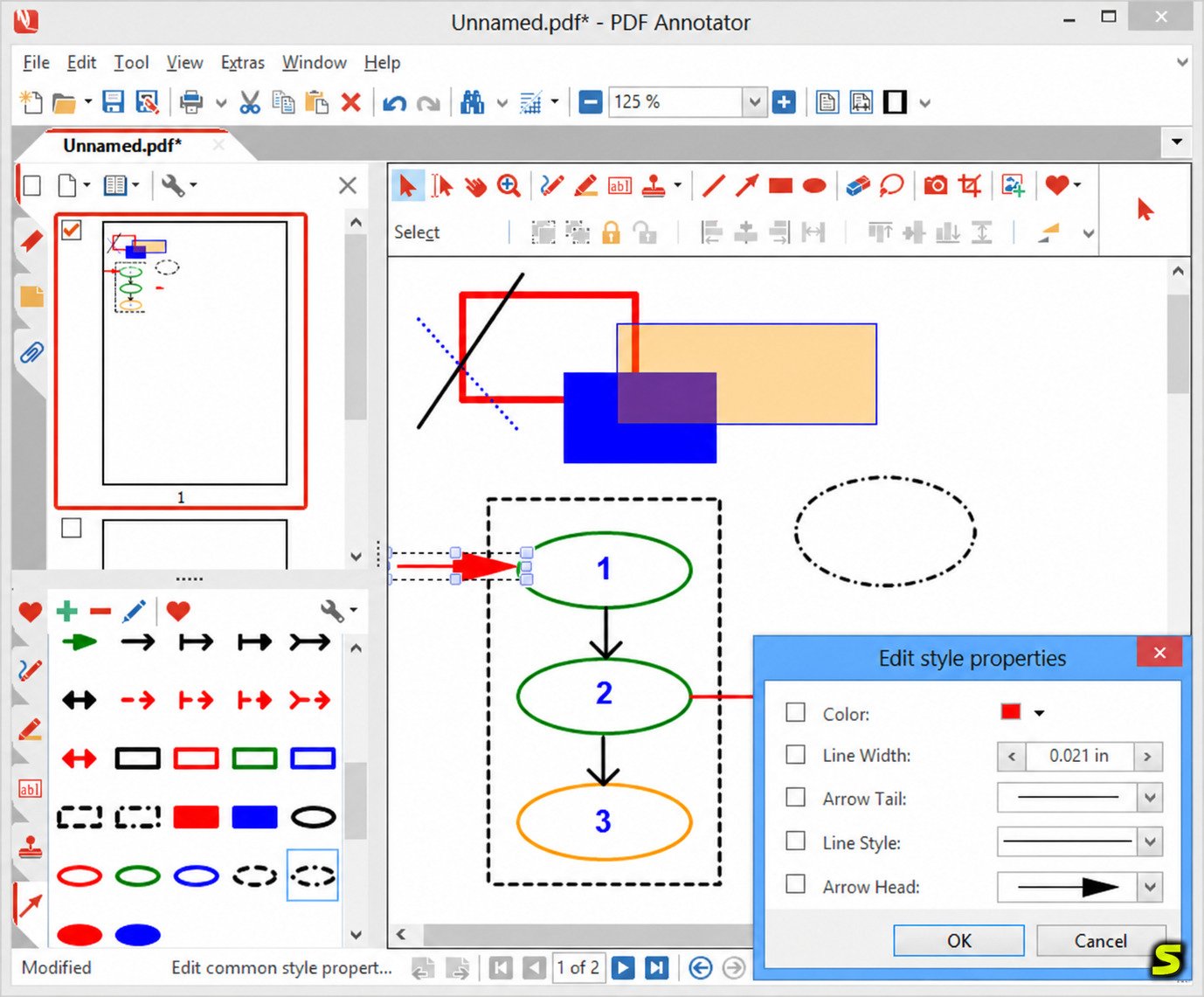
PDF Annotator is a PDF markup application from GRAHL software design, a German developer that has been making software since 1996. Unlike a standard PDF reader, which mostly lets you view and print, PDF Annotator is built around adding your own content on top of a document: handwriting, freehand drawings, highlights, typed text, stamps, signatures, and pictures.
How it works
You open a PDF, pick a tool from the toolbar (pen, highlighter, text box, stamp, and so on), and mark up the page. Your annotations are kept as separate objects, so you can move, resize, restyle, or delete them later. When you finish, you save the result as a new annotated PDF. In version 10, annotations are stored as vector objects wherever possible, which improves quality in other PDF viewers and often keeps annotated text searchable and copyable.
Who should use it
- Students who annotate lecture slides, textbooks, and research papers
- Teachers who grade assignments and give handwritten feedback
- Professionals who review contracts, drawings, and reports
- Pen and tablet users who want natural handwriting on a PDF with a stylus or digital pen
If you only need to read PDFs, a free reader is enough. If you want to mark them up heavily, especially with a pen, a dedicated annotator is a better fit.
PDF Annotator Features
Write and draw on PDFs
The pen tool supports freehand writing and sketching, which is why the software has long been popular with tablet PC and stylus users. You can change color, width, and style, and version 10 adds synchronized tool properties so that a chosen color or line width can carry across tools.
Highlight, underline, and strike through text
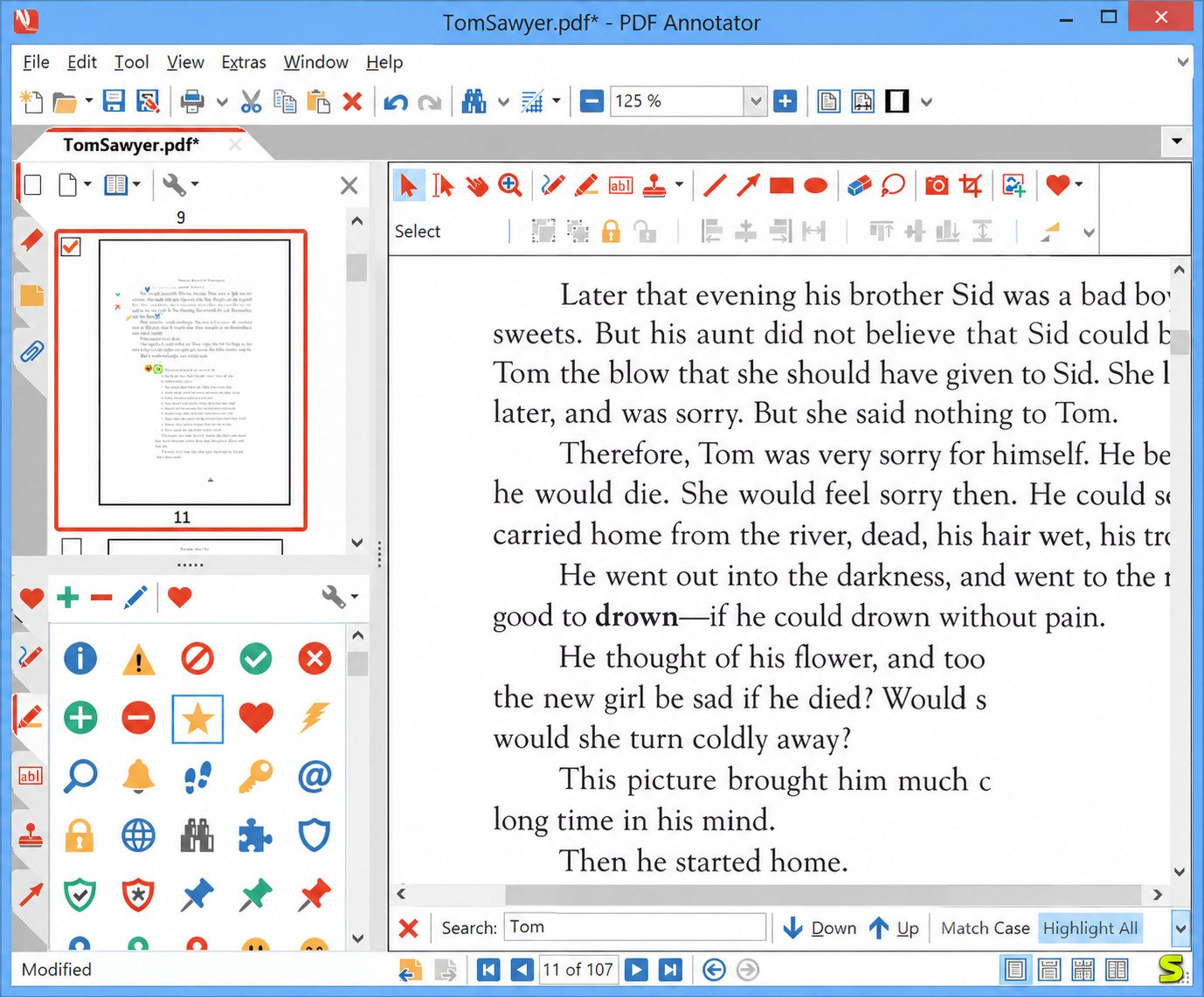
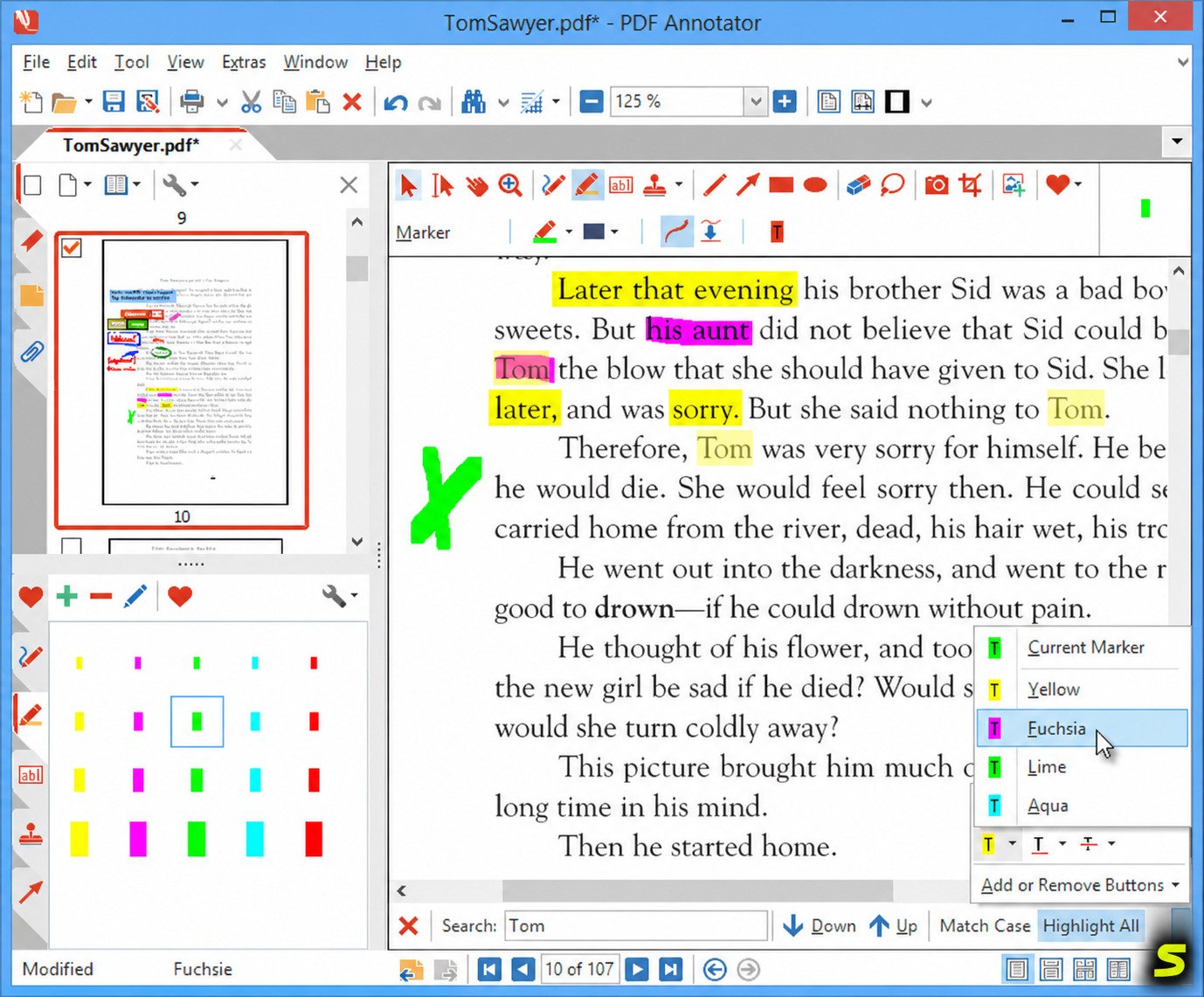
Text markup tools let you highlight, underline, and strike through passages. An auto-snap option helps the markup follow the line of text neatly.
Handwritten notes and comments
You can add handwritten notes anywhere on a page, as well as typed comments in text boxes. Links created with the text tool can now be edited through a context menu.
Text boxes, stamps, and signatures
Add typed text, ready-made stamps (such as Approved or Draft), and custom stamps of your own. Stamps are also a common way to add a signature image to a document.
Images and visual elements
Insert pictures, screenshots, and snapshots of parts of a PDF. The integrated image editor was improved in version 10, with better camera performance, new selection tools, and a redaction feature for permanently covering sensitive image content.
Headers, footers, and watermarks
Version 10 adds a flexible way to place repeating headers, footers, and watermarks across all pages, useful for confidentiality labels or page references.
Review and organize annotations
A sidebar lists your annotations so you can review, jump to, and print them. You can also merge and duplicate selections to speed up repetitive markup.
Print, share, and export
PDF Annotator includes a virtual printer driver, “Print to PDF Annotator,” which lets you send documents from other Windows programs into the annotator. Annotated files can be saved as PDFs and shared like any other PDF, or printed with annotations included. If you also want a general-purpose virtual PDF printer, see our guide to Bullzip PDF Printer.
Full-screen presentation mode
Full-screen mode turns the program into a presentation tool, so you can draw and highlight live in front of a class or meeting. Version 10 adds a Text Styles toolbar to this mode for quick access.
PDF Annotator Download and System Requirements
Where to download it
Download PDF Annotator only from the official website, PDFAnnotator.com, run by the developer. The version 10 installer is about 141 MB. Avoid third-party download sites and anything advertising a “free full version” or a “license key” (see the safety section below).
Free trial
A free 30-day trial of PDF Annotator 10 is available from the official site. The trial lets you test the tools on your own documents before deciding to buy.
Supported systems
PDF Annotator 10 is available for Windows 10 and Windows 11, and its interface is optimized for Windows 11, including refined dark-mode colors and crisp vector icons on all displays. It also handles moving between monitors with different DPI settings, which helps on multi-screen setups.
Is there a Mac, Linux, or online version?
PDF Annotator is described by its developer as a Windows application. I found no Mac, Linux, or browser-based version, so Mac users should look at the alternatives below. Check the official site before purchasing in case this has changed.
| Detail | Information |
|---|---|
| Current version | PDF Annotator 10 |
| Developer | GRAHL software design |
| Platform | Windows 10 and Windows 11 |
| Installer size | About 141 MB |
| Free trial | 30 days |
| Price | $79.95 (single license) |
PDF Annotator Pricing and Licensing
Is PDF Annotator free?
No. It is paid software with a free 30-day trial. After the trial ends you need a license to keep using it.
How much does it cost?
The retail price of PDF Annotator 10 is $79.95 USD for a single license. The developer also offers special terms for students, schools, and universities, and significant discounts on multiple-use licenses. Prices and promotions change, so confirm the current figure on the official order page.
Trial vs. full version
The trial is intended to let you evaluate the program for 30 days. The full version removes that time limit. Because the trial is the same program, it is the best way to check that your pen, tablet, and typical PDFs work well before paying.
Is it worth the price?
It is a good value if you annotate PDFs often, especially with a pen, and you work on Windows. It is harder to justify if you only occasionally highlight a document, since free tools cover that. Compared with subscription editors, a one-time license can also be cheaper over several years. Check whether a major-version upgrade fee applies when version 11 arrives.
How to Install and Set Up PDF Annotator
Install and activate
- Download the installer from PDFAnnotator.com.
- Run the installer and follow the prompts.
- Start the program. It runs in trial mode by default.
- If you have bought a license, enter your license details in the registration or activation dialog.
Open a PDF
Use File > Open, drag a PDF onto the window, or print from another program using the “Print to PDF Annotator” printer.
Configure your tools
Select a pen, highlighter, or text tool and adjust color, width, and transparency in the tool properties. Tool settings can be synchronized so that changing a color applies across tools. If you use a stylus, test it on a blank page first to check pressure and palm rejection.
Customize the workspace
In version 10 the main menu and toolbar share one row, dialogs are resizable, and the recent file list is configurable. Rearrange toolbars to keep the tools you use most within reach.
Save and manage annotated files
Save your work as a new annotated PDF. Keeping the original file untouched is good practice, so you can always return to a clean copy.
How to Use PDF Annotator: A Practical Guide
Highlight text
Choose the highlighter, pick a color, and drag across the text. With auto-snap, the highlight follows the text line. Use underline or strikethrough in the same way.
Write and draw
Choose the pen, then write or draw with a mouse, pen tablet, or touchscreen. Use the eraser or select the object and press Delete to remove mistakes.
Add comments and text boxes
Pick the text tool, click where you want the note, and type. Use the text style options to change font, size, and color.
Add stamps and signatures
Open the stamp tool, choose a stamp, and click to place it. For a signature, create a custom stamp from an image of your signature and reuse it on any document.
Note: an image of your signature is a visual mark, not a certified digital signature.
Insert pictures
Use the image tool to insert a file, a screenshot, or a snapshot of part of the PDF, then resize and position it.
Review, edit, and delete annotations
Use the annotation sidebar to jump to items, then edit their properties or delete them. You can select several objects at once to restyle or move them together.
Save, print, and share
Save the annotated PDF, then email it or upload it as normal. When printing, check that the option to include annotations is enabled.
Performance and User Experience
Version 10 focuses on speed. Background rendering improves scrolling and zooming in large, complex PDFs, and long-running operations no longer freeze the interface and can be cancelled. The refreshed design is cleaner and more consistent on modern Windows, with resizable dialogs and better dark mode.
The program’s long history with pen input is its main strength. If you take handwritten notes or mark up documents with a stylus, it is built for that workflow. For professional document review, the annotation list, stamps, and headers and footers cover most needs, though it is an annotator rather than a full PDF editor.
Is PDF Annotator Safe to Use?
Is the download safe?
The software comes from an established developer that has operated since 1996 and is a member of the PDF Association. As with any program, the risk comes mostly from where you download it. Get it only from PDFAnnotator.com.
Avoid cracks and fake license keys
Warning: Search results often show pages offering a “PDF Annotator license key” or a free full version. These are a common way to spread malware and are not authorized. Use the official trial or buy a license.
Does it change the original PDF?
PDF Annotator saves annotated output as a PDF. Save under a new name to keep your original unchanged.
Protecting sensitive information
Caution: Covering text with a black rectangle is not always the same as removing it. If you need to permanently hide sensitive content, use a true redaction feature and then inspect the saved file. PDF Annotator 10 adds redaction in its image editor for permanently obscuring image content; for text-heavy redaction, verify the result by trying to select and copy the hidden area.
Pros and Cons
Advantages
- Excellent pen and handwriting support
- Clean, modern interface in version 10
- Faster rendering on large PDFs
- Stamps, headers, footers, and watermarks
- Full-screen presentation mode
- One-time price rather than a subscription
- Free 30-day trial
Limitations
- Windows only
- Not free after the trial
- Focused on annotation, not full text editing or document conversion
- Fewer collaboration and cloud features than subscription suites
Before you buy
Confirm you are on Windows 10 or 11, test your pen or tablet during the trial, and check current pricing and upgrade terms on the official site.
PDF Annotator vs. Other Tools
Versus Adobe Acrobat
Acrobat is a full PDF platform with editing, conversion, forms, and cloud collaboration, usually on a subscription. PDF Annotator is narrower and cheaper, and many people prefer its pen workflow. Choose Acrobat if you need heavy editing and team features; choose PDF Annotator if annotation is the main job.
Versus free annotation software
Free tools handle highlights and simple notes well. PDF Annotator is better when you want more drawing control, stamps, presentation mode, and a polished pen experience.
Versus online PDF editors
Browser tools are convenient for one-off tasks and work on any device, but they require uploading files. A desktop program keeps documents on your computer, which matters for confidential files.
Versus standard PDF readers
Basic readers can usually add simple highlights and comments. They lack the depth of pen tools, stamp libraries, and annotation management.
Which is better for Windows users?
For pen-driven markup on Windows, PDF Annotator is a strong choice. For all-round editing, look at the alternatives below.
Best PDF Annotator Alternatives
Prices below are indicative and change often, so confirm them on each vendor’s site.
| Tool | Best for | Price notes |
|---|---|---|
| Adobe Acrobat | The industry standard for editing, forms, signing, and document management. Best for teams and heavy PDF workflows. | Usually subscription |
| PDF-XChange Editor | A Windows editor known for rich markup and annotation tools. | Check vendor |
| Foxit PDF Editor | Editing and collaboration features in a familiar interface, for Windows and Mac. | Check vendor |
| UPDF | A cross-platform editor (Windows, Mac, iOS, Android) with annotation and AI features. | Pro about $49.99/year; lifetime about $79.99 |
| PDF Studio | A one-time purchase editor. | Standard about $99; Pro about $139 |
| PDFelement | A full editor with annual and perpetual plans. | About $129/year or $159 one-time |
| PDFgear | A free editor and annotator suited to light use. | Free |
| SumatraPDF | A very lightweight reader. Best for reading rather than heavy annotation. | Free |
How to choose
Pick based on platform (Mac users need a cross-platform tool), budget (one-time vs. subscription), and how much editing you need beyond markup. If you mostly write by hand on PDFs with a stylus on Windows, start with the PDF Annotator trial.
Common Problems and Troubleshooting
Not opening or responding
Restart the program, confirm you are on the latest build, and reinstall if needed. The developer releases frequent maintenance updates, so update first.
Annotations not saving
Make sure you save or export the annotated PDF rather than just closing the file. Check that you have write permission to the destination folder and that the file is not open in another program.
Pen or highlighter not working
Check the selected tool, color and transparency, and your pen driver or tablet settings. Try a mouse to see whether the issue is the input device.
Handwritten notes missing after saving
Open the saved file rather than the original, and view it in a second PDF viewer to confirm. Annotations saved to a different filename will not appear in the original.
Not printing with annotations
Enable the option to print annotations in the print dialog, and check that the printer is not set to print the document only.
Installation and compatibility
Use a supported Windows version (10 or 11), run the installer as administrator if prompted, and temporarily check that security software is not blocking it.
Frequently Asked Questions
No. It has a free 30-day trial, then costs $79.95 for a single license (check the official site for current pricing).
Yes. Version 10 is available for Windows 10 and Windows 11 and is optimized for Windows 11.
Yes. Use the pen tool for handwriting and freehand drawing.
Select the highlighter, choose a color, and drag over the text.
Yes, handwritten notes are one of its core features, especially with a stylus or pen tablet.
Yes. Add typed comments with the text tool and signatures using custom stamps or images.
Yes. You can insert pictures and snapshots and edit them in the built-in image editor.
Yes. Enable the option to include annotations when printing.
No Mac version was found. It is a Windows application. Mac users should consider UPDF, Foxit, Acrobat, or similar cross-platform tools.
For light use, PDFgear and the built-in tools in many PDF readers are good starting points. For heavy or pen-based use, a paid tool such as PDF Annotator is usually worth trying.
It depends on your needs. PDF Annotator is cheaper and stronger for pen-based markup. Acrobat is better for full editing, forms, and collaboration.
Final Verdict: Is PDF Annotator Worth Using?
If you work on Windows and annotate PDFs regularly, particularly by hand, PDF Annotator 10 is a polished, fast, and fairly priced option, and the 30-day trial makes it easy to test. If you need a Mac version, full PDF editing, or team collaboration, one of the alternatives will serve you better. Start with the official trial, and avoid unofficial downloads.
Visit the official site