SoftFolders Guide
Kindle Download, Features, Setup, and Alternatives
You just bought a Kindle, or maybe you’ve had one for years and still don’t know how to bookmark a page, send a PDF to it, or fix it when the screen freezes. This guide covers setup, features, troubleshooting, and how it stacks up against alternatives like the Nook.
What Is Kindle and How Does It Work?
Amazon Kindle Overview
Kindle is Amazon’s line of e-readers and reading apps, designed to store and display e-books using E Ink display technology (on dedicated devices) that mimics the look of paper and reduces eye strain compared to a phone or tablet screen.
Kindle E-Reader vs Kindle App
A Kindle e-reader is a dedicated physical device — Paperwhite, Scribe, or the base Kindle — while the Kindle app is free software for phones, tablets, PCs, and Macs that lets you read the same library without owning hardware.
How Kindle Works for Digital Reading
Books you buy or send to your Kindle sync through Amazon’s cloud, so your library, bookmarks, and reading position stay consistent whether you pick up your e-reader, phone, or laptop.
Kindle Home Screen and Library
The home screen shows your most recent reads first, with a Library tab holding everything you own — downloaded or not — and a search bar for quickly finding a specific title.
Kindle Models and Generations
Current-generation devices include the entry-level Kindle, the backlit Kindle Paperwhite, and the stylus-equipped Kindle Scribe, alongside older models like the Kindle Touch and Kindle DX still in use by long-time owners.
Kindle User Guide and Instruction Manual
Every Kindle ships with a digital user guide already loaded onto the device, accessible from the library under a title like “Your Kindle User’s Guide.” It’s worth skimming once even if you’re tech-savvy, since it covers gestures and shortcuts that aren’t obvious from the interface alone. For deeper troubleshooting, Amazon’s official Kindle support pages stay more current than any printed manual, since firmware updates occasionally shuffle menu locations.
Kindle Features
Kindle Reading and E-Book Library
Every Kindle account gives you access to millions of titles through the Kindle Store, plus any personal documents you’ve uploaded, all organized in one searchable library.
Kindle Bookmarks
Tapping the top-right corner of any page adds a bookmark, marking that exact spot so you can jump back to it later without losing your place.
Kindle Highlights and Notes
Press and hold on any word or phrase to select text, then choose Highlight to save it, or Note to attach your own thoughts directly to that passage.
Kindle Font and Text Size Controls
The Aa icon on most Kindle screens opens font, size, line-spacing, and margin controls, letting you tailor the page to your eyesight and reading speed.
Kindle Dark Mode and Display Settings
Newer Kindle models support a dark mode that inverts the page to light text on a dark background, which is easier on the eyes during nighttime reading.
Kindle Word Wise
Word Wise shows short definitions above difficult words automatically, a feature especially useful for younger readers or anyone reading in a second language.
Kindle Read Aloud and Accessibility Features
Kindle devices and apps include screen reader support, adjustable text-to-speech, and high-contrast options, making reading more accessible for users with visual impairments.
Kindle Audiobooks and Immersion Reading
With Whispersync for Voice and Audible integration, some titles let you switch between reading and listening without losing your spot — a feature Amazon calls Immersion Reading.
Kindle Family Sharing and Book Sharing
Amazon Household lets two adults share eligible e-books and audiobooks between accounts without buying a second copy, provided both parties are on the same family library.
Why people stick with Kindle
- Massive Kindle Store library plus built-in Audible integration
- E Ink screen is easier on the eyes than a phone or tablet
- Word Wise, VoiceView, and text-to-speech built in at no cost
- Household sharing lets two accounts split a library
Where it falls short
- No native EPUB support — every file needs conversion
- Newer models often skip the wall charger in the box
- No real-time GPS tracking if a device goes missing
- Kindle Unlimited titles can rotate out of the catalog
Kindle Previewer and Kindle Create
What Is Kindle Previewer?
Kindle Previewer is a free desktop tool from Amazon that lets authors and publishers see exactly how an e-book will look on different Kindle devices before publishing it.
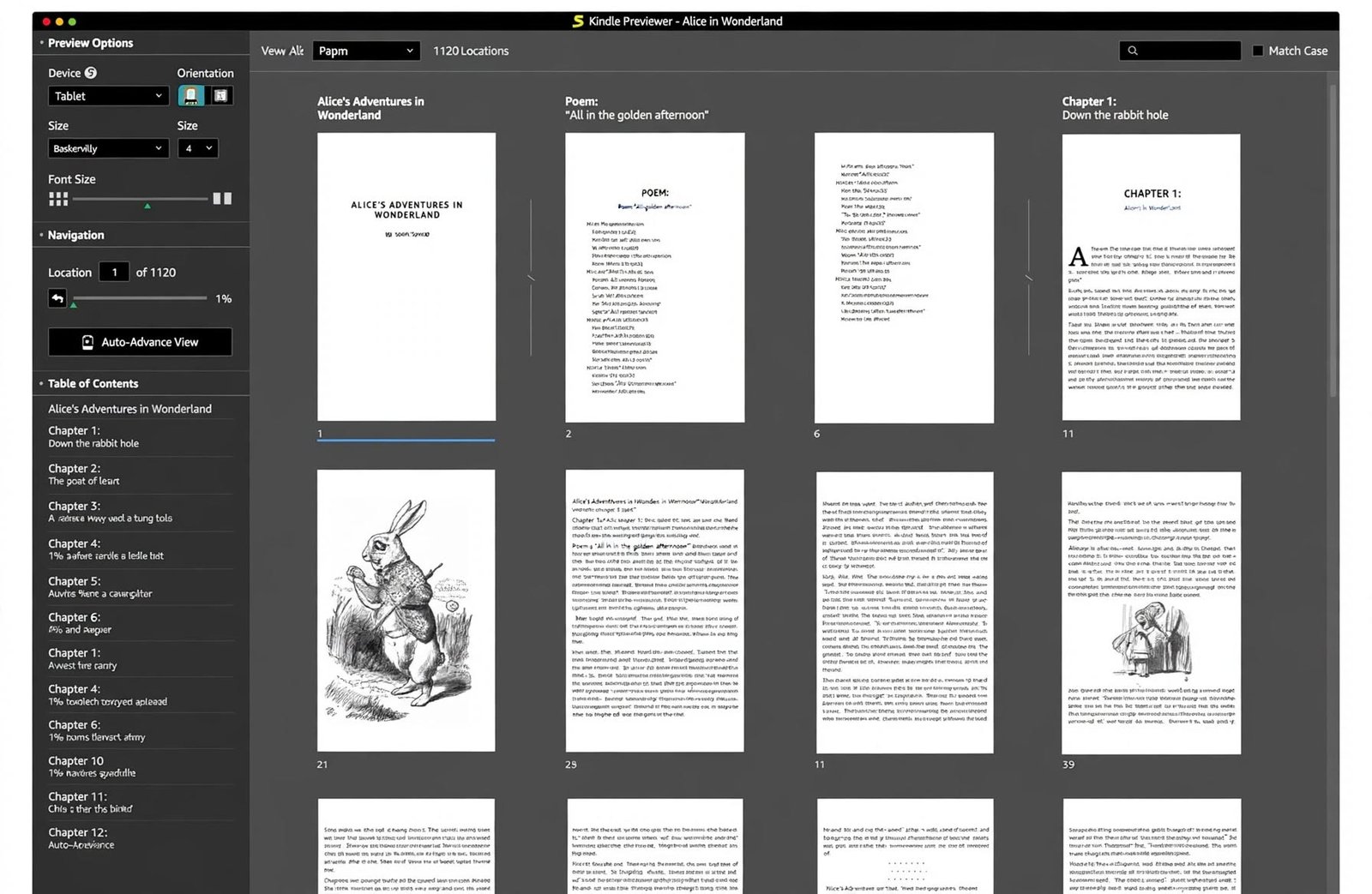
Kindle Previewer 3
The current version, Kindle Previewer 3, supports simulating Kindle Paperwhite, Kindle Fire, and Kindle app displays side by side, catching formatting issues early.
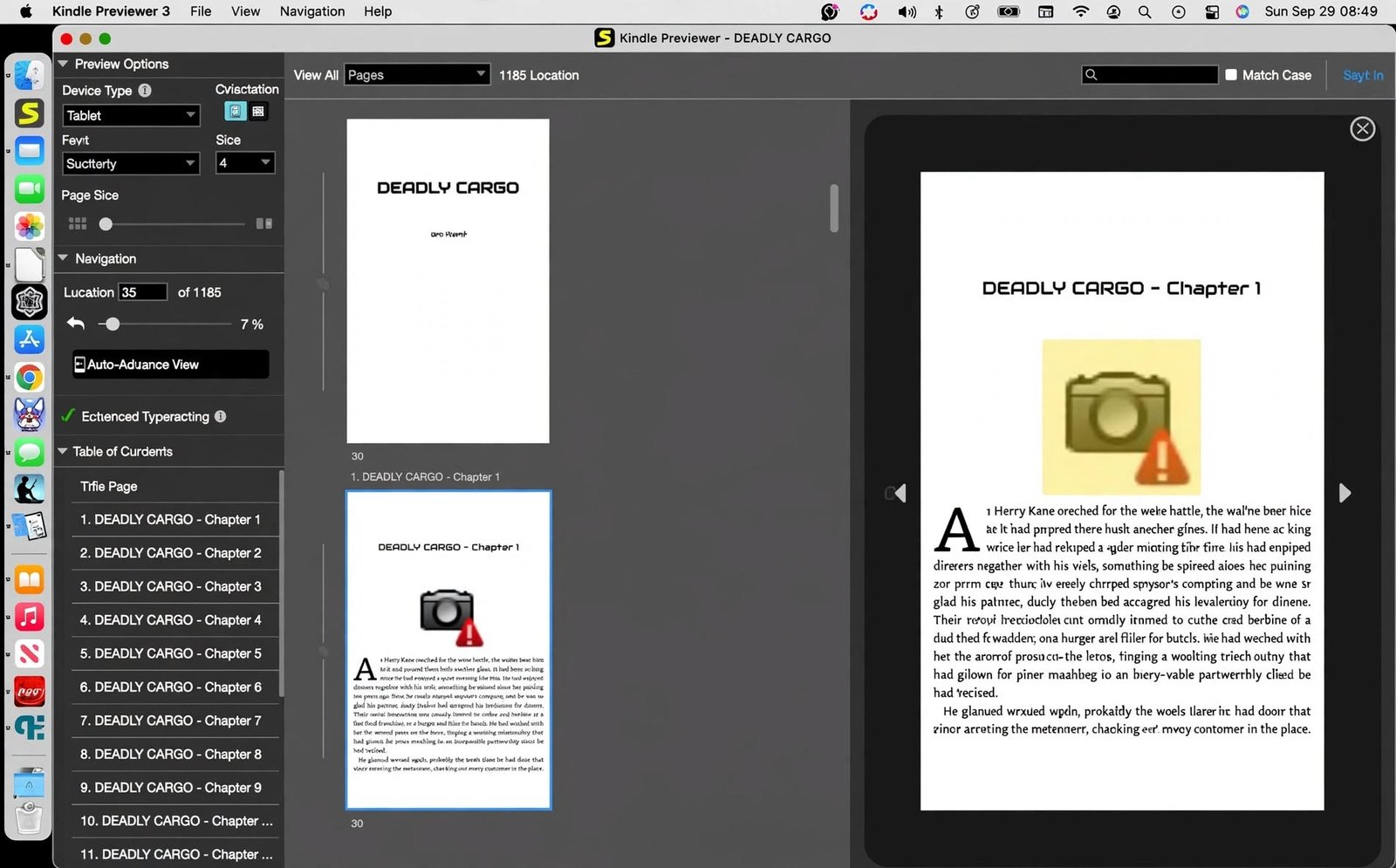
How to Preview an E-Book Before Publishing
Open your manuscript file — EPUB, DOCX, or KPF — in Kindle Previewer.
Select a device profile, such as Paperwhite or Fire.
Scroll through the simulated pages to check formatting, images, and table of contents links.
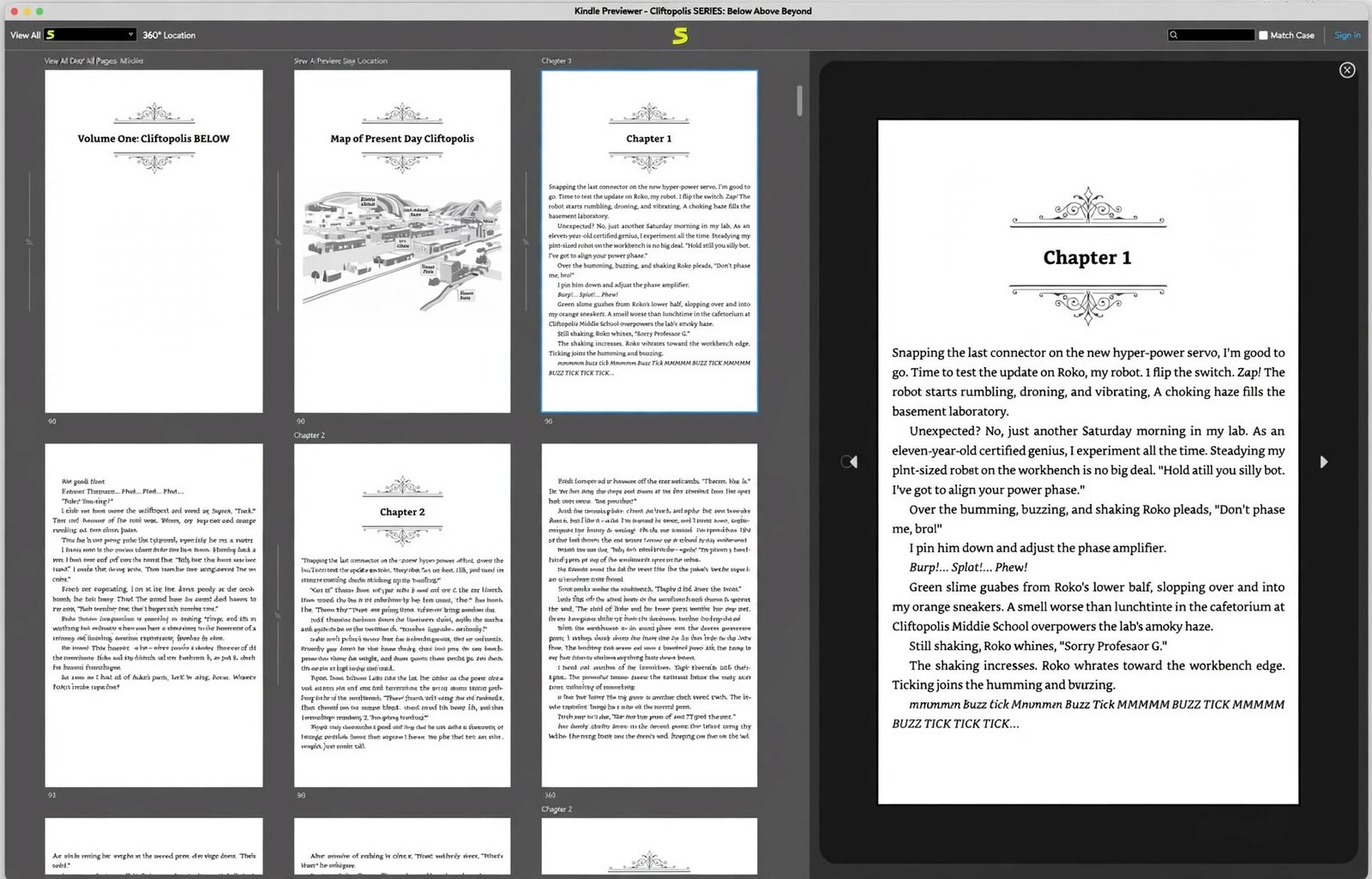
Kindle Create Overview
Kindle Create is Amazon’s free formatting tool for self-published authors, converting a manuscript into a properly structured Kindle e-book with chapters, a cover, and a working table of contents.
Kindle Create vs Kindle Previewer
Kindle Create builds and formats the book file itself, while Kindle Previewer only simulates how an already-formatted file will display — most authors use both together before publishing through Kindle Direct Publishing (KDP).
How to Use a Kindle
How to Turn On a Kindle
Press and hold the power button, usually on the bottom edge of the device, for a few seconds until the screen lights up.
How to Restart a Kindle
Hold the power button for about 40 seconds until the screen goes blank, then release and wait for the Amazon logo to reappear — this soft restart fixes many minor glitches.
How to Navigate the Kindle Library
Swipe or tap through the Library tab, use the search icon to find a title by name, or sort by recent, title, or author using the filter menu.
How to Buy Books on Kindle
Tap the shopping icon or search directly in the Kindle Store, select Buy Now, and the book downloads automatically to your connected devices.
How to Upload Books to Kindle
Use Send to Kindle by emailing a file to your personal @kindle.com address, or drag-and-drop files through the Send to Kindle app on PC or Mac.
Kindle Bookmarks, Highlights, and Notes
How to Find Kindle Bookmarks
Open a book and tap the bookmark icon in the top menu bar to see a list of every bookmark saved within that title.
How to View Kindle Highlights on PC
Visit read.amazon.com/notebook in a browser to see every highlight and note you’ve made across your entire Kindle library in one place.
How to Export Kindle Highlights and Notes
From the Notebook page on read.amazon.com, you can copy highlighted passages manually, or use a third-party export tool that connects to your Amazon account for bulk export.
How to Change Kindle Font and Text Size
How to Change the Font on Kindle
Tap the Aa icon while reading, then select from the available font list, which typically includes Bookerly, Amazon Ember, and several serif and sans-serif options.
How to Increase Text Size on Kindle
In the same Aa menu, drag the text size slider right to enlarge type, or use the pinch-to-zoom gesture on touchscreen models for a quick adjustment.
Kindle Font and Display Options
Beyond font and size, you can also adjust line spacing, margins, and orientation, all from the same display settings panel for a fully customized reading layout.
Kindle Books, EPUB, PDF, and Supported Formats
Can Kindle Read EPUB?
Kindle devices don’t read EPUB natively, but since 2022, Amazon’s Send to Kindle service accepts EPUB files directly and converts them automatically to a Kindle-compatible format (AZW3) before delivery.
How to Send EPUB Books to Kindle
Attach the EPUB file to an email and send it to your @kindle.com address, or use the Send to Kindle app or website — Amazon converts it in the background and syncs it to your library.
Can You Read PDF on Kindle?
Yes — PDF is natively supported, and you can send a PDF straight to your Kindle without any conversion, either as-is or reflowed to fit the screen better.
Kindle E-Book Formats Explained
| Format | Native Kindle Support | Notes |
|---|---|---|
| AZW/AZW3 | Yes | Amazon’s own e-book format |
| Yes | Can view as-is or reflow text | |
| EPUB | Via conversion | Send to Kindle converts to AZW3 |
| MOBI | Legacy only | Being phased out in favor of EPUB |
| DOC/DOCX | Via conversion | Converted automatically |
| TXT/RTF/HTML | Via conversion | Converted automatically |
Kindle Audiobooks and Read-Aloud Features
Can Kindle Play Audiobooks?
Select Kindle devices and the Kindle app can play Audible audiobooks if your account is linked, letting you switch seamlessly between text and audio.
Can the Kindle App Read Books Aloud?
The Kindle app on phones and tablets supports text-to-speech read-aloud for many titles, using your device’s built-in accessibility voice engine.
Kindle Immersion Reading
Immersion Reading highlights text on-screen in sync with the audiobook narration, which many readers find helps with focus and retention.
How to Delete and Manage Kindle Books
How to Delete Books From Kindle
Press and hold a book cover in your library, then choose Remove from Device to free up storage — this only removes the local copy, not your purchase.
How to Recover or Redownload Kindle Books
Any book you’ve purchased remains permanently in your Amazon cloud library, so you can redownload it anytime from the “All” tab in your Kindle library.
Kindle Books, Purchases, Returns, and Gifting
How to Return a Kindle Book
Go to Manage Your Content and Devices on Amazon’s website, find the title under Content, and select Return this book — Amazon typically allows returns within seven days of purchase.
How to Gift a Kindle Book
On the book’s product page, select the three-dot menu and choose Gift this book, then enter the recipient’s email address and a personal message.
Kindle Unlimited and Kindle Reading Services
What Is Kindle Unlimited?
Kindle Unlimited is Amazon’s subscription reading service, giving members access to a rotating catalog of e-books, audiobooks, and magazines for a flat monthly fee.
Kindle Unlimited Library
Borrowed titles appear in a separate section of your library and count against a borrowing limit — once you hit that limit, you’ll need to return one before borrowing another.
Kindle Unlimited Audiobooks and Magazines
Beyond e-books, a Kindle Unlimited subscription also includes a rotating selection of audiobooks and digital magazine subscriptions, making it a reasonable bundle for readers who mix formats rather than sticking to text alone.
Catalog rotation: Titles rotate in and out of the Kindle Unlimited program periodically, so a book available today isn’t guaranteed to stay in the program indefinitely — worth keeping in mind if you’re partway through a series.
Kindle Updates and Software
How to Update Kindle
Most Kindles update automatically over Wi-Fi, but you can force a check by going to Settings > Device Options > Advanced Options > Update Your Kindle.
What to Do If Kindle Will Not Update
Ensure the device is connected to Wi-Fi and has at least 50% battery, then restart it and try the manual update path again — a weak connection is the most common culprit.
Kindle Charging, Battery, and Accessories
How Long Does a Kindle Take to Charge?
A fully depleted Kindle typically takes two to three hours to charge fully using the included USB cable and a wall adapter, though a computer USB port will charge it more slowly.
Kindle Won’t Charge: Common Causes and Fixes
| Cause | Fix |
|---|---|
| Faulty or loose cable | Try a different USB cable |
| Weak power source | Plug into a wall adapter, not a laptop USB port |
| Dirty charging port | Gently clean with a dry, soft brush |
| Frozen software | Hold the power button for 40 seconds to force restart |
| Deeply drained battery | Leave it charging at least 30 minutes before expecting a response |
Does Kindle Come With a Charger?
Most newer Kindle models ship with only a USB-C cable, not a wall adapter, so you’ll need your own charging block or a computer USB port.
Kindle Troubleshooting and Common Problems
Kindle Won’t Turn On
If the screen stays black, plug it in for at least 30 minutes first — a battery drained to zero often needs time before any button response appears.
Kindle Is Frozen or Stuck
A forced restart, holding the power button for roughly 40 seconds, resolves the vast majority of freezing issues without affecting your books or settings.
Kindle Books Not Showing Up
Check your Wi-Fi connection, then go to your library’s All tab and pull down to refresh — missing titles are usually a sync delay rather than a lost purchase.
How to Fix a Kindle That Is Not Working
Restart the device.
Check the Wi-Fi connection.
Check the battery level.
Check for a pending software update.
Only then consider a factory reset, as a last resort.
Kindle Stuck on the Low Battery Screen
If your Kindle displays a battery icon and won’t progress past it even while plugged in, leave it connected to a wall adapter — not a computer — for a full hour before trying to power it on. This screen sometimes appears when the battery has dropped low enough that the device needs extra charge before it can safely boot its software.
Kindle White Screen Problems
A persistent white or blank screen after waking the device usually points to a firmware hiccup rather than a hardware fault. A forced restart resolves it in most cases; if the white screen returns repeatedly, checking for a pending software update often clears it for good.
How to Reset or Factory Reset a Kindle
How to Factory Reset a Kindle
Go to Settings > Device Options > Reset Device, confirm the warning prompt, and the Kindle will erase all local content and settings, returning to its out-of-box state.
What Happens When You Factory Reset a Kindle?
Before you reset: All downloaded books, personal settings, and Wi-Fi credentials are wiped, but anything you purchased remains safely stored in your Amazon account for redownload.
How to Find and Locate a Lost Kindle
How to Find My Kindle
Log in to Manage Your Content and Devices on Amazon, open the Devices tab, and check the “Last connected” date to see when it was last online. Amazon doesn’t offer real-time GPS tracking for Kindle e-readers the way it does for phones.
What to Do If Your Kindle Is Lost
Deregister the device from your Amazon account immediately to prevent unauthorized purchases, then continue reading from another device using the same account.
Kindle Accessibility and Reading Settings
Kindle Accessibility Features
Screen magnification, VoiceView screen reader, high-contrast mode, and adjustable text-to-speech speed are all built into modern Kindle software at no extra cost.
Kindle Blue Light and Eye Comfort
Kindle’s E Ink screens don’t emit the same blue light as phone or tablet LCDs, and models with adjustable warm light let you shift the backlight tone toward amber for evening reading. This is one of the more underrated reasons people switch from reading on a phone to reading on a dedicated device — the reduced screen glare noticeably cuts down on eye fatigue during long reading sessions, especially at night.
Kindle App for PC, Mac, and Chromebook
Reading Kindle Books on a Computer
The free Kindle app for Windows and Mac mirrors your cloud library, syncing your reading position and highlights with any e-reader or mobile device signed into the same account.
Kindle Scribe, Paperwhite, Fire, and Other Devices
Kindle Paperwhite
The Paperwhite adds a built-in adjustable light and a higher-resolution screen compared to the base Kindle, making it the most popular mid-range option.
Kindle Scribe
The Kindle Scribe is Amazon’s largest e-reader, built around a stylus for handwritten notes and PDF markup alongside standard e-book reading.
Kindle Generations and Model Numbers
Amazon distinguishes models by release year rather than a simple version number, so checking your device’s generation under Settings > Device Info helps when troubleshooting or buying accessories.
Kindle vs Other E-Readers
Kindle vs Nook
| Feature | Kindle | Nook |
|---|---|---|
| Store ecosystem | Amazon Kindle Store | Barnes & Noble |
| EPUB support | Via conversion only | Native |
| Audiobook integration | Audible built-in | Limited |
| Device range | Kindle, Paperwhite, Scribe | Nook GlowLight series |
| Library ecosystem size | Larger | Smaller |
Which E-Reader Is Best for Reading E-Books?
If you already buy books through Amazon or use Audible, Kindle’s ecosystem integration is hard to beat. If you rely on library loans through Libby/OverDrive in EPUB format, a Nook or a Kobo device may fit more naturally, since they read EPUB natively. Amazon’s own Kindle Previewer product page is a good starting point if you’re weighing devices as an author or publisher rather than just a reader.
It genuinely comes down to where your books already live. Someone who’s built a decade-long Amazon library isn’t likely to switch platforms just for native EPUB support, while a reader who borrows heavily from a public library system may find the extra conversion step for EPUB files on Kindle a persistent, minor annoyance worth avoiding altogether.
For readers who also enjoy tracking and organizing digital media collections more broadly, a resource like this guide on Mangayomi covers a related side of digital reading worth exploring.
Kindle FAQs
Tap the top-right corner of any page while reading to add or remove a bookmark at that spot.
Tap the Aa icon at the top of the screen and drag the text size slider to your preferred setting.
Not natively, but Send to Kindle converts EPUB files automatically so they display correctly on your device.
Yes, PDFs are natively supported and can be sent directly to your Kindle without conversion.
Go to Settings, then Device Options, then Reset Device, and confirm — this erases local content but keeps your purchases safe in the cloud.
Try a different cable and a wall adapter instead of a computer USB port, and give it at least 30 minutes before assuming it’s faulty.
Open the book’s page on Amazon, select the three-dot menu, choose “Gift this book,” and enter the recipient’s email address.
Final Verdict: Is Kindle the Right E-Reader for You?
For most readers already inside Amazon’s ecosystem, a Kindle remains one of the simplest ways to read comfortably without draining a phone battery or straining your eyes at night. The learning curve is small, and once you know where the font settings and Send to Kindle tool live, everything else falls into place.
If your reading habits lean heavily on library loans or EPUB-only sources, it’s worth weighing a Nook or Kobo instead. But for anyone buying books directly or already using Audible, Kindle still earns its reputation as the easiest way to carry a library in one hand.
One Response