Software Guide
File Viewer Plus: Download, Features, Setup, and Alternatives
Ever downloaded a file and had no idea what to open it with? Maybe it was a .dwg drawing from a contractor, a .dcm scan from a clinic, or an old .wps document from a computer that doesn’t exist anymore. That moment of “what even is this file” is exactly why File Viewer Plus exists.
File Viewer Plus is a Windows application built by Sharpened Productions that opens, views, edits, and converts more than 400 file formats from a single program. Instead of hunting down a different app for every file type you receive, you drag the file into one window and let the software figure out the rest.
This guide walks through what File Viewer Plus actually does, which formats it supports, how much it costs, how to install it, common problems people run into, and how it stacks up against alternatives like IrfanView, XnView, and WinRAR.
What Is File Viewer Plus and What Can It Open?
File Viewer Plus as a Universal File Viewer
At its core, File Viewer Plus is a universal file viewer. Rather than specializing in one category, say, just images or just documents, it tries to open almost anything you throw at it. That includes office documents, PDFs, spreadsheets, CAD drawings, medical images, email files, source code, audio, video, and compressed archives.
File Viewer Plus File Opener and Format Viewer
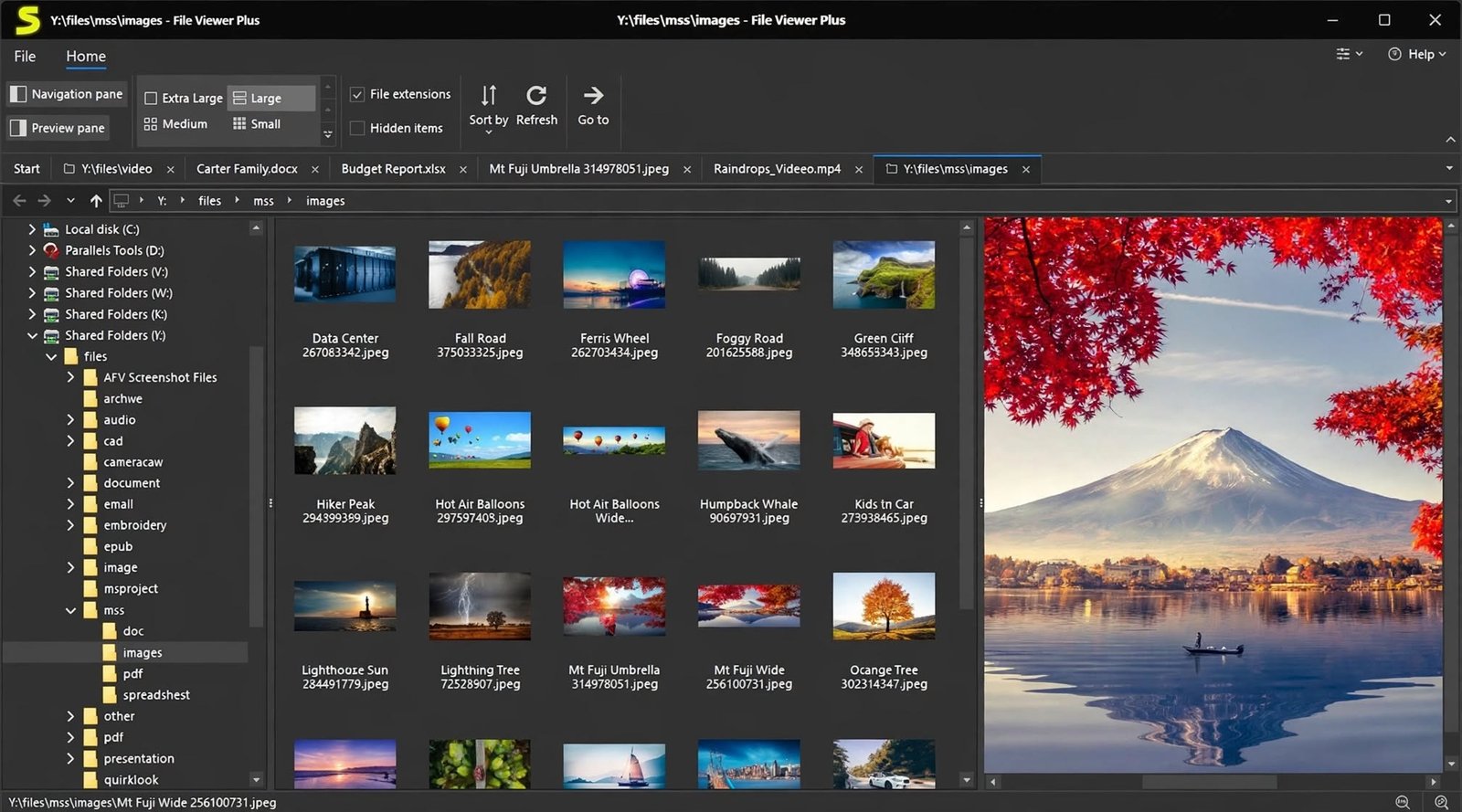
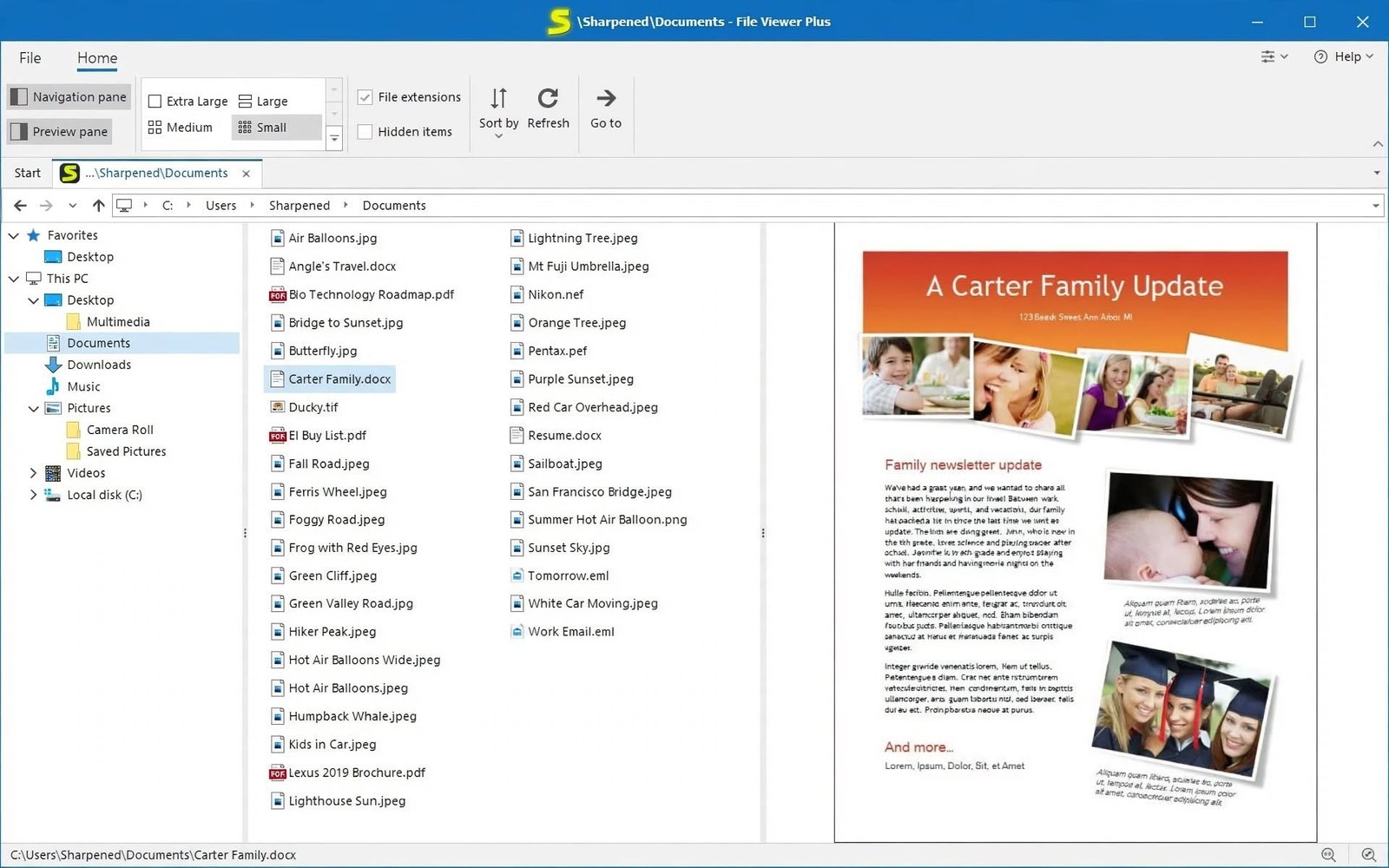
The basic workflow is simple: drag a file onto the program window, or use the built-in file browser to locate it. The software identifies the format, renders the content, and shows you relevant details like dimensions, metadata, or page count depending on the file type.
Open Multiple File Formats and File Types
Because File Viewer Plus recognizes over 400 distinct extensions, it removes the need to install a separate app for every category of file. One license covers documents, images, spreadsheets, presentations, CAD files, and more.
View Unknown and Uncommon File Formats
Where File Viewer Plus really earns its keep is with uncommon or legacy formats: old word processor files, obscure image formats from specialty cameras, or archive formats that Windows Explorer has no idea how to handle.
Identify Unknown File Types and File Formats
The software also works as a file identifier. If you have a file with a missing, incorrect, or unfamiliar extension, File Viewer Plus can inspect it against a database of more than 10,000 known file types and suggest what it likely is, even when the extension itself is wrong or absent.
File Viewer Plus Features
Universal File Viewer and File Inspector
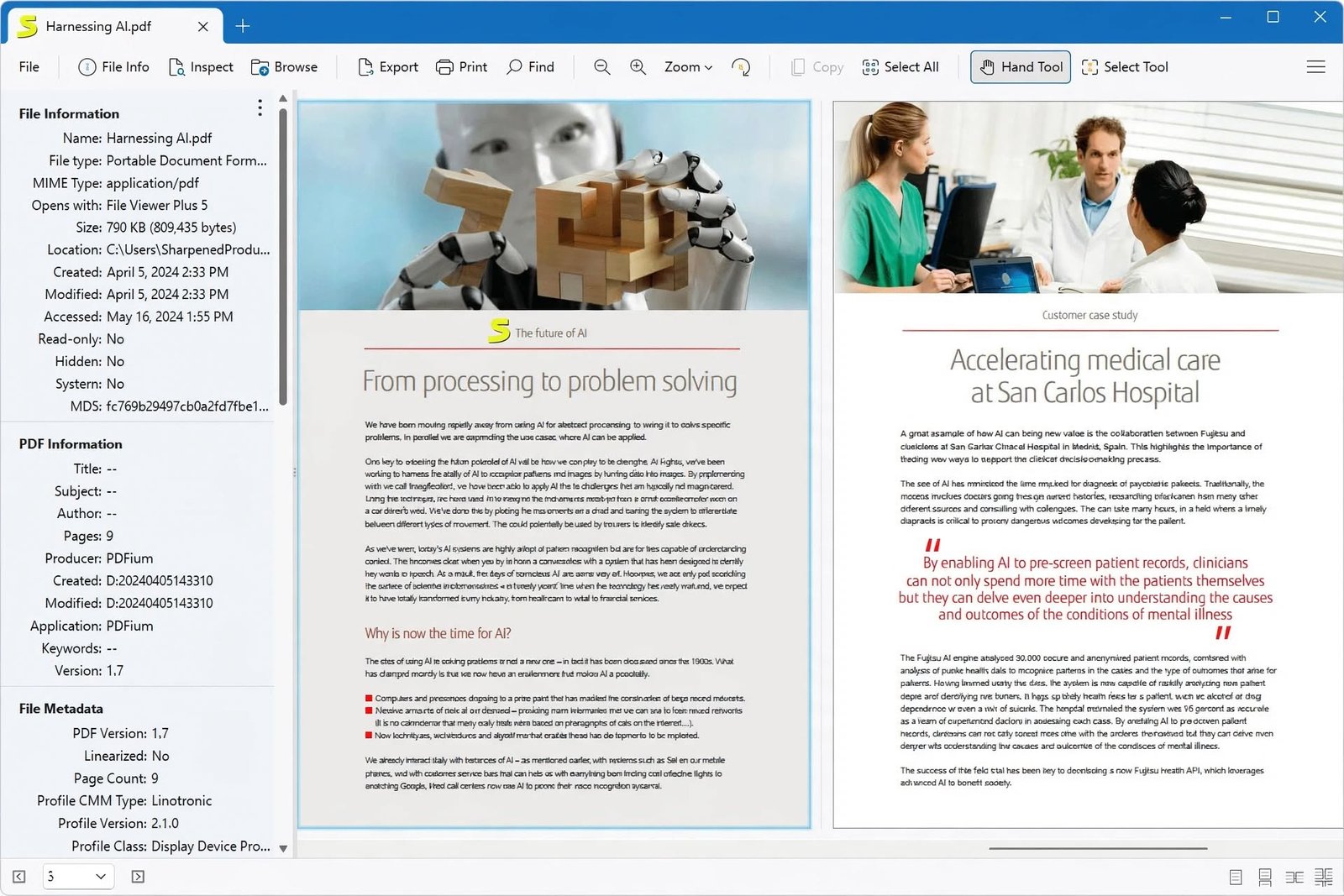
Beyond simply opening files, File Viewer Plus acts as an inspector. You can see hidden file information and several types of metadata directly inside the app, which is genuinely useful when you’re troubleshooting a corrupted file or verifying what a document contains before sharing it.
View File Contents and Metadata
For photographers, this means checking EXIF data on a RAW image. For office workers, it means confirming author, creation date, and revision details on a Word file. The metadata view saves you from opening a separate properties dialog every time.
Document Viewer and File Editor
File Viewer Plus isn’t strictly read-only. You can edit a range of document types directly — think basic text edits in a Word file, or adjustments to a spreadsheet — then save your changes or export to a different format entirely.
Built-In File Conversion Tools
One of the most practical features is built-in conversion. You can take a Word document and export it as a PDF, or turn a PDF back into an editable Word file. The same logic applies to images: crop a camera RAW file and save the result as a JPEG without opening a second application.
Batch File Conversion and Bulk Processing
For anyone dealing with large folders of files — a photographer with hundreds of RAW images, or an office converting a shared drive full of legacy documents — the batch converter lets you process many files in one pass instead of one at a time.
Built-In Media Player
Audio and video files play directly inside File Viewer Plus, so you don’t need a separate media player just to confirm what’s inside a video file someone emailed you.
File Management and Organization Tools
Newer versions add a built-in file manager with move, copy, and delete capabilities, plus thumbnail previews for common Office formats like .docx, .xlsx, and .pptx. That turns File Viewer Plus into something closer to a lightweight file browser, not just a viewer.
File Viewer Plus Supported File Formats
Document and Text File Formats
File Viewer Plus opens Word, RTF, plain text, OpenDocument Text, and EPUB eBooks. Legacy formats like the old .doc and .wps extensions are supported too, which matters if you’re digging through an archive of older files.
PDF Files and PDF Documents
PDFs can be viewed, annotated, and converted. One of the more requested features in recent versions is higher-quality PDF to Word conversion, which preserves formatting better than many free online converters.
Excel, Spreadsheet, and CSV Files
Spreadsheets in .xls, .xlsx, and CSV formats open with formatting intact, and you can edit and re-save them or convert between formats.
Image, Photo, RAW, PSD, and HEIC Files
Image support is extensive: standard formats like JPEG, PNG, and GIF, along with camera RAW files, Photoshop .psd files, and modern formats like HEIC and JPEG XL that some older viewers still can’t open.
DICOM and Medical Image Files
File Viewer Plus can open DICOM (.dcm) files, the standard format used for medical imaging such as X-rays and scans. This is a niche but genuinely valuable feature, since dedicated DICOM viewers are often expensive or clunky.
CAD, DWG, and DXF Files
Architects, engineers, and contractors dealing with .dwg and .dxf CAD drawings can preview them without installing a full CAD suite just to check a file someone sent over.
Email Files Including MSG, EML, EMLX, and OFT
Email attachments in .msg, .eml, .emlx, and .oft formats — including Outlook-specific files and winmail.dat attachments — open directly, which is handy when you need to review an email without launching Outlook itself.
Source Code and Programming Files
Developers can view and inspect JSON, XML, HTML, CSS, PHP, JavaScript, Python, C++, and SQL files, often with basic syntax highlighting.
Audio and Video Files
Hundreds of audio and video formats play through the built-in media player, covering both common formats and older, less mainstream codecs.
ZIP, RAR, 7Z, and Other Archive Files
Archives including ZIP, RAR, 7Z, TAR, and several legacy or multi-part compressed formats can be browsed and extracted from within the app.
File Viewer Plus and 400+ File Formats
Here’s a quick snapshot of the format categories File Viewer Plus covers:
| Category | Example Formats |
|---|---|
| Text & Documents | DOC, DOCX, RTF, ODT, EPUB, TXT |
| PDF & XPS | PDF, XPS |
| Spreadsheets | XLS, XLSX, CSV, TSV |
| Images & RAW | JPG, PNG, HEIC, PSD, RAW, DICOM |
| CAD | DWG, DXF |
| MSG, EML, EMLX, OFT | |
| Source Code | JSON, XML, HTML, PHP, JS, PY, SQL |
| Audio & Video | MP3, WAV, MP4, MOV, and more |
| Archives | ZIP, RAR, 7Z, TAR |
File Viewer Plus Document Viewer and Converter
View Word, DOC, DOCX, TXT, RTF, ODT, and EPUB Files
Whether the file was created in modern Word or an old word processor from decades ago, File Viewer Plus renders the text and formatting reliably, which is more than can be said for Windows’ built-in preview pane.
Edit and Convert Documents
Once a document is open, basic editing is available directly in the app, followed by the option to save in the original format or convert to something else entirely.
Convert Documents to PDF
Turning a document into a shareable PDF takes just a couple of clicks, which is useful when you need a version that won’t shift formatting on someone else’s computer.
PDF Viewer and PDF Conversion
PDFs open quickly and can be exported to other formats, avoiding the need for a separate dedicated PDF editor for simple tasks.
Convert PDF to Word and Other Formats
This is a standout feature in the current version: PDF to Word conversion that keeps layout and formatting largely intact, rather than dumping everything into a single unformatted text block.
File Viewer Plus Excel and Spreadsheet Viewer
Open XLS and XLSX Files
Spreadsheets open with formulas and formatting preserved, so you can actually review the data rather than just see a garbled table.
View CSV and TSV Files
Plain delimited files display in a proper table view rather than raw text, which makes scanning through exported data far easier.
View and Edit Spreadsheet Files
Light editing is supported directly, useful for quick fixes without needing to open a full spreadsheet application.
Convert Excel and Spreadsheet Files
Spreadsheet files can be converted between formats, which helps when a client needs a .csv but you only have an .xlsx, or vice versa.
File Viewer Plus Image Viewer and Converter
View Images, Photos, and RAW Files
Standard photo formats open instantly, and camera RAW files from most major manufacturers are supported as well.
Camera RAW and PSD File Viewer
Photographers can preview RAW files and even open layered Photoshop .psd files without owning Photoshop itself.
HEIC Image Viewer
HEIC, the format many modern phones default to, is fully supported — a common pain point for people on older versions of Windows that don’t natively display HEIC thumbnails.
Image Viewer and Editor
Basic edits like cropping, resizing, and rotating are built in, so quick fixes don’t require a separate photo editor.
Convert Image and Photo Formats
Images convert between formats individually or in batches, which is especially useful for anyone standardizing a folder of mixed image types into one format.
File Viewer Plus DICOM and Medical Image Viewer
Open and View DICOM Files
DICOM files, the standard for medical imaging, open directly with relevant scan metadata visible alongside the image.
DICOM Viewer for Windows and PC
For a general-purpose Windows utility, DICOM support is an unusual but welcome inclusion, saving users from installing specialized (and often costly) medical imaging software just to check a single file.
Medical Image Viewing and File Inspection
Beyond just viewing the image, users can inspect the embedded metadata that accompanies DICOM scans.
File Viewer Plus CAD Viewer
Open and View DWG Files
.dwg files, the native AutoCAD format, open for viewing without requiring an AutoCAD license.
Open and View DXF Files
.dxf, a more universal CAD exchange format, is supported as well, useful when collaborating across different CAD software.
CAD Drawing and File Viewer for Windows
This makes File Viewer Plus genuinely useful for project managers, clients, and contractors who need to check a drawing but don’t need full CAD editing capability.
CAD File Inspection and Format Support
Basic file details are visible alongside the drawing itself, helping confirm you’re looking at the right revision or file.
File Viewer Plus Email File Viewer
Open MSG and Outlook Email Files
Outlook .msg files open with full message content, headers, and attachments visible.
Open EML, EMLX, and OFT Files
Other common email formats, including Apple Mail’s .emlx and Outlook templates (.oft), are supported too.
View Winmail.dat Files
The notorious winmail.dat attachment — which normally shows up when Outlook mis-encodes a message — can be opened and its contents extracted.
MSG and EML File Conversion
Email files can be converted to more universal formats, helpful for archiving or sharing outside of Outlook.
File Viewer Plus Source Code and Programming File Viewer
View JSON, XML, HTML, CSS, PHP, and JavaScript Files
Developers and QA testers can quickly inspect configuration files, markup, and scripts without opening a full IDE.
View Python, C++, and SQL Files
Backend and database files are readable too, which is convenient for a quick look without launching a heavier development environment.
Source Code Viewer and Editor for Windows
While it’s not a replacement for a dedicated code editor, it’s a fast way to peek inside a file you weren’t expecting to receive.
Open and Inspect Programming Files
The same file-identification features apply here — if a script file arrives without the right extension, File Viewer Plus can often still recognize and open it.
File Viewer Plus Media and Archive Viewer
Play Audio and Video Files
Hundreds of audio and video formats are playable, covering both mainstream and legacy codecs.
Built-In Audio and Video Player
The player is basic but functional, mainly intended for confirming content rather than replacing a dedicated media player for daily use.
Open ZIP, RAR, and 7Z Files
Archives can be browsed and their contents extracted without a separate compression tool.
View Compressed and Archive Files
Multi-part and legacy archive formats are supported alongside the mainstream ones, which is a nice touch for anyone dealing with older backups.
File Viewer Plus File Conversion and Batch Processing
File Format Converter for Windows
Conversion isn’t limited to one file at a time — the batch converter is built for scale.
Convert Multiple Files at Once
Select a folder, choose the output format, and let the software process the whole batch rather than converting files individually.
Batch Convert Documents and Images
This is especially useful for businesses migrating file archives to a new standard format, or photographers converting hundreds of RAW files to JPEG after a shoot.
Bulk File Conversion and Multi-Format Processing
Advanced batch options give power users and IT admins more control over output settings during bulk jobs.
File Viewer and Converter Workflow
In practice, the typical workflow is: open the file to confirm what it is, edit if needed, then convert or batch-process as the final step — all inside one application window.
File Viewer Plus Download and Latest Version
File Viewer Plus Download
File Viewer Plus can be downloaded directly from the official Sharpened Productions website or through the Microsoft Store. The direct download tends to be the most current build and doesn’t require a Store account.
File Viewer Plus Free Download and Free Version
File Viewer Plus does not offer a permanently free full version, but it does provide a 14-day free trial with complete access to all features. After the trial period, the app continues to work with limited functionality rather than shutting down entirely.
Trial vs. full version: conversion and editing tools stop working once the 14-day trial ends. Basic viewing still works, so you won’t lose access to your files.
File Viewer Plus 6 and Latest Version
The current major release is File Viewer Plus 6, which added a built-in file manager, thumbnail previews for Office documents, improved PDF-to-Word conversion, and support for newer image formats like JPEG XL.
File Viewer Plus Full Version and Trial
The trial unlocks every feature for two weeks. If you decide to continue, you can purchase either a one-time license or an annual subscription.
File Viewer Plus Microsoft Store Availability
The Microsoft Store version offers the same trial and sandboxes the app for extra security, with automatic updates handled by the Store itself.
File Viewer Plus for Windows 11, Windows 10, and PC
File Viewer Plus Windows 11 Compatibility
File Viewer Plus 6 runs natively on Windows 11 and is built to match the modern Windows interface.
File Viewer Plus Windows 10 Compatibility
Windows 10 is fully supported as well, though the current version requires the 64-bit edition — 32-bit Windows 10 users will need an older release.
File Viewer Plus for Windows PC
There is no Mac version of the desktop application. A separate File Viewer app exists for Android, but it’s a distinct product from the Windows desktop version.
File Viewer Plus System Requirements
At a glance, here’s what your PC needs:
| Requirement | Minimum |
|---|---|
| Operating System | Windows 10 (64-bit) or Windows 11 |
| RAM | 1 GB (2 GB recommended) |
| Disk Space | Around 560 MB free |
| Framework | .NET Framework 4.6.2 or later |
How to Install and Set Up File Viewer Plus
File Viewer Plus Installation Guide
- Download the installer from the official website or Microsoft Store.
- Run the installer and follow the setup prompts — the process takes just a couple of minutes.
- Choose your default file types during first launch so File Viewer Plus knows what to handle.
- Adjust preferences like theme and default save locations to fit your workflow.
First-Time Setup and Configuration
On first launch, you can choose which file types File Viewer Plus should handle by default, and adjust general preferences like theme and default save locations.
File Associations and Default File Opener
If you want File Viewer Plus to open automatically when you double-click a supported file, you can set it as the default program for specific extensions during or after setup.
Updating File Viewer Plus
The direct download version checks for updates within the app itself, while the Microsoft Store version updates automatically in the background.
File Viewer Plus Tutorial: How to Open and Convert Files
How to Open Unknown or Unsupported Files
Drag the mystery file onto the File Viewer Plus window. If the extension is recognized, it opens immediately; if not, the app attempts to identify the format based on its content.
How to View Multiple File Formats
You can open several files at once in tabs, switching between them without closing and reopening the application.
How to Inspect File Contents and Metadata
Use the info or properties panel within the app to view embedded metadata, which varies depending on file type but often includes author, date, and technical details.
How to Open DWG and DXF Files
Simply drag the CAD file in — no separate plugin is required for basic viewing.
How to Open MSG and EML Files
Email files open the same way as any other supported format, displaying the message body, headers, and attachments.
How to Open DICOM Files
DICOM images open with the scan displayed alongside relevant metadata fields.
How to Open RAW Image Files
RAW files from supported cameras open directly, letting you preview and edit before converting to a standard format like JPEG.
How to Convert Multiple Files
- Select several files in the file browser or an open tab.
- Right-click the selection.
- Choose the export or convert option to process them together.
How to Batch Convert Files
- Open the batch conversion tool from the main menu.
- Select an entire folder of files to convert.
- Pick your output format for the whole set.
- Run the batch and let the software work through it automatically.
File Viewer Plus Online, APK, and Platform Availability
Is There a File Viewer Plus Online Version?
No. File Viewer Plus is a desktop application that runs locally and works offline. There is no browser-based or web version of the full software.
Is File Viewer Plus Available as an APK?
A separate File Viewer app exists for Android, but it is a different product from the Windows desktop application and shouldn’t be confused with it.
Supported Platforms and Desktop Availability
The full-featured File Viewer Plus is Windows-only. There is no native Mac or Linux build.
File Viewer Plus Not Working and Common Problems
File Viewer Plus Not Opening Files: confirm the extension is genuinely supported, and check that the file isn’t corrupted by testing it in another program first.
File Viewer Plus Unsupported File or Format: for truly unsupported formats, the file identification feature can still tell you what the file likely is, even if it can’t render the content directly.
Installation and Download Errors: often linked to an outdated or missing .NET Framework. Installing the latest version from Microsoft before reinstalling File Viewer Plus usually resolves this.
Windows 11 Problems: most reported issues relate to permissions or antivirus software flagging the installer. Running the installer as administrator generally clears this up.
Conversion and Batch Conversion Errors: batch jobs can fail if the destination folder lacks write permissions or if the disk runs out of space mid-conversion — check both before starting a large batch.
Activation and License Errors: usually resolved by confirming your internet connection is active during the license check and that you’re using the correct purchase email.
Crashes and Performance Issues: crashes on very large files are sometimes linked to available RAM. Closing other memory-heavy applications before opening large CAD or RAW files can help.
Update Errors: if an update fails, try downloading the latest installer directly from the official site rather than relying on the in-app updater.
Is File Viewer Plus Safe and Legit?
File Viewer Plus Security and Trustworthiness
File Viewer Plus is developed by Sharpened Productions, a long-established software company, and is distributed through both its own official site and the Microsoft Store, which adds a layer of vetting.
Privacy and File Handling Considerations
The application works fully offline, meaning files you open aren’t uploaded anywhere for processing — a meaningful advantage if you’re handling sensitive documents like medical scans or client contracts.
Is File Viewer Plus Safe for Opening Unknown Files?
Opening an unfamiliar file is generally safe, since File Viewer Plus primarily renders content rather than executing it. That said, always download the software itself only from the official site or Microsoft Store, since third-party download mirrors can bundle unwanted extras.
File Viewer Plus Free Version, Pricing, and License
Is File Viewer Plus Free?
File Viewer Plus doesn’t have a permanent free tier, but the 14-day trial gives full access before you need to decide on a purchase.
Free Version vs Full Version
After the trial ends, the app switches to a limited free mode — generally enough for basic viewing, but conversion and editing features require a paid license.
File Viewer Plus Trial
The trial is straightforward: install, use every feature for two weeks, and decide afterward whether to buy.
File Viewer Plus License and Activation
Licensing is available per user, with options for individuals and volume licensing for businesses that need to deploy across multiple machines.
File Viewer Plus Price
Pricing sits around $50 for a one-time purchase or roughly $25 per year for an annual subscription, according to current vendor and reseller listings. Always confirm current pricing on the official site, since software pricing changes over time.
File Viewer Plus Review: Is It Worth Using?
File Format Support and Compatibility
The sheer breadth of supported formats — documents, images, CAD, DICOM, email, code, and archives — is the software’s biggest strength. Few competitors cover this much ground in one app.
Ease of Use and Performance
The tabbed interface is straightforward, and most files open quickly. Very large CAD or RAW files can take a moment longer, which is typical for this category of software.
File Viewing and Conversion Experience
Conversion quality, particularly PDF to Word, has improved noticeably in recent versions and holds up well against dedicated converters.
Pros and Cons of File Viewer Plus
Pros
- Supports 400+ file formats in one app
- Built-in batch conversion
- Works fully offline
- File identification for unknown formats
Cons
- Windows-only, no Mac or Linux version
- No permanent free tier
- Occasional slowdowns with very large files
- Some rare formats view-only, not editable
File Viewer Plus Alternatives and Competitors
Best File Viewer Plus Alternatives
If File Viewer Plus doesn’t quite fit your needs, several alternatives specialize in narrower categories.
Best Free Universal File Viewer
For a lighter, free option focused mainly on images and documents, tools like Universal Viewer or IrfanView cover a lot of common ground, though neither matches File Viewer Plus’s CAD or DICOM support.
Best File Viewer for Windows
Windows Explorer’s built-in preview handles the basics, but falls short on anything beyond common image and PDF formats — which is exactly the gap File Viewer Plus fills.
Best File Opener for Windows 11
For Windows 11 specifically, File Viewer Plus’s native interface design makes it one of the more polished universal openers currently available.
File Viewer Plus vs FileViewPro
Both aim to be universal file openers, but File Viewer Plus generally receives stronger marks for interface polish and format accuracy, while FileViewPro leans more heavily on basic viewing with fewer editing tools.
File Viewer Plus vs Free File Viewer
Free, ad-supported viewers often cover only the most common formats. File Viewer Plus trades the free price tag for far broader format support and batch conversion.
File Viewer Plus vs WinRAR
WinRAR focuses purely on archive compression and extraction. File Viewer Plus handles archives too, but adds document, image, CAD, and email support that WinRAR simply doesn’t attempt.
File Viewer Plus vs IrfanView
IrfanView is a fast, lightweight, and genuinely excellent image viewer and editor, but it’s image-focused. File Viewer Plus trades some of that speed for far wider format coverage across entirely different file categories.
File Viewer Plus vs XnView
XnView is another strong image-centric tool with solid batch conversion for photos specifically. For image-only workflows it’s a great pick; for mixed file types, File Viewer Plus covers more ground.
File Viewer Plus Alternative for Windows 11
If your needs are purely image-based, XnView MP or IrfanView remain excellent lightweight choices for Windows 11. For a broader mix of document, CAD, and media formats, File Viewer Plus is hard to match.
Here’s a quick side-by-side comparison:
| Tool | Best For | Format Range | Price |
|---|---|---|---|
| File Viewer Plus | All-around universal viewer | 400+ formats | ~$25/yr or $50 one-time |
| IrfanView | Fast image viewing & editing | Image-focused | Free (donationware) |
| XnView | Batch photo conversion | Image-focused | Free (personal use) |
| WinRAR | Archive compression | Archives only | Paid (trial available) |
File Viewer Plus FAQs
It’s used to open, view, edit, and convert hundreds of file formats — documents, images, CAD drawings, email files, and more — from one Windows application.
Over 400 formats, including Word, PDF, Excel, images and RAW photos, DWG/DXF CAD files, DICOM medical images, MSG/EML emails, source code, audio, video, and archive files.
Yes. It can identify unrecognized or extension-less files by checking them against a database of more than 10,000 known formats.
There’s no permanent free version, but you get full functionality during a 14-day free trial before deciding on a purchase.
Yes — it works fully offline, doesn’t upload your files anywhere, and is best downloaded only from the official Sharpened Productions site or Microsoft Store.
Yes, File Viewer Plus 6 is built for Windows 11 and also supports 64-bit Windows 10.
Yes, including single-file and batch conversion for documents, images, and more, such as PDF to Word or RAW to JPEG.
Final Verdict: Should You Use File Viewer Plus?
If you regularly deal with a mix of unfamiliar file types — whether that’s client CAD drawings, old document formats, medical scans, or just a messy downloads folder — File Viewer Plus solves a genuinely annoying problem. Instead of installing five different programs, you get one tool that handles nearly all of it, works offline, and includes real conversion power rather than just previews.
It isn’t for everyone. If you only ever deal with photos, a dedicated image tool like IrfanView or XnView might feel faster and lighter. But for anyone who needs broad, reliable format coverage in a single Windows application, File Viewer Plus earns its place. Pair it with a focused tool like a Kindle Previewer alternative if eBook formatting checks are part of your workflow too, and you’ll have most everyday file headaches covered.
Sources: product and pricing details referenced from Sharpened Productions’ official File Viewer Plus site and independent software directories current as of 2026.