Contents
Read&Write for Google Chrome Review: Features, How to Use, and Reading and Writing Support
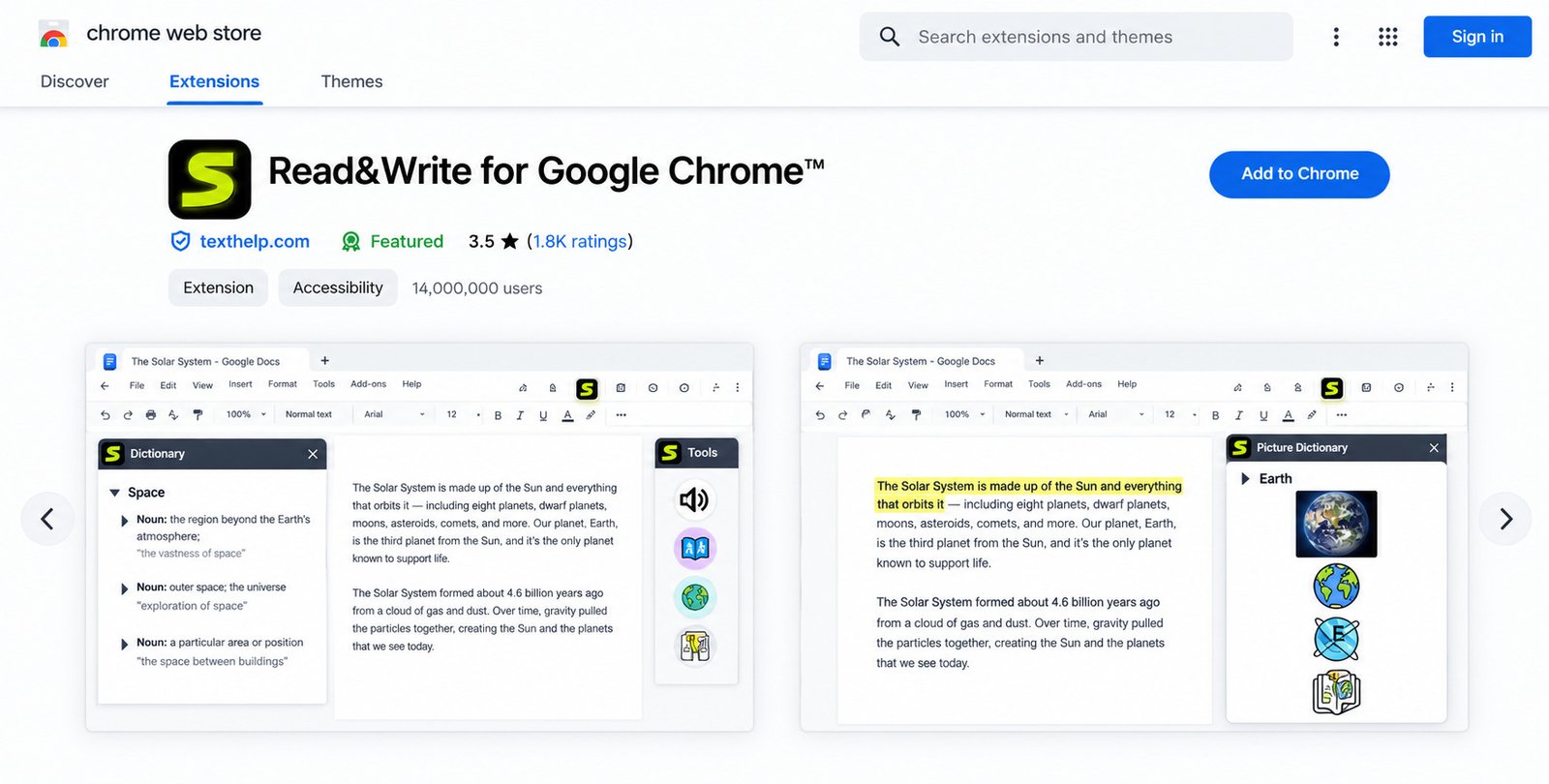
Ever stared at a long web page and felt your focus slip away? You are not alone. Read&Write for Google Chrome is a literacy extension from Texthelp (now part of Everway) that reads text aloud, helps you write, and makes online content easier to handle.
This review covers what it does, how to set it up, and whether it deserves a spot in your browser.
What Is Read&Write for Google Chrome?
Understanding Read&Write and Its Purpose
Texthelp built it to make digital text accessible to people who struggle with reading, writing, or a second language. Think of it as a patient helper that sits beside your screen.
The goal is simple: reduce barriers, not replace effort. Learners still read and write themselves, just with better support.
What Does Read&Write for Google Chrome Do?
It reads text aloud, turns speech into typed words, suggests words as you write, and explains tricky vocabulary. Most of it happens inside one small toolbar.
In everyday use, that means fewer rereads, fewer typos, and less time lost to unfamiliar words.
How Read&Write Supports Reading and Writing
While you listen, the words light up so your eyes follow along. When you write, prediction and spelling help keep your ideas flowing instead of stalling on one word.
Who Should Use Read&Write?
It suits anyone who reads or writes on a screen and wants less strain. That includes learners with dyslexia, English language learners, busy professionals, and tired eyes after a long day.
Parents often install it for children too, since the toolbar is easy to learn.
Read&Write for Students, Teachers, and Professionals
| User | Common Benefit |
|---|---|
| Students | Listen to readings, check spelling, build vocabulary |
| Teachers | Support mixed-ability classes with one tool |
| Professionals | Proofread reports and review long documents by ear |
Key Features of Read&Write for Google Chrome
The toolbar packs many tools, but a handful do most of the heavy lifting.
Here is the short list:
- Read aloud with dual-color highlighting
- Text and picture dictionaries
- Speech-to-text dictation
- Word prediction and spell checking
- Highlight collection and voice notes
- Simplify and translate tools
Text-to-Speech and Read Aloud
Select text or click play, and the extension reads it with dual-color highlighting. Read Aloud is one of the tools that stays free after the trial ends.
Try it on a long news article while you cook or stretch. Listening turns idle minutes into reading time.
Speech-to-Text and Voice Typing
Talk, and your words appear in the document. It helps with drafting, proofreading, and studying when typing feels slow.
Accuracy depends on your microphone and accent, so a quick test run saves frustration later.
Word Prediction for Writing Assistance
As you type, it suggests the current or next word. Suggestions can also be read aloud, which helps you pick the right one.
For writers who freeze on spelling, this feature quietly removes that pressure.
Text Highlighting and Annotation Tools
Highlight passages in different colors, then collect them into a separate document. It turns messy research into a tidy summary.
Use one color for definitions and another for key facts. Your collected notes then arrive already sorted.
Picture Dictionary and Visual Vocabulary Support
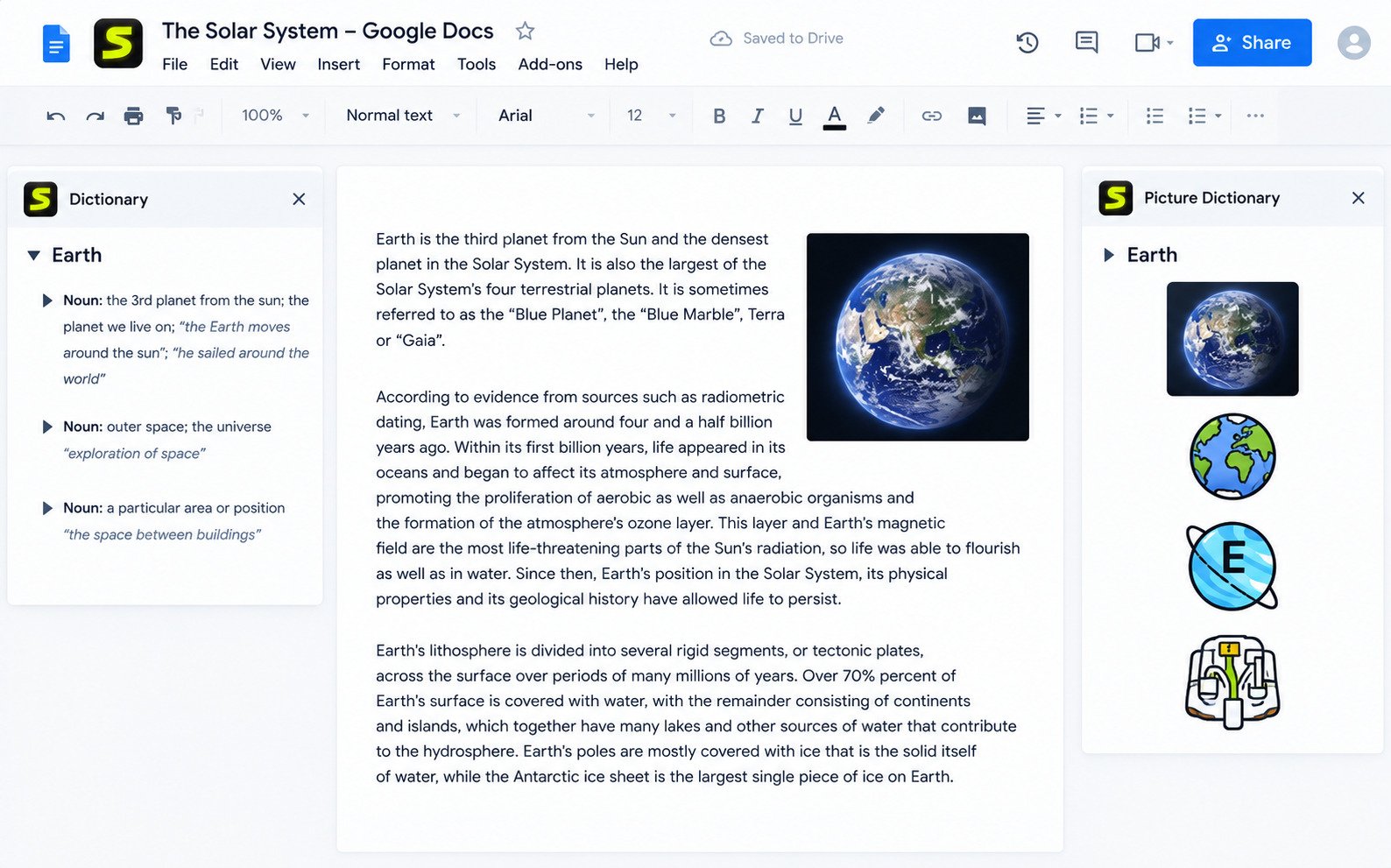
Picture dictionaries show an image beside the definition. A visual cue often sticks better than words alone, especially for younger or language-learning readers.
Dictionary and Vocabulary Tools
Look up any word without leaving the page. You can also build a vocabulary list from the words you check most.
Words you look up become familiar faster when you hear them spoken.
Screen Reading and Web Page Reading Assistance
It reads ordinary web pages, and a Simplify tool strips ads and clutter. A Screenshot Reader extension can even read text that is trapped inside images.
This matters for scanned handouts, where ordinary text-to-speech usually stays silent.
Google Docs and Google Drive Integration
Inside Google Docs, the toolbar appears automatically. It also works with Slides, Forms, and files stored in Drive.
Because it lives in your Google account, your settings follow you wherever Chrome is signed in.
PDF Reading and Writing Support
The extension supports PDFs and ePubs through Drive, and a companion tool called OrbitNote handles PDF annotation. Reading PDFs in Docs is a premium feature.
If your school relies on PDFs, test this feature during the trial before buying.
Digital Literacy and Accessibility Tools
Beyond reading aloud, you get masking and translation tools that reduce visual stress. Together they make the web friendlier for different learning needs.
Small adjustments like these can make a screen feel far more welcoming.
How to Download and Install Read&Write for Google Chrome
Setup takes about two minutes. You only need Google Chrome and a Google account.
Where to Find the Official Read&Write Chrome Extension
Use the Chrome Web Store listing, published by Texthelp. Avoid third-party download sites, because they add risk and no benefit.
How to Download Read&Write for Google Chrome
Open the Chrome Web Store and search for “Read&Write for Google Chrome.” Keep the ampersand and skip extra spaces.
Make sure you are signed in to Chrome first. Installing while signed in keeps your account connected.
How to Add Read&Write to Google Chrome
Click Add to Chrome, then confirm with Add extension. A notice appears once it is installed.
How to Install and Activate the Extension
Click the purple puzzle piece icon and choose Sign in with Google. Then press Allow so the extension can work with your account.
Teachers should also register for their free premium subscription after this step.
How to Pin Read&Write to the Chrome Toolbar
Click the puzzle piece icon in Chrome and select the pin beside Read&Write. Now it stays visible at the top right.
Pinning matters more than it sounds. A visible icon means you will actually use the tool.
Setting Up Read&Write for the First Time
New installs start with a 30-day trial of all features. After that, the basic tools remain, so nothing suddenly disappears without notice.
Spend a few minutes exploring the toolbar before you need it. Familiar tools feel less stressful during real deadlines.
How to Use Read&Write for Google Chrome
Here is which tool fits which job:
| Task | Tool to Try |
|---|---|
| Hear a page | Play |
| Check a word | Dictionary |
| Draft by voice | Talk&Type |
| Gather research | Collect Highlights |
| Reduce clutter | Simplify |
Understanding the Read&Write Toolbar
The toolbar groups icons by task: reading, writing, studying, and research. Hover over any icon to see its name.
Treat it like a toolbox: you do not need every tool at once.
Take it slowly.
How to Read Web Pages Aloud in Chrome
Open an article, click the icon, then press Play. You can also select a paragraph first to hear only that part.
Here is a simple routine:
- Open the page.
- Click the purple icon.
- Press Play.
- Adjust the speed in settings.
How to Use Text-to-Speech for Online Documents
Open the document, show the toolbar, and press Play. Pause whenever you need to take notes.
Listening to your own writing is a proofreading trick many editors swear by.
How to Convert Speech Into Text
Click the microphone tool, allow microphone access, and start talking. Speak clearly and say punctuation aloud for cleaner results.
Short bursts work better than long monologues. Pause, review, and then continue.
How to Use Word Prediction While Writing
Turn on the prediction tool and begin typing. Click the suggestion you want, or use the shortcut shown in the list.
Younger writers often benefit most, because suggestions model correct spelling.
How to Highlight and Collect Important Text
Select a passage, then choose a highlight color. Next, use the collect tool to gather everything into one new document.
Collecting highlights is excellent for essays. You build a quotation bank without copying anything by hand.
How to Use the Picture Dictionary
Select a word and click the picture dictionary icon. A small image appears with the meaning, which clarifies unfamiliar nouns quickly.
It is especially helpful for science terms and everyday objects.
How to Look Up Unfamiliar Words
Double-click a word, then press the Dictionary icon. You can listen to the definition if reading it is hard.
Keep a running list so review sessions focus on words that actually tripped you up.
How to Use Read&Write With Google Docs
Open a Google Doc and the toolbar appears. If it hides, click the extension icon to bring it back.
Keep the document open in a single tab for the smoothest performance.
How to Read and Annotate PDF Documents
Upload the PDF to Google Drive and open it with Read&Write or OrbitNote. Then listen, highlight, and add comments.
Read&Write for Google Chrome and Google Workspace Integration
Google Workspace is where this extension feels most at home. It works across Docs, Slides, Forms, and Drive.
Using Read&Write With Google Docs
It recognizes Docs automatically and adds tools to the page. Even comments inside a document can be read aloud.
That consistency helps classrooms, since every student sees the same toolbar.
Reading Google Docs Aloud
Choose Play to hear the whole document, or select a section first. This is handy for proofreading, since your ears catch awkward sentences.
Try this with a draft email. You will notice missing words immediately.
Using Speech-to-Text in Google Docs
Dictation also works in Slides, not just in speaker notes. It is useful for outlines and quick first drafts.
Voice notes inside Docs also let teachers leave spoken feedback, which many students find friendlier.
Writing Assistance for Google Docs
Prediction, spell checking with Check It, and the dictionary all work beside your cursor. You rarely need to leave the page.
Think of it as a gentle second pair of eyes, not a replacement for your own editing.
Read&Write for Google Drive
Files in Drive open through the extension, including Docs, PDFs, and ePubs. Right-click a file and choose Open with.
Keep files organized in folders so students find readings quickly.
Reading PDF Files in Google Drive
Open the PDF from Drive and use the toolbar to listen. Scanned pages may need conversion first, which is a premium feature.
Large scanned textbooks may load slowly, so split them into smaller files when possible.
Using Read&Write on Other Websites and Online Documents
It also supports learning platforms such as Google Classroom, Canvas, and Schoology. Behavior can vary on sites that block extensions.
How Read&Write Helps Students With Reading and Writing
Students gain independence because the tools respond to their pace. Nobody has to wait for help.
Supporting Reading Comprehension
Hearing and seeing text together improves understanding. Highlighting key ideas then turns passive reading into active study.
A simple habit helps: listen once, then reread the hard parts silently.
Improving Writing Skills and Vocabulary
Prediction and dictionaries expose students to better word choices. Over time, spelling and confidence tend to grow together.
Students see correctly spelled words repeatedly, which strengthens memory.
Reading Assistance for Students With Dyslexia
For students with dyslexia, listening while following highlighted words reduces decoding effort. Tinted screen masks can also ease visual stress.
Supporting Students With Learning Differences
Students with ADHD or language needs benefit from audio, summaries, and clear structure. The tool adapts instead of asking the learner to adapt.
Choice is key. Let students pick the supports that feel natural.
Helping Students Understand Complex Text
Simplify removes distractions, while the dictionary explains hard terms. A tough science article becomes far less intimidating.
Break long readings into chunks, listen to each, then summarize in your own words.
Improving Digital Learning and Classroom Accessibility
One extension can support many learners at once. Teachers spend less time creating separate materials.
Consistent tools across subjects mean students spend energy on content, not on learning new software.
Read&Write for Teachers and Educators
Teachers can get premium access free by registering through Texthelp after installing the extension.
Using Read&Write in the Classroom
Model the tools aloud, then let students choose what helps. Short, regular practice works better than one long demonstration.
Ask students to share favorite tricks. Peer tips often spread faster than teacher instructions.
Supporting Students With Different Learning Needs
Pair audio with highlighting for struggling readers, and prediction for hesitant writers. Small choices make a visible difference.
Track what works in a simple note so supports stay consistent across lessons.
Improving Reading Accessibility in Digital Lessons
Share lessons as Google Docs or Slides so the toolbar works immediately. Fewer formatting surprises mean fewer accessibility gaps.
Add clear headings in your documents. Good structure helps both the toolbar and the reader.
Using Read&Write With Online Assignments
Students can listen to instructions, dictate answers, and check spelling before submitting. It builds independence on every assignment.
Remind students to enable the microphone before test day.
Supporting Inclusive and Accessible Education
Inclusive classrooms make support available to everyone, not only a few. Tools like this lower the stigma around needing help.
Accessibility works best when it is routine rather than special.
When every learner has options, the whole room benefits.
Read&Write for Google Chrome Pricing and Free Trial
Is Read&Write for Google Chrome Free?
Partly. The extension costs nothing to install, and Read Aloud and the translator stay available in Docs and on web pages.
What Is Included in the Free Version?
| Feature | Free | Premium |
|---|---|---|
| Text-to-speech on web and Docs | Yes | Yes |
| Translator | Yes | Yes |
| Speech-to-text | Trial only | Yes |
| PDF reading in Docs | No | Yes |
| Highlight collection | Trial only | Yes |
Read&Write Premium Features and Subscription
Premium adds dictation, word prediction, collected highlights, voice notes, and PDF tools. Subscriptions come as single, group, or domain licenses.
Group and domain licenses suit schools, while single licenses suit individuals.
Read&Write Free Trial and Premium Access
Every new install unlocks all features for 30 days. When the trial ends, the toolbar quietly drops back to the free set.
Use the trial deliberately: dictate an essay, collect highlights, and open a PDF.
Read&Write Pricing for Students and Teachers
Teachers can register for free premium access. Student and school prices depend on license type and change over time, so check the official page.
Is Read&Write Worth Paying For?
If you rely on dictation, prediction, or PDFs daily, yes. If you only need listening, the free version may be enough.
Ask yourself which two tools you would miss most. If both are premium, the subscription makes sense.
Many users happily stay on the free tier for years.
Read&Write System Requirements and Compatibility
The extension is light on requirements. A current browser and internet connection cover most of it.
Read&Write Compatibility With Google Chrome
Texthelp also lists a separate add-on for Microsoft Edge.
Supported Operating Systems and Devices
| Device | Support |
|---|---|
| Windows PC | Yes, via Chrome |
| Mac | Yes, via Chrome |
| Chromebook | Yes |
| iPad | Separate app |
| Android tablet | Separate app |
Your browser version matters more than your operating system.
Read&Write Compatibility With Google Docs
Docs, Slides, and Forms are fully supported. It even works in comments and Word Online.
Updates sometimes change Google’s interface, so keep Chrome current.
Using Read&Write on Windows and macOS
Both behave the same inside Chrome. Standalone desktop versions also exist for offline use.
Does Read&Write Work on Android?
So plan for a tablet or a computer if you need the full toolkit.
Browser and Internet Requirements
Stay online, keep Chrome updated, and keep Chrome Sync enabled. Premium sign-in relies on it.
Some features simply need a stable connection to work.
Close extra tabs if pages lag.
Read&Write Settings and Customization
Spend five minutes in settings. Personalizing the toolbar makes daily use far smoother.
Configuring Text-to-Speech Settings
Open the Settings gear and choose how text is read. Options include reading by word, sentence, or paragraph.
Test settings on a familiar paragraph so changes are easy to judge.
Changing Reading Voices and Speech Speed
Pick a voice you enjoy and slow it down if needed. Faster speeds suit skimming, while slower ones help comprehension.
Some voices sound warmer than others, so sample several.
Adjusting Text Highlighting Preferences
Change highlight colors and reading highlights to suit your eyes. High contrast works well for many readers.
Dual colors help your eyes track the current word and sentence.
Customizing Word Prediction Settings
Set how many suggestions appear and whether they are spoken. Fewer choices feel calmer for younger writers.
Spoken suggestions help students who confuse similar words.
Managing Dictionary and Vocabulary Tools
Choose which dictionary tools appear and clear your word list when finished. Tidy lists keep studying focused.
Review these settings each term as needs change.
Configuring the Read&Write Toolbar
Show only the icons you use. A shorter toolbar reduces clutter and speeds up decisions.
You can also hide the toolbar when it is not needed.
Is Read&Write for Google Chrome Safe?
Is Read&Write a Legitimate Chrome Extension?
It is listed on the Chrome Web Store, has millions of users, and holds roughly 3.5 stars. Schools and universities widely deploy it.
Always confirm the publisher name before installing any extension.
Understanding Read&Write Permissions
It asks to read page content so it can speak and highlight it. You can review granted access at your Google Account permissions page.
Use the Remove Access button if you ever want to revoke it.
How Read&Write Handles User Data
The store listing says it handles personal information, user activity, and website content. The developer states data is not sold to third parties outside approved uses.
Schools should also review district policies on student data.
Privacy Considerations When Using Read&Write With Google Docs
For personal documents, a quick look at the privacy policy is worth the time.
Read&Write for Google Chrome Pros and Cons
Overall, Read&Write is strongest for Google-based classrooms and everyday accessibility. Its free tools are useful, and the premium tools justify themselves for heavy users.
Advantages of Read&Write
- Easy installation and a clean toolbar
- Strong Google Workspace integration
- Helpful for dyslexia and language learning
- Free premium access for teachers
- Customizable voices, colors, and tools
Limitations of Read&Write
- Most advanced features need a subscription
- Chrome only, with no Safari support
- Public ratings are mixed, around 3.5 stars
- Some sites block extensions
- Not for Android phones
| Best For | Not Ideal For |
|---|---|
| Google classrooms | Safari users |
| Dyslexia support | Android phone users |
| Daily proofreading | Free-only advanced needs |
Common Read&Write Chrome Extension Problems and How to Fix Them
Most problems come down to permissions, sign-in, or an outdated browser. Work through these fixes in order.
Quick checklist:
- Update Chrome.
- Sign in to the right account.
- Grant permissions again.
- Reinstall if nothing works.
Read&Write Extension Not Showing in Chrome
Check chrome://extensions to confirm it is enabled. Then pin it using the puzzle piece menu.
Also confirm you are in the right Chrome profile, since extensions do not carry across profiles.
Read&Write Toolbar Not Appearing
Click the purple icon again, or refresh the page. A grayed icon usually means permissions are incomplete.
Granting permissions again usually brings the purple icon back to life.
Text-to-Speech Not Working
Check your volume, then reload the page and select the text again. Some protected pages block reading.
Try a different page to see whether the problem is the site or the extension.
Speech-to-Text Not Recognizing Voice
Confirm microphone access, speak closer, and reduce background noise. Test the microphone in another app.
Headset microphones usually beat laptop microphones in noisy rooms.
Read&Write Not Working With Google Docs
Make sure you are signed in to the right Google account. Then refresh the document.
Large documents can lag, so wait a moment after loading.
Fixing Extension Permissions and Microphone Access
Visit your Google Account permissions page, remove Read&Write access, and grant it again. Also allow microphone use in Chrome settings.
This single step solves a surprising number of support tickets.
Troubleshooting Installation and Sign-In Problems
Update Chrome and make sure Chrome Sync is turned on. Greyed-out premium tools usually mean the account has not authenticated.
If a school manages your account, ask the administrator whether the extension is deployed for you.
Updating or Reinstalling the Read&Write Extension
Remove it at chrome://extensions, restart Chrome, and install it again. This clears most stubborn glitches.
Your settings may reset, so note your favorite voice and speed first.
Read&Write Alternatives: Other Reading and Writing Support Tools
Every tool suits different needs, so compare before committing.
NaturalReader
NaturalReader focuses on natural-sounding text-to-speech. It is simpler, but offers fewer writing supports.
It suits people who mainly want to listen.
Speechify
Speechify is popular for listening to articles and books. It leans toward audio rather than classroom literacy features.
It may feel lighter if you do not need dictionaries or prediction.
Microsoft Immersive Reader
Immersive Reader is built into Microsoft products and offers line focus and read aloud. It works best inside the Microsoft ecosystem.
Schools using Microsoft 365 often start here.
ClaroRead
ClaroRead is a desktop literacy suite with reading and writing tools. It is a solid choice for Windows-centered setups.
Check current licensing before choosing it.
Comparing Read&Write With Other Text-to-Speech and Literacy Tools
| Tool | Best For |
|---|---|
| Read&Write | Google Workspace and classrooms |
| NaturalReader | Simple natural voices |
| Speechify | Listening to articles and books |
| Immersive Reader | Microsoft users |
| ClaroRead | Desktop literacy support |
Also making ebooks? Our guide to Kindle Previewer shows how to test how your books look on Kindle devices.
Choose based on your platform, budget, and the supports you need most.
Frequently Asked Questions About Read&Write for Google Chrome
It is a Chrome extension that offers text-to-speech, dictation, word prediction, and dictionaries for easier reading and writing.
Installation is free, with a 30-day full trial and a limited free version afterward. Teachers can get free premium access.
Install it from the Chrome Web Store, then click the purple puzzle piece icon and sign in with Google.
Yes. Click the icon, select text or press Play, and it reads with highlighting.
Yes. The toolbar appears automatically in Google Docs, Slides, and Forms.
Only as a separate app for Android tablets, not phones. The Chrome extension runs on desktop Chrome and Chromebooks.
Open chrome://extensions, find Read&Write for Google Chrome, and click Remove.
Conclusion
Read&Write for Google Chrome turns a busy browser into a calmer, friendlier place to learn and work. Its listening, dictation, and vocabulary tools quietly remove many everyday reading hurdles, and the free version is a generous place to start.
If you read or write on screens daily, give the 30-day trial a fair test. You may find that the small purple icon becomes the helper you did not know you needed.
One Response