XMedia Recode Download: Free Video & Audio Converter for Windows
Converting a video file shouldn’t feel like a chore, yet so many tools out there bury simple tasks under paywalls, watermarks, or bloated interfaces. XMedia Recode is one of the rare exceptions — a completely free video and audio converter for Windows that’s been quietly trusted by editors, archivists, and everyday users for years. If you need to shrink a huge 4K file, turn an MKV into an MP4, or pull the audio out of a video, this guide covers exactly how to download, install, and actually use it — plus the fixes for the handful of problems people commonly run into.
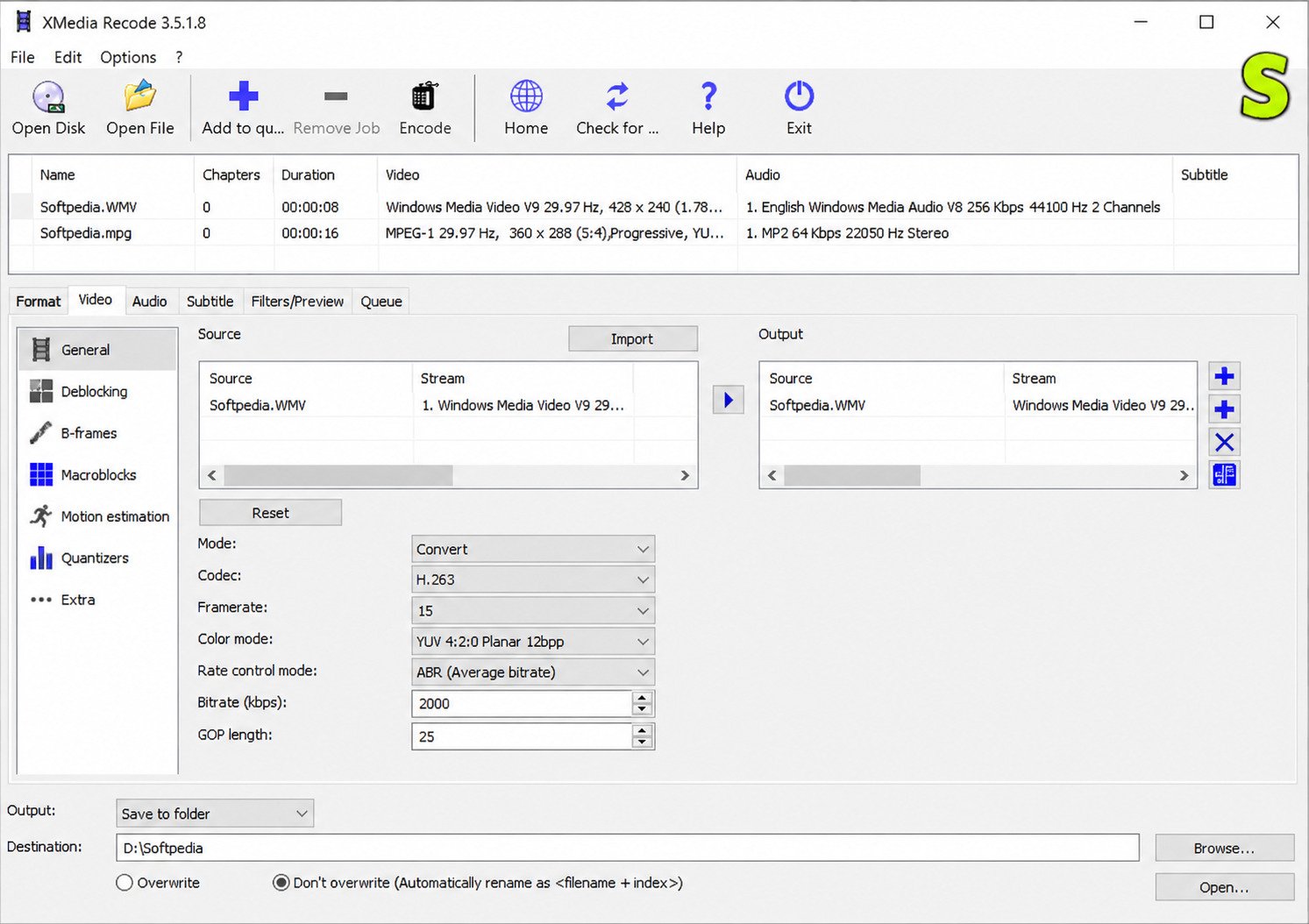
XMedia Recode Download
Getting XMedia Recode onto your PC takes just a couple of minutes, but there are a few version choices worth understanding first.
XMedia Recode Free Download
XMedia Recode is 100% free, with no trial period, no premium tier, and no hidden costs. The developer, Sebastian Dörfler, has kept it that way for over a decade, funding ongoing development through optional donations rather than locking features behind a paywall.
That’s a genuinely rare setup in the video conversion space, where “free” often means limited exports or nagging upgrade prompts. With XMedia Recode, what you download is what you get — full functionality, right out of the gate.
XMedia Recode Latest Version
The software is updated fairly often, mostly to refresh its underlying encoding libraries. Recent release notes show a consistent pattern of updates to FFmpeg, the AV1 (AOM and SVT-AV1) codecs, and the Opus audio codec, along with routine bug fixes.
XMedia Recode 64-Bit Download
Most modern Windows systems should use the 64-bit build, which handles larger files and higher resolutions more efficiently than the older 32-bit version. Unless you’re running a genuinely old or 32-bit-only copy of Windows, the 64-bit installer is the one you want.
XMedia Recode Portable Download
If you’d rather skip installation entirely, there’s a portable version available too. It runs directly from a folder or USB drive without writing to your system registry — handy for shared computers, restricted work laptops, or anyone who just prefers not to install extra software permanently.
XMedia Recode for Windows
XMedia Recode is a Windows-native application, and it’s been kept current with each major Windows release.
XMedia Recode Windows 11
The current builds run cleanly on Windows 11, taking advantage of updated system libraries without needing any special compatibility settings.
XMedia Recode Windows 10
Windows 10 remains fully supported as well, and honestly, the vast majority of long-time users are still running it on Windows 10 machines without any issues.
XMedia Recode for Windows 64-Bit
Both Windows 10 and Windows 11 in their 64-bit editions get full support, including hardware-accelerated encoding where your graphics card allows it — something the 32-bit build can’t take advantage of as effectively.
XMedia Recode System Requirements
| Requirement | Recommendation |
|---|---|
| Operating System | Windows 7, 8, 10, or 11 (32-bit or 64-bit) |
| Processor | Any modern dual-core CPU or better |
| RAM | 4 GB minimum, 8 GB recommended for large files |
| Storage | At least 50–100 MB free for installation, plus space for output files |
| Graphics | Optional GPU for hardware-accelerated encoding |
It’s a lightweight application by modern standards, which is part of why it still runs comfortably even on older laptops.
What Is XMedia Recode?
XMedia Recode is a free Windows application used to convert video and audio files between formats, built as a graphical front-end for the open-source FFmpeg engine. Instead of typing command lines, you get a visual interface with dropdown menus, preview windows, and sliders for adjusting quality.
XMedia Recode Video Converter
At its core, XMedia Recode exists to solve one problem: your video is in a format that won’t play where you need it to. Maybe your smart TV won’t read an MKV file, or a client wants an MP4 instead of a MOV. XMedia Recode converts between dozens of container and codec combinations without demanding technical know-how.
XMedia Recode Audio Converter
It’s not just for video, either. XMedia Recode handles standalone audio conversion too — MP3, AAC, FLAC, WAV, OGG, and more — making it a genuinely dual-purpose tool rather than a video converter with audio support bolted on as an afterthought.
XMedia Recode Features
A few things stand out compared to lighter-weight converters:
- Deep manual control over bitrate, frame rate, and resolution
- Nine different scaling algorithms for resizing video
- Subtitle handling, including hardcoding or muxing subtitle tracks
- Support for unprotected DVD conversion
- Batch processing for converting multiple files in one session
Supported Video and Audio Formats
XMedia Recode’s format list is genuinely extensive. It supports common containers like MP4, MKV, AVI, MOV, WMV, FLV, and WebM, alongside audio formats like MP3, AAC, FLAC, AC3, and OGG. If you’re dealing with an unusual legacy format, there’s a decent chance XMedia Recode can still open it.
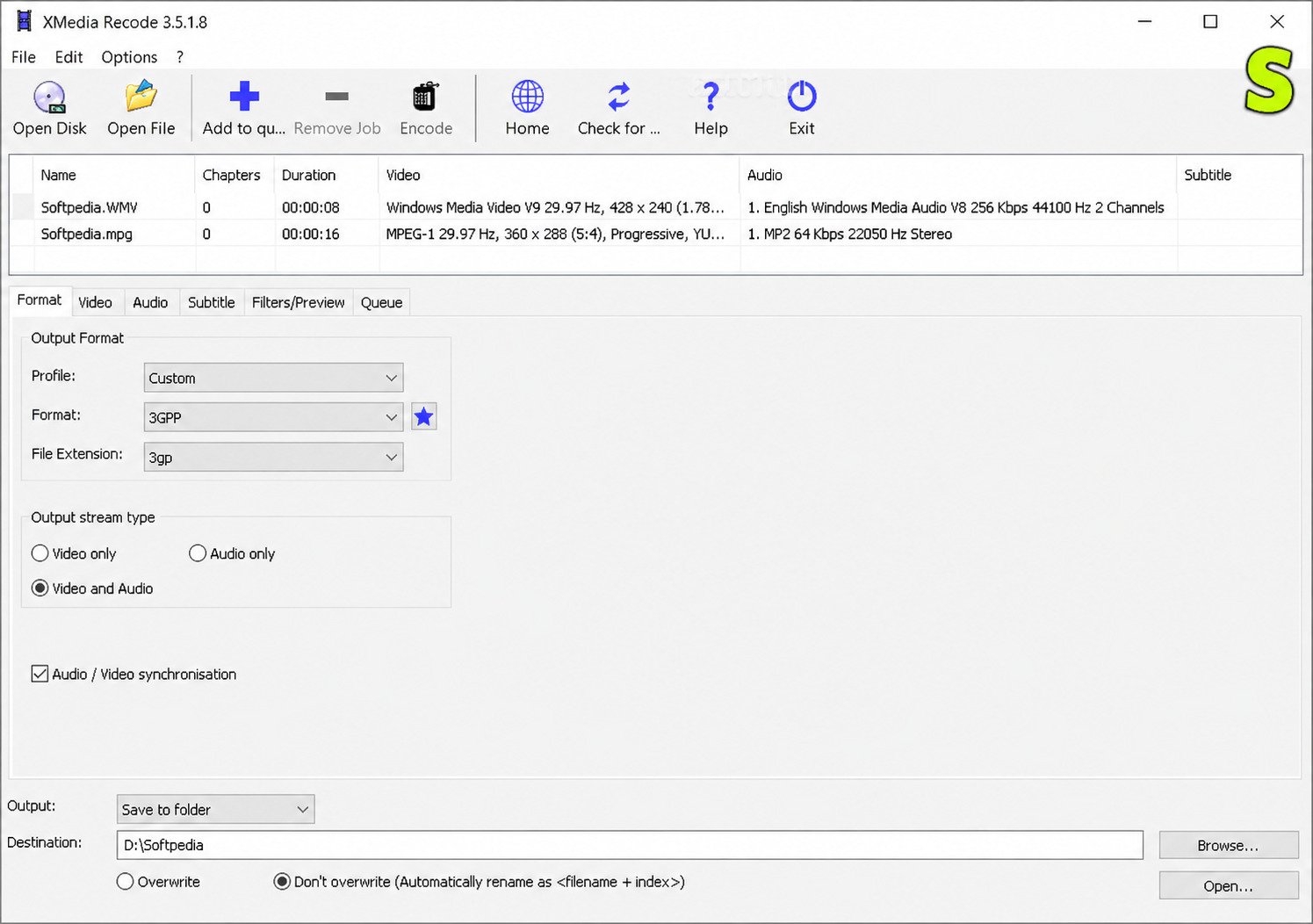
How to Download and Install XMedia Recode
Installation is refreshingly simple, especially compared to converters that bundle unwanted third-party toolbars.
How to Download XMedia Recode for Windows
- Visit the official XMedia Recode website.
- Choose between the standard installer or the portable version.
- Select 64-bit unless you specifically need the 32-bit build.
- Click download and wait for the setup file to finish.
How to Install XMedia Recode
- Run the downloaded installer file.
- Follow the setup prompts — the defaults work fine for most users.
- Choose your installation folder, or leave it at the default location.
- Finish the wizard and launch the application.
How to Update XMedia Recode
The program doesn’t always auto-update, so it’s worth periodically checking the official site for a newer build — especially since updates often bring improved AV1 and Opus codec support. Simply download the latest installer and run it over your existing installation; your settings will typically carry over.
How to Use XMedia Recode
Once it’s installed, actually using XMedia Recode is straightforward, even if the interface looks a little busy at first glance.
How to Convert Videos with XMedia Recode
- Click Open File and select your video.
- Choose your target format from the format list on the right.
- Adjust resolution, bitrate, or quality settings if needed.
- Pick a destination folder for the converted file.
- Click Encode to start the conversion.
How to Convert Audio Files with XMedia Recode
The process mirrors video conversion: load your audio file, select the output format (MP3, AAC, FLAC, and so on), adjust bitrate if desired, then hit encode. It’s just as capable for a quick audio format swap as it is for full video jobs.
How to Change Video Format with XMedia Recode
If you just need a straightforward format swap without touching quality settings, the default profiles for each format usually do the job well. Advanced users can dig deeper into the codec, container, and filter tabs for finer control.
How to Compress Videos with XMedia Recode
To shrink file size, lower the target bitrate or switch to a more efficient codec like H.265 (HEVC) or AV1, both of which deliver similar quality to H.264 at a smaller file size. You can also reduce resolution if the smaller footprint matters more than pixel-perfect detail.
How to Convert MKV to MP4 with XMedia Recode
This is one of the most common reasons people search for this software in the first place, so here’s the direct answer: load your MKV file, select MP4 as the output format, and click Encode. XMedia Recode handles the container switch automatically, provided the internal codecs are compatible.
XMedia Recode Conversion Options
Because so many users land on XMedia Recode looking for a specific format conversion, here’s a rundown of the most searched combinations.
XMedia Recode MKV to MP4
MKV is a flexible container often used for high-quality rips and downloads, but it’s not always compatible with mobile devices or older media players. Converting it to MP4 in XMedia Recode solves that compatibility gap in a couple of clicks.
XMedia Recode MP4 to MKV
Going the other direction is just as simple, and it’s useful when you want to preserve multiple audio tracks or subtitle streams that MP4 doesn’t handle as gracefully as MKV does.
XMedia Recode AVI to MP4
AVI is an older, less efficient format. Converting to MP4 typically results in a smaller file size with comparable or better visual quality, especially when paired with modern codecs like H.264 or H.265.
XMedia Recode MOV to MP4
MOV files, common from Apple devices and some cameras, convert cleanly to MP4 in XMedia Recode — a frequent need for anyone moving footage from a Mac-based workflow into a more universally compatible format.
XMedia Recode DVD to Video
XMedia Recode can also rip and convert unprotected DVDs into standard video files, which is useful for digitizing old home movies or legally-owned discs without copy protection.
XMedia Recode Batch Conversion
Rather than converting files one at a time, you can queue up multiple files, apply the same output settings across all of them, and let XMedia Recode process the whole batch unattended — a real time-saver if you’re converting an entire folder of footage.
XMedia Recode Codecs and Formats
Understanding the codec side of things helps you get better results, especially if quality or file size matters.
Supported Video Codecs
XMedia Recode supports a wide codec range, including H.264, H.265/HEVC, AV1 (via AOM and SVT-AV1), VP8/VP9, MPEG-2, MPEG-4, and DivX/Xvid, among others.
Supported Audio Codecs
On the audio side, you’ll find support for AAC, MP3, AC3, E-AC3, FLAC, Opus, DTS, and WAV, covering nearly every common use case from streaming to archival-quality lossless audio.
H.264 and H.265 Encoding
H.264 remains the most universally compatible codec, playing smoothly across nearly every device. H.265 (HEVC), meanwhile, compresses more efficiently, producing smaller files at similar quality — the trade-off is that a handful of older devices and players still don’t support it natively.
Video Resolution and Bitrate Settings
XMedia Recode gives you manual control over resolution (from standard definition up through 4K), frame rate, and bitrate — either constant or variable. Raising bitrate improves quality but increases file size, so there’s always a balance to strike depending on your storage and playback needs.
XMedia Recode Portable Version
For users who move between machines or simply don’t want another permanent install, the portable build is worth knowing about.
XMedia Recode Portable Download
The portable version is packaged as a self-contained folder you can run directly, without a traditional Windows installer, and it’s available straight from the official XMedia Recode download page.
XMedia Recode Portable vs Installed Version
| Aspect | Installed Version | Portable Version |
|---|---|---|
| Setup | Standard Windows installer | Extract and run, no installer |
| Registry changes | Yes | No |
| Best for | Regular daily use on one PC | USB drives, shared or work computers |
| Updates | Manual reinstall | Manual replacement of folder |
| Feature set | Full | Full (identical functionality) |
Benefits of XMedia Recode Portable
- No admin rights required on locked-down computers
- Leaves no registry traces behind
- Easy to carry on a USB drive between machines
- Same full feature set as the installed version, with nothing stripped down
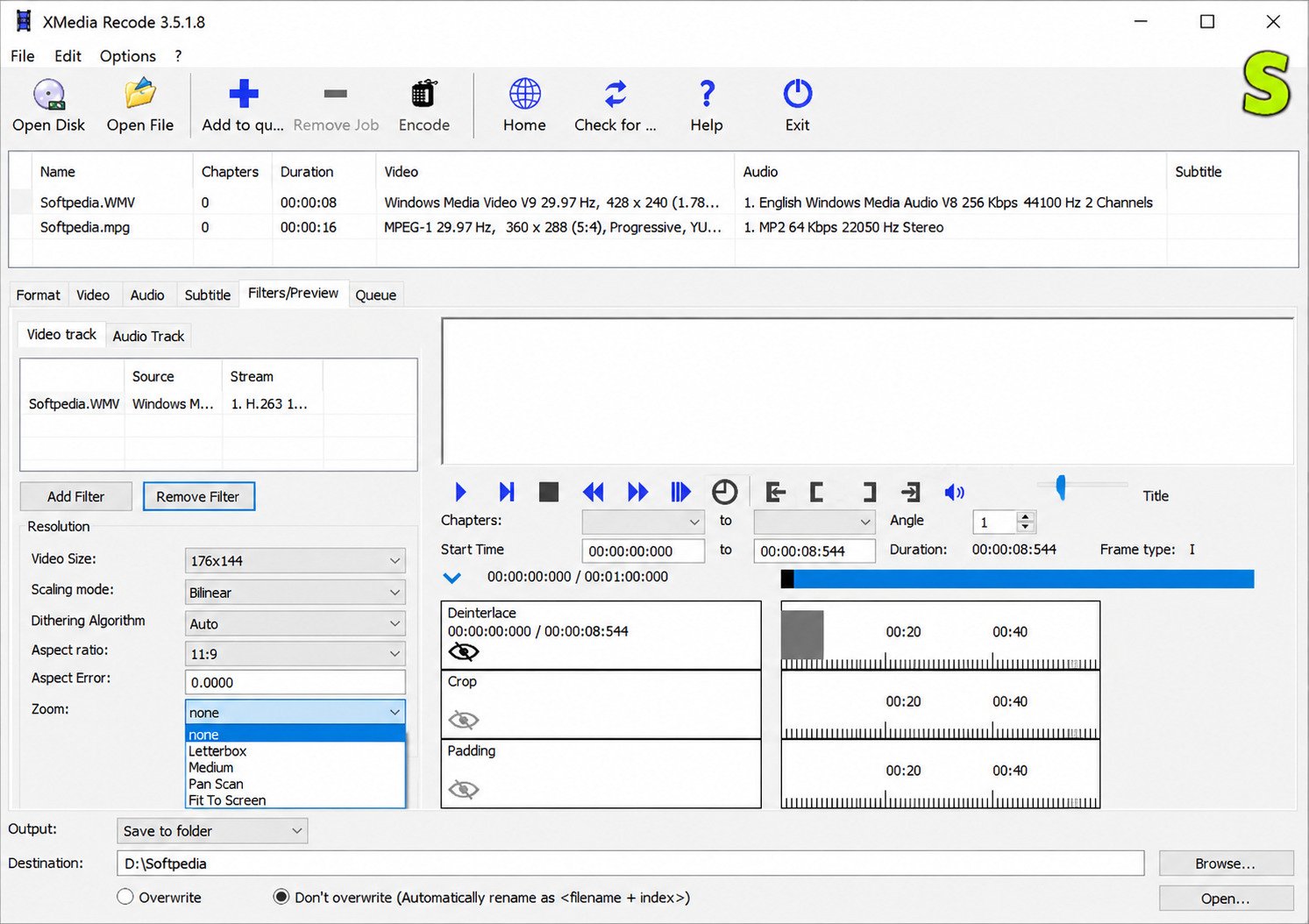
XMedia Recode Compatibility
Compatibility questions come up a lot, especially from users on non-Windows systems.
Does XMedia Recode Work on Windows 11?
Yes — it runs natively on Windows 11 with no extra configuration needed.
Does XMedia Recode Work on Windows 10?
Yes, and it remains one of the most common platforms among the software’s long-term user base.
Is XMedia Recode Available for Mac?
No. XMedia Recode is Windows-only. Mac users looking for a similar free tool typically turn to alternatives like HandBrake, which offers comparable format conversion features on macOS.
Is XMedia Recode Available for Linux?
Not officially. It’s built specifically for Windows, though some users have reported limited success running it through compatibility layers like Wine — this isn’t officially supported, though, so results can vary.
Is XMedia Recode Available for Android?
No, there’s no Android version. It’s a desktop-only Windows application, not a mobile app.
XMedia Recode Features
Here’s a closer look at what actually sets XMedia Recode apart in day-to-day use.
Video Encoding and Conversion
This is the software’s bread and butter — converting between formats and codecs with detailed manual control that few free tools bother to offer.
Audio Conversion
Standalone audio conversion is fully supported, letting you switch between formats like FLAC, MP3, and AAC without needing separate software.
Subtitle Support
XMedia Recode can mux external subtitle files into your output, or hardcode them directly onto the video — useful for foreign-language content or accessibility needs.
Batch Processing
As covered earlier, queuing multiple files for conversion in one sitting saves considerable time compared to processing files individually.
Hardware Acceleration
On compatible systems, XMedia Recode can offload part of the encoding process to your GPU, speeding up conversion times noticeably for larger files.
Custom Encoding Settings
For users who want full control, there are advanced tabs for adjusting GOP length, aspect ratio, deinterlacing, cropping, and filter effects — well beyond what most casual converters expose.
XMedia Recode Troubleshooting
No software is entirely trouble-free, so here’s how to handle the most common issues.
XMedia Recode Not Converting Videos
- Confirm the source file isn’t corrupted by playing it in another media player first
- Check that you have enough free disk space for the output file
- Try a different output format to rule out a codec-specific issue
XMedia Recode Conversion Errors
- Update to the latest version, since codec bugs are frequently patched
- Disable any unnecessary filters or subtitle tracks that might be causing conflicts
- Restart the application and try the conversion again from a clean session
XMedia Recode Has No Audio
- Double-check that an audio track was actually selected during setup, not just the video stream
- Verify the chosen audio codec is compatible with your selected output container
- Test the converted file in more than one media player, since some players mishandle certain audio codecs
XMedia Recode Video Quality Problems
- Raise the bitrate if the output looks overly compressed or blocky
- Avoid unnecessary resolution downscaling if quality is a priority
- Choose a more efficient codec like H.265 or AV1 for better quality-to-size ratios
XMedia Recode FAQs
Yes, XMedia Recode is completely free to download and use, with no premium version or hidden fees.
Yes, when downloaded from the official website, it’s a clean, ad-free application with no bundled malware or unwanted toolbars.
The software receives regular updates, mostly refreshing its FFmpeg and codec libraries — always check the official site for the current build number.
Yes, there’s a dedicated 64-bit build that takes better advantage of modern hardware than the older 32-bit version.
Yes, this is one of its most common uses — simply load the MKV file, select MP4 as the output, and start the conversion.
It supports dozens of formats, including MP4, MKV, AVI, MOV, WMV, FLV, MP3, AAC, FLAC, and many more, covering nearly every common video and audio need.
XMedia Recode Pros and Cons
Pros
- Completely free, no premium tier
- Huge range of supported formats and codecs
- Deep manual control over encoding settings
- Portable version available
- Batch conversion support
- Regular codec updates (AV1, HEVC, Opus)
Cons
- Windows-only, no Mac or Linux build
- Interface can feel dense for total beginners
- No built-in cloud upload or sharing tools
- Update process isn’t fully automatic
- Limited official documentation in English
- No mobile app
Final Verdict on XMedia Recode
If you want a genuinely free, capable converter without subscriptions or watermarks, XMedia Recode earns its long-running reputation. It’s not the flashiest tool on the market, but the format support and encoding control it offers are hard to match at this price point — free.
For users managing a broader media library alongside conversion work, it’s worth pairing tools sensibly — our guide on 4K Stogram is a useful next read if you’re also downloading and organizing photo or video content. And if you want to dig deeper into the encoding engine XMedia Recode is built on, the official FFmpeg documentation is a solid, authoritative resource for understanding codecs and containers in more technical depth.
Conclusion
At the end of the day, XMedia Recode does something increasingly rare in modern software — it just works, without asking for your credit card or your patience. Whether you’re converting a single home video or batch-processing an entire archive, it gets the job done with a level of control that bigger, flashier apps often lock behind a paywall.
If you’ve been frustrated by converters that feel more like sales funnels than actual tools, this one is worth the five-minute install. Give it a try on your next conversion job, and there’s a good chance it quietly becomes the tool you keep coming back to.
Official download: xmedia-recode.de
2 Responses