On This Page
Loupedeck Software: Download, Setup, Customization, Profiles, and Creative Workflow Control
A complete walkthrough for installing, configuring, and customizing the Loupedeck companion app across Windows and Mac.
If you’ve ever lost track of an edit because you were buried three menus deep in Lightroom or Premiere Pro, you already understand why so many photographers, video editors, and streamers have switched to a physical control surface. Loupedeck software is the free companion app that turns a Loupedeck console into a fast, tactile shortcut for your creative work — and getting it set up correctly makes the difference between a console that feels like a gimmick and one you can’t imagine editing without.
This guide walks through everything you need: where to download Loupedeck software safely, how to install and configure it, which systems it supports, and how to build custom profiles for Lightroom, Premiere Pro, Photoshop, and OBS Studio.
What Is Loupedeck Software?
Loupedeck Controller and Control Software Overview
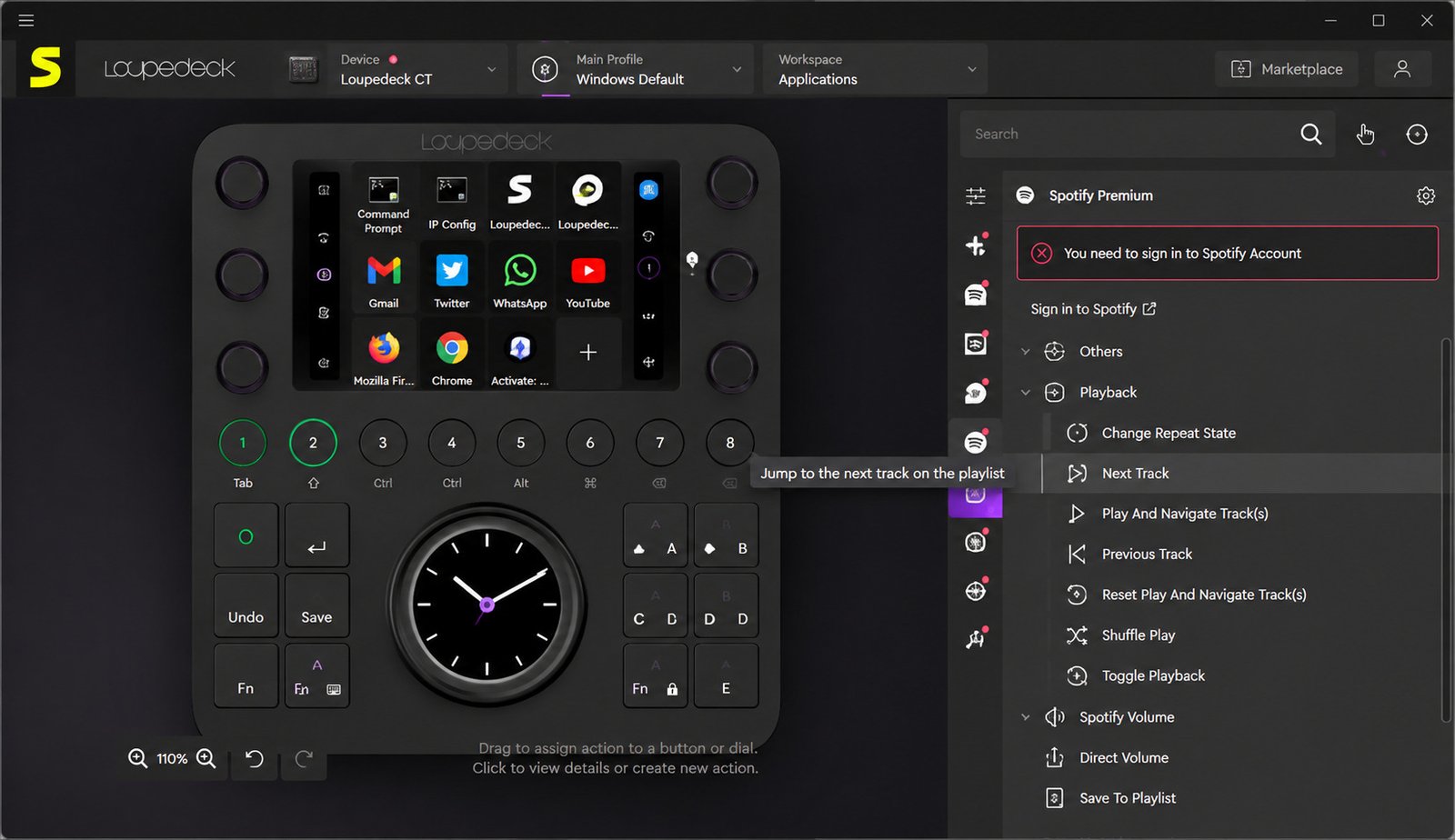
Loupedeck software is the driver and control application that connects a Loupedeck hardware console — dials, buttons, and a touchscreen — to your editing programs. Without it, the console is just a piece of hardware; with it, every dial and button becomes a programmable shortcut for the app you’re working in.
How Loupedeck Software Works
The software runs quietly in the background and detects which creative application is active on your screen. It then automatically loads the matching profile, so your console’s controls change purpose depending on whether you’re in Lightroom, Premiere Pro, or a video call. That context-switching is the core reason people find it so useful — you don’t have to manually swap settings every time you open a new app.
Loupedeck Console, App, and Driver Explained
It helps to think of three separate pieces working together:
- The console — the physical hardware with dials, buttons, and a screen.
- The app (software) — the interface where you build and edit profiles.
- The driver — the background service that actually talks to your operating system and the connected editing software.
All three install together when you download the official package, so you rarely need to think about them separately.
Loupedeck Software Latest Version
Loupedeck updates its software regularly, adding Marketplace plugins, stability fixes, and support for new app versions. Rather than quoting a specific build number here (which changes often), the safest habit is to open the software’s built-in update checker or the official release notes page before every big editing session, since running an outdated version is one of the most common causes of profile glitches.
Loupedeck Software Download
Loupedeck Software Download for Windows
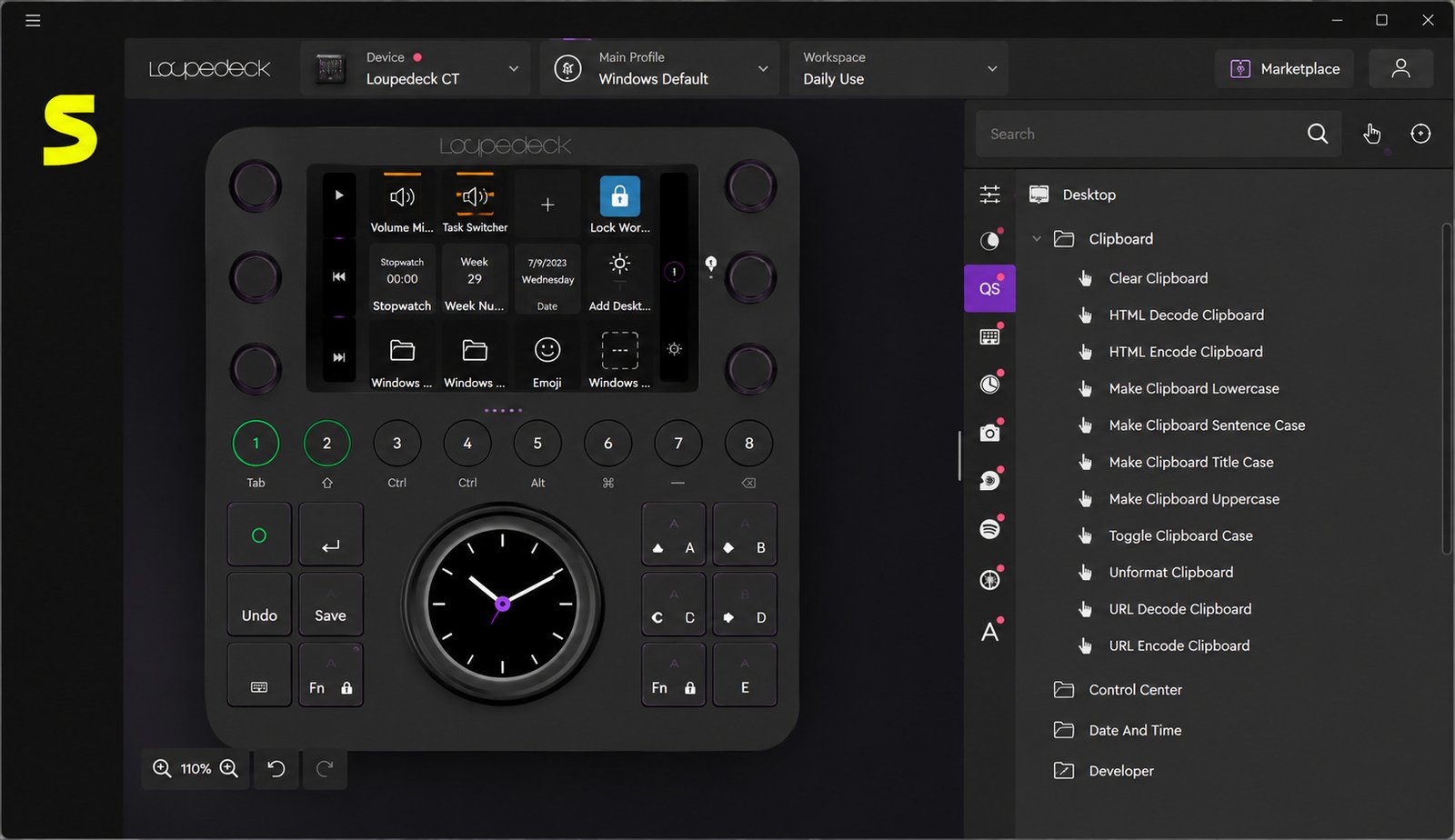
Windows users can download the current installer directly from Loupedeck’s official downloads page. The installer is a single .exe file, and once it finishes, the software launches a setup wizard the first time you plug in your console.
Loupedeck Software Download for Windows 11
Loupedeck software runs natively on Windows 11, and no compatibility mode or special settings are needed. If you’re upgrading from an older Windows build, it’s worth reinstalling the latest driver package after the OS upgrade just to be safe.
Loupedeck Software Download for Mac
Mac users get a .dmg installer from the same downloads page. Drag the app into your Applications folder rather than running it from the disk image — this small step prevents a surprising number of “console not detected” issues later on.
Loupedeck Software Download for macOS
The software supports macOS 10.14 (Mojave) and newer, including current Apple Silicon (M-series) Macs. If you’re on an older macOS version, check the release notes first, since very old operating systems may only support legacy software builds.
How to Download Loupedeck Software Safely
Always download Loupedeck software from loupedeck.com or the official support portal. Third-party download mirrors sometimes bundle outdated versions or unwanted extras, so it’s worth the extra ten seconds to confirm you’re on the right domain before you click install.
Loupedeck Software Installation and Setup
Loupedeck Software Installation Guide
Download the installer for your operating system.
Run the file and follow the on-screen prompts.
Restart your computer if prompted (this is more common on Windows).
Plug in your Loupedeck console via USB-C.
How to Install the Loupedeck Driver
The driver installs automatically alongside the main application — you don’t need to hunt for it separately. If your console isn’t recognized after installation, unplugging and reconnecting the USB cable, or trying a different port, usually resolves it.
Loupedeck Setup Guide for New Users
The first time you open the software with a console connected, a setup wizard walks you through the basics: touchscreen customization, dial assignments, and your first profile. It’s worth going through the wizard even if you’re experienced with similar tools, since it also highlights Marketplace content you might otherwise miss.
How to Connect and Configure a Loupedeck Controller
Once connected, your console should appear in the software’s device list. From there you can:
- Select which profile loads automatically for each app
- Adjust touchscreen brightness and button icons
- Test each dial and button before customizing it
Loupedeck Software System Requirements
Loupedeck Software for Windows Requirements
- Windows 10 or higher
- USB-C connectivity (USB-A with an adapter on older consoles)
- Active internet connection for the initial download and Marketplace access
Loupedeck Software for Mac Requirements
- macOS 10.14 or later
- USB-C connectivity (USB-A with an adapter for compatible models)
- Internet connection for downloading software and syncing your Loupedeck account
Supported Windows and macOS Versions
| Operating System | Minimum Version | Notes |
|---|---|---|
| Windows | Windows 10 | Windows 11 fully supported |
| macOS | 10.14 (Mojave) | Runs natively on Apple Silicon |
Loupedeck Controller Compatibility
Current Loupedeck software supports the CT, Live, Live S, and Loupedeck+ consoles, along with Razer Stream Controller and Stream Controller X. The original Loupedeck console only works with software version 5.1 or earlier, so if you own that model, check the legacy download links before updating.
Loupedeck Customization Software
How to Customize Loupedeck Controls
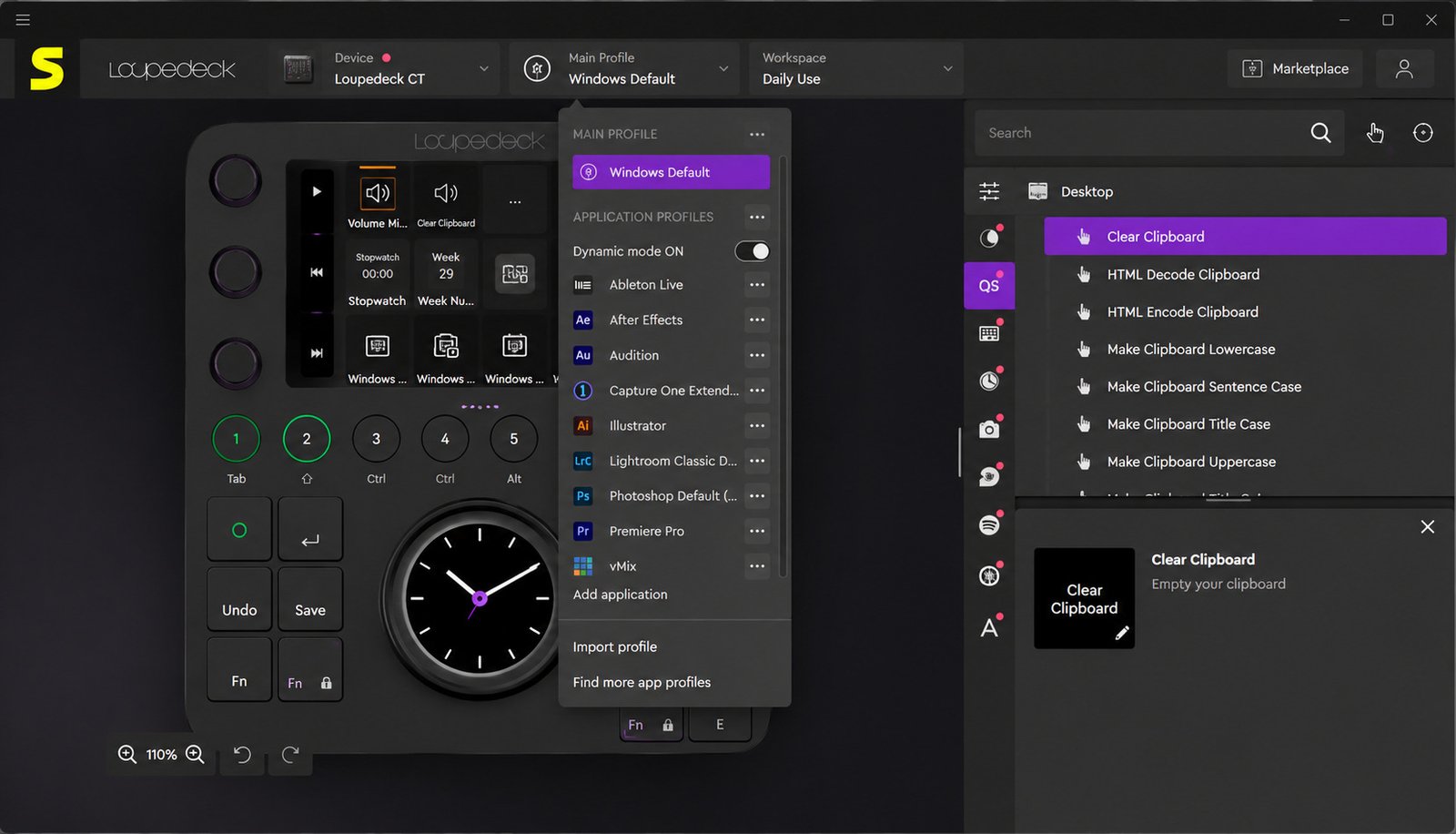
Customization happens by dragging and dropping actions onto dials, buttons, or touchscreen icons inside the software. You can assign anything from a simple keyboard shortcut to a multi-step macro, which is where the real time savings start to show up.
Creating and Editing Loupedeck Profiles
A profile is a saved set of control assignments tied to a specific app. To create one:
Open the software and select “New Profile.”
Choose the application it should link to.
Assign dials, buttons, and touchscreen functions.
Save — the profile now loads automatically whenever that app is active.
Loupedeck Custom Profile Software and Workspace Setup
Within a single profile, you can create multiple workspaces — smaller groups of controls for different tasks, like one workspace for color grading and another for audio mixing inside the same video editor.
Assigning Custom Commands, Shortcuts, and Actions
Beyond built-in actions, you can map custom keyboard shortcuts, launch external scripts, or trigger multi-step macros. This flexibility is what lets power users tailor the console to workflows the default profiles never anticipated.
Loupedeck Profiles and Plugins
What Are Loupedeck Profiles?
Profiles are the building blocks of the whole system — pre-configured or custom control layouts built for a specific application. Loupedeck ships several default profiles out of the box and lets you build unlimited custom ones.
How to Download and Use Loupedeck Plugins
Plugins extend what a console can do inside a given app, adding deeper integration than a basic shortcut mapping. Once downloaded through the software, a plugin’s default profile becomes available in your device’s profile dropdown.
Loupedeck Marketplace Plugins Download
The Loupedeck Marketplace, built into the software, hosts hundreds of profiles, icon packs, and plugins for apps ranging from Blender and Figma to Notion and DaVinci Resolve. It’s the easiest way to expand your setup without building everything from scratch.
Managing Profiles for Different Creative Applications
The built-in Asset Manager shows every plugin and profile you own, flags available updates, and lets you enable or disable them per project — handy once you’re juggling more than a handful of apps.
Loupedeck Software for Photo Editing
Loupedeck Software for Lightroom Classic
The Lightroom Classic plugin maps sliders like exposure, contrast, and clarity directly to physical dials, so you can adjust an image without touching your mouse.
Loupedeck Software for Adobe Photoshop
In Photoshop, Loupedeck controls handle brush size, opacity, layer navigation, and common retouching shortcuts — useful for anyone doing repetitive portrait or product retouching.
Using Loupedeck Controls for Faster Photo Editing
Photographers who cull and edit large batches often see the biggest time savings, since flagging, rating, and basic adjustments can all happen from the console instead of a keyboard-and-mouse combo.
Loupedeck Color Grading and Image Adjustment Workflow
Dedicated color wheels and dials let you fine-tune shadows, midtones, and highlights with far more precision than dragging an on-screen slider.
Loupedeck Software for Video Editing
Loupedeck Software for Adobe Premiere Pro
The Premiere Pro plugin covers trimming, scrubbing, transitions, and timeline navigation, letting editors keep their eyes on the preview window instead of hunting for menu commands.
Loupedeck Controls for Video Editing Workflows
Beyond Premiere, Loupedeck also integrates with Final Cut Pro and DaVinci Resolve through dedicated profiles, so editors aren’t locked into a single NLE.
Loupedeck Color Grading Controls
Dedicated dials for lift, gamma, and gain speed up color correction passes considerably compared with mouse-driven adjustments.
Customizing Video Editing Commands and Shortcuts
Because every timeline is different, most video editors end up tweaking the default Premiere or Resolve profile within their first week — a five-minute adjustment that pays off across every future project.
Loupedeck Software for Streaming and Content Creation
Loupedeck Software for OBS Studio
The OBS Studio plugin lets streamers switch scenes, control audio levels, and trigger overlays without alt-tabbing out of their game or capture window.
Custom Controls for Live Streaming
Streamlabs OBS and Twitch integrations extend this further, letting you manage chat commands, alerts, and stream transitions from the same console.
Managing Scenes, Audio, and Actions With Loupedeck
For creators running multi-camera or multi-source setups, dedicated dials for audio mixing alone can eliminate a lot of mid-stream fumbling.
Loupedeck for Content Creators and Production Workflows
Because profiles switch automatically based on the active app, one console can realistically cover editing, color grading, and live streaming without any manual reconfiguration.
Loupedeck Controllers and Supported Devices
Loupedeck CT
The flagship model, built around a touchscreen, 15 customizable dials, and dedicated color-grading wheels — aimed at professional photo and video editors.
Loupedeck Plus
A more compact, button-and-dial-focused console popular with photographers who want tactile controls without the higher price tag of the CT.
Loupedeck Live
A streaming-oriented console with a touchscreen and customizable buttons, built with content creators and live streamers in mind.
Loupedeck S
A slimmer streaming console aimed at creators who want Live-style functionality in a smaller footprint.
Choosing the Right Loupedeck Controller
| Console | Best For | Key Feature |
|---|---|---|
| Loupedeck CT | Photo & video professionals | Touchscreen + color dials |
| Loupedeck Plus | Photo editors on a budget | Physical dials & buttons |
| Loupedeck Live | Streamers & content creators | Customizable touchscreen |
| Loupedeck S | Compact streaming setups | Portable form factor |
Loupedeck CT Features and Price Considerations
Loupedeck CT Features and Controls
The CT combines a color touchscreen, 15 dials, and programmable buttons, giving editors both visual feedback and tactile control in one unit.
Loupedeck CT Price and Value
As the top-tier model, the CT costs more than the Plus or Live, but its dedicated color wheels and larger control set make it the most capable option for daily professional editing.
Loupedeck CT for Photo and Video Editing
Its combination of dials and a customizable screen makes it equally comfortable in Lightroom, Premiere Pro, or a color grading suite like Resolve.
Is Loupedeck CT Worth It for Creative Professionals?
Pros
- Largest control set of any Loupedeck model
- Dedicated color-grading wheels
- Touchscreen with visual, per-app feedback
- Saves real time on repetitive commands
Cons
- Higher price than Plus or Live models
- Larger footprint on a busy desk
- Learning curve while building first profiles
For editors billing hourly or working through large batches of images and footage, the time saved on repetitive commands often justifies the higher price within the first few paid projects.
Loupedeck for Lightroom and Creative Software
How Loupedeck Works With Lightroom Classic
Once the Lightroom Classic plugin is active, dials control exposure and tone adjustments in real time, with the touchscreen (on CT models) showing before/after previews.
Loupedeck Integration With Adobe Creative Cloud Apps
Beyond Lightroom, Loupedeck also connects with Photoshop, Premiere Pro, After Effects, Illustrator, and Audition, covering most of a typical Creative Cloud workflow.
Using Loupedeck for Photo Editing and Color Grading
Combining Lightroom’s editing sliders with physical dials tends to produce more natural, less “clipped” adjustments than dragging a mouse across a small on-screen slider.
Improving Creative Workflow With Custom Hardware Controls
The underlying idea across every app is the same: move repetitive mouse actions onto dedicated hardware so your hands stay in one place and your attention stays on the image or timeline.
Loupedeck Software Troubleshooting
Loupedeck Software Not Detecting the Controller
Try a different USB port or cable, confirm the software is fully updated, and restart both the app and your computer. On Mac, make sure the app is installed in the Applications folder rather than run from the disk image.
Loupedeck Driver Installation Problems
If installation fails midway, temporarily disabling antivirus software or running the installer as an administrator (Windows) often clears the issue.
Fixing Loupedeck Profile and Plugin Issues
Corrupted profiles can usually be fixed by deleting and recreating them, or by reinstalling the specific plugin through the Marketplace’s Asset Manager.
Updating to the Latest Loupedeck Software Version
Check for updates from within the app itself, or download the newest installer from the official downloads page — this also resolves most compatibility issues with newly released app versions like Premiere Pro or Lightroom updates.
If you’re managing a broader library of creative and media tools on your system, resources like the XMedia Recode guide on SoftFolders are a useful companion for video conversion tasks that sit alongside your editing workflow.
Frequently Asked Questions About Loupedeck Software
How Do I Download Loupedeck Software?
Go to the official Loupedeck downloads page, choose your operating system, and run the installer — no account is required just to download it.
Is Loupedeck Software Available for Windows 11?
Yes, Loupedeck software runs natively on Windows 11 with no special configuration needed.
Is Loupedeck Software Available for Mac and macOS?
Yes, it supports macOS 10.14 and later, including Apple Silicon Macs.
How Do I Install and Set Up Loupedeck Software?
Download the installer, run it, plug in your console, and follow the built-in setup wizard for your first profile.
What Is the Latest Version of Loupedeck Software?
Check the official release notes page, since Loupedeck updates the software regularly with new fixes and Marketplace features.
Does Loupedeck Work With Lightroom Classic?
Yes, the Lightroom Classic plugin maps editing sliders directly to console dials for real-time adjustments.
Can I Use Loupedeck With Adobe Premiere Pro?
Yes, the Premiere Pro plugin supports trimming, scrubbing, and timeline navigation through the console.
Does Loupedeck Support Adobe Photoshop and OBS Studio?
Yes, both have dedicated plugins — Photoshop for retouching shortcuts and OBS Studio for scene and audio control during streams.
How Do I Download Loupedeck Plugins and Create Custom Profiles?
Open the software’s Marketplace tab to browse and install plugins, then use the profile editor to build or adjust your own control layouts.
Conclusion
Loupedeck software is what turns a set of dials and buttons into a genuinely faster way to edit, grade, and stream. Once you’ve downloaded it, set up your first profile, and matched it to the apps you use daily, the console stops feeling like an accessory and starts feeling like part of your hands.
Whether you’re culling photos in Lightroom, trimming a timeline in Premiere Pro, or running a live stream through OBS, a little time spent customizing profiles now saves real hours later. Keep the software updated, explore the Marketplace, and don’t be afraid to rebuild a profile until it actually fits how you work.
2 Responses