DefenderUI Review 2026: Features, Safety, Download & Windows Compatibility
A grounded, practical look at DefenderUI — the free Windows dashboard that puts every Microsoft Defender setting in one place.
If you have ever tried to change a Microsoft Defender setting and ended up lost in nested menus, Group Policy editors, or PowerShell commands, you already understand why DefenderUI exists. This free Windows utility puts every important Defender option in one clean dashboard, so you do not need to be a security expert to actually use the protection you already have.
In this DefenderUI review, we will walk through exactly what it does, whether it is safe, how it compares to Microsoft Defender’s default interface and to ConfigureDefender, and how to download, install, and remove it if it is not for you. Everything here is based on the developer’s public documentation, independent download platforms, and real user discussions, so you get a grounded, practical answer instead of marketing copy.
What Is DefenderUI?
DefenderUI is a free, third-party graphical interface that sits on top of Microsoft Defender and gives you direct access to security settings that are normally buried in Windows Settings, Group Policy, or the registry. It does not replace Defender’s antivirus engine.
Think of it less as a new antivirus and more as a control panel. Windows Defender already has strong detection technology, but Microsoft has spread its configuration options across several different menus over the years. DefenderUI collects those scattered controls into a single, readable dashboard.
It is developed by VoodooSoft, the same team behind VoodooShield CyberLock, an established zero-trust endpoint protection product. That background matters for trust, since the company has a track record in the Windows security space rather than being an unknown publisher.
How DefenderUI Works With Microsoft Defender
DefenderUI does not install a separate scanning engine. Instead, it reads and writes to the same settings that Microsoft Defender uses internally, mostly through PowerShell commands and registry adjustments, and presents them through a friendlier interface.
When you open the app, it shows you the current state of Defender: whether real-time protection is on, whether cloud-delivered protection is active, and what your firewall and exclusion lists look like. From there, you pick a profile or manually toggle individual settings.
In short: Defender still does the actual malware detection and blocking. DefenderUI is the steering wheel; Defender is the engine.
DefenderUI vs Microsoft Defender: What’s the Difference?
This is one of the most common points of confusion, so here is a simple comparison.
| Aspect | Microsoft Defender (built-in) | DefenderUI |
|---|---|---|
| Function | Antivirus and malware detection engine | Configuration interface for Defender |
| Installation | Pre-installed with Windows | Separate download required |
| Interface | Basic Windows Security app | Advanced dashboard with profiles |
| Access to hidden settings | Limited, spread across menus | Centralized and simplified |
| Cost | Free with Windows | Free, with an optional Pro tier |
| Replaces antivirus engine | N/A | No — it configures Defender, not replaces it |
Understanding this distinction is important before you install anything: DefenderUI is a management layer, not a competing antivirus product.
DefenderUI Features
DefenderUI’s core appeal is how much control it unlocks without requiring you to touch PowerShell or Group Policy. Here is what you actually get inside the app.
Most Windows users never touch more than the basic “Virus & threat protection” toggle, simply because the deeper settings are hard to find and even harder to interpret. DefenderUI’s whole design philosophy is built around that gap. Instead of assuming you already know what “Attack Surface Reduction” or “Controlled Folder Access” means, it labels each control with plain descriptions and groups related settings together, so the learning curve is much shorter than digging through Microsoft’s own documentation.
Microsoft Defender Security Settings
The main dashboard displays Defender’s core protection categories in plain language: real-time protection, cloud-delivered protection, automatic sample submission, and tamper protection status. Instead of digging through three separate Settings pages, you see them side by side.
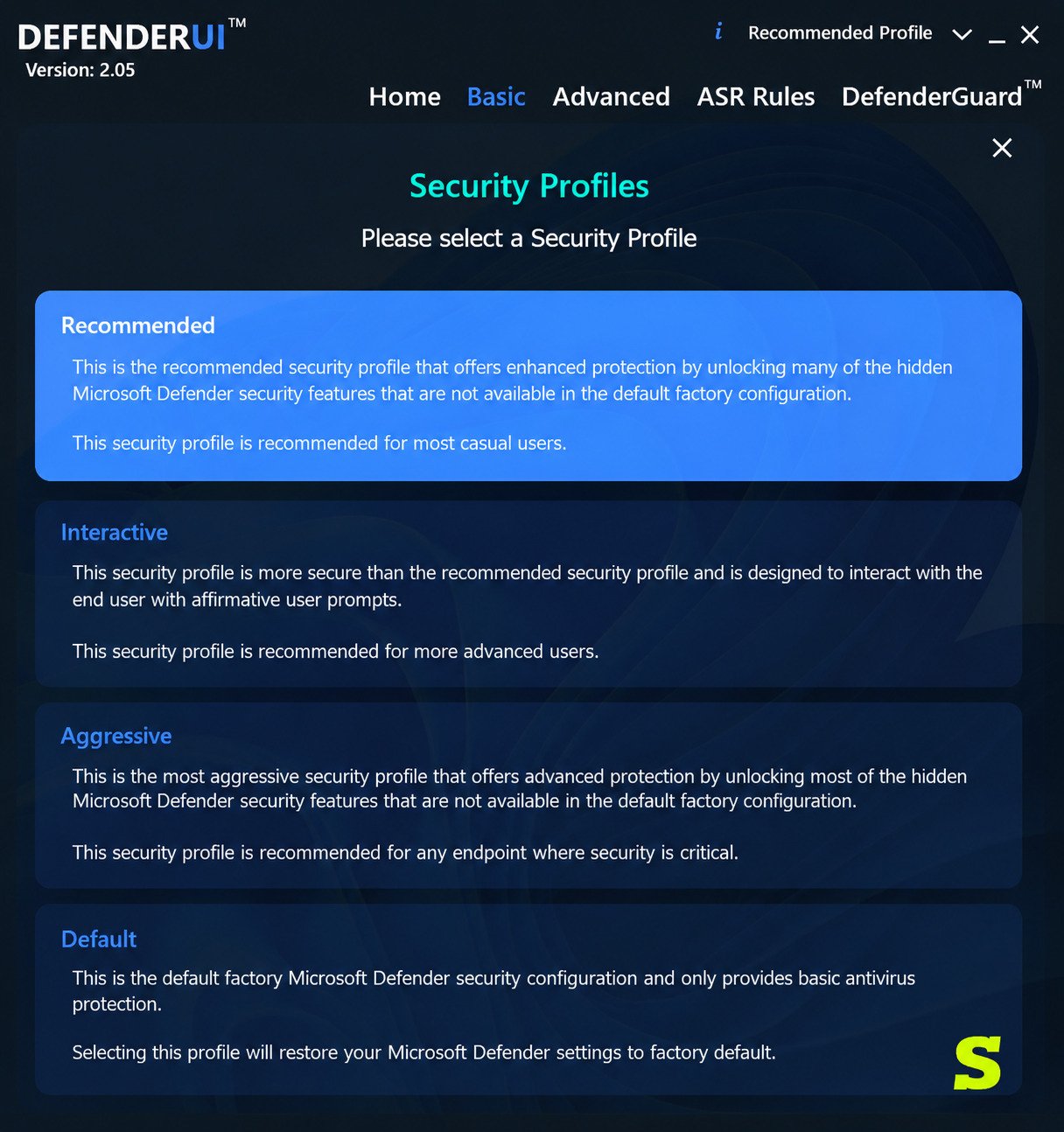
You can also apply pre-built security profiles, which are collections of recommended settings bundled together. This is genuinely useful for people who know they want “better protection” but don’t know which individual toggle achieves that.
Real-Time Protection and Advanced Security Controls
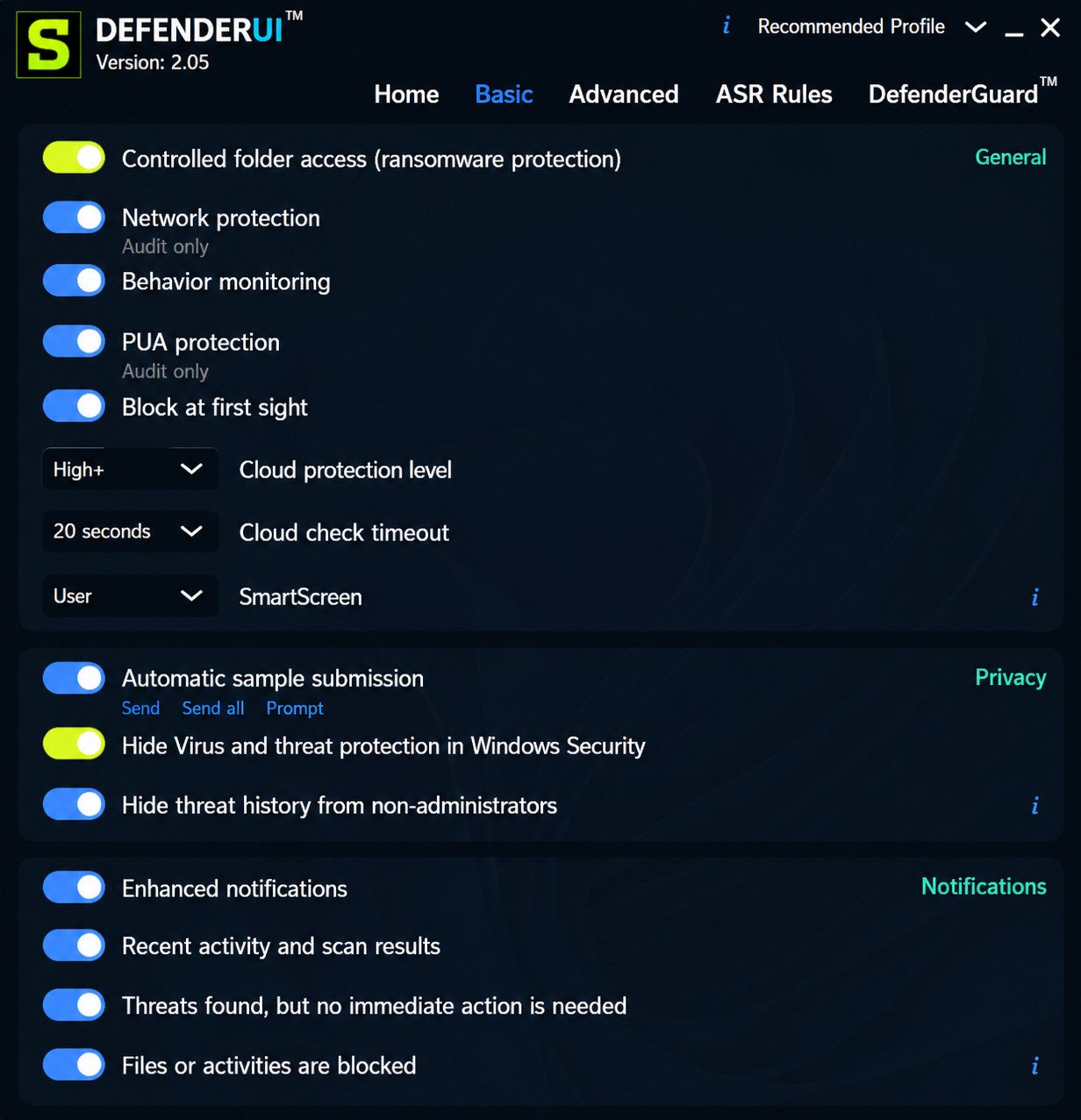
DefenderUI exposes real-time and behavior-based monitoring controls, along with Potentially Unwanted Application (PUA) protection, which blocks adware and bundled installers that technically aren’t viruses but still cause problems.
There is also a dedicated section for exploit protection visibility, letting more advanced users review mitigation settings that are normally only accessible through the Windows Security app’s “App & browser control” section, several clicks deep.
Firewall and Network Protection Settings
Rather than opening the separate Windows Defender Firewall control panel, DefenderUI lets you toggle firewall protection and review network profile status from the same window as your antivirus settings. This consolidation is one of the more practical time-savers the app offers.
Privacy and Windows Security Options
Beyond antivirus settings, DefenderUI includes shortcuts and controls tied to broader Windows security hygiene, including quick access to Windows Update, Controlled Folder Access for ransomware protection, and exclusion management for files, folders, and processes.
DefenderUI User Interface and Ease of Use
The interface uses labeled sections, plain-English descriptions, and a profile-based approach rather than a wall of technical toggles. For a security tool, that is a meaningful usability win, since confusing security software often leads people to either misconfigure it or ignore it entirely.
That said, some long-time users on forums like MalwareTips note the interface groups a lot into one place, which can feel dense at first if you have never seen Defender’s advanced settings before.
Is DefenderUI Safe?
Safety is the first question anyone should ask before installing a tool that touches antivirus settings, so let’s address it directly.
Direct answer: DefenderUI is developed by VoodooSoft, an established security company, is distributed through recognized platforms including the Microsoft Store, and does not disable or replace Defender’s protection engine. Independent download sites report it as clean, though as with any third-party tool, downloading only from the official source matters.
It’s worth remembering that “safe” for a Defender configuration tool means two separate things: is the software itself free of malware, and does using it leave your PC properly protected. On the first point, its presence on the Microsoft Store and coverage from long-running download platforms like Softpedia and MajorGeeks is a reasonable trust signal, since these platforms typically screen submissions before listing them. On the second point, the responsibility shifts slightly to you as the user, since choosing an aggressive profile or disabling a protection manually will change your security posture regardless of which interface you used to do it.
Is DefenderUI Legit?
Yes. DefenderUI is a legitimate product from VoodooSoft, LLC, the company behind VoodooShield CyberLock. It is listed on the Microsoft Store and referenced by independent software directories such as Softpedia, MajorGeeks, and AlternativeTo, all of which is a reasonable trust signal for a niche security utility.
Is DefenderUI Safe to Use With Microsoft Defender?
Yes, DefenderUI is designed specifically to work alongside Defender rather than in conflict with it. Because it reads and writes to Defender’s own settings, using it correctly should not create instability, though any change to security settings, whether made manually or through a tool, can affect how your system behaves.
Does DefenderUI Disable Microsoft Defender?
No. DefenderUI does not turn off Microsoft Defender’s antivirus engine. It configures Defender’s existing settings, such as real-time protection or cloud-delivered protection, but it is not designed to disable your primary malware protection. If you manually toggle real-time protection off inside the app, that is a setting change you made, not something the app forces by default.
What to Check Before Installing DefenderUI
- Download only from the official source (the developer’s site or Microsoft Store), never a random mirror
- Check your Windows edition, since some advanced Group Policy options behave differently on Home versus Pro editions
- Back up or note your current Defender settings, in case you want to revert
- Read what each profile changes before applying it blindly
- Keep Windows Update current, since Defender’s own updates matter regardless of the interface you use
DefenderUI Free vs DefenderUI Pro
DefenderUI comes in two tiers, and understanding the difference helps you decide if the free version is enough.
What You Get With DefenderUI Free
The free version, available directly from the developer and through the Microsoft Store, includes the full configuration dashboard, security profiles, firewall controls, exclusion management, and access to Defender’s hidden advanced settings. For most home users, this covers everything needed to get meaningfully more control over Defender.
DefenderUI Pro Features
DefenderUI Pro is a paid upgrade aimed at power users and businesses. It adds features tied to VoodooSoft’s CyberLock technology, including more advanced application lockdown capabilities and expanded Windows Defender Application Control (WDAC) management, according to the developer’s own product pages and third-party download listings.
DefenderUI Pro vs Free: What’s the Difference?
| Feature | DefenderUI Free | DefenderUI Pro |
|---|---|---|
| Core Defender configuration dashboard | ✔ | ✔ |
| Security profiles | ✔ | ✔ |
| Firewall management | ✔ | ✔ |
| Exclusion management | ✔ | ✔ |
| Advanced WDAC/application lockdown | ✘ | ✔ |
| CyberLock-related protections | ✘ | ✔ |
| Pricing | Free | Paid (starting around $30, per MajorGeeks listings) |
| Best suited for | Home users | Power users and businesses |
Is DefenderUI Pro Worth It?
For a typical home user who just wants clearer control over Defender, the free version is usually enough. Pro makes more sense for IT administrators or advanced users who specifically want application lockdown and WDAC features layered on top of Defender’s native protection. If you are unsure, start with the free version and only upgrade once you hit a feature limitation.
DefenderUI Download
Getting the correct, safe copy of DefenderUI matters more than almost any other step in this guide.
DefenderUI Free Download: What You Need to Know
DefenderUI Free is distributed through the developer’s official website and the Microsoft Store, which is generally the safest route since Microsoft reviews store listings before publishing. Third-party repositories like Softpedia, MajorGeeks, and Uptodown also host the installer, and are commonly used by Windows utility reviewers, but the official channels remain the safest first choice.
How to Download and Install DefenderUI
- Go to the official DefenderUI website or open the Microsoft Store and search “DefenderUI.”
- Download the installer for the free version.
- Run the installer and follow the on-screen prompts.
- Launch DefenderUI and allow it to scan your current Defender configuration.
- Review the suggested profile before applying any changes.
The whole process typically takes a few minutes, and no reboot is required just to install the app itself, though some setting changes inside Defender may prompt one.
DefenderUI Pro Download and Licensing
DefenderUI Pro is purchased and licensed separately from the free version, generally through the developer’s site as part of a unified license that also covers other VoodooSoft products. Pricing has been reported starting around $30 by independent download listings, though you should confirm current pricing directly on the official site before purchasing.
DefenderUI Windows 11 Compatibility
DefenderUI on Windows 11
DefenderUI is built to work with Windows 11’s version of Microsoft Defender, and multiple official listings, including the Microsoft Store page, confirm compatibility. Since Windows 11 keeps the same underlying Defender engine as Windows 10 with a refreshed Settings app, DefenderUI’s job of exposing hidden options is arguably even more useful here.
DefenderUI Download for Windows 11
The same installer works across supported Windows versions, so there is no separate “Windows 11 edition” to search for. Downloading from the Microsoft Store is the most straightforward path on Windows 11, since it integrates naturally with the OS’s app management.
Using DefenderUI With Microsoft Defender on Windows 11
Once installed on Windows 11, DefenderUI detects your current Defender configuration automatically. From there, you can apply a profile, adjust individual protections like Controlled Folder Access, or fine-tune firewall behavior, all without leaving the DefenderUI window.
DefenderUI Windows 10 Compatibility
DefenderUI on Windows 10
DefenderUI also fully supports Windows 10, and in fact, much of its early user base and documentation grew around Windows 10 systems before Windows 11 adoption increased. Compatibility listings confirm support for both Windows 10 and 11.
DefenderUI Download for Windows 10
Windows 10 users can download the same free installer from the official DefenderUI website, third-party download platforms, or the Microsoft Store, depending on preference.
Using DefenderUI With Microsoft Defender on Windows 10
The functionality is nearly identical to the Windows 11 experience, since DefenderUI is built around Defender’s settings rather than the surrounding OS shell. Profiles, exclusions, and firewall management all work the same way on Windows 10.
DefenderUI Latest Version
What’s New in the Latest DefenderUI Version?
As of 2026, DefenderUI has continued receiving updates, with version 2.10 listed as a current release on download platforms like Softpedia and MajorGeeks. Recent updates have focused on refining the profile system, improving compatibility with newer Windows builds, and expanding CLI (command-line interface) support for silent installation, which is particularly useful for IT administrators deploying it across multiple machines.
How to Check Your DefenderUI Version
Open DefenderUI, then look in the About or Settings section within the app, which typically displays the installed version number alongside update status. You can compare this against the version listed on the official website to confirm you are current.
Should You Update DefenderUI?
Generally, yes. Since DefenderUI directly manages security-related settings, staying on the latest version helps ensure compatibility with the most recent Windows and Defender updates. MajorGeeks has previously flagged DefenderUI as a work in progress with beta-level status for certain features, so checking release notes before major updates is a sensible habit.
How to Use DefenderUI
How to Configure Microsoft Defender With DefenderUI
- Choose a security profile that matches your comfort level (commonly labeled options range from a lighter, default-friendly profile to a more aggressive “Interactive” profile).
- Review what the profile changes before confirming.
- Apply the profile and allow DefenderUI to adjust the relevant settings.
- Restart your PC if prompted, since some Defender changes require a reboot to fully take effect.
How to Adjust Windows Security Settings
Beyond profiles, you can manually toggle individual items such as cloud-delivered protection level, automatic sample submission, and PUA protection. Each setting typically includes a short explanation, which is a meaningful improvement over Defender’s native, sparsely-labeled toggles.
How to Restore or Change DefenderUI Settings
If a profile causes unexpected behavior, such as a legitimate app getting blocked, you can switch back to a previous profile or manually revert individual settings from within the same dashboard. DefenderUI also allows adding specific files, folders, or processes to an exclusion list, which is useful if a trusted program keeps triggering false positives.
DefenderUI Pros and Cons
Every configuration tool involves trade-offs, and DefenderUI is no exception. Here’s a balanced look at where it genuinely helps and where it falls short, based on both the developer’s documentation and real user feedback from security forums.
✔ Advantages
- Centralizes scattered Defender settings into one readable dashboard
- Free version covers most home-user needs
- Built by an established security company (VoodooSoft)
- Offers security profiles for people who don’t want to configure everything manually
- Includes CLI support for silent deployment, useful for IT admins
- Works on both Windows 10 and Windows 11
✘ Limitations
- Runs as a separate background process, using additional system resources
- Some reviewers note it is still evolving, with certain features previously described as beta or proof-of-concept
- Free alternatives like ConfigureDefender achieve similar results without an extra running process
- Pro version pricing may not be justified for casual home users
DefenderUI vs ConfigureDefender
If you have researched Defender configuration tools before, ConfigureDefender is the other name that comes up constantly, and for good reason: it’s the long-running, open-source option in this space.
DefenderUI vs ConfigureDefender: Key Differences
| Feature | DefenderUI | ConfigureDefender |
|---|---|---|
| License | Free / Proprietary (Pro paid) | Free and open-source |
| Installation | Requires install, runs as background app | Portable, no installation needed |
| Resource usage | Uses background RAM (roughly 30MB, per user reports) | Minimal, runs only when opened |
| Interface style | Profile-based, guided | Single-page, all options visible |
| Extra protections | DefenderGuard (tamper-style protection), Pro adds CyberLock features | None beyond Defender configuration |
| Development history | Newer, from VoodooSoft | Long-established, part of the Hard_Configurator project |
Which Tool Is Better for Windows Security Configuration?
There isn’t a universal winner here, and even dedicated security forums like MalwareTips generally agree both tools accomplish similar goals. ConfigureDefender is a strong pick if you want a lightweight, open-source, portable tool that doesn’t run in the background. DefenderUI may suit users who prefer a guided, profile-based experience and don’t mind an additional background process, especially if the extra tamper-protection layer appeals to you.
DefenderUI Alternatives
Best DefenderUI Alternatives for Windows
- ConfigureDefender – free, open-source, portable, and widely recommended by the security community
- Hard_Configurator – a more advanced hardening toolkit from the same developer as ConfigureDefender
- Windows Security app (built-in) – sufficient for users who only need basic toggles without extra software
If you’re the type of user who likes optimizing your Windows toolkit beyond just security settings, it’s also worth exploring how other Windows utilities streamline everyday tasks — for example, our detailed breakdown of StreamFab’s features and setup process covers a similar “make a complex tool simple” approach for media downloading.
When Should You Consider a DefenderUI Alternative?
Consider an alternative if you want a portable tool with no background process (ConfigureDefender), need enterprise-grade hardening beyond what DefenderUI Pro offers, or simply prefer sticking with Microsoft’s native Windows Security app and don’t need advanced controls at all.
It’s also worth thinking about how you actually use your PC. A gamer who wants minimal background processes competing for resources might lean toward ConfigureDefender’s portable, run-when-needed design. Meanwhile, someone managing several family or office computers might prefer DefenderUI precisely because its guided profiles and CLI deployment options save time across multiple machines. Neither choice is objectively wrong — it comes down to whether you value a lighter footprint or a more guided experience.
How to Uninstall DefenderUI
How to Remove DefenderUI From Windows
- Open Settings > Apps > Installed apps (or Control Panel > Programs and Features on Windows 10).
- Search for “DefenderUI” in the list.
- Click Uninstall and confirm.
- Restart your computer to ensure all background components are cleared.
If you installed DefenderUI through the Microsoft Store, you can also uninstall it directly by right-clicking the app tile in your Start menu.
What Happens to Microsoft Defender After Uninstalling DefenderUI?
Microsoft Defender itself remains fully intact and continues protecting your PC after DefenderUI is removed. Any custom settings applied through DefenderUI’s profiles generally persist, since those changes were made to Defender directly, not to a separate database tied only to the app. If you want to fully reset to Microsoft’s default configuration, you would need to manually restore default settings through the Windows Security app.
DefenderUI Review: Our Verdict
DefenderUI succeeds at its core promise: making Microsoft Defender’s advanced settings genuinely accessible without requiring PowerShell knowledge or a deep dive into Group Policy. For a free tool built by an established security developer, that’s a meaningful contribution to an area of Windows that has long frustrated everyday users.
It isn’t the only option, and dedicated open-source alternatives like ConfigureDefender remain compelling for users who value a lightweight, portable footprint. But DefenderUI’s guided profiles and clean interface give it a real edge for people who want configuration help rather than a blank slate of toggles.
Who Should Use DefenderUI?
- Home users who feel Defender’s settings are too scattered or confusing
- People who want guided profiles instead of manually researching every setting
- Users who prefer sticking with Defender rather than installing a full third-party antivirus
- IT admins interested in silent, CLI-based deployment across multiple machines
Who Should Avoid DefenderUI?
- Users who specifically want a portable, no-install tool (ConfigureDefender fits better)
- Anyone uncomfortable with an additional background process running for configuration purposes
- Users already running a full third-party antivirus suite with its own management console
Frequently Asked Questions About DefenderUI
Conclusion
Microsoft Defender has quietly become a genuinely capable antivirus, but its settings have always felt like they were designed for engineers rather than everyday users. DefenderUI closes that gap by turning a maze of hidden toggles into something you can actually understand and control in a few clicks.
Whether DefenderUI earns a permanent spot on your PC really comes down to your own habits and comfort level. If you want more say over your security without installing a whole new antivirus, it’s a solid, trustworthy choice worth trying — and if it’s not quite right, alternatives like ConfigureDefender are just as easy to explore. For official guidance straight from the source, Microsoft’s own Microsoft Defender Antivirus documentation is a great companion reference alongside this guide.
2 Responses