ASUS Software Guide
G-Helper: Download, Features, Setup, and Alternatives
If you own an ASUS ROG or TUF laptop, chances are you’ve fought with Armoury Crate at least once — slow startup, background bloat, or a UI that buries the one setting you actually need. G-Helper is the free, open-source tool thousands of ASUS owners now use instead. This guide covers what it does, how to install it, how to configure it, and how it stacks up against Armoury Crate.
What Is G-Helper?
What Is G-Helper for ASUS Laptops?
G-Helper is a free, open-source Windows utility built by a developer known as seerge on GitHub, with development starting in 2023. It gives you control over performance modes, fan curves, battery charge limits, and GPU switching on ASUS laptops without the overhead of ASUS’s own software. Think of it less as a performance hack and more as a lightweight remote control: it talks to the same firmware-level settings that Armoury Crate uses, it just does it with a smaller, faster app.
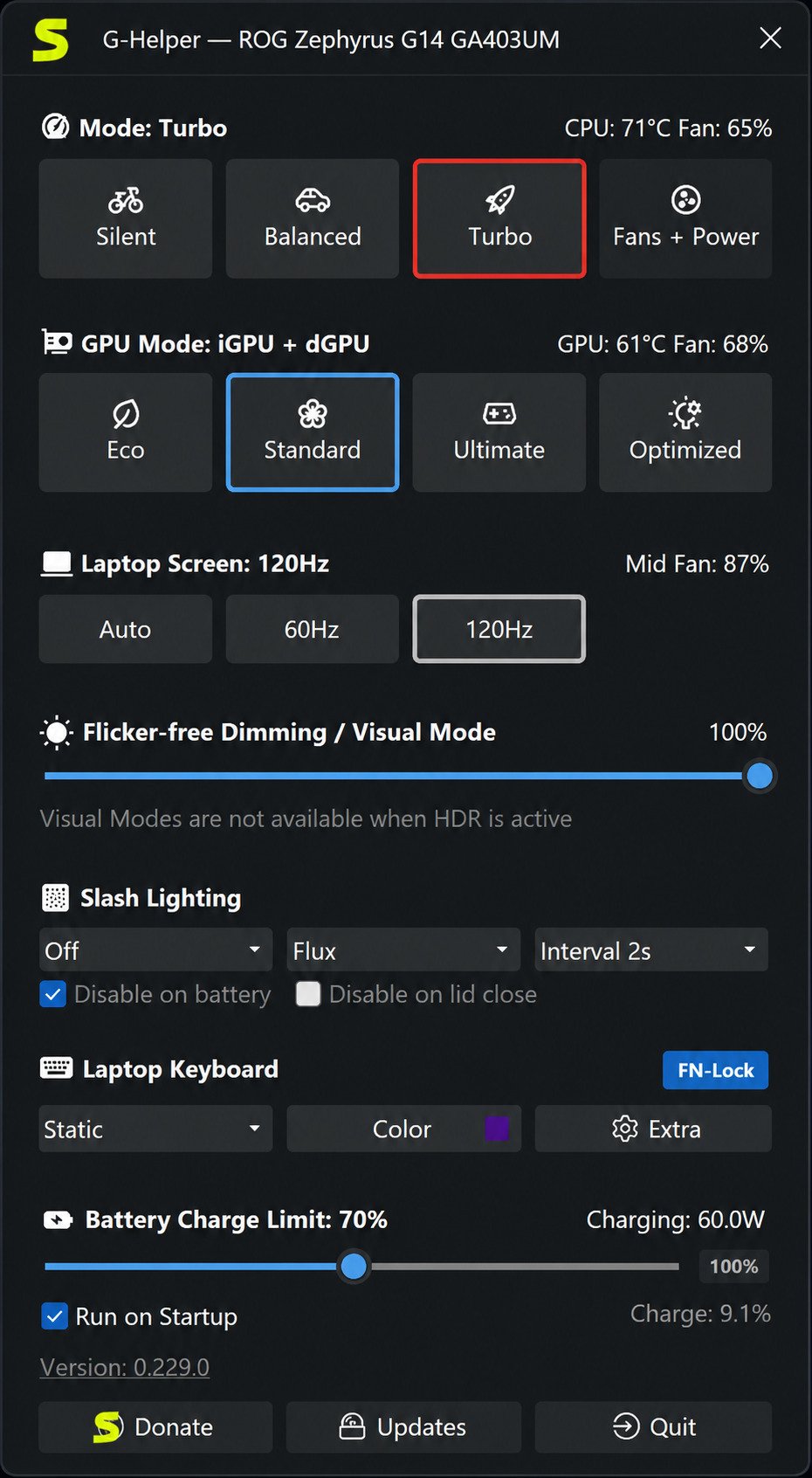
ASUS G-Helper vs Armoury Crate
The core difference is weight, not power. Armoury Crate is ASUS’s official, full-featured suite — it handles RGB lighting, peripheral pairing, driver updates, and performance tuning, but it runs several background services and has a reputation for being resource-heavy. G-Helper focuses on the performance, thermal, and battery side only, running as a single small app with minimal background footprint.
| Aspect | G-Helper | Armoury Crate |
|---|---|---|
| Developer | Independent, open-source | ASUS (official) |
| Background load | Very light | Heavier, multiple services |
| RGB/Aura Sync control | Not supported | Fully supported |
| Peripheral pairing | Not supported | Fully supported |
| Fan curve control | Yes, including manual builds | Yes |
| Battery charge limit | Yes | Yes |
| Driver/firmware update prompts | No | Yes |
| Cost | Free | Free |
Who Should Use G-Helper?
G-Helper suits people who mainly want fan, performance, and battery control and don’t care about RGB lighting or ASUS peripherals. If your laptop’s fans, keyboard, or a paired ASUS mouse rely on Armoury Crate for lighting effects, you’ll lose that when you switch — something worth weighing before you commit.
Is G-Helper Safe to Use?
Yes, when downloaded from the right place. G-Helper doesn’t flash your BIOS or modify hardware; it sends the same category of commands that Armoury Crate sends, through ASUS’s own official system interface.
Caution
Because G-Helper doesn’t ship with model-specific safety data the way Armoury Crate does, pushing custom power limits or fan curves too aggressively can still stress your hardware — the same risk you’d take with any tuning tool. Stick to the official GitHub releases page rather than third-party download sites, which sometimes bundle outdated or modified installers.
Is G-Helper Free?
Completely free and open source. The developer accepts optional donations, but there’s no paywall, trial period, or premium tier.
G-Helper Features
ASUS Laptop Performance Control
At its core, G-Helper lets you switch between the performance presets already built into your laptop’s firmware — typically Silent, Balanced, and Turbo/Performance — and fine-tune them further where the firmware allows it.
Fan Speed and Cooling Control
You get direct access to fan curves for both CPU and GPU fans, letting you prioritize quieter operation or maximum cooling depending on what you’re doing.
Battery Charging and Health Management
G-Helper includes a battery charge limiter, a feature ASUS users have long relied on to slow down long-term battery wear by capping charge at 60%, 80%, or 100%.
GPU Control and Graphics Switching
You can toggle between integrated and dedicated GPU modes, and on supported NVIDIA setups, adjust GPU clock behavior directly.
Performance and Power Modes
Each mode you pick also syncs with Windows’ own power plan (Best Power Efficiency, Balanced, or Best Performance), so your OS and hardware settings stay aligned.
Laptop Temperature Monitoring
The main window shows live CPU and GPU temperatures alongside current fan speeds, so you can watch thermals in real time without a separate monitoring app.
ASUS ROG Laptop Customization
Beyond core performance settings, G-Helper exposes extra tweaks like display refresh rate switching and screen color profile toggles on supported models.
Keyboard and Device Controls
An Extras section lets you remap certain keys, adjust keyboard backlight brightness, and control animation speed on models with per-key lighting — though not full Aura Sync effects.
Lightweight ASUS Laptop Management
The entire app is a single small executable with no separate installer service running constantly in the background, which is the single biggest reason people switch.
G-Helper Fan Control
ASUS Laptop Fan Control
Fan management is one of G-Helper’s strongest features. You can pick a preset behavior or move into manual mode for full control.
ASUS ROG Fan Speed Control
On ROG models, this typically means independent CPU and GPU fan curves, letting one run harder than the other based on your workload.
How to Control Laptop Fan Speed with G-Helper
- Open G-Helper and go to the Fan tab.
- Choose a performance mode (Silent, Balanced, Turbo) as your baseline.
- Switch to manual mode if you want to draw your own curve.
- Drag points on the CPU and GPU curves to set fan speed at each temperature step.
- Apply and monitor temperatures for a few minutes under load.
Custom Fan Curves and Cooling Profiles
Because curves are saved per performance mode, you can keep a near-silent Balanced profile for everyday use and a much more aggressive Turbo curve reserved for gaming sessions.
Laptop Cooling and Thermal Control
If your laptop still runs hot at max settings, remember that G-Helper can only ask the firmware to spin fans faster — it can’t exceed the physical cooling capacity of your chassis.
G-Helper Battery Optimization
ASUS Laptop Battery Management
G-Helper’s battery tab shows current charge, discharge rate, and battery health status, alongside the charge-limit control.
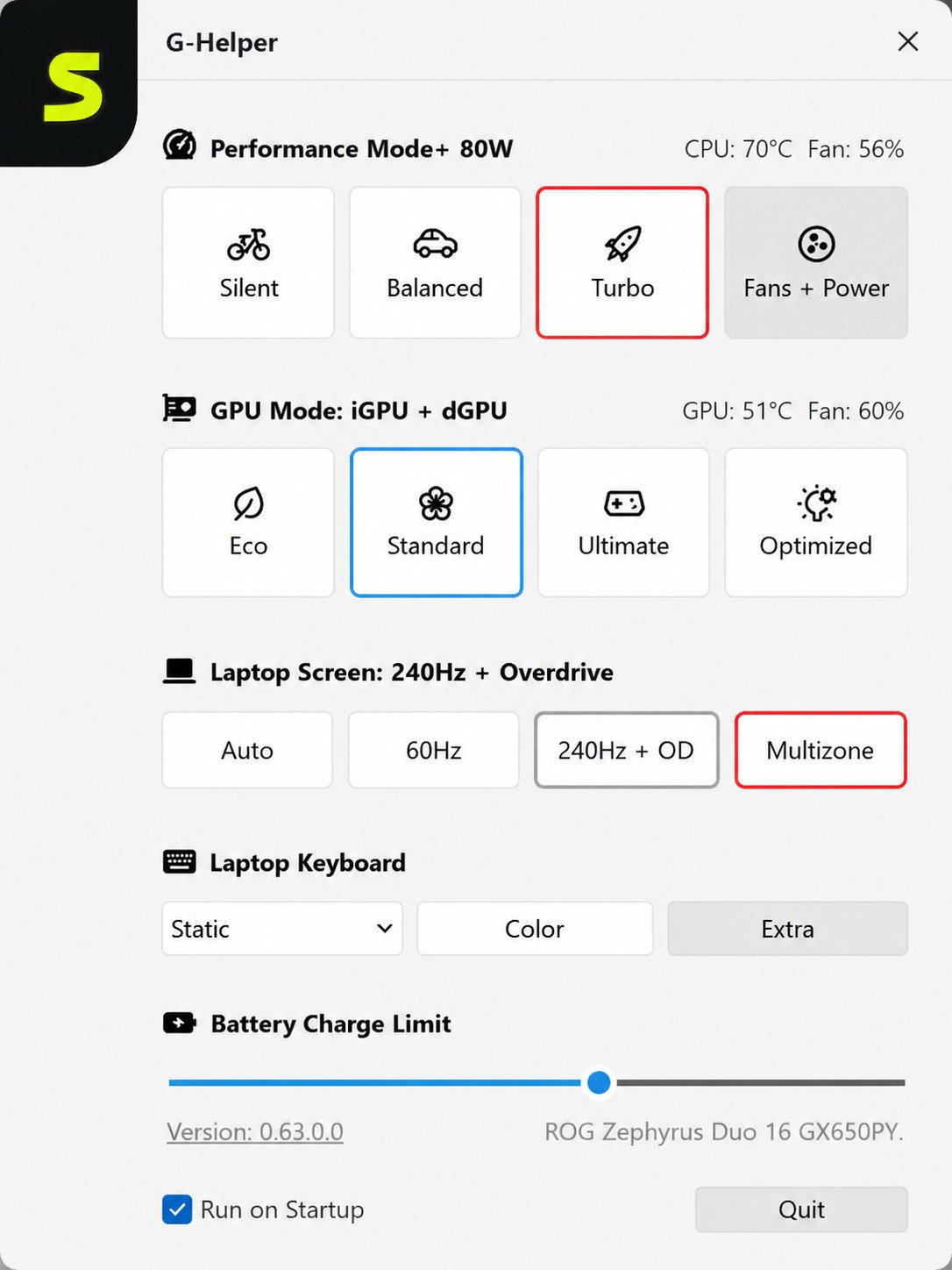
Battery Charge Limit with G-Helper
Setting a charge limit (commonly 80%) is one of the most-used features, since keeping a lithium battery below full charge most of the time is widely recommended for long-term battery health.
ASUS ROG Battery Health
Gaming laptops are often left plugged in for extended sessions, which is exactly when a charge limit matters most — it prevents the battery from sitting at 100% for hours on end.
How to Limit ASUS Laptop Battery Charging
- Open the Battery tab in G-Helper.
- Select your preferred charge limit (commonly 60%, 80%, or 100%).
- Confirm the setting; it reapplies automatically each time you log in.
Note
BIOS resets this limit on every reboot, so G-Helper needs to be running (or set to launch at startup) to reapply it.
Laptop Battery Saver and Power Management
Pairing the Silent performance mode with an 80% charge limit is a common setup for people who use their laptop unplugged for long stretches, like students or frequent travelers.
G-Helper Performance Modes
ASUS Performance Mode
Performance modes aren’t invented by G-Helper — they’re presets baked into your laptop’s firmware by ASUS. G-Helper is simply the interface that flips between them.
ASUS ROG Performance Modes
Most ROG models expose three tiers: Silent for quiet, low-power use; Balanced for everyday work; and Turbo/Performance for gaming or heavy rendering.
Laptop Power Modes
Each performance mode also changes Windows’ own power slider, so battery drain and performance scale together rather than fighting each other.
Performance Mode and Power Management
If you’re on battery, sticking to Silent or Balanced extends runtime noticeably compared to leaving Turbo active all day.
How to Change Performance Mode with G-Helper
Click the mode icon in the G-Helper tray menu or main window, and select Silent, Balanced, or Turbo. The change applies instantly, no restart needed.
How to Optimize ASUS Laptop Performance
For most people, Balanced mode with default fan curves covers daily use well. Reserve Turbo and custom fan curves for demanding games or renders where extra noise is an acceptable trade-off.
G-Helper GPU Control
ASUS GPU Control
On laptops with switchable graphics, G-Helper lets you choose between integrated graphics (for battery life) and the dedicated GPU (for performance).
ASUS ROG GPU Switching
Some ROG models also support a hybrid “Optimus” mode that automatically shifts between GPUs depending on the app running — G-Helper exposes this toggle alongside the two fixed modes.
Graphics Modes and GPU Performance
Running in integrated-only mode can meaningfully extend battery life on lighter tasks like browsing or document editing.
How to Control GPU Mode with G-Helper
Open the GPU tab, pick Eco (integrated), Standard (hybrid), or Ultimate (dedicated only), and apply. A restart is sometimes required depending on your model.
NVIDIA GPU and Integrated Graphics Switching
On supported NVIDIA setups, G-Helper also exposes GPU clock offset controls for users who want to fine-tune graphics performance further.
G-Helper for ASUS ROG and TUF Laptops
G-Helper supports a wide range of ASUS gaming hardware, including:
- ROG Zephyrus series (G14, G15, G16, M16)
- ROG Strix series (including Strix G16 and G18)
- ASUS TUF Gaming laptops
- ROG Flow (X13, X16, Z13, Duo)
- ROG Ally and ROG Ally X handhelds
- Select Vivobook, Zenbook, ProArt, and Expertbook models
Coverage generally extends to recent generations, including newer Zephyrus G14 configurations with current-gen AMD processors and NVIDIA laptop GPUs, though exact feature support can vary slightly by model and BIOS version.
G-Helper Download
G-Helper Download for Windows
The only download source you should trust is the project’s official GitHub releases page — never a third-party “driver download” aggregator site.
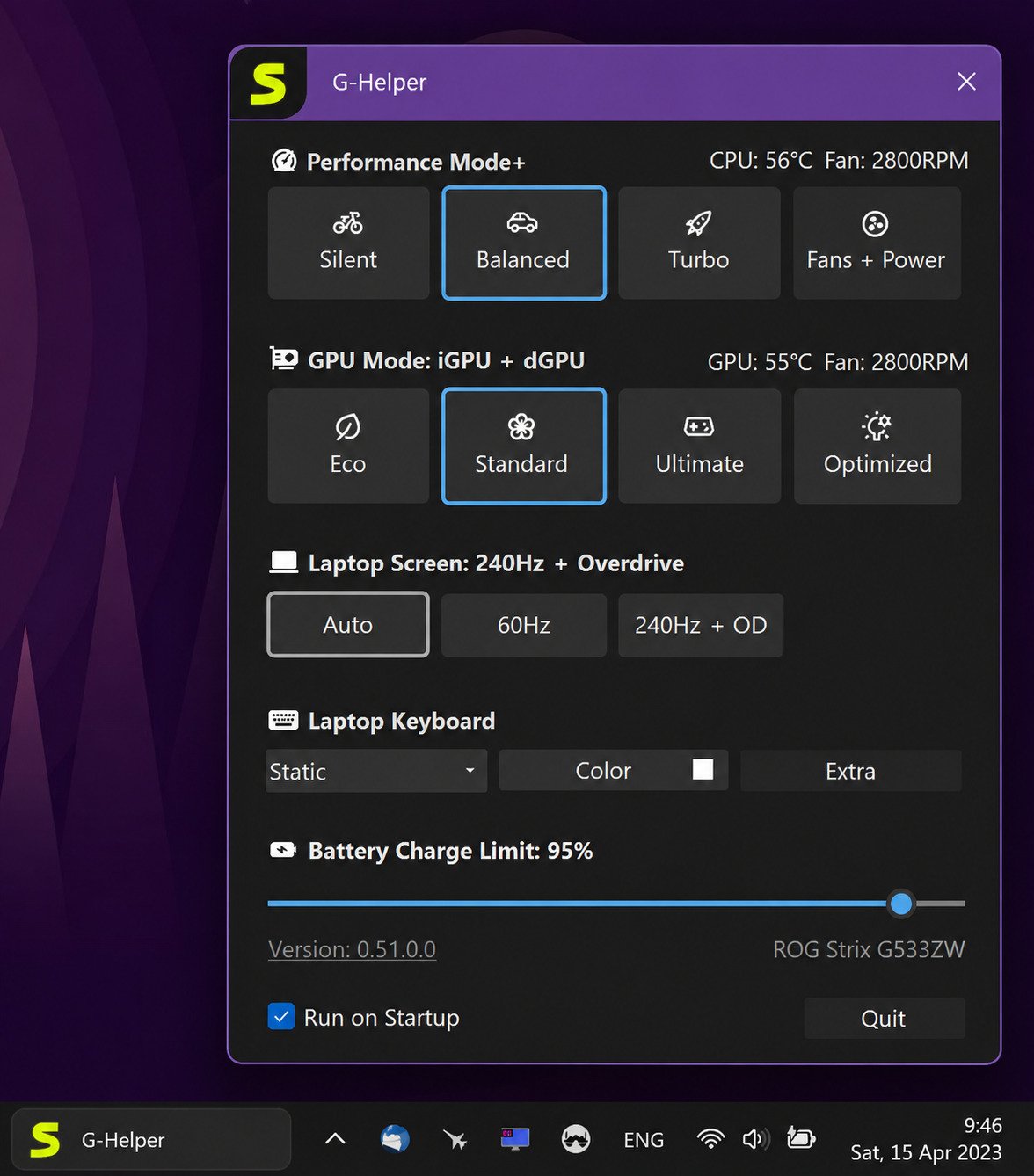
G-Helper Latest Version
Releases are published regularly on GitHub, with changelogs listing new laptop models and bug fixes for each version.
G-Helper Free Download
There’s no paid tier or account requirement. You download the installer, run it, and you’re set up in a couple of minutes.
G-Helper System Requirements
- Windows 10 or later (64-bit)
- Microsoft .NET 8 runtime (the installer will prompt you if it’s missing)
- A supported ASUS laptop or ROG Ally device
G-Helper for Windows 11
G-Helper Windows 11 Compatibility
G-Helper runs natively on Windows 11 and is actively maintained with that in mind, since most ASUS gaming laptops now ship with Windows 11 by default.
ASUS Fan and Battery Control on Windows 11
Fan curves, battery limits, and performance switching all work the same way on Windows 11 as on Windows 10 — there’s no separate version needed.
How to Install G-Helper
G-Helper Setup Guide
- Go to the official GitHub releases page for G-Helper.
- Download the latest installer .exe.
- Run the installer and allow the .NET 8 runtime install if prompted.
- Launch G-Helper — it will detect your ASUS model automatically.
- Set your preferred startup and tray options in Settings.
Initial G-Helper Configuration
On first launch, check the Startup setting so G-Helper loads automatically with Windows — otherwise your battery limit and fan curves won’t reapply after a reboot.
Recommended Settings After Installation
- Enable “Run at startup.”
- Set a battery charge limit (80% is a common middle ground).
- Pick Balanced as your default performance mode.
- Leave fan curves on auto until you’ve tested normal workloads.
How to Use G-Helper
Once installed, most day-to-day use happens from the system tray icon: right-click for quick access to performance mode, fan profile, and GPU mode without opening the full window. Head into the corresponding tabs (Fan, Battery, GPU) for finer control any time you want to adjust curves or limits.
How to Replace Armoury Crate with G-Helper
G-Helper as an Armoury Crate Alternative
You don’t need to keep Armoury Crate installed just to run G-Helper — most users uninstall Armoury Crate entirely after switching, unless they need RGB lighting or peripheral support it provides.
What Happens to Armoury Crate Settings?
Uninstalling Armoury Crate doesn’t damage your laptop or void your warranty — ASUS support and repairs are based on hardware, not on which control software happens to be installed.
G-Helper vs Armoury Crate: Performance, Battery, Fan Control, and RAM Usage
| Category | G-Helper | Armoury Crate |
|---|---|---|
| Performance tuning | Same firmware presets, lighter interface | Same firmware presets, heavier interface |
| Battery life impact | Minimal background drain | Noticeably more background processes |
| Fan control | Full curve access, including manual mode | Full curve access |
| RAM/CPU usage at idle | Very low | Higher due to multiple services |
G-Helper Configuration and Best Settings
Best G-Helper Settings for ASUS ROG Laptops
- Everyday use: Balanced mode, auto fan curve, 80% charge limit.
- Gaming sessions: Turbo mode, custom fan curve favoring GPU cooling.
- Travel/unplugged: Silent mode, 60–80% charge limit, integrated GPU only.
Recommended Fan Settings
Start with the default auto curve for two weeks of normal use before switching to manual — most people find the defaults already balance noise and temperature well.
G-Helper Troubleshooting
G-Helper Not Detecting ASUS Laptop
Confirm your model is on the supported list on GitHub, and make sure you’re running the latest release — new models are added regularly.
G-Helper Fan Control Not Working
Some models only accept fan speed changes within specific ranges dictated by firmware; if a setting seems ignored, it may be clamped by the BIOS rather than a bug in G-Helper.
G-Helper Battery Limit Not Working
If the charge limit isn’t holding, check whether an ASUS background service is overriding it — G-Helper includes a “Stop” button in Extra settings to disable conflicting ASUS services.
G-Helper Power Limits Not Working
Power limit sliders are bounded by what your specific model’s firmware allows; you can’t exceed the safe ceiling ASUS built in, regardless of what you set in the app.
G-Helper Compatibility
Supported hardware spans most modern ROG and TUF gaming laptops, along with the ROG Ally and Ally X handhelds. If you’re unsure whether your exact model is covered, the GitHub repository maintains an up-to-date compatibility list worth checking before you uninstall Armoury Crate.
G-Helper Alternatives
If G-Helper doesn’t fit your needs — say, you rely heavily on Aura Sync lighting or ASUS peripheral pairing — your realistic options are:
- Armoury Crate (official, full-featured, heavier)
- MyASUS (ASUS’s consumer-laptop app, more support-and-updates focused than performance tuning)
- Manufacturer-agnostic fan/thermal tools, though these generally lack the firmware-level integration G-Helper and Armoury Crate both have
G-Helper vs Other ASUS Laptop Utilities
G-Helper vs ASUS MyASUS
MyASUS targets everyday consumer laptops and focuses on support, updates, and basic battery care rather than deep performance and fan tuning — it’s a different tool for a different laptop lineup, not a direct G-Helper competitor.
G-Helper Pros and Cons
Advantages
- Free and open source
- Minimal background resource use
- Full fan curve and battery limit control
- Regularly updated for new ASUS models
Limitations
- No RGB/Aura Sync lighting control
- No ASUS peripheral pairing
- No automatic driver/firmware update prompts
- Community-supported rather than officially backed by ASUS
Final Verdict: Is G-Helper Worth Using?
Who Should Choose G-Helper?
If your main frustration with Armoury Crate is bloat, slow startup, or an over-complicated interface — and you don’t rely on RGB lighting or ASUS peripherals — G-Helper is a straightforward upgrade to your daily experience.
Is G-Helper Good for Battery and Performance Optimization?
Between the charge limiter, fan curve access, and one-click performance switching, it covers the features most gaming laptop owners actually use day to day, without the overhead of the full ASUS suite.
Bottom line
G-Helper is a strong, free replacement for Armoury Crate’s performance, fan, and battery tools — as long as you don’t need RGB lighting or peripheral pairing. For fan, thermal, and battery control alone, it’s hard to justify keeping the heavier suite running.
G-Helper FAQs
It’s used to control performance modes, fan curves, battery charge limits, and GPU switching on ASUS laptops, as a lighter alternative to Armoury Crate.
It’s lighter and faster for performance/fan/battery control, but it skips RGB lighting and peripheral support that Armoury Crate includes.
Yes, when downloaded from the official GitHub page — it uses the same official ASUS interface Armoury Crate relies on.
Yes, it’s completely free and open source, with optional donations to the developer.
Yes, it runs natively on Windows 11 with full feature support.
Yes, you can set a charge limit such as 60%, 80%, or 100% to help preserve long-term battery health.
For most performance, fan, and battery needs, yes — but not if you depend on Aura Sync RGB or ASUS peripheral pairing.
Conclusion
G-Helper isn’t trying to be everything Armoury Crate is, and that’s exactly its appeal. It strips ASUS laptop control down to the settings people actually touch — performance modes, fan curves, battery limits, and GPU switching — without the background bloat that makes Armoury Crate frustrating for so many users.
If you’ve been putting up with a sluggish ASUS laptop just because you assumed Armoury Crate was mandatory, it’s worth giving G-Helper a try. Keep Armoury Crate around only if RGB lighting or peripheral pairing genuinely matters to you — otherwise, this small open-source tool covers nearly everything you need.
For deeper background on how ASUS’s official control suite compares feature-for-feature, see Armoury Crate. For related Windows performance and driver control tools, see DefenderUI.