BetterDisplay for Mac: Download, Features, Setup & Alternatives (2026 Guide)
Plug a nice monitor into your Mac and something feels off. The text looks soft, the brightness keys do nothing, and the resolution list is oddly short.
BetterDisplay is a menu bar app that fixes these problems. It gives you real control over external monitors, scaling, brightness, and virtual screens. This guide covers what it does, how to install it, what the free and Pro versions include, and when another app suits you better.
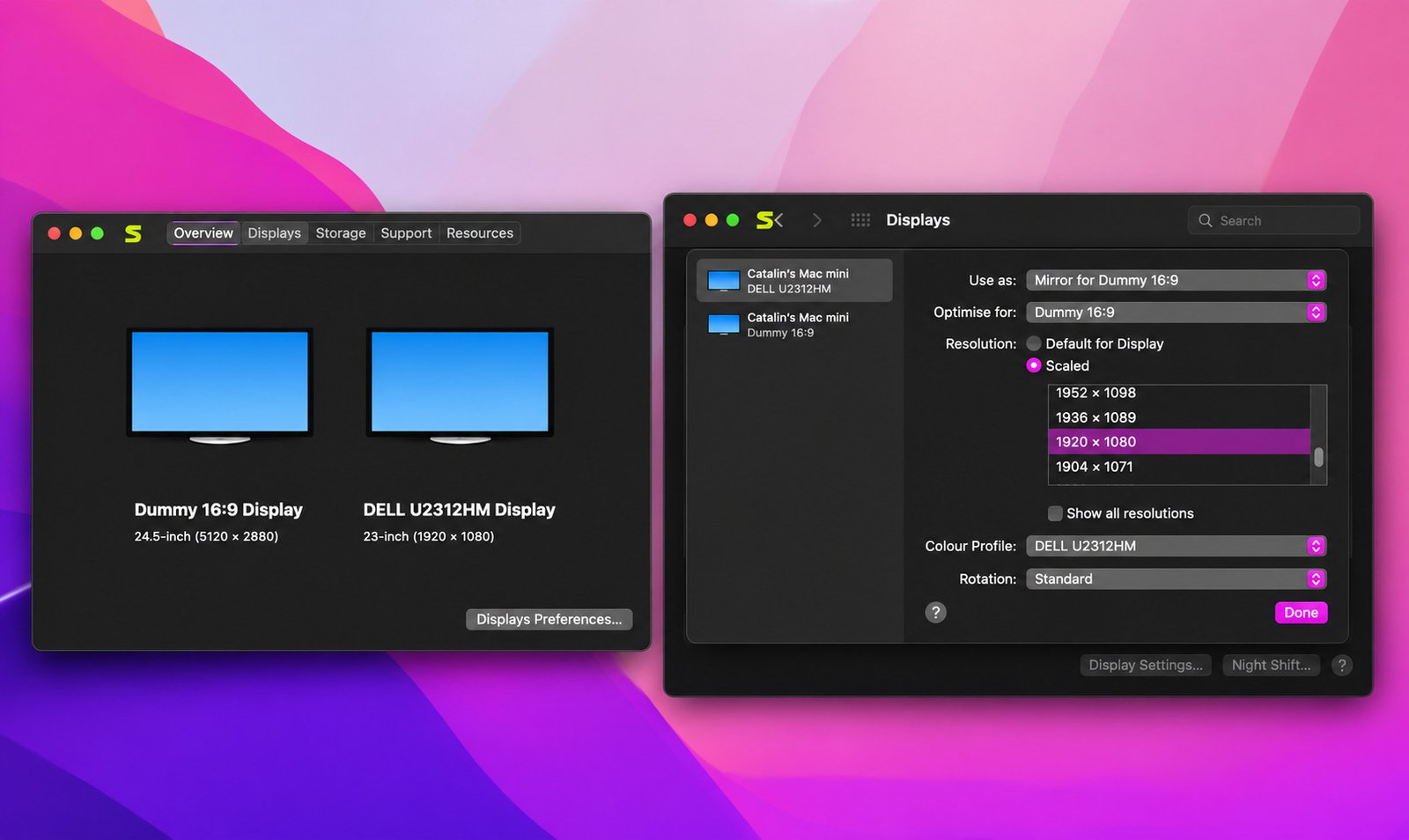
What Is BetterDisplay for Mac?
Quick answer: BetterDisplay is a macOS utility that unlocks display controls Apple hides, including external monitor brightness, HiDPI scaling, virtual displays, and extra HDR brightness.
What Does BetterDisplay Do?
It lives in your menu bar and talks to your displays directly. You can change brightness, add resolutions, create virtual screens, and stream one display into a window.
Think of it as a control room for every screen attached to your Mac.
How BetterDisplay Improves macOS Display Management
macOS keeps its display settings simple on purpose. That is fine for Apple screens but limiting for third-party monitors.
BetterDisplay fills the gaps. It adds sliders, scaling options, and layout tools in one place instead of scattering them across System Settings and workarounds.
Who Should Use BetterDisplay?
It suits anyone with an external monitor, especially 4K or 1440p panels. Developers, designers, video editors, and Mac mini owners get the most value.
If you only use a MacBook screen, you probably don’t need it.
Is BetterDisplay Free or Do You Need BetterDisplay Pro?
Both. Many features work free for non-business users, and a 14-day trial lets you test everything in Pro. Details are in the Free vs. Pro section below.
BetterDisplay Features: A Complete Overview
Here is the short version before we go deeper. Each feature below has its own section later.
External Monitor Brightness and DDC Control
DDC lets your Mac send commands to the monitor itself. That means real hardware brightness, not a dimmed overlay. DDC features are free for personal users without limits.
HiDPI Scaling and Custom Display Resolutions
You can unlock sharp, Retina-style scaling on monitors macOS treats as ordinary. You can also add resolutions Apple doesn’t list.
Virtual Displays and Dummy Monitor Creation
Create a screen that exists only in software. It is handy for headless Macs, remote access, and extra workspace.
HDR and XDR Brightness Controls
On supported screens, you can push brightness beyond the normal macOS ceiling. Results depend on your hardware.
Multiple Monitor and Display Management
Manage several screens from one menu. You can save layouts, rotate displays, and set refresh rates.
Color Profiles, Contrast, and Display Adjustments
Switch color profiles, tweak contrast, and apply image adjustments without opening the monitor’s clunky on-screen menu.
Picture-in-Picture and Screen Streaming
Show a display, or part of one, inside a floating window. It works well for monitoring a second screen while you work on the first.
Command-Line Controls and Display Automation
Power users can script everything. BetterDisplay offers a command line, a custom URL schema, HTTP, and notifications for integrations.
BetterDisplay Brightness Control for External Monitors
Quick answer: BetterDisplay controls external monitor brightness using DDC for real hardware dimming, or software dimming when DDC isn’t available.
How to Adjust External Monitor Brightness on Mac
Click the menu bar icon, find your display, and drag the brightness slider. The change is instant.
If the slider is missing, the monitor may not support DDC. Software dimming is your fallback.
Control Monitor Brightness Using DDC
DDC changes the monitor’s actual backlight. That saves eye strain and keeps contrast intact.
Some connections need extra methods on Apple silicon, and BetterDisplay offers several. Try each until one works.
Use the Mac Keyboard to Adjust External Display Brightness
Enable keyboard shortcuts in settings and your normal brightness keys will control the external screen. Some advanced shortcut options sit behind Pro.
Manage Brightness Across Multiple Monitors
Set each monitor separately or sync them. Syncing helps when two identical panels sit side by side.
Mixed setups, such as a laptop and a desktop panel, usually look better with individual levels.
Software Dimming and Screen Dimming to Black
Software dimming darkens the picture through your Mac’s graphics output. It can go below what a monitor’s own minimum allows.
Dimming to black is useful for night work or when you want a screen off without unplugging it.
Control External Monitor Brightness Without Physical Buttons
No more fumbling with tiny buttons under the bezel. Everything happens from your menu bar or keyboard, which is the main reason most people install the app.
BetterDisplay HiDPI Scaling and Custom Resolutions
Quick answer: HiDPI renders your desktop at double resolution and scales it down, which makes text sharper on 4K and similar monitors.
What Is HiDPI Scaling on macOS?
HiDPI draws every pixel of text and icons using four physical pixels. Apple calls its version Retina.
Apple screens get it automatically. Many third-party monitors don’t, so text looks fuzzy.
Enable HiDPI for External Monitors
Open your display in BetterDisplay and turn on HiDPI. You can also create a virtual screen mirrored onto your real one.
That second method gives fully scalable HiDPI desktops on Apple silicon Macs.
Create Custom Display Resolutions
Add a resolution that matches your preferred layout. Say your 4K monitor feels too big at 1080p-equivalent and too tiny at native. A middle value solves that.
Improve Text Sharpness on 4K and 1440p Monitors
On 4K, a scaled “looks like 1440p” mode usually reads best. On 1440p monitors, HiDPI at a lower effective size can help, though the screen real estate shrinks.
Configure Retina-Style Scaling on External Displays
Pick a resolution labeled with the HiDPI indicator. Then log out and back in if the picture looks off. Apple’s pipeline sometimes needs a refresh.
Fix Blurry Text on External Mac Monitors
Blurry text usually means non-HiDPI rendering at a non-native resolution. Enable HiDPI, choose a scaled mode, and confirm the monitor runs at its native refresh rate and signal.
Understand Resolution Overrides and Display Scaling
Overrides tell macOS to offer modes it normally hides.
Caution: Overrides change system display files, so apply them carefully. If something goes wrong, remove the override in the app and restart.
BetterDisplay Virtual Displays and Dummy Monitors
Quick answer: A virtual display is a software-created screen that macOS treats like real hardware.
What Is a Virtual Display in BetterDisplay?
It behaves like a monitor with no physical panel. Windows can live on it, and you can stream it anywhere.
How to Create a Virtual Display on Mac
Open the app menu, go to the virtual screen option, and add a new one. Name it, choose a resolution, and confirm. It appears in System Settings straight away.
Configure Virtual Monitor Resolution and Scaling
Match the resolution to your use. For remote work, pick the resolution of the device you’ll connect from.
HiDPI on a virtual screen gives crisp text over screen sharing.
Set Up a Dummy Display for a Headless Mac
Headless Macs often limit resolution without a monitor. A virtual dummy display restores full options and keeps the desktop active.
The app lets you run headless Macs at any resolution with HiDPI for remote access.
Use Virtual Displays With Mac mini
A Mac mini is the classic case. Without a screen attached, remote sessions can be small and laggy.
A dummy display fixes that, and it spares you a physical HDMI dummy plug.

BetterDisplay Virtual Displays for Remote Desktop and Screen Sharing
Virtual screens give remote tools a clean, sharp target. You pick the size, so the remote view fits your tablet or laptop perfectly.
Manage and Remove Virtual Displays
Disable or delete a virtual display from the same menu. If a stuck one remains after an update, restart BetterDisplay, then your Mac.
BetterDisplay HDR and XDR Brightness Controls
Quick answer: BetterDisplay can raise brightness on compatible HDR and XDR displays beyond normal macOS limits, mostly on Apple silicon.
Understanding HDR and XDR Display Features
XDR is Apple’s name for its high-brightness mini-LED panels. HDR is the broader standard other monitors follow.
Both can show brighter highlights than standard desktop brightness.
How to Adjust HDR Brightness With BetterDisplay
Open the display’s settings and enable the brightness upscaling option. For other HDR displays, the app sets the upscaling level automatically from the reported maximum panel brightness.
Increase Brightness on Compatible MacBook Displays
Some MacBook Pro screens can go brighter indoors than Apple allows. Use it sparingly, because heat and battery use both rise.
Configure XDR Brightness Settings
Recent releases added native XDR upscaling for macOS Tahoe 26.3, which needs setup in the display’s settings pane. Read the in-app notes first.
BetterDisplay Extra Brightness and macOS Brightness Limits
macOS caps sustained brightness to protect the panel. Going beyond that is a trade-off.
Heads up: Expect more heat and possible dimming after long sessions.
Control Brightness on Compatible External HDR Monitors
External HDR monitors work when they report their brightness correctly. Results vary by brand, so test with your own screen.
Hardware and Pro License Requirements for Advanced Brightness Features
HDR upscaling requires an Apple silicon Mac. Several advanced options also need a Pro license.
BetterDisplay External Monitor and Multi-Display Management
Quick answer: BetterDisplay lets you arrange, mirror, rotate, and save display setups from the menu bar.
Configure External Displays on macOS
Each connected display has its own panel with resolution, refresh rate, and color options. Start there before touching anything else.
Set Up and Manage Multiple Monitors
Add monitors one at a time and confirm each in the app. This keeps troubleshooting simple if one fails to show correctly.
Arrange and Organize Your Display Layout
Drag displays into position in System Settings or use the app’s layout tools. Pro unlocks advanced layout management.
Configure Display Mirroring and Screen Rotation
Mirror a screen for presentations or rotate it for vertical coding. Both take a couple of clicks.
Adjust Monitor Refresh Rates
Pick 60, 120, or whichever rate your monitor and cable support. If a rate is missing, the cable is the usual culprit.
Save and Restore Display Configurations
Save a layout once and bring it back after docking or waking. It saves minutes every morning.
Prevent Unwanted Changes to Display Arrangements
Macs sometimes shuffle monitors after sleep. Locking your arrangement stops windows jumping to the wrong screen.
BetterDisplay Color and Image Adjustments
Quick answer: You can switch color profiles, adjust contrast, and apply image corrections per display.
Adjust Display Color and Contrast
Use the sliders to tune contrast and tone for each monitor. Small changes often make cheap panels look noticeably better.
Configure Color Profiles and Temperature
A color profile selector and XDR preset picker are built in. Choose sRGB, Display P3, or your calibrated profile as needed.
Use Custom 3D LUTs and Advanced Color Adjustments
Advanced users can apply look-up tables for precise correction. This is niche, so skip it unless you calibrate screens already.
Apply Display Filters and Image Adjustments
Filters change gamma, tint, and brightness at the software level. They are useful for night modes or screen testing.
Improve Color Consistency Across Multiple Monitors
Two monitors rarely match. Set identical profiles, then adjust brightness and contrast until whites look alike.
A hardware calibrator is still the gold standard for professional work.
BetterDisplay Picture-in-Picture and Screen Streaming
Quick answer: Picture-in-Picture shows a live copy of one display inside a movable window.
What Is BetterDisplay Picture-in-Picture Mode?
It creates a floating window mirroring another screen. You can resize it and keep it above other apps.
Stream a Display Into a Floating Window
Choose the display, enable streaming, and place the window where you like. This helps when a second monitor sits out of view.
Share Virtual Displays With Other Applications
Streams can feed virtual displays, which other tools can then capture. It is a neat trick for recording or presenting a controlled screen.
Stream Individual Windows on Mac
Some versions let you stream a single window rather than the whole desktop. That keeps private content out of shared views.
Configure Display Mirroring and Screen Sharing
Combine mirroring with virtual displays for clean presentations. Share the virtual screen, and your private desktop stays private.
BetterDisplay CLI, Automation, and Shortcuts
Quick answer: BetterDisplay can be controlled from Terminal, URL schemes, macOS Shortcuts, and tools like Raycast.
What Is BetterDisplay CLI?
The CLI lets scripts change display settings without opening the app. It suits power users and IT admins.
Using betterdisplaycli and Command-Line Commands
A dedicated betterdisplaycli tool exists, alongside HTTP and URL-schema options. Check the project wiki for exact command syntax.
Control Monitor Brightness From the Terminal
You can set brightness by command. For example, a script can dim every screen at 10 p.m.
Automate Display Resolution and Scaling
Switch resolution when you dock or start a presentation. Automations remove repeated manual steps.
Create Display Automation With Shell Scripts
Combine commands in a shell script, then run it from a hotkey or a scheduled task. Keep scripts simple and test each command first.
Integrate BetterDisplay With macOS Shortcuts
Shortcuts (App Intents) support covers various operations. Build a “Movie Mode” shortcut that dims screens and switches profile.
BetterDisplay Integration With Raycast
Raycast offers extensions for quick display commands. It adds a launcher-style way to change brightness or resolution in seconds.
BetterDisplay Download and Installation for Mac
Quick answer: Download BetterDisplay from its official GitHub page or betterdisplay.pro, open the DMG, and drag the app into Applications.
Where to Download BetterDisplay Safely
Stay safe: Stick to official sources only. Avoid random download sites, because display tools request system permissions.
Download BetterDisplay From the Official Website and GitHub
The developer publishes builds on the official GitHub repository at github.com/waydabber/BetterDisplay. The project site is betterdisplay.pro.
BetterDisplay Latest Version and Release Information
The version 4.3.4 release was listed as current for macOS Tahoe 26, Sequoia, Sonoma, and Ventura. Version 5 was reported in pre-release and requires an Apple silicon Mac with macOS 26 or newer. Check the releases page for the newest build.
BetterDisplay Free Download and Pro Version Options
The download is the same for everyone. Pro features unlock with a license key inside the app.
BetterDisplay DMG Installer for macOS
Open the DMG, drag BetterDisplay into the Applications folder, and launch it. Then use the menu bar icon to reach all features.
Install BetterDisplay Using Homebrew
Prefer Terminal? Install Homebrew, then run: brew install --cask betterdisplay. Updates then come through Homebrew too.
BetterDisplay Download for Apple Silicon and Intel Macs
Version 4.x supports Apple silicon and Intel Macs on macOS Ventura 13.2 or newer. Intel owners should skip version 5.
How to Set Up and Use BetterDisplay on Mac
Quick answer: Install the app, grant permissions, open the menu bar icon, and configure each display one at a time.
Install and Launch BetterDisplay for the First Time
Open it from Applications. Approve any permission prompts, then look for the icon in your menu bar.
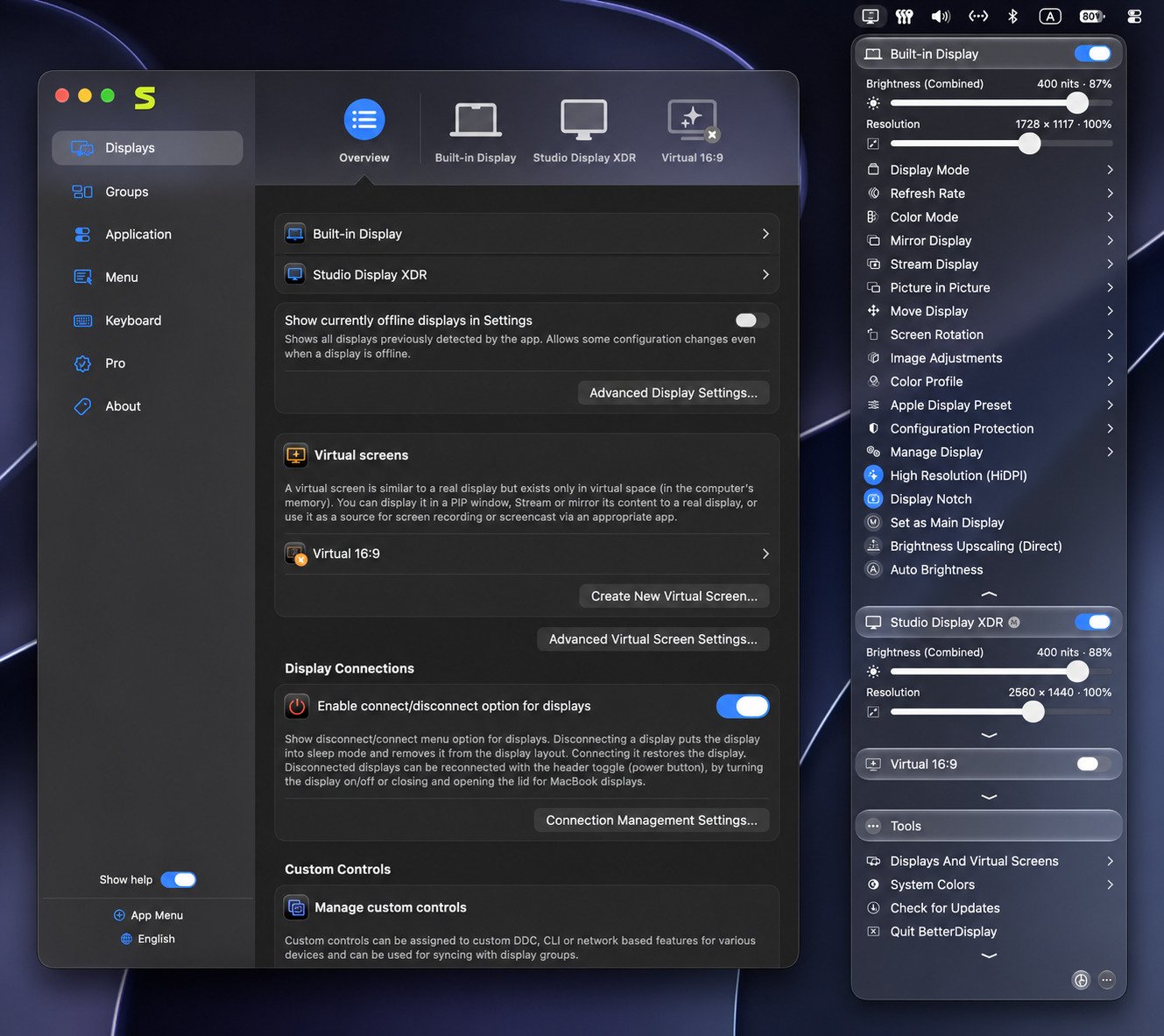
Understand the BetterDisplay Menu Bar Interface
Each connected display appears as a section with sliders and toggles. Gear icon settings hold deeper options, with explanations next to most features.
Configure Your External Monitor Settings
Select your monitor and review its resolution, refresh rate, and color mode. Fix those first. Then move on to brightness and scaling.
Set Up Brightness and DDC Controls
Turn on DDC control for your display. Test the slider. If it responds, your hardware path works.
Enable HiDPI and Custom Resolutions
Turn on HiDPI, then pick a scaled resolution. Log out once if modes don’t appear.
Create and Configure a Virtual Display
Add a virtual screen only if you need one. Set a resolution that matches your remote device or workflow.
Customize Display Settings and Keyboard Shortcuts
Assign shortcuts for brightness, presets, or toggles. Choose combinations that don’t clash with other apps.
Configure BetterDisplay Pro Features
Activate your license in Settings under Pro. Then explore app-specific settings, presets, and schedules.
BetterDisplay Compatibility and System Requirements
Quick answer: Current versions run on Apple silicon and Intel Macs with macOS Ventura 13.2 or newer; version 5 needs Apple silicon and macOS 26.
| Version | Supported macOS | Notes |
|---|---|---|
| 4.x | Ventura 13.2 to Tahoe 26 | Apple silicon and Intel |
| 3.5.x | Ventura 13.2 to Sequoia | Older stable line |
| 2.3.x | Monterey 12.4 to Sonoma | Legacy |
| 5.x (pre-release) | macOS 26+ | Apple silicon only |
Supported macOS Versions
Version 4.x covers Tahoe 26, Sequoia, Sonoma, and Ventura, while older macOS releases use legacy versions.
BetterDisplay Compatibility With Apple Silicon and Intel Macs
Both architectures work on version 4. Apple silicon gets more features, like HDR upscaling and display connect and disconnect.
BetterDisplay on M1, M2, and M3 Macs
The developer highlights full DDC support on M2 and M2 Pro/Max Macs, M1 built-in HDMI, and the 2018 Mac mini’s built-in HDMI. M3 and newer generally work too.
BetterDisplay Compatibility With macOS Sequoia and Tahoe
The 4.x releases include fixes and compatibility improvements for macOS Tahoe. Update the app after each macOS update.
Supported External Monitors and DDC Compatibility
Most monitors with DDC/CI work. Enable DDC/CI in the monitor’s own menu if sliders don’t respond. Docks and adapters can block it.
Hardware Requirements for HDR, XDR, and Virtual Displays
HDR upscaling needs Apple silicon and a capable panel. Virtual displays need no special screen, only a compatible Mac and macOS.
Does BetterDisplay Work on Windows?
No. It is a macOS-only app. Windows users should look at Windows monitor tools instead.
BetterDisplay Free vs. Pro: Features and Licensing
Quick answer: The free version handles core monitor control. Pro unlocks advanced features such as presets, schedules, and layout management.
| Feature | Free | Pro |
|---|---|---|
| DDC brightness (personal use) | Yes | Yes |
| Basic virtual displays | Limited | Full |
| Presets and schedules | No | Yes |
| App-specific settings | No | Yes |
| Advanced layout management | No | Yes |
| Advanced shortcuts | No | Yes |
What Features Are Available in the Free Version?
Free use is for non-business users, and DDC controls are included. You also get basic brightness and display tools.
What Does BetterDisplay Pro Unlock?
Pro adds automation-focused features. Advanced shortcuts, schedules, presets, and custom dummy displays sit behind Pro.
BetterDisplay Pro License and Activation
Pro is a perpetual license, not a subscription, listed at $21.99 or €19.99, and includes at least a year of free updates.
Note: Prices change over time, so confirm on the official site.
Activate from Settings, then Pro.
Is BetterDisplay Pro Worth Paying For?
If you rely on presets, schedules, or custom dummies, yes. For one external monitor and simple needs, the free version might be enough.
Choosing Between the Free and Pro Versions
Start free. The 14-day trial lets you test every Pro feature first. Buy only if you miss something after it ends.
BetterDisplay Advantages, Limitations, and Use Cases
Quick answer: BetterDisplay’s biggest strengths are flexibility and depth. Its main limits are hardware compatibility and a busy interface.
Main Benefits of Using BetterDisplay
- Real hardware brightness through DDC
- Sharper text with HiDPI
- Virtual displays for headless and remote setups
- Scripting and automation
- A generous free tier
Limitations of External Monitor DDC Control
DDC depends on your monitor, cable, and ports. Some docks break it. Some monitors ignore commands. This isn’t a BetterDisplay flaw, but it affects results.
Virtual Display and Hardware Compatibility Considerations
Virtual screens rely on macOS display internals. After major OS updates, they can behave oddly until the app updates.
Is BetterDisplay Useful for MacBook Users?
Yes, if you connect an external monitor often. For laptop-only users, the extra brightness feature is the main draw.
Is BetterDisplay Suitable for Multi-Monitor Workstations?
Very. Per-display control, saved layouts, and shortcuts make multi-screen desks easier. If you also upgrade your peripherals, our Logitech guide covers keyboards and mice that pair well with such a setup.
BetterDisplay Review: Is It Worth Using?
Quick answer: For most Mac users with external monitors, yes. It is powerful, regularly updated, and fairly priced.
Ease of Use and Interface Experience
The menu is compact but packed. New users may feel overwhelmed, though sensible defaults help. Descriptions inside settings guide you.
External Monitor Brightness and Scaling Performance
Brightness changes are fast on supported monitors. HiDPI scaling makes a visible difference on 4K screens, especially for text-heavy work.
Virtual Display and HDR Capabilities
Virtual displays are a standout, particularly for Mac mini owners. HDR upscaling is useful but hardware-dependent.
BetterDisplay Free vs. Pro User Experience
The free tier feels complete for basic use. Pro feels like a power-user upgrade rather than a paywall.
Who Should Use BetterDisplay?
Anyone with an external monitor who wants more control. Skip it if your screens already look and behave exactly as you like.
Best BetterDisplay Alternatives for Mac
Quick answer: MonitorControl is the best free option for brightness. Lunar suits adaptive brightness. DisplayBuddy emphasizes simplicity.
| App | Best For | Price (as listed) |
|---|---|---|
| BetterDisplay | HiDPI, virtual screens, deep control | Free + Pro |
| MonitorControl | Free basic control | Free |
| Lunar | Adaptive brightness | Free + about $23 Pro |
| DisplayBuddy | Simple presets, Windows support | Paid |
| SwitchResX | Custom resolutions | Paid |
BetterDisplay vs. MonitorControl
MonitorControl is a free, open-source option for brightness, contrast, and volume with menu bar sliders. It lacks BetterDisplay’s virtual displays and scaling depth.
BetterDisplay vs. Lunar
Lunar offers free manual adjustments and a roughly $23 license for adaptive brightness across five Macs. It excels at automatic brightness. BetterDisplay covers more display ground.
BetterDisplay vs. DisplayBuddy
DisplayBuddy’s own comparison says BetterDisplay doesn’t support Samsung Smart Monitors. Treat vendor comparisons cautiously, but DisplayBuddy is worth a look if you want a simpler tool.
BetterDisplay vs. SwitchResX
SwitchResX is an older tool focused on resolutions. BetterDisplay is broader and more current. Check each app’s latest macOS support before choosing.
BetterDisplay vs. Built-In macOS Display Settings
macOS handles basics but hides DDC, HiDPI unlocking, and virtual screens. BetterDisplay adds those without replacing system settings.
Best Free BetterDisplay Alternatives
MonitorControl is the clear free pick. Lunar’s free tier also works, with daily adjustment limits reported on some versions.
Which Mac Display Management App Should You Choose?
- Only need brightness? Try MonitorControl.
- Want adaptive brightness? Choose Lunar.
- Need HiDPI, virtual screens, and automation? Pick BetterDisplay.
Common BetterDisplay Problems and How to Fix Them
Quick answer: Most issues come from cables, ports, docks, or outdated macOS support. Update the app and try another connection first.
BetterDisplay Not Detecting an External Monitor
Reseat the cable, try another port, and restart the Mac. Update the app to the latest version too.
BetterDisplay Brightness Control Not Working
Enable DDC/CI in the monitor’s menu. Then try a different DDC method in the app. If nothing works, use software dimming.
Fix BetterDisplay DDC Connection Problems
Skip docks and cheap adapters when possible. Connect directly with a quality cable. HDMI and DisplayPort behave differently on some Macs.
BetterDisplay Custom Resolution Not Working
Log out and back in, then restart. If the mode still doesn’t show, remove the override and recreate it with a more standard value.
Troubleshoot BetterDisplay Virtual Display Issues
Delete the virtual screen and add it again. Update after macOS upgrades. Avoid extreme resolutions your GPU can’t handle.
Fix Blurry Text on External Monitors
Enable HiDPI and choose a scaled mode. Also check that your monitor runs at native resolution and a proper refresh rate.
BetterDisplay Settings Not Saving
Make sure the app has permission to launch at login and isn’t blocked by security software. Reinstall if settings keep resetting.
Resolve Installation and macOS Compatibility Problems
Confirm your macOS version against the compatibility table. Version 5 requires macOS 26 and Apple silicon, so Intel Macs stay on version 4.
Frequently Asked Questions About BetterDisplay
Mostly. Many features are free for non-business users, with a 14-day trial for Pro.
Yes. The license is perpetual, not a subscription.
No, it only runs on macOS.
Yes. It uses DDC for real brightness changes, or software dimming when DDC isn’t supported.
Yes. They are useful for headless Macs, remote desktop, and sharing a clean screen.
Yes. It unlocks sharper scaled modes on monitors macOS doesn’t treat as Retina.
Yes. A virtual dummy display gives your headless Mac a full-resolution desktop for remote access.
Conclusion
BetterDisplay turns an ordinary external monitor into something that feels made for your Mac. Sharper text, working brightness keys, and flexible virtual screens remove daily annoyances. The free version already does a lot, and Pro is there if you grow into it.
Start with the free trial, test one feature at a time, and keep what helps. Your desk will feel calmer, and your eyes will thank you. If you ever get stuck, the troubleshooting steps above and the project’s official GitHub page are good places to turn.
One Response