Hearthstone Deck Tracker: Download, Setup, Features, Stats, Overlay, and Complete Guide
If you’ve ever lost a Hearthstone match because you forgot which cards were still left in your deck, you already know why so many players swear by Hearthstone Deck Tracker — the free companion app that shows you exactly what’s coming next, what your opponent has played, and how your decks perform over time.
What Is Hearthstone Deck Tracker?
Hearthstone Deck Tracker (HDT) is a free, open-source companion application built by the HearthSim team that overlays live game information directly on top of your Hearthstone client. It tracks cards, calculates draw odds, records your win rate, and helps you manage every deck you own — all without touching the game files themselves.
Unlike in-game addons for other titles, HDT never modifies Hearthstone’s code. It simply reads publicly available game logs and displays that information visually, which is why Blizzard has allowed it to exist for years without penalty.
How Does Hearthstone Deck Tracker Work?
HDT reads the log files Hearthstone automatically generates during gameplay. Every time a card is drawn, played, or discarded, the game writes that event to a log. The tracker parses this data in real time and converts it into a clean, readable overlay.
In simple terms: it’s not spying on hidden information you shouldn’t have. It’s just organizing information the game already gives you but doesn’t display clearly on screen.
Hearthstone Deck Tracker App and Game Overlay Explained
The “overlay” is the transparent window that floats on top of your Hearthstone game screen. It shows your remaining deck, your hand’s draw probabilities, and (if available) what your opponent has revealed so far.
Because it sits above the game rather than inside it, you can move it, resize it, or hide sections you don’t need — making it feel like a natural extension of the game rather than a bolted-on tool.
Hearthstone Deck Tracker vs a Standard Deck Builder
A regular deck builder only helps you before a match — choosing cards, checking mana curves, and saving deck codes. HDT does that too, but its real strength kicks in during the match, tracking live game state, and after the match, logging your results for long-term analysis.
| Feature | Standard Deck Builder | Hearthstone Deck Tracker |
|---|---|---|
| Build and save decks | Yes | Yes |
| Import deck codes | Yes | Yes |
| Live in-game overlay | No | Yes |
| Card and hand tracking | No | Yes |
| Win rate statistics | No | Yes |
| Opponent card tracking | No | Yes |
| Battlegrounds and Arena support | Rarely | Yes |
What Can Hearthstone Deck Tracker Track?
At a glance, HDT can track:
- Cards remaining in your deck
- Cards your opponent has played
- Your hand and draw probabilities
- Turn timers and mulligan choices
- Secrets currently in play
- Win/loss rate per deck, per class, and per game mode
- Arena and Battlegrounds run performance
Hearthstone Deck Tracker Download
Getting started with HDT is straightforward, but it’s worth downloading it correctly the first time to avoid outdated or unofficial copies.
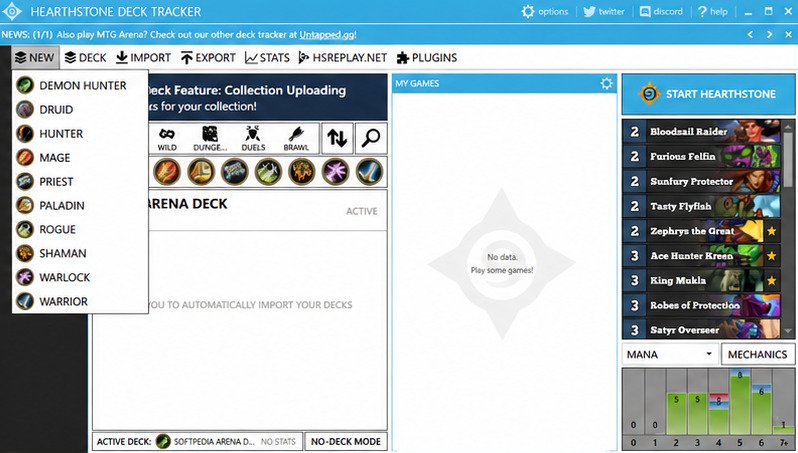
Hearthstone Deck Tracker Free Download
HDT is completely free, with no premium tier, subscription, or paywalled features. The development team accepts optional donations, but nothing in the app is locked behind payment.
How to Download Hearthstone Deck Tracker
- Go to the official HearthSim GitHub Releases page.
- Find the latest installer file, typically named HDT-Installer.exe.
- Download the file directly — avoid third-party mirror sites when possible.
- Save it somewhere you’ll remember, like your Downloads folder.
Hearthstone Deck Tracker Download for Windows
HDT is built specifically for Windows, using the .NET framework, which is why it integrates so cleanly with the Windows version of Hearthstone. The installer is lightweight, usually under 25 MB, and takes only a couple of minutes to install on most machines.
If you’re setting up other Windows utilities alongside your gaming tools, resources like this PuTTY Key Generator (PuTTYgen) download guide walk through installing common Windows software the same safe way — official sources, verified installers, no bundled junk.
Is There a Free Hearthstone Deck Tracker?
Yes, and HDT is the most widely used one. It has remained free and open-source since its original release, largely maintained by community contributors and the HSReplay team, who also fund parts of its ongoing development.
How to Install and Set Up Hearthstone Deck Tracker
Installation is simple, but a proper setup makes the difference between a smooth experience and a tracker that never quite works right.
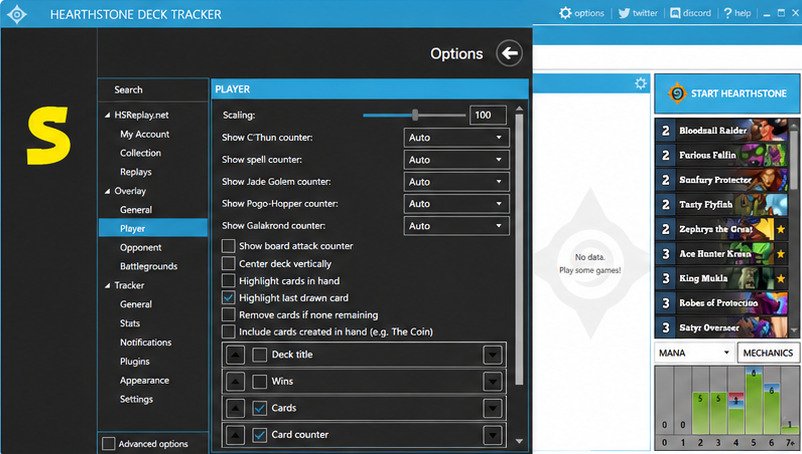
Hearthstone Deck Tracker Installation Guide
Run the installer file you downloaded. You do not need administrator privileges for a standard installation. The setup wizard creates a folder in your local app data directory and places a shortcut on your desktop automatically.
Hearthstone Deck Tracker Setup Guide
After installation, launch HDT before opening Hearthstone. On first launch, it will:
- Scan common install locations for your Hearthstone client.
- Ask you to manually locate the game folder if it isn’t found automatically.
- Prompt you to log in (optional) if you want cloud deck syncing and HSReplay stat uploads.
How to Connect the Tracker to Hearthstone
HDT connects to Hearthstone by reading the game’s log output, not by injecting code into it. To make sure logging is enabled correctly:
- Open HDT’s settings menu.
- Navigate to the Log Settings or Hearthstone Config tab.
- Let HDT automatically update your Hearthstone log config file (it usually does this on first run).
- Once configured, simply launch Hearthstone as normal — the tracker overlay should appear automatically.
Does Hearthstone Deck Tracker Work on Windows 11?
Yes. HDT runs reliably on Windows 11, though some users need to allow it through Windows Defender or SmartScreen the first time, since it’s a smaller open-source tool rather than a mainstream commercial app.
Does Hearthstone Deck Tracker Work on Mac?
Not natively. HDT is a Windows-only application built on the .NET framework. Mac users typically run it through Wine, CrossOver, or a Windows virtual machine, though performance and stability can vary depending on setup.
How to Use Hearthstone Deck Tracker
Once installed, using HDT day-to-day becomes second nature within just a few matches.
Using the Hearthstone Deck Tracker Overlay
The overlay appears automatically once you start a match. It shows your remaining deck list on one side of the screen and, depending on your settings, opponent information on the other. You can drag, resize, and toggle individual overlay elements from the settings menu.
How to Copy and Import a Hearthstone Deck
- Copy a deck code from Hearthstone itself, a website, or a friend.
- Open HDT — it will automatically detect the deck code in your clipboard.
- Confirm the import, and the deck is added to your Deck Manager.
How Automatic Deck Detection Works
When you queue into a match, HDT automatically matches your current in-game deck to one saved in its Deck Manager. If no match is found, it creates a new entry so future games with that deck are tracked correctly from that point forward.
Managing Decks With the Deck Manager
The Deck Manager is where all your saved decks live. From here you can:
- Rename, tag, or archive decks
- View win rate per deck
- Edit deck contents directly
- Sort decks by class, format, or performance
Hearthstone Deck Tracker Features
This is where HDT earns its reputation as the most complete companion tool available for Hearthstone players.
Card Tracking and Remaining Card Count
The core feature: a live, updating list of every card left in your deck, so you always know your odds of drawing specific cards on your next turn.
Opponent Card Tracking
HDT logs every card your opponent plays during the match, building a partial picture of their deck as the game progresses — useful for predicting their next move or remaining resources.
Hand Tracker and Draw Probability
Beyond just your deck, HDT can estimate the probability of drawing a specific card type or mana cost on your next turn, which is genuinely useful when deciding whether to hold or use a card.
Win Rate Stats and Game Statistics
Every match is logged automatically, giving you long-term win rate data broken down by:
- Deck
- Class
- Opponent class
- Game format (Standard, Wild, Classic)
- Game mode (Ranked, Casual, Arena, Battlegrounds)
Automatic Deck Detection
As covered earlier, this feature removes the manual step of selecting which deck you’re playing before every single match.
Turn Timer and In-Game Tracking Tools
A small but genuinely helpful addition — a visible turn timer helps competitive players manage pacing, especially in fast ladder climbs where time management matters.
Secret Tracker and Match Information
When facing Hunter, Mage, or Paladin, HDT displays which secrets are mathematically still possible based on the cards your opponent has already played and their remaining mana — a small edge that often prevents walking into a trap.
Hearthstone Deck Tracker Stats and Analytics
Beyond the live overlay, HDT’s real long-term value comes from its statistics engine.
Tracking Win Rate and Match History
Every completed game becomes a data point. Over weeks and months, this builds a detailed match history that shows patterns you’d never notice game-to-game alone.
Hearthstone Deck Tracker Game Statistics
Statistics are broken down visually, often through simple charts and percentage breakdowns, so you can see at a glance which decks and matchups are working in your favor.
Deck Performance and Meta Analysis
If you connect HDT to HSReplay, you also get access to community-wide meta data, letting you compare your personal win rate against the broader player base using the same deck archetype.
Using Match Data to Improve Your Gameplay
The real value isn’t the raw numbers, it’s spotting trends. A deck with a great overall win rate might still be losing consistently against one specific class, which is exactly the kind of insight that helps you adjust before your next ranked climb.
Hearthstone Deck Tracker Overlay
The overlay is the single most recognizable part of the tool, so it’s worth understanding fully.
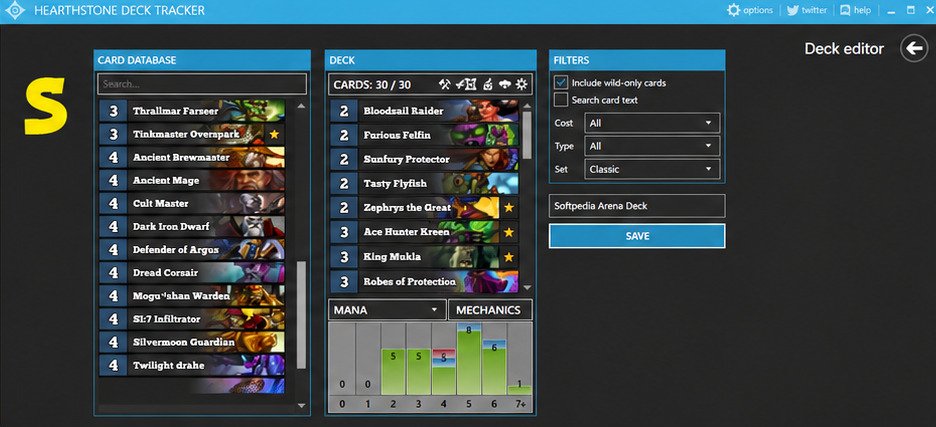
How the Hearthstone Overlay Works
The overlay reads live match data and renders it as a transparent layer above the Hearthstone window. It updates in real time as cards are drawn, played, or revealed.
Customizing the Deck Tracker Overlay
You can adjust:
- Overlay size and position
- Card image style (text list vs. card art)
- Transparency and opacity
- Which tracking elements are visible (opponent hand count, secrets, timer, etc.)
Hearthstone Deck Tracker Overlay Not Showing
This is one of the most common issues players report. Usually it’s caused by:
- Hearthstone running in true fullscreen instead of windowed/borderless mode
- Log settings not properly linked between HDT and Hearthstone
- HDT not running with sufficient permissions
Fixing Hearthstone Deck Tracker Overlay Problems
If that doesn’t work, try running HDT as administrator, or reinstalling the log config file through HDT’s settings menu.
Hearthstone Deck Tracker for Battlegrounds
Battlegrounds has become one of Hearthstone’s most popular modes, and HDT has expanded specifically to support it.
Battlegrounds Deck Tracker Features
In Battlegrounds, HDT shifts from card tracking to minion and combat tracking — showing available minion pools, tavern tier odds, and combat outcome predictions.
Hearthstone Deck Tracker Battlegrounds Support
The overlay adapts automatically once you queue into Battlegrounds, switching its layout to display relevant information for that mode instead of the standard constructed overlay.
Tracking Battlegrounds Stats and Match Performance
HDT logs your placement in every Battlegrounds match, letting you track average finishing position over time — one of the clearest indicators of long-term Battlegrounds improvement.
Hearthstone Arena Tracker
Arena has its own unique demands, and HDT handles those separately from constructed play.
Using Hearthstone Deck Tracker for Arena
During Arena drafts, HDT can display pick statistics and win-rate data for the cards being offered, helping you make faster, more informed drafting decisions.
Arena Deck Tracking and Game Statistics
Once your arena run begins, the same core card-tracking and draw probability features apply, just scoped to your drafted arena deck instead of a constructed one.
Arena Performance and Match Analysis
HDT records win/loss records for each arena run, letting you review past drafts to understand which archetypes and curve choices tend to perform best for you specifically.
Hearthstone Deck Tracker Plugins
For players who want even more customization, HDT supports a plugin system.
What Are Hearthstone Deck Tracker Plugins?
Plugins are community-built add-ons that extend HDT’s base functionality — things like alternate stat displays, custom sound alerts, or additional overlay elements.
How to Find and Install Deck Tracker Plugins
Most plugins are shared through community forums, Discord servers, or GitHub repositories. Installation typically involves placing plugin files into HDT’s designated plugins folder and enabling them from the settings menu.
Popular Plugin Features and Extensions
Common plugin categories include:
- Custom sound and visual alerts
- Alternate statistics dashboards
- Streaming integration tools
- Extra deck import sources
Managing and Updating Hearthstone Deck Tracker Plugins
Plugins should be updated separately from HDT itself, since they’re maintained by different developers. Always check for compatibility with your current HDT version before installing a new plugin update.
How to Update Hearthstone Deck Tracker
Keeping HDT updated matters because Hearthstone regularly patches its game files, which can occasionally affect tracker compatibility.
Hearthstone Deck Tracker Latest Version
HDT releases updates fairly frequently, often aligning with major Hearthstone patches or expansion launches, to make sure card data and detection stay accurate.
How to Update Hearthstone Deck Tracker Manually
- Open HDT.
- Check the settings menu for an “update available” notice.
- If prompted, allow HDT to download and apply the update automatically.
- Alternatively, download the newest installer directly from the official GitHub Releases page and run it over your existing installation.
Hearthstone Deck Tracker Update Not Working
How to Fix Common Update Problems
If the issue persists, uninstall the current version completely and install the latest version fresh from the official source.
Hearthstone Deck Tracker Troubleshooting
Even a well-built tool runs into occasional hiccups — here’s how to solve the most common ones.
Hearthstone Deck Tracker Not Working
If HDT won’t launch at all, check that your .NET framework installation is current, since HDT depends on it to run properly.
Hearthstone Deck Tracker Not Detecting the Game
This usually happens when Hearthstone is installed in a non-default folder. Manually pointing HDT to your Hearthstone installation path in settings almost always resolves it.
Fixing Overlay and Game Detection Issues
| Problem | Likely Cause | Fix |
|---|---|---|
| Overlay not appearing | Fullscreen mode | Switch to Windowed (Borderless) |
| Tracker not detecting matches | Log config mismatch | Reset log config from HDT settings |
| App won’t launch | Missing/outdated .NET | Install latest .NET framework |
| Deck not importing | Clipboard permission issue | Copy deck code again, restart HDT |
Common Setup and Compatibility Problems
Most setup issues trace back to permissions, outdated software, or non-default install locations — all fixable without reinstalling Windows or Hearthstone itself.
Is Hearthstone Deck Tracker Safe and Allowed?
This is one of the most searched questions about the tool, and understandably so — nobody wants to risk a ban over a companion app.
Is Hearthstone Deck Tracker Safe to Use?
Yes. HDT is open-source, meaning its code is publicly viewable, which is a strong trust signal compared to closed-source alternatives. Downloading only from official sources further reduces any risk.
Is Hearthstone Deck Tracker Allowed by Blizzard?
Yes. Blizzard officially permits deck tracking tools like HDT because they only read publicly available game log data and never modify game files or provide information the player couldn’t otherwise access legitimately.
How Hearthstone Deck Trackers Handle Game Data
HDT reads local log files generated by Hearthstone itself. It does not intercept network traffic, does not modify memory, and does not interact with Blizzard’s servers beyond optional account linking for stat syncing.
Safe Practices When Using Third-Party Hearthstone Tools
- Always download from the official source or verified mirrors
- Keep the app updated to the latest version
- Avoid tools that claim to reveal hidden information beyond logs (a red flag for actual cheating software)
- Review permissions requested during installation
Hearthstone Deck Tracker Review
After years of steady updates and a large, loyal player base, here’s how HDT holds up overall.
Hearthstone Deck Tracker Features Review
HDT covers essentially every tracking need a competitive or casual player could want — card tracking, stats, overlay customization, Battlegrounds and Arena support, and plugin extensibility.
Hearthstone Deck Tracker Pros and Cons
Pros
- Completely free and open-source
- Detailed win rate and match statistics
- Officially allowed by Blizzard
- Supports Battlegrounds and Arena
- Active community and plugin support
Cons
- Windows-only (no native Mac version)
- Slight learning curve for full customization
- Overlay setup can trip up new users
- Depends on .NET framework
- Occasional post-patch bugs until updated
Who Should Use Hearthstone Deck Tracker?
Anyone who plays Hearthstone regularly benefits from HDT, but it’s especially valuable for:
- Ranked ladder grinders who want data-driven deck decisions
- Arena players wanting draft pick statistics
- Streamers who want a clean, professional overlay for viewers
- Casual players who simply want to know what’s left in their deck
Is Hearthstone Deck Tracker the Best Hearthstone Tracker?
For most players, yes — largely because of its combination of being free, actively maintained, and endorsed by the wider Hearthstone community for over a decade.
Hearthstone Deck Tracker Alternatives and Comparisons
HDT isn’t the only option, so here’s how it stacks up against the other popular choices.
Hearthstone Deck Tracker vs HSReplay
HSReplay is more of a web-based statistics and replay platform, while HDT is the desktop application. In practice, many players use both together, since HDT can sync data directly to HSReplay for deeper meta analysis.
Hearthstone Deck Tracker vs Firestone
Firestone is a newer, browser-extension-style alternative with a more modern visual style. HDT tends to have a longer track record and deeper plugin ecosystem, while Firestone often appeals to players who want a simpler out-of-the-box setup.
Hearthstone Deck Tracker vs Innkeeper
Innkeeper focuses more narrowly on deck building and collection management rather than live in-game tracking. HDT remains the stronger choice specifically for real-time overlay tracking during matches.
How to Choose the Best Hearthstone Deck Tracker
| Priority | Best Choice |
|---|---|
| Long-term stats and deep customization | Hearthstone Deck Tracker |
| Simple modern interface | Firestone |
| Web-based replay and meta browsing | HSReplay |
| Deck building and collection focus | Innkeeper |
Frequently Asked Questions About Hearthstone Deck Tracker
What Is Hearthstone Deck Tracker?
It’s a free companion app that overlays live deck, hand, and opponent tracking information directly on top of your Hearthstone game window.
How Does Hearthstone Deck Tracker Work?
It reads Hearthstone’s local log files in real time and converts that data into a visual overlay without modifying the game itself.
Is Hearthstone Deck Tracker Free?
Yes, it’s completely free with no paid tiers, though the development team accepts optional donations.
How Do I Download and Install Hearthstone Deck Tracker?
Download the official installer from GitHub Releases, run it without needing admin rights, and follow the short setup wizard.
Can Hearthstone Deck Tracker Track Opponent Cards?
Yes, it logs every card your opponent plays during a match to help you anticipate their remaining resources.
Can Hearthstone Deck Tracker Track Win Rate?
Yes, it automatically records win/loss results by deck, class, and game mode for long-term performance analysis.
Does Hearthstone Deck Tracker Work on Windows 11?
Yes, it runs reliably on Windows 11, though you may need to approve it through Windows Defender the first time.
Does Hearthstone Deck Tracker Work on Mac?
Not natively — Mac users generally need Wine, CrossOver, or a Windows virtual machine to run it.
How Do I Update Hearthstone Deck Tracker?
Use the built-in update notification, or download the newest installer directly from the official GitHub Releases page.
Is Hearthstone Deck Tracker Safe and Allowed by Blizzard?
Yes, it’s officially permitted since it only reads existing game logs and never modifies game files or accesses hidden information unfairly.
Final Thoughts
Hearthstone Deck Tracker has earned its reputation the hard way — through years of steady updates, an open-source codebase players can trust, and a feature set that genuinely makes the game easier to play well. Whether you just want to stop forgetting what’s left in your deck or you’re chasing detailed win-rate data to refine your ladder climb, it’s hard to find a tool that covers as much ground for free.
If you’re setting it up for the first time, take it slow: download from the official source, run through the setup wizard, and switch Hearthstone to windowed mode if the overlay doesn’t appear right away.
Once it’s running, you’ll likely wonder how you played without it.
2 Responses