Warcraft Recorder: Download, Features, Setup, and Alternatives
Ever pulled off a clean boss kill in World of Warcraft and immediately thought, “I wish I had that on video”? That’s the exact problem Warcraft Recorder was built to solve. Instead of manually hitting record before every pull and hoping you remember, this free tool watches your combat log and captures fights automatically — no button-mashing required.
This guide covers what Warcraft Recorder actually does, how to install and configure it, how it works with Warcraft Logs, common problems and fixes, and a few alternatives worth knowing about.
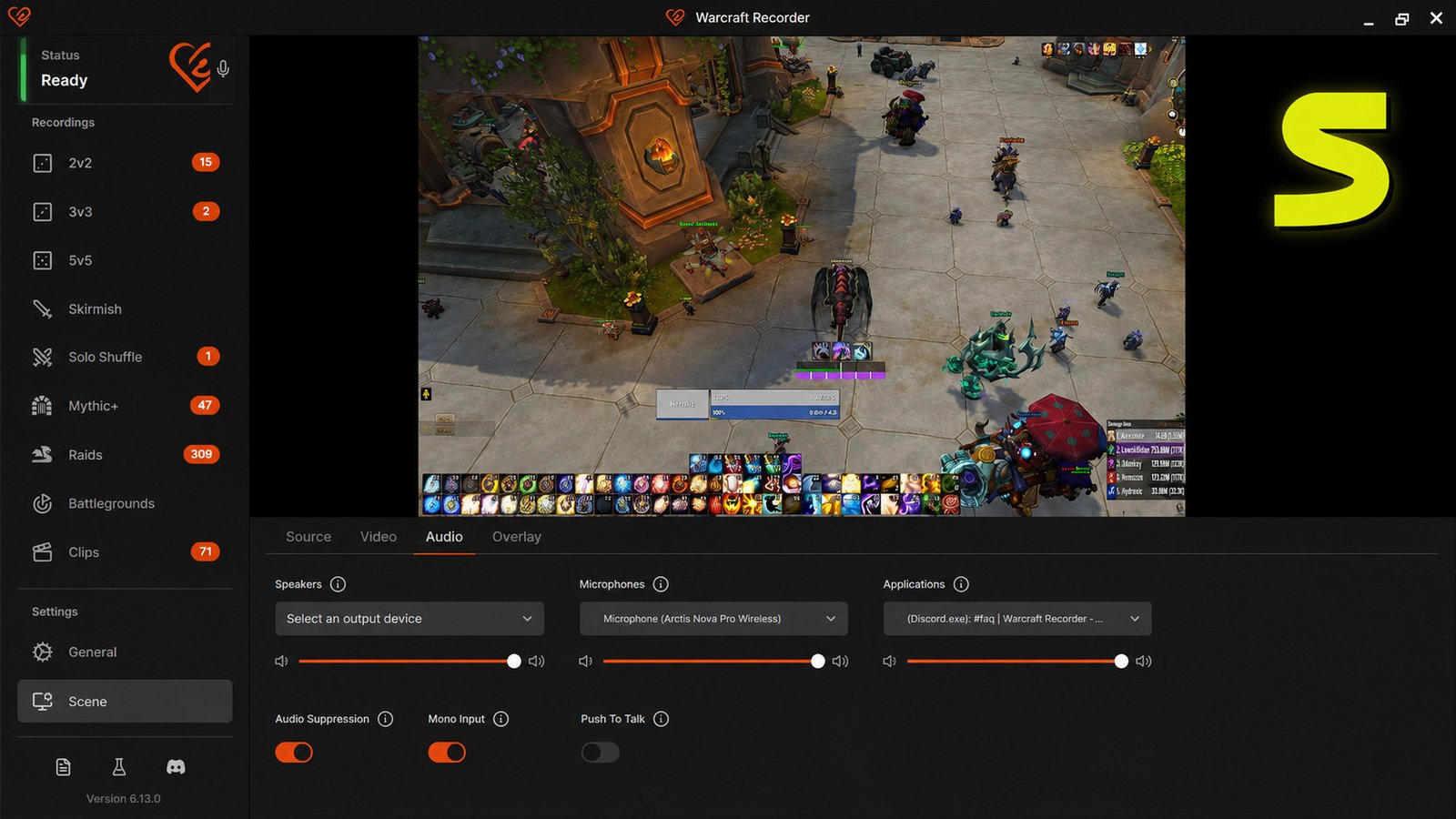
What Is Warcraft Recorder?
Warcraft Recorder is a free, open-source desktop application that automatically records your World of Warcraft encounters by watching the game’s combat log for fight start and end events.
What Does Warcraft Recorder Actually Do?
Rather than recording your entire play session, it starts capturing the moment a pull begins and stops the moment the encounter ends, giving you clean, encounter-specific clips instead of hours of unedited footage.
Built Specifically for World of Warcraft
Unlike general-purpose screen recorders, Warcraft Recorder is purpose-built around WoW’s combat log format, so it understands the difference between a raid boss pull, a Mythic+ dungeon run, and a PvP arena match.
Combat Log Recording vs. General Gameplay Recording
It’s worth understanding this distinction upfront:
- Combat log recording triggers video capture based on in-game combat events (pulls, wipes, kills)
- General gameplay recording (like OBS running on its own) records continuously regardless of what’s happening
Warcraft Recorder actually combines both — it relies on OBS to handle the actual video capture, while the combat log tells it exactly when to start and stop recording.
Who Should Use Warcraft Recorder?
This tool is a natural fit for:
- Raiders who want clips of progression kills or wipes for review
- Guild officers analyzing what went wrong on a specific pull
- Mythic+ pushers reviewing key routes and mistakes
- Content creators building a highlight library without manually clipping footage
- PvP players wanting arena or battleground recordings without constant manual toggling
Warcraft Recorder Features
Automatic Combat Log–Triggered Recording
Recording starts the moment a pull begins and stops when it ends, so you never miss the action or waste storage space on downtime between fights.
Full Gameplay and Raid Recording Support
Beyond raids, it also handles dungeons, Mythic+ keys, and PvP content, since all of these generate combat log events it can detect.
Warcraft Logs Integration
Because it’s built around the same combat log data that Warcraft Logs uses, exporting or cross-referencing your recorded fights with your uploaded logs is straightforward.
Lightweight and Resource-Friendly
Since it relies on OBS’s proven recording engine rather than a custom capture system, performance overhead stays low even during demanding raid encounters.
Open Source and Free
The project is completely free and open source, with no ads or bundled software, which matters if you’d rather avoid the kind of free tools that push extra installs.
Here’s a quick summary of the core feature set:
| Feature | What It Does |
|---|---|
| Combat log monitoring | Detects when fights start and stop |
| Automatic start/stop recording | No manual toggling required |
| OBS-based capture | Reliable video quality and performance |
| Raid and dungeon support | Works across raids, M+, and PvP |
| Warcraft Logs compatibility | Pairs recordings with combat log analysis |
| Built-in playback UI | Review clips without a separate media player |
Warcraft Recorder Download
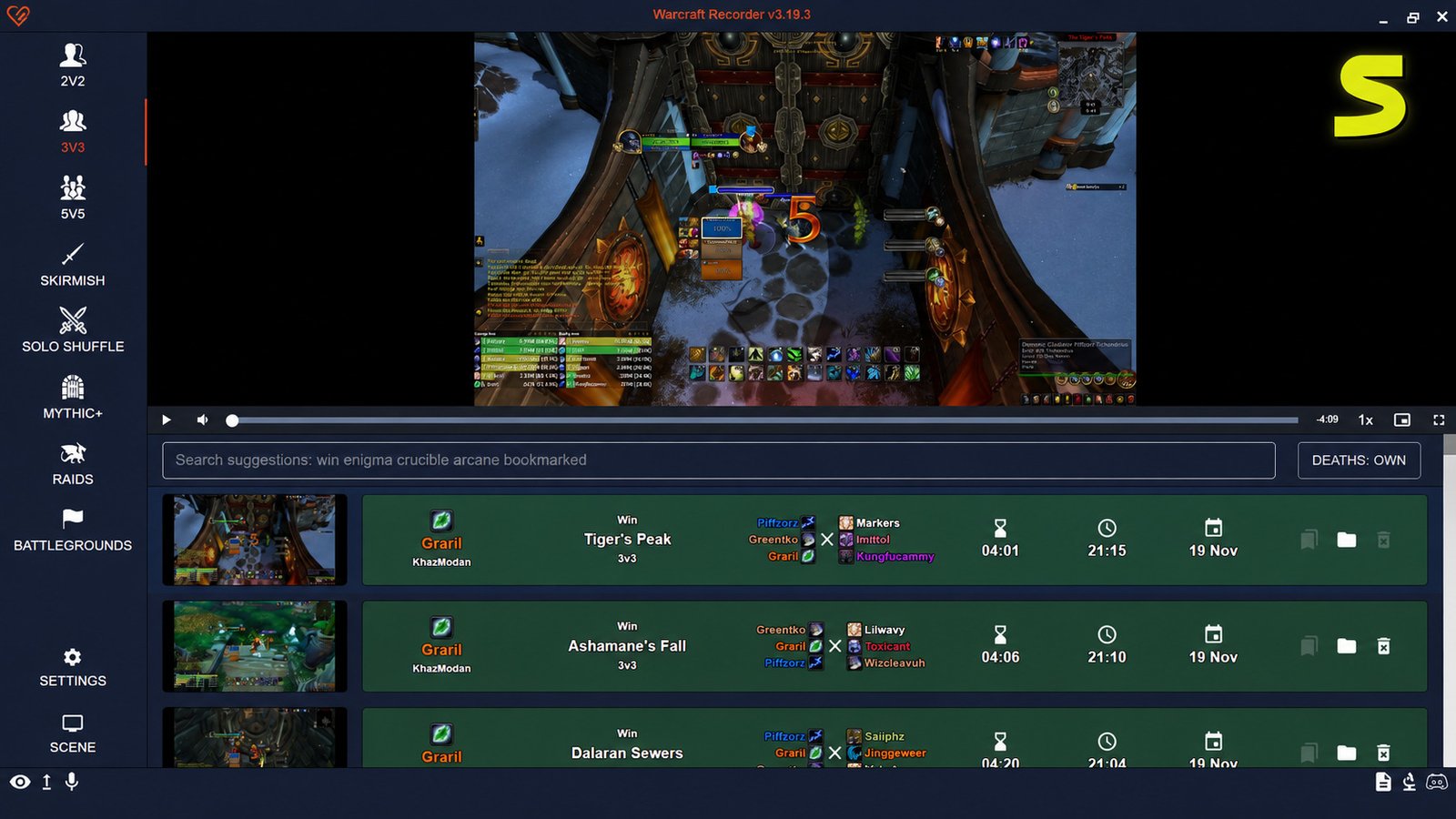
Getting the Free Download
Warcraft Recorder is available directly from its official site and GitHub repository, where you can download and run the most recent installer for Windows.
Version and Compatibility
The tool is actively maintained, with new releases pushed to its GitHub repository as fixes and features are added — checking the release page before installing ensures you’re on the latest build.
Windows Requirements
Warcraft Recorder runs on both Windows 10 and Windows 11. Since OBS handles the heavy lifting for video capture, a reasonably modern GPU makes for smoother recording, especially at higher resolutions.
How to Install Warcraft Recorder
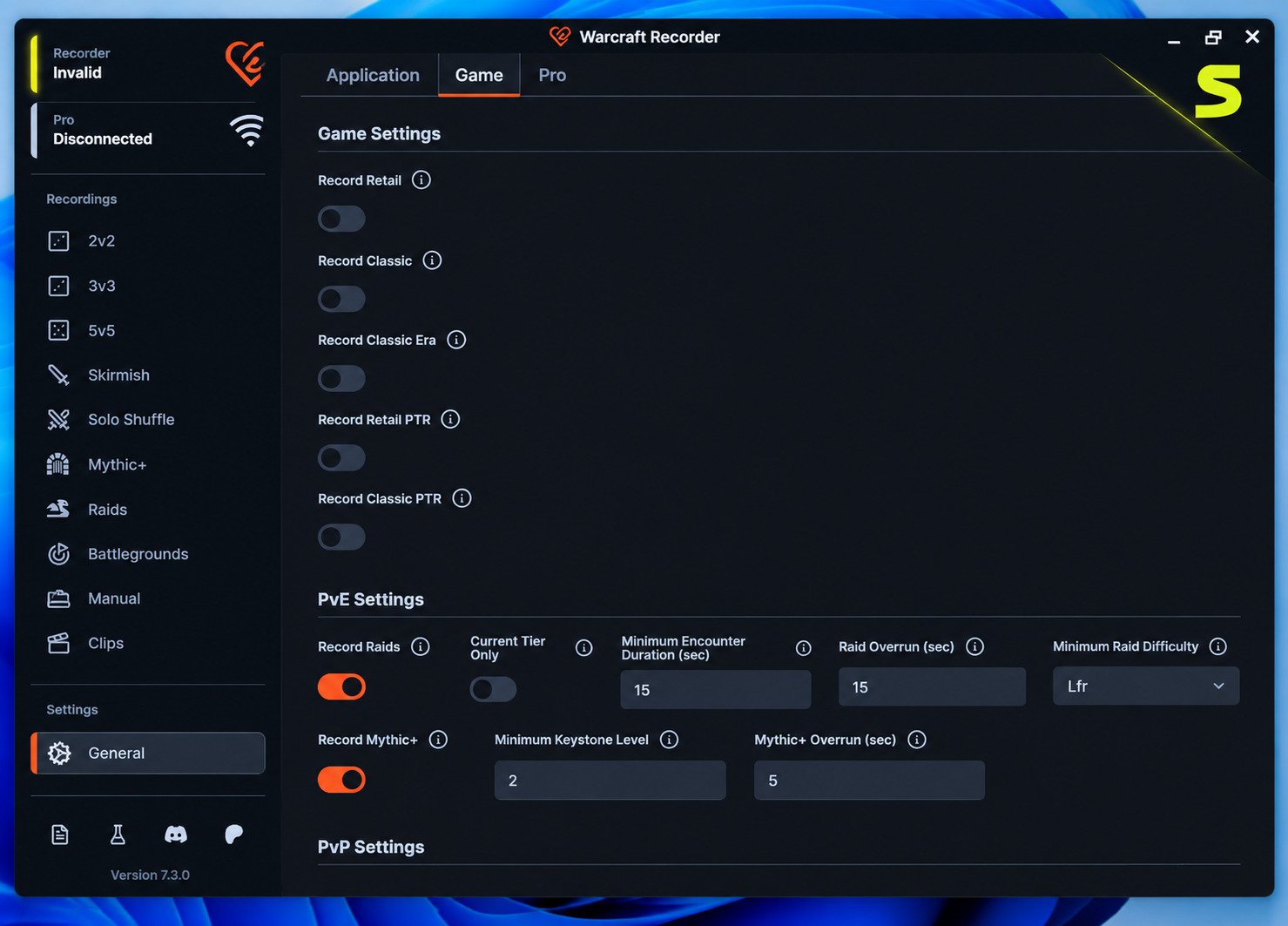
Setup is more involved than a typical one-click installer, since the tool needs to connect to both your WoW installation and its logging system. Here’s the general flow:
- Download and run the installer from the official Warcraft Recorder site or GitHub releases page.
- Launch the application and open the Settings panel.
- Create a storage folder on your PC where recordings will be saved, then set that as your Storage Path.
- Point the app at your WoW combat log folder so it can monitor for fight events.
- Configure your OBS scene, including output resolution, audio sources, and encoder — a hardware encoder is recommended if your GPU supports one.
- Install the required combat logging addon — SimpleCombatLogger for retail WoW or AutoCombatLogger for Classic — which enables advanced combat logging inside the game itself.
Confirming Everything Is Connected
Once configured, a built-in test feature lets you verify the recorder is actually detecting the game before you jump into a raid and hope for the best.
How to Use Warcraft Recorder
Recording Combat Logs Automatically
With the addon installed and advanced combat logging enabled, simply play as normal — the app detects pulls automatically and starts recording without any extra input from you.
Recording a Full Raid Night
Because recording is tied to combat events, you can leave the app running for an entire raid session and end up with individual clips per pull rather than one long unedited video.
Recording Mythic+ and Dungeon Runs
The same automatic detection applies inside dungeons, making it easy to review a specific pull that went wrong mid-key without scrubbing through unrelated footage.
Finding Your Recorded Files
Recordings are saved to whatever storage folder you configured during setup, organized so you can quickly locate a specific fight afterward.
Warcraft Recorder and WoW Combat Logs
What Combat Logs Actually Track
A WoW combat log is a detailed, timestamped record of everything that happens during a fight — damage, healing, deaths, and ability usage — which both Warcraft Recorder and third-party tools like Warcraft Logs rely on.
Enabling Advanced Combat Logging
This is done through the required addon (SimpleCombatLogger or AutoCombatLogger), which Warcraft Recorder prompts you to install during setup if it isn’t already active.
How Warcraft Recorder Reads This Data
The app watches the WoW combat log file for notable events, records around them, and presents a graphical interface where you can browse the results — essentially turning raw log data into an organized video library.
Warcraft Recorder and Warcraft Logs
What Is Warcraft Logs?
Warcraft Logs is a separate, widely used web platform where players upload their combat logs for detailed parse analysis, DPS rankings, and performance comparisons against other players.
How They Work Together
Since both tools read from the same underlying combat log data, you can record a pull with Warcraft Recorder and separately upload that same log to Warcraft Logs for deeper statistical analysis — they complement rather than replace each other.
Classic and Retail Support
Both retail and Classic WoW generate compatible combat logs, so the same general workflow applies regardless of which version you play, provided you’re using the matching addon.
Warcraft Recorder Setup Tips
Recommended Recording Settings
- Choose a hardware encoder if your GPU supports one, to reduce performance impact during raids
- Match your output resolution to your monitor for the clearest playback
- Enable microphone and game audio if you want commentary or callouts included
Verifying the Setup Before Raid Night
Run the built-in connection test well before your scheduled raid, not five minutes beforehand — this avoids discovering a misconfigured combat log path mid-pull.
Troubleshooting: Warcraft Recorder Not Working
Recorder Not Detecting WoW
Double-check that the combat log folder path in Settings matches your actual WoW installation directory, since an incorrect path is the most common cause.
Combat Logs Not Recording
Confirm advanced combat logging is enabled in-game — this typically requires the companion addon to be installed and active, not just the base game setting.
Recordings Not Saving
Verify your storage path has enough free disk space and that the app has permission to write to that folder.
Logs Not Uploading to Warcraft Logs
This is usually a separate step handled by a dedicated uploader client, not Warcraft Recorder itself — make sure you’re using the correct tool for that specific task.
Warcraft Recorder Alternatives
If Warcraft Recorder doesn’t quite fit your setup, a few alternatives are worth comparing:
| Tool | Trigger Method | Best For |
|---|---|---|
| Warcraft Recorder | Combat log events | Automatic, fight-specific WoW clips |
| OBS Studio | Manual start/stop | Full control, but no automatic detection |
| ShadowPlay (NVIDIA) | Manual or instant replay | GPU-accelerated, low overhead |
| Action1 / Bandicam | Manual | General-purpose gameplay recording |
Warcraft Recorder vs. OBS
OBS is the engine Warcraft Recorder runs on internally, but using OBS alone means manually starting and stopping every recording yourself — Warcraft Recorder automates that layer entirely.
When a General Recorder Makes More Sense
If you mainly want to record full sessions for streaming or commentary rather than isolated fight clips, a general-purpose tool like OBS or ShadowPlay may suit you better than a combat-log-triggered app.
Pros
- Free and open source, no ads or bundled software
- Fully automatic, encounter-specific clips
- Works across raids, Mythic+, and PvP
- Low overhead thanks to OBS’s capture engine
- Pairs naturally with Warcraft Logs analysis
Cons
- Setup takes more steps than a typical installer
- Requires a separate combat logging addon
- Windows only
- Not suited for recording full, uninterrupted sessions
Frequently Asked Questions
It’s a free, open-source tool that automatically records World of Warcraft encounters by watching the game’s combat log for fight events.
Enable advanced combat logging using the required addon, then Warcraft Recorder will detect and record fights automatically once configured.
Install the SimpleCombatLogger (retail) or AutoCombatLogger (Classic) addon and enable advanced logging when prompted during setup.
Yes, both tools read the same combat log data, so you can record with one and upload logs separately to the other for analysis.
Recordings save to the storage folder you set in the app’s Settings panel during initial configuration.
Yes, using the Classic-specific AutoCombatLogger addon in place of the retail version.
Yes, it runs on both Windows 10 and Windows 11 without special configuration.
Final Verdict: Is Warcraft Recorder Worth Using?
For raiders and Mythic+ players tired of manually toggling a recorder before every pull, Warcraft Recorder solves a genuinely annoying problem — and it does it for free, without ads or bundled software. The setup takes a bit more effort than a typical app install, but once the combat log path and addon are configured, it runs quietly in the background exactly as intended.
If you’re also managing a card-game style hobby alongside WoW, a tool like the Hearthstone Deck Tracker follows a similar philosophy — automatic tracking instead of manual note-taking. Between the two, it’s clear this style of “let the game data do the work” tool has real staying power for players who’d rather review their performance than fuss with recording software mid-session.
One Response