Futuremark SystemInfo Download, Features, Setup, and Alternatives
Ever run a 3DMark benchmark and wondered what that quiet little background process called “SystemInfo” is actually doing? You’re not imagining it — it’s real, it’s running, and it plays a specific role every time you benchmark your PC.
Futuremark SystemInfo is a small hardware-detection component built by UL Solutions (formerly Futuremark) that identifies your CPU, GPU, RAM, and motherboard so benchmark tools like 3DMark, PCMark, and VRMark can score your system accurately.
This guide breaks down exactly what it does, how to install or update it, common errors, whether it’s safe to keep on your PC, and a few alternatives if you just want general hardware information without opening a benchmark.
What Is Futuremark SystemInfo and How Does It Work?
What Is Futuremark SystemInfo?
Futuremark SystemInfo is a hardware identification module bundled with UL’s benchmarking software. Its one job is to scan your system’s hardware configuration so that your benchmark score can be validated and displayed correctly on 3dmark.com.
SystemInfo is not a standalone program you open on its own — it’s a background component that activates only when a UL benchmark (like 3DMark or PCMark) requests hardware data.
Futuremark SystemInfo Software and System Information Tool
Unlike full system-monitoring apps, SystemInfo isn’t designed for everyday hardware checks. It’s purpose-built for one narrow task: collecting the specific data a benchmark needs to produce a valid, comparable score.
How Futuremark SystemInfo Detects PC Hardware
SystemInfo works by querying the Windows system registry for details such as:
- Video card driver settings and driver version
- CPU identification data
- General hardware configuration
- A list of processes running during the scan, used as a safeguard against benchmark cheating
Importantly, it does not scan for installed applications on your PC, and it does not collect personally identifiable information.
Futuremark SystemInfo and 3DMark Benchmarking
Every major UL benchmark — 3DMark, 3DMark11, PCMark 10, PCMark 8, and VRMark — relies on SystemInfo to attach hardware details to your results. Without it, your score won’t include configuration data and won’t be eligible for online leaderboards.
Futuremark SystemInfo Features
PC System Information and Hardware Detection
At a glance, SystemInfo’s core function is identifying exactly what hardware is powering your benchmark run, so results are meaningful when compared against other systems.
Hardware Identification and Component Scanning
The scan covers your processor, graphics card, memory, and motherboard — the components that most directly affect benchmark performance.
PC Specifications and System Details
This data is what populates the hardware summary you see attached to your score on 3dmark.com, letting you (and others) see exactly what setup produced a given result.
CPU, Processor, and Memory Information
SystemInfo reports processor model and configuration details, along with installed memory information, both of which affect how a benchmark score should be interpreted.
GPU and Graphics Card Information
Since most Futuremark benchmarks are graphics-focused, GPU detection — including the driver version — is one of the most frequently updated parts of the SystemInfo module.
Motherboard Information and Specifications
Motherboard identification helps flag configuration-specific issues, which is partly why some updates specifically target compatibility with certain motherboard chipsets.
Hardware Scanner and System Diagnostic Information
Think of it less as a diagnostic tool for you, the user, and more as a verification layer that keeps the benchmarking ecosystem fair and consistent.
Futuremark SystemInfo Hardware Information
CPU Information, Processor Details, and Specifications
SystemInfo’s CPUID module is one of the most frequently updated parts of the software, specifically to keep pace with new processor releases.
GPU Information and Graphics Card Specifications
GPU detection updates are common with new graphics card generations and regularly require SystemInfo patches so benchmarks can correctly identify them.
RAM and Memory Information
Memory configuration is logged as part of the same hardware snapshot, giving context to benchmark results across different system builds.
Motherboard Information and Identification
Some updates have specifically addressed motherboard-related bugs, including fixes for hangs on particular chipsets.
PC Hardware and Component Information
Altogether, this creates a hardware fingerprint attached to your benchmark — useful for comparing your PC honestly against similar configurations.
How to Identify Your PC Hardware
If your goal is simply “what hardware do I have,” running a benchmark just to see the SystemInfo report is overkill. A dedicated system information tool (covered in the alternatives section) is a faster route — and the same logic applies if you’re speccing a machine for hardware-hungry desktop software, like the trading platform Quantower, where you just want to confirm your specs meet the requirements.
Futuremark SystemInfo and 3DMark Benchmarking
Futuremark SystemInfo Benchmark Information
SystemInfo doesn’t calculate your benchmark score — that’s the benchmark software’s job. It only supplies the hardware context that makes the score meaningful.
Futuremark SystemInfo for 3DMark
3DMark specifically displays a “Please Wait – Collecting System Info” screen while SystemInfo performs its scan before a test run begins.
3DMark System Information and Hardware Detection
This is also the validation layer: 3DMark.com uses this data to confirm results before including them in the Hall of Fame or Steam leaderboards.
SystemInfo Benchmark Software and Hardware Testing
You can disable SystemInfo in the Options screen of 3DMark, PCMark, or VRMark, but doing so means your score won’t be validated online and won’t include hardware details.
Futuremark SystemInfo Download and Latest Version
Futuremark SystemInfo Download for PC
SystemInfo is typically installed automatically alongside a UL benchmark like 3DMark, rather than downloaded as a separate application on its own.
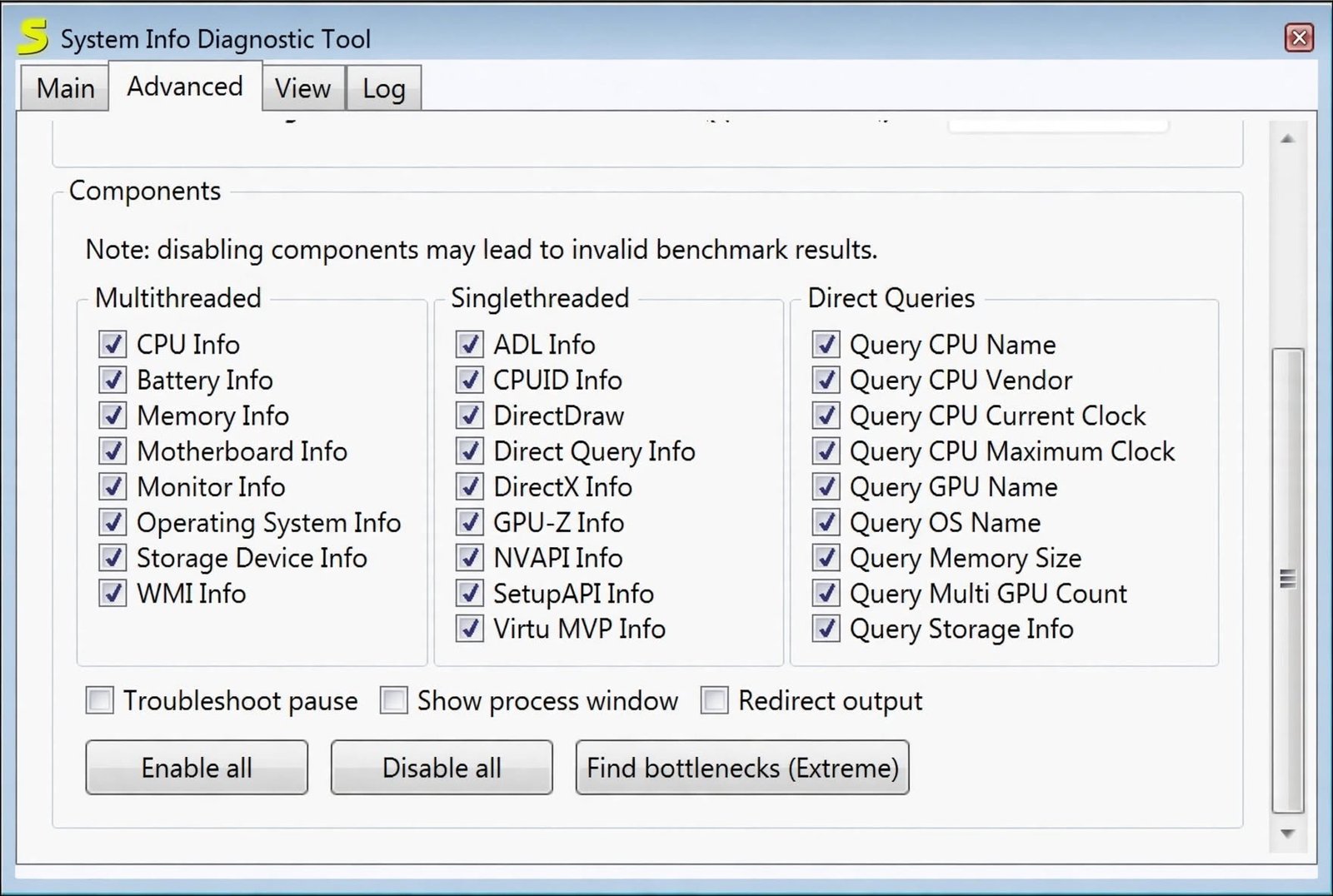
Futuremark SystemInfo Free Download
There’s no license fee for SystemInfo itself, since it’s a supporting component rather than standalone paid software.
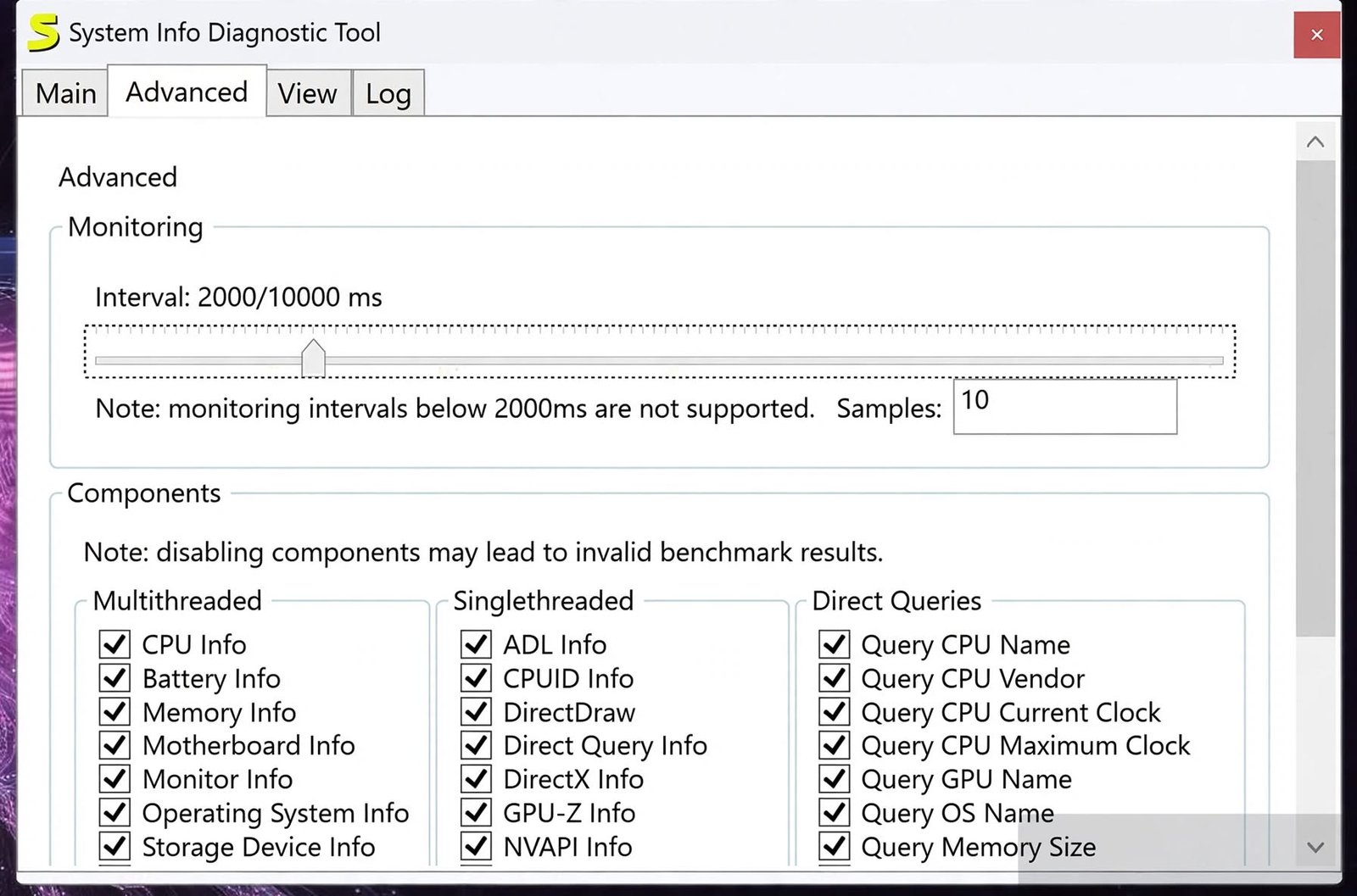
Futuremark SystemInfo Latest Version and Updates
UL Solutions regularly ships small point updates to SystemInfo, usually to improve CPU or GPU detection compatibility with newly released hardware.
| Update Focus | Example Change |
|---|---|
| CPUID module | Improved compatibility with latest processors |
| GPU detection | Support for newly released graphics cards |
| Stability fixes | Resolved crashes on specific hardware (e.g., Windows on Arm) |
| Security compatibility | Adjusted to avoid conflicts with Microsoft Defender rules |
Futuremark SystemInfo Installer and Setup Download
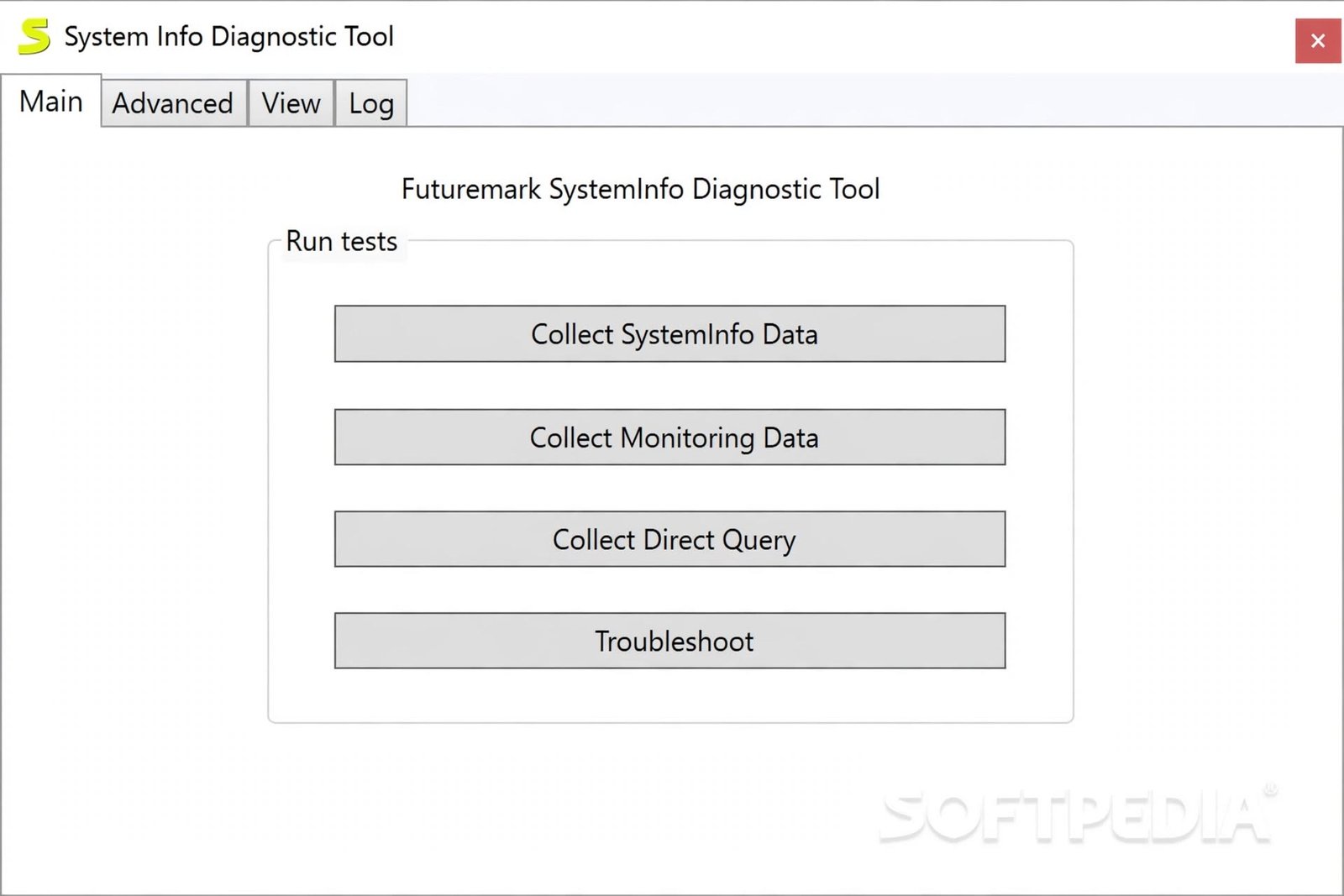
If a newer version is needed, benchmarks will typically prompt you automatically. You can also update it manually from UL’s official SystemInfo support page.
Futuremark SystemInfo for Windows 11 and Windows 10
Futuremark SystemInfo for Windows 11
Modern versions of SystemInfo are actively maintained for current Windows releases, including Windows 11 on both traditional and Arm-based devices.
Futuremark SystemInfo for Windows 10
Windows 10 support has been standard for years, and UL benchmarks generally require a sufficiently recent SystemInfo version (4.40 or later) to run correctly on Windows 10.
Futuremark SystemInfo Compatibility
Older Windows versions, including Windows XP, are no longer officially supported, though legacy SystemInfo builds exist for users still running very old benchmark versions like 3DMark06.
Futuremark SystemInfo System Requirements
Futuremark SystemInfo Hardware and Software Requirements
Since SystemInfo is lightweight and runs only during a benchmark scan, it doesn’t add meaningful hardware requirements beyond what the benchmark itself already needs.
Supported Windows Versions
Current SystemInfo builds target Windows 10 and Windows 11. Support for older systems like Windows XP requires specific legacy versions and comes with no guarantees.
3DMark and SystemInfo Compatibility Requirements
If you’re running an older 3DMark release, check which SystemInfo version it expects — mismatches are a common source of “not detecting hardware” issues.
How to Install and Set Up Futuremark SystemInfo
Futuremark SystemInfo Installer
In most cases, you won’t manually install SystemInfo — it comes bundled with your chosen UL benchmark installer.
Futuremark SystemInfo Installation and Setup
- Install a UL benchmark such as 3DMark or PCMark
- Launch the benchmark for the first time
- Allow the initial hardware scan to complete
- SystemInfo installs itself as a background service automatically
How to Update Futuremark SystemInfo
Most benchmarks will prompt you automatically when a SystemInfo update is required. You can also visit UL’s dedicated SystemInfo update page to download the latest version manually.
How to Check System Information After Installation
Run your benchmark as usual — the hardware summary attached to your results reflects what SystemInfo detected during the scan.
How to Use Futuremark SystemInfo
How to Check PC System Information
Open a UL benchmark, start a test, and view the hardware details shown alongside your results once the run completes.
How to Check CPU and Processor Information
Your processor model and details appear automatically in the results screen — there’s no separate CPU-only view within SystemInfo itself.
How to Check GPU and Graphics Card Information
Graphics card model and driver version are shown the same way, as part of the benchmark’s results summary.
How to Check RAM and Memory Information
Installed memory details are included in the same hardware snapshot generated during the scan.
How to Check Motherboard Information
Motherboard identification is part of the broader hardware report, though it’s less prominently displayed than CPU or GPU data.
How to View PC Specifications and Hardware Details
The fastest way to see your full hardware summary is to run any current UL benchmark and check the results page — SystemInfo populates that data automatically.
Futuremark SystemInfo for PC Hardware Detection and Diagnostics
Detect and Identify PC Hardware
SystemInfo’s detection is accurate for benchmarking purposes, but it isn’t designed to be a general-purpose diagnostic tool for troubleshooting hardware faults.
Check Computer Hardware Specifications
If you need specs for a reason unrelated to benchmarking — like checking upgrade compatibility — a dedicated system info tool will usually give you a more complete picture.
View Installed Hardware and Components
SystemInfo’s scope is intentionally narrow: CPU, GPU, RAM, motherboard, and driver data relevant to benchmark scoring.
Use SystemInfo for PC Diagnostics
It’s not built to flag failing components or hardware errors — it identifies configuration, not health.
Hardware Detection and Identification on Windows
That said, its detection accuracy is generally reliable enough that many enthusiasts trust the hardware summary attached to their benchmark scores.
Futuremark SystemInfo Not Working and Common Errors
| Problem | Likely Cause | Fix |
|---|---|---|
| Stuck on “Collecting System Info” | SystemInfo service disabled | Enable the Futuremark SystemInfo service via Windows Services and set it to Manual or Automatic |
| Hardware not detected | Outdated SystemInfo version | Update SystemInfo through your benchmark or UL’s update page |
| Installation error | Blocked by security software | Temporarily check Microsoft Defender Attack Surface Reduction rules |
| Crash on Arm devices | Older GPU detection module | Update to the latest SystemInfo release |
| Update fails | Network or permissions issue | Run the benchmark installer as administrator and retry |
Most SystemInfo failures trace back to one of two things: a disabled Windows service, or a version mismatch with your benchmark. Check both before reinstalling anything.
Futuremark SystemInfo Not Working
The most common fix for SystemInfo issues is confirming the “Futuremark SystemInfo” service is enabled in Windows Services, since a disabled service is a frequently reported cause of scans getting stuck.
3DMark SystemInfo Not Working
If 3DMark specifically hangs on the collecting-info screen, checking the service status resolves the issue in most reported cases.
Futuremark SystemInfo Windows 10 and Windows 11 Problems
Compatibility issues are rare on current Windows versions but tend to show up after major hardware changes, like installing a brand-new GPU before SystemInfo has been updated to recognize it.
Can You Uninstall Futuremark SystemInfo?
Can I Uninstall Futuremark SystemInfo?
Yes, but doing so means any UL benchmark that depends on it (3DMark, PCMark, VRMark) won’t be able to complete a validated scan afterward.
Should You Remove Futuremark SystemInfo?
If you no longer use any UL benchmarks, removing it is harmless. If you still benchmark occasionally, it’s better left installed since it only runs when queried.
What Happens If You Uninstall SystemInfo?
The associated benchmark software will typically reinstall or request a fresh SystemInfo download the next time you try to run a test.
How to Uninstall Futuremark SystemInfo
Remove it through Windows’ standard “Apps & Features” list, the same way you’d uninstall any other program.
Is Futuremark SystemInfo Safe to Use?
Is Futuremark SystemInfo Safe?
Yes. According to UL’s own documentation, SystemInfo does not collect personally identifiable information, and hardware data from individual systems isn’t shared with third parties.
Futuremark SystemInfo Security and Trust
It only queries registry-level hardware and driver data — it does not scan installed applications, browsing activity, or personal files.
Futuremark SystemInfo Permissions and Hardware Access
The service is installed to allow hardware queries but stays dormant until a benchmark actively requests a scan; it does not launch automatically at Windows startup.
Should Futuremark SystemInfo Stay Installed?
For regular benchmark users, leaving it installed avoids repeated reinstall prompts and keeps your scores eligible for online validation.
Futuremark SystemInfo Review: Is It Worth Using?
Futuremark SystemInfo Performance and Reliability
It does its narrow job well: fast hardware scans, regular compatibility updates, and minimal system footprint since it only activates on demand.
Futuremark SystemInfo Advantages and Limitations
Pros
- Free and automatically bundled with UL benchmarks
- No personally identifiable data collected
- Lightweight — dormant until needed
- Regularly updated for new hardware
Cons
- Not usable as a standalone system-info tool
- Occasional compatibility hiccups with brand-new hardware until an update ships
- Limited to benchmark-relevant hardware categories
Who Should Use Futuremark SystemInfo?
Anyone running 3DMark, PCMark, or VRMark needs it by default — there’s no real choice involved unless you’re willing to give up score validation.
Futuremark SystemInfo as a PC System Information Tool
If your only goal is general system information rather than benchmarking, this isn’t the right tool for the job.
Futuremark SystemInfo Alternatives
If you want detailed hardware information without running a full benchmark, consider these categories:
| Tool Type | Best For |
|---|---|
| General system-info utilities | Quick CPU, GPU, RAM, and motherboard specs without benchmarking |
| Built-in Windows tools (Task Manager, System Information) | Basic specs with zero extra installs |
| Dedicated benchmark suites (3DMark, PCMark) | Performance testing plus hardware validation |
Best System Information Software
Lightweight, standalone system-info utilities are generally a better fit if you just want a quick specs readout rather than a benchmark run.
Best PC Hardware Information Tools
Look for tools that clearly separate hardware detection from performance testing if benchmarking isn’t your goal.
Alternatives for CPU, GPU, RAM, and Motherboard Information
Windows’ built-in System Information panel covers the basics for free, without installing anything extra.
Futuremark SystemInfo vs Other Hardware Detection Tools
The key difference is purpose: SystemInfo exists to validate benchmark scores, while general-purpose tools exist purely to inform you about your own hardware.
If you’re organizing benchmark logs, driver downloads, or system reports on your PC, a file management tool like File Juggler can help keep those files automatically sorted. For the official technical details on how SystemInfo collects and handles data, UL’s own support documentation is the most authoritative source available.
Futuremark SystemInfo FAQs
It’s a background component used by UL benchmarks like 3DMark to detect your PC’s hardware and validate benchmark scores.
Run a UL benchmark such as 3DMark — the hardware summary from SystemInfo appears alongside your results.
Most benchmarks prompt you automatically, or you can download the latest version from UL’s official SystemInfo page.
Yes, but any UL benchmark depending on it will need to reinstall it before running a validated test again.
Yes, it doesn’t collect personally identifiable information and only activates when a benchmark requests a hardware scan.
Yes, it’s a required component for 3DMark, PCMark, and VRMark to detect hardware and validate scores.
This is usually caused by an outdated SystemInfo version or a disabled SystemInfo service — updating or re-enabling the service typically resolves it.
Final Verdict: Should You Use Futuremark SystemInfo?
If you benchmark your PC with 3DMark, PCMark, or VRMark, Futuremark SystemInfo isn’t really optional — it’s the quiet component making sure your score actually means something when compared to other systems.
It won’t replace a dedicated system-info app, and it was never meant to. For its actual job — accurate, validated hardware detection tied to your benchmark results — it’s a reliable, low-friction tool that mostly stays out of your way until you need it.
One Response