CPU Temp Download, Features, Setup, and Alternatives
A complete guide to CPU Temp: what it does, how to install it, normal temperature ranges, and how it compares to Core Temp, HWMonitor, and HWiNFO.
If your laptop fan sounds like it’s about to take off, or your desktop randomly restarts during a game, the first question you should ask is simple: how hot is my CPU actually running? That’s exactly the gap that CPU Temp is built to fill — a small, no-nonsense tool that shows you your processor’s real-time temperature without burying you in menus.
In this guide, you’ll learn what CPU Temp does, how to download and set it up, what a normal CPU temperature actually looks like, and how it stacks up against alternatives like Core Temp, HWMonitor, and HWiNFO. By the end, you’ll know exactly whether this tool belongs on your PC.
What Is CPU Temp?
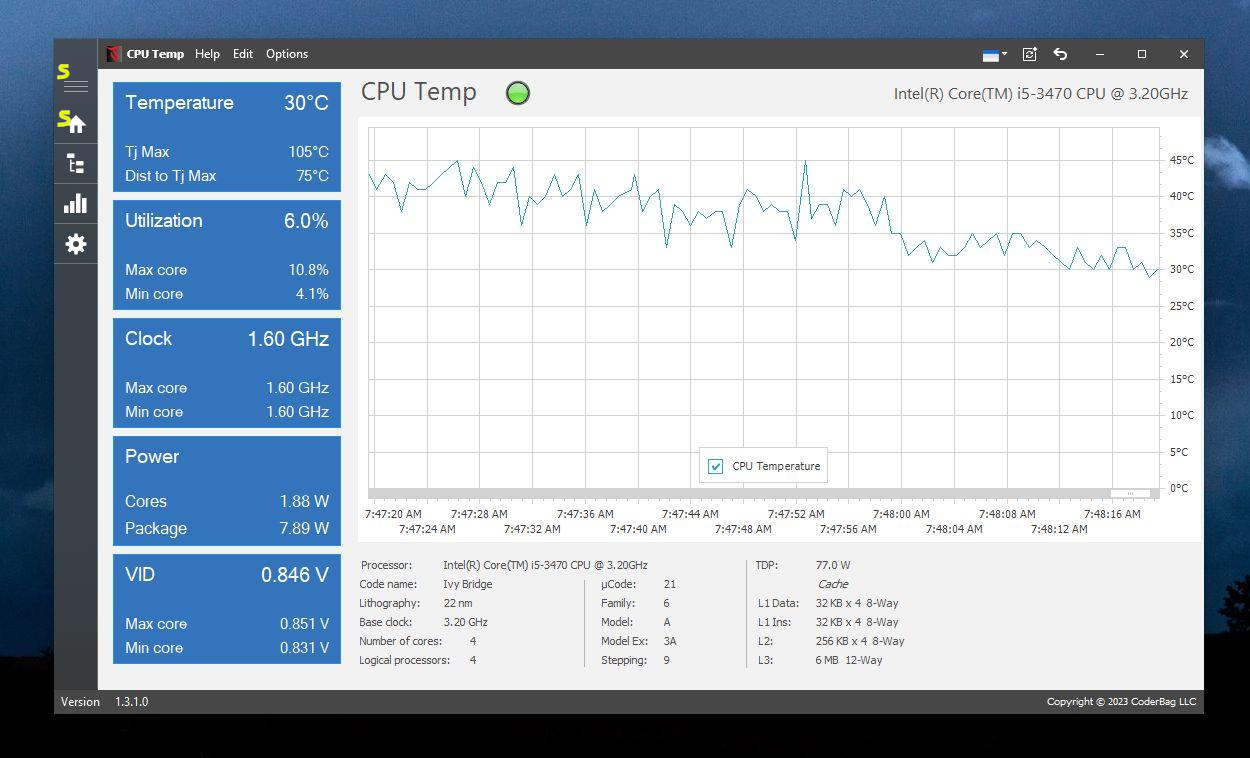
CPU Temp is a lightweight Windows utility that reads the thermal sensors built into your processor and displays the readings in a clean, easy-to-understand window. It’s designed for one job: telling you how hot your CPU is, and it does that job without asking you to configure anything.
Unlike bulkier system-monitoring suites, CPU Temp skips the clutter. There are no confusing graphs full of voltage rails or motherboard chipset data unless you want them. You open it, and within seconds you know where you stand.
How CPU Temp Monitors Processor Temperature
Every modern CPU has digital thermal sensors embedded directly into each core. CPU Temp polls these sensors through the same low-level interfaces that Windows and your motherboard firmware use, then converts the raw values into a readable number in Celsius or Fahrenheit.
Because it reads directly from the silicon rather than estimating from case fans or external probes, the numbers you see are close to what your processor is genuinely experiencing at that exact moment.
What Information Does CPU Temp Display?
At a glance, the app typically shows:
- Current temperature per core
- Average and package temperature
- CPU model and core count
- Current load percentage
- Clock speed in real time
This combination means you’re not just seeing a number — you’re seeing why that number is what it is, which matters when you’re trying to diagnose a heat issue.
CPU Temperature Monitoring for Windows
CPU Temp is built specifically for the Windows ecosystem and supports both Intel and AMD processors going back several generations. It runs quietly in the background or the system tray, so you can glance at your temps without interrupting whatever you’re doing.
CPU Temp Features
CPU Temp keeps its feature set focused, but each feature earns its place for everyday users and enthusiasts alike.
Real-Time CPU Temperature Monitoring
The core feature is exactly what it sounds like: a live, constantly refreshing temperature readout. There’s no need to hit refresh or wait for a scan; the numbers update continuously as your workload changes.
CPU Temperature and Usage Monitoring
Temperature alone only tells half the story. CPU Temp pairs thermal data with live CPU usage percentages, so you can immediately tell whether a temperature spike is tied to a demanding task or something unusual happening in the background.
CPU Temperature and Clock Speed Monitoring
Clock speed and heat are closely linked. When you can see both side by side, it becomes obvious when your processor is thermal throttling — dropping its clock speed automatically to cool down.
CPU Temperature and Power Consumption Monitoring
Some builds of the tool also estimate power draw, which is useful for anyone tuning a system for efficiency or troubleshooting a power supply that seems undersized for the workload.
CPU Temperature Checker and Monitoring Tool
Beyond live monitoring, CPU Temp functions as a quick diagnostic checker: open it once, confirm everything looks normal, and close it. No commitment to running it constantly if you don’t want to.
CPU and GPU Temperature Monitoring
Many versions extend beyond the processor to show graphics card temperatures too, which is handy for gamers who care about both components heating up together during a session.
CPU Temp for Windows
CPU Temp is a Windows-first application, and its compatibility across recent operating system versions is one of its biggest selling points for everyday users.
CPU Temp for Windows 11
On Windows 11, CPU Temp installs cleanly and integrates with the modern system tray without requiring compatibility mode or extra drivers in most cases.
CPU Temp for Windows 10
Windows 10 remains fully supported, and given how many PCs still run this version, it’s often the primary target platform for the tool’s updates.
CPU Temp Monitor for Windows
Whichever version you’re on, the monitor behaves consistently: a small footprint, minimal CPU overhead of its own, and a straightforward interface that doesn’t require a manual to understand.
CPU Temperature Checker Software for Windows
If you’ve searched for “CPU temperature checker software,” CPU Temp is built to answer that exact query: fast installation, immediate readings, no learning curve.
How to Download CPU Temp
Getting started with CPU Temp takes only a couple of minutes from download to your first reading.
CPU Temp Download and Installation
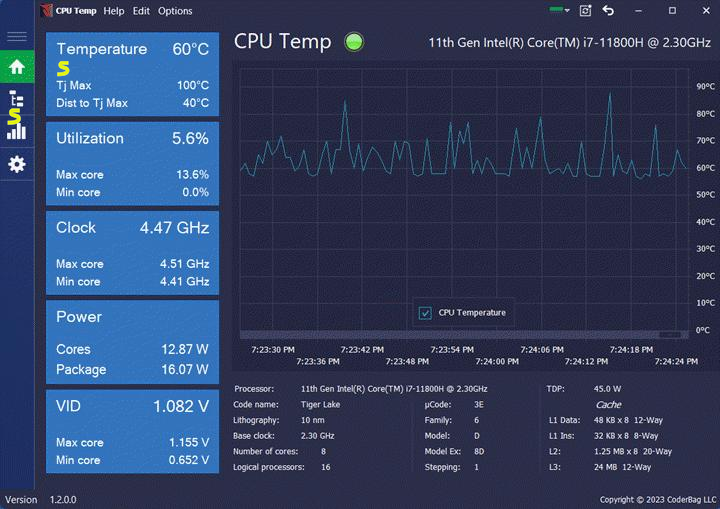
Always download from the official developer site or a reputable software repository to avoid bundled adware. Once downloaded, the installer walks you through a standard Next, Next, Finish process.
How to Install CPU Temp on Windows
- Download the installer file
- Run it and accept the license terms
- Choose an install location (the default is fine for most users)
- Uncheck any bundled offers if presented
- Launch the app once installation completes
Only install CPU Temp from a trusted source, and always uncheck any optional add-on software offered during setup to avoid unwanted adware.
Is CPU Temp Free?
Yes — CPU Temp is free for personal use, which is one reason it’s popular among students, gamers, and anyone who just wants a quick temperature check without paying for a premium monitoring suite.
Is CPU Temp Portable?
Some builds offer a portable version that runs without installation — just extract the files and double-click the executable. This is especially useful on work computers or shared machines where installing software isn’t practical.
How to Set Up and Use CPU Temp
Once installed, using CPU Temp is refreshingly simple.
How to Check CPU Temperature on Windows
Open the app, and your current CPU temperature appears immediately on the main screen — no scanning delay, no setup wizard.
How to View CPU Temperature in Real Time
Leave the window open, or minimize it to the system tray, and the readings refresh continuously so you always have a live view available with one click.
How to Monitor CPU Temperature While Gaming
For gaming sessions, keep the tray icon visible or use an on-screen overlay (if your version supports one) so you can watch temperatures without alt-tabbing out of your game.
How to Check Laptop and Computer Temperature
The process is identical for laptops and desktops. Laptops naturally run a bit warmer due to tighter thermal designs, so don’t be alarmed if your numbers sit a little higher than a desktop would show.
How to Monitor CPU Temperature and Usage
Enable the usage overlay in settings if available, and you’ll get a combined view of heat and load — the two numbers that matter most when diagnosing performance issues.
What Should CPU Temperature Be?
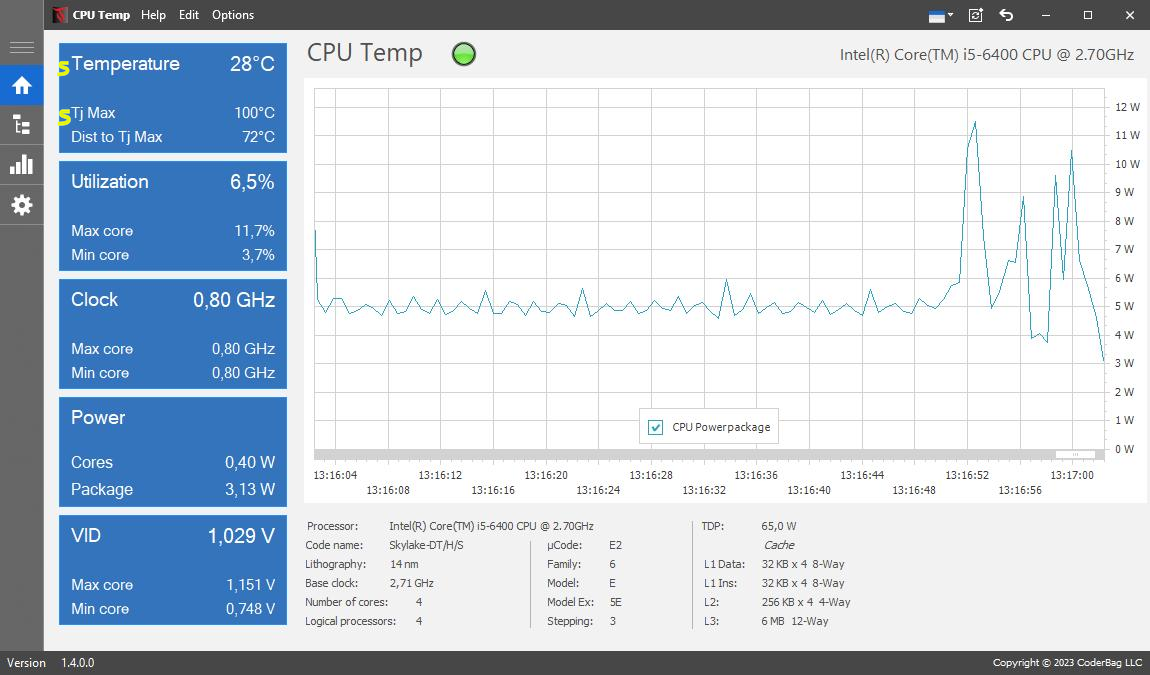
This is the question most people actually came here for, so let’s answer it clearly with real-world ranges.
| Condition | Normal Range (Desktop) | Normal Range (Laptop) |
|---|---|---|
| Idle | 30–50°C | 40–55°C |
| Gaming / Moderate Load | 60–80°C | 60–85°C |
| Heavy Sustained Load | 70–85°C | 75–90°C |
| Concerning | Above 90°C | Above 90°C |
Normal CPU Temperature at Idle
At idle, most desktop CPUs settle between 30°C and 50°C, depending on the cooler, case airflow, and room temperature. A warm room in summer can easily push idle temps several degrees higher without indicating a problem.
Average CPU Temperature
Across everyday tasks like browsing, streaming, or light multitasking, an average CPU temperature in the 40–60°C range is typical and nothing to worry about.
Good and Safe CPU Temperature Range
A generally accepted safe range is idle temperatures under 50°C and load temperatures under 85°C, though the exact ceiling depends on your specific CPU model and its manufacturer-rated maximum.
Normal CPU Temperature While Gaming
During gaming, expect 60–80°C on most modern processors. Some high-performance chips are designed to run warmer under sustained boost clocks, and that’s by design rather than a fault.
Safe Processor Temperature
As a rule of thumb, staying 10–15°C below your CPU’s rated maximum gives you a comfortable safety margin, even during demanding, multi-hour workloads.
What Is a High CPU Temperature?
Understanding the danger zone matters just as much as knowing the normal range.
What Temperature Is Too High for a CPU?
Consistently running above 90°C under sustained load is generally considered too hot for most consumer CPUs, even if the chip has protective throttling built in.
Maximum CPU Temperature
Most modern Intel and AMD desktop processors have a manufacturer-rated maximum somewhere between 95°C and 105°C, at which point the system throttles performance or shuts down to prevent damage.
CPU Heat Range and Temperature Limits
Every CPU model has its own published thermal limit, usually listed on the manufacturer’s official specification page — it’s worth checking yours specifically rather than relying only on generic averages.
Sustained temperatures above 90°C are a signal to act quickly — don’t wait for a shutdown to tell you something is wrong.
What to Do if Your CPU Is Running Too Hot
- Clean dust from fans and heatsinks
- Reapply thermal paste if it’s more than 2–3 years old
- Improve case airflow with additional fans
- Check that the cooler is mounted correctly
- Reduce overclocking or power limits if applicable
CPU Temp Review
So how does the tool actually hold up in daily use?
Is CPU Temp a Good Temperature Monitoring Tool?
For anyone who wants a fast, no-frills answer to “how hot is my CPU,” CPU Temp delivers reliably. It’s not trying to be an all-in-one system dashboard, and that focus is arguably its biggest strength.
CPU Temp Pros and Cons
Pros
- Lightweight and fast
- Simple, beginner-friendly interface
- Free for personal use
- Low system resource usage
Cons
- Fewer advanced sensors than HWiNFO
- No deep motherboard telemetry
- Limited historical logging in some builds
- Fewer customization options for power users
CPU Temp Accuracy and Ease of Use
Readings generally align closely with more advanced tools since both pull from the same on-die sensors. The real difference is presentation — CPU Temp just shows you less noise.
Who Should Use CPU Temp?
It’s an excellent fit for casual users, gamers who want a quick check before a session, and anyone troubleshooting overheating without wanting to learn a complex monitoring suite.
CPU Temp Alternatives
If you need more depth, a few well-established alternatives are worth knowing about.
Best CPU Temperature Monitor for Windows
The “best” option really depends on your needs — casual checking, gaming overlays, or deep diagnostic logging all point toward different tools.
CPU Temp vs Core Temp
Core Temp is another lightweight, per-core focused tool with a long track record and strong support for third-party plugins and gadgets. It’s a close cousin in spirit to CPU Temp, just with a bit more customization depth.
CPU Temp vs HWMonitor
HWMonitor expands coverage to voltages, fan speeds, and multiple sensor categories across your whole system, making it a stronger pick if you want a single tool for everything rather than just CPU heat.
CPU Temp vs HWiNFO
HWiNFO is the most detailed option of the group, offering extensive sensor data, logging, and reporting. It suits enthusiasts and overclockers who want granular, exportable data rather than a quick glance.
Best CPU Temp Monitor Alternatives
| Tool | Best For |
|---|---|
| CPU Temp | Quick, simple checks |
| Core Temp | Per-core detail with plugins |
| HWMonitor | Whole-system sensor overview |
| HWiNFO | Advanced logging and diagnostics |
Frequently Asked Questions About CPU Temperature
Install a monitoring tool like CPU Temp, Core Temp, or HWMonitor, then open it to see your live reading instantly.
Windows doesn’t show CPU temperature natively in most versions, so a third-party tool is the easiest way to check it on both Windows 10 and 11.
A normal CPU temperature sits around 30–50°C at idle and 60–85°C under load, though it varies by processor model.
A good temperature stays well below your CPU’s rated maximum, typically under 80°C during regular, sustained tasks.
Anything consistently below roughly 85–90°C under load is considered safe for most modern desktop and laptop processors.
Expect somewhere between 60°C and 80°C during gaming sessions, depending on your cooling setup and the game’s demands.
Most consumer CPUs are rated to a maximum between 95°C and 105°C, after which thermal throttling or an automatic shutdown protects the hardware.
The same monitoring tools that work on desktops, including CPU Temp, work equally well on laptops — just expect slightly higher baseline readings due to tighter internal spacing.
Final Verdict on CPU Temp
Should You Use CPU Temp to Monitor Your Processor?
If you want a straightforward way to keep an eye on your processor without wading through a dense dashboard, CPU Temp is a solid choice. It covers the essentials — temperature, usage, and clock speed — in a package that’s easy for beginners to trust and quick for experienced users to check.
For deeper diagnostics, pairing it with a tool like HWiNFO gives you the best of both worlds: a fast daily check and a detailed option when something actually needs investigating. Either way, keeping tabs on your CPU’s temperature is one of the simplest habits you can build to protect your hardware for the long run.
For more system utilities and tools, check out our Futuremark SystemInfo guide for another way to inspect your PC’s hardware details. For manufacturer-specific thermal limits, it’s always worth cross-checking against Intel’s official processor specifications.
Get CPU Temp