CrapFixer Download – Windows Optimizer, Debloater & PC Cleaner
Windows 11 arrives with Start menu ads, a Copilot button nobody asked for, and telemetry that switches itself back on after every update. CrapFixer is the free, open-source tool built to undo it — here’s the complete, honest breakdown.
01 What Is CrapFixer?
CrapFixer is a lightweight, portable Windows utility that scans your system for unwanted defaults — bloatware, ads, telemetry, and unnecessary background features — and lets you reverse them with a couple of clicks.
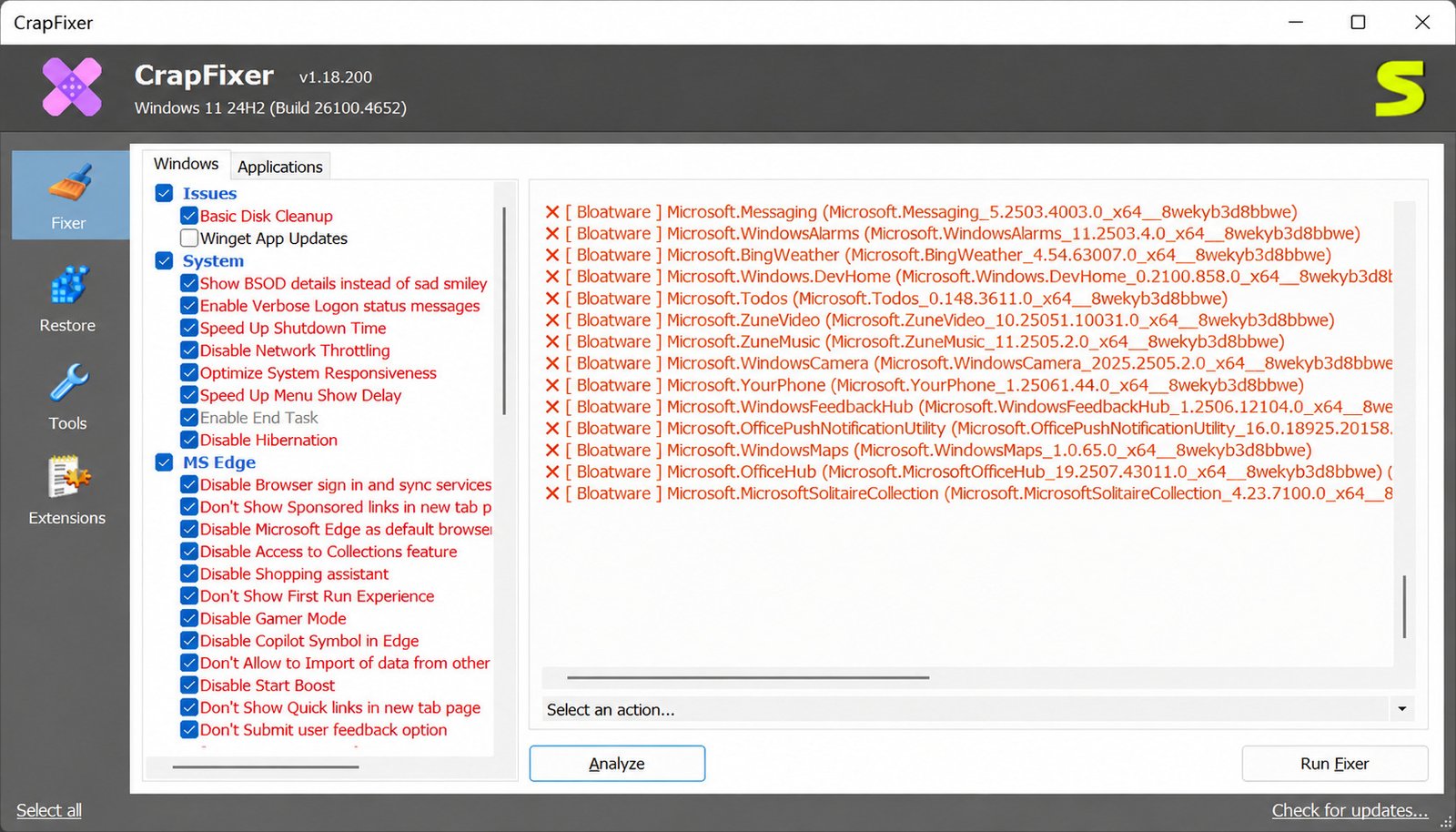
CrapFixer Software Overview
The tool is developed by Belim, a developer with a long track record of building Windows tweaking utilities, and is hosted publicly on GitHub under the project name CrapFixer. It’s distributed as a portable executable — nothing to install, you just download it and run it.
The workflow is deliberately simple: click Analyze, review what the scan finds, then click Fix. Items the tool doesn’t like are flagged, everything else is left alone, and most changes can be reversed if you change your mind.
How CrapFixer Helps Optimize Windows
Rather than digging through hidden registry keys or Group Policy settings yourself, CrapFixer packages hundreds of known Windows tweaks into a single searchable interface. Instead of guessing which setting controls Start menu ads or activity history tracking, you simply check a box.
Under the hood, newer versions read from a signature database file, so the developer can add new tweaks as Microsoft rolls out changes — without needing you to reinstall the whole app.
CrapFixer Features for PC Cleanup and Optimization
Is CrapFixer Safe to Use?
Safety is the first question most people ask, and it’s a fair one — any tool that touches system settings deserves scrutiny. CrapFixer is open source under the MIT license, meaning its full code is publicly viewable on GitHub, and its releases are digitally signed by the developer.
Because it’s a newer, less mainstream app, Windows SmartScreen may show a warning the first time you run it. This is standard for smaller independent tools and isn’t, by itself, a sign of malicious behavior. Still:
- Download only from the official GitHub page
- Verify the file before running it
- Create a system restore point before applying aggressive tweaks
02 CrapFixer Download and Latest Version
Getting the current build is straightforward, but where you get it from matters just as much as the version number.
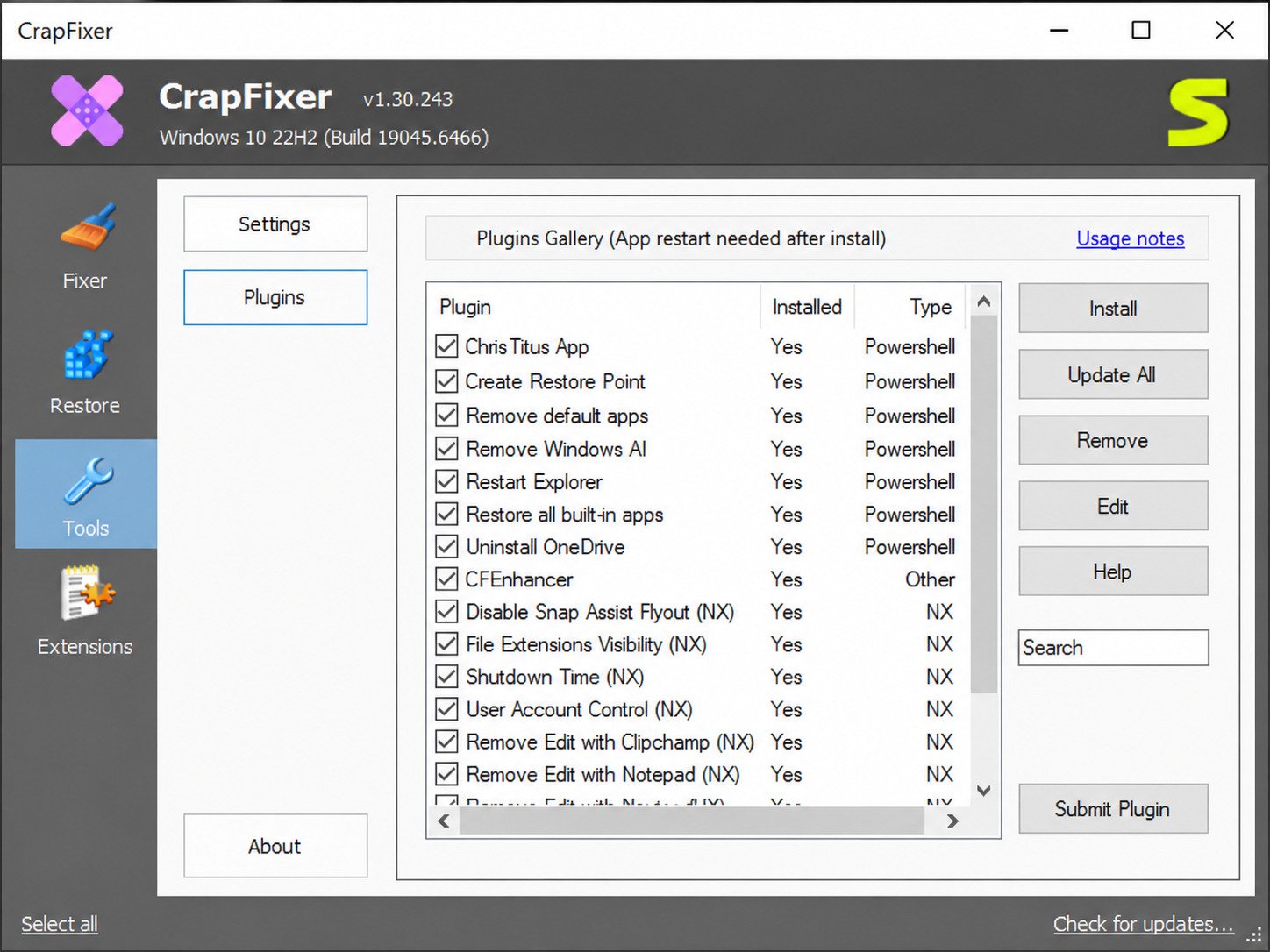
CrapFixer Free Download for Windows
CrapFixer is completely free, with no premium tier, subscription, or paywalled features. The safest source is the developer’s official CrapFixer GitHub repository, where every release ships with changelogs and a verified signature.
CrapFixer Latest Version Download
The project has moved through a long line of releases — from early 0.x builds to the current 2.x generation, which the developer describes as a “comeback release” built on lessons from an earlier project called FluentCleaner Classic. Grab the latest version rather than an older copy floating around a random download site.
Download CrapFixer for Windows 11
Windows 11 is where CrapFixer gets the most use, since it’s the OS with the most Start menu ads, Copilot prompts, and Widgets nagging. Recent releases explicitly track new Windows 11 feature updates, including support for the 25H2 release.
Download CrapFixer for Windows 10
Windows 10 is still supported, though with a smaller tweak set since it ships with less built-in bloat than Windows 11. It’s still a reasonable cleanup step before archiving or retiring older systems.
CrapFixer Windows 7 Download: Compatibility Considerations
CrapFixer is not built for Windows 7. Its tweak database targets modern Windows telemetry and UI features that simply don’t exist on older releases, so running it there isn’t supported or recommended.
03 CrapFixer for Windows 11 and Windows 10
Both major current Windows versions are covered, but the tool behaves a little differently depending on which one you’re running.
CrapFixer Windows 11 Optimizer
On Windows 11, CrapFixer leans heavily into removing UI-level bloat: Start menu recommendations, Copilot, Widgets, and Microsoft Store “suggested” apps. It’s one of the few tools that keeps pace with Windows 11’s rapid feature-update cycle.
CrapFixer Windows 10 Optimizer
On Windows 10, the focus shifts more toward telemetry, background services, and preinstalled third-party apps that OEMs bundle onto new machines — a lighter touch overall.
CrapFixer for Windows PC
Whether you’re running a laptop, desktop, or a freshly imaged OEM machine, CrapFixer works the same way: scan, review, fix. Core tweaks don’t require an internet connection, which makes it useful for offline setup routines too.
CrapFixer System Requirements and Compatibility
| Requirement | Details |
|---|---|
| Operating system | Windows 10 and Windows 11 (64-bit) |
| Installation type | Portable — no installer required |
| Internet connection | Optional, mainly for update checks |
| Disk space | Minimal (a few megabytes) |
| Admin rights | Recommended for full functionality |
04 CrapFixer Windows Optimizer Features
Beyond debloating, CrapFixer doubles as a general-purpose optimization tool.
Windows Optimization and Performance Tweaks
Performance-related tweaks focus on trimming background processes and services that quietly consume CPU and memory without adding value for most users — things like unnecessary scheduled tasks or diagnostic services.
PC Optimizer for Better System Performance
For users who simply want a faster-feeling PC without diving into manual tweaking, the Analyze-then-Fix workflow makes it approachable. You don’t need to understand what every registry key does; the tool explains each option in plain language.
Windows Cleaner and PC Cleanup Tools
It’s worth being clear about scope here: CrapFixer is not primarily a disk-space cleaner. It won’t hunt down large files or duplicate photos — its cleanup features are limited to temporary files and update remnants tied to the tweaks it applies.
Windows Tweaks and System Utility Features
Additional utility features found in recent versions include a simplified interface for tools like ViveTool (used to toggle hidden Windows features) and support for community-maintained scripts.
05 CrapFixer Windows Debloater and Bloatware Remover
Debloating is really the heart of what CrapFixer does — everything else is a bonus.
What Is Windows Debloating?
Debloating means removing or disabling software and features that came preinstalled on your PC but that you never asked for — trial apps, promotional tiles, and background services tied to advertising or telemetry.
CrapFixer Windows Debloat Tool
CrapFixer’s debloat engine works from a maintained list of known bloatware signatures, checking your system against that list during the Analyze step. Items flagged red are candidates for removal; gray items are already clean.
Remove Unnecessary Windows Apps and Bloatware
Typical targets include preinstalled games, trial productivity suites, weather and news widgets you never open, and OEM-bundled utilities that duplicate features Windows already has built in.
CrapFixer Bloatware Remover
Because most changes are reversible, you can be more aggressive with the bloatware remover than you might be comfortable with elsewhere. If removing an app breaks something unexpectedly, restoring it is usually one click away.
Windows 10 and Windows 11 Debloating
The debloating list differs slightly between the two operating systems, since Windows 11 introduces newer bloat categories — like Copilot and Widgets — that don’t exist on Windows 10.
06 CrapFixer Privacy and Windows Settings
Privacy tweaks sit right alongside debloating as one of the tool’s core strengths.
Windows Privacy Optimization
Windows collects more diagnostic and usage data by default than many users realize. CrapFixer surfaces these settings in one place instead of forcing you to hunt through multiple Settings pages and Group Policy editors.
Windows Privacy Tool and System Tweaks
Some tweaks address settings that Microsoft has technically removed from the graphical Settings app but that still exist under the hood via registry or policy — CrapFixer keeps applying these even after the GUI toggle disappears.
Manage Unnecessary Background Services
Background services tied to advertising IDs, activity history syncing, and diagnostic data collection can all be reviewed and disabled individually, so you keep the services you actually want.
Optimize Windows Settings for Performance
Because many privacy-related services also consume system resources, disabling them often has a small but noticeable side benefit for overall responsiveness — particularly on lower-spec hardware.
07 How to Install CrapFixer on Windows
Since CrapFixer is portable, “installing” it is really just extracting and running it.
How to Install CrapFixer
Download the latest release from the official GitHub releases page.
Extract the downloaded archive to a folder of your choice.
Right-click the executable and choose Run as administrator.
Approve any SmartScreen prompt if one appears.
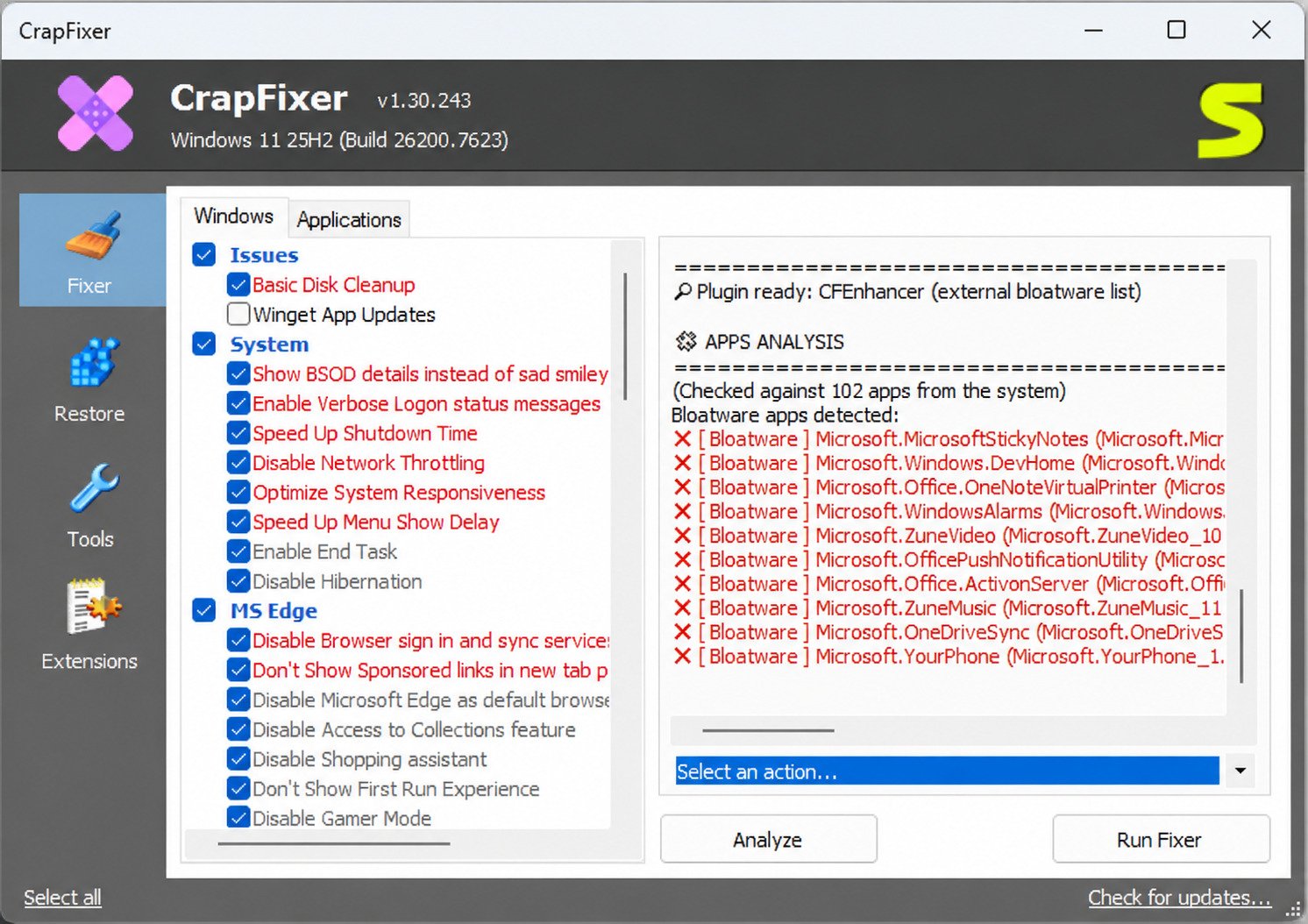
CrapFixer Installation Steps for Windows 11
On Windows 11, running as administrator is particularly important, since several Copilot and Widgets-related tweaks require elevated permissions to apply correctly.
CrapFixer Installation Steps for Windows 10
On Windows 10, the same steps apply — extract, run as administrator, and let the tool load its tweak database before clicking Analyze.
What to Check Before Using CrapFixer
- Create a system restore point first
- Confirm you’re downloading from the official GitHub source
- Close unrelated apps in case a restart is needed
- Back up anything critical, as a general precaution with any system tool
08 How to Use CrapFixer to Optimize Windows
Once it’s running, the actual workflow only takes a few minutes.
How to Use CrapFixer
Open the app, hit Analyze, and let it scan your current configuration against its tweak database. Items are color-coded so you can immediately see what’s already optimized versus what still needs attention.
How to Debloat Windows With CrapFixer
Switch to the debloat/apps section, review the list of detected bloatware, and select the apps you want removed. Uncheck anything you’d rather keep before applying changes.
How to Remove Bloatware Using CrapFixer
Click Fix once you’re happy with your selections. The tool applies the changes in sequence and reports back on what succeeded.
How to Apply Windows Optimization Tweaks
For performance and privacy tweaks, the process mirrors debloating: review flagged items, deselect anything you’re unsure about, and apply. Right-clicking an item usually reveals a short explanation of what it does.
CrapFixer Tutorial for Beginners
Run Analyze only — don’t fix anything yet.
Read the explanation for each flagged item.
Apply privacy and ad-removal tweaks first, since they’re low-risk.
Leave more advanced system tweaks until you’re comfortable with the tool.
Re-run Analyze after major Windows updates, since Microsoft often resets these settings.
09 CrapFixer Review: Is It Worth Using?
After going through its features, the real question is whether CrapFixer earns a spot on your PC.
CrapFixer Performance and Optimization Benefits
The performance gains from debloating alone are usually modest but real — fewer background processes, less disk I/O from unused services, and a cleaner Start menu experience.
CrapFixer Cleanup and Debloating Capabilities
Its debloating capability is genuinely strong and frequently updated, which matters because Microsoft keeps reintroducing removed apps and settings through Windows updates.
CrapFixer Ease of Use
The scan-first, color-coded interface is one of its biggest strengths — it lowers the barrier for less technical users while still giving power users granular control.
CrapFixer Pros and Cons
- Free and open source
- Portable — no installer needed
- Most changes are reversible
- Frequently updated for new Windows builds
- Clear Analyze / Fix workflow
- Interface is functional, not flashy
- SmartScreen warnings may appear
- Not a full disk-space cleaner
- A minority report issues with aggressive presets
- Best results need some reading first
Is CrapFixer Safe and Legit?
Based on its open-source code, signed releases, and active GitHub community, CrapFixer is a legitimate project rather than a disguised malware wrapper. As with any system tweaking tool, applying aggressive presets without reading what they do carries some risk — which is exactly why the built-in restore options exist.
10 CrapFixer on GitHub and Community Resources
The project’s development happens entirely in the open.
CrapFixer GitHub Repository
All source code, releases, and issue tracking live on the official CrapFixer GitHub repository, which has attracted thousands of stars and dozens of forks from the Windows tweaking community.
CrapFixer Community and Reddit Discussions
Beyond GitHub Discussions, CrapFixer comes up regularly in Windows debloating threads on Reddit and tech forums, often mentioned alongside tools like O&O ShutUp10++ and community PowerShell debloat scripts.
CrapFixer Updates and Development
Belim ships updates on a fairly active cadence, adding support for new Windows feature updates and refining existing tweaks based on user feedback and GitHub issue reports.
11 CrapFixer Alternatives and Comparison
CrapFixer isn’t the only option in this space, and it’s worth knowing how it stacks up.
Best Windows Optimizer Alternatives
Popular alternatives include O&O ShutUp10++, Chris Titus’s WinUtil script, and Winhance — each with a slightly different focus, from privacy-first controls to full PowerShell-driven customization.
Best Windows Debloat Tools
For pure debloating, community PowerShell scripts remain popular among advanced users, while CrapFixer appeals to those who want a graphical, point-and-click experience instead.
Best Free PC Optimizers
All the tools mentioned here are free, which keeps the comparison mostly about workflow and interface rather than pricing. If you’re also managing game installs and updates, a tool like SteamDB’s database of Steam app and game data can be a useful companion for keeping your library organized while you clean up the rest of your system.
CrapFixer vs Other Windows Optimization Tools
| Tool | Interface | Best For |
|---|---|---|
| CrapFixer | Graphical, portable | Beginners and intermediate users wanting a visual workflow |
| O&O ShutUp10++ | Graphical | Deep privacy control with detailed documentation |
| Chris Titus WinUtil | PowerShell script | Power users comfortable with the command line |
| Winhance | Graphical | Polished all-in-one debloat and customization |
For official guidance on what Windows privacy and diagnostic settings actually control, Microsoft’s own Windows privacy documentation is a useful reference point alongside any third-party tool.
12 Frequently Asked Questions About CrapFixer
Yes — it’s open source, digitally signed, and actively maintained, though SmartScreen may flag it simply because it’s a smaller, independent app.
Completely free, with no premium version or hidden costs.
Yes, and it’s actively updated to support new Windows 11 feature releases as they roll out.
Yes, with a slightly smaller tweak set focused on telemetry and preinstalled apps rather than newer AI features.
Yes, removing preinstalled and suggested apps is one of its core functions.
It can offer a modest performance boost by disabling unnecessary background services, though it’s not a substitute for hardware upgrades on older machines.
The safest source is the official CrapFixer GitHub releases page, where every build is signed by the developer.
Run it as administrator, click Analyze to scan your system, review the flagged items, then click Fix to apply your chosen changes.
13 Conclusion
CrapFixer won’t reinvent your PC, but it solves a genuinely annoying problem: Windows keeps adding things you didn’t ask for, and manually removing them gets old fast. For anyone tired of re-disabling the same ads and telemetry after every update, it’s a practical, low-friction fix.
If you’re comfortable reading what a tweak does before applying it, and you take the sensible precaution of a restore point first, CrapFixer is a solid free addition to your Windows toolkit — reversible, actively maintained, and refreshingly honest about what it can’t do.
2 Responses