SmartGit: Git Client, Download, Features, Setup, and Alternatives
If you’ve ever stared at a wall of Git commands and wondered why version control has to feel this complicated, you’re not alone. SmartGit was built to solve exactly that problem — turning branching, merging, and pushing into a visual, click-driven workflow instead of a memory test. Whether you’re a solo developer, a student, or part of a large engineering team, this guide walks you through everything: what SmartGit does, how to download and install it, how to use it day to day, and how it stacks up against other Git clients on the market.
What Is SmartGit?
SmartGit is a graphical Git client developed by syntevo GmbH, designed to make version control approachable without stripping away the power that experienced developers expect. It sits on top of Git (and also supports Mercurial and Subversion repositories) and translates raw commands into a visual interface.
SmartGit Git Client Overview
At its core, SmartGit is a desktop application that manages repositories, commits, branches, and remotes through menus, buttons, and drag-and-drop actions. It’s built in Java, which is why it runs identically on Windows, macOS, and Linux with the same feature set on every platform.
SmartGit Git GUI and Desktop Application
Unlike lightweight plugins bolted onto a code editor, SmartGit is a standalone desktop app. That matters because it gives you a dedicated workspace purely for version control — no tab-switching between your IDE’s sidebar and a separate terminal window.
SmartGit as a Visual Git Client
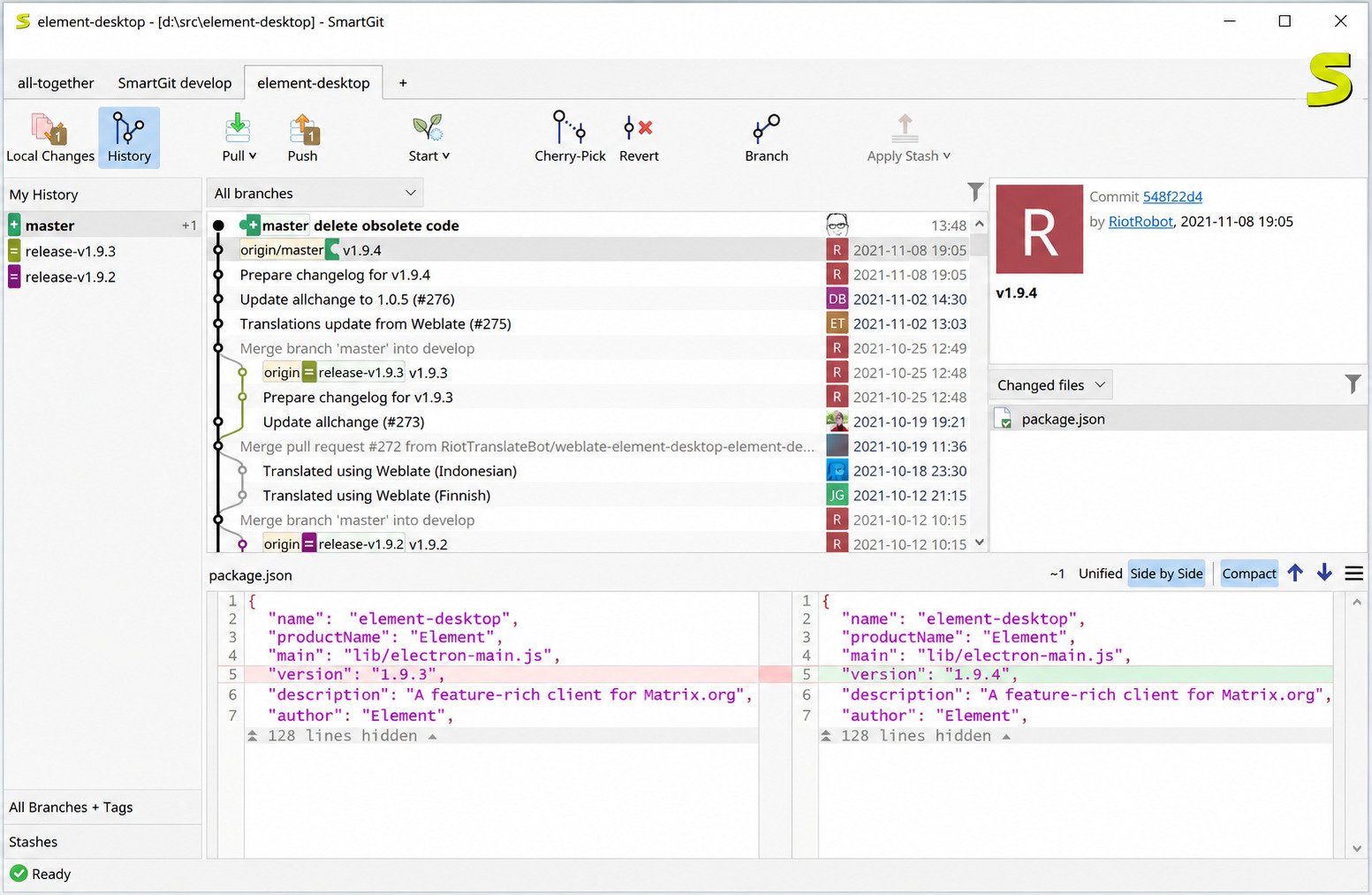
The biggest draw for most users is the visual commit graph. Instead of typing git log --graph and squinting at ASCII art, you get a color-coded, interactive tree showing every branch, merge, and commit at a glance.
SmartGit for GitHub and GitLab
SmartGit isn’t tied to one hosting provider. It connects natively to GitHub, GitLab, Bitbucket, and Azure DevOps, and recent versions have added deeper GitLab integration, including merge requests and CI status, directly inside the app.
That multi-provider flexibility is one of the reasons agencies and freelancers gravitate toward SmartGit. A single contractor might juggle a GitHub repo for one client, a self-hosted GitLab instance for another, and Bitbucket for a legacy project — and SmartGit lets all three live in the same window without constantly re-authenticating or switching tools mid-task.
It’s also worth noting that SmartGit isn’t a wrapper around a web browser or a thin shell around the git binary with a coat of paint on top. It genuinely renders the repository state itself, which is why actions like staging partial line changes or reviewing a three-way merge feel instant rather than laggy.
SmartGit Download and Latest Version
SmartGit Download
You can download SmartGit directly from the official syntevo website. The installer detects your operating system automatically and offers the matching build — no need to hunt for the right architecture manually.
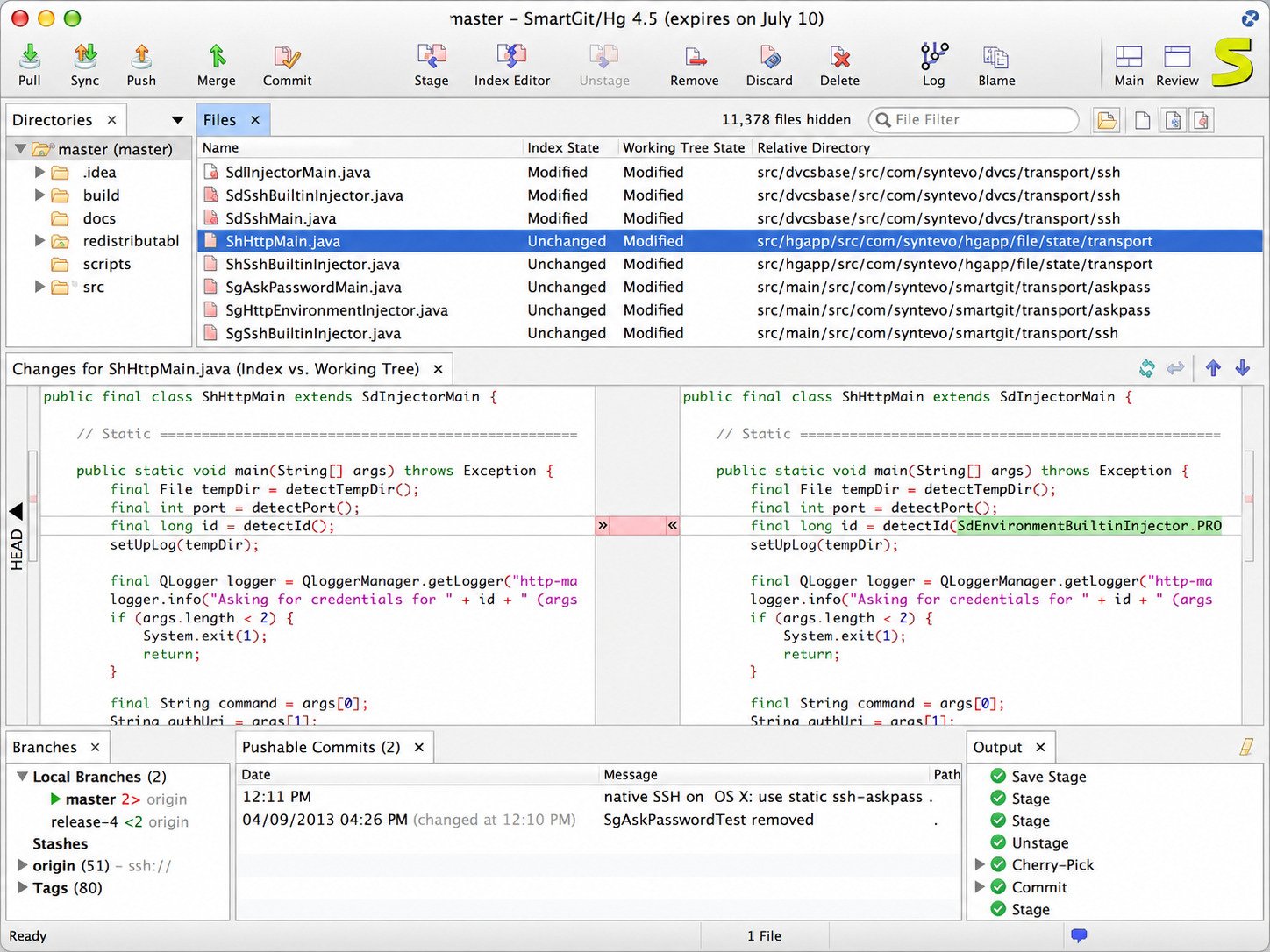
SmartGit Latest Version and Latest Release
As of 2026, SmartGit is on its 26.1 release line, which brought a visual refresh (reworked icons, improved compare colors, a darker dark theme), support for Git 3.0 with SHA-256 repositories and reftable refs, expanded GitLab tooling, and better worktree management. Earlier in the 25.x cycle, syntevo also introduced AI-assisted commit message generation, a feature that’s since been expanded with custom prompts and templates.
SmartGit Free Download
The free download is the same installer everyone uses — the licensing tier is decided later, based on how you plan to use it (more on that in the licensing section below).
SmartGit Installer and Setup
Installation packages come as an .exe for Windows, a .dmg for macOS, and .deb/.tar.gz archives for Linux. There’s also a portable version for Windows if you’d rather not install anything system-wide.
The portable build is particularly handy on locked-down work laptops where you don’t have admin rights, or on shared machines where you don’t want to leave a permanent installation behind. It runs from a USB drive or a synced folder just as well as it runs from your local disk, carrying its settings with it rather than writing them into the operating system’s user profile.
SmartGit relies on a Git executable already present (or bundled) on your system. Most installers now bundle a compatible Git version automatically, so you generally don’t need to install Git separately first — but if you already manage Git through something like Homebrew or apt, SmartGit will happily use that existing installation instead of duplicating it.
SmartGit for Windows, Mac, and Linux
| Platform | Installer Type | Notes |
|---|---|---|
| Windows 11 / 10 | .exe installer or portable .zip | 64-bit only in recent releases |
| macOS | .dmg | Works on Apple Silicon and Intel builds |
| Linux | .deb or .tar.gz | Debian/Ubuntu and generic archive options |
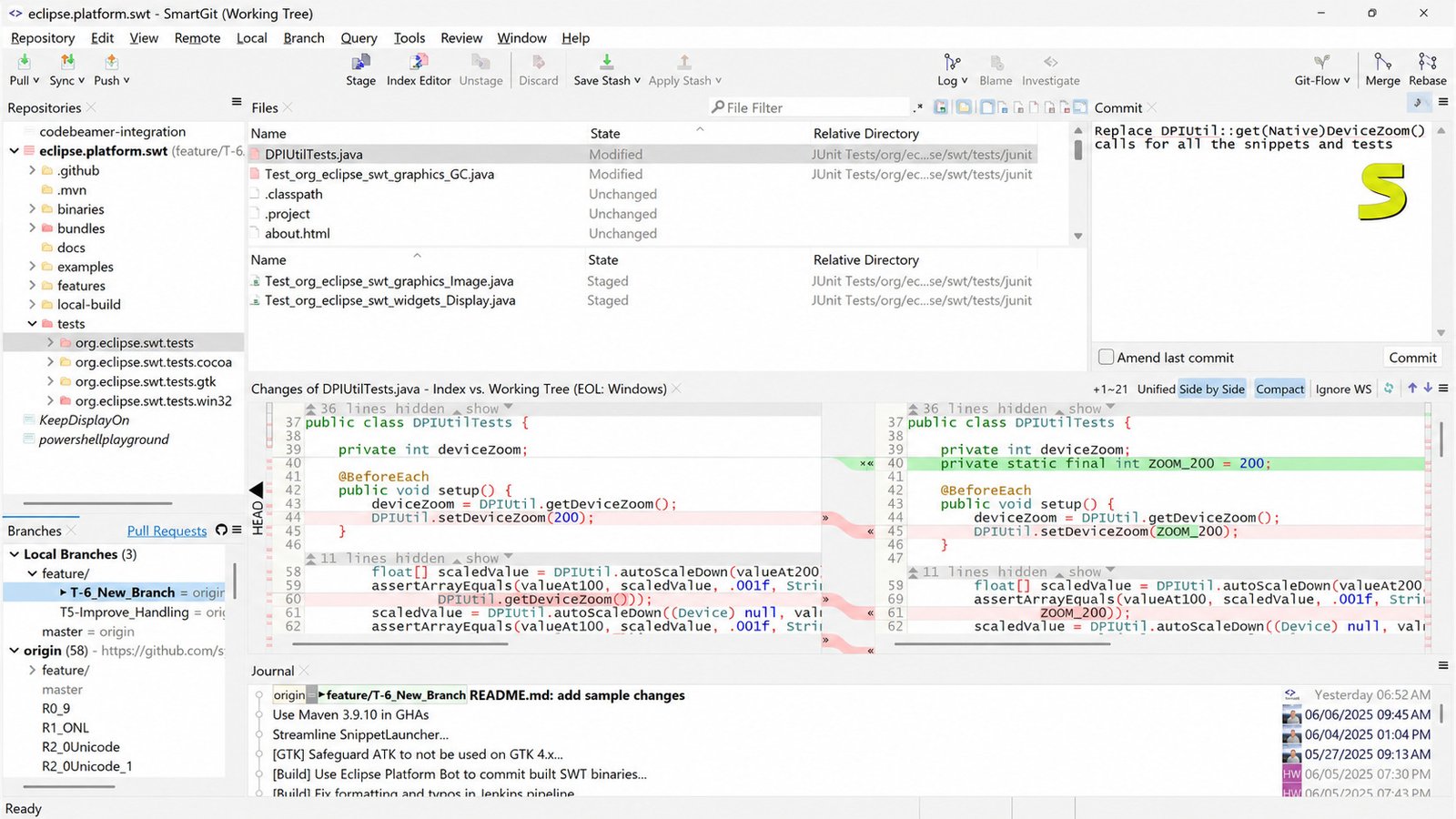
SmartGit for Windows 11
Windows 11 users get full native support, including proper high-DPI scaling and dark theme integration with the OS.
SmartGit for Windows 10
Windows 10 remains fully supported, and performance is nearly identical to Windows 11 since the app runs on the Java runtime bundled with the installer.
SmartGit for macOS
The macOS build integrates with Keychain for credential storage and supports both Intel and Apple Silicon Macs.
SmartGit for Linux
Linux users get a genuinely first-class experience rather than an afterthought — a rarity among Git GUIs, many of which treat Linux as a secondary platform.
SmartGit x64 and PC Version
All modern SmartGit builds ship as 64-bit only, matching current PC and laptop hardware standards. If you’re on very old 32-bit hardware, you’ll need an older legacy release.
SmartGit Features
Git Repository Management
SmartGit lets you clone, initialize, and manage multiple repositories from a single dashboard, switching context between projects without closing and reopening windows.
Git Graphical Interface and Visual History
The commit graph is searchable and filterable, so tracking down when a bug was introduced or who touched a specific file becomes a visual exercise rather than a git blame scavenger hunt.
Git Branching and Merging
Creating, renaming, and deleting branches happens through simple right-click menus. Drag one branch onto another in the graph to trigger a merge or rebase.
Git Commit, Push, and Pull
Staging changes is done by checking boxes next to modified files, and the diff viewer shows line-by-line changes with syntax highlighting before you ever commit.
Git Merge Conflict Resolution
When conflicts happen, SmartGit’s merge tool shows both versions side by side with a combined editor pane, letting you resolve them without touching conflict markers manually.
GitHub and GitLab Integration
Recent versions added a dedicated GitLab panel inside the Standard window covering merge requests, pipelines, and issue-linked commit messages, closing a long-standing gap with competitors.
Git Workflow and Version Control
SmartGit supports Git-Flow out of the box, so teams following that branching model (develop, feature, release, hotfix branches) get built-in shortcuts instead of manual branch naming.
Beyond Git-Flow, SmartGit also handles less glamorous but genuinely useful workflow features: interactive rebase with drag-and-drop commit reordering, cherry-picking commits between branches, stashing work-in-progress changes with descriptive labels, and viewing blame annotations directly in the file viewer instead of running a separate command. For teams working with large binary assets, Git LFS support is built in rather than requiring a separate plugin.
Worktrees deserve a special mention here too. Recent SmartGit releases improved how worktrees appear in the branch list and graph, making it easier to work on two branches simultaneously — say, testing a hotfix while a feature branch keeps building in the background — without the constant stash-and-switch dance that plain command-line Git can involve.
SmartGit License and Free Version
Is SmartGit Free?
Yes, but with a condition. SmartGit is free for non-commercial use, meaning personal projects, open-source contributions, and educational use don’t require a paid license.
SmartGit License Options
For commercial use, syntevo offers a perpetual license (a one-time purchase that includes a year of updates) and a subscription license billed annually.
| License Type | Best For | Update Access |
|---|---|---|
| Non-commercial | Students, hobbyists, open source | Free updates |
| Perpetual | Businesses wanting to own a version | 1 year of updates included |
| Subscription | Teams wanting always-current builds | Continuous updates |
SmartGit Non-Commercial License
To use the non-commercial license, you simply select it during first launch — no payment or credit card required, though you’ll need to confirm your usage is genuinely non-commercial.
SmartGit License Key and Activation
Commercial licenses are activated with a key emailed after purchase, entered through the Help > Enter License menu inside the app. Licenses aren’t tied to a single machine, so you can move between your desktop and laptop freely.
SmartGit Free vs Paid Version
There’s no feature gap between the free and paid tiers — the only difference is the terms of use, not functionality. That’s unusual in the Git GUI space, where many tools lock advanced features behind a paywall.
This matters more than it might first seem. A lot of Git GUIs use a “freemium” model where the free tier feels intentionally limited — capped repository counts, missing merge tools, or watermarked exports nudging you toward an upgrade. SmartGit takes the opposite approach: if your use falls under the non-commercial definition, you get the exact same interactive rebase tool, the same merge conflict resolver, and the same graph view that a paying enterprise customer gets. The only thing you’re agreeing to is not using it for commercial work without paying for it.
If any part of your Git usage touches paid client work, that typically counts as commercial use, even if you personally aren’t a company. When in doubt, it’s worth reaching out to syntevo’s sales team directly rather than guessing.
How to Install SmartGit
- Windows: Download the .exe, run it, and follow the setup wizard. It will ask whether to associate SmartGit with Git repository file types — accept this if you want double-click access.
- macOS: Open the .dmg, drag the SmartGit icon into Applications, and launch it from Launchpad. macOS may prompt you to approve the app under Security & Privacy on first run.
- Linux: For Debian-based systems, install the .deb package with your package manager. For other distributions, extract the .tar.gz archive and run the included launch script.
SmartGit Setup Guide for Beginners
On first launch, SmartGit will ask you to configure your name and email (used for commit authorship) and detect any existing Git installation on your system, since SmartGit relies on the underlying Git executable.
How to Use SmartGit
How to Clone a Repository in SmartGit
Go to Repository > Clone, paste the repository URL, choose a local destination folder, and click Clone. Your project appears in the sidebar seconds later.
How to Commit in SmartGit
Select the changed files you want to include, write a commit message in the text box, and click Commit. You can stage partial changes within a single file too.
How to Push in SmartGit
Once committed, click Push to send your changes to the remote repository. SmartGit shows you exactly how many commits are ahead of the remote before you confirm.
How to Pull in SmartGit
Click Pull to fetch and merge remote changes into your local branch. SmartGit warns you first if a fast-forward isn’t possible.
How to Create a Branch in SmartGit
Right-click any commit in the graph and choose Branch, name it, and switch to it immediately, or create it without switching if you want to keep working elsewhere first.
How to Merge Branches in SmartGit
Check out your target branch, then drag the source branch onto it in the graph or use Branch > Merge from the menu for the same result with more options visible.
How to Resolve Merge Conflicts in SmartGit
Double-click any conflicted file to open the three-way merge editor, choose which changes to keep line by line, and save to mark the conflict resolved.
A quick real-world example: imagine two developers both edit the same function in app.js on separate branches. When you merge, SmartGit flags app.js as conflicted and opens a split view — your version on one side, the incoming version on the other, and a combined result pane in the middle. You click the block you want to keep (or manually edit the combined pane), save the file, then mark it resolved and continue the merge. No conflict markers like <<<<<<< to hunt down and delete by hand.
SmartGit keeps a record of the merge in progress, so if you get interrupted halfway through resolving a tricky conflict, you can close the app and pick up exactly where you left off later.
How to Connect SmartGit to GitHub and GitLab
SmartGit GitHub Setup
Go to Preferences > Hosting Providers, add GitHub, and authenticate either through a personal access token or the built-in OAuth flow.
How to Connect SmartGit to GitHub
After authenticating, your GitHub repositories appear in a browsable list, letting you clone directly without copying URLs manually.
SmartGit GitLab Setup
The same Hosting Providers panel supports GitLab, including self-hosted GitLab instances if you enter a custom server URL.
How to Connect SmartGit to GitLab
Once connected, GitLab merge requests and pipeline statuses show up inside SmartGit’s dedicated GitLab tab, so you rarely need to switch to the browser.
SmartGit Authentication and Repository Access
SmartGit stores credentials securely using your OS’s native credential manager (Keychain on macOS, Credential Manager on Windows), so you’re not re-entering passwords constantly.
SmartGit Troubleshooting
SmartGit Not Connecting to GitHub
This is usually a token or SSH key issue. Re-generate your personal access token with the correct repo scopes and re-enter it under Hosting Providers.
SmartGit Authentication Error
Double-check that two-factor authentication isn’t blocking a plain password login — GitHub and GitLab both require tokens, not account passwords, for Git operations.
SmartGit Merge Conflict
If a conflict looks unresolvable in the visual editor, you can always fall back to editing the file directly and marking it resolved manually — SmartGit won’t fight you on that.
SmartGit Repository Setup Problems
Cloning failures often trace back to firewall or proxy settings. Check Preferences > Network and confirm proxy settings match your system configuration.
How to Fix Common SmartGit Errors
Most errors resolve with three steps: update to the latest release, clear the local repository cache, and re-authenticate with your Git hosting provider. If problems persist, tools like CrapFixer can help diagnose broader system-level software conflicts that sometimes interfere with desktop Git clients.
A few other common headaches worth knowing about:
Slow performance on huge repositories: usually fixed by excluding large binary folders from indexing or enabling Git LFS for those assets.
“Detached HEAD” confusion: happens when you check out a specific commit instead of a branch. SmartGit will warn you before this happens, and the fix is simply creating a branch from that point if you want to keep working there.
Line-ending warnings on Windows: set core.autocrlf under Preferences to match your team’s convention so you’re not fighting phantom diffs caused by CRLF vs LF differences.
Stuck lock files: if SmartGit crashes mid-operation, a leftover .git/index.lock file can block further commands. Deleting that file (with SmartGit closed) usually clears it.
If none of that resolves things, syntevo’s own support forum and issue tracker are active and typically respond within a day or two, which is faster than you’d expect from a smaller independent software vendor.
SmartGit vs Other Git Clients
| Client | Free Tier | Best For | Platform Support |
|---|---|---|---|
| SmartGit | Non-commercial free | Power users wanting full Git feature parity | Windows, macOS, Linux |
| GitKraken | Limited free tier | Visual learners, team collaboration | Windows, macOS, Linux |
| SourceTree | Fully free | Bitbucket-heavy workflows | Windows, macOS |
| GitHub Desktop | Fully free | Simplicity, GitHub-only workflows | Windows, macOS |
| Git Cola | Fully free, open source | Lightweight, minimal setups | Windows, macOS, Linux |
| Fork | Paid after trial | Clean UI, fast performance | Windows, macOS |
| Tower | Subscription | Enterprise teams | Windows, macOS |
SmartGit vs GitKraken
GitKraken has a flashier interface, but SmartGit generally exposes more advanced Git operations (like interactive rebase and Git-Flow) without extra plugins.
SmartGit vs SourceTree
SourceTree is fully free but has a reputation for being slower with very large repositories. SmartGit tends to handle bigger codebases more smoothly.
SmartGit vs GitHub Desktop
GitHub Desktop is simpler but intentionally limited — it lacks a real merge conflict tool and deep multi-provider support, both of which SmartGit handles natively.
SmartGit vs Git Cola
Git Cola is lighter and fully open source, appealing to minimalists, but it lacks SmartGit’s visual graph depth and built-in hosting integrations.
SmartGit vs Fork
Fork is praised for speed and design polish, but it doesn’t offer a genuinely free path for non-commercial use the way SmartGit does.
SmartGit vs Tower
Tower is subscription-only with no perpetual license option, while SmartGit gives commercial users a choice between owning a version or subscribing.
SmartGit vs Command Line Git
The command line remains more flexible for scripting and automation, but SmartGit removes the syntax memorization barrier, which is often the biggest obstacle for teams onboarding new developers.
Best SmartGit Alternatives
Best SmartGit Alternatives for Windows
GitKraken and Fork are the strongest visual competitors on Windows, each with polished interfaces and active development.
Best SmartGit Alternatives for macOS
Tower and SourceTree are popular macOS-first choices, particularly for teams already embedded in the Atlassian ecosystem via Bitbucket.
Best SmartGit Alternatives for Linux
Git Cola and the command line (paired with a diff tool like Meld) remain the go-to lightweight options for Linux users who want minimal overhead.
Best Free Git GUI Clients
If budget is the top priority, GitHub Desktop, SourceTree, Git Cola, and SmartGit’s non-commercial tier are the strongest fully-free options available today.
Best Git Clients for Desktop
For teams that want one tool covering every major hosting provider with zero compromises on feature depth, SmartGit remains one of the most complete desktop options on the market.
If you’re still deciding, it helps to ask yourself a simple question: do you want a tool that hides Git’s complexity, or one that visualizes it? GitHub Desktop and SourceTree lean toward hiding it — great for straightforward workflows, but limiting once you need interactive rebase or complex conflict resolution. SmartGit, GitKraken, and Tower lean toward visualizing it, which takes a slightly steeper first hour of learning but pays off the first time you need to untangle a messy merge history under deadline pressure.
Budget and platform will usually narrow the list further. Mac-only shops with simple needs often settle on SourceTree since it’s free and tightly integrated with Bitbucket. Cross-platform teams doing serious day-to-day Git work — especially anyone bouncing between GitHub and GitLab — tend to land on SmartGit specifically because it doesn’t play favorites between hosting providers.
Frequently Asked Questions About SmartGit
Final Verdict: Is SmartGit the Right Git Client for You?
SmartGit earns its reputation by refusing to dumb down Git while still making it visual and approachable. If you’re tired of memorizing flags and want a tool that shows you exactly what’s happening to your codebase at every step, it’s hard to beat. It’s especially well suited to developers who already understand Git conceptually but want to move faster — branching, rebasing, and resolving conflicts through clicks rather than a dozen memorized flags.
Where it’s less of a fit is for absolute beginners who want the simplest possible entry point with almost no configuration, or for teams fully committed to a single hosting provider who don’t need SmartGit’s multi-provider flexibility. GitHub Desktop or a built-in IDE Git panel may genuinely serve those cases better.
The free non-commercial license makes it a genuinely low-risk tool to try, and the paid tiers stay reasonable for businesses that outgrow the free terms. For most developers weighing power against simplicity, SmartGit lands comfortably in the sweet spot between the two — capable enough for complex, multi-repository work, yet visual enough that you’re not fighting the tool while you learn it.
Sources & further reading: Official Git documentation