Win11Debloat: Windows 11 Debloat, Bloatware Removal, and Optimization Guide
Fresh out of the box, Windows 11 comes packed with preinstalled apps you’ll probably never open, background telemetry quietly tracking your usage, and interface clutter that slows down your workflow. Win11Debloat is a free, open-source PowerShell script built to fix exactly that — stripping out bloatware, cutting telemetry, and tidying up the interface in a few clicks.
In this guide, we’ll cover what Win11Debloat actually does, whether it’s safe, how to download and run it correctly, and how it compares to other debloating tools out there.
What Is Win11Debloat?
Win11Debloat Overview and Key Features
Win11Debloat is a lightweight PowerShell script created by developer Raphire and hosted openly on GitHub. It requires no installation — you simply download it, run it, and let it apply your chosen changes directly through Windows’ built-in scripting engine.
Its core features include:
- Removing preinstalled apps (commonly called bloatware)
- Disabling telemetry and diagnostic data collection
- Removing intrusive Start Menu suggestions, ads, and “tips”
- Cleaning up Taskbar and File Explorer clutter
- Support for applying settings to multiple user accounts at once
- A command-line interface for advanced, scriptable customization
- The ability to export and import your preferred settings, useful for setting up several machines identically
Win11Debloat Windows 11 Debloater and Cleanup Tool
Unlike many one-click “cleaner” apps that quietly bundle extra software or make undocumented system changes, Win11Debloat is transparent by design. Because the entire script is written in plain PowerShell and published on GitHub, anyone — including you — can open it in a text editor and read exactly what each option does before running it.
Windows Debloat, Privacy Tweaks, and Optimization Explained
“Debloating” simply means removing software and settings you don’t need so your system runs leaner. Win11Debloat handles three overlapping goals at once: app removal, privacy tightening, and interface simplification — all from a single script rather than three separate tools.
Is Win11Debloat Safe to Use?
Yes, generally speaking. The developer states that the project was built with care to avoid breaking core OS functionality, and it’s distributed under the MIT license, meaning the source code is fully open for anyone to audit.
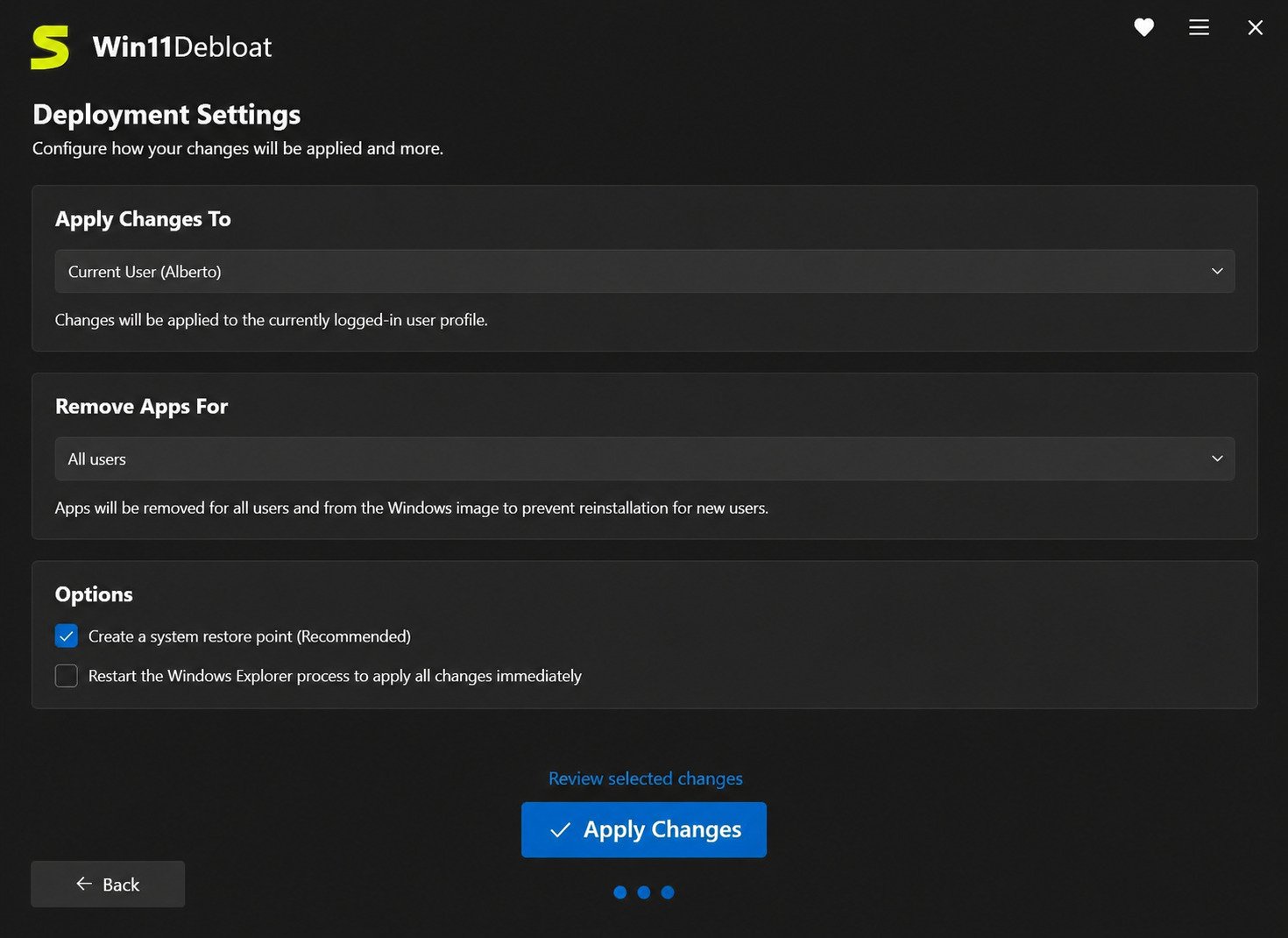
No third-party system-modification tool is entirely risk-free. It’s always worth creating a system restore point before running any script that changes Windows settings at this level.
Win11Debloat Download and Latest Version
Win11Debloat Latest Version and Latest Release
Win11Debloat is actively maintained on GitHub, with new releases pushed as Windows updates introduce new preinstalled apps or settings that need to be addressed. Checking the releases page before running it ensures you’re working with a version that accounts for the latest Windows 11 build.
Win11Debloat Free Download for Windows 11
The script is entirely free, with no premium tier, license key, or paywall. This is one of its biggest draws compared to some commercial “PC optimizer” tools that charge a subscription for similar functionality.
Download Win11Debloat from GitHub
The safest and only recommended source is the official GitHub repository. Downloading from unofficial mirrors or random download sites is risky, since a script that runs with administrator privileges is an easy target for tampering.
Win11Debloat Script vs Installer
There’s no traditional installer here — and that’s intentional. Win11Debloat runs as a script, meaning it doesn’t install background services, doesn’t sit in your system tray, and leaves nothing running after it finishes. Once it’s done applying your chosen changes, you can simply delete the downloaded files.
How to Debloat Windows 11 With Win11Debloat
How to Install Win11Debloat
There’s technically nothing to “install.” You have two main options for getting it running:
- Automatic method: Open PowerShell (ideally as administrator) and run the official one-line command from the GitHub page, which downloads and launches the script automatically.
- Manual method: Download the latest release ZIP from GitHub, extract it to a folder, and run it from there.
How to Use Win11Debloat
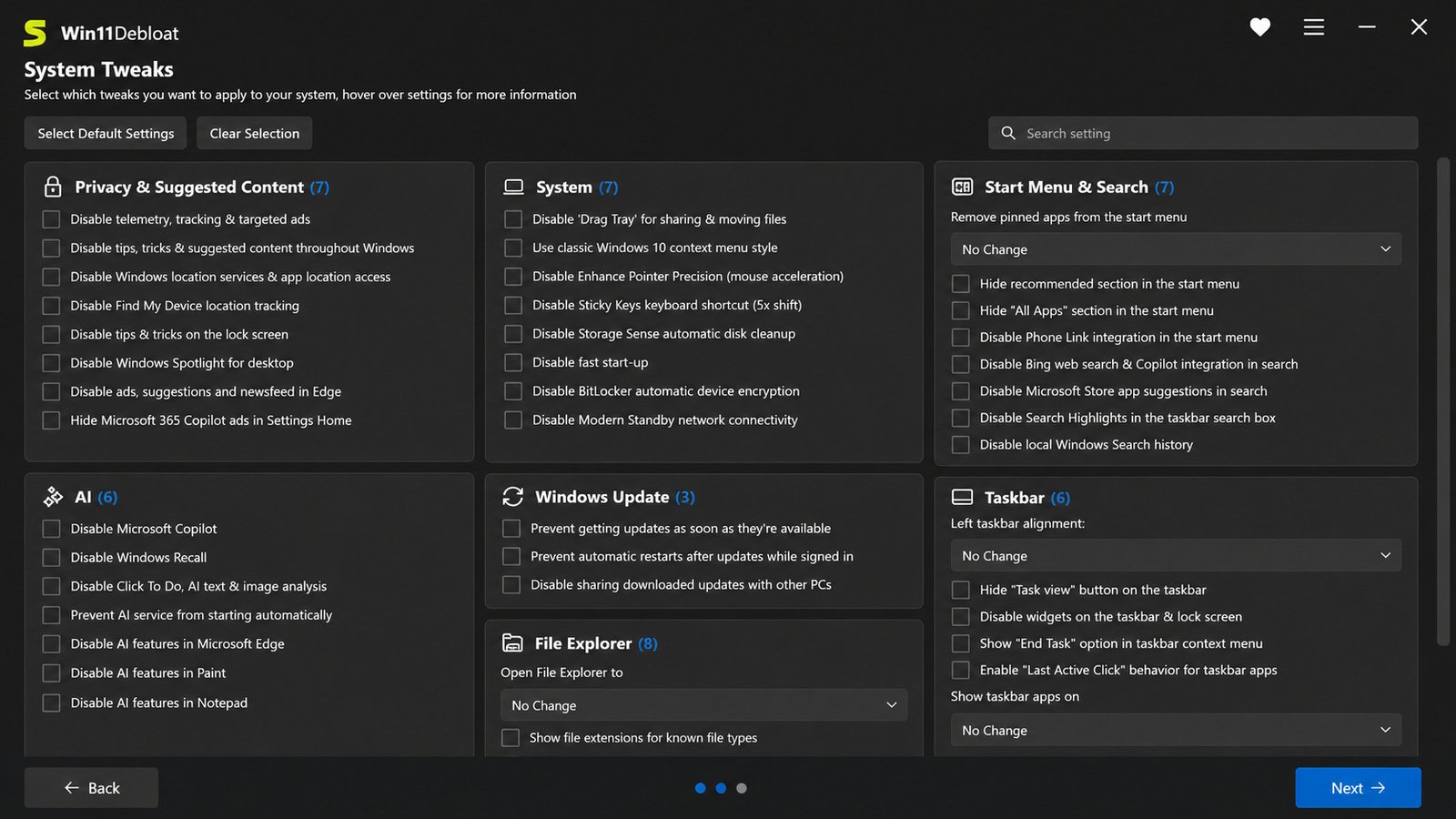
Once launched, the script walks you through an interactive, menu-driven process. You’ll be asked which categories of changes you want to apply — app removal, telemetry settings, interface tweaks — and you can choose exactly how much or how little to change.
How to Run the Win11Debloat PowerShell Script
For the manual method:
- Extract the downloaded ZIP file to a folder of your choice
- Double-click the included Run.bat file
- Accept the User Account Control (UAC) prompt, since administrator rights are required
- Follow the on-screen prompts carefully, reading each option before confirming
How to Debloat Windows 11 Safely
Always create a System Restore Point first.
Read each prompt instead of blindly clicking “yes to all.”
Avoid removing apps or services you’re not sure about.
Test on a non-critical machine first if you’re deploying it across multiple PCs.
Win11Debloat Tutorial for Beginners
If you’ve never used PowerShell before, don’t worry — the interactive prompts are written in plain language, and you’re never forced to type raw commands unless you choose the advanced command-line method. Beginners should stick with the guided, automatic method the first time through.
Windows 11 Debloat Script and PowerShell
Windows 11 Debloat PowerShell Script
PowerShell is Windows’ built-in scripting and automation shell, and it’s what gives Win11Debloat its power — it can query installed apps, modify registry-level settings, and adjust system configuration without needing a separately compiled application.
Windows 11 Bloatware Removal Script
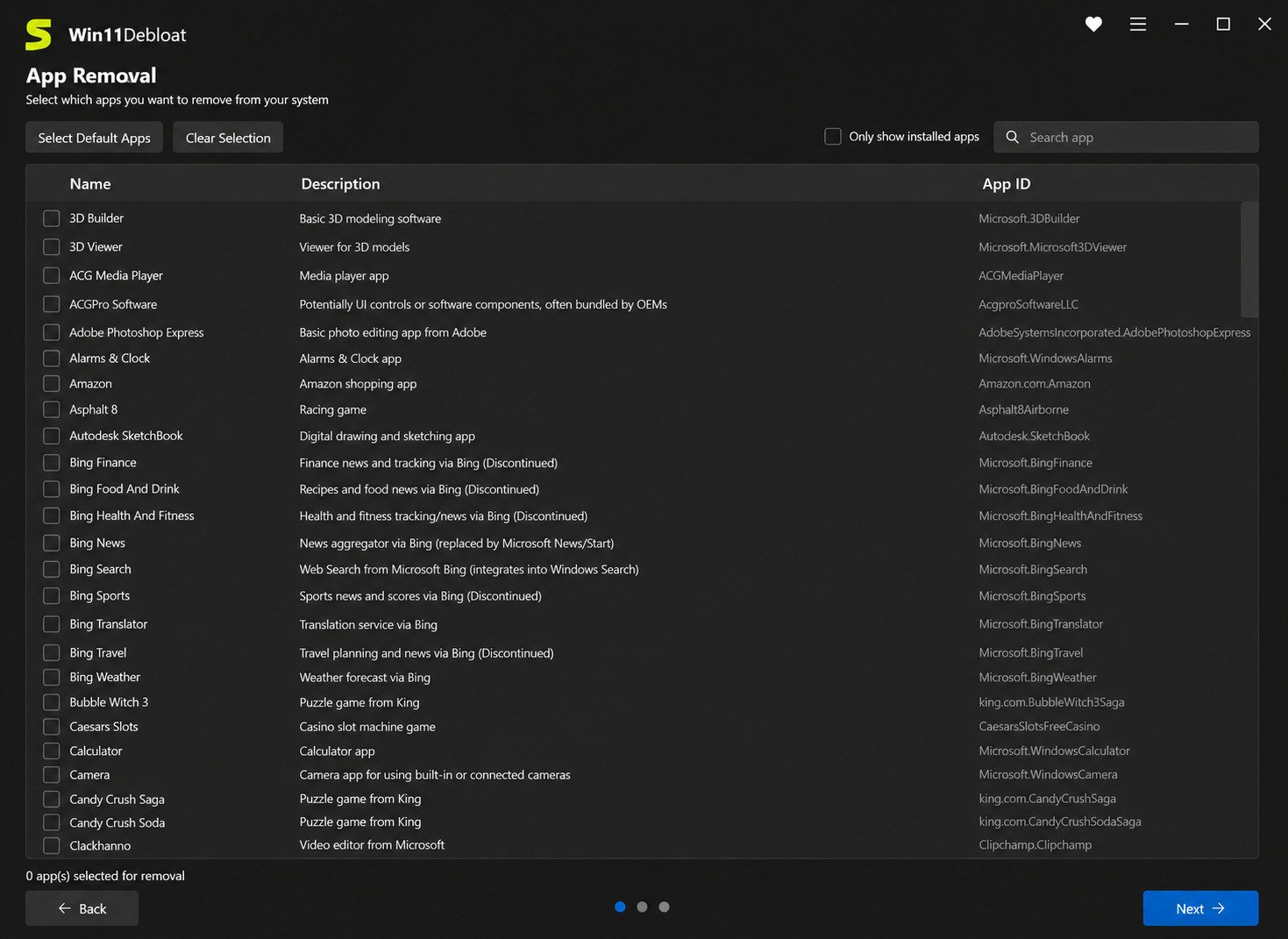
The removal logic works by checking your system against a list of known preinstalled Microsoft Store apps (things like Xbox companion apps, weather widgets, or promotional games) and uninstalling the ones you select.
PowerShell Windows Debloat Commands
For advanced users, Win11Debloat supports command-line parameters, allowing the entire process to run unattended — useful for IT administrators deploying a standard configuration across many machines without manual prompts each time.
Windows 11 Cleanup and Optimization With PowerShell
Beyond app removal, the script can also apply broader cleanup tasks, like disabling unnecessary background processes tied to removed apps and clearing associated Start Menu tiles.
Open-Source Windows 11 Debloat Script
Being open-source matters here more than it might for a typical app. Since the script has direct access to system settings, transparency lets the wider community and independent security researchers review the code for anything questionable.
What Does Win11Debloat Remove?
Remove Unnecessary Apps From Windows 11
Common candidates for removal include preinstalled games, promotional apps, redundant Microsoft utilities you don’t use, and third-party trial software some OEM devices ship with.
Windows 11 Bloatware and Preinstalled Apps
“Bloatware” generally refers to any preinstalled software that takes up space or resources without providing value to a given user — what counts as bloat varies from person to person, which is why Win11Debloat lets you pick and choose rather than forcing a fixed removal list.
Remove Windows 11 Bloatware Safely
The script is designed to only remove apps cleanly, without leaving orphaned registry entries where possible. Still, it’s smart to review the app list before confirming, since some “unnecessary” apps might be ones you actually rely on.
Windows 11 App Removal and Cleanup
After removing apps, Win11Debloat also tidies up related Start Menu pins and tile references so you’re not left with broken shortcuts pointing to apps that no longer exist.
What to Debloat and What to Keep in Windows 11
Beyond app removal, deciding what’s safe to strip and what’s worth keeping depends on how you actually use your PC:
- Preinstalled games (Solitaire Collection, etc.)
- Xbox-related apps (if you don’t game on Xbox)
- Promotional third-party apps
- “Get Help” and “Tips” apps
- News and interests widgets
- Microsoft Store (needed for future app installs)
- Windows Security / Defender
- Snipping Tool, Calculator
- OneDrive (if you actively use cloud sync)
- Photos app (if you don’t have a replacement)
Windows 11 Privacy and Telemetry Tweaks
Windows 11 Privacy Settings With Win11Debloat
Beyond app removal, the script offers granular control over privacy-related settings — many of which are buried several menus deep in Windows Settings and easy to miss.
Disable Windows 11 Telemetry and Tracking
Telemetry refers to diagnostic data Windows sends back to Microsoft about how you use your device. Win11Debloat can reduce this data collection to the minimum level Windows allows, though it’s worth knowing that Windows doesn’t currently offer a way to disable telemetry completely on most editions.
Windows 11 Privacy Optimization
Other tweaks include disabling activity history tracking, turning off targeted advertising IDs, and limiting diagnostic data shared with app developers through Windows’ feedback systems.
Windows 11 Security and Privacy Tweaks
Importantly, Win11Debloat is careful not to touch core security features like Windows Defender or Windows Update — the goal is trimming unnecessary tracking and clutter, not weakening your system’s actual protection.
Windows 11 Tracking and Telemetry Settings
If you want finer control, you can selectively apply only the privacy-related options during setup and skip the app-removal steps entirely — the script’s modular menu makes this easy.
Windows 11 Performance Optimization
Optimize Windows 11 After Debloating
Removing bloatware frees up background CPU cycles and RAM that would otherwise be consumed by apps you never use, which can translate into a noticeably snappier system, especially on lower-spec hardware.
Improve Windows 11 Performance
Combined with disabling unnecessary startup programs (a step you can also handle through Task Manager), debloating tends to have the biggest impact on machines with limited RAM or older CPUs, where every freed-up resource counts.
Windows 11 Cleanup and System Optimization
Interface tweaks like removing widgets, disabling animations, or simplifying the taskbar also contribute to a smoother feel, even if the performance gain itself is modest on newer hardware.
Debloat Windows 11 for Gaming
Gamers in particular benefit from removing background telemetry services and unnecessary startup apps competing for CPU and memory resources during gameplay, though the biggest performance factors for gaming will still be your GPU drivers and in-game settings.
Windows 11 Performance Tweaks for a Faster PC
Debloating is a solid first step, but pairing it with regular driver updates, adequate free disk space, and disabling unnecessary startup apps gives you the most complete performance picture.
Win11Debloat for Windows 11
Win11Debloat Windows 11 Compatibility
Despite the name, Win11Debloat works on both Windows 10 and Windows 11, since the two operating systems share much of the same underlying app and settings architecture.
Win11Debloat Windows 11 Debloater Tool
It’s built specifically with Windows 11’s newer interface elements in mind too — things like the redesigned Start Menu, widgets panel, and taskbar, which didn’t exist in earlier debloating scripts written before Windows 11’s release.
Win11Debloat Windows 11 Optimizer
While its primary focus is debloating and privacy, many of its interface tweaks double as light optimization, removing visual and background elements that add small amounts of overhead.
Win11Debloat Bloatware Remover
At its core, this remains the script’s headline function — a fast, selective way to strip out preinstalled software without manually uninstalling each app one at a time through Settings.
Win11Debloat Privacy Tool
Its telemetry and tracking controls make it equally valuable as a privacy-focused tool, not just a cleanup utility, which is part of why it’s recommended so often in privacy-conscious tech communities.
Win11Debloat vs Other Windows 11 Debloat Tools
Win11Debloat vs Windows 11 Debloat Scripts
Several similar scripts exist in the open-source space, but Win11Debloat has become one of the most widely referenced thanks to its active maintenance, clear documentation, and interactive (rather than fully automated) approach that keeps the user in control.
Win11Debloat vs Other Windows Debloat Tools
| Feature | Win11Debloat | Typical Third-Party “Cleaner” Apps |
|---|---|---|
| Cost | Free, open-source | Often freemium or subscription-based |
| Transparency | Full source code on GitHub | Usually closed-source |
| Installation required | No | Often yes |
| Customization | Granular, menu-driven | Frequently one-click, less control |
| Risk of bundled extras | Low (official source) | Varies, sometimes bundles adware |
Best Windows 11 Debloat Tool
“Best” depends on your comfort level. If you want full transparency and control, Win11Debloat is hard to beat. If you’d rather have a graphical point-and-click interface with zero PowerShell exposure, a GUI-based alternative might feel more approachable, though often at the cost of transparency.
Best Free Windows 11 Debloater
Among free options, Win11Debloat stands out specifically because it’s actively maintained, well-documented on its GitHub wiki, and doesn’t require any payment or account sign-up.
Open-Source Windows 11 Debloater
Its open-source nature is arguably its strongest selling point for security-conscious users — you’re never trusting a black box with administrator-level access to your system.
Common Win11Debloat Problems and Fixes
Win11Debloat Script Not Working
If double-clicking Run.bat closes immediately without doing anything, this is often caused by Windows’ execution policy blocking scripts by default. Using the advanced manual PowerShell method (running the script directly from an elevated PowerShell window) usually resolves this.
Win11Debloat PowerShell Errors
Errors often trace back to running the script without administrator privileges. Always right-click and choose “Run as administrator,” or accept the UAC prompt when it appears.
Windows 11 Apps Not Removing After Debloating
Some apps reinstall themselves after major Windows updates, since Microsoft occasionally reintroduces default apps as part of feature updates. Simply re-running the script after an update usually clears them out again.
How to Restore Changes Made by Win11Debloat
If you want to reverse changes, the safest path is restoring from the System Restore Point you created beforehand. Individual settings can also typically be reverted manually through Windows Settings, though this is more time-consuming than a restore point.
What to Do Before Running a Windows 11 Debloat Script
- Back up important files
- Create a System Restore Point
- Note down which apps you currently have installed
- Read through the script’s available options on its GitHub wiki first
Frequently Asked Questions About Win11Debloat
Yes, it’s open-source and widely used, but you should still create a system restore point before running it, as with any script that modifies system settings.
Yes, completely free with no premium version or hidden costs.
Yes, and it also supports Windows 10, since both share similar underlying app and settings structures.
It can help, especially on lower-spec machines, by freeing up resources previously used by unnecessary preinstalled apps and background processes.
Yes, many gamers use it to remove background telemetry and unused apps, though GPU drivers and in-game settings still matter more for actual gaming performance.
It reduces telemetry to the minimum level Windows allows, but Windows doesn’t currently permit fully disabling all diagnostic data collection on most editions.
Yes, this is its core function, letting you selectively uninstall preinstalled apps you don’t use.
Final Verdict: Should You Use Win11Debloat?
If you’re comfortable following on-screen instructions and want a genuinely transparent, free way to strip unwanted apps and tighten privacy settings, Win11Debloat is one of the most trustworthy options available today. Its open-source nature means nothing is hidden from you, and its menu-driven approach keeps you in full control the entire time.
Just remember the basics: back up first, create a restore point, and read each prompt rather than clicking through blindly. Do that, and you’ll likely end up with a Windows 11 install that feels noticeably lighter, quieter, and more yours — without ever needing to pay a cent.
For more system utilities worth knowing about, see our related guide on CrapFixer, another handy tool for tidying up a cluttered Windows setup.