ExamDiff Review: Features, Download, File Comparison, and How to Use It
Table of contents
- What Is ExamDiff and How Does It Work?
- ExamDiff Download and Installation Guide
- How to Use ExamDiff to Compare Files and Text Documents
- ExamDiff File Comparison and Difference Detection Features
- ExamDiff Pro: Advanced File and Folder Comparison Features
- ExamDiff for Source Code and Programming File Comparison
- Comparing Different File Formats With ExamDiff Pro
- ExamDiff Pro Master Edition: Features and Capabilities
- ExamDiff Online and ExamDiff for Mac: Availability and Alternatives
- ExamDiff Settings, Troubleshooting, and Common Problems
- ExamDiff Review: Features, Pros, and Cons
- Best ExamDiff Alternatives for File and Text Comparison
- Frequently Asked Questions About ExamDiff
- Conclusion
You edit a file, save it, and a week later something is broken. Which line changed? Guessing is slow, and scrolling through two windows is worse. That is the exact problem ExamDiff was built to solve.
In this ExamDiff review, you will learn what the tool does, where to download it safely, and how to compare files step by step. We also cover ExamDiff Pro, Windows 10 and 11 support, Mac options, troubleshooting, and the best alternatives. If you already use display or desktop utilities, our guide to BetterDisplay shows the kind of small tools that quietly improve a daily workflow.
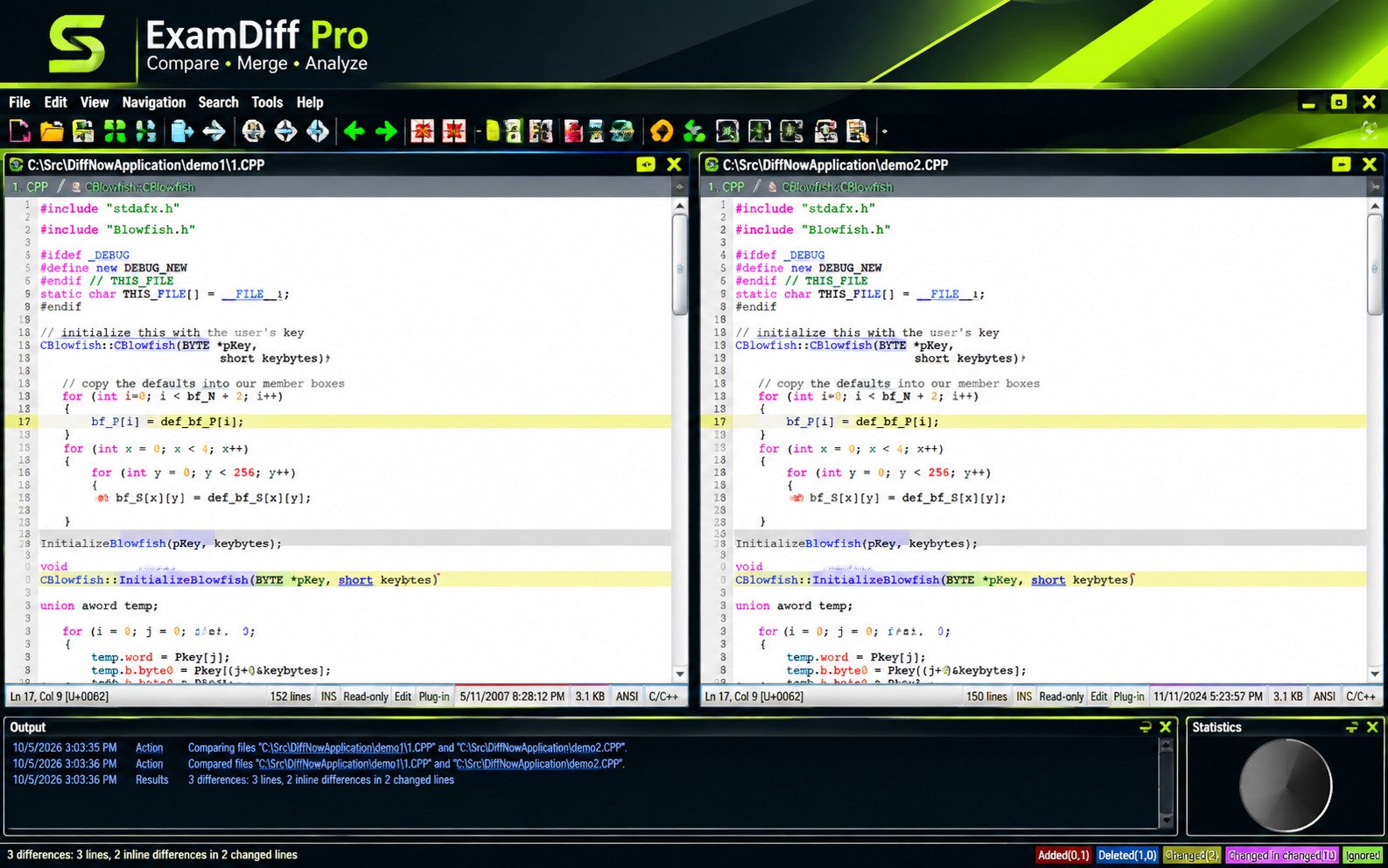
ExamDiff is a free Windows tool that compares two text files side by side and highlights what was added, deleted, or changed. ExamDiff Pro is its paid big brother with folder comparison, merging, and more.
What Is ExamDiff and How Does It Work?
ExamDiff is a visual file comparison program made by PrestoSoft for Windows. You pick two files, and it shows them next to each other with color highlights on every difference.
Overview of ExamDiff File Comparison Software
ExamDiff is a “diff” tool with a friendly window instead of a command prompt.
It reads both files, lines them up, and marks each line as added, removed, or changed. Think of it as a proofreader that never gets tired. The freeware edition covers the basics. The Pro editions add folders, merging, plug-ins, and reports.
What Types of Files Can You Compare With ExamDiff?
ExamDiff works best with plain text. That includes notes, logs, scripts, source code, HTML, XML, JSON, and configuration files.
ExamDiff Pro goes further. It can compare binary files, and its plug-in system lets it handle Word, Excel, and PDF documents. Here is a simple overview.
| File type | ExamDiff (free) | ExamDiff Pro |
|---|---|---|
| Plain text, logs, scripts | Yes | Yes |
| Source code, HTML, XML | Yes | Yes, with syntax highlighting |
| Binary files | No | Yes |
| Word, Excel, PDF | No | Yes, through plug-ins |
| Whole folders | No | Yes |
Who Should Use ExamDiff?
Developers, writers, editors, system administrators, and students all benefit. Anyone who keeps several versions of the same document has a reason to use it.
A teacher checking two drafts of an essay and a programmer reviewing a pull request both need the same thing: a clear picture of what changed.
Is ExamDiff Free to Use?
Yes. The basic ExamDiff program is freeware, according to the PrestoSoft help pages. It does not include directory comparison.
ExamDiff Pro is commercial software with a free trial. PrestoSoft lists a Standard edition and a Master edition, and the current price page shows them at about $37.99 and $54.99. Prices change, so confirm on the official site before buying.
ExamDiff Download and Installation Guide
Downloading software should be boring and safe. Use the official PrestoSoft website, and skip “cracked” or “patched” copies. They are illegal, and they are a classic way to spread malware.
How to Download ExamDiff for Windows
go to prestosoft.com, open the ExamDiff or ExamDiff Pro download page, and choose the installer that matches your Windows version.
- Open the official PrestoSoft site in your browser.
- Choose the freeware ExamDiff or the ExamDiff Pro trial.
- Pick the 32-bit or 64-bit installer.
- Save the file and run it.
ExamDiff Free Download and Latest Version
The free ExamDiff download is small, and it is a simple program that has changed slowly over the years. ExamDiff Pro moves faster. Third-party download sites showed version 17 builds at the time of writing.
Always check the official history page for the newest build. Old copies on random sites may be outdated.
ExamDiff 64-Bit Download and System Requirements
PrestoSoft offers both 32-bit and 64-bit installers for ExamDiff Pro. A modern 64-bit Windows PC should use the 64-bit version, since it handles large files more comfortably.
The program is light. Installers have been around 13 MB in recent major versions, and the app runs fine on ordinary office hardware. You only need Windows and a few spare megabytes.
How to Install and Set Up ExamDiff on Windows 10 and 11
Run the installer and follow the wizard. Accept the license, choose a folder, and let it finish. Windows may ask for permission, which is normal.
On first launch, open Options and look at three things: ignore settings, colors, and Windows Explorer integration. Spending two minutes here makes every later comparison smoother.
If you share a computer, remember that settings are usually saved per Windows user. Each person can set colors and ignore rules the way they like without affecting anyone else.
How to Update ExamDiff to the Latest Version
ExamDiff Pro can check for updates from inside the program. You can also download the newest installer and install it over your current copy.
Your settings usually carry over. Before updating, it is wise to close any open comparison windows and save your work. If your maintenance period has ended, PrestoSoft says you may need an upgrade license to move to newer versions.
Does ExamDiff Have a Portable Version?
ExamDiff Pro has been distributed with a portable 64-bit ZIP package in recent versions. A portable build runs from a USB drive without a full installation.
Check the official download page to confirm it is still offered for your edition. For the free ExamDiff, a portable option is not something PrestoSoft highlights, so test carefully.
How to Use ExamDiff to Compare Files and Text Documents
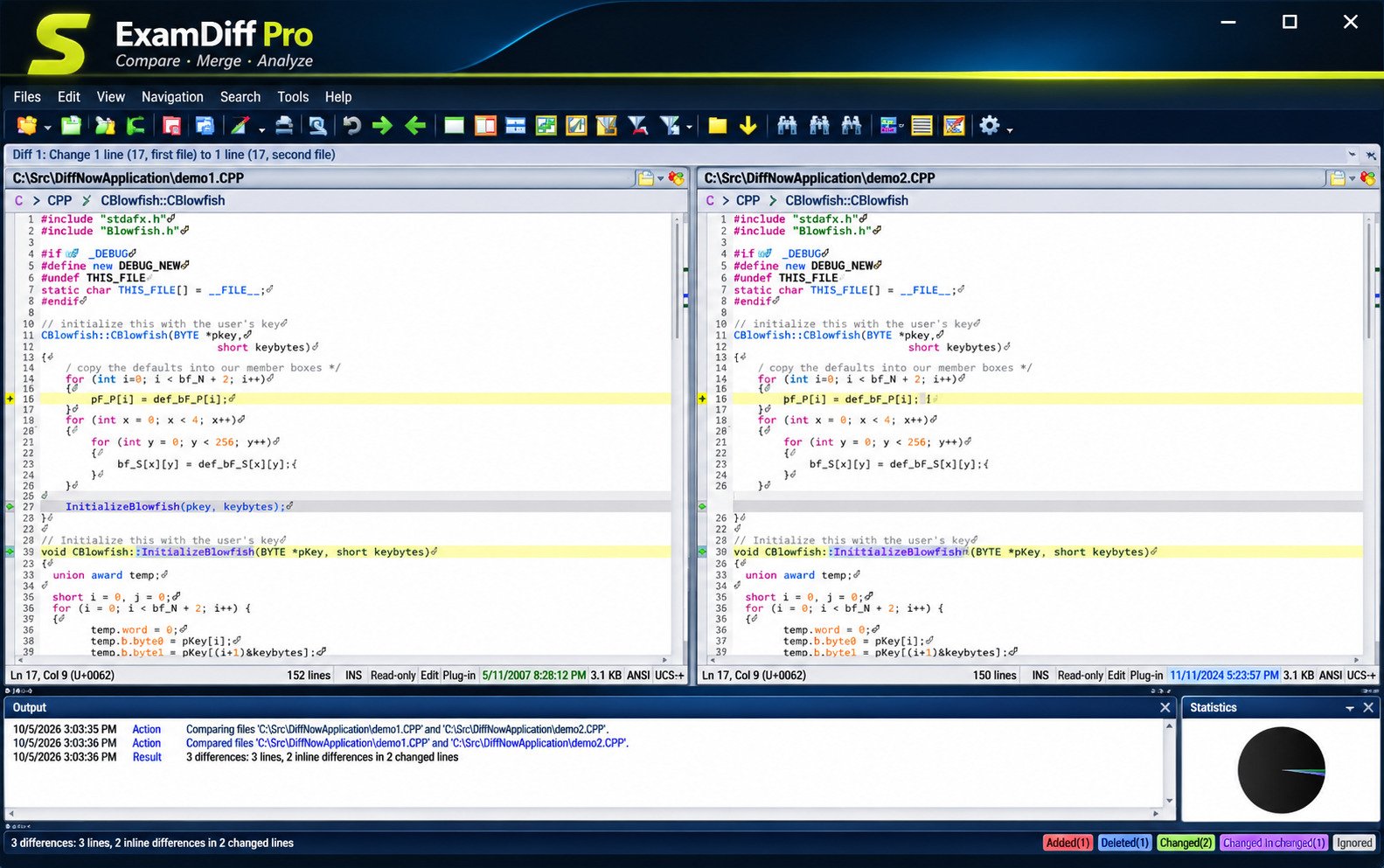
The basic flow is the same everywhere: open file one, open file two, read the highlights. Here are the common tasks, one by one.
How to Compare Two Files With ExamDiff
open ExamDiff, choose the first file on the left, choose the second file on the right, and click Compare.
The two panes appear side by side. Changed lines are colored, and you can jump from one difference to the next with the navigation buttons.
How to Compare Text Files Side by Side
Side by side means both versions stay on screen together. Scroll one pane, and the other follows, so lines stay aligned.
This is far easier than flipping between tabs. Put the older version on the left and the newer one on the right. Your eyes will learn that pattern quickly.
A practical tip: keep the same order every time. When the older file is always on the left, you never have to stop and ask which side is which, and that small habit prevents real mistakes during merges.
How to Find Differences Between Two File Versions
Start with the oldest and newest versions. That shows the full journey in one pass.
If the file changed many times, compare neighbors instead: v1 against v2, then v2 against v3. This tells you exactly when a mistake slipped in, which is gold when you are debugging.
How to Compare Files Line by Line
Line-by-line comparison is the default. Every line is checked against the matching line in the other file.
A changed line gets a highlight. An extra line shows as added, and a missing one shows as deleted. If two lines look similar but not identical, fuzzy matching in Pro helps pair them up.
How to Highlight Added, Deleted, and Modified Text
Highlighting uses color. Typically one color marks added content, another marks deleted content, and a third marks changed lines.
You can customize the colors in Options. Choose shades that suit your eyes, especially if you use dark mode or have trouble telling certain colors apart.
How to Compare Large Text Files Without Changing Their Contents
Comparing never edits a file by itself. ExamDiff only reads the files until you choose to edit or merge.
For giant logs, keep both files closed in other programs, use the 64-bit build, and consider ignoring whitespace to cut noise. Make a backup copy first if you plan to merge changes.
Large files also benefit from a patient approach. Give the program a moment to finish reading, and avoid editing either file while the comparison runs.
ExamDiff File Comparison and Difference Detection Features
Here is where the program earns its reputation. Most features are simple, but together they save real time.
Side-by-Side File and Text Comparison
Two panes, synchronized scrolling, and clear line numbers. Nothing fancy, and that is the charm.
In ExamDiff Pro, color-coded line numbers show whether each line was added, deleted, or changed, so you can read the gutter at a glance.
Line-by-Line, Word-by-Word, and Character-by-Character Comparison
ExamDiff Pro can highlight differences at the level of lines, words, or characters.
Imagine two sentences that differ by one comma. A line view marks the whole sentence. A character view points straight at the comma. Use the finer levels when edits are small but important, like contracts or code.
Highlighting Text and File Differences
Highlights make the report readable. Instead of scanning every line, you follow the color trail.
Many users also like the difference list and the summary view. They show how many changes exist before you start reading, which helps you plan your review time.
Detecting Changes Between Different File Versions
Version tracking is the heart of the tool. Save a copy before each big edit, and ExamDiff will show you the exact edit trail later.
Developers use it before committing code. Writers use it to see what an editor changed. Admins use it to confirm a config file was not touched unexpectedly.
Here is a simple example. Suppose a website stopped loading after a Friday update. Compare Thursday’s config with Friday’s, and the one changed line often appears within seconds. Without a diff tool, you might read hundreds of lines before spotting it.
Ignoring Whitespace, Blank Lines, and Letter Case
turn on the ignore options in Settings to hide harmless differences like spaces, blank lines, and capitalization.
A file saved by another editor may have different spacing, and every line looks changed. Ignoring whitespace removes that noise. Ignoring case helps with case-insensitive data, such as many configuration keys.
Comparing Files With Different Formatting
Windows and Unix systems end lines differently, and tabs versus spaces can wreck a comparison. A good diff tool lets you ignore those details.
Use the ignore settings first. If files still look wildly different, the problem may be encoding, so check that both files use the same one, such as UTF-8.
Fuzzy Matching and Moved Block Detection
PrestoSoft introduced fuzzy matching in ExamDiff Pro 4.5. It pairs lines that are similar but not identical, instead of calling them one deletion plus one addition.
Moved-block detection adds another layer. When a paragraph or function was cut and pasted elsewhere, the tool can recognize it as moved rather than rewritten. That makes reviews much shorter.
ExamDiff Pro: Advanced File and Folder Comparison Features
If the free tool is a pocket knife, ExamDiff Pro is the full toolbox. It keeps the same easy feel but adds professional features.
What Is ExamDiff Pro?
ExamDiff Pro is PrestoSoft’s commercial visual comparison tool for Windows. It compares text and binary files, directories, and in some cases documents through plug-ins.
It also supports Unicode, drag and drop, bookmarks, regular expression searches, dark mode, and in-pane editing. It feels modern without being heavy.
ExamDiff vs ExamDiff Pro: What’s the Difference?
ExamDiff is the free, basic file comparer. ExamDiff Pro adds folders, merging, binary comparison, plug-ins, reports, and more.
| Feature | ExamDiff | ExamDiff Pro |
|---|---|---|
| Price | Free | Paid, free trial |
| Compare two files | Yes | Yes |
| Compare folders | No | Yes |
| Word-level highlights | Limited | Yes |
| Binary comparison | No | Yes |
| Plug-ins | No | Yes |
| Merging | No | Yes (more in Master) |
How to Compare Two Folders With ExamDiff Pro
Choose two folders in the folder comparison mode. The program lists every file and marks whether it is identical, different, or exists only on one side.
Double-click any pair to open a detailed file comparison. That drill-down habit makes big projects feel manageable.
How to Compare Directories and Identify Missing Files
run a folder comparison and look for items marked as present on only one side.
This is perfect for checking backups. Compare your original project folder with the backup, and any missing file stands out immediately. You can filter results to show only differences.
Folder Synchronization and File Management
ExamDiff Pro lets you copy, rename, and delete files straight from the comparison view. You can also copy newer files from one side to the other.
PrestoSoft also describes folder snapshots, saved listings you can compare later. Be careful with sync actions, though. Copying in the wrong direction overwrites data, so double-check before you click.
Three-Way File Comparison and Merging
Three-way comparison looks at a common ancestor and two modified versions. It is how teams merge changes made independently.
PrestoSoft lists three-way diff and merge as a Master Edition feature. Standard Edition users can still do two-way comparisons and edit inside the panes.
Binary File Comparison and Analysis
Binary comparison shows byte-level differences in files that are not text, such as executables or DLLs.
Developers use it to spot what changed after a rebuild. It will not explain why bytes differ, but it will tell you where they differ, which is the first clue.
Regular Expression Filters for Advanced Comparisons
Regular expressions let you ignore patterns instead of fixed text. For example, you can skip timestamps or build numbers that change on every run.
Without that, logs look entirely different every time. With a simple pattern, the real differences become obvious. This is one of the most underrated Pro features.
Here is a quick example. A log line that starts with a date and time will differ on every run. A filter that ignores that pattern lets you focus on the messages that actually matter, such as errors or changed settings.
Windows Explorer Integration
After installation, you can right-click two files in Windows Explorer and send them to ExamDiff. No need to open the program first.
It is a small convenience, yet it trims a dozen clicks a day. Many long-term users call this their favorite feature.
It also helps when you receive files by email. Save both attachments to your desktop, select them, right-click, and you are comparing within seconds.
ExamDiff Pro Command-Line Options
Command-line options let scripts and other tools launch comparisons automatically. That is handy for build servers and version control tools that need an external diff program.
You pass file or folder paths plus switches that control behavior. Check the official help file for the exact switches in your version.
Generating HTML File Comparison Reports
You can export or print a report of the differences. Sharing a report is easier than sharing screenshots, and it keeps a record for audits.
Teams use reports for code reviews. Editors attach them to emails so authors can see every change without opening any special software.
ExamDiff for Source Code and Programming File Comparison
ExamDiff earned much of its audience among developers. Clean highlighting and quick startup make it ideal for code.
How to Compare Source Code Files With ExamDiff
Open the old and new source files side by side. Turn on syntax highlighting, then review each difference.
Work from top to bottom. When something looks suspicious, use the character-level view to confirm exactly what changed.
Comparing Programming Files Side by Side
Side-by-side code review lets you see context around every change. A single renamed variable can ripple through many lines, and the layout makes that visible.
Keep both panes the same width and use word wrap only when needed, since long lines can hide small changes.
Syntax Highlighting for Source Code Comparison
Syntax highlighting colors keywords, strings, and comments. ExamDiff Pro can detect the programming language automatically.
It also has an option to ignore comments, so a documentation tweak does not bury a real logic change. That focus is worth a lot during review.
A reviewer who sees only meaningful code changes works faster and misses fewer bugs.
Comparing C++ and Java Source Code
C++ and Java files are long and full of repeated patterns. Ignoring whitespace and comments keeps results readable.
For big projects, compare the folders first, then open only the files that changed. That saves hours compared with opening files one at a time.
Comparing XML, HTML, and Configuration Files
Configuration files are where tiny changes cause big outages. A single missing quote can stop a service.
Compare the live config to a known good copy. Ignore whitespace, and use regular expression filters to skip generated values like timestamps.
Many administrators keep a trusted baseline copy of each important file. Comparing against that baseline after every update turns a stressful guessing game into a two-minute check.
Finding Changes in Source Code Between Versions
compare the current file with a saved earlier version, then walk through each highlighted difference.
If you use Git, you can still keep ExamDiff as your external diff tool. Many people prefer its layout over a terminal view.
Is ExamDiff a Useful Code Comparison Tool for Developers?
Yes, especially on Windows. It is fast, readable, and flexible. It does not replace a full version control system, but it complements one well.
If you need deep repository features or Mac and Linux support, look at alternatives later in this article.
Comparing Different File Formats With ExamDiff Pro
Not every file is plain text. Fortunately, the Pro line has ways to handle documents too.
How to Compare Word Documents for Differences
PrestoSoft says ExamDiff Pro can compare Word documents using plug-ins. The plug-in extracts the text, and the tool then compares that text.
Remember that you are comparing content, not page layout. For tracked changes, formatting, and comments, Word’s own Compare feature may be better.
How to Compare Excel Spreadsheets Side by Side
Excel files also work through plug-ins. The data is converted to text so differences in cells can be reviewed.
For large workbooks with formulas, results can be long. Export the key sheet to CSV if you only need to check one table.
Can ExamDiff Pro Compare PDF Documents?
yes, through a plug-in that pulls text out of the PDF, but it compares text, not the visual layout.
Scanned PDFs are images, so there is no text to compare. For those, you need OCR first.
Also remember that PDFs created by different programs may store the same text in different ways. If results look odd, try exporting both documents from the same source before you compare them.
Comparing CSV Files and Structured Data
CSV files are plain text, so they open easily. Master Edition also lists table comparison, which is helpful when column alignment matters.
Sort both files the same way before comparing. Otherwise, row order alone can create hundreds of fake differences.
Comparing ZIP Archives and Binary Files
For archives, the safest approach is to extract both ZIP files into separate folders and run a folder comparison.
That shows exactly which files were added, removed, or changed. For single binary files, use binary comparison to inspect the bytes.
Supported File Formats and Comparison Limitations
Here is the honest summary.
| Format | How it works | Limitation |
|---|---|---|
| Text, code, logs | Native | None significant |
| Word, Excel, PDF | Plug-ins | Text only, no layout |
| CSV | Native or table mode | Sort first |
| ZIP | Extract, then compare folders | Extra step |
| Images | Binary only | No visual diff |
ExamDiff Pro Master Edition: Features and Capabilities
PrestoSoft sells two paid editions. Master is the one with the power-user extras.
What Is ExamDiff Pro Master Edition?
Master Edition adds features usually wanted by professional developers. PrestoSoft introduced editions in 2012 and described Master as the one with those extras.
It includes everything in Standard plus more advanced merge and comparison tools.
ExamDiff Pro Master Edition vs Standard ExamDiff Pro
| Feature | Standard | Master |
|---|---|---|
| Text and binary comparison | Yes | Yes |
| Folder comparison | Yes | Yes |
| Fuzzy line matching | Yes | Yes |
| Dark mode | Yes | Yes |
| Two-way merge | No | Yes |
| Three-way diff and merge | No | Yes |
| Table comparison | No | Yes |
| File list comparison | No | Yes |
| Merge command line | No | Yes |
Advanced File Comparison and Productivity Features
Master adds table comparison, file list comparison, and a command-line interface for automated merging. Those matter when comparisons are part of a repeatable process.
Teams that handle merges daily will feel the difference quickly.
Think of a small team editing the same configuration file. Each person makes changes separately, and Master helps combine them without losing anyone’s work.
License, Upgrade Options, and Edition Differences
Licenses include a maintenance period for updates. After it expires, you can buy an upgrade license to receive newer versions.
PrestoSoft also offers volume and educational discounts. Evaluate with the trial first, then buy the edition that matches your real needs.
A good rule is to list the three tasks you do most often. If those tasks only involve comparing, Standard is enough. If they involve merging changes from several people, Master is the safer pick.
ExamDiff Online and ExamDiff for Mac: Availability and Alternatives
Many searchers ask about browsers and Macs. The short version is that ExamDiff lives mostly on Windows.
Can You Use ExamDiff Online in a Web Browser?
The PrestoSoft site has shown a “Compare Online” link, but the main product is a desktop app. Do not expect the full feature set in a browser.
A browser tool can be fine for a quick check of public text, but it cannot match a desktop program for folders, merging, or plug-ins.
For sensitive files, avoid uploading to any online tool. Local software keeps your data on your own machine.
Is ExamDiff Available for macOS?
no. ExamDiff and ExamDiff Pro are Windows programs, and PrestoSoft lists no native macOS version.
ExamDiff for Mac: Compatibility and Alternatives
Some Mac users run Windows through virtualization, but that is a lot of effort for a diff tool. Native options are simpler.
Good Mac choices include Beyond Compare, Kaleidoscope, and the built-in diff command in Terminal. Meld is a free option for Linux and some other platforms.
ExamDiff Portable: Availability and Limitations
A portable version is handy for admins who work on many machines. It runs without a full install.
Limits include no automatic Explorer integration and settings that may not follow you. Always download portable builds only from the official site.
If you carry a portable copy on a USB drive, keep a note of its version number. That way you can tell at a glance when it is time to refresh it from the official download page.
ExamDiff Settings, Troubleshooting, and Common Problems
Most issues have simple fixes. Start here before you reinstall.
How to Configure ExamDiff Comparison Settings
Open the Options window and review the comparison tab. Set your preferred ignore rules, tab width, and encoding.
Save your choices as defaults. Doing it once saves repeated clicks.
It also helps to restart the program after major changes. Fresh settings load cleanly, and you avoid confusing results from old options you forgot turning on.
How to Ignore Whitespace and Blank Lines
Enable the options to ignore leading and trailing spaces, extra spaces inside lines, and blank lines.
If results suddenly shrink from hundreds of differences to a handful, whitespace was the culprit. That is a common “aha” moment for new users.
How to Customize Difference Highlighting
Pick colors for added, deleted, and changed text. Choose strong contrast, and test them in both light and dark themes.
Accessibility matters here. If two colors look alike to you, change one.
ExamDiff Not Opening: Causes and Fixes
Common causes are a corrupted install, a blocked file, or conflicts with security software.
Try these steps:
- Restart your computer.
- Right-click the program and run it as administrator.
- Reinstall using a fresh official download.
- Add the app to your antivirus exceptions if it is wrongly blocked.
ExamDiff Not Comparing Files: How to Fix It
If nothing happens, check that both files are selected and not locked by another program.
Also look at the encoding. A file in an unusual encoding may display strangely. Open it with the correct encoding setting and try again.
How to Resolve ExamDiff Installation Problems
Download the installer again, since interrupted downloads can break it. Make sure you chose the right 32-bit or 64-bit version.
Close other installers, free some disk space, and run setup as administrator.
If a security warning appears, confirm that the publisher name matches PrestoSoft and that you downloaded the file from the official site.
ExamDiff Pro License and Activation Issues
Type the license key exactly as received, without extra spaces. Copy and paste carefully.
If it still fails, check that your key matches your edition and version, and contact PrestoSoft support with your order details.
How to Troubleshoot ExamDiff Command-Line Errors
Most command-line errors come from wrong paths or missing quotes around names with spaces. Wrap paths in double quotes.
Test the command manually in a terminal first. Then add it to your script or version control tool.
ExamDiff Review: Features, Pros, and Cons
Time for an honest verdict, based on how the tool is built and what users commonly say.
Key Features of ExamDiff
- Clean side-by-side comparison
- Color-coded differences
- Ignore options for whitespace and case
- Folder comparison in Pro
- Fuzzy matching and moved block detection
- Plug-ins for Word, Excel, and PDF
- Windows Explorer integration
Advantages of Using ExamDiff
It is easy to learn, quick to launch, and very light. The free edition costs nothing, and Pro costs far less than many professional rivals.
Reviewers on software sites often praise the color-coded line numbers and the ease of use.
Support is another plus. Reviewers on business software sites rate its ease of use highly, and PrestoSoft provides online help pages and a tutorial section for new users.
Limitations of ExamDiff
It is Windows only. The free version lacks folder comparison. The interface looks a bit traditional, and document comparison depends on plug-ins.
Some reviewers also describe it as less polished than rivals, which fits an older, focused tool.
ExamDiff Free vs Pro: Which Version Should You Choose?
choose free for occasional two-file checks. Choose Pro when you compare folders, merge, or work with documents regularly.
Choose Master if you need three-way merging or automation.
Students and hobbyists will rarely need Master. Professional developers, release managers, and teams that merge often are the people who get real value from it.
Is ExamDiff Worth Using for File Comparison?
Yes, for Windows users who want a simple, dependable tool. It is not the most feature-packed option, but it does the important things well.
Try the free version or Pro trial and judge by your own files.
Real files tell the truth. Run a comparison on a document you know well, and you will quickly see whether the layout and speed suit the way you work.
Best ExamDiff Alternatives for File and Text Comparison
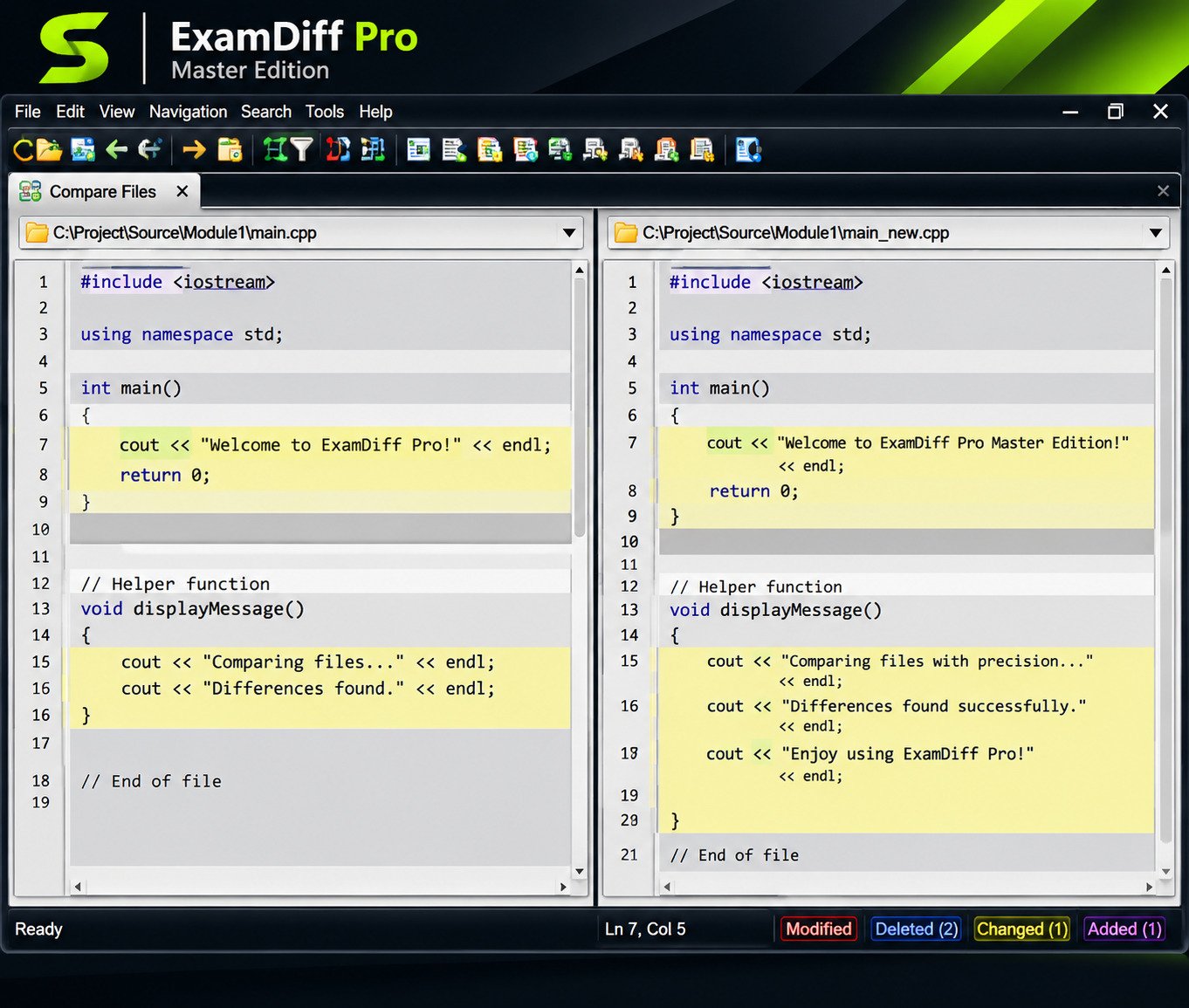
No tool fits everyone. These are the strongest alternatives.
WinMerge: Free File and Folder Comparison Tool
WinMerge is free and open source, and it compares both files and folders on Windows. It is the most popular free alternative to ExamDiff Pro.
Beyond Compare: Advanced File and Directory Comparison
Beyond Compare runs on Windows, Mac, and Linux. It is paid, with a free trial, and it is known for deep features and FTP and cloud support.
Notepad++: Text and Source Code Comparison
Notepad++ can compare files through a plugin. It is fine for quick checks if you already edit text there.
Other Free File Comparison Software for Windows
Meld, KDiff3, and DiffMerge are other well-known free choices. Compatibility varies, so check your platform.
Each has its own style. Meld has a clean layout, KDiff3 is known for three-way merging, and DiffMerge is simple. Try one or two before settling on a favorite.
For a broader list of tools and features, see this neutral overview from Wikipedia: Comparison of file comparison tools
ExamDiff vs WinMerge vs Beyond Compare
| Feature | ExamDiff Pro | WinMerge | Beyond Compare |
|---|---|---|---|
| Price | Paid | Free | Paid |
| Platform | Windows | Windows | Windows, Mac, Linux |
| Folder comparison | Yes | Yes | Yes |
| Three-way merge | Master only | Yes | Pro edition |
| Open source | No | Yes | No |
| Best for | Clean, simple use | Free users | Power users |
Frequently Asked Questions About ExamDiff
The basic ExamDiff is freeware. ExamDiff Pro is paid, with a trial.
ExamDiff compares files. Pro adds folders, merging, binary comparison, plug-ins, and reports.
The free version cannot, but ExamDiff Pro can. It shows missing and changed files.
Yes, recent ExamDiff Pro builds run on both. Confirm on the official page for your version.
Not a full one. It is mainly a desktop app for Windows.
No. It is Windows only, so Mac users should try Beyond Compare or Kaleidoscope.
Yes, in ExamDiff Pro Master Edition only.
Conclusion
ExamDiff proves that good software does not have to be loud. It opens quickly, shows differences clearly, and lets you get back to your real work. For many Windows users, that quiet reliability is exactly what matters.
Start with the free version, and upgrade to Pro only when your needs grow. If you ever feel lost in a pile of file versions, remember that one clear comparison can save you hours and plenty of stress.
Sources: prestosoft.com (ExamDiff Pro features, pricing, and help pages), Wikipedia (Comparison of file comparison tools), AlternativeTo, G2.