Awesome Miner Download, Features, Setup, and Alternatives
Everything you need to run a GPU or ASIC mining fleet from one dashboard — download, setup, monitoring, and how it compares to the competition.
If you’ve ever tried running more than two or three mining rigs at once, you already know the headache: different dashboards, different login screens, and a spreadsheet that’s out of date the moment you save it. Awesome Miner was built to solve exactly that problem. It’s a Windows-based mining management tool that lets you watch, control, and automate GPU and ASIC miners from one screen, whether you have three rigs in a garage or thousands spread across a warehouse.
In this guide, we’ll walk through what Awesome Miner actually does, how to download and set it up, how it handles GPU and ASIC mining differently, what the dashboard and remote monitoring tools look like in practice, and which alternatives are worth considering if it’s not the right fit for you.
What Is Awesome Miner?
Awesome Miner is a centralized mining management application for Windows that connects to GPU, CPU, and ASIC miners and shows their status in one place. Instead of opening ten browser tabs to check ten machines, you get a single list showing hashrate, temperature, uptime, and errors for everything you’re running.
Mining Management, Not Mining Software
At its core, Awesome Miner is management software, not mining software itself. It doesn’t mine coins on its own — it sits on top of mining engines like CGMiner, BFGMiner, T-Rex, and dozens of others, and gives you a control layer above them. That’s an important distinction: you still choose your mining software and pools, but Awesome Miner handles the coordination.
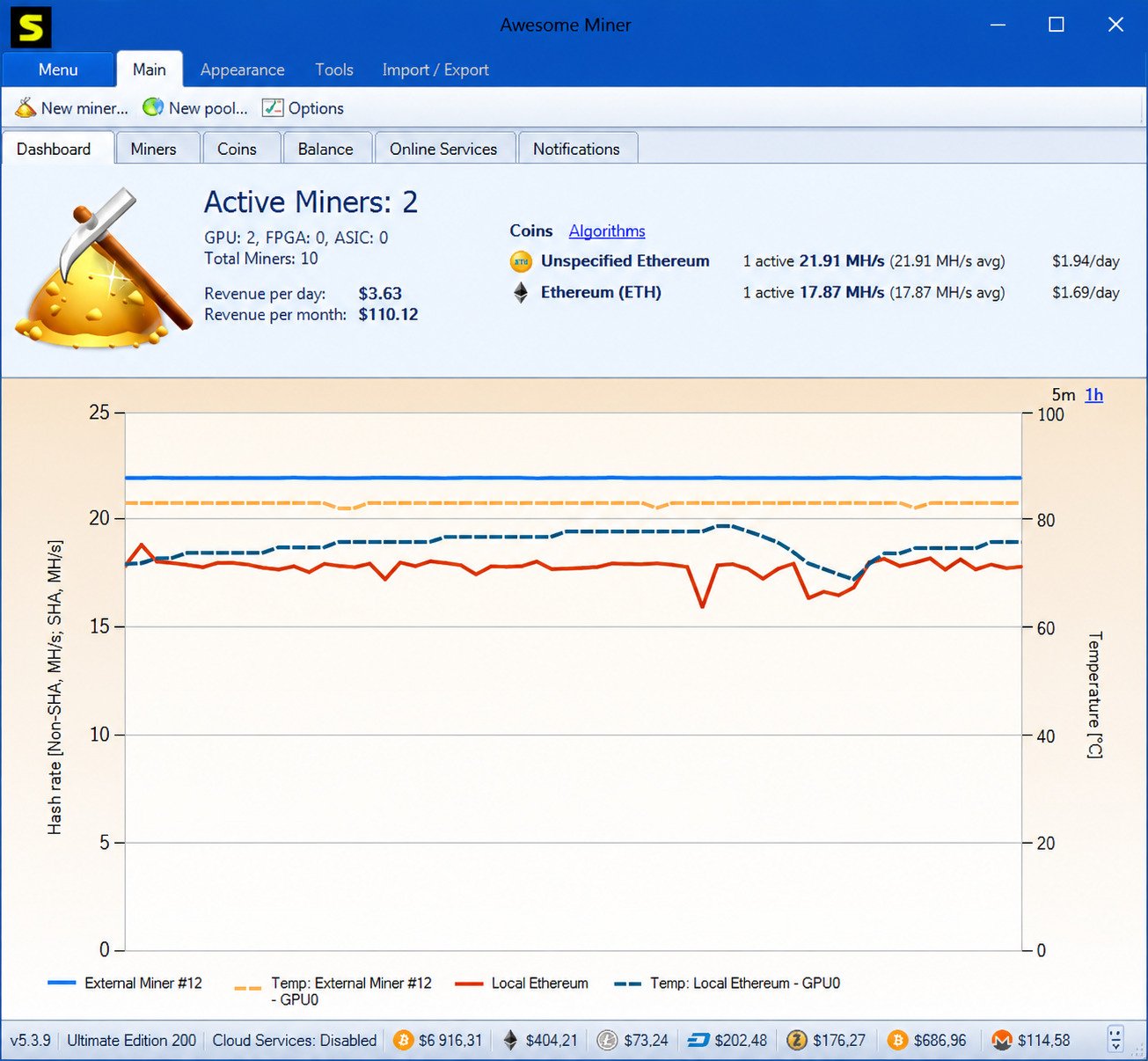
GPU and ASIC Mining Management, Side by Side
One of the things that sets Awesome Miner apart from many competitors is that it treats GPU mining and ASIC mining as first-class citizens rather than bolting one on as an afterthought. The same interface can manage a rig full of graphics cards and a rack of Bitmain Antminers side by side.
Rig Monitoring and Control
Beyond just watching numbers go up and down, Awesome Miner lets you actually act on what you see. You can restart a miner that’s stuck, switch its mining pool, change its algorithm, or push a firmware update — all without physically touching the machine. The dashboard pulls everything into charts and tables: hashrate over time, temperature trends, and profitability estimates based on current market prices. For anyone managing more than a handful of rigs, that visual summary is often the difference between catching a problem in minutes versus days.
Who Is Awesome Miner For?
Awesome Miner scales in both directions. According to the developer, it supports centralized management for up to 200,000 miners from a single user interface, which makes it a serious option for commercial mining farms. At the same time, hobbyists with a single rig can install it for free and get real value from the monitoring alone. It’s genuinely used by both a solo miner running two GPUs in a spare bedroom and an operator managing racks of ASICs in a dedicated facility.
Awesome Miner Features
Awesome Miner’s feature list is long, but most of it falls into a handful of practical categories: rig management, hardware monitoring, automation, and pool control.
Rig Management and Grouping
You can group rigs by location, hardware type, or purpose, then apply settings to an entire group in one action instead of repeating the same steps machine by machine.
GPU Overclocking
For graphics-card rigs, Awesome Miner supports native overclocking, which allows users to tweak their GPU settings directly from the platform’s dashboard — adjusting clock speed, voltage, and fan curves for both AMD and NVIDIA cards.
Agentless ASIC Management
On the ASIC side, the software connects directly to a miner’s built-in monitoring API — no extra software needs to be installed on the ASIC itself, which keeps setup simple even across large fleets. Every connected device reports back to one dashboard, so an operator checking on a facility doesn’t need to know each machine’s individual IP address or login just to see its status.
Remote Access and Historical Statistics
Because the interface can be accessed remotely, you can manage a mining operation from a laptop on the other side of the world, provided your network and remote access setup allow it. Historical statistics are stored so you can look back at yesterday’s hashrate, last week’s power draw, or a month of profitability trends rather than only seeing a live snapshot.
Hardware Health and Automation
Hardware health checks cover more than hashrate — fan speeds, error counts, and connection status are tracked continuously, which helps catch early signs of failing hardware. Temperature alerts are especially useful in warmer climates or poorly ventilated rooms, where overheating is one of the most common causes of reduced mining performance and hardware wear.
Pool Switching
Pool switching is built in, so if a pool goes offline or starts paying less, rigs can be redirected automatically rather than sitting idle.
Awesome Miner for GPU Mining
GPU mining rigs tend to be more hands-on than ASICs because graphics cards can mine multiple algorithms and coins, which means more tuning.
Works With Your Preferred Mining Engine
Awesome Miner works with a wide range of GPU mining engines, so you’re not locked into a single mining program. You choose the software that best fits your algorithm of choice, and Awesome Miner manages it. A single view shows every GPU across every rig, which matters when you’re running dozens of cards and need to spot the one underperforming card in a sea of similar numbers.
Remote GPU Monitoring and Overclocking
Using the Remote Agent, GPU rigs in another room, building, or country can report into the same dashboard as your local machines, with support for remote hardware monitoring and remote GPU overclocking. The dashboard breaks GPU performance down card by card, which is useful for identifying a single underperforming unit inside a rig of six or eight cards.
Heat and Profitability Tracking
Because GPUs are more sensitive to heat than ASICs in many cases, keeping a close eye on per-card temperature is one of the more valuable day-to-day monitoring features here. Profitability estimates factor in your current hashrate and electricity assumptions, giving a rough real-time picture of whether a given card or algorithm is still worth running.
Awesome Miner for ASIC Mining
ASIC miners are purpose-built machines, usually for Bitcoin or a specific algorithm, and they behave differently from GPU rigs in terms of both setup and management.
Setup Without Installing Anything on the ASIC
Awesome Miner can manage and monitor all popular ASIC devices without installing any software on the device, connecting instead through each miner’s existing web-based management interface. Setup typically involves entering its IP address (or letting Awesome Miner scan the network for it), after which the software pulls in its status automatically.
Bulk Actions Across Fleets
Bulk actions apply here too — rebooting, updating firmware, or changing pools across dozens of ASICs can be done in a single batch operation instead of one by one. For farms spread across multiple sites, ASICs at each location can report into one central dashboard, letting a single operator oversee equipment they may never physically visit.
Bitcoin ASIC and Antminer Support
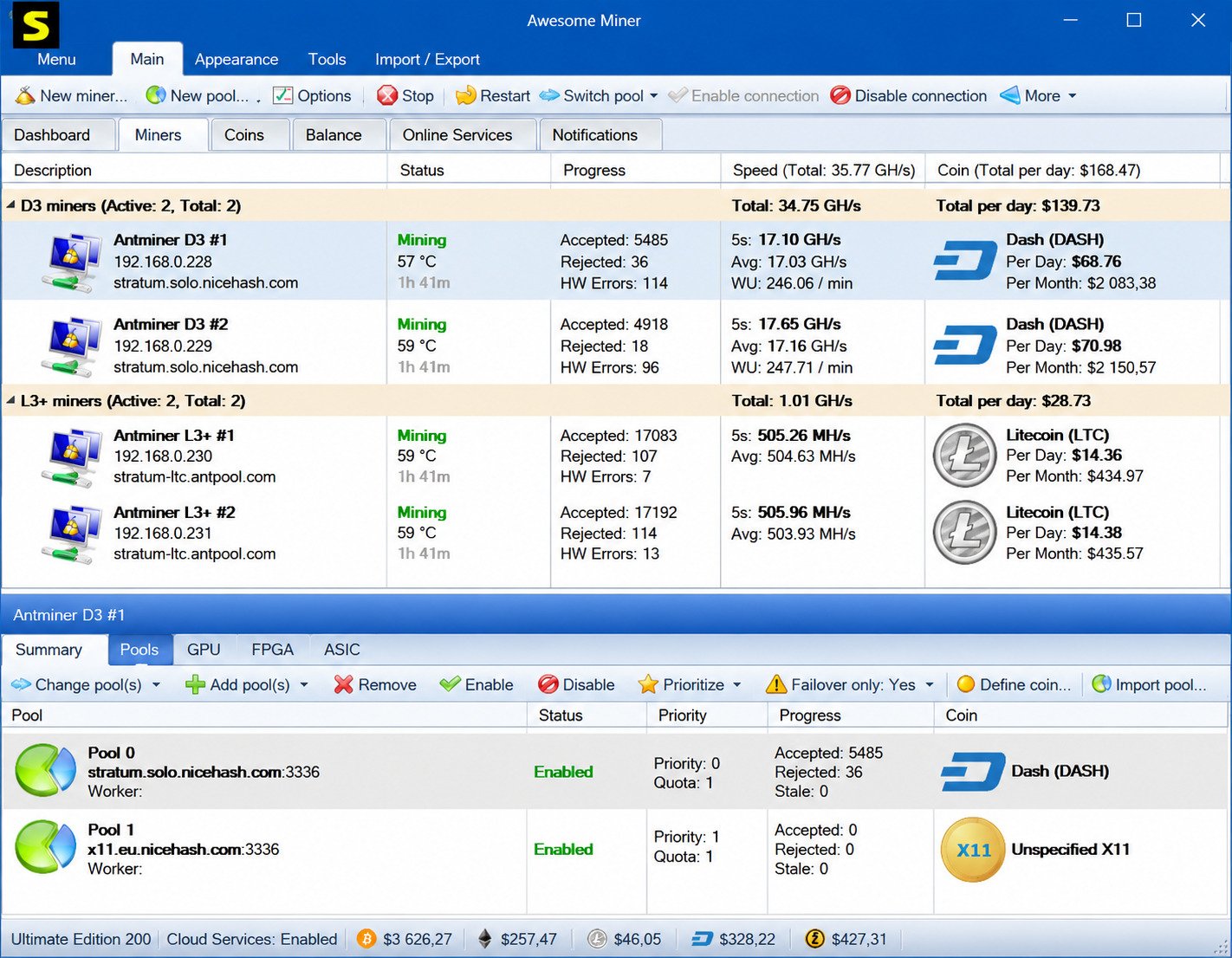
The ASIC-specific dashboard view highlights hashrate, rejected shares, and hardware errors per unit, which is often enough to flag a failing board before it takes the whole miner offline. Since Bitcoin ASIC mining is the most common use case, Awesome Miner puts particular focus here — it fully supports all Antminer models, including reboot, pool configuration, pause and resume mining, firmware upgrades, and LED flash. Temperature thresholds can be set per model, since different ASIC generations have different safe operating ranges, and alerts fire before a unit throttles itself or shuts down.
Awesome Miner Mining Pools and Profitability
Choosing and managing pools well can noticeably affect earnings, and this is an area where automation pays off.
Centralized Pool Credentials
Pool credentials for major providers can be saved once and applied across an entire fleet, cutting down on repetitive manual entry. If a pool starts having connectivity issues or rejecting an unusual number of shares, the monitoring layer surfaces that quickly instead of leaving you to notice a drop in payouts days later.
Live Profitability Tracking
Profitability tracking pulls in live market data to estimate revenue, which is far more useful than checking a static profitability calculator once a week. For ASIC-based Bitcoin mining specifically, Awesome Miner’s built-in profit switching is based on real-time revenue and power consumption, so miners automatically favor whichever coin or pool currently pays best. GPU profitability can shift quickly between algorithms, so the software’s ability to switch mining software and coins on the fly is particularly valuable for card-based rigs. Because ASICs are often locked to one algorithm, profitability tracking there focuses more on efficiency and pool selection than algorithm switching.
The built-in estimates work off your actual live hashrate and power draw rather than manufacturer specs, which tends to be more accurate than generic online calculators, and longer-term revenue charts help you evaluate whether a rig is still worth the electricity it’s consuming as difficulty rises over time.
Awesome Miner Download
Getting started begins with downloading the software from the official source. The developer regularly ships updates with new firmware optimizations, bug fixes, and hardware support, so it’s worth checking the version number after installing.
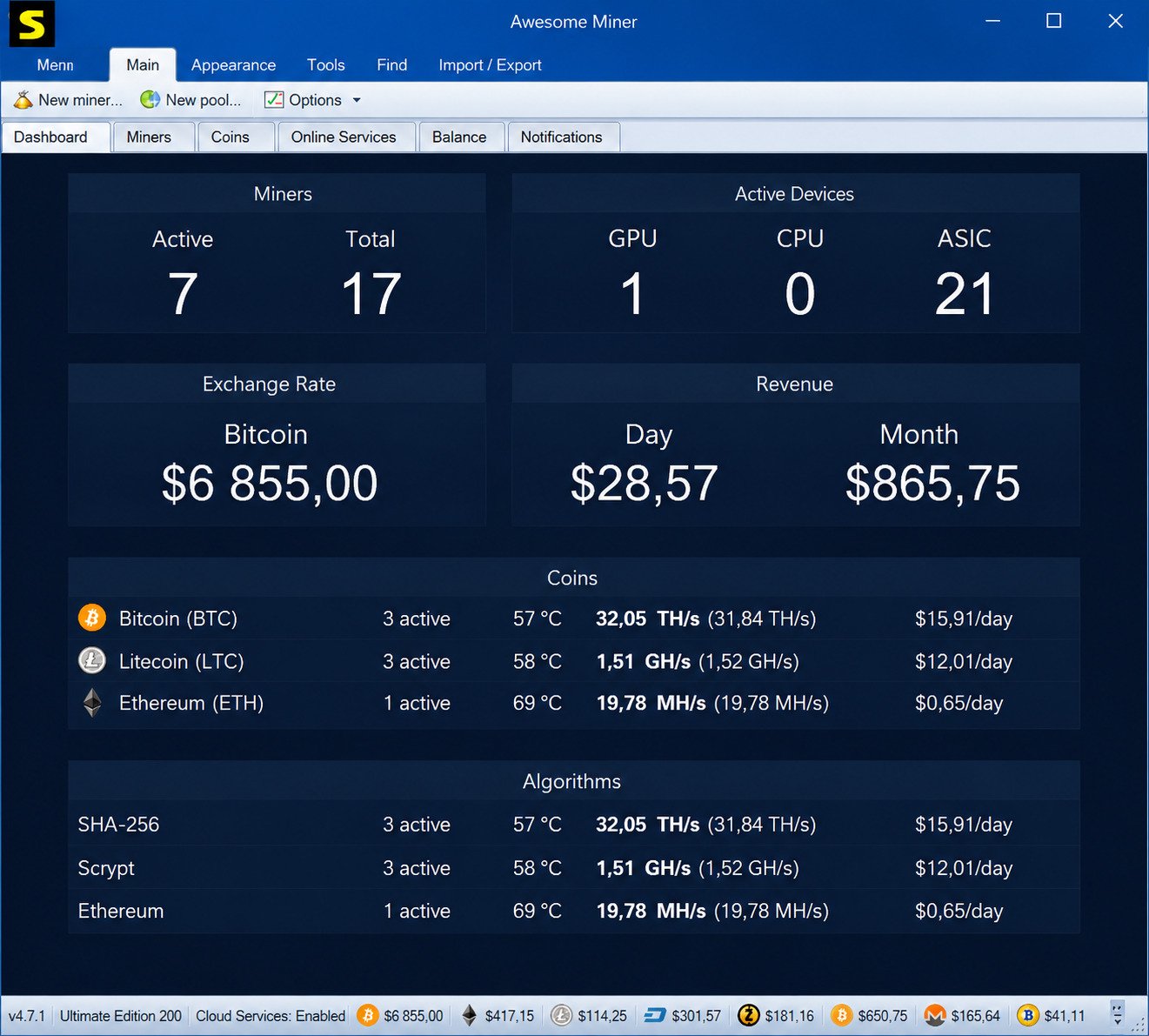
Free Tier and Where to Get It
Awesome Miner offers a free tier with core monitoring and management features, which is enough for most small-scale or hobbyist setups. Always download directly from the official Awesome Miner website rather than a third-party mirror, since mining software is a common target for malware bundling.
Windows 10, Windows 11, and Latest Release
The installer is a standard Windows executable. Current versions run on Windows 11 without issues, and Windows 10 remains fully supported as well, so there’s no need to upgrade your operating system solely to run the software. As of recent release notes, the software has continued adding optimized Antminer firmware with meaningful performance improvements for popular Antminer models, alongside general stability fixes.
Awesome Miner for Windows
Awesome Miner is, first and foremost, a Windows application, and that shapes how most people run it. On Windows 11, the software behaves like any modern desktop app, with no special permissions required beyond standard admin rights during installation. Windows 10 users make up a large share of the existing install base, and support here is considered mature and stable.
Because it’s Windows-native, Awesome Miner integrates cleanly with Windows services, letting it run in the background or start automatically on boot. Windows remains the most common operating system for GPU mining rigs generally, largely because GPU drivers and overclocking tools are most mature there. Even though ASICs run their own embedded firmware, the Windows machine running Awesome Miner acts purely as the control and monitoring hub — a single Windows PC, even a modest one, can typically handle monitoring duties for a large number of remote miners, since the heavy computational work happens on the mining hardware itself, not the management machine.
Awesome Miner Setup and Installation
Getting from download to a fully monitored rig involves a few clear steps.
- Install the application. Run the downloaded installer, accept the license terms, and choose an installation folder. The first launch will prompt you to start adding miners.
- Connect your first device. After installation, the software opens to a mostly empty dashboard until you connect a local GPU rig or a network-connected ASIC.
- Set up a GPU rig. Awesome Miner detects installed GPUs automatically. Select a mining engine and enter your pool details, and Awesome Miner generates the correct command-line configuration behind the scenes.
- Set up an ASIC. Enter the device’s IP address, or scan your local network — the software communicates through the miner’s existing management API, so nothing needs installing on the ASIC itself.
- Configure your pool once. Enter your pool address, port, and worker credentials a single time, then apply that profile to as many miners as needed.
- Add remote rigs (optional). To monitor rigs outside your local network, install the Remote Agent on each remote machine, which then reports back to your main Awesome Miner instance or the cloud dashboard.
How to Use Awesome Miner
Once everything is connected, day-to-day use is mostly about reading the dashboard and occasionally intervening. New rigs can be added manually by IP address or discovered automatically on the local network, depending on the hardware type.
From the rig list, right-click actions let you restart mining, change algorithms, or adjust overclocking profiles for one card or an entire group — the same context menu covers ASIC-specific actions like rebooting, pausing, resuming, and pushing firmware updates. The Summary tab gives an at-a-glance health check; drilling into an individual miner shows more granular logs and historical charts. Hashrate graphs update in near real time and can be viewed per device, per rig, or across your entire operation, and temperature columns are sortable, which makes it easy to spot the hottest-running unit in a large fleet at a glance.
Switching a rig’s pool takes just a couple of clicks, and can be scheduled or automated based on rules you define. The profitability view updates using current market prices, so you can see estimated daily or weekly earnings without doing manual math.
Awesome Miner Remote Monitoring and Cloud Services
For anyone managing miners that aren’t in the same room, remote tools are essential. The Remote Agent is a lightweight companion program installed on remote machines. It reports hardware status back to your main Awesome Miner installation and, importantly, still supports remote hardware monitoring and remote GPU overclocking. Because the Remote Agent handles the connection, you don’t need to open unusual ports or expose remote machines directly to the internet in most configurations.
This setup is common for miners who colocate hardware at a hosting facility but want to manage everything from home. Both GPU and ASIC hardware are supported through the same remote framework, so a mixed fleet doesn’t require separate remote tools — for larger operations, this remote layer is really what turns Awesome Miner from a single-PC tool into genuine farm management software.
Awesome Miner also offers a cloud-based option, giving a web-based interface to manage and monitor mining operations from any device, from any location, including mobile notifications.
Awesome Miner Mining Dashboard and Monitoring
The dashboard is where most users spend the bulk of their time in the application. Rigs are typically displayed in a sortable table, with color-coded status indicators that make problems visually obvious at a glance. Both GPU and ASIC devices appear in the same interface, though each has tailored columns relevant to its hardware — per-card temperatures for GPUs versus board-level errors for ASICs.
Historical statistics can typically be exported, which is handy for operators who need to report performance or troubleshoot patterns over time. Beyond the live number, hashrate history charts help distinguish a temporary dip from a genuine ongoing problem, and custom temperature thresholds trigger alerts that can be tied into the automation engine to pause a miner automatically before damage occurs. Per-pool statistics show accepted versus rejected shares, helping identify connectivity issues before they meaningfully affect payouts, and the profitability dashboard rolls individual miner performance into an operation-wide revenue estimate — useful for spotting your best- and worst-performing hardware.
Awesome Miner Versions, Licensing, and Registration
Understanding the licensing tiers helps you pick the right setup for your scale of operation. The free version covers core monitoring and management for a limited number of miners, while paid tiers unlock support for larger fleets and additional automation features. The top-tier license, Awesome Miner Ultimate, is aimed at commercial operations, unlocking the full miner limit and the complete automation and firmware toolset.
Registering the software ties your license to your installation, and upgrading later is usually as simple as entering a new registration code. Activation is handled online through the application itself, and license status is visible from the settings menu. Registration codes should only ever be purchased through the official Awesome Miner website — codes sold through unofficial channels carry both legal and security risks. Release notes typically cover new hardware support, firmware improvements, and bug fixes, and reviewing them before updating a large production fleet is generally good practice.
Awesome Miner on Other Platforms
While the core application is Windows-only, that doesn’t mean non-Windows users are entirely locked out. Windows remains the only platform for the full Awesome Miner desktop application itself, and there is no native macOS version — though Mac users managing remote ASICs can still interact with the web-based cloud interface from a browser. Running the Windows application inside a virtual machine on macOS is technically possible but isn’t officially supported, so results can vary.
Linux support exists specifically for the Remote Agent used in GPU rig monitoring, which has had beta-level Linux support in past releases, letting Linux-based rigs still report into a Windows-based Awesome Miner instance. This cross-platform piece is really the bridge that lets a mixed environment of operating systems all report into one central dashboard.
Awesome Miner Troubleshooting
Even solid software runs into hiccups, especially across varied hardware.
Hardware not detected: this is usually a driver issue rather than a software bug — make sure GPU drivers are current and that ASICs are on the same network segment as the Awesome Miner PC. GPU stats not updating: check that the correct monitoring API is enabled in your mining software’s configuration. ASIC connection failures: frequently caused by IP address changes after a router restart — a static IP or DHCP reservation for each ASIC avoids this entirely.
Remote Agent not connecting: firewall settings are the most common culprit; the Remote Agent needs outbound access to reach your central instance or the cloud service. Pool connection issues: double-check port numbers and worker credentials first, since a single typo in the pool configuration is the most frequent cause of failed connections. Hashrate looks wrong: confirm the mining software’s version is one that Awesome Miner officially supports, since older or unusual builds can report data in incompatible formats.
Awesome Miner Alternatives
Awesome Miner isn’t the only option, and depending on your setup, another tool might fit better. The most commonly compared alternatives are HiveOS, NiceHash, Minerstat, and Foreman, each with a different approach to mining management.
| Software | Best For | Platform | Free Tier |
|---|---|---|---|
| Awesome Miner | Mixed GPU + ASIC fleets, large farms | Windows | Yes, limited miners |
| HiveOS | GPU rigs, Linux-based OS approach | Linux-based OS | Yes, limited rigs |
| NiceHash | Beginners wanting simple hashpower renting | Windows | Yes |
| Minerstat | Cross-platform monitoring with mobile app | Windows/Linux | Limited free tier |
| Foreman | ASIC-heavy fleet monitoring | Web-based | Limited free tier |
Awesome Miner vs HiveOS
HiveOS replaces your rig’s operating system entirely with a mining-focused Linux distribution, while Awesome Miner runs on top of your existing Windows install. HiveOS tends to be popular for GPU-only farms; Awesome Miner’s edge is stronger native ASIC support alongside GPUs.
Awesome Miner vs NiceHash
NiceHash focuses heavily on simplicity and hashpower marketplace features, aimed more at beginners who want to start mining quickly. Awesome Miner offers deeper management and automation controls better suited to more advanced or larger-scale users.
Awesome Miner vs Minerstat
Minerstat offers a similar cross-platform monitoring philosophy with a strong mobile app, while Awesome Miner leans more heavily into ASIC farm management depth and its scripting engine for advanced automation.
Awesome Miner vs Foreman
Foreman is web-based and ASIC-monitoring focused, appealing to operators who prefer browser-based dashboards over a desktop application. Awesome Miner’s desktop-first approach offers more granular local control.
Best Mining Software by Use Case
There isn’t a single universal answer — the best choice depends on whether your fleet is GPU-heavy, ASIC-heavy, or mixed, and whether you prefer a desktop app or web dashboard. For sheer breadth of supported mining engines and hardware, Awesome Miner is frequently mentioned among the more comprehensive options available today, and its rig grouping and bulk actions are a strong fit if centralized control across a mixed hardware fleet is your priority.
For GPU-specific setups, both Awesome Miner and HiveOS are commonly recommended, with the choice often coming down to Windows versus Linux preference. For ASIC-heavy operations, Awesome Miner and Foreman are the two most frequently compared tools, largely due to their agentless connection methods. If monitoring alone — without deep automation — is all you need, Awesome Miner’s free tier already covers solid monitoring basics, and both Awesome Miner and HiveOS offer usable free tiers, making either a reasonable starting point before committing to a paid license.
Awesome Miner: Pros, Limitations, and Best Use Cases
Like any tool, Awesome Miner has clear strengths and a few trade-offs worth knowing before you commit.
✓ Advantages
- Genuine mixed-fleet support — GPU and ASIC together in one dashboard
- Strong automation: temperature-triggered pausing, pool failover, profit switching
- Free tier that’s actually useful, not a crippled trial
- Agentless ASIC connections keep large-fleet setup simple
- Scales from a single hobby rig to a 200,000-miner commercial farm
✕ Limitations
- Windows-only for the full desktop experience
- No native macOS version — remote cloud interface only
- Feature depth can feel overwhelming for basic monitoring needs
- Linux Remote Agent support is beta-level
For a single rig or two, the free version is likely more than enough, and setup takes only a few minutes. For larger, mixed-hardware farms, the paid tiers and automation engine start to pay for themselves through reduced downtime and less manual oversight. If you’re running a purely GPU-based, Linux-friendly setup and prefer an operating-system-level solution, HiveOS may suit you better. If you want the absolute simplest entry point into mining with minimal configuration, NiceHash is worth a look instead.
Awesome Miner FAQs
It’s used to centrally monitor and control GPU, CPU, and ASIC mining hardware from one Windows-based dashboard.
Yes, a free version exists with core features, while paid tiers unlock support for larger numbers of miners and advanced automation.
Yes, it supports GPU mining rigs with native overclocking for both AMD and NVIDIA cards.
Yes, it supports over 200 ASIC models, including all major Bitmain Antminer devices, without needing extra software on the ASIC itself.
Yes, it’s built for scale, with support for centralized management of large fleets from a single interface.
Yes, pool credentials can be set once and applied across many miners, with automatic switching based on rules you define.
Yes, current versions run smoothly on both Windows 11 and Windows 10.
Yes, it estimates profitability using your live hashrate, power data, and current market prices.
It’s a lightweight companion tool installed on remote machines so their hardware can report into your main Awesome Miner dashboard or the cloud service.
Yes, its scalability and automation features are specifically built with larger commercial farms in mind, alongside smaller hobbyist setups.
Final Thoughts
Awesome Miner earns its reputation by doing one job well: taking a messy pile of mining hardware and turning it into something you can actually keep track of. Whether you’re running two graphics cards or a warehouse full of ASICs, the ability to see everything — hashrate, temperature, pools, and profit — in one place saves real time and catches problems before they get expensive.
Verdict
If you’re just getting started, download the free version, connect a single rig, and get comfortable with the dashboard before scaling up. From there, the automation and remote monitoring tools become genuinely useful as your setup grows, rather than something you have to fight with from day one.
For more software downloads and guides, check out Mangayomi on SoftFolders. For a broader primer on how cryptocurrency mining works, Investopedia’s mining overview is a solid starting point.
2 Responses