Grub2Win Download, Setup & Windows 11 Dual-Boot Guide
If you’ve ever installed Linux alongside Windows only to find your PC boots straight into Windows with no option to choose, you already know why a proper boot manager matters. Grub2Win is a free, open-source tool that gives Windows users a graphical way to set up and manage dual-boot systems without touching the command line.
In this guide, you’ll learn what Grub2Win does, how to download and install it safely, how to dual-boot Windows 11 with Linux, and how to fix the most common boot menu problems.
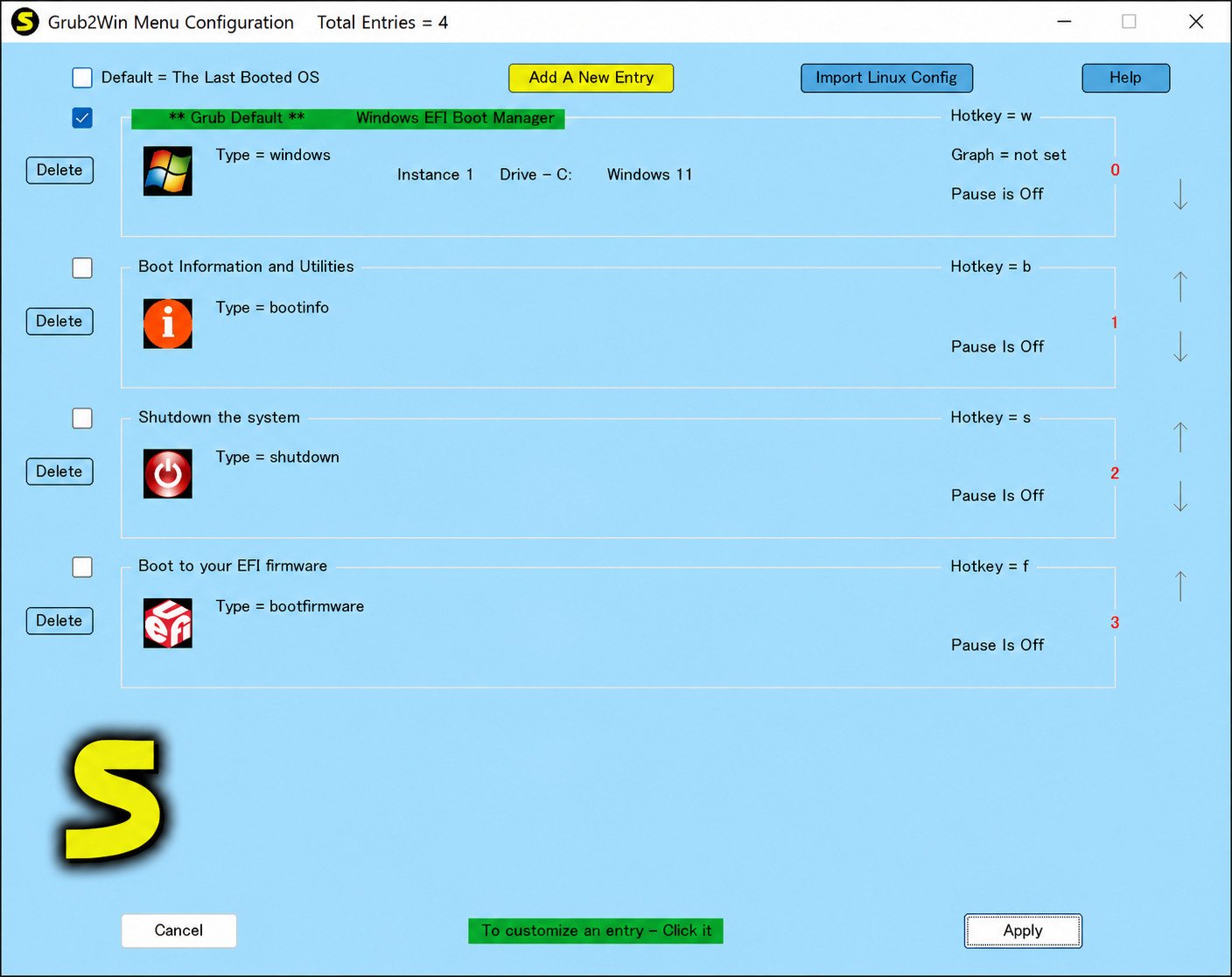
What Is Grub2Win?
Grub2Win is a free, open-source boot manager that lets Windows users install and configure GNU GRUB2 directly from a Windows GUI, without needing a Linux system to set it up.
It’s designed for people who want to run Windows and Linux (or even other operating systems) on the same PC and switch between them at startup through a simple boot menu.
Grub2Win Bootloader and Boot Manager
At a technical level, Grub2Win installs native, open-source GNU GRUB boot modules onto your system. On EFI systems, a handful of small modules go onto the EFI partition, while the rest of the program lives in a compact folder on your Windows C: drive.
GRUB vs Grub2Win: What Is the Difference?
GRUB (GRand Unified Bootloader) is the underlying open-source bootloader technology, normally configured through Linux. Grub2Win is a Windows-native wrapper around GRUB that lets you configure it entirely through a Windows interface, so you never need to boot into Linux just to edit boot settings.
Grub2Win Features for Dual Boot and Multiboot
Grub2Win isn’t limited to just two operating systems. It supports multiboot setups, meaning you can list several Linux distributions, Windows installs, or even ISO-based boot options in a single menu.
Windows and Linux Boot Manager Explained
A boot manager is the software that appears right after you power on your PC, letting you pick which installed operating system should load. Without one, your PC just boots into whatever the firmware defaults to — usually Windows.
Grub2Win Download and Latest Version
Grub2Win Download for Windows
Grub2Win should always be downloaded from its official website or its official SourceForge project page, both of which are maintained directly by the developer.
Grub2Win Free Download
Grub2Win is completely free and open source, released under the GPLv3 license, with no paid tier, trial limits, or hidden charges.
Grub2Win Latest Version and Latest Release
Grub2Win receives frequent updates that expand filesystem support and improve stability. Always check the official download page for the current build number before installing, since older third-party mirrors sometimes host outdated versions.
Grub2Win Offline Installer, EXE, and ZIP
Grub2Win is typically distributed as a small ZIP archive containing a setup.exe file. Once downloaded, you simply extract it and run the installer — no separate offline package is required.
Grub2Win’s legitimate downloads are hosted through its official site and SourceForge. Be cautious of unofficial GitHub repositories claiming to be “Grub2Win installers,” since third-party repackaged tools can carry outdated or altered code — stick to the verified official sources.
Grub2Win for Windows 11 and Windows 10
Grub2Win Windows 11 Download
Grub2Win supports Windows 11, including systems using modern UEFI firmware, making it usable on most current PCs shipped with Windows 11 preinstalled.
Grub2Win Windows 10 Download
Grub2Win also fully supports Windows 10 and, according to its official documentation, works on every Windows version going back to Windows XP.
Grub2Win UEFI and EFI Boot Support
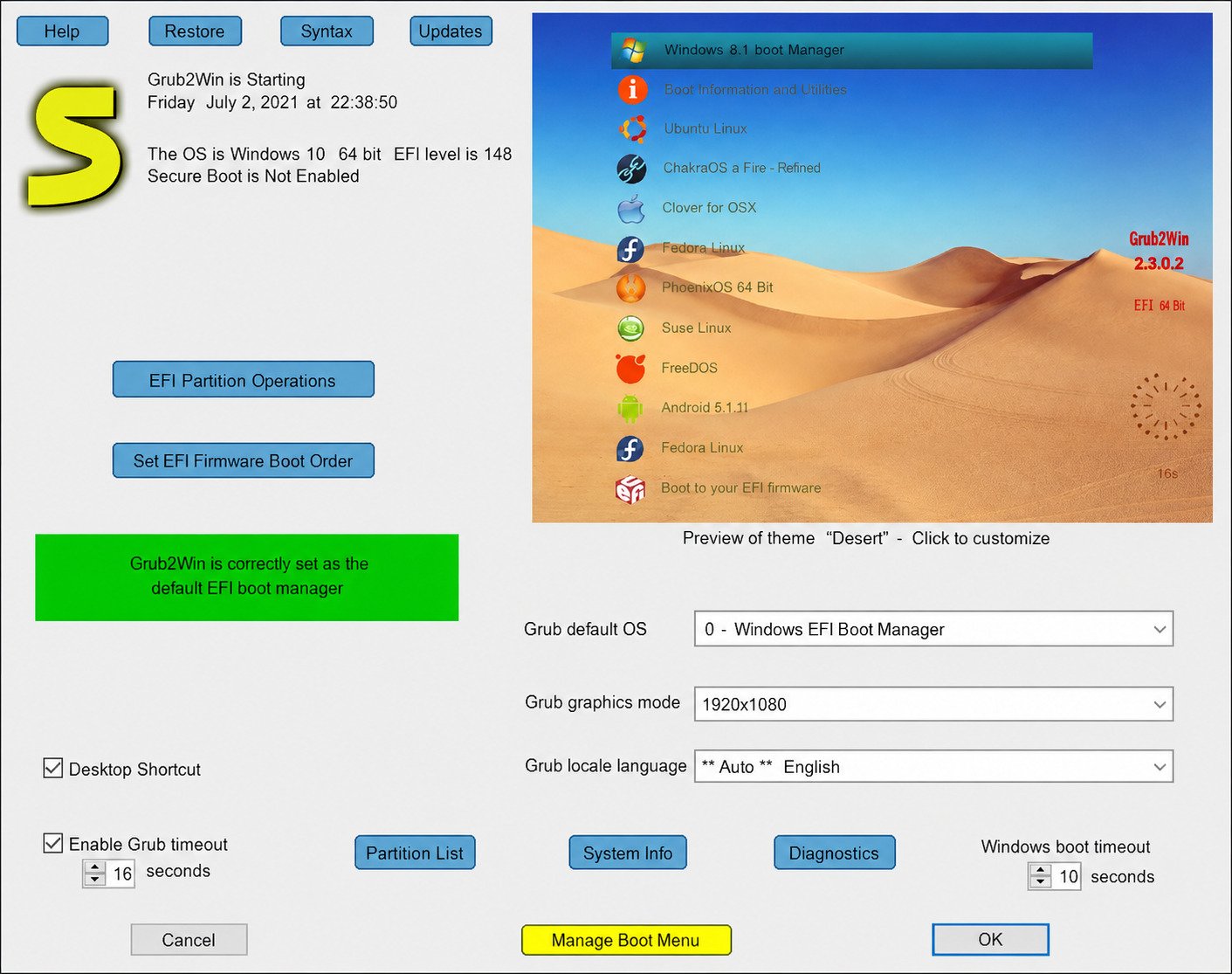
On UEFI systems, Grub2Win can adjust the EFI boot order so its menu appears at startup. Note that Secure Boot typically needs to be disabled in your firmware settings for this to work correctly.
Grub2Win Windows Boot Manager Integration
Rather than replacing Windows entirely, Grub2Win works alongside the native Windows Boot Manager, inserting itself into the boot sequence so you get a selection menu instead of booting straight into one OS.
How to Install Grub2Win on Windows
How to Install Grub2Win on Windows 11
- Download the Grub2Win ZIP file from the official site.
- Extract the folder and run setup.exe.
- Follow the installer prompts to complete setup.
- Restart your PC to see the new boot menu.
How to Install Grub2Win on Windows 10
The installation steps on Windows 10 are identical to Windows 11 — extract, run the installer, and restart.
Grub2Win Installation and Setup Guide
After installation, open the Grub2Win Manager app from your Start menu to configure language, graphics preferences, and menu timeout settings before your first restart.
Grub2Win UEFI Setup
If your PC uses UEFI, disable Secure Boot in your firmware settings first, then run the installer so Grub2Win can properly register itself in the EFI boot order.
Grub2Win Boot Menu Configuration
Inside the Manager app, click Manage Boot Menu to add, edit, or reorder the operating systems that appear at startup.
How to Dual Boot Windows 11 and Linux With Grub2Win
Windows 11 Linux Dual Boot Setup
To dual boot, you’ll typically install Windows 11 first, then install your Linux distribution alongside it in its own partition, and finally use Grub2Win to bring both into a single boot menu.
How to Add Ubuntu to Grub2Win
Grub2Win can automatically detect an existing Ubuntu installation and generate a matching menu entry, or you can import an Ubuntu ISO file directly to create one manually.
How to Add Linux to Grub2Win
For most major distributions, Grub2Win’s built-in detection tool scans your drives and creates the correct boot entries automatically.
How to Create a Windows and Linux Dual Boot
- Install Windows first.
- Shrink the Windows partition to free up space.
- Install your Linux distribution in the new space.
- Install and configure Grub2Win from within Windows.
How to Configure GRUB for Windows and Linux
Once entries are detected, you can reorder them, rename labels, and set which OS boots by default from the Grub2Win Manager screen.
Linux and Windows Dual-Boot Configuration
Grub2Win supports a wide range of filesystems including NTFS, FAT32, ext2, ext3, ext4, Btrfs, and HFS+, which covers the vast majority of Windows and Linux setups.
How to Use Grub2Win
Grub2Win Tutorial for Beginners
If you’re new to dual booting, start by installing Grub2Win after your operating systems are already set up, then let its automatic detection build the menu for you before making manual changes.
How to Configure Grub2Win
Settings like boot timeout, default OS, and graphics mode are all adjustable from the main Grub2Win Manager window.
How to Customize the GRUB Boot Menu
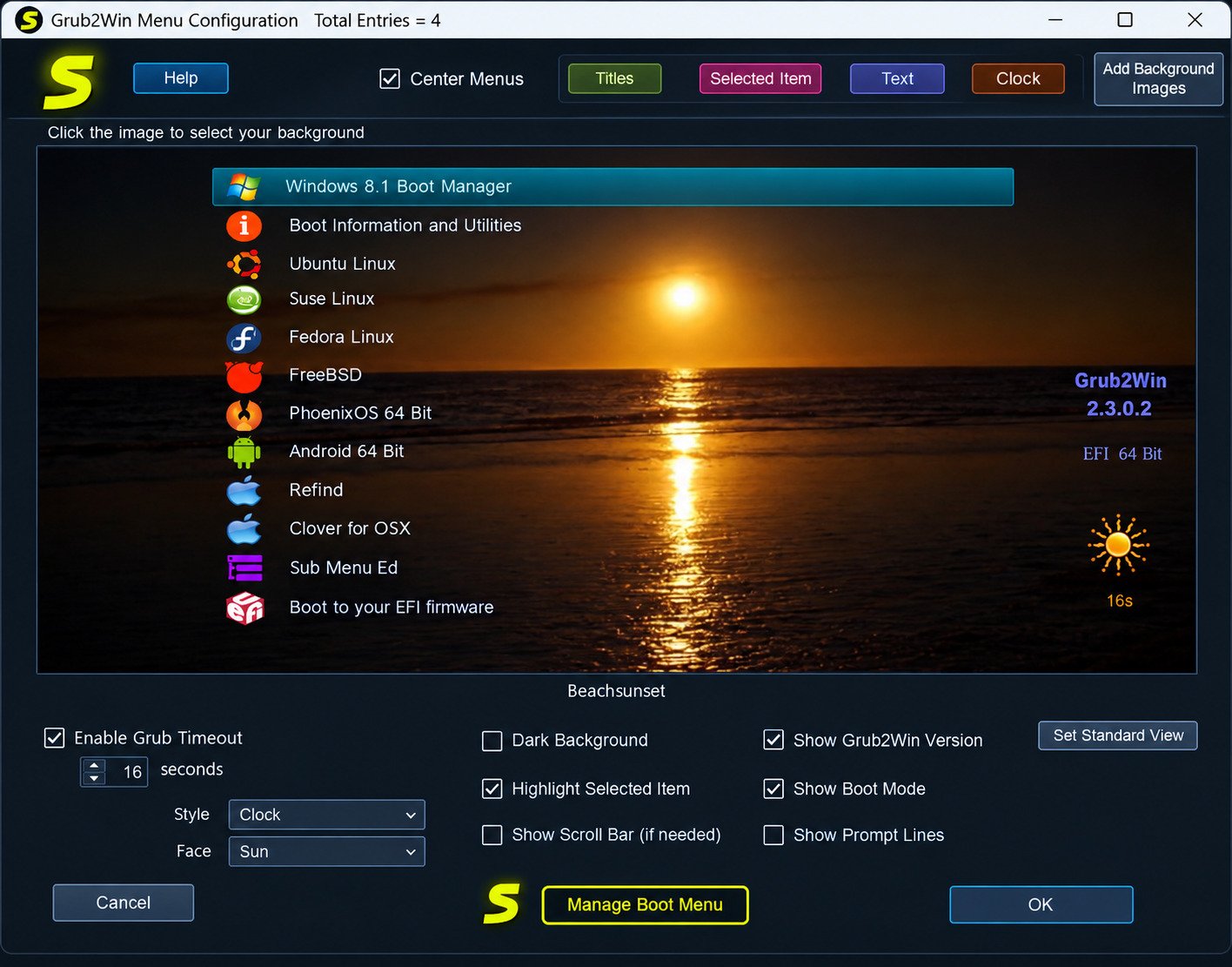
You can apply custom background images, choose from included themes, and adjust fonts to make the boot menu match your preference.
How to Manage Multiple Operating Systems
Every detected OS appears as a separate entry you can enable, disable, rename, or reorder without affecting the others.
How to Set Up Grub2Win as a Multiboot Manager
Beyond two operating systems, you can add several Linux distributions or ISO-based boot options into the same menu for a full multiboot setup.
Grub2Win Boot Menu and GRUB Configuration
GRUB Boot Manager and Bootloader
Underneath Grub2Win’s interface is standard GNU GRUB, one of the most widely used open-source bootloaders in the Linux ecosystem.
GRUB Boot Menu Customization
Menu entries, timeout duration, and visual themes can all be adjusted without editing configuration files by hand.
GRUB Windows Bootloader Configuration
Grub2Win writes and manages its GRUB configuration files automatically, saving you from manually editing grub.cfg the way you would on a pure Linux setup.
GRUB Multiboot and UEFI Boot
Grub2Win supports both BIOS and UEFI firmware in 32-bit and 64-bit configurations, which makes it flexible across older and newer hardware alike.
Windows Boot Manager vs GRUB
Windows Boot Manager is built for Windows-only or Windows Recovery scenarios, while GRUB (via Grub2Win) is designed specifically to handle mixed Windows-and-Linux boot menus.
Grub2Win Troubleshooting
Grub2Win Not Showing Linux
If a Linux install doesn’t appear, run the rescan/detection feature inside Grub2Win Manager, or manually add the entry through advanced settings.
Grub2Win Not Booting Linux
This is often caused by Secure Boot being re-enabled after a firmware update — disable it again and check the EFI boot order.
How to Fix the Grub2Win Boot Menu
If the boot menu doesn’t appear at all, reinstall Grub2Win, restart, and confirm it’s set as the default boot entry in your firmware settings.
Grub2Win Dual-Boot Troubleshooting
Most dual-boot issues trace back to either Secure Boot conflicts or a Windows update overwriting the boot order — reinstalling Grub2Win typically resolves this.
Grub2Win UEFI Boot Problems
Confirm Secure Boot is disabled and that Grub2Win’s EFI modules are still present on the EFI partition; a Windows update can sometimes reset this.
Grub2Win Windows 11 Boot Issues
Windows 11 feature updates occasionally reset boot order settings, so it’s worth checking your Grub2Win entry after major Windows updates.
Grub2Win vs Other Boot Managers
| Boot Manager | Free / Open Source | UEFI Support | Best For |
|---|---|---|---|
| Grub2Win | Yes (GPLv3) | Yes | Windows + Linux dual/multiboot |
| GRUB (native Linux) | Yes | Yes | Linux-first configuration |
| EasyBCD | Freeware (personal use) | Limited | Windows-focused multi-boot |
| rEFInd | Yes | Yes | macOS + Linux + Windows menus |
| Windows Boot Manager | Built into Windows | Yes | Windows-only recovery/boot options |
Grub2Win vs GRUB
Native GRUB is configured from within Linux using config files, while Grub2Win lets Windows users manage the exact same GRUB technology through a graphical Windows app.
Grub2Win vs EasyBCD
EasyBCD focuses on the native Windows Boot Manager and is best for Windows-centric multi-boot setups, while Grub2Win is built specifically around GRUB for Linux compatibility.
Grub2Win vs rEFInd
rEFInd is popular in macOS dual-boot setups and auto-detects boot loaders elegantly, while Grub2Win is more tailored toward Windows-plus-Linux configurations with deep GRUB customization.
Grub2Win vs Windows Boot Manager
Windows Boot Manager alone typically can’t cleanly present Linux boot options, which is exactly the gap Grub2Win is built to fill.
Best Dual-Boot Manager for Windows and Linux
For most users combining Windows and Linux, Grub2Win is a strong choice because it’s free, actively maintained, and configured entirely from Windows.
Best Multiboot Bootloader for Windows
If you need more than two operating systems in one menu, Grub2Win’s multiboot support makes it one of the more flexible free options available.
Pros
- Free and open source (GPLv3)
- Configured entirely from Windows
- Supports UEFI and legacy BIOS
- Detects most Linux distros automatically
- Supports multiboot with several OSes
Cons
- Requires disabling Secure Boot on UEFI systems
- Windows updates can occasionally reset boot order
- Less native than configuring GRUB directly on Linux
Grub2Win Alternatives
Best Grub2Win Alternatives
If Grub2Win doesn’t fit your setup, alternatives like EasyBCD, rEFInd, or native GRUB configured directly from a Linux installation are worth comparing.
Best Free Dual-Boot Managers
Free dual-boot tools generally differ in how much GUI control they offer versus requiring manual configuration files — Grub2Win leans heavily toward the GUI side.
Best Bootloader for Windows and Linux
For a Windows-first workflow, Grub2Win’s ability to configure everything without booting into Linux is a major advantage over pure GRUB setups.
Free Boot Manager Software for Windows
Look for open-source licensing, active development, and confirmed UEFI support when comparing free boot manager tools.
Frequently Asked Questions About Grub2Win
Yes, Grub2Win is completely free and open source under the GPLv3 license, with no paid version.
Yes, Grub2Win supports Windows 11, including systems that use UEFI firmware.
Yes, dual-booting Windows and Linux is Grub2Win’s core purpose, with automatic detection for most major distributions.
Yes, Grub2Win supports both UEFI and legacy BIOS firmware in 32-bit and 64-bit configurations.
Yes, Grub2Win supports multiboot setups with several Linux distributions, Windows installs, or ISO-based entries in one menu.
Download Grub2Win only from its official website or official SourceForge project page to avoid outdated or altered third-party copies.
Conclusion
Setting up a dual-boot system used to mean editing configuration files by hand and hoping nothing broke. Grub2Win removes that friction by putting the entire GRUB setup process into a simple Windows application anyone can follow.
If you’re planning to run Windows 11 alongside Linux, or you just want a boot menu that finally shows every OS installed on your PC, Grub2Win is worth trying. And if your dual-boot experiments ever leave behind corrupted files worth recovering, tools like Wondershare Repairit on SoftFolders can help you get them back.
2 Responses