SyncTrayzor Download, Features, Setup, and Alternatives (2026 Guide)
You have two Windows PCs, and the file you need is always on the other one. SyncTrayzor fixes that without sending your files to a cloud company. It is a free Windows tray app that wraps Syncthing, a private, open-source file sync tool.
This guide covers what SyncTrayzor does, where to download it safely, how to set it up, and what to do when sync stops working. It also covers the alternatives.
What Is SyncTrayzor?
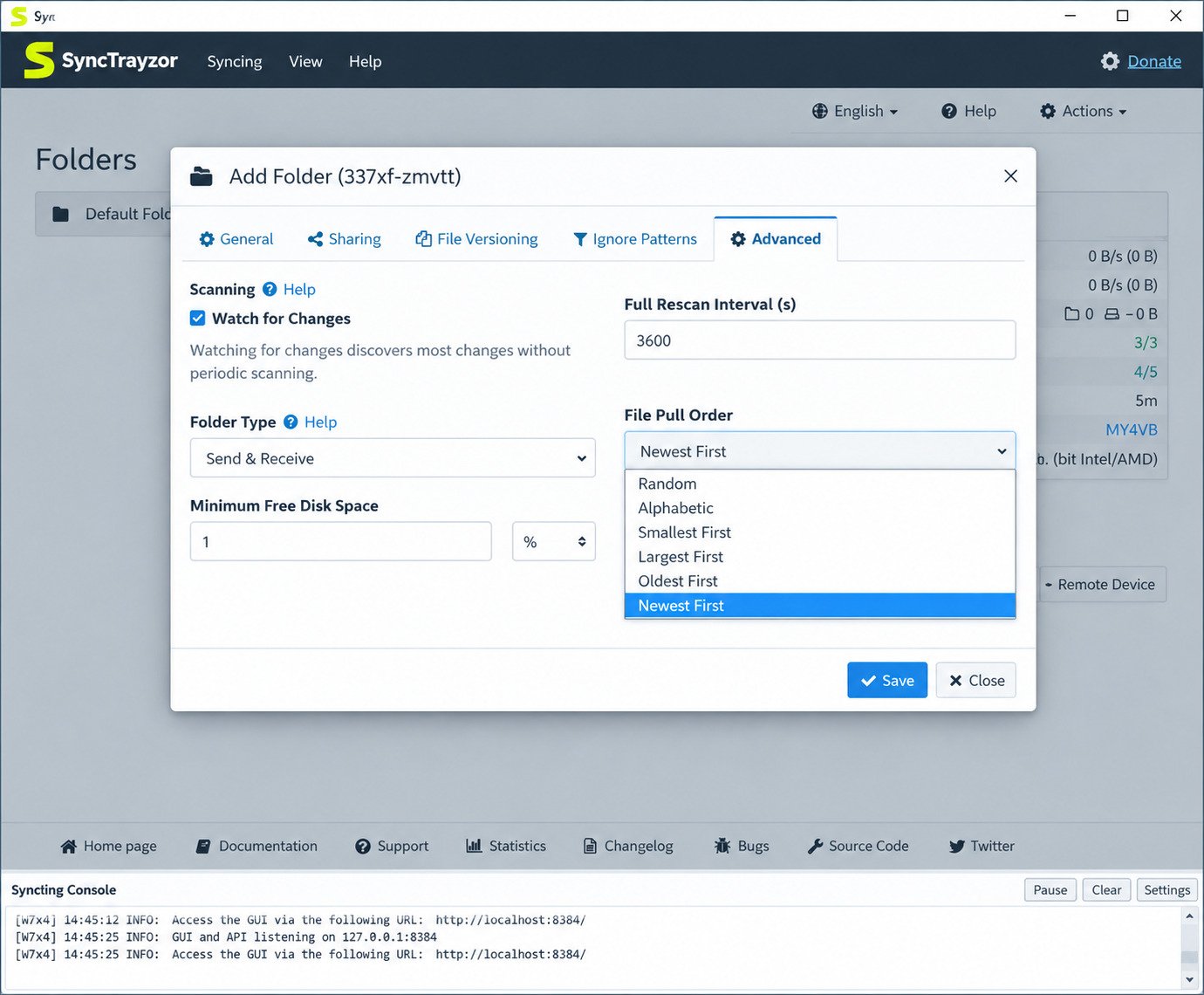
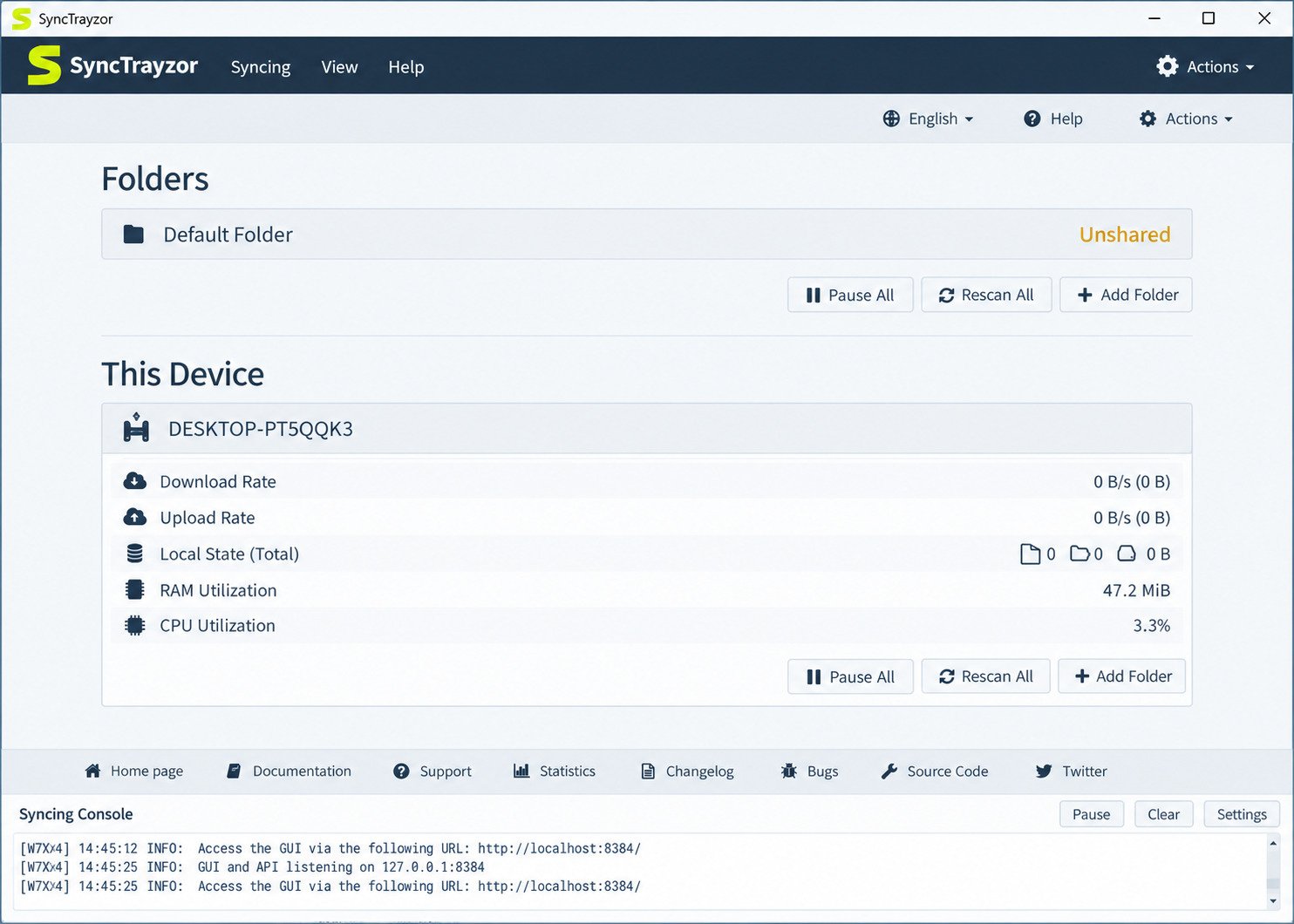
SyncTrayzor is a Windows tray utility that runs Syncthing and gives it a desktop-friendly wrapper. It launches Syncthing in the background, shows a tray icon, and displays the Syncthing interface in its own window.
What Does SyncTrayzor Do?
- Starts Syncthing automatically when Windows starts.
- Keeps it running quietly from the system tray.
- Shows sync status, notifications, and a conflict resolver.
It does not sync files by itself. Syncthing does the actual work.
What Is Syncthing Used For?
Syncthing keeps folders identical across devices, directly and privately. Files move between computers without passing through a company server. Read more in the official Syncthing documentation.
How SyncTrayzor and Syncthing Work Together
Think of Syncthing as the engine and SyncTrayzor as the dashboard. If SyncTrayzor closes, it shuts Syncthing down with it.
Who Should Use SyncTrayzor?
- Windows users who want a simple tray-based sync tool.
- People who prefer not to use the command line.
- Anyone who wants private sync with no subscription.
- Home and small-office users with a few devices.
Is SyncTrayzor Still Maintained?
Read this first. The original project is no longer active. Its GitHub repository was archived in August 2025. The last release, 1.1.29, runs on Windows 7 or newer.
Development continues in a fork. Its latest release, version 2.2.0, upgrades to .NET 10 and Chromium (CEF) 146, and improves the conflict resolver and the upgrade path from version 1.
Practical advice: On Windows 10 or 11, use the actively maintained v2 releases. Check the release page before downloading, because details can change.
| Version line | Status | Best for |
|---|---|---|
| 1.1.x (canton7) | Archived, read-only | Very old systems only |
| 2.x (GermanCoding fork) | Active | Windows 10 and 11 users |
SyncTrayzor Features
SyncTrayzor inherits most of its power from Syncthing and adds Windows conveniences on top.
File and Folder Synchronization
Pick a folder and a device, and both sides stay matched. New files, edits, renames, and deletions all carry over.
Automatic and Real-Time Sync
Syncthing watches folders and sends updates within moments, with a scheduled full rescan as a safety net. No sync button needed.
Two-Way (Bidirectional) Sync
Edit a file on PC A and it updates on PC B, and the reverse. Set a folder to Send Only or Receive Only for one-way flow.
Sync Across Multiple Computers
Each folder has its own device list, so one folder can sync laptop to desktop while another syncs desktop to a home server.
Shared Folders and Access Control
For every folder, you choose which devices may access it.
Windows System Tray Integration
This is the main selling point. The tray icon shows status at a glance, the app can start with Windows, and balloon notifications tell you when sync finishes.
Syncthing Management
Folder paths, devices, versioning, and ignore patterns live in the Syncthing interface that SyncTrayzor displays. SyncTrayzor adds its own startup and notification options.
SyncTrayzor vs. Syncthing
Short answer: Syncthing is the sync engine. SyncTrayzor is a Windows wrapper around it.
Syncthing Core vs. SyncTrayzor Interface
| Feature | Syncthing alone | SyncTrayzor |
|---|---|---|
| File sync engine | Yes | Uses Syncthing |
| Browser-based interface | Yes | Embedded window |
| Tray icon | Not by default | Yes |
| Auto-start with Windows | Manual setup | Built-in option |
| Conflict resolver | Limited | Built-in tool |
| Platforms | Windows, macOS, Linux | Windows only |
When Should You Use SyncTrayzor Instead of the Web Interface?
Choose SyncTrayzor for a set-it-and-forget-it Windows experience. Choose plain Syncthing if you use several operating systems, run a headless server, or want the smallest footprint.
Can SyncTrayzor Work Without Syncthing?
No. It launches and manages Syncthing, so it cannot sync files on its own.
How File Synchronization Works
The Basic Idea
Each device has a unique Device ID. Exchange IDs, approve the connection on both sides, then share folders. Syncthing finds the other device and starts matching files.
Syncing Between Two Computers
- Install SyncTrayzor on both PCs.
- Add each PC’s Device ID to the other.
- Share a folder from one PC.
- Accept the folder on the second PC and choose where to store it.
Syncing Across Many Devices
Add every device to every other device it should talk to, then share each folder only with the devices that need it. A few well-planned folders beat many scattered ones.
How Devices Find Each Other
Syncthing uses local discovery on your home network, plus global discovery servers and relays across networks. File data is encrypted in transit, and relays only pass along encrypted traffic.
SyncTrayzor Download, Installation, and Setup
How to Download SyncTrayzor
Download only from the project’s official GitHub releases page. Random “free download” sites sometimes bundle unwanted software.
- Installer (an .exe setup file)
- Portable (a .zip you unzip and run)
Pick the 64-bit build on a modern PC.
Is SyncTrayzor Free?
Yes. SyncTrayzor and Syncthing are both free and open source, with no licenses to buy. Syncthing uses the Mozilla Public License 2.0.
How to Install SyncTrayzor on Windows
- Download the installer from the official release page.
- Run the setup file.
- Follow the prompts and finish the install.
- Launch SyncTrayzor from the Start menu.
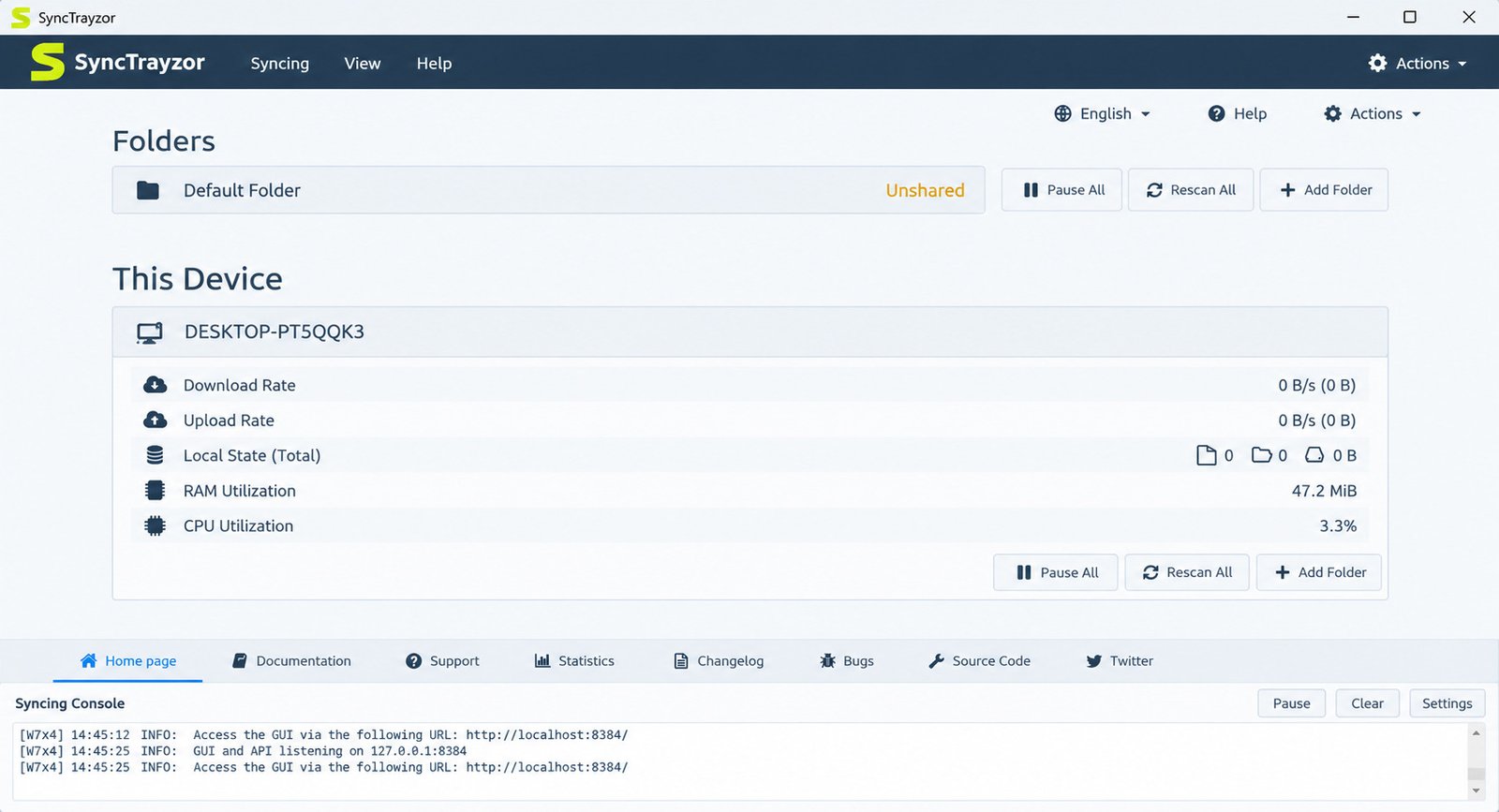
On first launch it starts Syncthing and opens the interface.
Initial Configuration
You will see Syncthing’s “Default Folder.” Keep it, change its path, or remove it. Then set a GUI password in Syncthing’s settings so nobody else on the PC or network can change your setup.
Handy SyncTrayzor Settings
- Start on login: syncing resumes after reboot.
- Start minimized: runs quietly in the tray.
- Notifications: choose what you hear about.
- Close to tray: closing the window will not stop syncing.
How to Use SyncTrayzor
How to Add a Folder
- Open the main window.
- Click Add Folder.
- Choose a label and the folder path.
- On the Sharing tab, tick the devices that should receive it.
- Save.
How to Add a Remote Device
- On PC B, find its Device ID in the Actions menu.
- On PC A, click Add Remote Device.
- Paste PC B’s ID and give it a name.
- Save, then accept the request on PC B.
How to Share a Folder Between Computers
Once devices are connected, edit the folder and select the second device on the Sharing tab. Accept the prompt on the other PC, choose a destination, and the initial sync begins.
How to Monitor Sync Status
The tray icon and main window show states like “Up to Date,” “Syncing,” or “Out of Sync.” Click a folder to see file counts and remaining data.
How to Pause or Resume Sync
Pause a single folder, a single device, or everything. This helps on metered connections or during large copies.
Managing Multiple Devices and Folders
Use clear labels like “Work-Docs” or “Photos-Archive” so five or six folders stay easy to tell apart.
Syncthing Configuration Through SyncTrayzor
Folder Types
| Type | What it does |
|---|---|
| Send & Receive | Full two-way sync |
| Send Only | Pushes changes out, ignores incoming edits |
| Receive Only | Receives changes, flags local edits |
File Versioning and Conflict Handling
Versioning keeps older copies of changed or deleted files. Options include Trash Can, Simple, and Staggered.
A conflict happens when the same file is edited on two devices before they sync. Syncthing keeps both copies and labels one “sync-conflict.” SyncTrayzor’s conflict resolver helps you compare and choose.
Ignore Patterns
An ignore file lists what you don’t want to sync, such as temp files, thumbnail caches, and node_modules folders. Patterns are set per folder in a file named .stignore.
Connection and Network Settings
The default sync port is 22000. If devices struggle to connect across networks, check that your firewall allows Syncthing and that discovery and relay options are on. You can also set bandwidth limits.
Advanced Options
Rescan intervals and permission handling are available, but the defaults suit most people.
SyncTrayzor Portable and Desktop Usage
Is SyncTrayzor Portable?
Yes. Unzip the portable build to any folder, including a USB drive, and run SyncTrayzor.exe. Its data folder stores your settings, so copy it when updating.
Running From the System Tray
You rarely need the main window. The tray icon opens the interface, pauses sync, or exits.
Windows Compatibility
| Windows version | Notes |
|---|---|
| Windows 11 | Recommended with v2.x |
| Windows 10 | Recommended with v2.x |
| Windows 7 | Only old 1.1.x builds; unsupported and outdated |
Caution: The v2 line runs on .NET 10, which Microsoft doesn’t support on Windows 7. Windows 7 also lacks security patches, so upgrading your OS is the better move.
SyncTrayzor Troubleshooting
SyncTrayzor Is Not Working
- Exit SyncTrayzor fully from the tray.
- Restart it.
- Update to the latest release.
- Make sure only one copy is running. Recent versions refuse to start when two copies from different folders share one config.
Config Version Errors
A message saying the config file is newer than supported usually appears when a standalone Syncthing was run before SyncTrayzor. A commonly reported fix is deleting the Syncthing folder in AppData\Local and restarting SyncTrayzor.
Caution: Back up your settings before deleting anything.
Devices Are Not Connecting
- Confirm both devices are running.
- Double-check the Device IDs.
- Allow Syncthing through the Windows firewall.
- Make sure both sides approved the connection.
Folders Are Not Synchronizing
- Check whether the folder is paused.
- Read the “Out of Sync” details.
- Confirm there is enough free disk space.
- Check that the shared folder path exists.
Sync Is Stuck or Slow
Large first-time syncs take a while because every file is scanned and hashed. Slow disks and weak Wi-Fi are common causes, and a wired connection helps.
How to Restart or Reset
Exit from the tray menu, then reopen. For a full reset, back up your data folder first, then clear the configuration and set up devices again.
Safety, Privacy, and Reliability
Is SyncTrayzor Safe?
When downloaded from the official GitHub page, it is considered safe. It is open source, so anyone can inspect the code.
Is Syncthing Safe for Syncing?
Syncthing encrypts device-to-device traffic with TLS and authenticates connections using device IDs. Only devices you approve can connect.
Best Practices
- Set a strong GUI password.
- Only share folders with devices you trust.
- Keep SyncTrayzor and Syncthing updated.
- Turn on versioning for important folders.
- Keep a separate backup for anything irreplaceable.
Sync is not backup. If you delete a file on one device, that deletion syncs everywhere.
SyncTrayzor for Different Needs
| Use case | Why it fits |
|---|---|
| Personal files | Free and private |
| Multiple PCs | Syncs folders across many devices |
| Home network | Fast local transfers |
| Small teams | Shared project folders |
| Continuous sync | Always-on background syncing |
A freelancer might sync a “Projects” folder between a desktop and a laptop. Someone else might mirror photos to a home server for safekeeping.
If your work also involves PDF preparation, read about tools like Enfocus PitStop Pro, then use sync to share finished files between your own computers.
SyncTrayzor Review
Ease of use: Good once set up. Pairing takes a few minutes, then daily use is nearly invisible.
Performance: Fast on local networks and reliable online. Initial scans of large folders are slow.
Windows integration: Strong. The tray icon, startup option, and notifications are the main draws.
Pros and Cons
Pros
- Free and open source
- Private, no cloud needed
- Tray integration
- Conflict resolver
Cons
- Windows only
- Original project archived
- Both devices must be online to sync
- Learning curve for beginners
Who Is It Best For?
Privacy-minded Windows users who want automatic sync without a subscription.
Best SyncTrayzor Alternatives
| Tool | Type | Good for |
|---|---|---|
| Syncthing (plain) | Same engine | Cross-platform use |
| Syncthing-Fork / Android app | Mobile | Phones |
| Resilio Sync | P2P sync | Large file transfers |
| FreeFileSync | Folder compare and sync | Scheduled or manual sync |
| Nextcloud | Self-hosted cloud | Teams wanting a web interface |
| OneDrive / Google Drive / Dropbox | Cloud storage | Easy sharing and web access |
How to Choose
- Do I need privacy or convenience?
- Do I need a web link to share files?
- Do I use more than just Windows?
For privacy and control, choose Syncthing or SyncTrayzor. For easy sharing with other people, a cloud service may suit you better.
Frequently Asked Questions About SyncTrayzor
It runs Syncthing on Windows and adds a tray icon, auto-start, and notifications.
Yes. Both SyncTrayzor and Syncthing are free, open-source software.
Yes. The actively maintained v2 releases are built for modern Windows.
Yes. Once folders are shared, changes sync in the background with no action from you.
Yes. Two-way sync is the default, and you can switch folders to send-only or receive-only.
Yes, when downloaded from the official GitHub page. Syncthing encrypts all device-to-device traffic.
Yes. A portable zip is available, so you can run it without a full install.
Final Thoughts on SyncTrayzor
SyncTrayzor makes private file syncing feel simple on Windows. It takes a powerful tool and gives it a friendly tray icon and sensible defaults. After setup, your files simply stay where you need them.
Before you install, confirm you are using the actively maintained version, set a password, and keep a separate backup. If you need something cross-platform or web-based, an alternative may suit you better. For most Windows users who value privacy, it remains a strong choice.
3 Responses