Cygwin Review and Guide: How to Download, Install, and Use Cygwin on Windows
Ever typed ls into Windows Command Prompt and watched it fail? Many developers hit that wall on their first day with Windows. Cygwin is the classic fix. It gives you a Linux-style command line without a virtual machine or a dual boot.
This guide covers what Cygwin is, how to install it, how to compile code with GCC, how to connect over SSH, and how it compares with WSL and MinGW. Every step is written so a beginner can follow it.
What Is Cygwin?
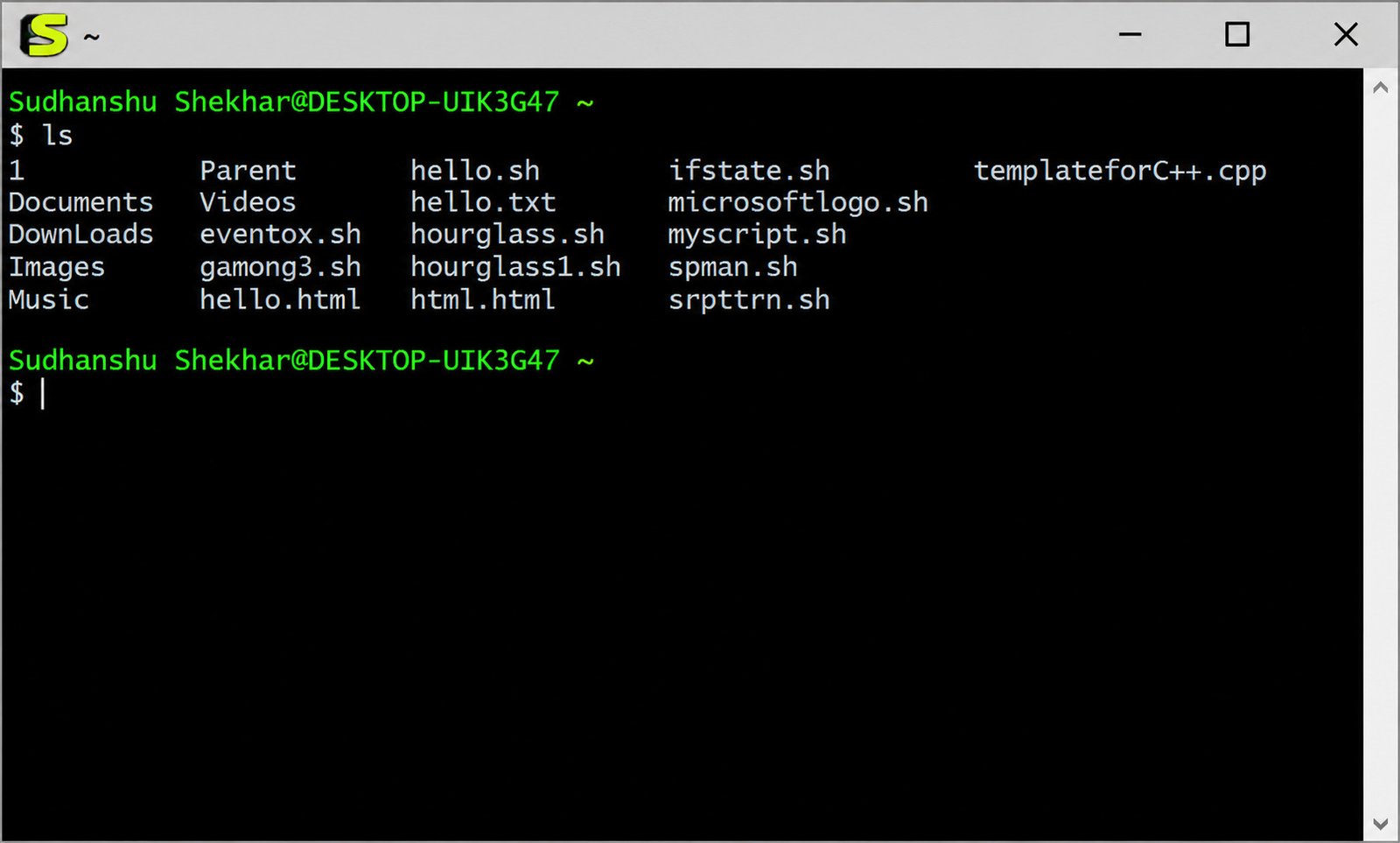
Cygwin is a Unix-like environment for Windows. You get Bash, GCC, SSH, grep, sed, and thousands of other tools in a normal Windows window. The official site describes it as a large collection of GNU and Open Source tools that provide functionality similar to a Linux distribution on Windows.
Understanding Cygwin and How It Works on Windows
Cygwin works through a translation layer. When a Unix program asks for something like fork(), the Cygwin DLL converts that request into something Windows understands.
Programs run as real Windows processes. That is why Cygwin feels lighter than a virtual machine.
Is Cygwin a Linux Emulator or a POSIX Compatibility Layer?
It is a POSIX compatibility layer, not an emulator and not a Linux kernel. Cygwin does not run native Linux binaries. As the project explains, you must rebuild your application from source if you want it to run on Windows.
So Linux software has to be compiled for Cygwin first. Most open-source tools already have been.
Cygwin Bash Shell, Unix Tools, and Command-Line Environment
The default shell is Bash. Around it sit the tools Linux users know well: grep, awk, sed, find, tar, vim, and curl.
You also get a Unix-style directory tree. Your Windows C: drive appears at /cygdrive/c.
What Can You Do With Cygwin?
People use it for many everyday jobs:
- Run shell scripts written for Linux or macOS
- Compile C and C++ programs with GCC
- Connect to servers over SSH
- Process text and log files with Unix tools
- Port open-source software to Windows
- Run graphical Linux programs through an X server
Who Should Use Cygwin?
Cygwin suits students learning Linux commands, developers porting Unix code, and system administrators who manage remote servers from Windows.
If you only need a quick Linux shell, WSL may be simpler. If you need deep POSIX behavior inside Windows, Cygwin still shines.
Key Features of Cygwin
Cygwin has been around for decades, and its feature list shows it. Here is what matters most.
Linux and Unix Commands on Windows
You can use familiar commands directly. Pipes, redirection, wildcards, and shell scripts all behave the way Unix users expect.
For example, ls -la | grep ".txt" lists text files in a folder, just as it would on Linux.
Bash Shell and Cygwin Terminal
The Cygwin Terminal is a window that opens Bash. It uses the mintty terminal, which supports copy and paste, colors, and Unicode.
It is much friendlier than the old Windows Command Prompt.
GNU Development Tools and GCC Compiler
Cygwin ships the GNU toolchain: GCC, G++, GDB, Make, and Binutils. You pick them during setup and compile code right away.
This is why many C and C++ students install it.
Package Management and Software Installation
All software comes through the Cygwin Setup program. You pick packages from a searchable list, and the installer handles dependencies.
The same program updates, reinstalls, and removes packages later.
SSH Client and Remote Access Tools
The openssh package gives you ssh, scp, sftp, and ssh-keygen. You can log in to Linux servers and copy files from one window.
POSIX Compatibility for Windows Applications
The DLL supports signals, pseudo-terminals, Unix file permissions, and fork(). Programs that depend on these features can often be rebuilt for Windows with few changes.
X11 Server and Graphical Application Support
Cygwin includes an X server (Cygwin/X). It lets you display graphical Unix applications on your Windows desktop, including programs running on remote machines.
Cygwin System Requirements and Compatibility
Check compatibility before you install. Newer Cygwin versions have dropped support for old Windows releases.
Does Cygwin Work on Windows 10 and Windows 11?
Yes. The project states that the Cygwin DLL works with all recent, commercially released x86_64 versions of Windows, starting with Windows 8.1. That includes Windows 10 and Windows 11.
Cygwin 64-Bit Support
Use the 64-bit installer, setup-x86_64.exe. A 32-bit installer exists, but the Cygwin team recommends it only in limited scenarios, with a minimum of packages, and only if there is no way to run 64-bit Cygwin.
Hardware and Disk Space Requirements
Any modern x86_64 processor works. A basic install uses roughly 1 GB of storage, and more if you add packages.
| Item | Recommended |
|---|---|
| Processor | Any modern 64-bit CPU |
| RAM | 2 GB or more |
| Disk space | 1 GB minimum, 5 GB or more for development |
| OS | Windows 8.1, 10, or 11 (64-bit) |
Internet Connection and Installation Requirements
The default installer downloads packages as you pick them, so you need internet access. You also need permission to write to your chosen folder. Administrator rights are best, though the setup tool offers a --no-admin option.
Can You Run Cygwin on Older Windows Versions?
Only with older releases. Cygwin 3.4.10 was the last version supporting Windows 7, Windows 8, Windows Server 2008 R2 and Windows Server 2012. The Cygwin install page lists archived mirrors for these systems, and I suggest reading it before trying.
How to Download Cygwin for Windows
Always download from the official site. Third-party download pages can bundle extra software or serve outdated files.
Where to Download the Official Cygwin Installer
Go to cygwin.com and use the install link. The official installer is a small file, and the same program is reused later for updates and new packages.
Choosing the Correct 64-Bit Cygwin Setup File
Pick setup-x86_64.exe for any modern PC. To check your system, open Settings, choose System, then About, and look at “System type.”
Understanding the Cygwin Setup Installer
The file is not the whole of Cygwin. It is a downloader and package manager. It fetches what you select, so the installer stays tiny while the final install can be large.
Can You Use Cygwin as a Portable or Offline Installation?
Partly. You can download packages once, then run Setup again in “Install from Local Directory” mode on other machines. This works well for offline labs.
True portable use is not officially supported, because Cygwin writes registry entries and expects a fixed root folder.
How to Install Cygwin on Windows 10 and Windows 11
The steps are the same on both systems. Plan for about ten minutes.
- Download the installer.
- Run it and click Next.
- Choose your options on each screen.
- Wait for packages to download.
- Open the terminal.
Run the Cygwin Setup Installer
Double-click setup-x86_64.exe. If Windows shows a security prompt, check the publisher and approve it. Then choose Install from Internet.
Choose the Installation Directory
The default root is C:\cygwin64. Keep it. Avoid paths with spaces or OneDrive folders, which can cause odd permission problems.
Select “All Users” unless you have a reason not to.
Select a Download Source and Mirror
Choose a mirror close to your country for faster downloads. If one mirror is slow or fails, run Setup again and pick another.
Configure the Local Package Directory
This folder stores downloaded package files. Put it somewhere safe, such as C:\cygwin-packages. You can reuse it later for reinstalls without downloading again.
Select and Install Required Packages
The package screen can look overwhelming. Start small. A solid beginner set:
gcc-coreandgcc-g++makegitvimornanoopensshcurlandwget
Click the “Skip” label beside a package to change it to a version number, which marks it for install.
Complete the Installation and Launch Cygwin Terminal
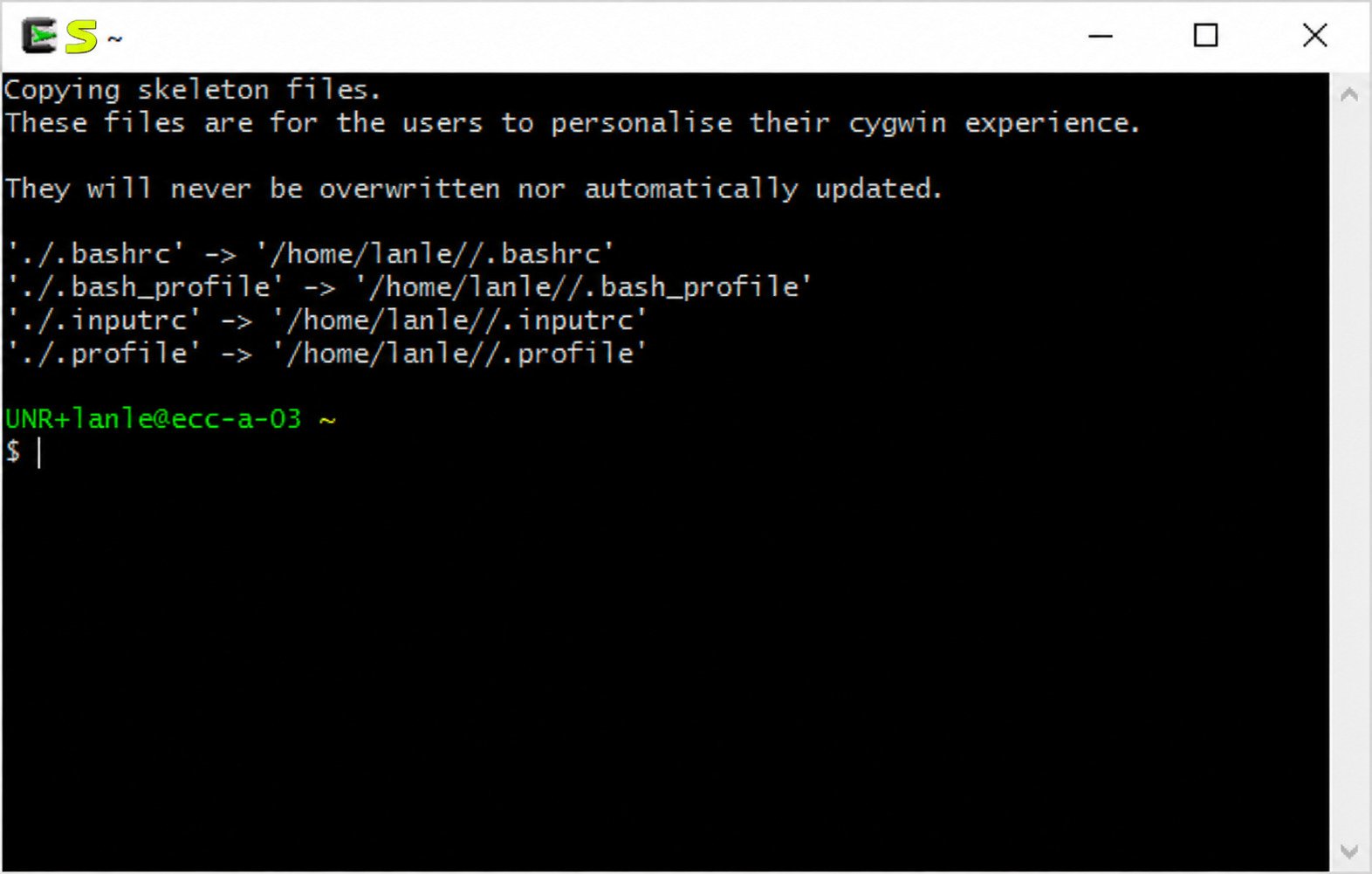
Click Next and wait. Allow the shortcut options, then open Cygwin64 Terminal from the Start menu. The first launch creates your home folder.
Verify That Cygwin Is Installed Correctly
Run these commands:
uname -a
bash --version
gcc --version
If each prints version details, everything works. The uname output should mention CYGWIN.
How to Use Cygwin on Windows
Once installed, you spend most of your time in the terminal. A few habits make it comfortable.
Getting Started With the Cygwin Terminal
Type pwd to see your current folder and whoami to see your user. Press the Tab key to complete file names, and the Up arrow to recall past commands.
Understanding the Cygwin Bash Shell
Bash reads your commands, runs programs, and executes scripts. Your settings live in ~/.bashrc. Edit it to add aliases such as alias ll='ls -la'.
Running Linux and Unix Commands in Cygwin
Try a few basics:
| Task | Command |
|---|---|
| List files | ls -l |
| Show a file | cat notes.txt |
| Search text | grep "error" log.txt |
| Copy a file | cp a.txt b.txt |
| Find files | find . -name "*.c" |
Navigating Windows Files and Directories
Windows drives appear under /cygdrive. To open your Documents folder:
cd /cygdrive/c/Users/YourName/DocumentsUse the cygpath command to convert between Windows and Unix paths.
Working With Files Using Cygwin Commands
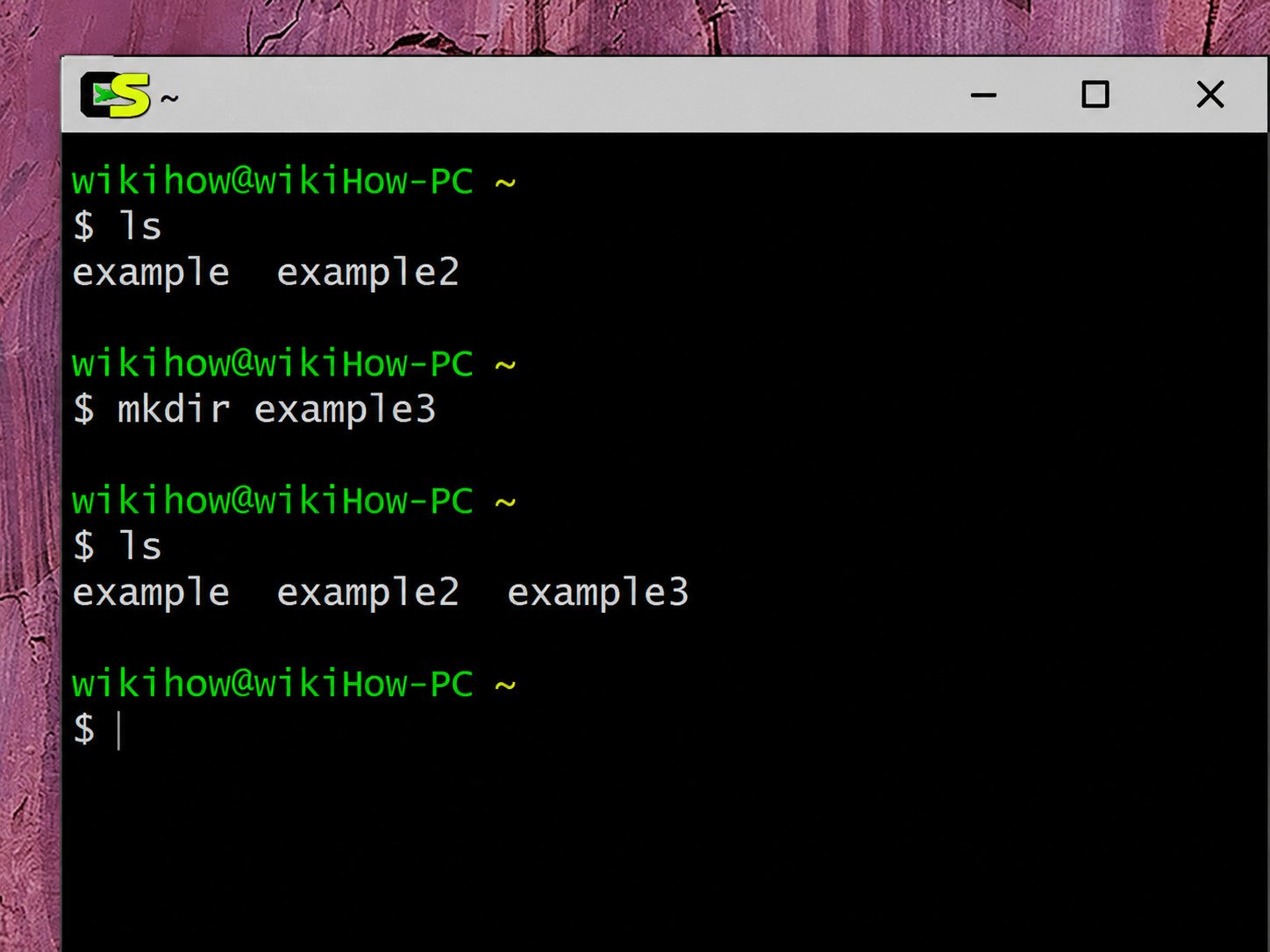
Use mkdir to create folders, mv to rename, and rm to delete.
rm does not use the Recycle Bin. Deleted files are gone.Using Cygwin From Windows Command Prompt
You can call Cygwin tools from Command Prompt by adding C:\cygwin64\bin to your Windows PATH. This is handy, but it can clash with native Windows tools that share names, such as find and sort.
Configuring Cygwin Environment Variables
Set variables inside Cygwin with export:
export PATH=$PATH:/usr/local/binAdd the line to ~/.bashrc to keep it permanently.
How to Install and Manage Packages in Cygwin
Cygwin has no apt or yum by default. The Setup program is the package manager.
How to Add Packages to Cygwin
The Cygwin FAQ says it plainly: run the setup program and select the package you want to add. Existing packages stay untouched.
How to Install Additional Unix and GNU Tools
Search for names like wget, rsync, tmux, python3, or make. Select them, click Next, and approve any dependencies.
How to Update Installed Cygwin Packages
Run Setup and keep the default selections, which are set to update installed packages. Close all Cygwin windows first. Windows does not easily allow overwriting of in-use executables, so updates can fail if the DLL is busy.
How to Search for and Select Packages
Use the search box and set the view to “Full.” Click the “New” column to cycle between Skip, Keep, and specific versions.
How to Reinstall or Remove Cygwin Packages
To reinstall, choose “Reinstall” in the Setup list. To remove, switch the package to “Uninstall.” Setup deletes its files cleanly.
Understanding the Cygwin Package Manager
Setup tracks every installed version and dependency. It also verifies downloads. Think of it as a graphical package manager that runs only when you call it.
Third-party helpers such as apt-cyg exist, though they are not official.
How to Install GCC Using Cygwin on Windows
GCC is the main reason many people install Cygwin.
Selecting the GCC Compiler During Cygwin Setup
In the package list, search “gcc.” Choose gcc-core for C and gcc-g++ for C++. Set both to the latest version.
Installing GCC and Required Development Packages
Also pick make, gdb, and binutils. Without them, builds often fail in confusing ways. Click Next and let Setup finish.
How to Check the GCC Version in Cygwin
Open the terminal and type:
gcc --versionA version number means the compiler is ready.
How to Compile and Run a C Program
Create a file named hello.c:
#include <stdio.h>
int main() {
  printf("Hello from Cygwin!\n");
  return 0;
}
Compile and run it:
gcc hello.c -o hello
./hello
How to Install Make and Other Build Tools
Select make, cmake, and automake in Setup. Then use make for projects that include a Makefile.
How to Add Libraries to GCC on Windows With Cygwin
Libraries come as packages. Search for names ending in -devel, such as libcurl-devel or zlib-devel. Install them, then link with the -l flag:
gcc app.c -o app -lcurlConfiguring Include and Library Paths
Use -I for header folders and -L for library folders:
gcc app.c -I/usr/local/include -L/usr/local/lib -lmylibFixing Common GCC Compilation Errors
| Error | Likely Fix |
|---|---|
gcc: command not found | Install gcc-core, reopen terminal |
fatal error: file.h not found | Install the matching -devel package |
undefined reference | Add the correct -l flag |
Permission denied | Check file permissions with chmod |
How to Configure SSH in Cygwin
SSH lets you control remote machines securely.
Installing the Cygwin OpenSSH Package
In Setup, search “openssh” and install it. Reopen the terminal afterward.
Configuring SSH Host Settings
To run an SSH server on your own PC, use the ssh-host-config script in an administrator terminal. For a normal client, you can skip this step.
Editing the SSH Client Configuration File
Create ~/.ssh/config and add shortcuts:
Host myserver
  HostName 192.168.1.20
  User admin
  Port 22
Now ssh myserver is enough.
Connecting to a Remote Server Through Cygwin
Run:
ssh user@hostnameAccept the host key on first use. Use ssh-keygen to create a key pair, then ssh-copy-id to install it on the server.
Troubleshooting Common SSH Connection Problems
- Connection refused: the server is off or the port is wrong.
- Permission denied: check your username, key, and file permissions.
- Timeout: a firewall may block port 22.
- Key too open: run
chmod 600 ~/.ssh/id_rsa.
How to Install and Use the Cygwin X Server
What Is the Cygwin X Server?
It is an X11 display server for Windows. Linux GUI programs send their windows to it, and you see them on your desktop.
Installing X11 Packages
In Setup, choose xorg-server, xinit, and xhost. Add xclock or xterm for easy testing.
Starting and Configuring the X Server
Open the terminal and run startxwin. An X icon appears in the system tray. Then set the display:
export DISPLAY=:0.0Running Graphical Linux Applications on Windows
Test it with xclock &. For remote programs, connect with ssh -X user@host, then launch the app. Its window shows up on your screen.
Cygwin vs WSL vs MinGW: Which One Should You Choose?
Cygwin vs WSL: Main Differences
WSL runs a real Linux kernel and Linux binaries. Cygwin runs Windows-native programs that use a compatibility DLL.
| Feature | Cygwin | WSL |
|---|---|---|
| Real Linux kernel | No | Yes |
| Runs Linux binaries | No, needs recompiling | Yes |
| Windows file access | Fast, native | Slower across file systems |
| Setup size | Small to medium | Larger |
| Package manager | Setup program | apt, dnf, and others |
Cygwin vs MinGW: Features and Compatibility
MinGW compiles programs that call Windows directly. There is no POSIX layer, so some Unix code will not build without changes.
Cygwin supports more Unix features and is easier for porting.
Cygwin vs MinGW for GCC Development
Programs built with Cygwin GCC depend on cygwin1.dll. Programs built with MinGW GCC usually do not. If you want to hand a program to someone with no extra files, MinGW often wins.
Which Environment Is Better for Linux Commands on Windows?
For pure Linux compatibility, WSL is the better pick. For quick native scripting, text processing, and tools that must touch Windows files directly, Cygwin is excellent.
Choosing the Right Tool for Software Development
- Linux servers as your target: WSL
- Porting Unix software to Windows: Cygwin
- Small native Windows apps: MinGW-w64
- Lightweight Git use: Git Bash
Is Cygwin Safe and Legitimate?
Yes, when you download it from the official source. Cygwin is open source and has been maintained for decades.
Is Cygwin Safe to Download and Install?
The official site publishes a signature file, so you can verify the installer. The project notes that the signature for setup-x86_64.exe can verify the validity of this binary.
Understanding the Cygwin1.dll File
cygwin1.dll is the heart of the system. It provides the POSIX layer that Cygwin programs depend on.
Why Cygwin Applications May Require Cygwin1.dll
Any program compiled with Cygwin GCC links to this DLL. If it is missing, the program will not start. Keep C:\cygwin64\bin on your PATH or place the DLL beside the program.
Where to Get Cygwin Updates and Packages Safely
Use only the Setup program and its official mirrors.
Common Cygwin Problems and How to Fix Them
Cygwin Terminal Not Opening
Run the terminal as administrator once. Check that antivirus is not blocking mintty.exe. If it still fails, reinstall the cygwin and mintty packages.
Cygwin Commands Not Recognized in Windows
Add C:\cygwin64\bin to your Windows PATH, then restart Command Prompt. In Cygwin itself, confirm the package is installed.
GCC Compiler Not Found or Not Working
Rerun Setup and verify gcc-core is installed. Then run which gcc. If nothing prints, your PATH is wrong.
Missing Cygwin1.dll Error
This usually means the program was built in Cygwin but is running outside it. Add the Cygwin bin folder to PATH, or rebuild with MinGW if you need a standalone file.
Package Installation and Download Errors
Try a different mirror, disable VPN or proxy tools, and clear the local package directory if a file is corrupt. Run Setup as administrator.
SSH Connection and Configuration Errors
Check the hostname, port, and key permissions. Add -v to the command for detailed output:
ssh -v user@hostCygwin Environment Variables Not Working
Edit ~/.bashrc or ~/.bash_profile, then run source ~/.bashrc. Remember that Windows variables and Cygwin variables are separate unless inherited.
How to Uninstall Cygwin From Windows
Cygwin has no regular uninstaller, so removal is manual. It takes about five minutes.
How to Uninstall Cygwin Completely
Close every Cygwin window and stop related services, such as sshd, if you used them. Then follow the steps below in order.
How to Remove Cygwin Packages and Files
If you only want to drop certain tools, run Setup and set those packages to “Uninstall.” Otherwise, continue to full removal.
How to Delete the Cygwin Installation Folder
Delete C:\cygwin64. If Windows reports locked files, restart and try again, or take ownership of the folder first. Also delete your local package directory.
Removing Cygwin From the Windows PATH
Open System Properties, then Environment Variables. Remove any entry pointing to cygwin64\bin.
Cleaning Up Remaining Cygwin Files and Shortcuts
Delete the Start menu and desktop shortcuts. You can also remove the registry key under HKEY_LOCAL_MACHINE\Software\Cygwin.
How to Verify That Cygwin Has Been Removed
Open Command Prompt and type bash. If the command is not found, and C:\cygwin64 no longer exists, removal is complete.
Pros and Cons of Cygwin
Advantages of Using Cygwin on Windows
- Free and open source
- Lightweight, with no virtual machine
- Huge package library
- Strong POSIX support
- Good for porting Unix code
- Direct access to Windows files
Limitations and Disadvantages of Cygwin
- It does not run native Linux binaries
- File operations can be slower than in Linux
- Apps depend on cygwin1.dll
- Dropped support for Windows 7 and 8
- A learning curve for new users
- Manual uninstall
Best Cygwin Alternatives
Windows Subsystem for Linux (WSL)
Best for a true Linux environment. You get distributions such as Ubuntu, along with apt and a real kernel. It is the usual choice for web and server development.
MinGW and MinGW-w64
Best for compiling native Windows programs with GCC. Programs run without a compatibility DLL.
MSYS2
MSYS2 combines a POSIX-like shell with MinGW toolchains and a package manager called pacman. Many developers find it modern and neat.
Git Bash
Git Bash is small and simple. It gives you Bash and basic Unix tools along with Git. It is not a full development environment, but it works for quick tasks.
Which Cygwin Alternative Is Best for Your Needs?
| Need | Best Choice |
|---|---|
| Real Linux on Windows | WSL |
| Native Windows .exe files | MinGW-w64 |
| Modern package manager | MSYS2 |
| Just Git and Bash | Git Bash |
| Porting POSIX software | Cygwin |
If you also like handy Windows utilities, you may enjoy our guide to SyncTrayzor, a tray app for running Syncthing.
For official documentation, visit the Cygwin project website.
Frequently Asked Questions About Cygwin
Is Cygwin free to use?
Yes. Cygwin is free and open source, and you can use it for personal and commercial work.
Is Cygwin available for Windows 10 and Windows 11?
Yes. Current versions support 64-bit Windows 8.1 and later, including Windows 10 and 11.
How do I download and install Cygwin?
Download setup-x86_64.exe from cygwin.com, run it, choose a mirror and packages, then finish the wizard.
How do I install GCC in Cygwin?
Run Setup again, search for gcc-core and gcc-g++, install them, and check with gcc --version.
Can Cygwin run Linux commands?
Yes. Bash, grep, sed, ssh, and most standard commands work inside the Cygwin terminal.
Is Cygwin better than WSL?
Not always. WSL is better for real Linux software, while Cygwin is better for native Windows integration and porting.
How do I completely remove Cygwin from Windows?
Delete the C:\cygwin64 folder, remove the PATH entry, delete shortcuts, and optionally clean the registry key.
Conclusion
Cygwin remains one of the most useful bridges between Windows and the Unix world. It is lightweight, free, and powerful once you learn the Setup program and the terminal. With GCC, SSH, and Bash in one place, many daily tasks become much easier.
Start with a small package set and grow it as you need more. Download only from the official site, keep your packages updated, and pick WSL or MinGW when they suit the job better. A tool that fits your work is the one worth keeping.