Renax: A Tiny Portable File and Photo Renaming Tool for Windows (2026 Guide)
Picture this. You just copied 300 vacation photos off your phone, and every file is named something like IMG_4471.jpg. Finding the sunset shot from day three feels like searching for a sock in a laundry mountain.
That is the exact headache Renax tries to fix. Renax is a free, portable file renaming tool for Windows that helps you rename files and photos one after another, in a clean and predictable order.
In this guide, you will learn what Renax does, how to use it, where it shines, where it falls short, and which alternatives make sense when you need more power. Everything here sticks to what is publicly known about the tool, so you can decide with confidence.
What Is Renax?
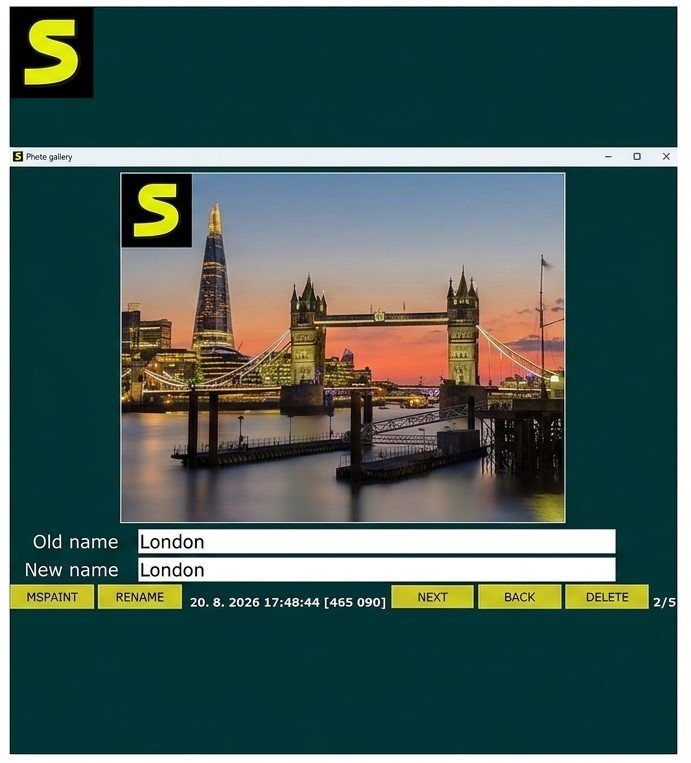
Renax is a lightweight, portable freeware utility for Windows that lets you rename a series of files in a folder, step by step. It needs no installation and works on regular files and photo files alike.
According to its Softpedia listing, Renax is a minimalist renaming utility built by Branislav Štofko. The download is a tiny ZIP file of about 100 KB, which makes it one of the smallest tools in the file management category.
Here is the idea in plain words. You place the program in a folder, run it, and it walks through the files in that folder. For each file, you type the new name you want. It is manual, but it is controlled and very hard to mess up.
Renax at a Glance
| Detail | What We Know |
|---|---|
| Type | File and photo renaming utility |
| Platform | Windows 7, 8, 10, and 11 (32-bit and 64-bit) |
| License | Freeware |
| Installation | None required (portable) |
| Download size | About 100 KB |
| Listed version | 26.07 (Softpedia, updated August 3, 2026) |
| Developer | Branislav Štofko |
| Best for | Careful, manual renaming in a single folder |
What Is Renax Used For?
People reach for Renax when they want to give files meaningful names without learning a complicated program. It suits anyone who values speed, simplicity, and a tool they can carry on a USB stick.
Think of it as a polite assistant. It shows you each file in turn and waits while you decide what to call it. There are no rules to build and no patterns to decode.
Renax as a File Renaming Tool
As a general file renamer, Renax handles everyday items such as documents, downloads, scans, and exported reports. You can clean up messy names like final_v2_REAL_final.docx and replace them with names that actually make sense.
The step-by-step flow also helps with sequences. If you are naming chapters, invoices, or lecture notes in order, you can keep the numbering consistent as you go.
Renax for Photo and Image Renaming
Digital cameras and phones create cryptic filenames. Renax lets you replace them with names you understand, such as Rome_Day2_Colosseum.jpg.
Because it works on filenames, it treats JPG and JPEG images like any other file. You choose the name, and the file is renamed. Nothing about the picture itself changes.
Who Should Use Renax?
Renax is a good fit for:
- Home users who want to tidy photo folders after a trip
- Students organizing notes, scans, and project files
- Freelancers who need clean client file names
- Anyone who wants a portable tool with no setup
- People who prefer to review every name before it changes
If you need to rename 10,000 files by rules in one click, you will likely want a heavier tool. We cover those later in this guide.
Key Reasons to Use Renax for File Organization
Good file names save time every single day. They make search faster, backups cleaner, and sharing less awkward. Here is why Renax earns a spot in your toolkit.
- It is free. No trial timer, no paywall.
- It is portable. Copy it, run it, delete it if you like.
- It is tiny. About 100 KB will not slow down any computer.
- It is calm. You see each file and decide, so surprises are rare.
- It is simple. There is almost nothing to learn.
Think of it like a sticky-note pen for your folders. It does one job, and it does that job without drama.
Renax Features
Renax keeps its feature list short on purpose. Based on public listings, the main strengths are portability, a small footprint, and a guided renaming flow.
Sequential Renaming Through a Folder
The core feature is simple. Renax goes through the files in a directory and lets you enter a new name for each one. This is the heart of the program, and it is why people describe it as step-by-step.
Rename Multiple Files Without Complex Rules
You can rename many files in one session. You are not pressing a single magic button, though. Instead, you move through the list, which keeps you in control of every result.
This is slower than rule-based renaming for huge batches. It is also safer for small and medium folders, because you never apply a wrong rule to a thousand files by accident.
Rename Files in a Folder
Renax works in the folder where you run it. According to Softpedia, the usage involves copying the executable into the directory where you want to rename files. That makes the target folder obvious, which helps avoid renaming the wrong thing.
Rename JPG and JPEG Files
Photo files with .jpg or .jpeg extensions are ordinary files from a renaming point of view. You can give them descriptive names so they are easier to find later in Windows Explorer or any photo app.
A quick tip: keep the extension unchanged unless you truly mean to change it. A wrong extension can stop a file from opening properly.
Lightweight and Portable Design
At roughly 100 KB, Renax is tiny. It runs from a folder, a flash drive, or a cloud-synced directory. There is no installer, no background service, and no leftover clutter.
Renax for Photo and Image Renaming
Photos are where renaming pays off the most. A folder of well-named images feels like a neatly labeled photo album. A folder of random numbers feels like a shoebox.
Rename Multiple Photos and Images
Because Renax steps through files in order, you can rename a whole event folder in one sitting. Start from the first photo and move forward. Your names stay consistent because you are doing it in a single flow.
Batch Rename Photos in Windows
A strict definition of batch renaming means applying one rule to many files. Renax takes a more hands-on approach. You rename a series of files in sequence, and you choose each name yourself.
If you want automatic date stamps from camera data, you will need a rule-based tool. Bulk Rename Utility, for example, advertises renaming photos using EXIF metadata such as the date a picture was taken.
Rename a Series of Photos
Series are Renax territory. Wedding shots, product photos, school projects, and travel albums all benefit from a clear order.
Try a pattern like this:
- Goa_2026_01_Beach
- Goa_2026_02_Market
- Goa_2026_03_Sunset
The pattern is easy to read, easy to sort, and easy to search.
Organize Images with Consistent File Names
Consistency matters more than cleverness. Pick one format and stick with it. Here is a simple comparison.
| Style | Example | Good For |
|---|---|---|
| Event + number | Birthday_001.jpg | Quick albums |
| Place + date | Lahore_2026-09-14.jpg | Travel archives |
| Project + version | Logo_v3.jpg | Design work |
| Person + topic | Sara_Graduation.jpg | Family collections |
Renax Batch File Renaming
Renax is not a rule-based bulk renamer, and it helps to say so clearly. It is a guided, sequential renamer. For many people, that is exactly what they need.
Rename Multiple Files at Once
Within a single run, you can work through every file in a folder. You do not have to restart the program for each item. That gives you a batch-like experience while keeping your hands on the wheel.
Rename a Group of Files Quickly
Speed comes from the lack of setup. You do not build rules, preview patterns, or hunt through menus. You open it and start typing names.
For a folder of 20 to 100 files, this is often faster than learning a new interface.
Rename a Series of Files in Order
If your files should end up in a certain order, such as lesson 1, lesson 2, lesson 3, a sequential tool makes sense. You decide the order as you go.
When to Use Batch Renaming
Use a sequential approach like Renax when:
- You have a small or medium folder
- Each file needs a unique, meaningful name
- You want to double-check every result
- You are working on someone else's computer and cannot install software
Use a rule-based tool when:
- You have thousands of files
- Names follow a repeatable pattern
- You need find-and-replace, case changes, or metadata-based names
How to Use Renax
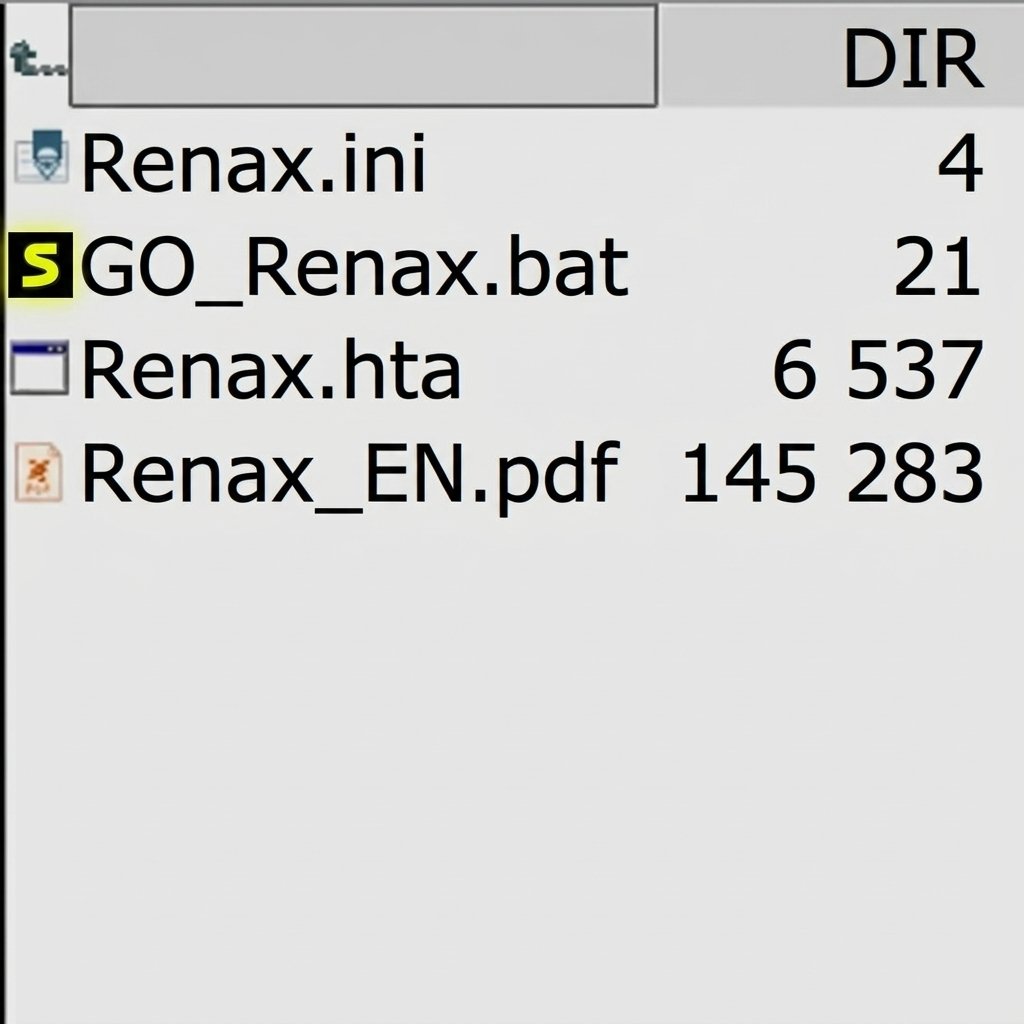
Download the ZIP, extract it, copy the Renax executable into the folder you want to organize, run it, and type a new name for each file when prompted.
How to Rename Files with Renax
Follow these simple steps:
- Download the Renax ZIP file and extract it.
- Open the folder that contains the files you want to rename.
- Copy the Renax executable into that folder.
- Run the program.
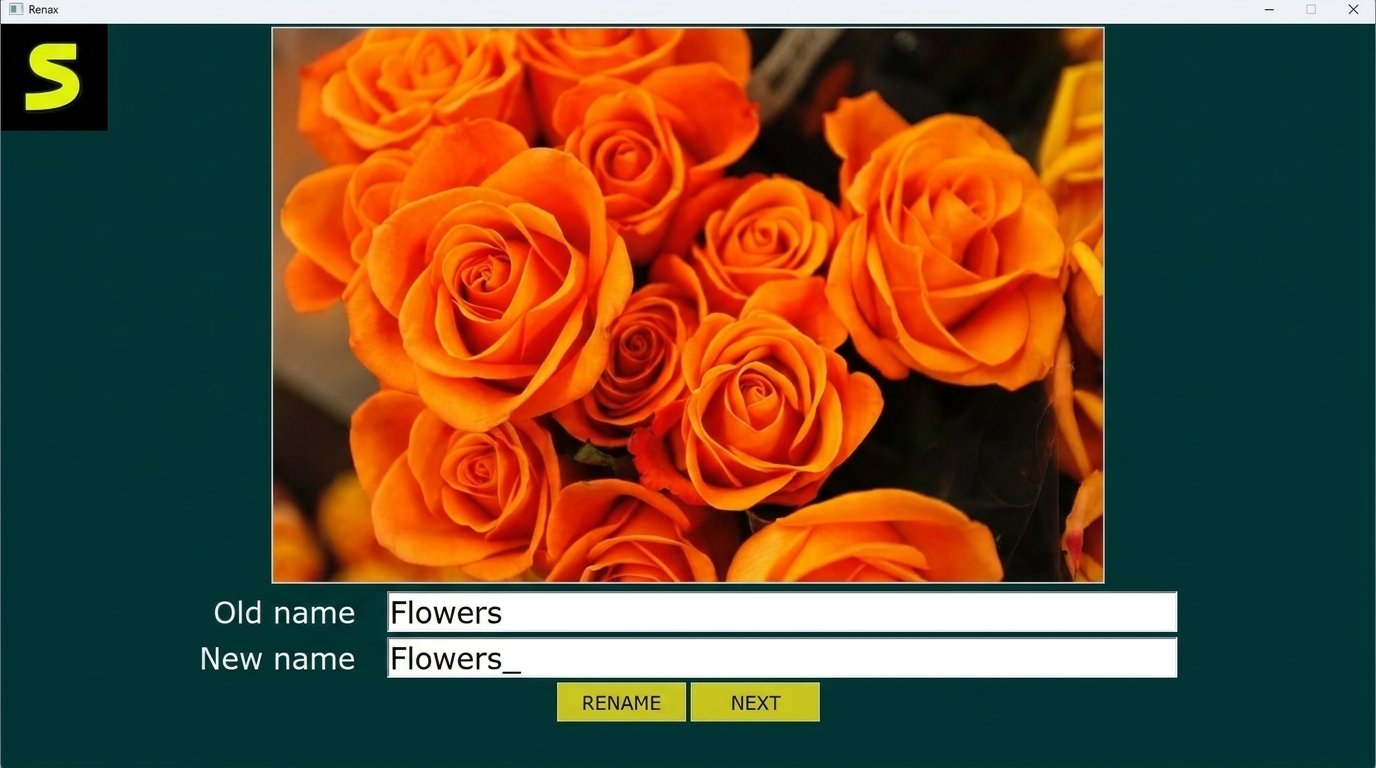
- When it shows a file, type the new name you want.
- Continue until you reach the end of the list.
How to Rename Photos with Renax
The steps are the same for photos. Before you start, open the folder in Windows Explorer with a large thumbnail view. That way you can see each picture and name it properly.
Make a plan first. Decide on a format, such as Place_Date_Number, and keep to it all the way through.
Practical Tips Before You Begin
- Work on a copy of your folder if the files are precious.
- Keep file extensions unchanged.
- Avoid characters Windows does not allow in names, such as slashes, colons, and question marks.
- Use short names. Long paths can cause problems in some programs.
- Rename in small groups if you feel unsure.
Renax for Windows
Renax is listed as compatible with Windows 11, Windows 10, Windows 8, and Windows 7, including 32-bit and 64-bit editions. That is a wide range for such a small tool.
Renax on Windows 11 and Windows 10
Both current Windows versions are listed as supported. Since the program is portable and tiny, it does not need special system components.
Renax on Older Windows Versions
Windows 7 and 8 appear in the compatibility list too. This helps if you maintain an older office computer or a spare laptop.
Renax as a Lightweight Windows File Renamer
Many modern tools weigh tens of megabytes. Renax weighs about 100 KB. For comparison, Advanced Renamer lists a Windows size of around 12 MB, and ReNamer Portable lists about 4 MB for its download. Renax is far smaller than both.
| Tool | Approx. Download Size | Style |
|---|---|---|
| Renax | 100 KB | Manual, sequential |
| ReNamer Portable | 4 MB | Rule-based |
| Advanced Renamer | About 12 MB | Rule-based, many methods |
Renax Portable and No-Install Use
Portable software runs without being installed. You do not need administrator rights in most cases, and you do not change your system settings.
Is Renax Portable?
Yes. Softpedia files Renax under Portable Software. Its working method involves copying the executable into whichever folder you want to rename files in.
How to Run the Portable Version
Extract the ZIP, copy the executable, and double-click it. When you are finished, you can delete the copy from the folder. Your files stay exactly where they were, only with new names.
Advantages of a No-Install File Renamer
- No installation steps
- No system changes
- Easy cleanup
- Works from a USB drive
- Good for shared or locked-down computers
Renax for Use from Removable Storage
Keep Renax on a flash drive and you can tidy up files on any Windows computer you sit at. This is handy for photographers, students, and IT helpers who move between machines.
Related reading: if you enjoy small utilities that sit quietly in the background, you may also like our guide to SyncTrayzor at https://softfolders.com/synctrayzor/ for keeping files in sync.
Renax Download and Setup
Always download software from a source you trust. Renax appears on Softpedia, a long-running software directory, with the file name RENAX_26_07_EN.zip.
Renax Download for Windows
The listed version is 26.07, updated on August 3, 2026. At the time of writing, we could only confirm 26.07 in public listings, so please always verify any newer version number. Check the developer's page or the listing for the newest build before downloading.
You can view the listing here: https://www.softpedia.com/get/PORTABLE-SOFTWARE/System/File-management/Renax.shtml
How to Set Up Renax
There is not much to set up. Extract the ZIP and you are done. There is no installer wizard and no license key.
Does Renax Require Installation?
No. It is portable, so you run it directly.
Quick Download Checklist
- Use a trusted listing or the developer's page.
- Confirm the file name and size match what is published.
- Scan the ZIP with Windows Security before opening it.
- Extract it to a normal folder.
- Test it on a few sample files first.
Renax Freeware and Licensing
Renax is listed as freeware with a price of zero. You can download and use it without paying.
Is Renax Free?
Yes. Softpedia lists the price as free.
Is Renax Freeware?
Yes, it carries the freeware label. Freeware means free to use, but not necessarily open source. Always read any license text that comes with the download.
Does Renax Require a Paid License?
Not according to its listing. Note that some alternatives differ. Bulk Rename Utility, for example, is free for personal use, but its site says business use needs a commercial license.
Renax File Renaming Workflows
Workflows help you stay fast. Here are three that work well with a manual, sequential tool.
The Photo Album Workflow
- Copy photos from your phone or camera to a new folder.
- Delete blurry duplicates first.
- Copy Renax into the folder.
- Rename each photo with a place, date, and number.
- Move the finished folder into your archive.
The Documents Cleanup Workflow
- Make a folder called To_Rename.
- Drop scattered downloads inside.
- Run Renax and give each file a clear name, such as Electricity_Bill_Sept_2026.pdf.
- Move them into proper folders.
The Project Files Workflow
For design or school projects, add version numbers at the end of names. That makes it clear which file is the latest one, and it avoids the dreaded final_final_v7 situation.
Renax for Different File Types
Renax works on filenames, so it does not care much what is inside the file. This is a strength.
Renaming JPG and JPEG Images
Both extensions are common for photos. Keep the extension as it is, and change only the part before the dot.
Renaming Digital Photos
Name photos by event and order, not by guesswork. If you want to include a date, write it in year-month-day order. That way, files sort correctly in Windows.
Renaming General Files
PDFs, Word documents, spreadsheets, and text files can all be renamed this way. Be careful with files that other programs depend on, such as project files or app data.
Organizing Files with Consistent Names
A good naming habit looks like this:
- Start with the topic
- Add the date in YYYY-MM-DD form
- Finish with a number or version
- Use underscores or hyphens instead of spaces
Renax for Photo Organization
Photo clutter builds up quietly. A sensible naming system turns it around.
Organizing Large Photo Collections
For very large archives, break the work into folders by year or event. Then use Renax inside each folder. Smaller folders feel less overwhelming, and the job gets done faster.
Renaming Photos After Importing Them
The best time to rename is right after import. Memories are fresh, and you remember where each shot was taken.
Creating Consistent Photo File Names
Choose a template and write it down. For example: Event_Year_Number. Then follow it every time.
Renaming Photos for Easier Searching
Windows search looks at file names. If your photo is called Sara_Graduation_2026_04.jpg, typing Sara or Graduation will find it right away.
When a Photo Renamer Is Useful
- After a trip or event
- Before uploading to a website
- Before sending files to a client
- When merging folders from different devices
Renax Tutorial for Beginners
Never renamed files in bulk before? Here is a gentle walkthrough that takes about five minutes.
A Simple Practice Run
- Create a folder called Renax_Test on your desktop.
- Copy five or six ordinary files into it, such as a few photos and a PDF.
- Copy the Renax executable into that folder.
- Run it and rename the first file.
- Repeat for the rest, then check the folder in Windows Explorer.
Once you see how it behaves on practice files, move on to your real folders with confidence.
Naming Ideas That Save Time
Good names are short, clear, and sortable. Here are a few ideas that work well:
- 2026-09-14_Invoice_Client-A
- Lahore_Trip_001
- Chapter_03_Notes
- Product_Photo_Blue_Front
Notice how each name tells you what the file is without opening it. Future you will be grateful.
Common Beginner Mistakes
- Deleting the file extension by accident
- Using different naming styles in the same folder
- Renaming files that another program still needs
- Skipping a backup of important files
Avoid these four, and you will be fine.
Renax Performance and Ease of Use
Is Renax easy to use? Yes. There is no learning curve to speak of. You open it and type names.
Is it lightweight? Absolutely. At about 100 KB, it starts quickly and barely touches system resources.
Renax vs More Complex File Renaming Tools
| Feature | Renax | Rule-Based Renamers |
|---|---|---|
| Setup | None | Often a longer setup |
| Learning curve | Very low | Moderate to high |
| Speed on huge batches | Slower | Much faster |
| Control over each name | Total | Depends on rules |
| Metadata renaming | Not advertised | Often included |
Complex tools win on automation. Renax wins on simplicity.
Renax Safety and Trustworthiness
Renax is listed on a known software directory as freeware from a named developer, but you should still scan any download before running it.
Is Renax Safe to Use?
We have no evidence of problems with Renax. That said, we have not performed our own malware analysis, and we cannot promise anything on behalf of the developer. Treat it like any utility: download carefully and scan it.
Does Portable Software Make Renax Safer?
Not automatically. Portable only means it runs without installing. A portable file can still be harmful if it comes from a bad source. The benefit is that it leaves fewer traces on your system.
What to Check Before Running a File Renaming Utility
- Where did you download it?
- Does the file size match the listing?
- Does Windows Security flag anything?
- Is the developer named?
- Do you have a backup of important files?
Because renaming changes real files on your disk, a backup is the best safety net you can have.
Renax Troubleshooting
Small tools can still hit snags. Here are the most common ones and how to fix them.
Renax Will Not Rename Files
- The file may be open in another program. Close it and try again.
- The file may be read-only. Check its properties.
- The new name may include illegal characters. Remove them.
- Another file in the folder may already have that name.
Renax Cannot Access a Folder
Some folders, such as those in Program Files, need administrator rights. Try running the program as administrator, or work in a normal folder like Documents or Pictures.
Renax Cannot Rename Photos
Make sure the photo is not open in a viewer or being synced by a cloud service at that moment. Pause syncing for a minute, rename, and then resume.
Renax Download or Startup Problems
- Extract the ZIP fully before running the program.
- Do not run it from inside the compressed folder.
- Check whether your security software has quarantined it.
- Try downloading again from the same trusted listing.
Common Renaming Problems and Fixes
| Problem | Likely Cause | Quick Fix |
|---|---|---|
| Access denied | Folder permissions | Run as administrator or move files |
| File in use | Open in another app | Close the app |
| Name rejected | Illegal character | Remove special symbols |
| Wrong order | Sorting differs | Check folder sort settings |
| Extension lost | Typed name replaced it | Add the extension back |
Renax Review
We looked at the public information, the tool's design, and the way it works. Here is our honest take.
Renax Pros and Cons
Pros
- Free and portable
- Extremely small
- Very easy to use
- Wide Windows compatibility
- Gives you full control over each name
Cons
- Manual, so slow for thousands of files
- No advertised rule-based tools or metadata renaming
- Limited public documentation
- Fewer features than established alternatives
Renax Photo and File Renaming Capabilities
For small and medium folders, it does the job well. For large automated tasks, it is not the best choice, and that is fine.
Who May Need a More Advanced File Renamer?
Photographers with huge libraries, IT admins, and anyone who needs date stamps, find-and-replace, or regular expressions should look at heavier tools.
Renax Alternatives
Need more power? These free tools are worth a look.
Best Renax Alternatives
| Tool | Highlights | License Note |
|---|---|---|
| Advanced Renamer | Rename files and folders in bulk, many methods | Freeware |
| ReNamer | Prefixes, suffixes, replacements, number sequences, regular expressions | Free for personal and educational use |
| Bulk Rename Utility | EXIF-based photo renaming, portable version | Free for personal use; commercial license for business |
Renax vs Other Windows File Renamers
Renax is the quiet, careful option. The others are powerful workshops. Pick Renax for simple jobs and portability, and pick an alternative when you need automation.
Portable File Renaming Alternatives
Bulk Rename Utility offers a portable, no-install version. ReNamer is also available as a portable package. Advanced Renamer has a portable edition listed too.
Frequently Asked Questions About Renax
Renax is used to rename files and photos in a folder, one after another. It suits simple, careful renaming jobs.
It renames many files in one session by stepping through them. It is not a one-click rule-based bulk renamer.
Yes. It is listed as freeware and runs without installation.
Yes. Both are listed as supported, along with Windows 8 and 7.
Yes. It works on filenames, so photos with those extensions can be renamed like any file.
Softpedia lists version 26.07, updated August 3, 2026. Check the developer's page for anything newer.
There are no known issues, but always download from a trusted source and scan the file first.
Final Verdict: Is Renax a Good File and Photo Renaming Tool?
Yes, for the right job. Renax is a small, free, portable renamer that makes careful manual renaming painless.
Best Reasons to Use Renax
- Zero setup
- Tiny size
- Free
- Full control
Best Use Cases for Renax
- Tidying a photo folder right after a trip
- Cleaning up a messy Downloads folder
- Naming scanned documents one by one
- Working on a computer where you cannot install software
- Preparing a small set of files to send to a client
When to Consider an Alternative
Choose another tool if you need automatic rules, metadata, or thousands of renames in one go.
Conclusion
Renax proves that a useful tool does not need to be big. It opens fast, asks for one thing at a time, and leaves your folders cleaner than before. For many everyday jobs, that is all you want.
Try it on a small folder first and enjoy the calm of seeing tidy names. When your needs grow, you can move to a bigger renamer without regret. Until then, a tiny tool can feel wonderfully satisfying. Small steps, tidy folders, and a lighter mind.
2 Responses