USB Device Viewer – View USB Devices, Ports, Hubs & Hardware Information
Plug in a USB drive, a webcam, or a printer, and Windows usually “just works.” But the moment something doesn’t work — a device isn’t detected, a port feels slow, or a driver keeps failing — you need more than a guess. That’s where a USB device viewer comes in.
A USB device viewer is a tool that shows you exactly what’s plugged into your computer, which port and hub it’s using, and the technical details Windows normally hides from you. Whether you’re a curious user or an IT technician chasing a stubborn connection issue, this guide walks you through everything: how to view connected USB devices, read a USB device tree, check ports and hubs, and troubleshoot problems using both built-in Windows tools and dedicated USB viewer software.
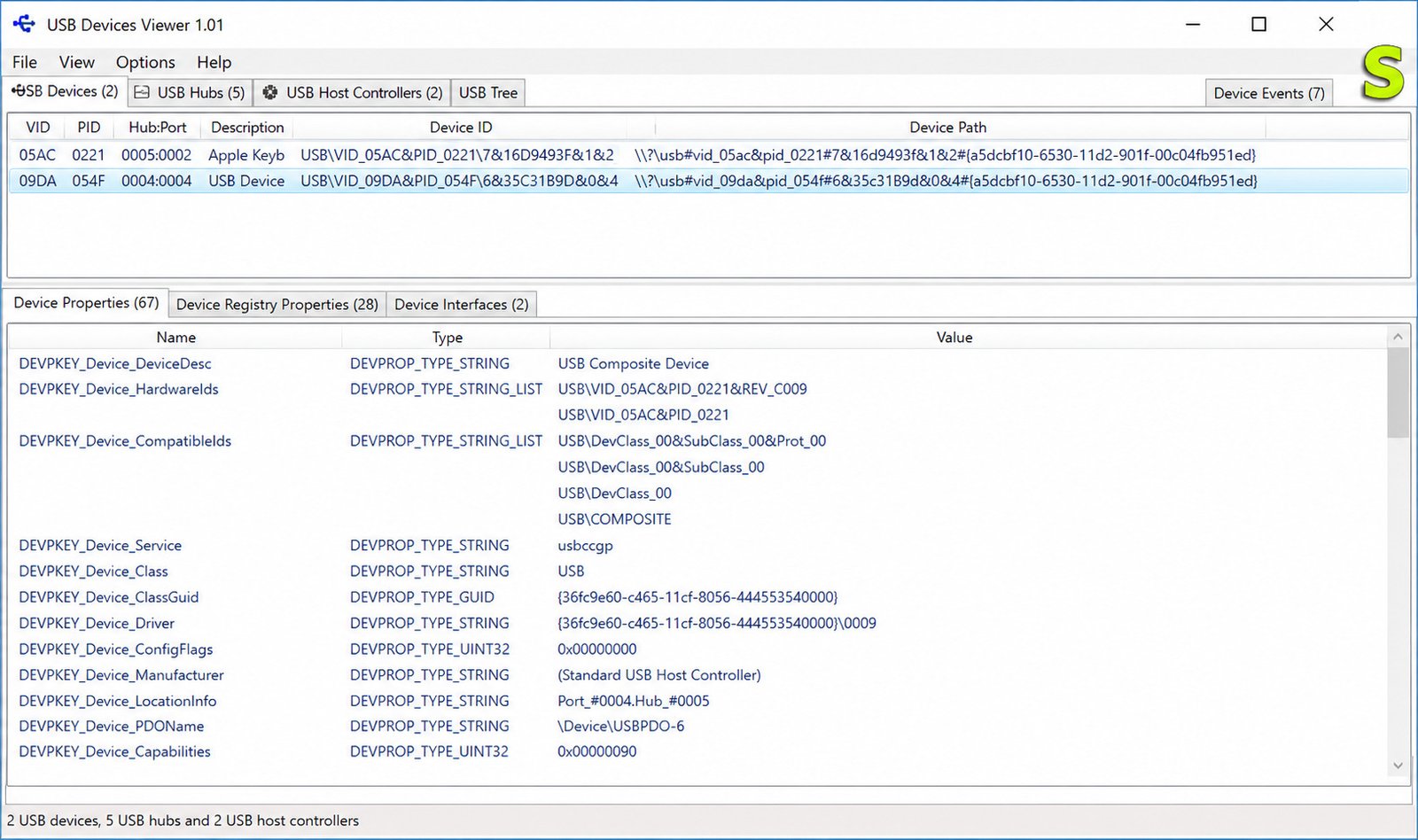
What Is a USB Device Viewer?
A USB device viewer is software that lists every USB device connected to your PC — right now or in the past — along with technical data like device IDs, driver names, power usage, and connection speed. Instead of digging through vague Windows menus, you get a clear, organized snapshot of your entire USB setup.
Some viewers show a simple flat list. Others display a hierarchical tree, mapping out exactly how each device connects through hubs and controllers back to your motherboard. Both formats are useful; which one you need depends on what problem you’re trying to solve.
Why You’d Want One
Most people never think about USB internals until something breaks. A device viewer becomes useful when you need to:
- Confirm whether a device is actually recognized by Windows
- Check the exact port speed a device is using (USB 2.0, 3.0, or higher)
- Identify a device by its hardware ID when the name is generic (“USB Input Device”)
- Find out why a hub is overloaded or a port keeps disconnecting
- Audit which USB drives have ever been plugged into a work computer
Built-in vs Third-Party Tools
Windows already includes basic USB visibility through Device Manager, and power users can go further with Microsoft’s USBView, a developer sample tool. For a friendlier or more detailed experience, third-party tools like USBDeview and USB Device Tree Viewer fill the gaps that built-in tools leave open. We’ll compare all of them shortly.
How to View Connected USB Devices in Windows
Before diagnosing anything, you need to actually see what’s connected. Windows gives you a couple of native ways to do this, and dedicated software makes it faster and more detailed.
devmgmt.msc, hit Enter, then expand “Universal Serial Bus controllers” or “Disk drives” to see connected USB hardware.
Using Device Manager
Device Manager is the fastest built-in option:
- Press Windows + R to open the Run dialog
- Type
devmgmt.mscand press Enter - Select View → Show hidden devices to reveal devices that aren’t currently active
- Expand Universal Serial Bus controllers to see hubs and host controllers
- Right-click any device and choose Properties for driver and hardware details
This works fine for a quick check, but Device Manager groups devices by driver category rather than by physical connection, so it doesn’t show you which port a device is plugged into or how hubs are stacked.
Using a Dedicated USB Device Viewer
For a fuller picture, a purpose-built USB viewer like USB Device Tree Viewer or USBDeview shows every USB device — connected or previously connected — in one screen, complete with serial numbers, vendor IDs, and connection history. This is the better route if you’re troubleshooting or doing hardware inventory work.
Device Manager fits when
- You just need a quick check
- You’re managing or updating drivers
- You don’t need port-level detail
A dedicated viewer fits when
- You need to know the exact port or hub in use
- You’re troubleshooting speed or power issues
- You want a history of every device ever connected
Windows 10 vs Windows 11 Differences
The good news: USB device viewing works almost identically across both versions. Device Manager, USBView, USBDeview, and USB Device Tree Viewer all run natively on Windows 10 and Windows 11, since USB device enumeration is handled at the driver level, not the shell UI level. The main practical difference is that Windows 11’s Settings app exposes a bit more USB information under Bluetooth & devices, but for real diagnostic depth, a dedicated viewer still outperforms the Settings app on either OS.
USB Device Tree Viewer Explained
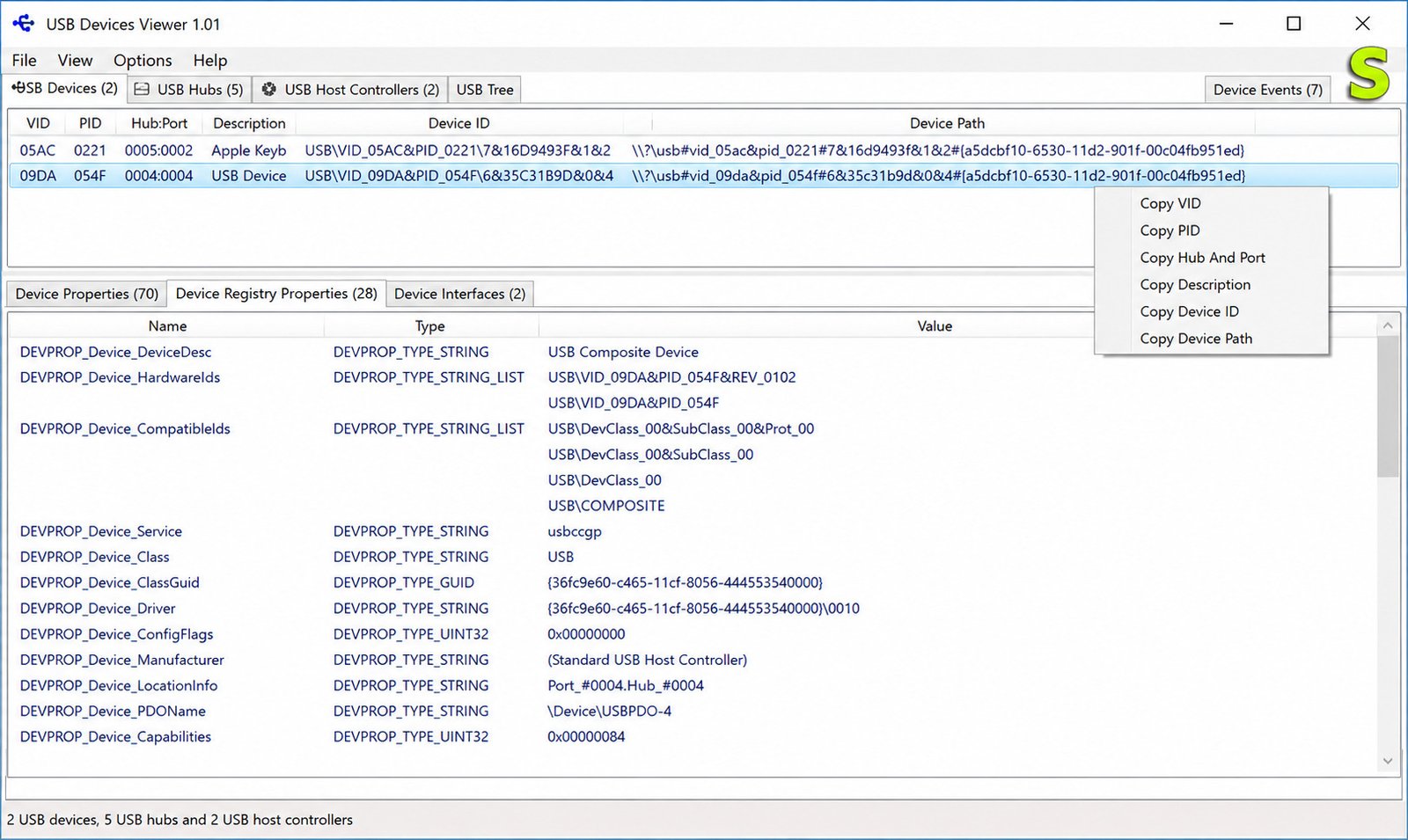
Think of it like a family tree, but for your USB hardware. At the top sits your host controller (built into your motherboard or chipset). Below that are one or more hubs — some built into your PC case, others external, like the hub on your monitor or docking station. Each hub has several ports, and each port can host a device or another hub.
What a Tree View Shows You
A good tree view surfaces details you won’t find in Device Manager, including:
- The exact port number a device is plugged into
- Whether a hub is a root hub or an external hub
- Assigned drive letters or COM ports for storage and serial devices
- Power draw per device, in milliamps
- Current link speed for each connection
Reading the Hierarchy: Controllers, Hubs, Devices
Here’s a simplified way to read a typical tree:
| Level | Example | What It Means |
|---|---|---|
| Host Controller | Intel USB 3.1 eXtensible Host Controller | The chipset managing USB traffic |
| Root Hub | USB Root Hub (USB 3.0) | Built-in hub tied to the controller |
| External Hub | Generic USB Hub | An added hub (monitor, dock, hub adapter) |
| Device | Flash Drive, Mouse, Webcam | The actual connected hardware |
Reading top to bottom tells you the path a device’s data travels — which matters a lot when troubleshooting bandwidth or power issues, since devices sharing a hub also share that hub’s total bandwidth.
USB Device Information and Hardware Details
Device Descriptors Explained
Every USB device carries a set of descriptors — small data structures it reports to your PC when connected. These include the Device Descriptor (basic identity), Configuration Descriptor (power and interface settings), Interface Descriptor (what kind of device it is), and Endpoint Descriptor (how data moves in and out).
You’ll rarely need to read raw descriptor data unless you’re a developer, but viewer tools decode this information into human-readable fields automatically.
VID/PID, Serial Numbers, and Driver Info
Two of the most useful identifiers are the Vendor ID (VID) and Product ID (PID) — a unique pairing that tells you exactly which manufacturer and model a device is, even if Windows labels it something vague like “USB Composite Device.” Combined with the serial number, this is how IT teams track specific hardware across a fleet of machines.
Power and Speed Details
USB viewers typically show:
- Power state (self-powered vs bus-powered)
- Max current draw (in mA)
- Negotiated link speed (Low, Full, High, SuperSpeed, SuperSpeed+)
If a device isn’t getting enough power from a hub, this is usually where you’ll spot it — the tool will often flag it as exceeding available power.
USB Ports, Hubs, and Connection Topology
Checking Which Port a Device Uses
Not all USB ports on your PC are equal. Some are wired to a USB 3.0 controller, others to USB 2.0, and laptops especially tend to mix both. A viewer tool identifies exactly which physical port maps to which controller, so you can stop guessing which port gives you full speed.
Hub and Controller Information
Hubs matter more than most people realize. A cheap unpowered USB hub splits both bandwidth and power among every connected device — which is why a hard drive might work fine alone but fail when three other devices share the same hub. A viewer tool lets you see this bottleneck at a glance instead of troubleshooting blindly.
Why Topology Matters for Troubleshooting
Understanding the physical topology answers questions like:
- Is this device sharing bandwidth with something else on the same hub?
- Is a “USB 3.0” port actually running at USB 2.0 speed because of a bad cable or hub?
- Did the device drop because of a power limit, not a driver issue?
Troubleshooting USB Problems With a Viewer Tool
Common USB Issues You Can Diagnose
| Symptom | Likely Cause | What the Viewer Shows |
|---|---|---|
| Device not recognized | Driver failure or dead port | Missing entry or error code |
| Random disconnects | Power management or loose cable | Repeated connect/disconnect events |
| Slow transfer speeds | Wrong port generation or bad cable | Link speed shown as USB 2.0 on a 3.0 device |
| Device works elsewhere but not here | Port-specific driver conflict | Different behavior per port in the tree |
| “USB device not recognized” error | Corrupted driver or hardware fault | Descriptor request failure logged |
Step-by-Step Diagnostic Approach
- Open your USB viewer and locate the device (or confirm it’s missing entirely)
- Check its assigned port and confirm the expected speed class
- Look for power warnings or descriptor errors
- Try a different port or hub and compare the tree entry
- If the device still fails, use Device Manager to uninstall and reinstall the driver
This structured approach is far faster than randomly unplugging and replugging cables and hoping for the best.
USB 3.0 and USB4 Device Information
How to Check If a Port Is Actually USB 3.0
USB 3.0 ports are usually color-coded blue, but color alone isn’t proof of speed — cables, hubs, and even the device itself can force a downgrade. A viewer tool reports the negotiated speed, which is the real, current connection speed rather than the theoretical maximum.
USB4 and What’s Changing
USB4 builds on the Thunderbolt 3 protocol, offering speeds up to 40 Gbps and better bandwidth allocation between multiple devices. As USB4 hardware becomes more common, device viewers are gradually adding clearer labeling for USB4 tunneling and alternate modes, though most consumer tools currently classify it broadly as “SuperSpeed+.”
Best USB Device Viewer Tools for Windows
Here’s how the most commonly used options actually compare:
| Tool | Type | Tree View | Best For | Cost |
|---|---|---|---|---|
| Device Manager | Built-in | No | Quick checks, driver management | Free |
| USBDeview (NirSoft) | Third-party | No (flat list) | Device history, uninstalling devices, exporting logs | Free |
| USB Device Tree Viewer (USBTreeView) | Third-party | Yes | Full hierarchy, port/hub mapping, descriptors | Free |
| Microsoft USBView | Developer sample | Yes | Raw descriptor inspection for developers | Free (via Windows SDK) |
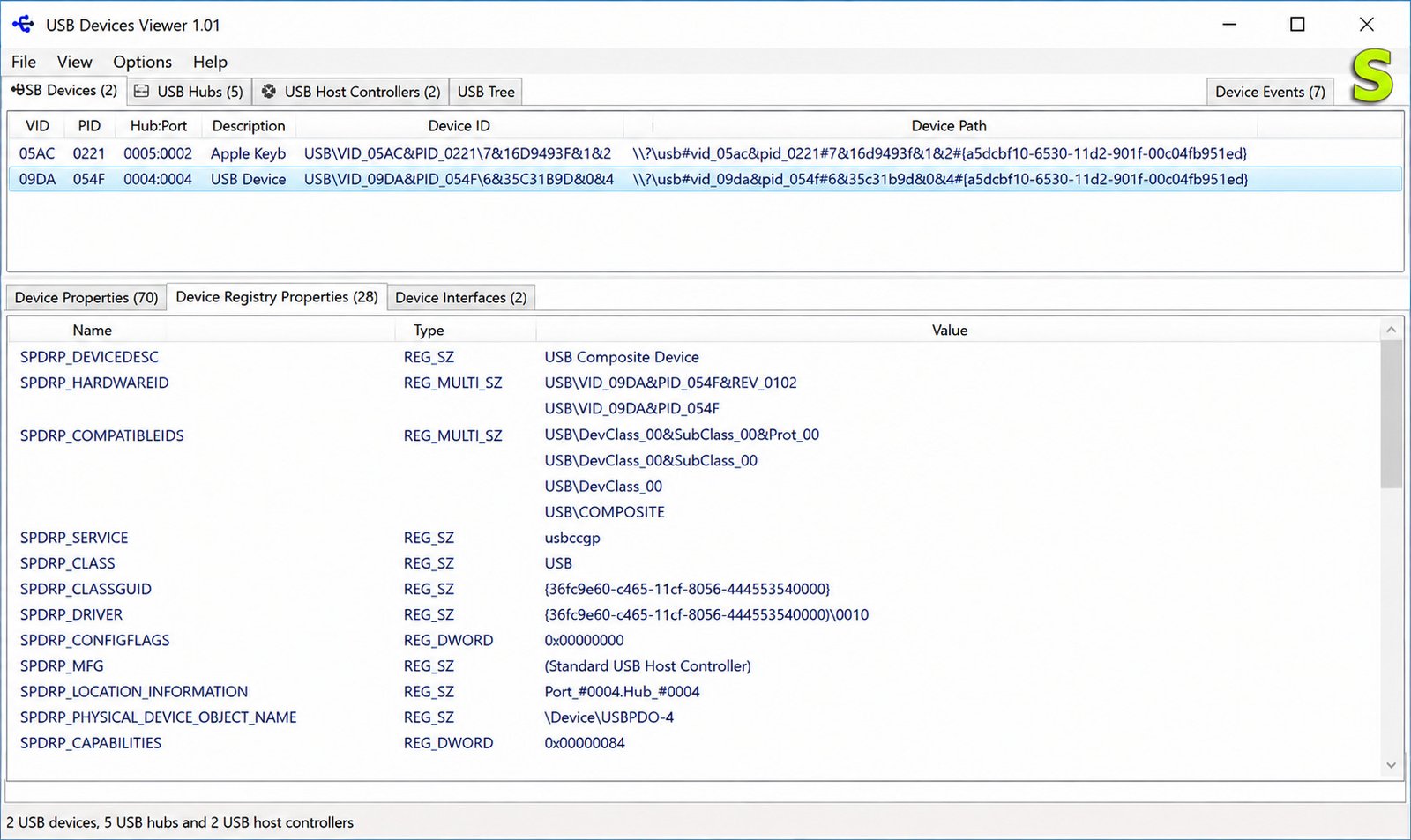
Device Manager
Already built into Windows, ideal for a fast look or basic driver actions, but it doesn’t show physical port mapping.
USBDeview
USBDeview, developed by NirSoft, lists every USB device that’s ever connected to your PC, including inactive ones, and lets you disable, enable, or safely uninstall them, plus export the list to CSV or HTML for record-keeping.
USB Device Tree Viewer (USBTreeView)
Created by developer Uwe Sieber and built on Microsoft’s USBView sample code, this tool is the go-to choice when you need the full tree structure — controllers, hubs, ports, and devices — along with detailed descriptor data and extended information supported on Windows 8 through 11.
Microsoft USBView
USBView is a sample application distributed with the Windows Driver Kit that enumerates USB host controllers, hubs, and attached devices, and displays both a tree view and raw descriptor structures. Microsoft’s own documentation describes USBView as enumerating basic information about USB host controllers, hubs, and attached USB devices, and notes it also pulls data from the registry and direct USB requests — making it a solid reference tool, though it’s aimed more at developers than everyday users.
How to Download and Install a USB Device Viewer
Portable vs Installed Versions
Tools like USB Device Tree Viewer and USBDeview are typically offered as portable executables — no installer, no registry changes, just download and run. This makes them convenient for IT technicians who carry a toolkit on a USB drive itself.
Safety Tips Before Downloading
Download with care
Because USB utilities interact directly with hardware, download only from the developer’s official page or well-established software repositories, and always verify the file with your antivirus before running it. Avoid third-party download bundlers that repackage free tools with unwanted extras.
USB Device Viewer Alternatives
If a full USB tree viewer feels like overkill, a few lighter alternatives cover specific needs:
- PowerShell (
Get-PnpDevice -Class USB) for scripted, text-based device lists - Windows Settings app for a simplified, consumer-friendly device overview
- Device Manager for quick driver-level actions without extra downloads
And if you’re already exploring handy Windows utilities for managing your files and downloads, tools like 4K Stogram are worth a look for a completely different but equally practical use case — organizing and downloading Instagram content locally.
Frequently Asked Questions About USB Device Viewer
Open Device Manager (devmgmt.msc) and expand “Universal Serial Bus controllers,” or use a dedicated tool like USB Device Tree Viewer for full detail.
USBDeview and USB Device Tree Viewer both list every connected USB device instantly, including ones that were plugged in previously.
Use a USB tree viewer to see which physical port each device occupies, along with its supported and current connection speed.
Click on any device inside a USB viewer tool to see its VID/PID, serial number, driver name, and power details in one panel.
Tools like USB Device Tree Viewer or Microsoft’s USBView decode raw device, configuration, and endpoint descriptors into readable fields automatically.
Look at the “link speed” field in a USB viewer — SuperSpeed (5 Gbps) confirms a genuine USB 3.0 connection, not just a blue port.
Yes, tools like USBDeview, USB Device Tree Viewer, and Microsoft USBView all run natively on both Windows 10 and Windows 11.
Final Thoughts
USB troubleshooting doesn’t have to feel like guesswork. With the right USB device viewer, you can see exactly what’s connected, how it’s wired through your hubs and controllers, and where the actual problem lies — instead of unplugging cables and hoping something changes.
Whether you stick with Device Manager for quick checks or reach for a dedicated tool like USB Device Tree Viewer for full topology and descriptor details, having that visibility turns a frustrating hardware mystery into a five-minute fix.
One Response