Software Guide · Updated 2026
TouchCopy Download, Features, Setup, and Alternatives (2026 Guide)
If you’ve ever tried to get your text messages, photos, or music off an iPhone and onto a Windows PC, you already know Apple doesn’t make it easy. iTunes syncs one way, iCloud has storage limits, and plugging your phone into a PC often just does nothing useful. This guide walks through what TouchCopy actually does, how to set it up, and how it compares to alternatives like iMazing.
What Is TouchCopy and How Does It Work?
TouchCopy is an iPhone data transfer and file management tool for Windows and Mac. It connects to your device over USB (or Wi-Fi, in some versions) and reads the file system directly, the same way iTunes does, but exposes far more of it to you.
In practice, that means you can:
- Copy photos and videos to a computer folder
- Export text messages, WhatsApp, and LINE chats as readable files
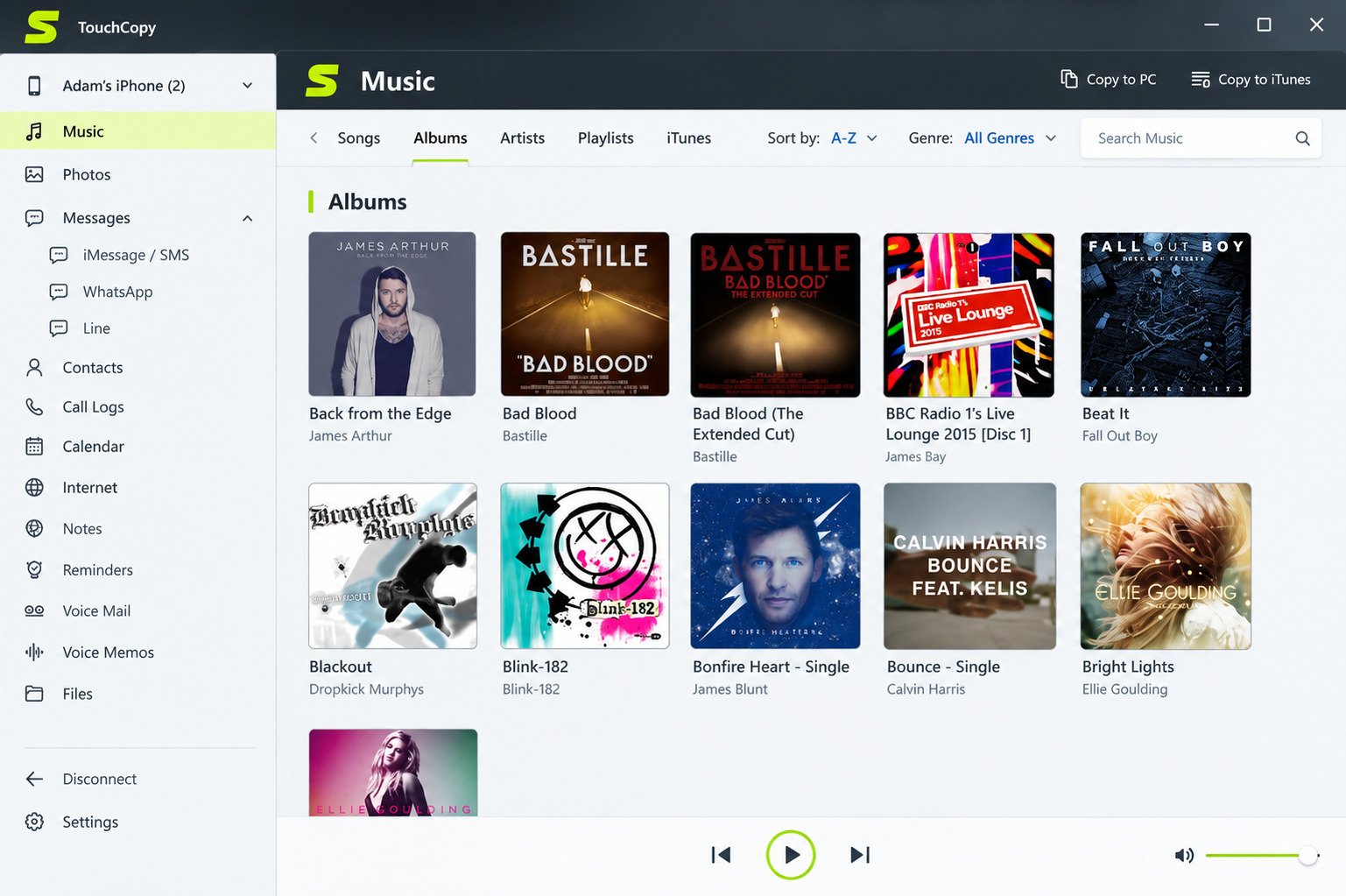
- Pull music and playlists back out of your iPhone
- Save contacts, notes, call history, and calendar entries
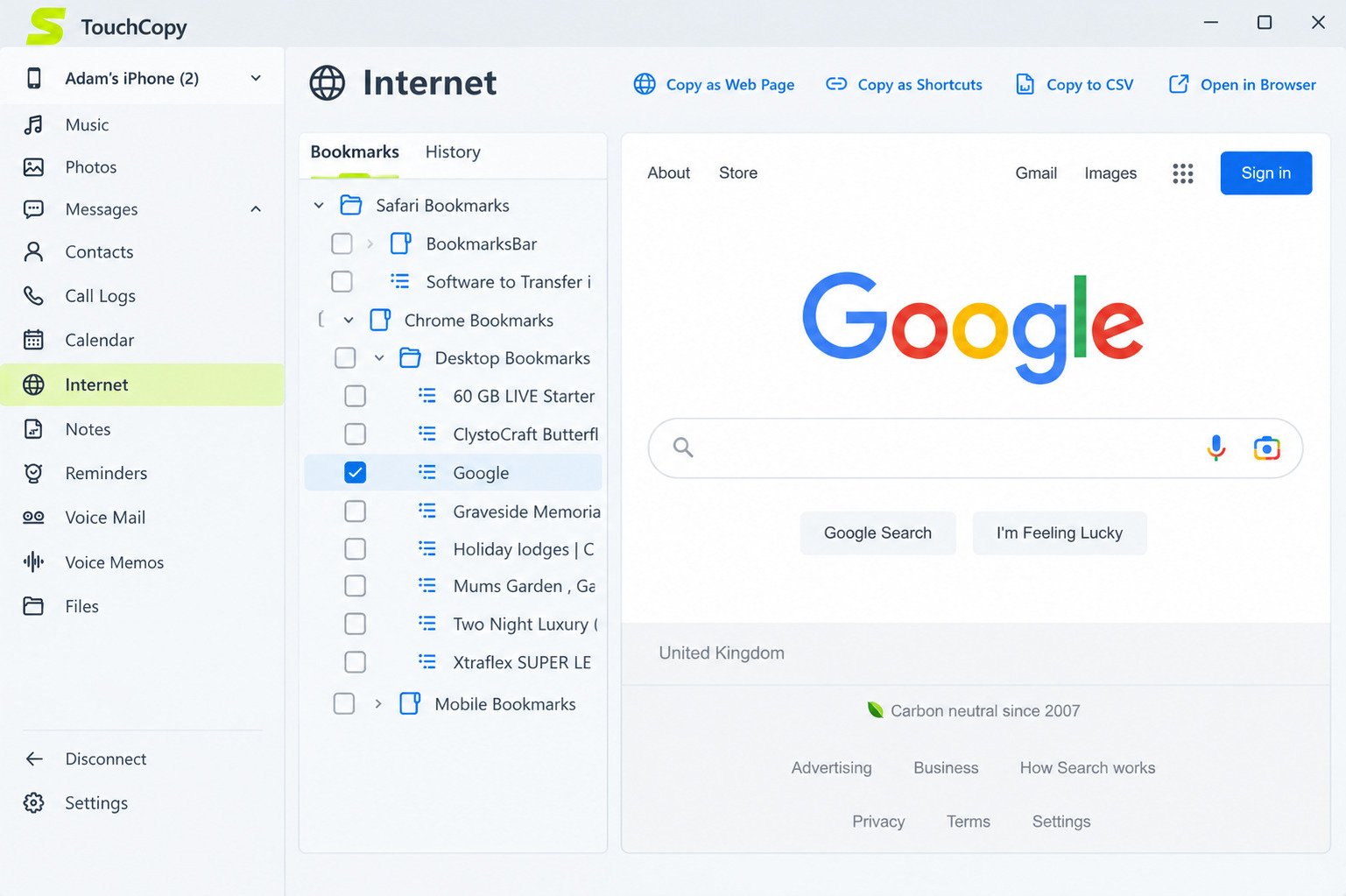
- Browse and manage raw files and app data
Wide Angle Software has been building this kind of tool since 2006, starting with an iPod backup app called iPodCopy before it evolved into TouchCopy after the first iPhone launched — nearly two decades of iterating on the same core problem: giving you access to data Apple normally locks behind iTunes and iCloud.
Supported Devices
TouchCopy works with essentially the full range of Lightning and USB-C iPhones, iPads, and legacy iPods, including current iOS versions. Compatibility is updated fairly often to keep pace with new iOS releases, so it’s worth checking the developer’s site for your specific model before buying.
TouchCopy Features Overview
TouchCopy’s feature set breaks down into a few practical categories rather than one single function.
| Category | What It Does |
|---|---|
| Media transfer | Copies photos, videos, and music from iPhone/iPad/iPod to PC or Mac |
| Messaging export | Saves iMessage, SMS, MMS, RCS, WhatsApp, and LINE chats as PDF, HTML, CSV, or text |
| Personal data | Exports contacts, call logs, notes, and calendar events |
| File browsing | Lets you view and manage files/folders on the device directly |
| Backup | Creates local backups of device content to your hard drive |
Unlike iCloud, everything stays local — your data moves from the device to your computer, not through Wide Angle Software’s servers. That’s a meaningful distinction if privacy is part of why you’re avoiding cloud backup in the first place.
TouchCopy Download and Latest Version
TouchCopy is available as a direct download from Wide Angle Software’s official site, with separate builds for Windows and Mac (including native Apple Silicon support since the 2021 Mac rewrite).
A few practical notes on downloading it:
- Always get it from the official Wide Angle Software website rather than a third-party download mirror — this matters more for security than convenience.
- The download includes a free trial, which lets you preview your device’s content before you commit to buying.
- The Windows and Mac versions have received separate rounds of updates in recent years, so make sure you’re grabbing the current build for your OS rather than an older cached version from a review site.
Is There a Free Version?
TouchCopy isn’t fully free, but the trial is generous enough to be useful. You can connect your device, browse your files, and preview content like photos and messages before paying. Full exports and larger transfers typically require the licensed version.
How to Install and Set Up TouchCopy
Installation is fairly standard for desktop software, but the device authorization step trips people up occasionally.
- Download the installer for your OS (Windows or Mac) from the official site.
- Run the installer and follow the on-screen prompts — no unusual permissions are required.
- Connect your iPhone, iPad, or iPod via USB cable.
- Trust the computer when the prompt appears on your device screen. This is an iOS security step, not a TouchCopy one — Apple requires it for any first-time computer connection.
- Wait for TouchCopy to detect the device. It should load your content automatically once trust is established.
If you’ve used iTunes or Finder to sync before, this device-trust step will look familiar — it’s the same prompt.
Transferring iPhone Data to a Computer
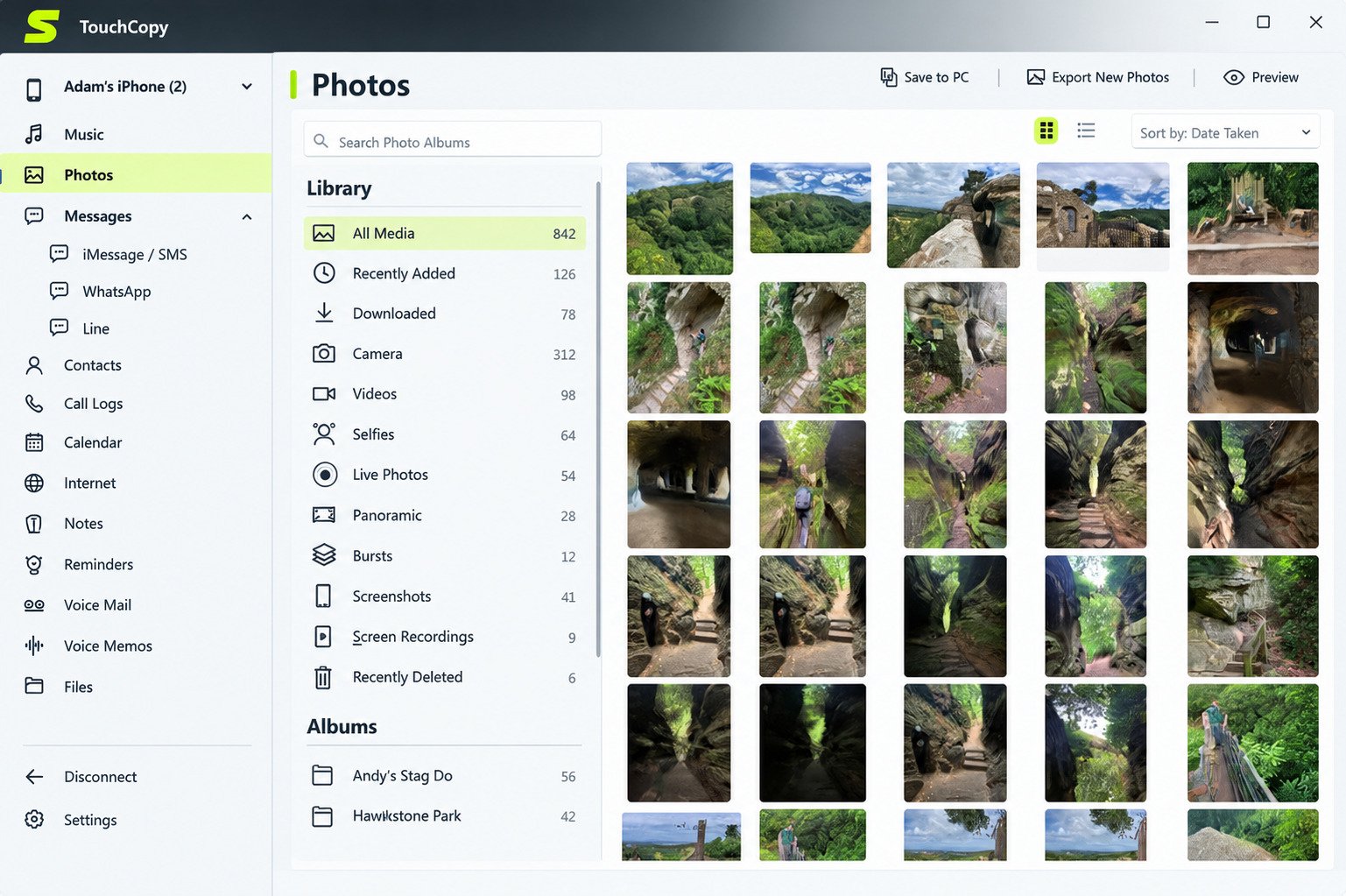
Once connected, TouchCopy displays your device’s content in folders — Photos, Music, Messages, Contacts, and so on — similar to browsing a drive in File Explorer or Finder.
To move data over, you generally:
- Select the content type (photos, music, messages, etc.)
- Choose specific items or select all
- Pick an export format if relevant (PDF, CSV, HTML for messages; original format for media)
- Export to a destination folder on your PC or Mac
Good to know
For large libraries — thousands of photos or a big iMessage history — transfers can take a while, so it’s worth starting one before you step away rather than expecting it instantly.
Photos, Videos, and Camera Roll Backup
Photo transfer is one of TouchCopy’s most commonly used features, mostly because iPhone owners tend to have the most photos and the least patience for iCloud storage limits.
TouchCopy handles the common iPhone media formats, including HEIC, JPG, PNG, MOV, MP4, and HEVC, and can convert HEIC to JPG during export — useful since Windows historically doesn’t open HEIC files natively without an extra codec. This lets you back up your entire camera roll to a computer folder without relying on iCloud Photos or a data-capped Google Photos plan.
Music and iPod Transfer
This is genuinely one of TouchCopy’s original use cases going back to its iPodCopy days: getting music off an iPhone or iPod, which Apple’s own software has never made easy in the reverse direction.
TouchCopy can:
- Pull music files back onto a computer
- Preserve playlists, ratings, and album artwork where possible
- Add recovered music into iTunes or Apple Music libraries
If you’ve ever lost a music library after a computer crash but still had the songs on your iPhone, this is the exact scenario TouchCopy was designed to solve.
Exporting Messages and Chats
Text messages are hard to preserve outside of iCloud or a full device backup. TouchCopy addresses that by exporting iMessage, SMS, MMS, and RCS conversations, along with third-party chats like WhatsApp and LINE, into formats you can actually read and store: PDF, HTML, CSV, or plain text.
Attachments — photos, videos, and files shared in conversations — can be saved alongside the exported chat, which matters if you’re archiving a conversation for legal, sentimental, or record-keeping reasons rather than just the text itself.
Contacts, Call Logs, Notes, and Calendar
Beyond media and messages, TouchCopy exports the smaller-but-important personal data categories:
- Contacts — exportable to formats compatible with most address book apps
- Call history — saved as PDF, CSV, or HTML
- Notes — backed up individually or in bulk
- Calendar events — exported for record-keeping or migration
These are easy to overlook until you switch phones or lose access to an account, at which point having a local export saves a lot of frustration.
TouchCopy for iPad and iPod
The same core toolkit extends to iPads and legacy iPods. iPad users get the same photo, message, file, and contact transfer options as iPhone users. iPod support — TouchCopy’s original purpose — remains focused mainly on music transfer, useful for anyone still holding onto an iPod Classic or iPod Touch library that never made it to a streaming service.
Backing Up an iPhone With TouchCopy
TouchCopy’s backup approach is different from an iTunes or Finder backup: instead of a single encrypted archive, it creates accessible, browsable copies of your content — photos as photos, messages as readable documents, contacts as a standard export file.
Trade-off to understand
An iTunes-style backup is great for restoring a phone, but you can’t casually open it to check something. A TouchCopy-style export is the opposite — easy to browse and use, less useful for a one-click full restore. For most people archiving specific data types, the browsable format is more practical.
Pricing, Free Trial, and Licensing
TouchCopy uses a free trial plus paid license model rather than a subscription. The trial lets you preview and connect your device before buying, and a one-time license unlocks full export functionality.
Because pricing and promotional offers shift over time, the most accurate current price is always on Wide Angle Software’s own pricing page rather than a third-party listing — those numbers go stale quickly.
Platform Availability
TouchCopy runs on Windows 10 and 11, and on Mac, including Apple Silicon (M1 and later) machines following a dedicated rewrite in 2021. There is no Android version and no APK — TouchCopy is built specifically around iOS devices (iPhone, iPad, iPod), so Android users would need a different Wide Angle Software product, Droid Transfer, instead.
Common Problems and Fixes
A few issues come up repeatedly in user reports and support pages:
Troubleshooting
Device not detected: Usually a cable, driver, or “Trust This Computer” issue rather than a TouchCopy bug. Try a different USB cable, confirm the device is unlocked, and re-trigger the trust prompt by disconnecting and reconnecting.
Slow or stalled transfers: Large photo or message libraries take time. If a transfer stalls completely rather than slows down, restarting both the app and the device connection usually resolves it.
Activation or license errors: Double-check you’re entering the license exactly as emailed, with no extra spaces, and that you’re using the matching version (Windows license on Windows, Mac license on Mac).
Software not opening after install: Usually resolved by reinstalling the latest build rather than an older cached installer.
Is TouchCopy Safe and Legitimate?
Yes — TouchCopy is a legitimate, long-standing commercial product, not malware or a scraped clone. It doesn’t transmit your device data to Wide Angle Software’s servers or any third party; the transfer happens locally between your iPhone and your computer. Wide Angle Software has operated since 2006, has been reviewed by outlets like PCWorld, Lifewire, and CNET, and maintains a public Trustpilot review history.
Security note
General safety practices still apply: download only from the official site, and be cautious of “cracked” or free-license versions circulating elsewhere — those are the actual security risk, not the legitimate software itself.
TouchCopy Review: Is It Worth Using?
Strengths
- Broad content coverage (photos, music, messages, contacts, notes, files)
- Local, private transfers with no cloud middleman
- Long track record and active updates
- Useful message export formats (PDF/HTML/CSV) for archiving
Limitations
- Not a full one-click iPhone restore tool like iTunes/Finder backups
- No Android support
- Paid license required for full functionality beyond the trial
Best suited for: people who want to selectively pull specific data — photos, texts, music — off an iPhone onto a computer without wrestling with iCloud storage or Apple’s syncing limitations.
TouchCopy vs. iMazing and Other Alternatives
iMazing is TouchCopy’s most frequently compared competitor, and the two overlap heavily in what they do.
| Feature | TouchCopy | iMazing |
|---|---|---|
| Photo/video transfer | Yes | Yes |
| Message export | Yes (PDF/HTML/CSV) | Yes |
| Music transfer | Yes | Yes |
| File browsing | Yes | Yes |
| Platforms | Windows, Mac | Windows, Mac |
| Android support | No | No |
| Licensing model | One-time license | Subscription or one-time, device-limited license |
The practical difference users report most often is licensing flexibility — some iMazing users note that switching to a new iPhone model can require an additional license for that device, which is worth confirming directly with each vendor before buying if you upgrade phones frequently.
Other names that come up as alternatives include iExplorer, 3uTools, and AnyTrans — each with a similar core pitch (browse and export iPhone data outside of iTunes) but different strengths in message formatting, file-system access, or pricing structure.
If you’re mainly trying to solve iPhone-to-PC file transfer as part of a broader backup routine, it’s also worth thinking about your overall computer backup strategy — not just the phone side. Tools like SyncBack handle automated PC and file backups, which pairs well with a one-time iPhone export if you want everything — phone data included — backed up on a schedule rather than manually.
Frequently Asked Questions
TouchCopy offers a free trial that lets you preview and connect your device, but full data export requires a paid license.
Pricing is one-time rather than subscription-based, but check Wide Angle Software’s official pricing page for the current rate.
Yes, TouchCopy supports full data transfer to Windows PCs, including photos, music, messages, and contacts.
Yes, there’s a dedicated Mac version with native Apple Silicon support.
Yes, including iMessage, SMS, MMS, RCS, WhatsApp, and LINE chats, exportable as PDF, HTML, CSV, or text.
Yes, both are supported alongside iPhone, with the same core transfer and backup tools.
No, TouchCopy is iOS-only. Android users need a different tool, such as Wide Angle Software’s Droid Transfer.
Final Verdict: Should You Use TouchCopy?
TouchCopy is a solid, mature option if your main goal is pulling specific data — photos, texts, music, contacts — off an iPhone and onto a computer without relying on iCloud storage or Apple’s one-way syncing habits. It’s not trying to be a full backup-and-restore replacement for iTunes or Finder, and it doesn’t touch Android, but within its lane it’s been doing this for nearly two decades with steady updates to match new iOS releases.
If you’ve been frustrated trying to get your own data out of your own phone, it’s worth trying the free trial before deciding. For a device you use every day and rarely think about backing up until something goes wrong, having a straightforward, local export option on hand is the kind of thing you’ll be glad exists exactly when you need it — quietly, without fanfare, right when your photos or messages actually matter.
Visit the official TouchCopy site →
4 Responses