SyncBack Download, Features, Setup, and Alternatives
Losing a folder of family photos or a client project overnight is one of those things that never feels real until it happens to you. That’s usually the moment people start searching for backup software, and SyncBack keeps showing up in that search.
SyncBack, made by 2BrightSparks, is one of the longest-running backup and file synchronization tools for Windows. It’s been updated for over two decades, which says something in an industry where most utilities disappear within a few years.
In this guide, you’ll get a clear, no-fluff look at what SyncBack actually does, which version fits your needs, how to set it up, and what to try if it isn’t the right match for you.
What Is SyncBack and How Does It Work?
SyncBack is a Windows application that backs up and synchronizes files and folders between drives, computers, networks, and cloud storage. It works by comparing the source and destination, then copying only the files that have changed, which keeps backups fast after the first run.
SyncBack Software Overview
At its core, SyncBack lets you build “profiles,” saved sets of instructions that tell the program what to back up, where to put it, and when to run. Once a profile is set up, most people never touch it again; it just runs quietly in the background.
SyncBackFree vs SyncBackSE vs SyncBackPro
There are three editions, and the difference mostly comes down to how much automation and flexibility you need.
| Feature | SyncBackFree | SyncBackSE | SyncBackPro |
|---|---|---|---|
| Price | Free | Paid | Paid |
| Local & external drive backup | Yes | Yes | Yes |
| FTP/SFTP backup | Yes | Yes | Yes |
| Copy locked/open files (VSS) | No | Yes | Yes |
| Versioning | No | Yes | Yes |
| Cloud backup (OneDrive, Google Drive, Dropbox, S3, etc.) | No | Limited | Extensive |
| Delta/rapid copy (bandwidth-saving) | No | Yes | Yes |
| Scripting & automation | No | Limited | Advanced |
| Best for | Home users | Home users & small business | Power users & IT admins |
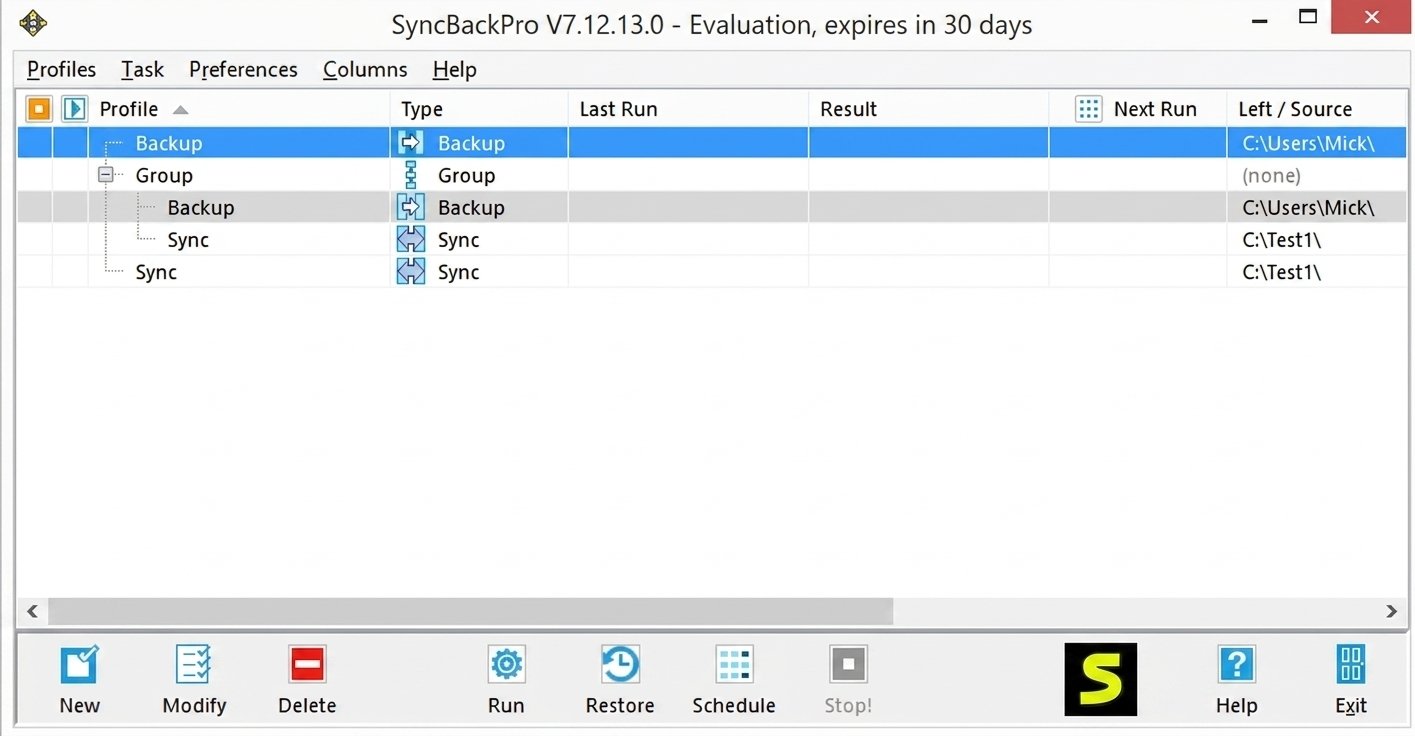
SyncBack as Backup and File Synchronization Software
It’s worth separating the two jobs SyncBack does, because people often mix them up:
- Backup copies files one-way, from source to a safe destination, and keeps history/versions.
- Synchronization keeps two locations identical, updating changes in either direction.
SyncBack can do both, and you choose the behavior when you set up a profile.
Who Should Use SyncBack?
SyncBack tends to suit:
- Home users who want scheduled backups without babysitting them
- Freelancers protecting client work across drives
- Small businesses needing FTP/cloud backup without an IT department
- Power users who want scripting, encryption, and detailed control
SyncBack Features
The reason SyncBack has stuck around for over two decades isn’t one standout feature, it’s that the basics are done reliably, and the advanced options are there when you actually need them instead of being locked behind confusing menus. SyncBack’s feature list is genuinely broad, which is part of why it’s stayed relevant for so long.
File and Folder Backup
You can back up individual files, entire folders, or whole directory trees, with filters to include or exclude specific file types.
File Synchronization and Folder Sync
Two-way sync keeps a laptop and desktop identical; one-way sync is better when you only want a protected copy, not a mirror that can overwrite originals.
Automatic and Scheduled Backups
Profiles can run on a schedule, daily, weekly, on login, or when a specific drive is connected, so backups happen without you remembering to start them.
Data Synchronization Between Computers
SyncBack can sync folders across a local network, which is handy for keeping project files consistent between a work PC and a home machine.
Backup and Synchronization Profiles
Profiles are reusable and can be grouped, so you might have one for documents, one for photos, and one for a work drive, each with its own schedule and rules.
File Transfer and Data Transfer
Beyond backup, SyncBack is often used simply to move large amounts of data reliably between drives or servers, with resumable transfers if a connection drops.
Backup to External Drives and Network Locations
External USB drives, NAS devices, and mapped network shares are all supported as backup destinations.
Cloud Backup and Cloud Synchronization
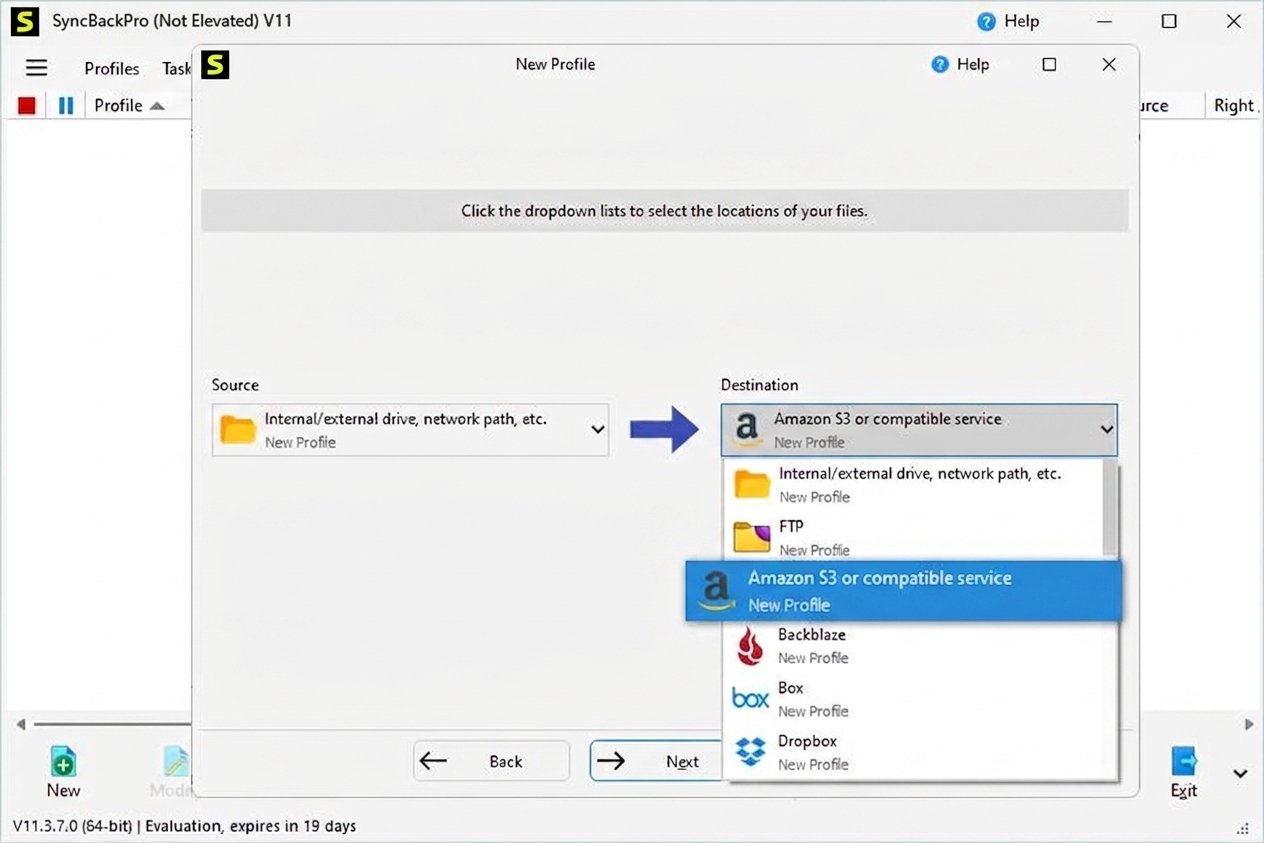
SyncBackPro in particular supports a long list of cloud providers, including OneDrive, Google Drive, Dropbox, Amazon S3, and Backblaze B2, so cloud backup doesn’t require a separate app.
FTP and SFTP Backup
Both protocols are supported natively, which matters for anyone backing up to a web host or remote server rather than local hardware.
Backup and Restore Options
Restoring is essentially the reverse of a backup profile. SyncBack can compare what’s currently on your drive with the backup and copy back only what’s missing or newer.
File Conflict Detection and Synchronization Rules
When the same file has changed in two places, SyncBack flags the conflict and lets you choose which version wins, rather than silently overwriting data. You can also set a default rule in advance, such as “always keep the newest file” or “always ask,” so recurring sync jobs don’t require constant manual decisions.
SyncBackFree: Free Backup and Sync Software
What Is SyncBackFree?
SyncBackFree is the no-cost edition of SyncBack, licensed for personal, educational, and even commercial use, a rare combination for free software.
SyncBackFree Features
It covers the essentials: local and external drive backup, two-way sync, FTP backup, scheduling, and email notifications when a job finishes or fails.
SyncBackFree Backup and File Synchronization
For most home users, SyncBackFree alone is enough to keep photos, documents, and downloads safely mirrored to an external drive.
SyncBackFree Limitations
It doesn’t include versioning, locked-file copying, or built-in cloud connectors, so if you need to back up a file that’s currently open in another program, or you want direct cloud support, you’ll need to upgrade. In practice, most people only notice these gaps once their needs grow, for example, when a database or document stays open all day and never gets backed up because it’s “locked,” or when they start wanting an offsite copy in the cloud rather than just an external drive.
SyncBackFree vs SyncBackSE and SyncBackPro
Think of it this way: SyncBackFree protects your files, SyncBackSE adds reliability features like versioning, and SyncBackPro adds reach, cloud services, scripting, and advanced automation.
SyncBack Download
SyncBack Latest Version
As of 2026, SyncBack’s current major release is V12, which brought a significant round of updates including faster SFTP transfers, stronger TLS security, and a refreshed interface on top of the long-running V11 line.
SyncBack V12 Download / SyncBack 12 Download
V12 is available directly from 2BrightSparks for SyncBackPro and SyncBackSE, with existing customers eligible for a free or discounted upgrade depending on their license terms. You can find current pricing and download links on the official SyncBackPro page.
SyncBackFree V12 Download / SyncBackFree Latest Version
SyncBackFree also received updates alongside the V12 release cycle and remains free to download with no registration required.
SyncBack Free Download
You can download SyncBackFree directly from the official 2BrightSparks site without providing payment details or personal information.
SyncBack Installer and Offline Installer
Standard installers connect briefly to verify the download; if you need to install on a machine without internet access, 2BrightSparks also provides offline installer packages on request.
SyncBack Portable Version
There isn’t an officially supported “portable” SyncBack in the traditional sense, but a No-Install (NI) version exists for SyncBackSE and SyncBackPro, which can run from a folder without a full installation.
SyncBack Old Version and Legacy Version
SyncBack for Windows
SyncBack Windows 11 / SyncBack Windows 10
SyncBack officially supports Windows 11, 10, 8, and 7, so whichever of these you’re running, installation is straightforward.
SyncBack for PC
It’s built specifically for Windows PCs; there’s no native Mac or Linux version, though SyncBack Touch (a companion tool) can extend backup coverage to macOS, Linux, and Android devices when paired with SyncBackSE or SyncBackPro.
SyncBack System Requirements
SyncBack is lightweight by modern standards. It runs comfortably on standard consumer hardware and doesn’t demand a high-end machine. Since it works by comparing files rather than constantly scanning entire drives, it also stays out of the way while running in the background, which matters if you’re backing up on an older laptop.
Is SyncBack Compatible With Windows 11?
Yes. SyncBack is actively maintained with Windows 11 in mind, including 32-bit and 64-bit builds.
How to Install and Set Up SyncBack
SyncBack Installation
Download the installer for your chosen edition, run it, and follow the setup wizard, the process typically takes under two minutes.
SyncBack Setup
On first launch, SyncBack offers a Simple mode for quick profile creation and an Advanced mode with granular control. Beginners should start with Simple mode.
How to Create a SyncBack Profile / Backup Profile
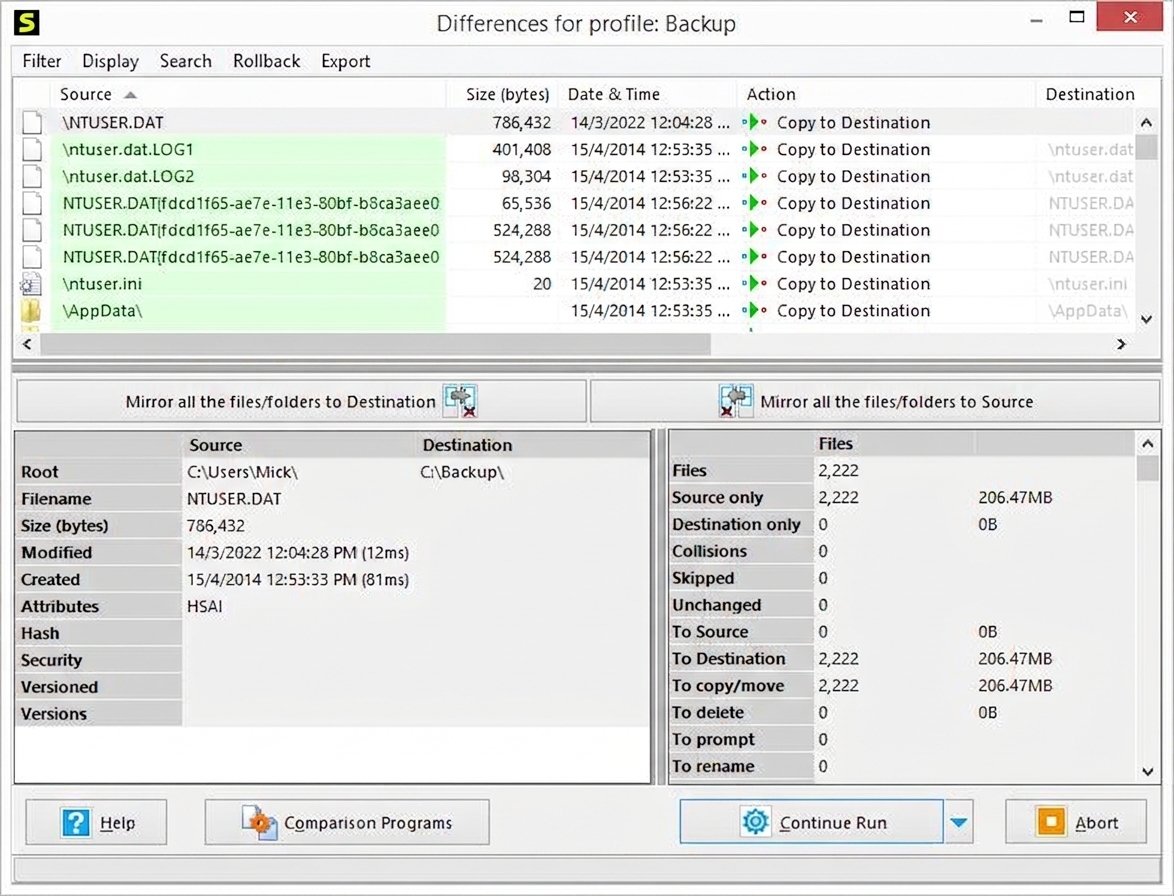
- Open SyncBack and click “New Profile.”
- Choose whether it’s a Backup, Synchronization, or Mirror profile.
- Select your source folder and destination.
- Name the profile and confirm.
How to Configure Backup and Synchronization Settings
Within a profile, you can set file filters, compression, encryption, and what happens on file conflicts, all from the profile’s settings tabs.
How to Schedule Automatic Backups
Right-click the profile, choose “Schedule,” and set a frequency. SyncBack will then run silently in the background at that interval.
How to Use SyncBack for File Backup
How to Back Up Files or Folders With SyncBack
Once a profile exists, running it is as simple as clicking “Run.” SyncBack scans the source, compares it to the destination, and copies only what’s changed.
How to Automatically Back Up Files in Windows
Combine a scheduled profile with the “Run when idle” or “Run on connect” option so backups happen without any manual step.
How to Back Up Files to an External Drive
Set the destination path to your external drive’s letter, and SyncBack can even detect when that drive is plugged in and trigger the backup automatically.
Full and Incremental Backup Options
SyncBack supports full backups (copy everything) and incremental approaches (copy only new or changed files), which keeps repeat backups fast. A first backup of a large folder might take a while, but every run after that typically finishes in a fraction of the time, since SyncBack only needs to check what’s different. For users on SyncBackSE or SyncBackPro, versioning goes a step further by keeping previous copies of changed files, so you can roll back to an earlier version rather than only the most recent one.
How to Sync Files and Folders With SyncBack
How to Sync Two Folders / Synchronize Folders in Windows
Create a “Synchronization” profile instead of a backup profile, point it at both folders, and SyncBack will keep them matching each time it runs.
How to Automatically Synchronize Folders / Between Two Drives or Computers
The same scheduling tools used for backups apply to sync profiles, set a frequency and let it run unattended.
Two-Way and One-Way Folder Synchronization
Two-way sync updates both folders based on the most recent changes; one-way sync only pushes changes from source to destination, which is safer if you don’t want the original folder altered.
Handling File Conflicts During Synchronization
If a file changed in both locations since the last sync, SyncBack pauses and asks which version to keep, or you can pre-set a rule (e.g., “always keep the newer file”).
SyncBack Automatic and Scheduled Backup
Automatic Backup Software for Windows
Beyond one-time scheduling, SyncBack supports triggers like drive connection, user login, or system idle time, so backups adapt to how you actually use your PC.
Daily Automatic Backup / Windows Backup Scheduler
For most home setups, a daily scheduled profile running overnight is the simplest reliable option.
How to Schedule a Backup in SyncBack
Open the profile menu, select Schedule, choose your frequency and time, and SyncBack’s built-in scheduler (or Windows Task Scheduler integration) takes it from there.
SyncBack Cloud Backup and Synchronization
SyncBack Cloud Backup and Cloud Sync
SyncBackPro supports direct backup to and synchronization with major cloud platforms, meaning you don’t need a separate cloud client running alongside it.
OneDrive, Google Drive, and Dropbox Backup and Synchronization
Each of these can be set as a backup or sync destination inside a profile, with authentication handled through a secure sign-in step.
Amazon S3 Backup
For businesses or advanced users, SyncBackPro also connects directly to Amazon S3 buckets, useful for offsite or archival backup strategies.
SyncBackPro Cloud Backup Features
SyncBackPro’s cloud list extends to Azure, Backblaze B2, Box, pCloud, and several others, making it one of the more cloud-flexible backup tools in its price range.
SyncBack FTP and SFTP Backup
FTP Backup and File Synchronization / SFTP Backup Software
All SyncBack editions support standard FTP, while SFTP (the encrypted version) is available across the product line for more security-conscious backups.
Backup Files to an FTP or SFTP Server
Enter your server credentials in the profile’s connection settings, choose the remote folder, and SyncBack treats it like any other backup destination.
SFTP File Synchronization
SFTP sync is especially useful for web developers keeping a local site folder matched with a live server.
SyncBack Review
SyncBack Performance and Ease of Use
SyncBack strikes a reasonable balance: Simple mode is approachable for beginners, while Advanced mode gives experienced users deep configuration options without feeling bloated.
Is SyncBack Good for Backup and File Sync? / Is It Worth Using?
For the price, free for SyncBackFree, and reasonably priced for SE and Pro, SyncBack delivers reliable, well-tested backup and sync functionality with a support history stretching back over 20 years. SyncBackPro has also picked up industry recognition, including a spot on Capterra’s shortlist and Software Advice’s FrontRunners guide for cloud storage software.
The trade-off is that the interface, while functional, doesn’t have the polish of some newer competitors. It favors depth of configuration over visual minimalism, which power users tend to appreciate more than casual ones.
SyncBack vs Other Backup and Sync Tools
| Tool | Free Tier | Cloud Support | Best For |
|---|---|---|---|
| SyncBack | Yes (SyncBackFree) | Extensive (Pro) | All-round backup + sync |
| FreeFileSync | Yes | Limited | Simple, open-source syncing |
| GoodSync | Trial only | Good | Business-grade sync |
| AOMEI Backupper | Yes | Basic | Disk imaging + backup |
| EaseUS Todo Backup | Yes | Basic | System image backup |
| Macrium Reflect | Limited free | None built-in | Disk cloning/imaging |
| Robocopy | Free (built into Windows) | None | Scripted, technical copying |
| Windows Backup | Free (built-in) | OneDrive only | Basic system-level backup |
SyncBack vs FreeFileSync
- FreeFileSync is simpler and open-source
- SyncBack offers more scheduling flexibility and native cloud/FTP support, especially in the paid editions
SyncBack vs GoodSync
- GoodSync is a strong sync-focused competitor
- SyncBack’s free tier and one-time-purchase model appeal to budget-conscious users
SyncBack vs Robocopy
- Robocopy is a free command-line tool built into Windows, powerful, but no GUI
- SyncBack provides scheduling and a graphical interface out of the box
What sets SyncBack apart
- Two decades of active development and support
- One-time purchase rather than a subscription
SyncBack Alternatives
If SyncBack doesn’t quite fit your workflow, a few solid alternatives are worth a look:
- FreeFileSync — open-source, straightforward two-way folder sync
- GoodSync — strong for business sync across many devices
- AOMEI Backupper — better if you want full disk imaging, not just file backup
- Macrium Reflect — a go-to for full system image backups
- EaseUS Todo Backup — beginner-friendly with system recovery tools
- Hasleo Backup Suite — a free, well-rounded option for full system and file backup; if you want a closer look at what it offers, this Hasleo Backup Suite Free overview breaks down its features in detail.
SyncBack Not Working? Common Problems and Fixes
| Problem | Likely Cause | Fix |
|---|---|---|
| SyncBack not syncing files | Filters excluding files, or permissions issue | Check profile filters; run as administrator |
| Backup failed / sync failed | Destination drive disconnected or full | Verify drive is connected and has free space |
| SyncBack not starting | Corrupted install or conflicting startup program | Reinstall, or check Task Manager for conflicts |
| File conflict errors | Same file changed in both locations | Set a conflict rule (e.g., “always keep newest”) |
| FTP backup not working | Incorrect credentials or firewall blocking port | Re-check login details and firewall/port settings |
| SyncBack running slowly | Large file sets or antivirus scanning each file | Exclude the backup folder from real-time antivirus scans |
| Installation problems | Leftover files from a previous version | Fully uninstall the old version before reinstalling |
If a fix here doesn’t resolve things, 2BrightSparks maintains detailed support documentation and a user forum where specific error messages can be searched directly.
SyncBack FAQs
Yes, SyncBackFree can be used indefinitely for personal, educational, charity, government, and even commercial purposes at no cost.
SyncBackPro adds cloud backup, versioning, locked-file copying, encryption, and scripting that SyncBackFree doesn’t include.
Yes, SyncBack is a long-established, digitally signed application from a reputable developer with no bundled adware.
Yes, all current SyncBack editions officially support Windows 11 in both 32-bit and 64-bit versions.
Yes, by creating a synchronization profile and setting a schedule, SyncBack will keep two folders matched without manual input.
Yes, though full cloud backup and sync support is available primarily in SyncBackPro, with limited cloud options in SyncBackSE.
FreeFileSync, GoodSync, AOMEI Backupper, and Hasleo Backup Suite are commonly recommended alternatives, depending on whether you need simple syncing or full system imaging.
Final Verdict: Is SyncBack Worth Using?
If you’ve read this far, you already know backup software only matters the moment you actually need it, and that’s exactly when you don’t want to be figuring out a new tool for the first time. SyncBack earns its place because it’s been quietly doing this one job well for over two decades.
For most home users, SyncBackFree is genuinely enough: no cost, no catch, and reliable scheduled backups. If you need versioning, locked-file support, or cloud and FTP backup at scale, stepping up to SyncBackSE or SyncBackPro is a reasonable, one-time investment rather than an ongoing subscription. Either way, the real win isn’t the software itself, it’s the peace of mind of knowing your files are already safe before anything goes wrong.