tinyMediaManager Download: Features, Installation, Setup, and Media Library Management Guide
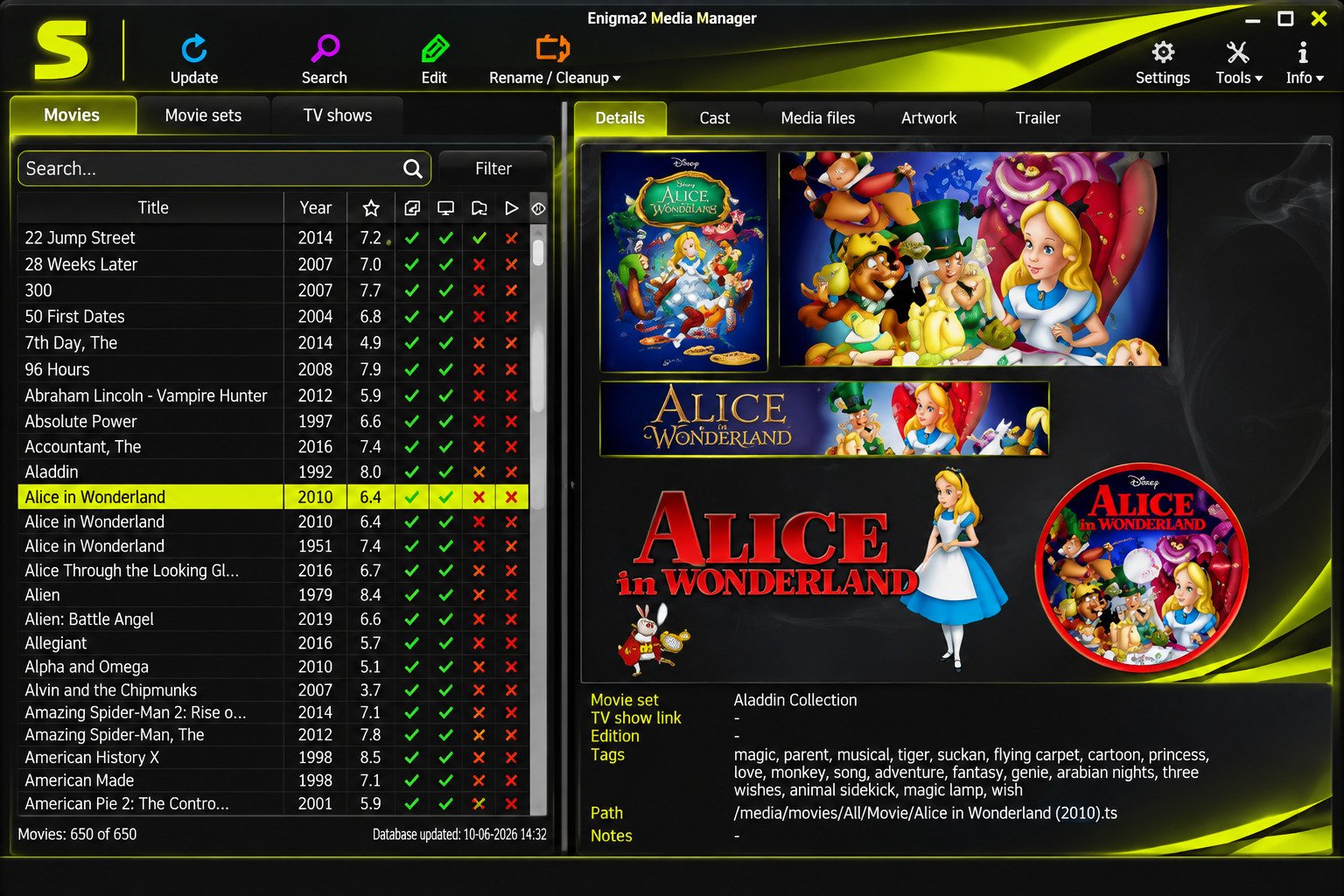
Ever opened your movie folder and found files named “movie_final_720p_x264.mkv”? A messy library makes even the best media server look broken. A tinyMediaManager download is one of the quickest ways to fix that.
This guide shows you how to get tinyMediaManager, set it up, and turn scattered files into a clean library with posters, descriptions, and proper names. Every tip is practical and beginner friendly.
tinyMediaManager is a free, open-source Java tool that scrapes metadata, artwork, and NFO files for movies and TV shows, then renames files so Kodi, Plex, Emby, and Jellyfin read them correctly.
What Is tinyMediaManager?
tinyMediaManager, often called tinyMM or TMM, is a desktop media manager that organizes movie and TV show files, downloads metadata and artwork, and writes files your media center understands.
tinyMediaManager Software Overview
It is written in Java, so one program runs on Windows, Linux, and macOS. The developer, Manuel Laggner, built it for Kodi users first. Today it also supports Plex, Emby, and Jellyfin setups.
What Is tinyMediaManager Used For?
People use it to clean up a messy library before a media server scans it. It fetches titles, plots, ratings, and posters, then renames files consistently. Think of it as a librarian for your hard drive. Instead of renaming hundreds of files by hand, you set the rules once and let the software repeat them reliably.
Movie and TV Show Library Management
You point the app at your folders, and it builds a searchable list of movies, shows, seasons, and episodes. Filters help you spot missing posters, missing metadata, or odd file names within seconds.
How tinyMediaManager Organizes Media Metadata and Artwork
Metadata means titles, years, genres, cast, and ratings. Artwork means posters, fanart, logos, and thumbnails. The app saves both beside your video files, so compatible players can read them without extra work.
Key Features of tinyMediaManager
Here is a quick snapshot of what the software does.
| Feature | What it does |
|---|---|
| Scraper | Finds titles, plots, and ratings |
| Artwork | Downloads posters and fanart |
| NFO files | Writes Kodi-style metadata files |
| Renamer | Applies your naming patterns |
| Automation | Command line and HTTP API |
Who Should Use tinyMediaManager?
It suits home theater fans, Kodi users, NAS owners, and anyone with hundreds of files. If you only stream from apps, you do not need it. If you own your media, it saves hours.
tinyMediaManager Download and Installation
Where to Download tinyMediaManager
Use the official website, tinymediamanager.org, whenever you can. Version 5 ships with signed installers for Windows and macOS. Random mirrors may host outdated copies, so skip them.

tinyMediaManager Latest Version and Free Download
Download sites currently list version 5.2.12 as the latest release, but the official page always shows the newest build. Always compare the version number before installing, especially if a download site looks out of date. The core program is a free download. Optional PRO features need a paid license.
tinyMediaManager Download for Windows 10 and Windows 11
Pick the Windows 64-bit installer for a normal setup. It is roughly 110 MB. Version 5 needs Windows 10 or Windows Server 2016 or newer, so Windows 8 users should look at version 4.

tinyMediaManager for Linux and macOS
Linux builds come for x64 and arm64, and macOS builds cover Intel and Apple Silicon. Version 5 macOS builds are signed and notarized, which removes the old “unidentified developer” warnings.
tinyMediaManager Portable and 64-Bit Versions
A portable build for Windows and Linux keeps settings inside its own folder, so you can run it from a USB drive. Version 5 is 64-bit only. Normal installs store data in system folders. Portable mode is handy for testing before you commit to a full installation.
tinyMediaManager System Requirements
| Item | Version 5 requirement |
|---|---|
| Operating system | 64-bit Windows 10, macOS 11, Debian 10 or Ubuntu 20.04, or newer |
| Memory | At least 512 MB free |
| Screen | 1366 x 768 or higher |
Large libraries benefit from extra free memory. If you manage tens of thousands of files, close other heavy programs while scraping so the interface stays responsive.
How to Install and Set Up tinyMediaManager
- Download the installer for your system.
- Run it and accept the default options.
- Open the app and choose your language.
- Add your movie and TV show folders.
- Run an update to scan them.
How to Launch tinyMediaManager for the First Time
The first launch shows a short setup wizard. You pick the language, add data sources, and choose scrapers. Keep the defaults at first. You can change every setting later from the Settings menu. A good habit is to scrape a small test folder before pointing the app at your entire collection.
How to Use tinyMediaManager
Understanding the tinyMediaManager Interface
The window has tabs for movies, TV shows, and movie sets, a list on the left, and details on the right. Toolbar buttons handle update, scrape, edit, and rename. Right-click menus hold the rest.
Adding Movie and TV Show Folders
Open Settings, pick Movies or TV Shows, and add a data source. Choose the folder that holds your files. Keep movies and shows in separate root folders so the scanner never confuses them.
Scanning and Importing Your Media Library
Click Update Data Sources. The app scans your folders, reads file names, and lists everything it finds. New items appear instantly, even before they carry any metadata.
Scraping Movie and TV Show Information
Select your items and choose Search and Scrape. The app asks an online database for the best match. Confirm the match, and the details fill in automatically.
Editing Media Details and Metadata
Open an item to edit it. You can change titles, plots, tags, ratings, and cast. Manual edits matter when a database holds a typo or an unusual regional title.
Downloading Posters and Fanart
Artwork downloads during scraping. You can also open the artwork tab to pick a different poster or fanart image from the available choices, then save your pick.
Renaming and Organizing Media Files
Once metadata looks right, run the renamer. It applies your pattern to files and folders in one pass. Preview a few items before you process the whole library. A single wrong pattern can rename thousands of files, so patience at this step pays off.
Exporting Metadata for Media Center Applications
The app writes NFO files and artwork next to each video. Kodi, Jellyfin, and Emby can read these local files directly, so your information stays with the media even if you change servers.
tinyMediaManager Movie Scraper and Metadata Management
How the tinyMediaManager Movie Scraper Works
The scraper sends the cleaned file name and year to an online database. It returns a list of candidates. You accept the top match or pick another, and the app copies the data into your library.
Automatically Scraping Movie Information
Select all new movies and run the automatic scrape. The app picks the best match for each file without asking. It is fast, and a quick review afterward catches the few wrong picks.
Downloading Movie Titles, Descriptions, and Ratings
Each scrape brings back the title, original title, year, plot, tagline, runtime, and ratings. Ratings can come from several sources, which helps when one database scores a film differently.
Managing Movie Genres, Release Dates, Cast, and Crew
Genres, certifications, release dates, cast, directors, and writers are all editable. You can also filter your list by them, such as every 1990s thriller starring one actor.
Editing Incorrect Movie Metadata
If a film matched the wrong entry, search again and pick the correct one. For small errors, open the edit window and fix the field. Save your fix, then avoid re-scraping that title.
Updating Movie Information in Bulk
Select many movies, right-click, and use the bulk edit actions to change tags, genres, or watched state. Bulk work saves time when you reorganize hundreds of titles at once.
Matching Movies with the Correct Database Entries
Clean file names match best. Use the Title (Year) pattern. For ambiguous names, an IMDb ID in the file name can help the scraper lock onto the right film.
Configuring Movie Metadata Scraping Sources
Open Settings, Movies, then Scrapers. Pick your metadata, artwork, trailer, and subtitle scrapers separately. Set the preferred language and country for titles and certifications.
tinyMediaManager TV Show and Episode Management
How to Scrape TV Shows with tinyMediaManager
Add your TV folder, update data sources, then scrape the show. The app matches the series first, then fills every season and episode from that database. One scrape covers the whole show.
Downloading TV Series Metadata and Descriptions
You get series titles, plots, premiere dates, status, networks, genres, and ratings. Descriptions can be saved in your preferred language when the database offers a translation.
Detecting Seasons and Episodes Automatically
The scanner reads patterns such as S01E02 or 1×02 from file names and builds a season tree on its own. Odd naming may need a manual fix, which the episode editor handles.
Managing Episode Titles and Information
Each episode has its own title, plot, air date, and rating. You can edit them one by one or scrape them again. Optional settings can display missing episodes, which makes gaps easy to spot.
Organizing TV Show Seasons and Folders
A tidy structure looks like Show Name (Year), then Season 01, then the episode files. The renamer can build it for you, which keeps media servers happy and avoids duplicate series.
Renaming TV Show Episodes Automatically
Pick a pattern like Show – S01E01 – Episode Title, then run the renamer. Episodes get consistent names no matter how the files looked before.
Downloading TV Show and Episode Artwork
Series artwork includes posters, fanart, banners, and logos. Season posters and episode thumbnails can download too. Check your artwork settings so you only fetch what your media center displays.
Updating TV Series and Episode Metadata
When new episodes air, add the files and update data sources. Then scrape only the new items. A refresh on ongoing shows keeps descriptions and air dates current.
tinyMediaManager Movie Posters, Artwork, and Images
Downloading Movie Posters and Backdrops
Posters are the vertical covers. Backdrops, also called fanart, are the wide background images. The app fetches both and saves them beside the movie file with names that Kodi and similar players recognize.
Managing Movie Fanart and Logos
You can browse every available fanart image and choose your favorite. Clear logos, which are transparent title images, look great on Kodi skins. Pick a resolution that suits your screen.
Downloading Clearart and Discart Images
Clearart is a transparent graphic, and discart is a disc image. Skins that support them look polished. If your skin ignores them, turn the downloads off to save disk space.
Managing TV Show Posters and Fanart
Each show can have a poster, fanart, banner, and season posters. Open the show, choose the artwork tab, and set your favorites. The app stores them in the show folder.
Downloading Episode Thumbnails
Episode thumbnails are small preview images that give your episode list a clean look in Kodi, Plex, and Jellyfin. When a database has none for an episode, that episode simply shows no preview.
Configuring Artwork Sources and Preferences
Settings let you choose artwork scrapers, preferred image size, language, and file names. Fanart.tv is a popular source. Set your language so posters show titles you can read.
Automatically Downloading Movie and TV Show Artwork
Enable automatic artwork download in the scraper settings. The app grabs a suitable image for each type during every scrape, so new items arrive looking finished.
Organizing Media Artwork for Your Library
Keep artwork next to the media with consistent names, such as poster and fanart. Avoid renaming images by hand, because media servers look for specific file names.
tinyMediaManager NFO Files and Media Center Metadata
What Are NFO Files in tinyMediaManager?
An NFO file is a small XML text file that stores details about a movie or episode. Kodi reads it locally instead of searching online. For the format itself, see the Kodi wiki page on NFO files at https://kodi.wiki/view/NFO_files.
Creating and Editing Movie NFO Files
After scraping, the app writes a movie NFO beside the video file. Edit details inside the app, not in the text file. The NFO updates automatically when you save changes.
Generating TV Show and Episode NFO Files
A show gets a tvshow.nfo, and each episode gets its own NFO. The app creates them after scraping, so media centers can show full details for every season without extra online lookups.
Importing and Exporting NFO Metadata
The app can import NFO files written by other tools, including Ember Media Manager, which makes switching simple. Export works the other way, writing fresh NFO files after any edit.
Managing Kodi NFO Files
Kodi works best when its library is set to use local information only. That way Kodi trusts your NFO files instead of fetching new data that could differ from what you chose.
Creating Media Metadata for Plex, Emby, and Jellyfin
Emby and Jellyfin read NFO files well. Plex relies mostly on its own matching, so clean names from the renamer matter most there. Check each server’s metadata settings once.
How to Organize Media Files for Kodi
Use one folder per movie, named Title (Year), and keep the video, NFO, and artwork inside. For shows, use Show, then Season 01. Kodi’s scanner then reads each item without confusion.
Exporting Movie and TV Show Information to NFO Files
Select your items and run the export action, or let the app write NFOs during scraping. You can also export library lists with templates, for example to Excel or HTML formats.
tinyMediaManager Movie and TV Show Renamer
How the tinyMediaManager Renamer Works
The renamer builds file and folder names from placeholders such as title, year, and resolution. It fills them with your scraped data, then renames the files. Related files like subtitles follow along.
Automatically Renaming Movie Files and Folders
A common movie pattern is Title (Year) for both the folder and the file. Preview the result first, so you can catch problems with special characters.
Renaming TV Show Episodes and Season Folders
Set one pattern for season folders and one for episodes. Use zero-padded numbers, such as Season 01, so every file sorts in the right order on all platforms.
Configuring Custom File Naming Patterns
Patterns use tokens like title, year, and video resolution. You can add codec or audio details if you like them in file names. Keep names short for better compatibility.
Setting Up Automatic Renaming Rules
In the renamer settings, choose your patterns, spacing, and replacement rules for illegal characters. Some people replace spaces with dots. Pick one style and stick with it. Consistency matters more than the style itself, because media servers match files by predictable patterns.
Batch Renaming Movies and TV Episodes
Select all items, right-click, and choose rename. Test on a small batch first, because renaming moves real files. Large libraries then finish in minutes.
Organizing Movie and TV Show Folder Structures
A reliable layout uses separate roots for movies and shows. Each movie gets its own folder, and each series gets season subfolders. This works with Kodi, Plex, Emby, and Jellyfin alike.
tinyMediaManager Integration with Kodi, Plex, Emby, and Jellyfin
Using tinyMediaManager with Kodi
Kodi was the original target. Run tinyMediaManager first, then add your folders to Kodi with local information only. Kodi then reads your NFOs and artwork instead of scraping.
Managing Kodi Movie and TV Show Metadata
When you change a rating or plot in the app, update your Kodi library afterward. Kodi picks up the new NFO. Using one tool as the single editor avoids conflicting versions. Decide early whether the app or the server owns your metadata.
Using tinyMediaManager with Plex
Plex needs clean folder and file names more than anything. Consistent names reduce mismatched posters and duplicate entries. Apply the renamer with Plex-friendly patterns, then let the server scan. Saved artwork may also be used, depending on your settings.
Organizing and Updating a Plex Media Library
After renaming, trigger a library scan in Plex. Check unmatched items and remove duplicates. The app helps you find problem items first through its filters.
Using tinyMediaManager with Emby
Emby can read local NFO files and images. Enable the NFO reader in the library settings, then scan. Your titles, plots, and artwork should appear as you saved them.
Managing Emby Movie and TV Show Metadata
Keep Emby’s online metadata downloaders off for libraries you manage here, or give local data priority. This prevents the server from overwriting your edits.
Using tinyMediaManager with Jellyfin
Jellyfin supports NFO files through its local metadata options. Turn on NFO reading, disable conflicting online fetchers for that library, and scan. Folder names should follow Title (Year).
Creating and Updating Jellyfin Metadata
Edit in the app, save, then refresh the Jellyfin library. New artwork and descriptions appear after the rescan. A scheduled scan helps if you change things often.
Choosing the Right Metadata Format for Your Media Server
| Server | Best approach |
|---|---|
| Kodi | NFO plus local artwork |
| Emby | NFO plus local artwork |
| Jellyfin | NFO plus local artwork |
| Plex | Clean names, then Plex matching |
tinyMediaManager Metadata Scrapers and Data Sources
Understanding tinyMediaManager Scraper Sources
A scraper is a connector to an online database. Version 4.1 split scrapers by task, so metadata, artwork, trailers, and subtitles can each use a different source. That gives you precise control. For example, you might use one source for text details and another for posters.
TheMovieDB (TMDB) Scraper
TMDB is the default free scraper for movies and TV. It offers titles, plots, cast, and images in many languages. For most users, it covers nearly everything needed.
TheTVDB Metadata Scraper
TheTVDB focuses on television and keeps detailed episode lists. The app moved to its API version 4 in 2021. It helps with shows that have unusual episode ordering.
Fanart.tv Artwork Scraper
Fanart.tv is community driven and offers logos, clearart, discart, and banners. It complements posters from TMDB. Pair them for a richer set of images.
OMDb and IMDb Metadata Sources
IMDb and OMDb sources add extra ratings and details. According to the official FAQ, these scrapers belong to the PRO edition, so the free version relies on TMDB.
AniDB and Anime Metadata
Anime fans can use the AniDB scraper, which understands anime-specific structure. The official comparison page lists it as a PRO feature.
Trakt and MovieMeter Integrations
Trakt offers English metadata and watch-state features, and the official pages list it under PRO. MovieMeter is a Dutch database that helps with Dutch titles.
How to Configure and Choose Metadata Scrapers
Start with TMDB for metadata and artwork. Add Fanart.tv for extra images. Choose your language, then test five titles before you scrape everything.
Free and PRO Scraper Availability
| Scraper | Edition |
|---|---|
| TMDB | Free |
| IMDb, OMDb, Universal | PRO |
| AniDB, Trakt, Kodi XML | PRO |
Always check the official comparison page, because availability can change between releases.
tinyMediaManager Subtitles, Trailers, and Media Information
Downloading Movie and TV Show Subtitles
The app can search for missing subtitles and save them next to the video. Subtitle download has moved between plans over time, and the current official FAQ lists it as PRO.
Configuring Subtitle Languages and Scrapers
Pick your preferred languages in settings and choose a subtitle scraper. Version 5 improved language detection and supports any language style, which helps when renaming subtitle files.
Finding and Downloading Movie Trailers
Trailer scrapers find the links, and the bundled yt-dlp tool handles downloads from video sites. Trailers save beside the movie, so Kodi can play them offline.
Managing Media Information with MediaInfo
The app uses libmediainfo to read technical details such as codec, bitrate, and audio channels. It can also read and write MediaInfo XML files.
Detecting Video Resolution and Aspect Ratio
Resolution tags like 1080p or 4K come from the file itself, not just the file name. An FFmpeg-based aspect ratio detector can also be triggered through the HTTP API since version 5.0.10.
Viewing Audio and Video File Metadata
Open a movie’s media files tab to see video codec, audio languages, channels, and subtitles. This helps you find low-quality duplicates or files with missing audio tracks.
FFmpeg and yt-dlp Integration
Version 5.2.0 started shipping FFmpeg and yt-dlp binaries for Windows, macOS, and Linux. You can also point the app to your own installed versions in the external tools settings.
tinyMediaManager Docker Setup and Configuration
What Is tinyMediaManager Docker?
It is an official container image, tinymediamanager/tinymediamanager, that runs the app on servers and NAS devices. You use it through a web browser instead of a desktop window. Version 5 offers x64 and arm64 builds. That makes it a good fit for small ARM-based home servers.
How to Run tinyMediaManager in Docker
A simple run command maps a web port, a data folder, and your media folders. The official sample uses port 4000. After the container starts, open http://your-host-ip:4000 in a browser.
Configuring Docker Volumes and Media Folders
Mount /data for settings and the database, plus folders like /movies and /tvshows for media. Keep paths consistent. A mismatch between container paths and your saved data sources is a frequent reason items appear missing after a restart. Add an addons folder if you use third-party scrapers.
Setting Up Docker Permissions and File Access
Set USER_ID and GROUP_ID to match the owner of your media files, and set TZ for your time zone. Wrong IDs are a common cause of permission errors on a NAS.
Managing Media Metadata in a Docker Container
Inside the container you use the same scrape, edit, and rename tools through the browser. Data saves to your mounted folders, so NFOs and artwork land beside the media on the host.
tinyMediaManager Docker Installation and Troubleshooting
If the page does not load, check the container logs and the port mapping. Behind an HTTPS reverse proxy, WebSocket support must be enabled. Pin a version tag if the latest tag causes trouble.
tinyMediaManager Command-Line Interface and API
Does tinyMediaManager Support Command-Line Operations?
Yes. Version 4 and later offer a command line interface for headless servers. On Windows, use tinyMediaManagerCMD.exe. On Linux and macOS, run the normal executable with subcommands.
Understanding tinyMediaManager CLI Options
Run it with -h to see help. It prints every option for the chosen subcommand, so you rarely need to memorize flags. The main subcommands are movie and tvshow. For example, the movie subcommand with -u -n -r finds, scrapes, and renames new movies in one go.
Using the tinyMediaManager HTTP API
Enable the HTTP API in settings, copy the API key, and send JSON commands with a POST request. The default port is 7878, and every request needs the api-key header.
Automating Movie and TV Show Metadata Scraping
Many users trigger update and scrape actions after Radarr or Sonarr imports a file. A scope of new processes only items found by that call, so it stays fast.
Batch Processing Large Media Libraries
For thousands of files, run the command line at night through a scheduled task or cron job. Process movies and shows in separate calls, because the CLI cannot combine modules in one command.
Using External Tools and Post-Processing Commands
The app can launch third-party tools using a flexible template syntax. That lets you run scripts, open files in other programs, or hand items to a custom tool.
Integrating tinyMediaManager with Other Applications
Common partners include Radarr, Sonarr, SABnzbd, and shell scripts. The API works like a command queue, not a database query tool, so plan simple triggers.
tinyMediaManager Free vs PRO
Is tinyMediaManager Free to Use?
Yes. The program is open source, and since version 4.1 the free edition has no limit on loaded movies or API calls. You can use it as long as you like.
What Features Are Included in the Free Edition?
Free covers scanning data sources, TMDB scraping, editing, renaming, NFO import and export, and the command line interface. That already fits many home libraries.
tinyMediaManager PRO Features and Benefits
PRO adds extra scrapers, a universal scraper that combines results, Kodi XML scrapers, trailers, subtitles, Trakt, and FFmpeg-based tools, according to the official pages.
Which Scrapers and Integrations Require PRO?
The official lists name IMDb, OMDb, Universal, Kodi XML, AniDB, Trakt, and MPDB.TV as PRO items. Trailer and subtitle download sit in the same group.
tinyMediaManager PRO Pricing and Subscription
A PRO license costs 10 euros, tax included, and lasts one year. It is per user, so you can install it on as many machines as you like. Prices may change, so verify first. Contributors who help with translations or bug reports can ask the team about a free contributor license.
Understanding tinyMediaManager Licensing
The code is open source under the Apache license, while the packaged build limits some features until unlocked. The official FAQ says no lifetime license is planned.
Is tinyMediaManager PRO Worth It?
If you only need TMDB scraping, stay free. If you collect anime, want several sources, or need trailers and subtitles, PRO pays off. If it expires, you keep your data and lose only optional scraping features.
tinyMediaManager Database Backup and Library Migration
Understanding the tinyMediaManager Database
The app keeps a local database of your library and settings in its data folder. Version 5 uses system locations: AppData\Roaming on Windows, Library/Application Support on macOS, and ~/.local/share on Linux.
How to Back Up Your tinyMediaManager Database
Close the app, then copy the whole data folder to another drive. Copying while the app runs can capture a half-written database. Do this before big changes or updates. A dated folder name keeps versions apart.
Restoring a tinyMediaManager Database
Close the app, replace the data folder with your backup, and start again. Check a few titles. Your NFOs and artwork stay safe in the media folders, so the library can always be rebuilt.
Moving tinyMediaManager to Another Computer
Install the same version on the new machine, copy your backed up data folder, and update your data source paths. Portable builds are even easier, because you copy one folder.
Migrating an Existing Movie and TV Show Library
Moving from version 4 to 5 is not an inline upgrade. Install version 5, then use the Tools menu import option for data and settings from another v4 installation.
Updating Media Sources and Folder Locations
If you move media to a new drive, change the data source path in Settings and run an update. Then update again so items link to their new locations.
Common tinyMediaManager Problems and Troubleshooting
tinyMediaManager Not Scraping Movies
Check your internet connection and selected scraper first. Then confirm the file name includes a clear title and year. If a scraper requires PRO, switch back to TMDB.
How to Fix Missing Movie Posters and Artwork
Open the scraper settings and make sure artwork download is enabled for the right types. Re-scrape only the artwork. If TMDB has no image, add Fanart.tv as another source.
Fixing Incorrect Movie Metadata and Matching
Search manually with the correct title and year, then choose the proper entry. Remove odd tags like release group names from the file name, since they confuse the matcher.
tinyMediaManager Not Detecting TV Episodes
Confirm the data source is set as TV shows and the files use S01E01 style naming. Also check that the file extension appears in the recognized video types under general settings.
Fixing Incorrect Season and Episode Matching
Compare your numbering with the database. Some shows use different orders. Switch the scraper or fix individual episodes in the editor.
Troubleshooting Movie and TV Show Renaming
If renaming does nothing, check the pattern for typos and illegal characters. Make sure the files are not open in a player and that you have write access to the folder.
Resolving Scraper and Metadata Source Errors
Errors usually mean a service is down, a rate limit was hit, or the app is outdated. Update the app, wait a little, and retry. If the problem continues, look at the log files and the project forum before reinstalling anything.
Fixing Media Folder and File Access Problems
Network drives and Docker mounts cause most access errors. Verify permissions and mounts, and make sure the share is available before launching. On macOS, allow the app under Files and Folders in privacy settings.
tinyMediaManager Review: Features, Advantages, and Limitations
tinyMediaManager Media Management Features
It covers scraping, artwork, NFOs, renaming, trailers, subtitles, and automation in one place. It does not play media, so you still need Kodi, Plex, Emby, or Jellyfin for that.
Movie and TV Show Scraping Performance
Speed depends mostly on your internet connection and the database. Batches run in the background, so you can keep working. A quick review pass is still wise, because automatic matches can occasionally miss.
Metadata Accuracy and Artwork Management
Accuracy comes from the chosen database, and TMDB is generally strong for popular titles. Niche or foreign films may need manual fixes. Artwork selection is flexible. You can compare image sizes and languages before saving, which keeps your posters sharp and readable.
Ease of Use and Interface
The interface looks like a classic desktop program. It feels busy at first, but the wizard and sensible defaults help. After one library, the workflow becomes repeatable.
tinyMediaManager Pros and Cons
Pros
- Free, open-source core
- Windows, macOS, Linux, Docker
- Strong renamer and NFO tools
- CLI and HTTP API
Cons
- Some scrapers need PRO
- Interface can feel dated
- Java app uses some memory
- Naming patterns take practice
Is tinyMediaManager Worth Using?
For anyone who owns media files, yes. It saves hours and makes servers behave. Casual streamers gain little. Anyone with a growing hard drive of films will notice the difference quickly. Try the free edition first, since it costs nothing.
Best tinyMediaManager Alternatives and Comparisons
Best tinyMediaManager Alternatives for Movie Library Management
Popular options include MediaElch, FileBot, and GCstar. Ember Media Manager is listed as discontinued. For other software guides, browse the TunePat page on SoftFolders at https://softfolders.com/tunepat/.
tinyMediaManager vs MediaElch
MediaElch is a free, open-source manager built around Kodi, with Windows, macOS, and Linux support. The app here stands out for Docker images, a CLI, and an HTTP API.
tinyMediaManager vs Ember Media Manager
Ember is Windows-only and is listed as discontinued on software comparison sites, while this tool still receives updates. It can import Ember-written NFO files, which eases migration.
tinyMediaManager vs Kodi Scraper
Kodi’s built-in scrapers fetch data when you add a source and store it in Kodi’s own database. The app saves files beside your media, so metadata survives a Kodi reset and works with other players.
Best Free Movie and TV Show Organizers
| Tool | Best for |
|---|---|
| tinyMediaManager | Full library cleanup |
| MediaElch | Kodi-focused editing |
| FileBot | Rename-focused workflows (paid) |
Which Media Library Manager Should You Choose?
Choose tinyMediaManager for cross-platform power and automation. Choose MediaElch for a Kodi-centered free option. Choose FileBot for renaming. Test two tools on a small folder first. Remember that the best tool is the one you will actually keep using every week.
Frequently Asked Questions About tinyMediaManager
Download it from the official site, tinymediamanager.org, for Windows, macOS, or Linux. Docker images are available too.
Yes, the core program is free and open source. PRO is an optional yearly license for extra scrapers and tools.
Free handles scanning, TMDB scraping, editing, and renaming. PRO adds more scrapers, trailers, subtitles, and Trakt.
Yes. Version 5 supports 64-bit Windows 10 or newer, macOS 11 or newer, and modern Debian or Ubuntu systems.
Yes. An official image runs it on servers and NAS devices, and you control it from a web browser.
Yes. It writes NFO files for movies, shows, and episodes, and it can import NFO files from other tools.
Yes. Kodi, Emby, and Jellyfin read its NFO files, and clean naming helps Plex match titles.
Conclusion
A tidy library feels like a small victory every time you open your media server. tinyMediaManager does the boring work for you, from names to posters. You simply review, adjust, and enjoy.
Start with the free edition, test a small folder, and grow from there. Back up your data folder before big changes. Soon, your collection will look just the way you imagined.