StartAllBack: Download, Features, Setup, and Alternatives
If Windows 11’s Start menu and taskbar feel like a downgrade from what you had before, you’re not alone. StartAllBack is the small utility that lets you bring back a classic Start menu, taskbar, and File Explorer while still running the latest version of Windows 11 underneath. Here’s everything you need to know before installing it.
What Is StartAllBack?
StartAllBack at a Glance
StartAllBack is a paid Windows 11 (and Windows 10) customization tool that restores classic interface elements — a Windows 7 or 10-style Start menu, a labeled taskbar, and a traditional File Explorer — without replacing the underlying operating system. It’s built and maintained by the same developer behind the earlier StartIsBack app, and it’s been available since Windows 11 launched in late 2021.
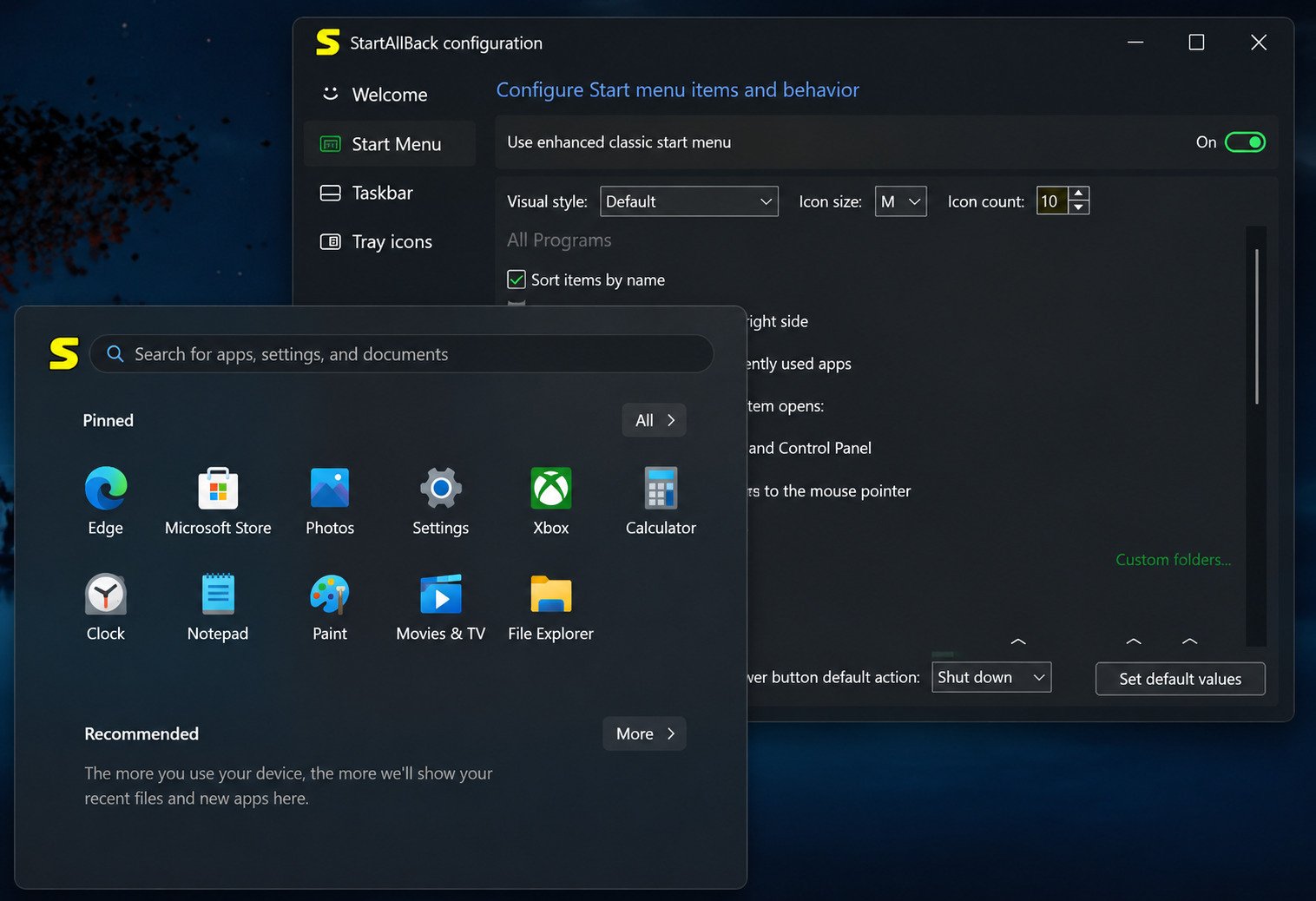
What Does StartAllBack Do in Windows 11?
In short: it gives you back the controls Microsoft removed. Windows 11 centered the Start menu, stripped taskbar labels, and simplified right-click menus — StartAllBack reverses all of that, letting you choose between a “Proper 11,” “Kinda 10,” or “Remastered 7” Start menu style, restore full context menus, and reposition the taskbar to the top, left, or right of the screen.
StartAllBack vs StartIsBack: What Is the Difference?
StartIsBack was built for Windows 7 and 10; StartAllBack is its Windows 11-specific successor, rebuilt to work with the new taskbar and Start menu architecture. If you already own a StartIsBack license, the developer offers a discounted upgrade path rather than charging full price again.
Is StartAllBack Safe to Use?
Yes. It’s a legitimate, actively maintained shareware product sold directly through the developer’s website, not a free tool bundled with adware. It also uses fewer system resources than the default Windows 11 shell and doesn’t add extra background services, which is part of why it’s stayed popular with power users for years.
StartAllBack Features for Windows 11
Classic Start Menu Customization
You can pick from multiple Start menu layouts, each modeled after a different era of Windows, then adjust icon sizes, pinned tile behavior, and search box placement.
Windows 10 and Windows 7 Style Start Menu
The Windows 10-style layout keeps the modern tile grid but returns the left-aligned button; the Windows 7-style option strips tiles entirely in favor of the classic list-and-pin layout, complete with Aero-style visual touches.
Windows 11 Taskbar Customization
Beyond repositioning the taskbar, you can restore text labels next to app icons, ungroup windows, and resize icons — all things Windows 11 removed by default.
Windows Explorer and File Explorer Customization
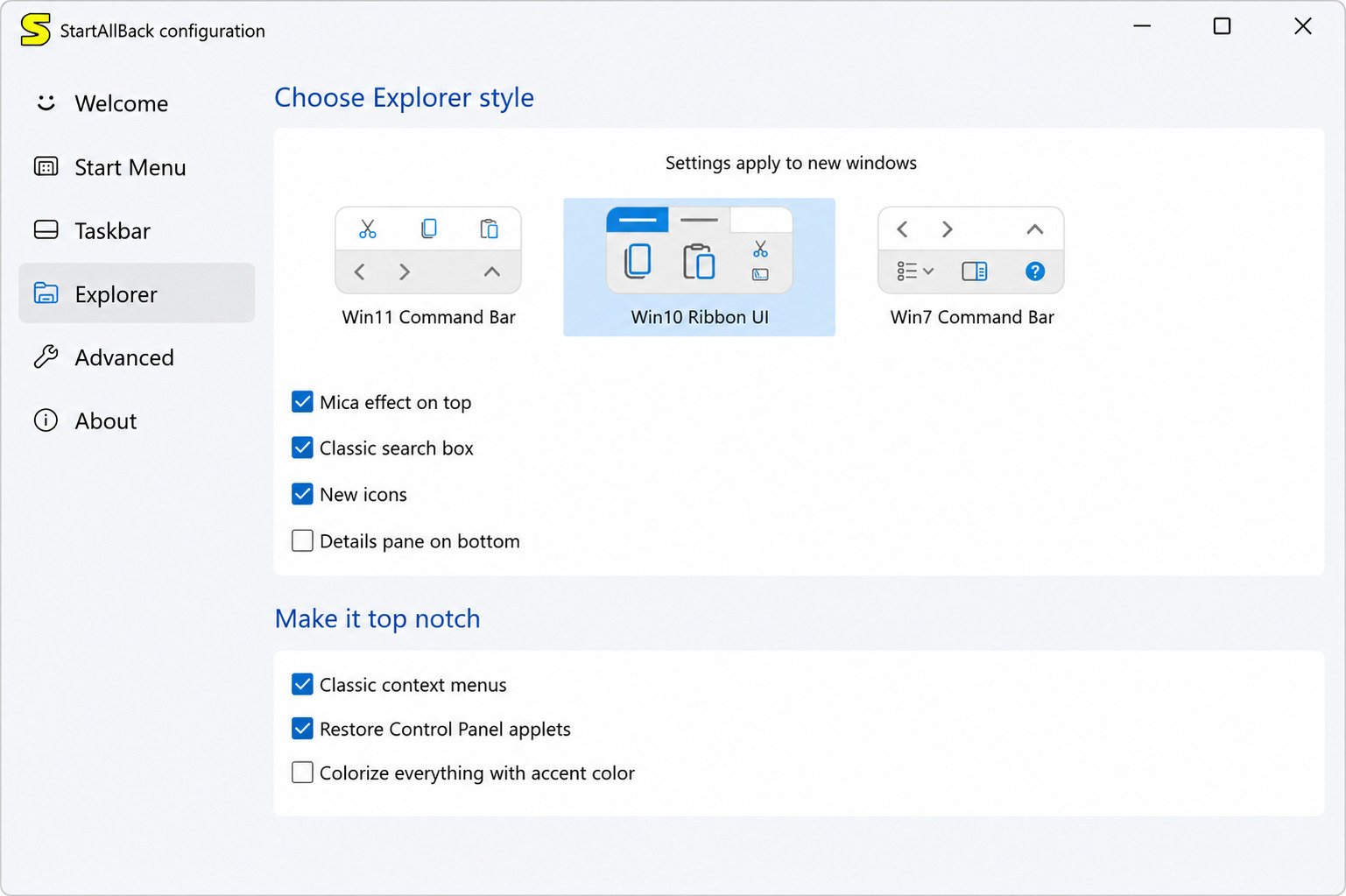
StartAllBack can bring back the classic ribbon or a compact command bar, move the details pane to the bottom of the window, and restore the old-style search box in File Explorer.
Windows Interface and Shell Customization
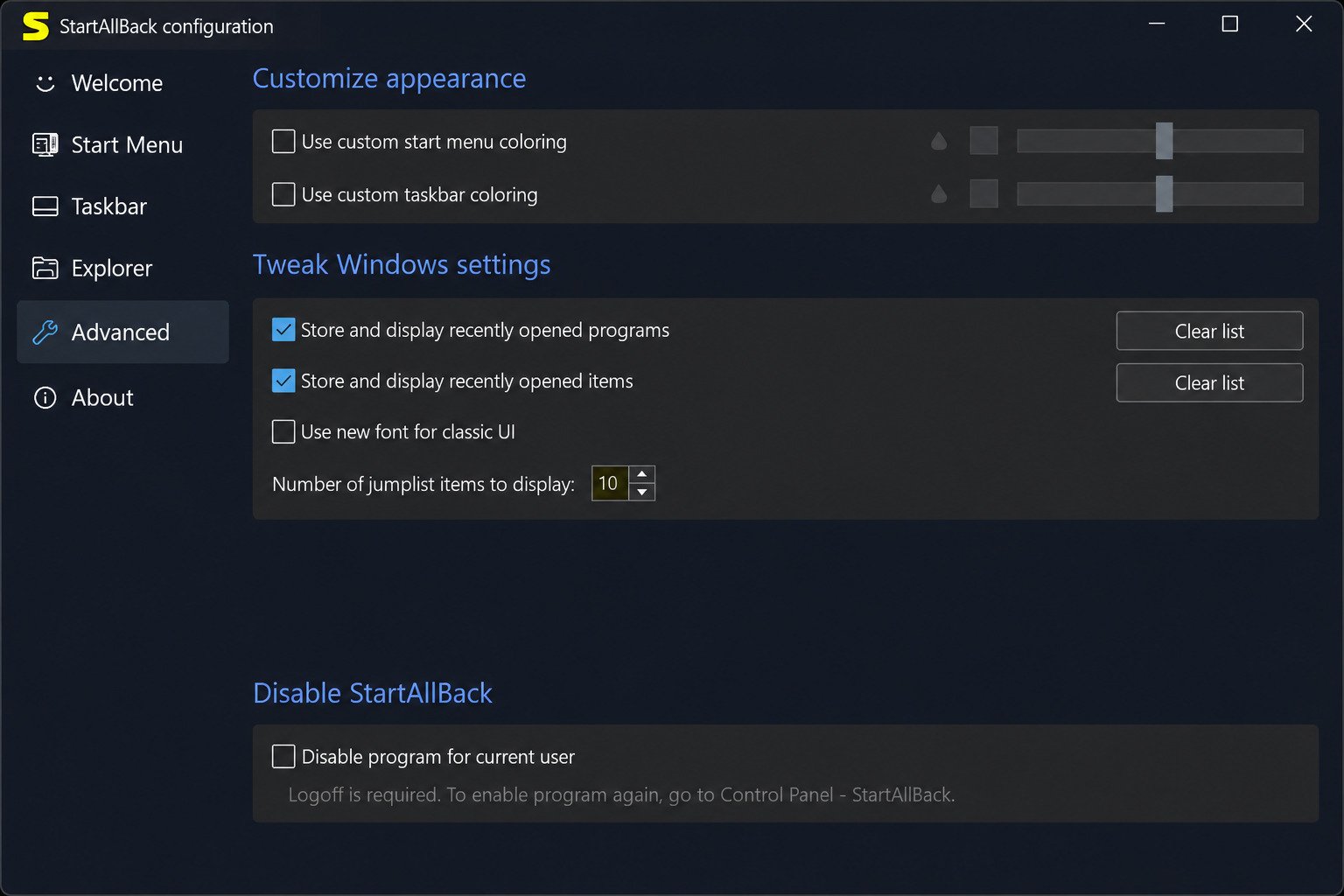
A styling layer recolors and rounds out dialog boxes across the OS — including older Control Panel windows Microsoft never fully updated — so the whole system feels more visually consistent.
StartAllBack Settings and Personalization Options
Every feature lives inside a single settings window with live previews, so you can see each change before applying it, rather than guessing and rebooting.
StartAllBack Download for Windows 11 and Windows 10
StartAllBack Free Download and Trial
StartAllBack isn’t free, but it does offer a genuinely generous 100-day trial with no feature restrictions, giving you plenty of time to test it through at least one Windows feature update.
StartAllBack License and Activation
| License | Price |
|---|---|
| 1 PC | $4.99 |
| 2 PCs | $8.99–$9 |
| 3 PCs | $11.99–$12 |
| StartIsBack upgrade | Around $1.50–$2 |
| Business/volume licensing | Available, priced per seat |
It’s a one-time purchase, not a subscription, and includes lifetime updates for that version.
Is There a Free Version of StartAllBack?
No permanent free tier exists, but the 100-day trial functions as a full-featured free version for testing purposes. After it expires unactivated, the app drops into a limited mode with a blank Start menu and a startup nag rather than fully locking you out.
StartAllBack System Requirements and Compatibility
StartAllBack for Windows 11
StartAllBack is purpose-built for Windows 11 and is updated specifically to track Microsoft’s Start menu and taskbar changes release over release, rather than being a simple port of the older Windows 10 tool.
StartAllBack Compatibility After a Windows Update
The developer has a strong track record of shipping compatibility fixes within days of major Windows updates — worth knowing if you rely on it daily and update Windows promptly.
Does StartAllBack Work on the Latest Windows 11?
Yes. Recent versions are actively tested against current Windows 11 builds, and the changelog on the developer’s site is the fastest way to confirm support for your exact build number.
How to Install and Set Up StartAllBack
How to Install StartAllBack on Windows 11
- Download the installer from the official StartAllBack website.
- Run the installer and follow the prompts.
- Restart Explorer (or reboot) when prompted to apply the new shell.
- Open StartAllBack settings from the system tray to begin customizing.
StartAllBack Initial Configuration
On first launch, pick a Start menu style (11, 10, or 7) as your starting point — you can fine-tune individual elements afterward without switching styles again.
StartAllBack Setup Guide for Beginners
If you’re not sure where to start, leave taskbar and Explorer settings at their defaults first, get comfortable with the Start menu changes, then layer in taskbar labels and Explorer tweaks one at a time.
How to Use StartAllBack to Customize Windows 11
How to Get the Windows 10 Start Menu on Windows 11
Open StartAllBack settings, go to the Start Menu tab, and select the “Kinda 10” style — this restores the familiar tile grid with a traditional left-aligned button.
How to Make Windows 11 Look Like Windows 7
Choose the “Remastered 7” style for a list-based Start menu with classic pinned-items behavior and Aero-inspired visuals, updated for a high-resolution display.
How to Customize the Windows 11 Taskbar
In the Taskbar tab, enable labels, choose an alignment (left, center), and pick a position — top, bottom, left, or right of the screen.
How to Restore the Classic Windows Explorer Interface
Under the Explorer tab, toggle the classic ribbon or command bar, and move the details pane back to the bottom if you prefer that older layout.
StartAllBack Start Menu and Taskbar Customization
| Feature | Windows 11 Default | With StartAllBack |
|---|---|---|
| Start menu position | Center-locked | Left or center, your choice |
| Start menu style | Modern tiles only | Windows 7, 10, or 11 style |
| Taskbar labels | Hidden | Restorable |
| Taskbar position | Bottom only | Top, bottom, left, or right |
| Right-click menu | Simplified | Full classic menu |
StartAllBack Windows Explorer Customization
Customize Windows File Explorer
Beyond the ribbon and command bar, you can restore the classic search box style and adjust how the details pane displays file information.
Windows 11 Explorer Tweaks
Dark mode is extended to legacy dialogs like file transfer windows and Properties panels — areas Microsoft still hasn’t updated with a native dark theme.
StartAllBack Troubleshooting
StartAllBack Not Working on Windows 11
If the Start menu or taskbar stops responding after an update, holding Esc during login temporarily disables StartAllBack for that session so you can troubleshoot or update the app.
Since Microsoft occasionally changes shell internals with feature updates, a short compatibility gap is possible — checking for a StartAllBack update first usually resolves it.
StartAllBack Settings Not Opening
Try restarting Windows Explorer from Task Manager, or reboot fully, before assuming the installation itself is broken.
How to Uninstall StartAllBack
How to Remove StartAllBack Completely
Uninstall it like any other Windows program through Settings > Apps, then restart your PC to fully restore the native Windows 11 shell.
What Happens to Windows Settings After Uninstalling StartAllBack?
Your system reverts cleanly to the stock Windows 11 Start menu and taskbar — StartAllBack doesn’t leave your shell in a broken state after removal.
StartAllBack vs StartIsBack
StartIsBack was designed around the Windows 7 and 10 shell and doesn’t support Windows 11’s taskbar architecture. If you’re on Windows 11, StartAllBack is the only actively developed option between the two.
StartAllBack Alternatives
Best StartAllBack Alternatives
| Tool | Price | Best For |
|---|---|---|
| Start11 | $10 | Deeper Start menu theming options |
| ExplorerPatcher | Free, open source | Full taskbar/Start menu overhaul, more technical setup |
| Open-Shell | Free, open source | Simple, no-frills classic Start menu |
| Windhawk | Free (mod-based) | Modular tweaks via community-made mods |
| Classic Shell | Free (discontinued) | Legacy option, no longer updated |
StartAllBack vs Start11
Start11 costs roughly double StartAllBack’s single-PC price and leans more into modern theming, while StartAllBack focuses on faithfully recreating classic Windows behavior with lighter resource use.
StartAllBack vs ExplorerPatcher
ExplorerPatcher is free and open source but requires more manual configuration and occasionally breaks with Windows updates faster than StartAllBack’s paid, actively supported model.
Frequently Asked Questions About StartAllBack
Yes — it’s a legitimate paid shareware product sold directly by its developer, with no bundled adware.
Not permanently, but it includes a full-featured 100-day trial before you need to buy a license.
Yes, it’s built specifically for Windows 11 and updated to match new Windows releases.
Yes, its “Kinda 10” Start menu style restores the familiar tile-based layout and left-aligned button.
Yes, the “Remastered 7” style brings back the classic list-based menu with modernized visuals.
Download the installer from the official site, run it, and restart Explorer or your PC when prompted.
No — it’s designed to use fewer resources than the stock Windows 11 shell and doesn’t add background services.
StartAllBack Pros and Cons
Advantages
- Affordable one-time price with lifetime updates
- Generous 100-day, full-feature trial
- Fast compatibility fixes after Windows updates
- Lightweight, no added background processes
Limitations
- Not free long-term
- Some legacy Windows tools (like Device Manager) still aren’t restyled
- Major future Windows versions may eventually require a paid upgrade
Final Verdict on StartAllBack
Is StartAllBack Worth Using on Windows 11?
For the price of a coffee, StartAllBack solves one of the most common Windows 11 complaints — a Start menu and taskbar that feel unfamiliar and less efficient. If you spend hours a day in Windows and value muscle memory, it’s a small cost for a meaningfully better daily experience.
Who Is StartAllBack Best For?
Anyone upgrading from Windows 7 or 10 who misses the old Start menu, along with power users who want taskbar labels and full right-click menus back, will get the most value from it. If you’re happy with Windows 11’s default look, there’s simply no reason to add it.
Conclusion
Windows 11’s redesign wasn’t universally welcomed, and StartAllBack exists precisely because so many longtime Windows users wanted their familiar workflow back. For a few dollars and a five-minute install, it quietly restores the Start menu, taskbar, and File Explorer behavior that Windows 7 and 10 users spent years getting used to.
Whether you go all the way back to a Windows 7-style menu or just want taskbar labels again, StartAllBack lets you decide how much of the classic experience to bring along. Try the 100-day trial first — if it fixes the one thing that’s been bothering you about Windows 11, the license fee will feel like an easy call.