PC Tweaker Windows 10: Review, Features, Download & Performance
If your Windows 10 machine has started to feel sluggish, you’ve probably typed some version of “how do I speed up my PC” into a search bar more than once. That’s usually the moment people stumble onto system optimization tools, and PC Tweaker is one of the names that keeps coming up.
This guide walks through what PC Tweaker actually is, what it can (and can’t) do, how it stacks up against alternatives like Ultimate Windows Tweaker, and whether it’s worth installing on your Windows 10 PC in 2026. Everything here is based on hands-on research into the current release, so you’re getting a grounded look rather than marketing copy.
What Is PC Tweaker Software?
PC Tweaker is a Windows system optimization utility developed by Aurelio Avila. It’s built to give everyday users a single dashboard for monitoring system health and applying performance, privacy, and customization tweaks without digging through the Registry Editor or Group Policy settings.
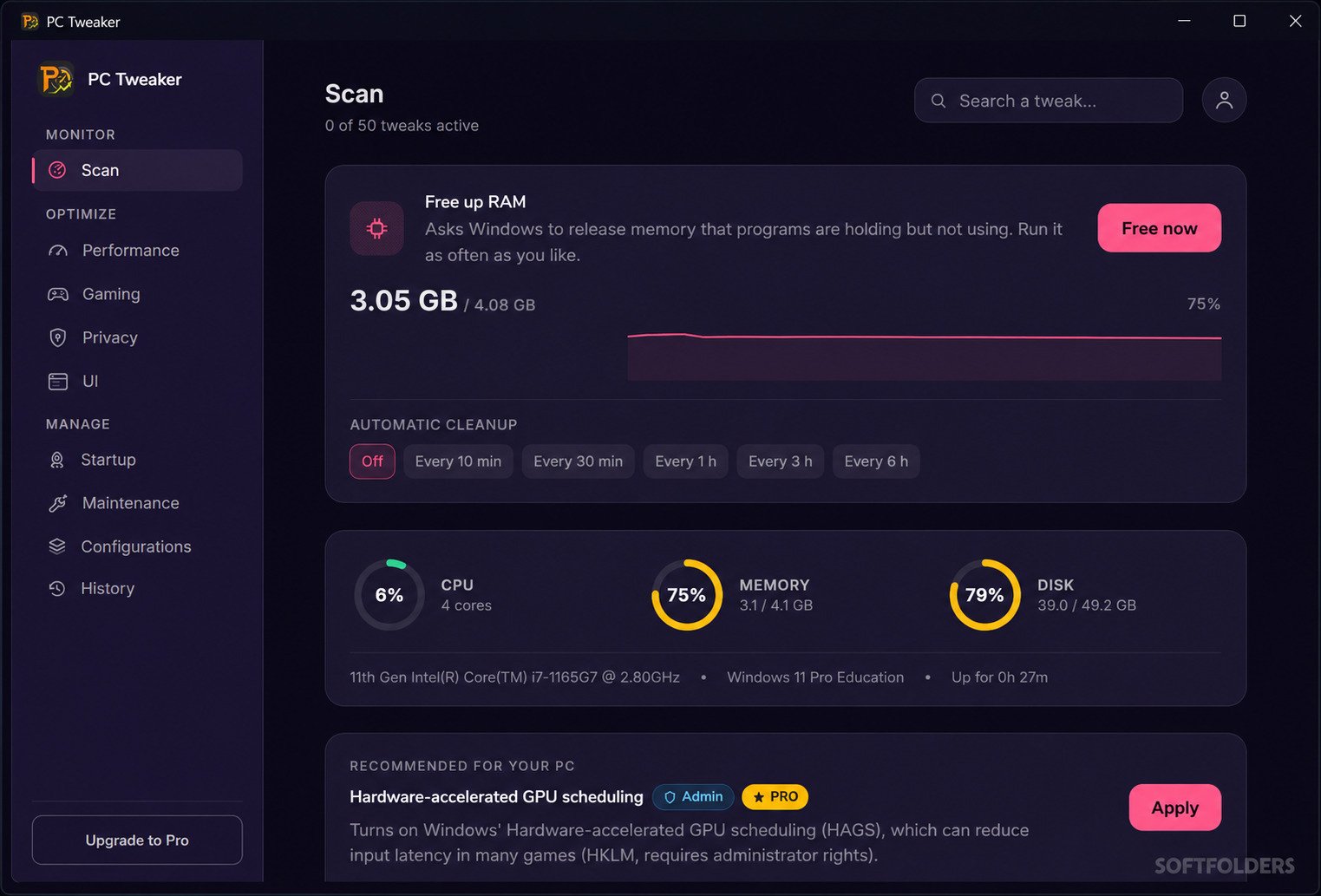
At its core, PC Tweaker is a PC optimizer: it watches your CPU, RAM, and disk usage in real time, then offers a menu of adjustments you can apply with a click. Think of it as a control panel that sits on top of Windows and translates confusing system settings into plain-language toggles.
The current release (version 1.2.0) is a lightweight installer, roughly 5.6 MB, and runs on Windows 10 (64-bit) and Windows 11. It follows a freemium model, meaning a solid core of tweaks is free, while a Pro tier unlocks the rest.
One detail that stands out compared to older-style tweaking tools: nearly every change PC Tweaker applies can be reverted with a single click. That safety net matters a lot when you’re modifying system-level settings you don’t fully understand yet.
PC Tweaker for Windows 10: What Does It Do?
In short, PC Tweaker exists to make a Windows 10 PC feel faster, cleaner, and more private without requiring technical expertise. It groups its functionality into four broad buckets:
- Performance monitoring and tuning — CPU, RAM, and disk usage tracking, plus one-click performance tweaks.
- System maintenance — temp file cleanup, duplicate file detection, drive health checks, and disk optimization.
- Privacy and security — telemetry controls, tracking opt-outs, and a breach-check tool.
- Customization — dark mode, taskbar positioning, and other cosmetic adjustments.
For Windows 10 specifically, this matters because the OS ships with a fair number of background services, scheduled tasks, and telemetry processes that many users never asked for. PC Tweaker’s job is to surface those settings in one place instead of leaving you to hunt through nested menus.
It’s worth noting this isn’t a “miracle fix” tool. It won’t turn a decade-old laptop into a gaming rig. What it does is remove friction — background clutter, stale cache files, default settings that don’t suit your workflow — that can genuinely make a system feel more responsive.
PC Tweaker Features and Performance Tools
This is where PC Tweaker spends most of its interface real estate. The Performance section is built around quick wins: a scan that flags issues, followed by one-click fixes.
Monitor CPU, RAM and Disk Usage
The main window opens straight into a live readout of your CPU load, memory usage, and disk activity, along with a summary of your system configuration. This isn’t a novelty — it gives you an at-a-glance read on whether something is actually wrong before you start changing settings.
Having this dashboard front and center is a genuinely useful design decision. Instead of opening Task Manager separately, you get context right where you’re about to make adjustments.
Free Up RAM With the Built-In RAM Cleaner
One of PC Tweaker’s signature tools is its RAM cleaner, which asks Windows to release memory that programs are holding onto but not actively using. This won’t magically double your available RAM, but it can help when background apps have quietly hoarded memory over a long uptime.
You can also schedule automatic RAM cleanup from the main screen, so the tool works in the background instead of requiring manual clicks every time your PC starts to feel sluggish.
Apply One-Click Windows Performance Tweaks
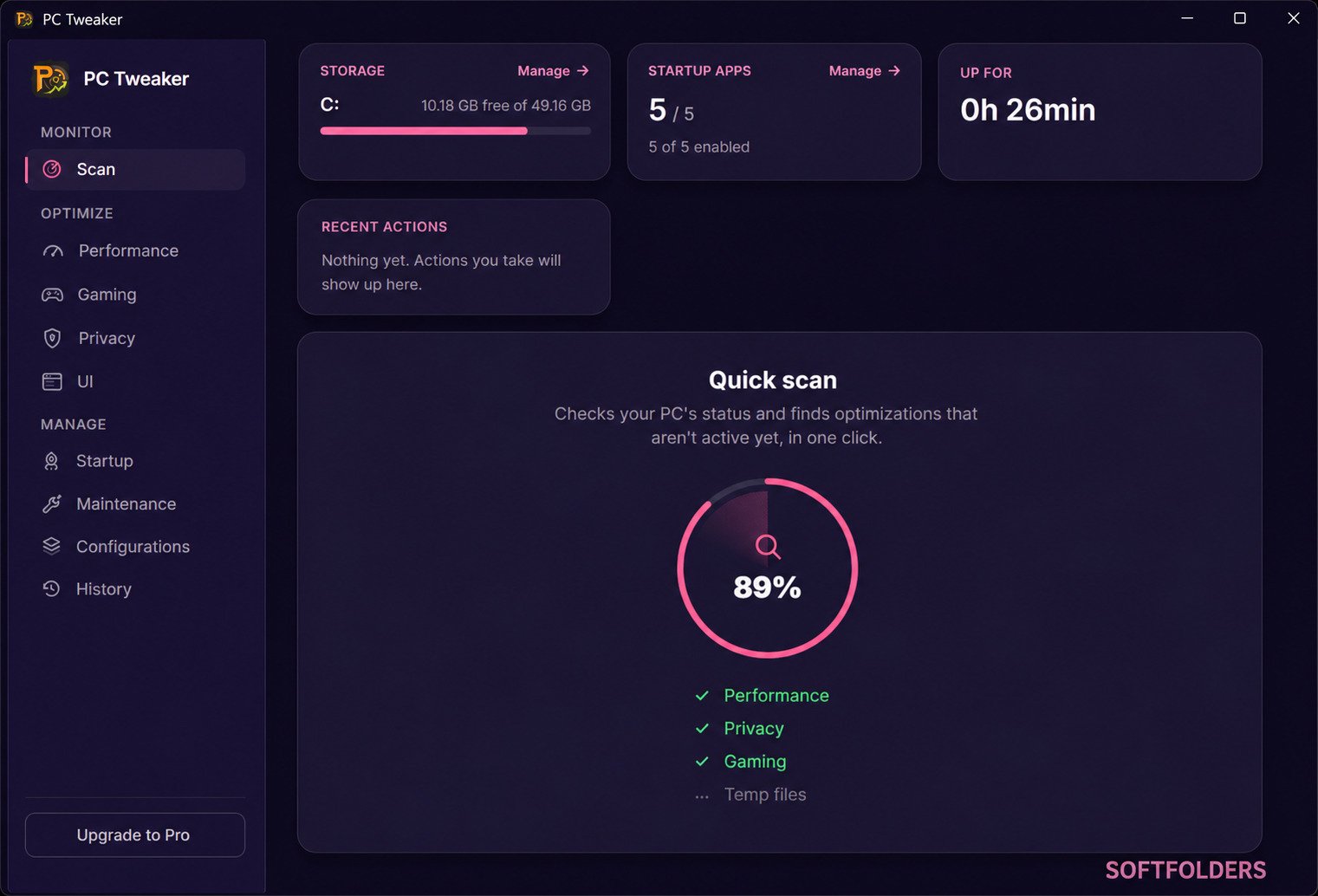
Running the built-in quick scan produces a list of suggested tweaks tailored to your current system state. From there, the Performance tab offers additional one-click adjustments, including options tied to CPU priority and hardware acceleration.
Some of these deeper tweaks — particularly the ones touching CPU scheduling or network throttling — need administrator privileges, since they modify protected system settings.
Clean Temporary Files and Windows Update Cache
Windows quietly accumulates temporary files, leftover installer data, and a growing Windows Update cache over time. PC Tweaker includes a cleanup routine that clears this clutter, which can free up meaningful disk space on machines that haven’t been maintained in a while.
This is a fairly standard feature among optimization tools, but it’s executed cleanly here — no confusing prompts, no vague “unknown files” warnings.
Check SSD and Drive Health
PC Tweaker includes a drive health checker that reports on the condition of your SSD or hard drive. Catching early warning signs of drive failure — before you lose data — is one of the more genuinely valuable things a maintenance tool can do.
| Drive Type | Recommended Maintenance | PC Tweaker Tool |
|---|---|---|
| SSD | TRIM, avoid full defrag | SSD health + TRIM optimization |
| HDD | Periodic defragmentation | Drive defrag tool |
| Any drive | Failure warning signs | Drive health check |
Optimize Drives With Defragmentation and TRIM
Different drive types need different care. Traditional hard drives benefit from defragmentation, while SSDs rely on TRIM commands to maintain write performance over time. PC Tweaker applies the appropriate optimization depending on which type of drive it detects, rather than applying a one-size-fits-all approach.
Find Duplicate and Large Files
Storage tends to fill up with forgotten downloads, duplicate photos, and oversized files nobody remembers installing. PC Tweaker’s file-finding tool scans for duplicates and unusually large files so you can decide what to delete, rather than guessing where your disk space went.
Flush the DNS Cache
A stale DNS cache can cause websites to load slowly or fail to resolve correctly after a network change. PC Tweaker includes a simple one-click DNS flush, which is a small feature but a genuinely handy one when troubleshooting connectivity issues.
How PC Tweaker Can Make Your PC Faster
Performance gains from any tweaking utility come from removing overhead, not from unlocking hidden hardware potential. PC Tweaker’s approach leans into this reality rather than overselling it.
Optimize CPU Priority and Hardware Acceleration
Some of the deeper performance tweaks adjust how Windows allocates CPU priority and whether hardware acceleration is used for certain tasks. These are the kinds of settings that used to require registry edits, now exposed as toggles.
Reduce Unnecessary Background Activity
By disabling unnecessary background services, suggestions, and scheduled tasks, PC Tweaker reduces the constant low-level activity competing for your CPU and disk I/O. On an older machine, this reduction can be noticeable during everyday multitasking.
Improve Windows PC Responsiveness
Combining foreground-app prioritization with reduced background noise is what actually drives the “my PC feels snappier” effect users report after running tools like this. It’s less about raw speed and more about responsiveness — how quickly the system reacts to what you’re doing right now.
Free Up Storage Space for Better Performance
A drive that’s nearly full runs slower across the board, especially on SSDs where free space affects write performance. Between temp file cleanup, duplicate file detection, and update cache clearing, PC Tweaker’s storage tools indirectly support overall system speed.
PC Tweaker Privacy and Security Features
This is arguably where PC Tweaker distinguishes itself from purely performance-focused competitors.
Disable Windows Telemetry and Location Tracking
Windows 10 collects diagnostic data and, by default, allows apps to access your location. PC Tweaker provides toggles to disable telemetry-related data collection and location tracking without needing to dig through Settings.
Manage Advertising ID, Cortana and Windows Suggestions
The tool also lets you turn off the advertising ID used for personalized ads, disable Cortana, and stop Windows from pushing tailored experiences, suggestions, and recommendations. These are small annoyances individually, but together they meaningfully change how “chatty” Windows feels.
Check Passwords for Data Breaches
A standout inclusion is a password breach checker built on the Have I Been Pwned database, letting you check whether your credentials have shown up in known breaches. It’s an unusual feature for a system tweaker to include, and a genuinely useful one for security-conscious users.
For anyone who wants to check this independently, Have I Been Pwned is the widely trusted, free service that many security tools — including this one — rely on for breach data.
Revert Privacy and Security Tweaks When Needed
As with performance tweaks, privacy changes can be undone. If disabling a particular setting causes an app to misbehave, you’re not stuck troubleshooting a registry edit manually — you just revert it.
PC Tweaker for Gaming Performance
Gamers make up a notable share of the audience for PC optimization software, and PC Tweaker has a dedicated section aimed at squeezing out extra frame-rate headroom.
How Turbo Boost Mode Works
The Turbo Boost feature temporarily reallocates system resources toward the foreground game, pausing or deprioritizing non-essential background processes while you play. It’s designed to be toggled on right before a gaming session and off afterward.
Optimize Windows for Gaming
Beyond Turbo Boost, PC Tweaker applies broader gaming-oriented adjustments — things like network throttling changes and background app suspension — that aim to reduce stutter and input lag during play.
Does PC Tweaker Improve Gaming Performance?
Realistically, the gains depend heavily on your starting point. If your PC is already lean and well-maintained, don’t expect a dramatic frame-rate jump. But on a system cluttered with background processes and unoptimized settings, freeing up those resources during a gaming session can produce a genuinely smoother experience.
PC Tweaker Windows Customization Options
Not every feature here is about raw performance — some are simply about making Windows look and behave the way you want.
Enable Dark Mode
A one-click toggle switches the interface into dark mode, useful for reducing eye strain in low-light environments or just matching personal preference.
Change the Windows Taskbar Position
Windows 10 defaults the taskbar to the bottom of the screen, but PC Tweaker lets you reposition it — a small customization that longtime Windows users sometimes miss from older versions of the OS.
Reveal Hidden Files
Instead of navigating Folder Options manually, you can toggle hidden file visibility directly from PC Tweaker, which is handy when troubleshooting or doing manual cleanup.
Customize Windows Settings
Beyond these specific examples, the customization section rounds out a handful of additional interface tweaks, giving users more control over the day-to-day feel of their desktop.
PC Tweaker Free Download: Is It Free to Use?
PC Tweaker runs on a freemium model. The current version ships with 50 total tweaks, split roughly into 33 free tweaks and 17 Pro-only tweaks. That means a substantial portion of the tool’s functionality — RAM cleaning, basic performance tweaks, temp file cleanup, and several privacy toggles — is accessible without paying anything.
The Pro tier is offered as an annual subscription and unlocks the remaining advanced tweaks, including certain deeper system and security options.
How to Download PC Tweaker
The installer is small (around 5.6 MB) and is distributed both from the developer’s own site and reputable third-party download catalogs such as Softpedia and MajorGeeks.
Always grab it from the official homepage or a well-known, reputable download index rather than an unfamiliar mirror site.
PC Tweaker Download for Windows 10
For Windows 10 users specifically, PC Tweaker supports the 64-bit edition of the OS. If you’re still running a 32-bit installation of Windows 10, you’ll want to verify compatibility with the developer before downloading, since modern optimization tools increasingly assume a 64-bit environment.
How to Install PC Tweaker on Windows 10
Download the .msi installer package.
Run the installer and follow the on-screen prompts.
Launch PC Tweaker once installation completes.
Run the built-in quick scan to see your first batch of suggested tweaks.
The installation process itself is straightforward — there’s no bundled third-party software to decline during setup, which is a welcome contrast to some older-generation “PC cleaner” tools.
What to Check Before Installing PC Tweaker
- Create a system restore point first, as a general precaution.
- Confirm you’re downloading the current version for Windows 10 64-bit or Windows 11.
- Note that saving a configuration profile now requires a free account, consistent with the rest of the developer’s software suite.
PC Tweaker vs Ultimate Windows Tweaker
Comparing PC Tweaker against Ultimate Windows Tweaker (UWT), one of the longest-running names in this space from The Windows Club, highlights some real philosophical differences between the two tools.
| Feature | PC Tweaker | Ultimate Windows Tweaker |
|---|---|---|
| Pricing model | Freemium (free + Pro annual) | Completely free |
| Installation | Installer (.msi) | Portable, no install needed |
| Tweak count | 50 (33 free / 17 Pro) | 200+ |
| Live system monitoring | Yes (CPU/RAM/disk) | Limited |
| Built-in breach checker | Yes | No |
| Gaming mode | Yes (Turbo Boost) | No |
| Reversible tweaks | One-click revert | Restore Defaults button |
| Browser cleanup | No | No |
PC Tweaker vs Windows Tweaker
“Windows Tweaker” is sometimes used informally to refer to any generic tweaking utility, including tools like Win 10 Tweaker. Compared to these broader, sometimes less-polished alternatives, PC Tweaker leans more toward a curated, beginner-friendly experience with fewer but more clearly explained options.
PC Tweaker vs Ultimate Windows Tweaker
UWT wins on sheer volume — over 200 tweaks covering nearly every corner of the Windows Registry and Group Policy. PC Tweaker, with roughly 50 tweaks, is narrower but arguably more approachable, with live monitoring and a security feature (breach checking) that UWT doesn’t offer.
Which Windows Tweaker Is Better for PC Optimization?
If you want maximum granular control and don’t mind a steeper learning curve, Ultimate Windows Tweaker is hard to beat, especially since it’s free and portable. If you’d rather have a simpler dashboard, live resource monitoring, gaming mode, and a built-in privacy/security check, PC Tweaker is the more modern, streamlined pick.
PC Tweaker Pros and Cons
What I Like
- Live CPU, RAM, and disk monitoring right on the main screen.
- One-click revert for essentially any tweak applied.
- Genuinely useful extras like the breach checker and DNS flush.
- Clean, lightweight installer with no bundled bloatware.
- Dedicated gaming mode (Turbo Boost).
What Could Be Improved
- The Pro tier gates a meaningful chunk of tweaks (17 of 50) behind a subscription.
- Saving configuration profiles now requires creating an account.
- Fewer total tweaks than long-established competitors like Ultimate Windows Tweaker.
The Missing Browser Cleanup Feature
One notable gap: PC Tweaker doesn’t currently include browser cleanup tools — no cache clearing, extension auditing, or cookie management for Chrome, Edge, or Firefox. Given how much browsing data can pile up over time, this feels like an area worth adding in future updates.
Is PC Tweaker Safe to Use?
Based on available testing and reviews, PC Tweaker is considered safe for typical use. It’s distributed through reputable channels, doesn’t bundle unwanted third-party software during installation, and — critically — allows you to reverse changes if something doesn’t work as expected.
As with any tool that modifies system settings, it’s good practice to create a restore point before making batch changes, especially the deeper performance tweaks that require administrator access.
Is PC Tweaker Worth Using?
For most Windows 10 users dealing with everyday slowdown, cluttered storage, or unwanted telemetry, PC Tweaker is a solid, low-risk option to try. Its free tier alone covers the fundamentals: RAM cleaning, temp file cleanup, basic privacy toggles, and drive health checks.
If you’re a power user who wants exhaustive control over every Registry-level setting, you may eventually outgrow it and lean toward something like Ultimate Windows Tweaker instead. But as a friendly, reversible, first step into PC optimization, it earns its place.
Frequently Asked Questions About PC Tweaker
PC Tweaker is a Windows optimization tool that monitors system resources and applies performance, privacy, and customization tweaks with one click.
Yes, it uses a freemium model — 33 tweaks are free, while 17 additional tweaks require a paid Pro annual subscription.
You can download it from the developer’s official site or trusted download catalogs like Softpedia and MajorGeeks.
Yes, PC Tweaker supports Windows 10 64-bit, as well as Windows 11.
It can improve responsiveness by freeing RAM, clearing clutter, and reducing background activity, though results depend on your system’s starting condition.
Yes, its built-in RAM cleaner releases memory that’s being held but not actively used, and it can be scheduled to run automatically.
Its Turbo Boost mode can help by freeing up resources during gameplay, though gains vary depending on how cluttered the system already is.
Conclusion
PC Tweaker fits neatly into a specific niche: a simple, safe, and modern-feeling optimization tool for people who want their Windows 10 PC to feel faster and more private without wrestling with the Registry Editor. Its live monitoring dashboard, one-click reversible tweaks, and unusual extras like the breach checker make it feel more thoughtfully built than a lot of older “PC cleaner” software.
It’s not going to replace a RAM upgrade or a fresh SSD, and power users may eventually want a deeper toolkit. But as an accessible entry point into system maintenance, PC Tweaker does what it promises, and does it without the bloat and false urgency that gives this software category a bad reputation.
Final Verdict
PC Tweaker earns a solid recommendation for everyday Windows 10 users who want an approachable, reversible way to clean up, speed up, and lock down their privacy — without touching the Registry. Power users chasing 200+ granular tweaks should look at Ultimate Windows Tweaker instead.
Looking for another quick, no-install way to check what’s connected to your PC? Try this free USB Device Viewer to see detailed information about every USB device on your system.
One Response