MPC Video Renderer: Free Download, Setup Guide, HDR Settings, and Alternatives
Jump to a heading
- What Is MPC Video Renderer?
- MPC Video Renderer Features
- MPC Video Renderer Download and Installation
- How to Set Up MPC Video Renderer
- MPC Video Renderer with MPC-BE
- MPC Video Renderer with MPC-HC
- MPC Video Renderer HDR and Video Quality
- MPC Video Renderer GPU Acceleration and Hardware Decoding
- MPC Video Renderer Upscaling and Scaling Settings
- MPC Video Renderer Subtitles and On-Screen Display
- MPC Video Renderer Video Processing
- MPC Video Renderer for Windows
- MPC Video Renderer Troubleshooting
- MPC Video Renderer vs Other Video Renderers
- MPC Video Renderer Review
- MPC Video Renderer Alternatives
- Frequently Asked Questions About MPC Video Renderer
- Final Verdict: Is MPC Video Renderer Worth Using?
Ever pressed play on a gorgeous 4K movie and felt the picture looked flat, washed out, or choppy? The problem is often not the file or your screen. It is the video renderer doing the last step of the job.
MPC Video Renderer is a free, open-source DirectShow renderer for Windows. It is built to deliver sharper scaling, proper HDR playback, and smooth GPU-powered output. This guide covers the download, setup, best settings, fixes, and alternatives, all in plain language.
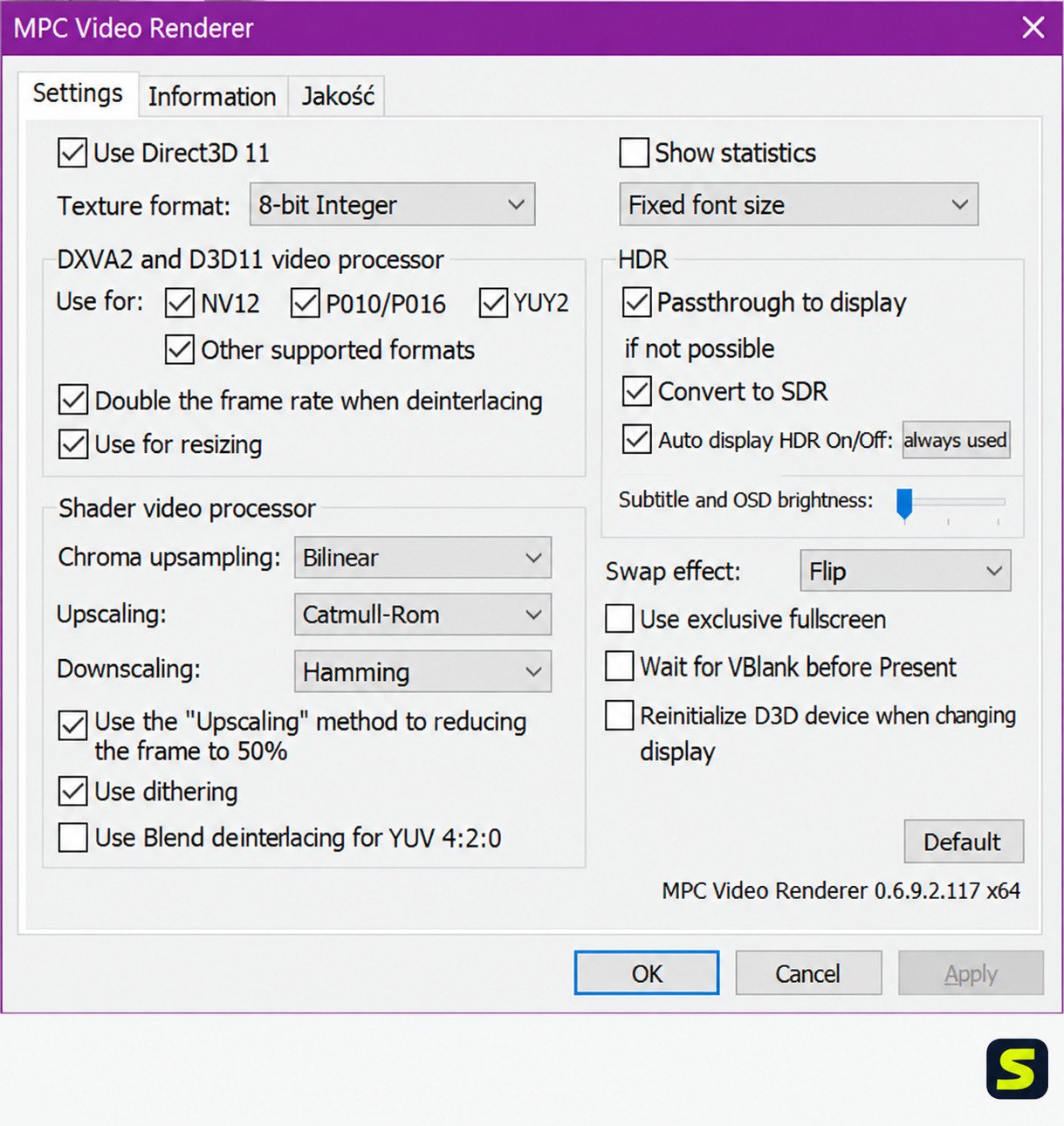
What Is MPC Video Renderer?
It is developed by Aleksoid1978 and hosted on GitHub. It is also bundled with popular players, so many people already use it without knowing.
What Does MPC Video Renderer Do?
Think of video playback as a relay race. A splitter reads the file, a decoder unpacks the frames, and the renderer finishes the race by showing them on screen.
The renderer handles resizing, color conversion, subtitles, and timing. If it does a poor job, even a perfect file looks mediocre.
MPC Video Renderer as a DirectShow Video Renderer
DirectShow is the older Microsoft media framework that players like MPC-BE and MPC-HC still use. Inside it, you can swap renderers the way you swap tires on a car.
MPCVR plugs into that system as a modern option. It replaces older renderers such as EVR and VMR-9 while keeping everything else in your player the same.
How MPC Video Renderer Improves Video Playback
You may notice a few clear changes after switching:
- Cleaner edges when 1080p video is stretched to a 4K screen
- Correct colors for HDR10 and HLG content
- Smoother motion with lower CPU load
- Better handling of interlaced TV recordings
MPC Video Renderer vs a Media Player
This is a common mix-up. MPCVR is not a player. It cannot open files by itself.
| Component | Role | Example |
|---|---|---|
| Media player | The window and controls you use | MPC-BE, MPC-HC |
| Decoder | Unpacks compressed video | LAV Filters, built-in decoders |
| Video renderer | Displays frames on screen | MPC Video Renderer, madVR |
MPC Video Renderer Features
High-Quality Video Rendering
MPCVR does its processing on the GPU in Direct3D 11. That keeps the picture precise while leaving your CPU free for other tasks.
HDR Video Playback and HDR-to-SDR Conversion
On an HDR display, MPCVR can pass HDR10 and HLG signals through correctly. On a normal screen, it can convert HDR to SDR using tone mapping, so highlights do not look gray and dull.
GPU Acceleration and Hardware Video Processing
The renderer uses your graphics card for scaling, color conversion, and deinterlacing. Modern integrated graphics from Intel and AMD handle this well, and so do NVIDIA cards.
Video Upscaling and Resizing Algorithms
You can choose how video is enlarged or shrunk. Options range from simple and fast to sharper and heavier. We cover them in detail below.
Subtitle Rendering and On-Screen Display
Subtitles are drawn directly on the video surface. That means they stay crisp and aligned, even in fullscreen mode.
Video Deinterlacing and Frame Processing
Old TV and DVD content is often interlaced. MPCVR can use DXVA2 hardware to clean up those lines automatically.
Color Processing, Dithering, and Color Depth
Dithering hides banding in smooth gradients like skies and sunsets. MPCVR also supports 10-bit output on compatible setups, which gives smoother color transitions.
Video Rotation and Flipping
Filmed a phone video sideways? You can rotate or flip the picture without re-encoding the file.
Direct3D 11 and DXVA2 Support
Direct3D 11 powers the drawing. DXVA2 supports hardware video processing, such as deinterlacing. Together, they keep playback efficient.
Feature summary:
| Feature | What It Gives You |
|---|---|
| HDR10 and HLG | Correct brightness and color on HDR screens |
| HDR-to-SDR tone mapping | Good-looking HDR video on normal monitors |
| Multiple scalers | Control over sharpness and speed |
| Hardware deinterlacing | Cleaner old TV and DVD footage |
| Dithering | Less color banding |
| Rotation and flip | Fix sideways clips instantly |
MPC Video Renderer Download and Installation
MPC Video Renderer Free Download
MPCVR is completely free and open source. You do not need a license, an account, or a paid upgrade.
MPC Video Renderer Official Download and GitHub
The safest source is the project’s official GitHub page, under Aleksoid1978/VideoRenderer. Releases are listed there with notes and file downloads.
Here is the good news: you may not need a separate download at all. MPC-BE includes the renderer in its installer. MPC-HC from the clsid2 fork also ships it, and since version 2.7.4 it is the default renderer on most systems.
How to Install MPC Video Renderer on Windows
Follow these steps for a manual installation:
- Download the latest release ZIP from the official GitHub releases page.
- Extract it to a permanent folder, such as C:\Program Files\MPCVideoRenderer.
- Open the folder that matches your player (64-bit for 64-bit players).
- Run the install_mpcvr.bat file as administrator.
- Wait for the confirmation message that registration succeeded.
The installer registers the filter with DirectShow so your player can see it.
MPC Video Renderer Installation on Windows 10 and Windows 11
The steps are the same on both. Windows 10 and 11 are the best targets because HDR support in Windows is strongest there.
MPC Video Renderer 64-Bit Download
Both 32-bit and 64-bit builds exist. Pick the one that matches your player, not your Windows version. A 64-bit player needs the 64-bit renderer.
MPC Video Renderer System Requirements
| Item | Recommended |
|---|---|
| Operating system | Windows 10 or 11 (64-bit) |
| Graphics | Direct3D 11 capable GPU with current drivers |
| Display | HDR monitor or TV for native HDR output |
| Player | DirectShow-based, such as MPC-BE or MPC-HC |
| Memory | 4 GB or more |
MPC Video Renderer Latest Version and Changelog
The project updates regularly. Recent MPC-HC builds, for example, bundle MPC Video Renderer 0.10.8, while the standalone project continues to receive updates on GitHub.
How to Update or Uninstall MPC Video Renderer
To update, download the new release and run the install batch file again. It overwrites the old registration.
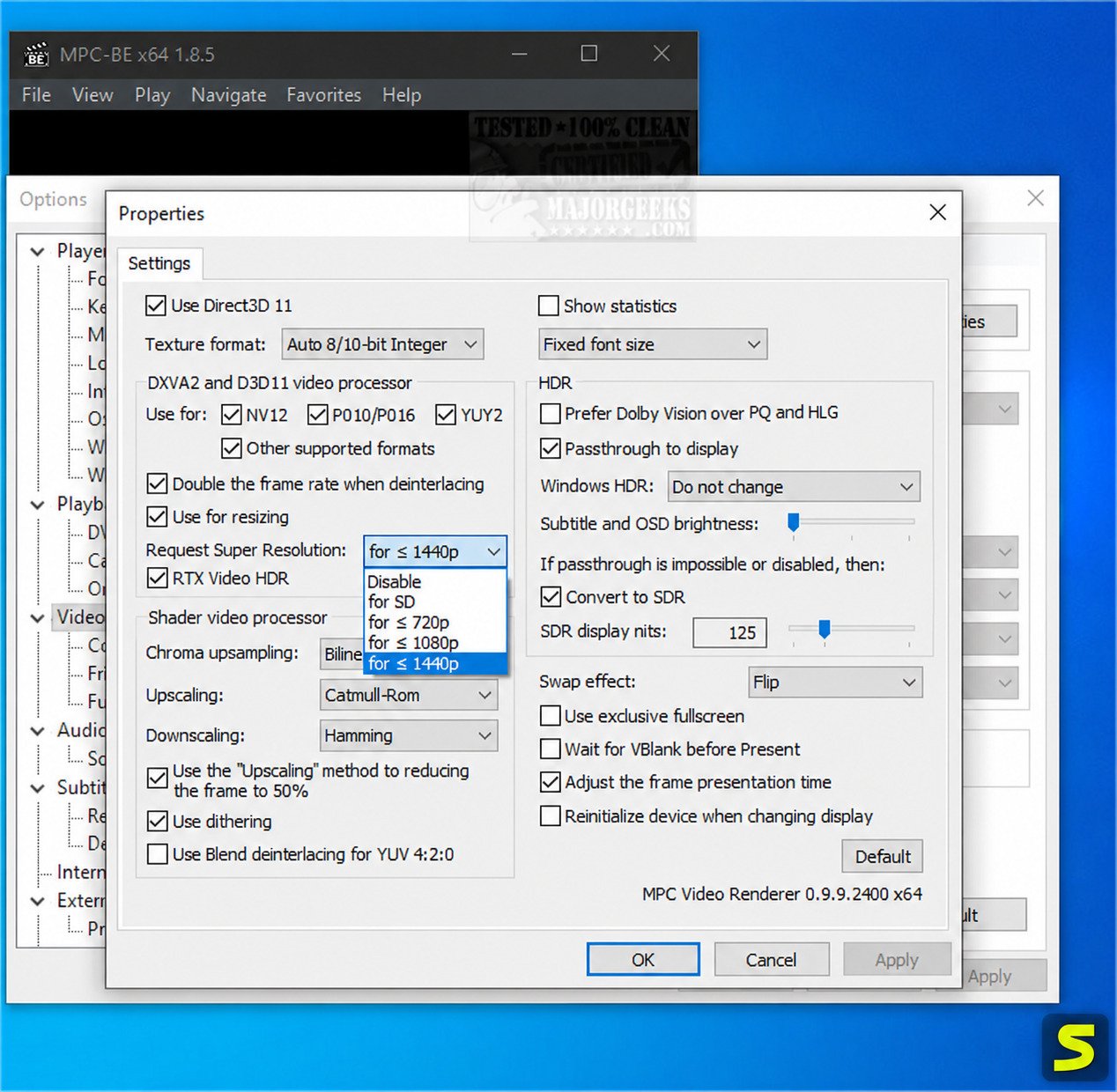
How to Set Up MPC Video Renderer
How to Enable MPC Video Renderer
Open your player’s video output settings and pick MPC Video Renderer from the renderer list. Restart the player. That is really it.
How to Configure HDR Playback
Turn on HDR in Windows first. Then, in the renderer properties, set the display to pass HDR through if your screen supports it.
On a standard screen, enable HDR-to-SDR conversion instead.
How to Enable GPU Acceleration
Hardware decoding is separate from rendering. In your player’s decoder settings, enable DXVA2 or D3D11 hardware decoding. MPCVR then works with those frames efficiently.
How to Adjust Video Upscaling and Scaling Algorithms
Find the resizer settings in the renderer properties. Pick a sharper algorithm if your GPU is strong. Pick a lighter one if playback stutters.
How to Configure Subtitle Rendering
Make sure your player’s subtitle renderer is active. Then test with a known subtitle file. If text disappears, switch the subtitle option in the player’s settings.
How to Optimize Video Rendering Performance
Here is a simple routine that works for most people:
- Update graphics drivers first
- Use hardware decoding when your GPU supports it
- Choose a lighter scaler for 4K and high frame rate video
- Close heavy background apps such as browsers with many tabs
- Plug laptops into power while watching
MPC Video Renderer with MPC-BE
How to Install MPC Video Renderer in MPC-BE
Modern MPC-BE installers include it. During setup, keep the renderer component ticked. No separate step is needed.
How to Enable MPC Video Renderer in MPC-BE
Go to Options, then Video, and select MPC Video Renderer. Open any video to confirm that the renderer name appears in the playback statistics.
MPC Video Renderer Compatibility with MPC-BE
They are a natural pair. MPC-BE is the project the renderer was originally built alongside, so compatibility is excellent.
Troubleshooting MPC Video Renderer in MPC-BE
If the renderer is missing from the list, reinstall MPC-BE with the renderer component. If video freezes, update your graphics driver and test with a different scaler.
MPC Video Renderer with MPC-HC
How to Use MPC Video Renderer with MPC-HC
The maintained MPC-HC fork by clsid2 supports it directly. Recent versions even pick it automatically after detecting your GPU.
How to Configure MPC-HC External Renderer Settings
Open Options, then Playback, then Output. Choose MPC Video Renderer in the video renderer list. A button beside it opens its settings.
How to Enable MPC Video Renderer in MPC-HC
If you use an older build, update it first. Then select the renderer in Output, apply, and reopen your video.
MPC Video Renderer Compatibility with MPC-HC
Compatibility is good on current releases. Very old, unmaintained MPC-HC builds may not offer the renderer, so upgrading is the right fix.
Fix MPC Video Renderer Not Showing in MPC-HC
- Update to a current MPC-HC release
- Use the matching 32-bit or 64-bit version
- Re-register the renderer with the install batch file
- Restart Windows after installation
MPC Video Renderer HDR and Video Quality
MPC Video Renderer HDR Support
HDR support is the main reason people leave older renderers. EVR-CP, for example, was never built for modern HDR playback.
HDR10 and HLG Video Playback
HDR10 is the common format for 4K discs and streaming rips. HLG is common in broadcast. MPCVR handles both and can map them to your display.
HDR-to-SDR Conversion Settings
If you do not own an HDR screen, tone mapping is your best friend. It compresses the bright range into what a standard screen can show.
Adjust the brightness target slowly. Too high and you lose highlight detail. Too low and the picture turns dull.
How to Fix HDR Not Working in MPC Video Renderer
- Confirm that Use HDR is switched on in Windows Display settings.
- Check that your monitor and cable support HDR (HDMI 2.0 or DisplayPort 1.4).
- Update your graphics driver.
- Make sure the video really is HDR, using the player’s file information.
- Restart the player after changing display settings.
Best MPC Video Renderer Settings for HDR Playback
| Situation | Suggested Approach |
|---|---|
| HDR display, HDR video | Enable HDR in Windows, use pass-through |
| Standard display, HDR video | Use HDR-to-SDR tone mapping |
| Weak GPU, 4K HDR | Use a lighter scaler and hardware decoding |
| Dim room viewing | Lower the brightness target slightly |
MPC Video Renderer GPU Acceleration and Hardware Decoding
How MPC Video Renderer Uses GPU Acceleration
The renderer sends frames through the graphics pipeline for scaling and color work. That is why a modest laptop can still play 4K video smoothly.
Direct3D 11 Video Rendering
Direct3D 11 is the Windows graphics interface MPCVR draws with. It gives modern features and better efficiency than older paths.
DXVA2 Hardware Acceleration
DXVA2 lets the GPU handle video tasks. In MPCVR it supports hardware processing like deinterlacing, which reduces CPU use.
How to Fix GPU Acceleration Problems
If you see green frames, stutter, or a black picture, switch the hardware decoder mode. Try D3D11, then DXVA2, then software decoding.
A driver update solves most cases. Clean installs using the vendor’s tools solve the rest.
MPC Video Renderer Upscaling and Scaling Settings
Video Scaling Algorithms Explained
| Algorithm | Look | GPU Load |
|---|---|---|
| Nearest neighbor | Blocky but sharp | Very low |
| Bilinear | Soft and smooth | Low |
| Bicubic | Balanced sharpness | Medium |
| Lanczos | Very sharp, fine detail | Higher |
If you are unsure, bicubic is a safe starting point. Lanczos looks great on modern GPUs but can add slight ringing around edges.
High-Quality Video Upscaling During Playback
The scaler runs in real time, so a 720p episode can look far better on a 4K television.
MPC Video Renderer Super Resolution
Some newer builds and GPU drivers offer extra enhancement options. Availability depends on your version and graphics card, so check the renderer properties on your own setup.
How to Adjust Video Scaling Settings
Open the renderer properties, find the resizer options, and change one algorithm at a time. Watch a familiar scene, such as faces or text, to judge the difference.
MPC Video Renderer Subtitles and On-Screen Display
Subtitle Rendering in MPC Video Renderer
The renderer draws subtitle images from the player directly onto the picture. They stay clean at any size.
MPC Video Renderer Subtitle Settings
Most subtitle controls live in the player, such as font, size, and position. The renderer simply draws the result on top of the video.
How to Fix Subtitles Not Showing
- Check that a subtitle track is selected.
- Confirm that subtitles are not disabled in the player’s menu.
- Test with a different subtitle file.
- Update the player and renderer to current versions.
MPC Video Renderer Video Processing
Video Deinterlacing and Hardware Deinterlacing
Interlaced video shows comb-like lines during motion. Hardware deinterlacing through DXVA2 removes them with very little CPU effort.
YUV and RGB Video Processing
Most video is stored in YUV. Screens work in RGB. MPCVR converts between them on the GPU, so you get accurate color without a CPU penalty.
Video Dithering and Color Depth
Dithering adds tiny noise to hide banding. It is nearly invisible during normal viewing, but it makes dark scenes look smoother.
Video Rotation and Flipping Settings
Rotate by 90-degree steps or flip horizontally. These options are helpful for phone clips and unusual camera mounts.
MPC Video Renderer for Windows
MPC Video Renderer for Windows 10
Windows 10 works well, especially with updates installed. HDR support is solid on version 1903 and later.
MPC Video Renderer for Windows 11
Windows 11 is a great fit. It includes improved HDR handling in its display settings, including Auto HDR options for other content.
MPC Video Renderer Troubleshooting
MPC Video Renderer Not Working
Restart the player and update drivers first. Then switch to a different hardware decoder mode and test again.
MPC Video Renderer Not Detected or Missing
Run the install batch file as administrator. Then confirm that your player and renderer share the same bitness.
MPC Video Renderer Black Screen
A black screen usually points to a driver or decoder conflict. Disable hardware decoding temporarily, then test other renderer settings.
MPC Video Renderer HDR Not Working
Check Windows HDR, the cable, the monitor mode, and the video file. All four must support HDR for the chain to work.
How to Perform a Clean Installation
- Close the player.
- Run uninstall_mpcvr.bat as administrator.
- Delete the old renderer folder.
- Download a fresh release from GitHub.
- Extract it and run install_mpcvr.bat again.
- Restart Windows and test.
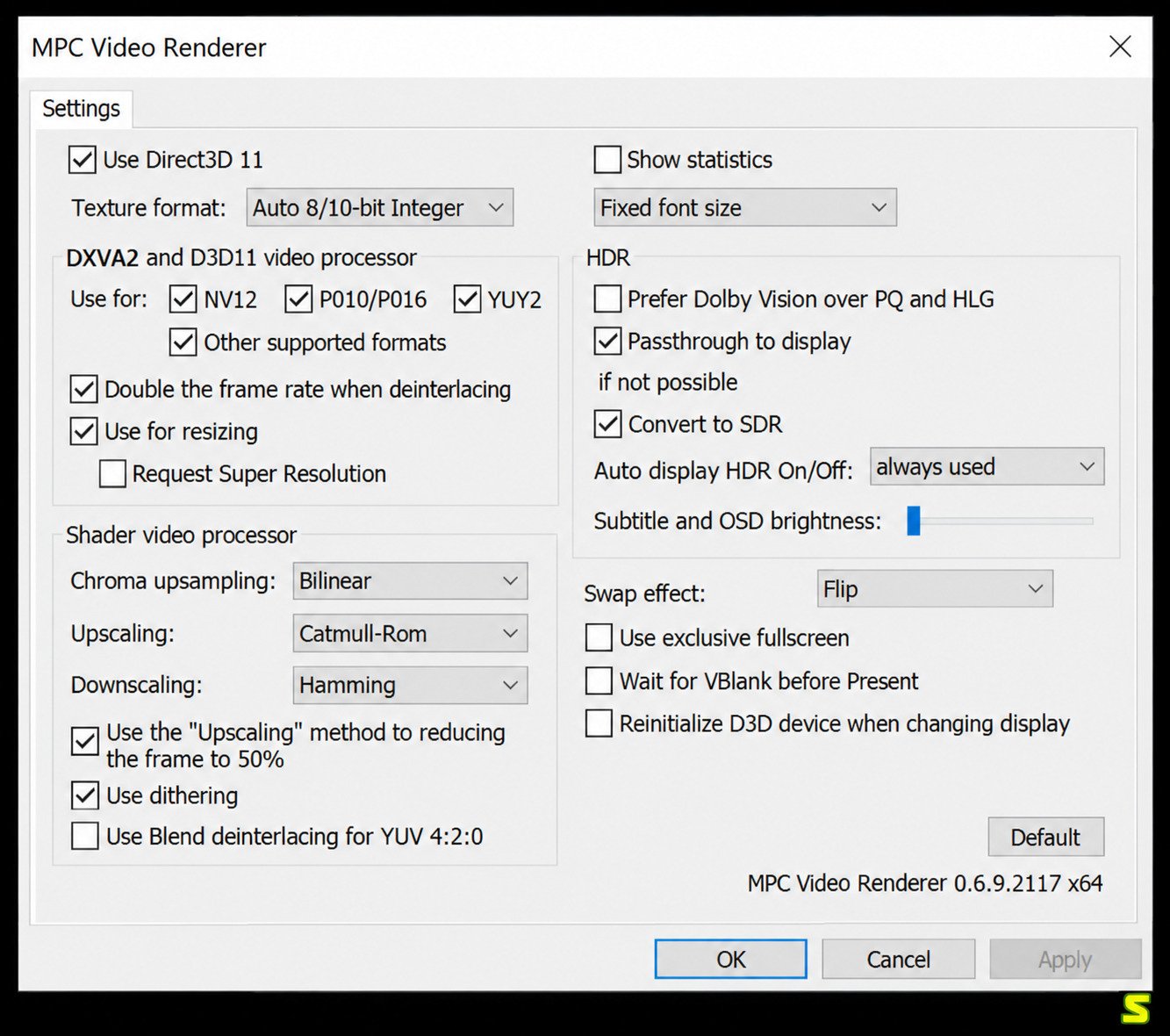
MPC Video Renderer vs Other Video Renderers
MPC Video Renderer vs madVR
madVR is the long-time enthusiast choice. It offers very advanced scaling, 3D LUT color control, and deep tweaking. It also needs a stronger GPU and more setup effort.
MPCVR is lighter, simpler, and fully open source. For most viewers, the quality gap is small compared with the effort madVR demands.
MPC Video Renderer vs madVR for HDR Playback
madVR offers more fine control over HDR tone mapping. MPCVR offers a quicker setup and solid results. If you enjoy tuning, madVR wins. If you want it to just work, MPCVR wins.
MPC Video Renderer vs EVR
EVR is the standard Windows renderer. It is stable, but its scaling is basic and HDR handling is limited.
MPC Video Renderer vs EVR-CP
EVR-CP is a custom presenter that improves frame timing in some players. It is reliable, but it is older and lacks MPCVR’s modern HDR focus.
MPC Video Renderer vs VMR9
VMR-9 is a legacy renderer. Use it only on old systems or when nothing else works.
| Renderer | Best For | HDR Support | Setup Effort |
|---|---|---|---|
| MPC Video Renderer | Modern PCs, HDR, balance | Yes | Easy |
| madVR | Maximum quality tuning | Yes, advanced | Hard |
| EVR | Basic compatibility | Limited | Easy |
| EVR-CP | Stable timing | Limited | Easy |
| VMR-9 | Old systems | No | Easy |
Which Video Renderer Is Best for MPC-BE?
MPC Video Renderer is the best everyday choice for MPC-BE. It is bundled, supports HDR, and needs very little tuning.
Which Renderer Is Best for MPC-HC?
For current MPC-HC versions, MPCVR is the sensible default. Use madVR only if you want deep manual control.
MPC Video Renderer Review
Ease of Installation and Configuration
Setup is quick, and bundled versions need almost no work. The options are clear, so beginners will not feel lost.
Video Quality and Playback Performance
In daily use, the picture is clean, sharp, and stable. Performance is efficient even on mid-range hardware.
HDR, Upscaling, and GPU Acceleration
HDR handling is the star here. Scaling is strong, and GPU use is smart, so you get a polished result without heavy tuning.
Compatibility with DirectShow Players
It works best with MPC-BE and MPC-HC. Other DirectShow-based players may also work, but results can vary.
Pros and Cons of MPC Video Renderer
What works well
- Free and open source
- Good HDR10 and HLG support
- Efficient GPU use
- Easy to install
What to watch
- Fewer advanced options than madVR
- Works only with DirectShow players
- Windows only
- Some features depend on your GPU
Who Should Use MPC Video Renderer?
It suits everyday movie fans, HDR owners, and anyone with MPC-BE or MPC-HC. Power users chasing perfect color science might still prefer madVR.
MPC Video Renderer Alternatives
Best MPC Video Renderer Alternatives for Windows
The leading options are madVR, EVR, EVR-CP, and VMR-9. Each solves a different problem.
madVR as a Video Renderer Alternative
Choose madVR if you have a strong GPU and love tuning. It delivers deep control but demands patience.
Enhanced Video Renderer (EVR)
EVR comes with Windows and works nearly everywhere. It is a safe fallback, though basic.
Enhanced Video Renderer Custom Presenter (EVR-CP)
EVR-CP improves timing and is handy on older MPC-HC setups. It is stable but dated for HDR.
How to Choose the Right Video Renderer
- Want easy HDR: choose MPC Video Renderer
- Want maximum tuning: choose madVR
- Have an old PC: choose EVR or VMR-9
- Need basic stability: choose EVR-CP
For deeper background on how Windows handles media pipelines, see Microsoft’s official DirectShow documentation.
Frequently Asked Questions About MPC Video Renderer
Yes. It is free and open source, with no license fee or hidden payment.
Download it from the official GitHub project page. It also comes bundled inside MPC-BE and MPC-HC.
Yes. It works well with both, and current versions include it or detect it automatically.
Yes. It handles both formats and can also convert HDR to SDR for normal screens.
Yes. It renders with Direct3D 11 and uses DXVA2 for hardware video processing.
The renderer is usually unregistered or mismatched in bitness. Reinstall it and match 32-bit or 64-bit with your player.
MPCVR is free, light, and easy to set up. madVR offers deeper tuning but needs a stronger GPU.
Final Verdict: Is MPC Video Renderer Worth Using?
Yes, it is. MPC Video Renderer gives you modern HDR playback, smooth GPU rendering, and sharp scaling without a steep learning curve. For most Windows users of MPC-BE or MPC-HC, it is the easiest big upgrade you can make.
It will not replace madVR for hardcore tinkerers, and it does not have to. It simply makes good video look good, quietly and reliably. Next time you press play, try it and enjoy a clearer, steadier picture.