Photo Editing Software Guide
ON1 Photo RAW Download, Features, Setup, and Alternatives
If you’re tired of paying a monthly fee just to edit your own photos, you’ve probably already heard of ON1 Photo RAW. It’s one of the few serious editors left that still lets you buy a license once and own it — no subscription required.
This guide breaks down what ON1 Photo RAW actually does, how its AI tools and RAW processing work, how to download and install it on Windows or Mac, what it costs, and how it compares to Lightroom, Photoshop, and Luminar Neo.
What Is ON1 Photo RAW and How Does It Work?
ON1 Photo RAW Photo Editor Overview
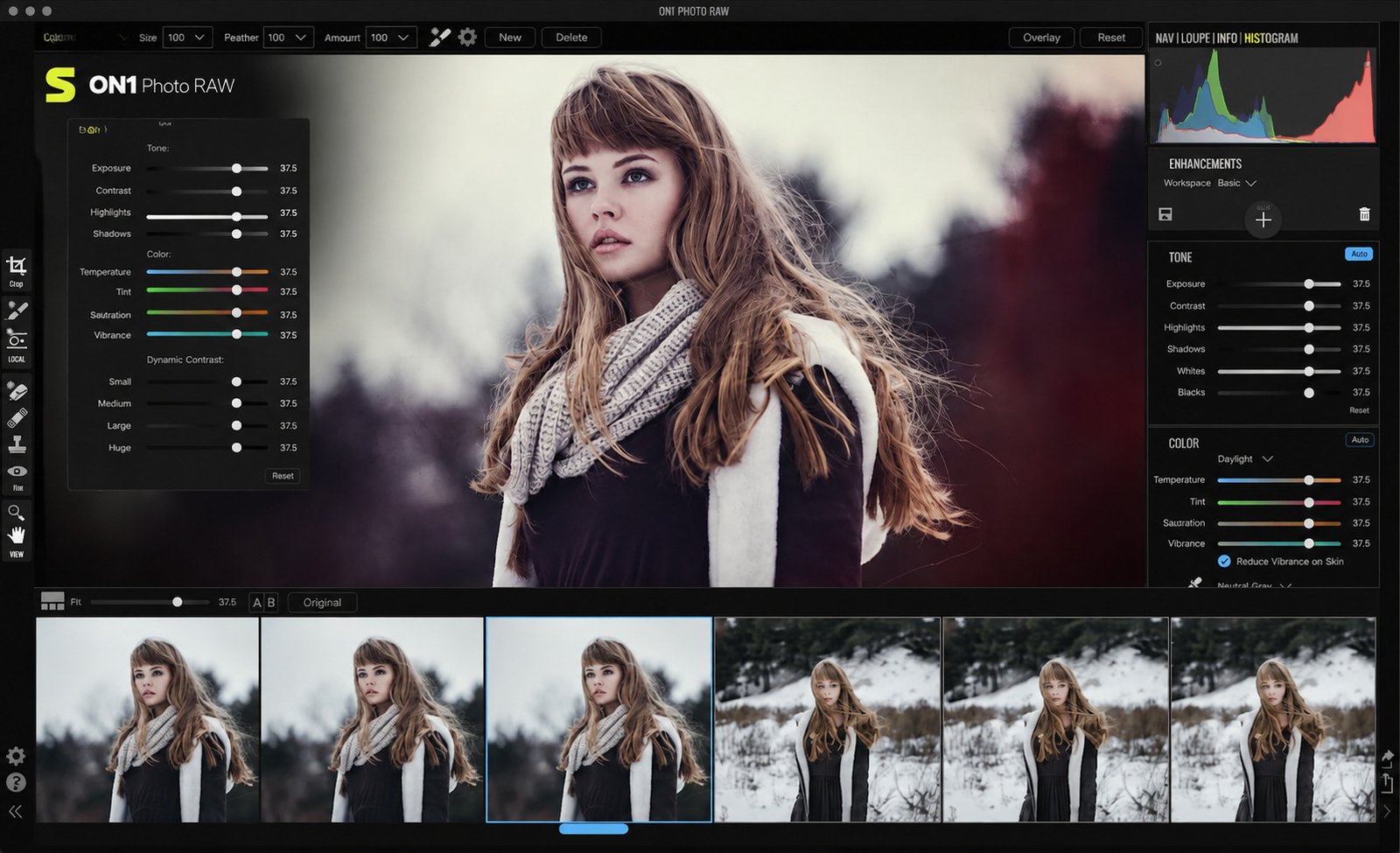
ON1 Photo RAW is an all-in-one photo editor that combines RAW processing, layer-based editing, effects, and photo organization into a single application, so you don’t need to juggle separate programs for editing and cataloging.
ON1 Photo RAW as a RAW Photo Editor
At its core, ON1 Photo RAW processes camera RAW files non-destructively, meaning your original files stay untouched while all your adjustments are stored separately and can be undone at any time.
ON1 Photo RAW Photo Editing and Organization
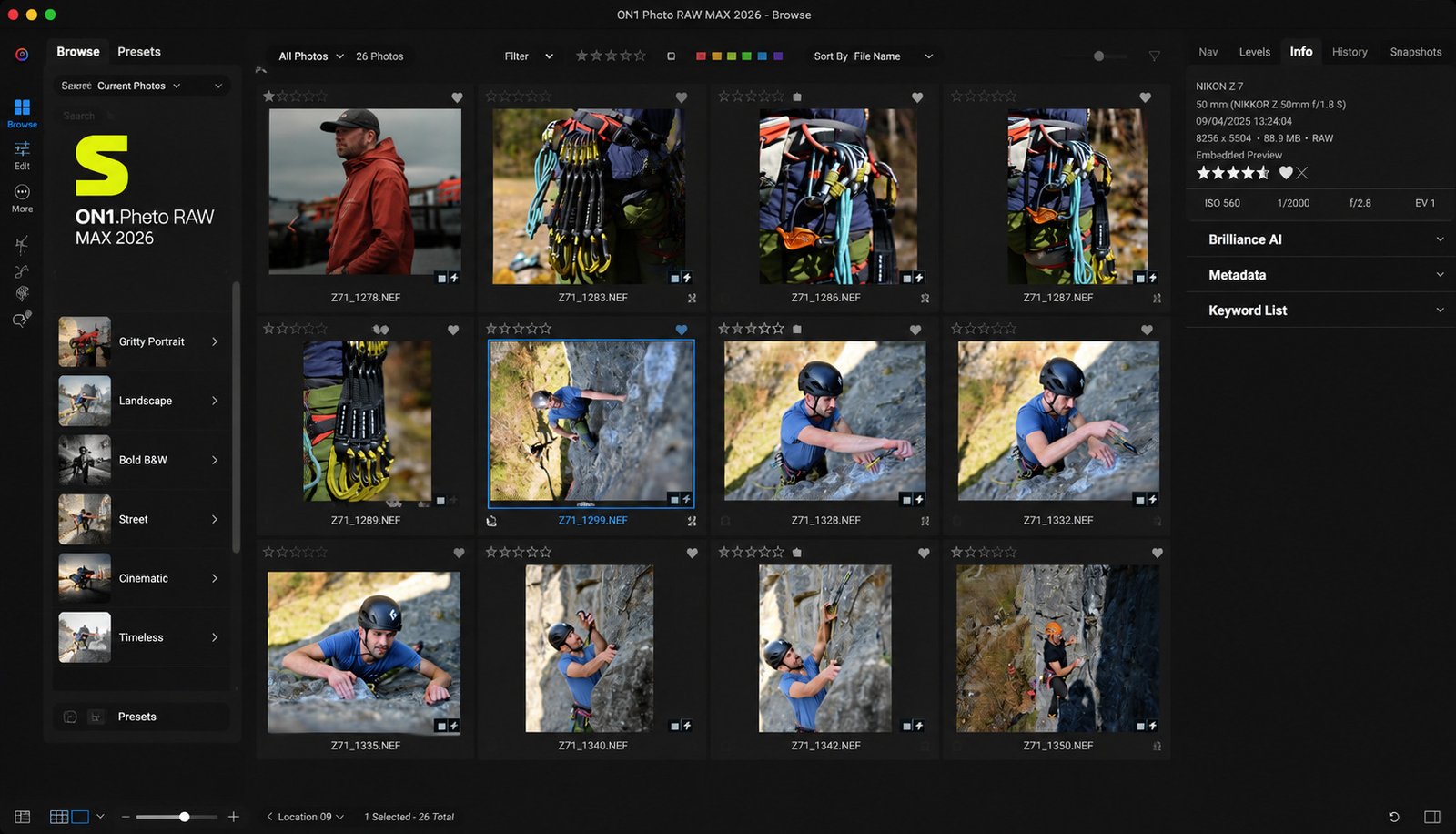
Unlike catalog-only tools, ON1 uses folder-based browsing. You can edit photos directly from your existing folder structure instead of being forced to import everything into a closed catalog first.
Who Is ON1 Photo RAW Best For?
ON1 Photo RAW tends to suit:
- Photographers who want to avoid subscriptions but still need professional editing tools
- Landscape and portrait photographers who rely on masking, effects, and retouching
- Lightroom or Photoshop users looking for a one-time-purchase alternative
Is ON1 Photo RAW Good for Photographers?
For intermediate to advanced photographers who want Lightroom-style organization plus Photoshop-style layers in one app, ON1 Photo RAW is a genuinely strong option, especially at its price point.
ON1 Photo RAW Features
RAW Photo Editing and RAW Image Processing
ON1 supports RAW files from a wide range of camera brands, with regularly updated camera and lens support added in each new release cycle.
Non-Destructive Photo Editing
Every adjustment — exposure, color, retouching, or masking — is stored as editable metadata rather than baked into the pixels, so you can always go back and change your mind.
AI Photo Editing and AI Photo Enhancement
Recent versions lean heavily on AI, including one-click subject and background masking, automated selections, and AI-assisted enhancement tools that speed up repetitive editing tasks.
AI Noise Reduction and Image Sharpening
Built-in AI noise reduction and sharpening tools help clean up high-ISO images and add clarity to soft or slightly out-of-focus shots without introducing artifacts.
Photo Retouching and Portrait Editing
Dedicated retouching tools handle skin smoothing, blemish removal, and facial feature adjustments, aimed squarely at portrait photographers.
Photo Effects, Filters, and Creative Editing Tools
The Effects module includes dozens of creative filters and “Starting Points” one-click looks you can apply and then fine-tune, which is faster than building a style from scratch every time.
HDR Photo Editing and Landscape Photography
HDR merging tools combine multiple exposures into a single, balanced image, which is especially useful for landscape and architecture photography with high dynamic range.
Photo Presets, LUTs, and ON1 Effects
Presets and LUTs let you apply a consistent look across a whole shoot in seconds, and ON1 regularly bundles bonus preset packs with new purchases.
Photo Organization and Catalog Management
Organization tools include star ratings, keywording, metadata editing, and flexible filtering, all without forcing a rigid catalog structure on your files.
Photo Library and RAW Photo Management
Because ON1 works directly with your folder structure, moving or reorganizing files outside the app doesn’t break your editing history the way some catalog-based tools can.
Photo Workflow and Professional Post Processing
From import to export, ON1 Photo RAW is designed to cover an entire editing session — browsing, culling, editing, retouching, and exporting — inside one interface.
ON1 Photo RAW AI Tools
AI Photo Editor and AI Image Editing
Direct answer: ON1’s AI tools focus on speeding up selection, masking, enhancement, and upscaling tasks that used to require manual, time-consuming work.
AI Enhancement, Noise Reduction, and Sharpening
One-click enhancement analyzes an image and suggests exposure, color, and detail adjustments as a starting point. AI noise reduction is trained on RAW sensor data for cleaner results than reducing noise after compression, and AI sharpening distinguishes real detail from noise to avoid the halo effects older algorithms produced.
AI Background Removal and Portrait Retouching
One-click subject and background masking automatically separates a subject from its background for fast composites, while AI-assisted portrait tools detect faces and apply targeted retouching without manual masking.
AI Photo Effects
New creative filters, including a Depth Lighting effect powered by AI depth masks, add cinematic lighting based on the actual depth information in a scene.
ON1 Photo RAW for RAW Photography
What Are RAW Photos and Why Shoot RAW Images?
RAW files capture all the data your camera’s sensor records, unlike JPEGs, which discard information during compression — giving you far more room to recover detail later.
RAW Image Editor and RAW Processing Workflow
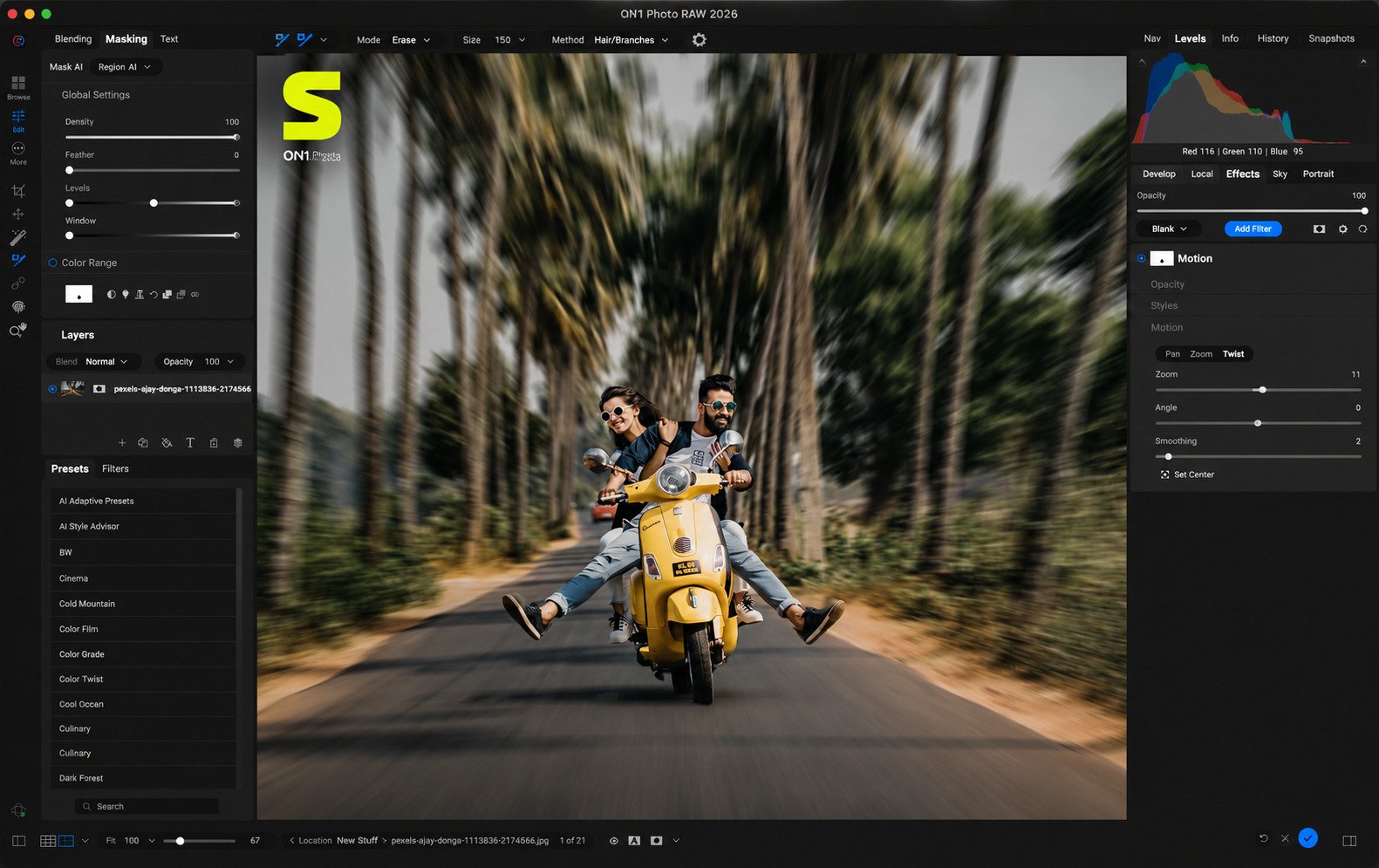
ON1’s RAW engine handles demosaicing, lens correction, and noise reduction before any creative edits are applied, then lets you layer masking, retouching, and effects on top — all as reversible instructions rather than permanent pixel changes.
Best RAW Photo Editor Features for Photographers
For serious RAW work, what matters most is accurate lens profiles, reliable noise reduction, and fine local adjustment tools — all of which ON1 Photo RAW covers.
ON1 Photo RAW Photo Editing Tools
Photo Editor and Image Editing Software
Beyond RAW processing, ON1 functions as a full image editor with layers, blend modes, and masks similar to a simplified Photoshop workflow.
Photo Enhancement, Sharpening, and Noise Reduction
Global and local tools cover exposure, contrast, color grading, sharpening, and noise reduction, each through dedicated AI-assisted modules rather than one generic slider.
Photo Filters and Professional Editing Tools
Creative filters range from subtle film looks to dramatic effects, all non-destructively stacked, alongside professional tools like luminosity masking and advanced color grading.
All-in-One Photo Editor and Photography Workflow
The pitch behind ON1 is simple: replace the need to switch between a cataloging app and a pixel editor by handling both in one program.
ON1 Photo RAW Photo Organization
Photo Organizer and Photo Management Software
ON1’s Browse module works like a file manager crossed with a lightweight catalog, showing thumbnails, metadata, and edit history without a mandatory import step.
How to Organize Photos in ON1 Photo RAW
- Point ON1 to your existing photo folders — no restructuring needed
- Rate, flag, or keyword images as you review them
- Use filters to isolate favorites or specific shoots
- Edit directly, with changes tracked automatically
Metadata, keywords, and star ratings all stay searchable, which matters once a library grows into the tens of thousands of images.
ON1 Photo RAW Presets, LUTs, and Effects
Presets, LUTs, and Effects
Presets apply a saved combination of adjustments in one click, useful for maintaining a consistent style across a shoot. ON1 frequently bundles free or bonus preset packs — including a Creative Bundle of 100+ presets — with new purchases, while LUTs let you apply cinematic color grades borrowed from film workflows. The Effects module runs standalone or as a Photoshop/Lightroom Classic plugin in the MAX edition, with looks organized by genre — landscape, portrait, and cinematic — for easy browsing.
ON1 Photo RAW for Portrait Photography
Portrait Editing and AI Retouching Tools
Portrait-specific tools cover skin retouching, eye enhancement, and facial reshaping, aimed at speeding up repetitive client-editing work. AI-assisted face detection automatically applies targeted adjustments to skin, eyes, and other features instead of requiring manual masking every time, and smoothing strength is adjustable to avoid an overly “plastic” look.
How to Retouch Portraits in ON1 Photo RAW
- Open the portrait or retouch module
- Let AI detect the face and generate a base mask
- Adjust skin smoothing, eye brightness, and blemish removal
- Fine-tune manually with local brushes, then export
ON1 Photo RAW for Landscape and HDR Photography
Landscape, HDR, and Panorama Tools
Landscape-focused tools include graduated filters, luminosity masking, and dehaze-style adjustments for skies and distant detail. HDR merging combines a bracketed set of exposures into one image with detail preserved in both shadows and highlights, while panorama stitching combines multiple frames into a single wide image useful for both landscape and real estate photographers. Color grading and clarity tools then help add punch to foliage, skies, and water without looking artificially oversaturated.
ON1 Photo RAW Download
ON1 Photo RAW Latest Version
Direct answer: The current release cycle is ON1 Photo RAW 2026, with regular point updates (such as 2026.1, 2026.2, and 2026.3) adding new AI features and camera support.
ON1 Photo RAW Latest Release and Updates
Recent updates have added one-click subject/background masking, a Depth Lighting effect, new creative filters, and expanded camera compatibility.
ON1 Photo RAW Free Download and Trial
ON1 offers a free trial (commonly cited around 14 to 30 days depending on the current promotion) with full functionality — not a stripped-down demo.
ON1 Photo RAW Download for Windows
The Windows installer is available directly from ON1’s official website after creating a free account.
ON1 Photo RAW Download for Mac
A native macOS version is available from the same account portal, with feature parity to the Windows release.
ON1 Photo RAW for PC
“PC” and “Windows” versions refer to the same product — there’s no separate stripped-down PC edition.
ON1 Photo RAW for Windows and Mac
ON1 Photo RAW Windows 11 and Windows 10
ON1 Photo RAW runs on both Windows 10 and Windows 11, including newer builds with Windows ARM support for optimized performance on ARM-based devices. Downloads come as a single installer directly from ON1’s website rather than the Microsoft Store.
ON1 Photo RAW for macOS
The macOS version offers full feature parity with Windows, including AI masking, RAW processing, and organization tools. Apple Silicon Macs handle AI-driven features noticeably faster than older Intel models.
AI Photo Editor and Photo Organizer for Both Platforms
Because editing and organization live in the same app on either OS, you don’t need a separate program just to browse, rate, and manage your photo library.
ON1 Photo RAW System Requirements and Compatibility
| Requirement | Windows | Mac |
|---|---|---|
| Operating System | Windows 10 or 11 (ARM supported) | Recent macOS versions |
| Processor | Modern multi-core CPU | Apple Silicon or Intel |
| RAM | 8 GB minimum, 16 GB+ recommended | 8 GB minimum, 16 GB+ recommended |
| Storage | SSD recommended for large libraries | SSD recommended for large libraries |
| GPU | Dedicated GPU improves AI tool speed | Built-in GPU generally sufficient |
Check before you buy: Always check ON1’s official system requirements page before purchasing, since minimum specs can shift with each major release.
How to Install and Set Up ON1 Photo RAW
How to Install ON1 Photo RAW
- Create a free ON1 account
- Download the Windows or Mac installer
- Run the installer and follow the setup prompts
- Sign in with your ON1 account to activate the license or trial
ON1 Photo RAW Setup Guide
After installation, ON1 will prompt you to point it at your existing photo folders rather than forcing a full catalog import.
Importing Photos and RAW Files
Because browsing is folder-based, “importing” is really just pointing the app to where your files already live on disk.
Setting Up a Photo Library
You can add multiple folders or drives as sources, which is useful if your photos are spread across an internal drive and external backups.
Getting Started With ON1 Photo RAW
New users are generally better off starting with the Browse module to organize a shoot before jumping into detailed edits.
How to Use ON1 Photo RAW
Direct answer: a typical ON1 workflow moves from organizing to global adjustments, then AI-assisted local editing, and finally export.
- Organize first — rate and keyword images in the Browse module so you can filter by shoot or favorite later.
- Apply global edits — exposure, white balance, and lens correction before anything local.
- Reduce noise before sharpening — sharpening noisy detail first tends to make grain more visible.
- Use AI tools for repetitive work — one-click enhancement, subject masking, and portrait face detection all speed up common edits.
- Add creative touches — landscape work often benefits from graduated filters and dehaze; portraits from targeted skin and eye retouching.
- Export last — choose format, resolution, and destination, using built-in presets for web or print output.
ON1 Photo RAW Pricing, Trial, and Purchase Options
Is ON1 Photo RAW Free?
No, but a full-featured free trial is available so you can test every tool before buying.
ON1 Photo RAW Free Trial
Trial length has varied between roughly 14 and 30 days depending on current promotions, with no artificial feature limits during that window.
Is ON1 Photo RAW a One-Time Purchase?
Yes — ON1 Photo RAW is available as a one-time license that you own outright, in addition to an optional subscription plan.
ON1 Photo RAW vs Subscription-Based Photo Editors
| Option | Cost Structure | What You Get |
|---|---|---|
| Photo RAW (perpetual license) | One-time payment | Own that version outright; free minor updates within the release |
| Photo RAW MAX (perpetual license) | One-time payment, higher price | Adds plugin support for Photoshop/Lightroom, plus core features |
| Photo RAW MAX (subscription) | Recurring annual/monthly fee | Always the latest version, cloud sync, and future major upgrades included |
Is ON1 Photo RAW Worth Buying?
For photographers who want to avoid ongoing subscription costs while still getting AI-powered editing, the one-time license makes ON1 one of the more affordable long-term options on the market.
ON1 Photo RAW Review
ON1 Photo RAW 2026 Review
The 2026 release adds meaningful AI upgrades — smarter masking, a Depth Lighting effect, and improved upscaling — rather than just incremental polish.
ON1 Photo RAW Max 2026 Review
The MAX edition is worth the extra cost mainly for photographers who still want to use Photoshop or Lightroom Classic occasionally, since it unlocks plugin support.
ON1 Photo RAW Editor Performance
Performance is generally smooth on modern hardware, though AI-heavy tools like masking and noise reduction benefit noticeably from a dedicated GPU.
ON1 Photo RAW AI Features Review
The new one-click masking and enhancement tools meaningfully cut editing time on repetitive tasks like background separation and skin retouching.
ON1 Photo RAW RAW Editing Review
Core RAW processing is competitive with other major editors, with regularly updated lens and camera profiles keeping pace with new gear releases.
ON1 Photo RAW Photo Organization Review
Folder-based browsing is a genuine advantage for photographers who don’t want to be locked into a rigid catalog file.
ON1 Photo RAW Pros and Cons
Who Should Use ON1 Photo RAW? Photographers who want Lightroom-style organization and Photoshop-style editing without paying two subscriptions are the clearest fit.
Pros
- One-time purchase option with no forced subscription
- Combines RAW editing, layers, and organization in one app
- Strong and growing AI toolset for masking, retouching, and upscaling
- Regular free preset bundles included with purchase
Cons
- MAX edition and plugin support cost extra
- AI features run best on newer, GPU-equipped hardware
- Smaller plugin ecosystem than Adobe’s Creative Cloud apps
ON1 Photo RAW vs Lightroom
ON1 Photo RAW vs Adobe Lightroom
Direct answer: ON1 offers a one-time purchase and folder-based browsing, while Lightroom is subscription-only and relies on a centralized catalog system.
ON1 Photo RAW as a Lightroom Alternative
For photographers frustrated by Adobe’s subscription model, ON1 covers most of the same RAW editing and organization ground without recurring fees.
Best Lightroom Alternative for Photographers
ON1 Photo RAW is frequently cited among the top Lightroom alternatives specifically because it doesn’t sacrifice organization tools to skip the subscription.
Lightroom Alternative Without a Subscription
The perpetual license option is the main draw for anyone specifically searching for a non-subscription Lightroom replacement.
ON1 Photo RAW vs Lightroom for RAW Editing
Both handle RAW processing well; Lightroom has a larger third-party ecosystem, while ON1 bundles more creative effects natively.
ON1 Photo RAW vs Lightroom for Photo Organization
Lightroom’s catalog system is more rigid but deeply integrated with Adobe’s cloud; ON1’s folder-based approach is more flexible for existing file structures.
ON1 Photo RAW vs Photoshop
ON1 Photo RAW vs Adobe Photoshop
ON1 includes layer-based editing similar to Photoshop but is not a full pixel-editing replacement for advanced compositing work.
Is ON1 Photo RAW a Photoshop Alternative?
For most photographers’ retouching and effects needs, yes; for advanced graphic design or complex compositing, Photoshop still has the edge.
Best Photoshop Alternative for Photographers
Photographers who mainly need retouching, masking, and effects rather than complex multi-layer design work often find ON1 sufficient on its own.
ON1 Photo RAW vs Photoshop for Photo Editing
ON1’s layers and masking cover most photo-specific editing needs, while Photoshop remains stronger for advanced digital art and compositing.
ON1 Photo RAW vs Photoshop for RAW Photography
Since Photoshop requires Camera RAW or Lightroom for RAW processing, ON1’s built-in RAW engine gives it an edge for a self-contained, single-app workflow.
ON1 Photo RAW vs Luminar Neo
ON1 vs Luminar Neo for Photo Editing
Both platforms emphasize AI-powered editing, but ON1 leans more toward a full organizational workflow, while Luminar Neo focuses more narrowly on creative AI effects.
ON1 Photo RAW vs Luminar Neo AI Features
Luminar Neo is often seen as having flashier AI sky and background replacement tools, while ON1’s AI masking and enhancement tools are more workflow-integrated.
ON1 vs Luminar Neo for RAW Editing
Both handle RAW files competently; the choice often comes down to whether you prioritize organization (ON1) or standalone creative AI effects (Luminar Neo).
ON1 vs Luminar Neo for Photographers
Photographers managing large libraries tend to prefer ON1’s organization tools, while those focused on quick creative edits may lean toward Luminar Neo.
ON1 Photo RAW vs Other RAW Photo Editors
| Editor | Known For | License Model |
|---|---|---|
| Capture One | Color grading, tethered shooting | Subscription or perpetual license |
| Darktable | Free, open-source RAW editing | Free |
| DxO PhotoLab | Lens correction, noise reduction | Perpetual license |
| Affinity Photo | Pixel editing, Photoshop alternative | One-time purchase |
| ON1 Photo RAW | All-in-one editing + organization | Perpetual license or subscription |
Choosing the Best RAW Photo Editor
The right choice depends on priorities: Capture One for tethered studio work, Darktable for a free open-source option, DxO for best-in-class lens corrections, and ON1 for an all-in-one, subscription-free workflow.
Best ON1 Photo RAW Alternatives
If ON1 doesn’t quite fit, here are strong alternatives by use case:
- Best free RAW editor: Darktable, for photographers comfortable with a steeper learning curve
- Best subscription option: Adobe Lightroom, for cloud-first, cross-device workflows
- Best pixel-editing alternative: Affinity Photo, for one-time-purchase layer-based editing
- Best tethered/color-grading option: Capture One, popular with studio and commercial photographers
- Best AI creative effects: Luminar Neo, for fast, effects-driven editing
ON1 Photo RAW Problems and Troubleshooting
Common issues and general fixes include:
| Problem | Likely Fix |
|---|---|
| ON1 Photo RAW not opening | Update graphics drivers and reinstall the latest version |
| Crashing or freezing | Check for conflicting plugins and confirm system meets minimum specs |
| Running slowly | Enable GPU acceleration in preferences; close other heavy apps |
| Photos not importing | Confirm the source folder path is still valid and accessible |
| Catalog or library errors | Rebuild thumbnails/cache through the app’s maintenance tools |
| Export failing | Check destination folder permissions and available disk space |
| AI tools not working | Confirm GPU drivers are current, since AI features are hardware-dependent |
| Plugin not working in Photoshop/Lightroom | Reinstall the plugin component from your ON1 account |
Before you reinstall: back up your catalog and preset folders first — resetting preferences or rebuilding the cache can clear customizations if you skip this step.
How to Uninstall ON1 Photo RAW
Use your operating system’s standard uninstall process (Windows “Apps & Features” or macOS “Applications” folder), then optionally remove leftover preference files if reinstalling fresh.
If you’re managing a broader collection of downloaded creative or media tools alongside your editor, a resource like this 4K Stogram overview is a handy reference for photographers who also archive images and videos from social platforms. For an authoritative technical reference on RAW file formats and digital imaging standards, the Adobe Digital Negative (DNG) specification page (helpx.adobe.com) is a solid external resource.
Frequently Asked Questions About ON1 Photo RAW
Yes, it offers solid RAW processing, non-destructive editing, and growing AI tools at a competitive price.
It depends on your needs — ON1 avoids a subscription and offers more built-in effects, while Lightroom has a larger ecosystem and cloud integration.
For photo-specific editing it holds up well, but Photoshop remains stronger for advanced compositing and graphic design work.
Yes, a perpetual license is available alongside an optional subscription plan.
There’s no permanent free version, but a full-featured free trial lets you test everything before buying.
Yes, RAW processing is a core feature, with support for a wide and regularly updated range of camera models.
Lightroom, Capture One, Affinity Photo, and Luminar Neo are the most commonly compared alternatives, depending on whether you prioritize subscription features, color grading, or creative AI effects.
Final Verdict: Is ON1 Photo RAW Worth It in 2026?
ON1 Photo RAW earns its spot in the conversation for one simple reason: it respects your wallet without cutting corners on features. Between non-destructive RAW editing, AI-powered masking, and folder-based organization, it genuinely replaces the need for separate cataloging and editing apps.
If you’ve been putting off switching away from a subscription-based editor, 2026’s AI upgrades make this one of the better times to try it. The free trial costs nothing but a little time, and for many photographers, that’s all it takes to see why ON1 keeps earning loyal, subscription-free users.