ExifCleaner Download, Features, Setup, and Alternatives: Is It Still Worth Using?
You snap a photo, post it online, and move on. But that image may be carrying a quiet passenger: hidden data about where you stood, which phone you used, and exactly when you pressed the shutter.
ExifCleaner is a free desktop app that strips that hidden data in seconds. In this guide, you will learn what it does, how to download and set it up, where it falls short, and which alternatives are worth a look.
What Is ExifCleaner and What Is It Used For?
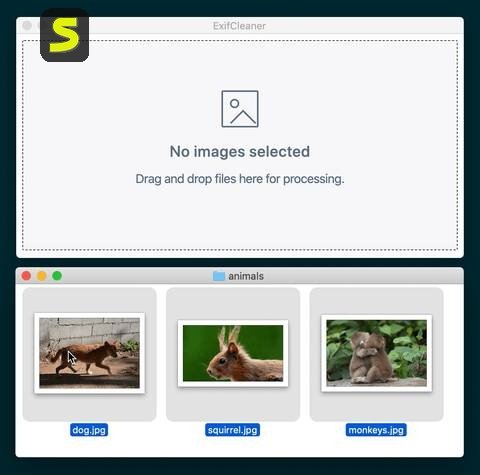
ExifCleaner is a free, open-source desktop app that removes EXIF and other metadata from images, videos, and PDFs. You drag files in, and it cleans them.
It is built for people who share files publicly and want more privacy. Think bloggers, sellers on marketplaces, journalists, and parents posting family photos.
What Does ExifCleaner Do?
Every photo carries invisible notes inside the file. ExifCleaner finds those notes and deletes them, so the picture looks the same but reveals far less about you.
It does not edit the image itself. You still get the same photo, minus the hidden background details.
How ExifCleaner Removes EXIF and Metadata
Under the hood, the app uses ExifTool, a well-known command-line tool for reading and writing metadata. ExifCleaner wraps it in a simple window, so you never touch a terminal.
It keeps ExifTool running in the background, which makes large batches much faster than launching the tool again for every file.
What Types of Metadata Can ExifCleaner Remove?
Depending on the file type, ExifCleaner can strip several kinds of embedded data:
- EXIF data: camera model, lens, exposure, date, and time
- GPS data: latitude, longitude, and sometimes altitude
- XMP and IPTC data: titles, captions, keywords, and copyright notes
- Video and audio tags: creation dates and device details in supported containers
Who Should Use ExifCleaner?
If you post photos where strangers can see them, this tool is for you. It is also handy for anyone sending files to clients, landlords, or buyers.
Photographers can use it too, though they should keep their original files safe first. Clean copies go online; the originals stay in your archive.
ExifCleaner Features and Capabilities
ExifCleaner keeps things simple, but version 4.0 added several useful options. Here is what you get.
| Feature | What It Means for You |
|---|---|
| Metadata removal | Strips EXIF and related tags from supported files |
| Drag and drop | Drop files or whole folders onto the window |
| Folder recursion | Processes every supported file inside a dropped folder |
| Batch processing | Cleans many files in one go |
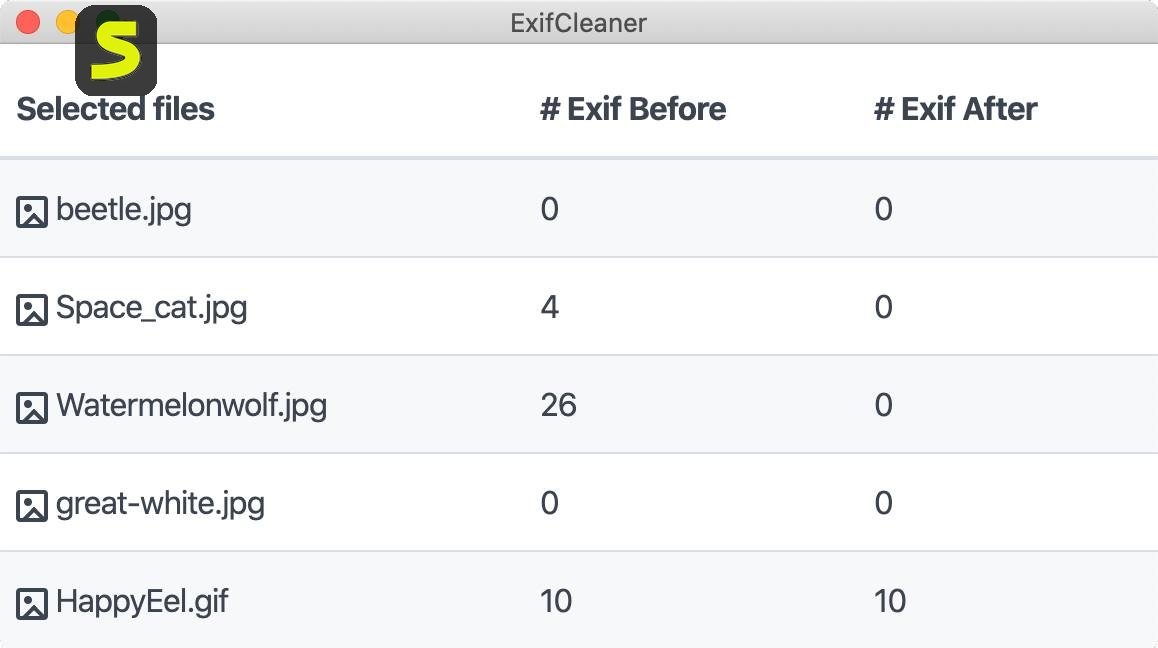
| Before and after view | Expand a file to see what was removed |
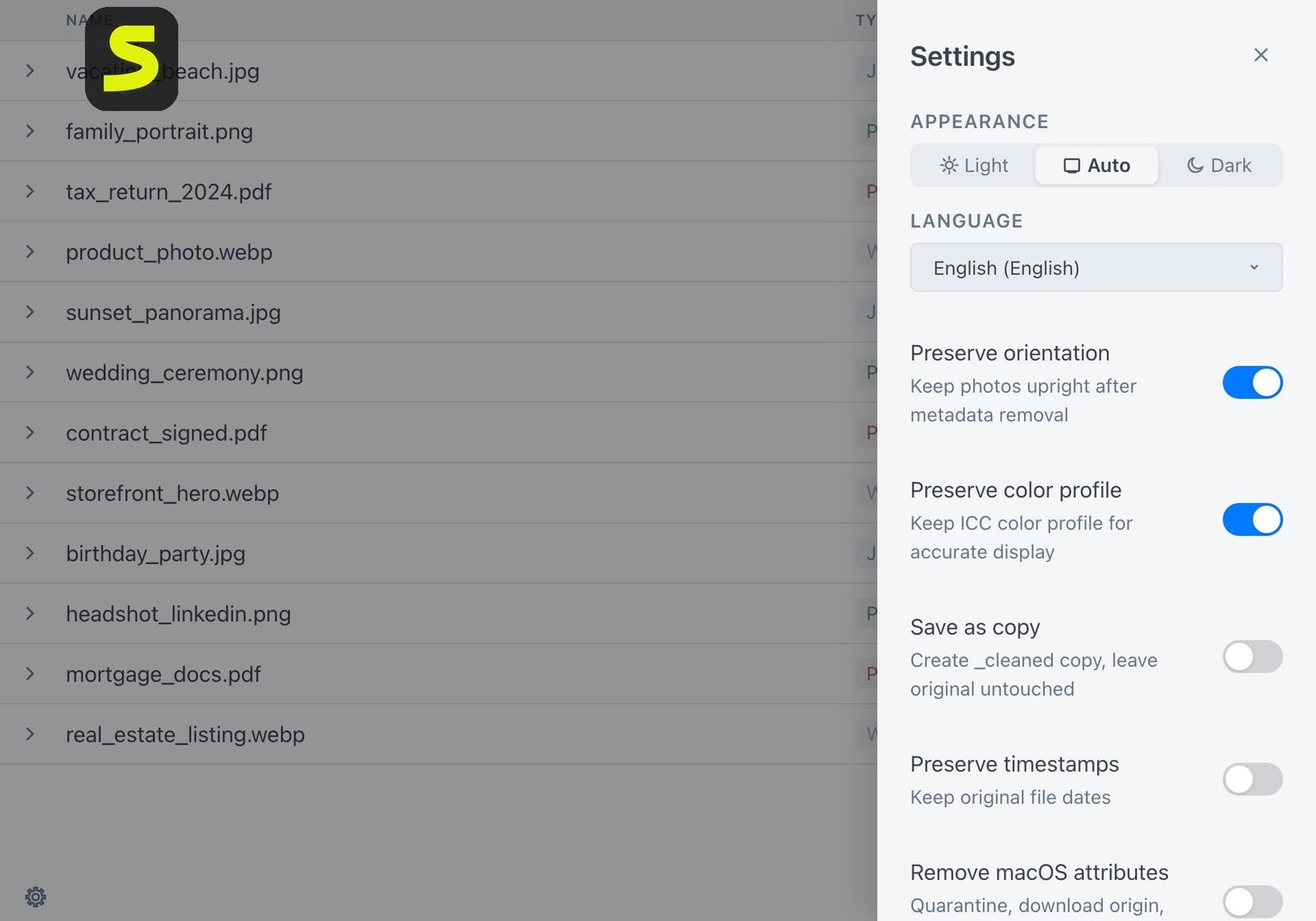
| Privacy options | Preserve orientation, save as copy, remove macOS extended attributes, preserve timestamps |
| Languages | 25 languages with in-app switching |
| Dark mode | Follows your operating system preference |
EXIF and Metadata Removal
This is the core job. Drop a photo in, and the camera settings, timestamps, and device fingerprints disappear from the file.
For JPEG images, the removal is thorough because the format stores metadata in separate segments that can be wiped cleanly.
GPS and Location Data Removal
Location tags are the biggest privacy risk in most photos. ExifCleaner removes them along with everything else, so a picture taken at home no longer points back to your front door.
Camera and Device Information Removal
Your phone model, lens details, and even software version can be stored in a photo. Removing them makes it harder for anyone to profile your gear or link several photos to one device.
Batch Metadata Cleaning
You can process hundreds of files together. The app handles them in a queue and shows each result in a list, so you can see what succeeded.
Drag-and-Drop Metadata Removal
There is no import wizard. You drag files onto the window, and the work starts right away. That simplicity is the main reason people like it.
Support for Images, Videos, and PDFs
The app accepts a defined list of image, video, and PDF formats. We cover the full list in the formats section below, along with a few important limits.
Open-Source and Privacy-Focused Design
The code is public under the MIT license. The project also states that it has no telemetry and makes no network calls, which matters a lot for a privacy tool.
How to Use ExifCleaner
Open the app, drag your photos or a folder into the window, and wait for the list to show each file as cleaned.
How to Remove EXIF Data With ExifCleaner
- Download and open ExifCleaner.
- Drag one or more files into the main window.
- Wait while the app processes each file.
- Check the results in the list.
- Upload or share the cleaned files.
The whole process usually takes a few seconds for ordinary photos.
How to Remove Metadata From Photos and Images
The steps are identical for photos and other images. JPEG, PNG, WebP, and other supported types all go through the same drag-and-drop flow.
If you want to keep your original, turn on the save as copy option in settings before you start. The cleaned version is then saved separately.
How to Remove GPS Location Data From Photos
You do not need a special mode. GPS tags are part of the metadata, so they go away in the same pass.
To be sure, expand the file in the results list and compare the before and after details. The location fields should be gone.
How to Clean Metadata From Multiple Files
Select several files in your file manager and drag them in together. The app queues them and works through the list.
Because it reuses a running ExifTool process, large batches finish faster than you might expect.
How to Process Folders in ExifCleaner
Drop a whole folder onto the window. Version 4.0 added folder recursion, so it also reaches files in subfolders.
This is perfect for a vacation album or a folder of product photos headed for your online store.
How to Check Whether Metadata Was Removed
Use the built-in inspection view. Expanding a processed file shows what was removed.
You can also right-click the cleaned file in Windows, open Properties, and check the Details tab. Fewer entries means the cleaning worked.
How to Remove EXIF Data From Photos
Different image formats store metadata in different ways. That affects how complete the cleaning can be.
Remove EXIF From JPEG and JPG Images
JPEG is the best-supported case. ExifTool removes the metadata segments and trailers, which wipes nearly all hidden details.
Remove EXIF From PNG Images
PNG files store far less metadata, but they can still hold EXIF, XMP, and text chunks. ExifCleaner removes those. PNG screenshots are usually low risk, yet they can still contain software details.
Remove EXIF From WebP Images
WebP is on the supported list, so the same drag-and-drop process applies. It is common for web images, which makes it a good format to clean before uploading.
Remove EXIF From TIFF Images
TIFF needs extra care. The project notes that removal can be partial because some metadata may remain in the main image directory. Treat TIFF as “reduced,” not “guaranteed erased.”
Remove EXIF From Other Supported Image Formats
The list also covers HEIC, HEIF, BMP, AVIF, SVG, GIF, and several camera RAW types. Check the limits table later in this guide, because a few formats have known gaps.
What Happens to the Original Photo After Cleaning?
By default, the app cleans the file you drop in. That is why the save as copy setting is so useful.
Turn it on if you want to keep the untouched original next to a clean version.
Remove GPS and Location Metadata With ExifCleaner
How GPS Metadata Is Stored in Photos
When location services are on, your phone writes coordinates into the photo’s EXIF block. Those numbers can pinpoint a spot within a few meters.
Anyone who downloads the original file and opens its details can read them.
How to Remove GPS Coordinates From Photos
Drag the photo into ExifCleaner. The coordinates are removed along with the rest of the metadata, with no extra steps.
How to Remove Location Information From Images
Location data can also appear in captions or XMP fields. The same cleaning pass covers those, since they are part of the metadata the tool targets.
Why Remove Geolocation Data Before Sharing Photos?
A photo of your living room can reveal your home address. A picture of your child at school can show where they spend their days.
Many large social platforms strip some data on upload, but you should not rely on that. Smaller forums, email attachments, and direct downloads often keep everything intact.
How to Protect Your Location Privacy When Sharing Images
- Clean photos before you send them, not after
- Turn off location tagging in your camera app for sensitive shots
- Be careful with photos taken at home, work, or school
- Check the cleaned file before uploading
ExifCleaner Batch Processing
Drop many files or a whole folder onto ExifCleaner, and it cleans them all in one run.
How to Remove EXIF From Multiple Photos
Select your files, drag them in together, and wait. Each file appears in the list with its status.
How to Batch Remove Image Metadata and Clean an Entire Folder
Drop a folder instead of individual files. The app scans it, including subfolders, and processes every supported file it finds.
Files in unsupported formats are skipped, so you will not end up with damaged data.
Bulk EXIF and Metadata Removal
Bulk cleaning is where the app earns its keep. A wedding photographer or a real estate agent can clean hundreds of images in one pass.
When Batch Processing Is Useful
- Before uploading a full product catalog
- Before sending a photo album to a client
- Before publishing a blog post with many images
- Before archiving screenshots that you plan to share
ExifCleaner Supported File Formats
According to the project page, ExifCleaner accepts a specific tested list of formats. It does not cover everything ExifTool can touch.
| Category | Supported Extensions |
|---|---|
| Images | JPG, JPEG, PNG, GIF, TIFF, TIF, WebP, HEIC, HEIF, BMP, AVIF, SVG |
| Camera RAW | CR2, CR3, NEF, ARW, ORF, RW2, RAF, DNG, PEF, SRW |
| Video and audio | MP4, MOV, AVI, M4A, M4V, 3GP, WMV |
| Documents |
JPEG, PNG, WebP, TIFF, and GIF Metadata Removal
These are the everyday formats. JPEG works best, PNG and WebP handle well, and TIFF may leave some data behind. GIF files carry little metadata, but the app still processes them.
MP4, MOV, and M4A Metadata Removal
For common video and audio containers, most top-level metadata is removed. That includes creation dates and device tags in many cases.
PDF Metadata Removal
This is the most important caveat. The project states that PDF changes are reversible, so the original metadata can still be recovered. Do not treat ExifCleaner as a secure PDF scrubber.
Supported Formats and Limitations
| Format | Known Limitation |
|---|---|
| Original metadata remains recoverable | |
| TIFF | Some metadata may stay in the main directory |
| AVIF | A partial-removal report is under investigation |
| RAF | Operation is refused; the source is left unchanged |
| MKV | Not supported |
ExifCleaner for Windows, macOS, and Linux
The app runs on all three major systems. It supports macOS 12 and newer, Windows 10 and newer, and 64-bit Linux.
ExifCleaner for Windows 10 and Windows 11
On Windows, you can pick a portable .exe or a regular installer. The portable version runs without installing anything, which suits shared or locked-down computers.
Windows SmartScreen may warn you the first time. Choose More info, then Run anyway, after confirming the download came from the official GitHub releases page.
How to Install ExifCleaner on Windows
- Visit the project’s GitHub releases page.
- Download the portable file or the installer.
- Run it and approve the SmartScreen prompt.
- Drag files into the window.
Using ExifCleaner With Windows Files and Folders
Windows users often keep photos in Pictures, Downloads, or a phone backup folder. You can drag from any of these straight into the app. For a large archive, copy the folder first, clean the copy, and keep the original untouched.
A healthy system also helps. If your PC feels slow or unstable, outdated hardware drivers can be part of the problem, and a tool like the Outbyte Driver Updater can make checking them easier.
ExifCleaner on macOS
Version 4.0 offers separate builds for Apple Silicon and Intel Macs, so you do not need Rosetta. The app is not code-signed, so macOS blocks it on first launch.
On macOS 15 and later, double-click the app once, then open System Settings, go to Privacy and Security, and click Open Anyway.
ExifCleaner on Linux and Ubuntu
Linux users can download an AppImage, a .deb file, or an .rpm file. The AppImage must be made executable first. Arch users can install the package from the AUR.
Windows vs macOS vs Linux
| Point | Windows | macOS | Linux |
|---|---|---|---|
| Package | Portable .exe or installer | .dmg | AppImage, .deb, .rpm |
| First-run warning | SmartScreen | Gatekeeper | None |
| Install needed | Optional | Drag to Applications | Depends on package |
ExifCleaner Download, Installation, and Setup
How to Download ExifCleaner
Always use the official GitHub releases page linked from the project’s website. The developers warn that builds shared through other channels are not verified.
ExifCleaner Setup and First Use
Setup is short. Install or unzip the app, open it, and review the settings once. Options include preserving orientation, saving as copy, removing macOS extended attributes, and preserving timestamps.
ExifCleaner Portable Version
On Windows, the portable build is the recommended choice. It leaves no installer footprint and can run from a USB drive.
That makes it handy for a work laptop, a shared family PC, or a quick cleaning session on a friend’s computer. Copy it over, run it, and delete it when you finish, with nothing left behind.
Verify Your Download
Every release includes a checksum file. You can compare the SHA-256 value of your download with the published list to confirm the file is untouched.
ExifCleaner Desktop App vs Other Metadata Removal Tools
Compared with web tools, a desktop app keeps files local. Compared with command-line tools, it asks for far less effort. That balance is why many people start here.
ExifCleaner Latest Version
Version 4.0 was the first release after a long gap that began with version 3.6.0 in May 2021. It brought folder recursion, a before and after view, and 25 languages. Check the releases page for anything newer.
Is ExifCleaner Free and Open Source?
Yes. ExifCleaner is free to use and open source under the MIT license.
Is ExifCleaner Free to Use?
There is no paid tier, no trial period, and no account. You download it and use it. No hidden costs, ads, or surprise upgrades.
Is ExifCleaner Open Source?
Yes. The source code is public, and anyone can read it, fork it, or suggest changes. The project has thousands of GitHub stars and many translators and contributors.
What Does the Free Version Include?
Everything. There is only one version, with all features available to every user.
Who Can Use ExifCleaner?
Anyone with a Windows, Mac, or Linux computer can use it. You do not need technical skills, a login, or a subscription. If you can drag a file into a window, you can clean it.
Is ExifCleaner Safe?
It is generally considered safe when downloaded from the official GitHub releases page. It does not collect data, and its code is public.
Is ExifCleaner Safe to Install?
The warning on first launch comes from the app not being code-signed, not from any detected threat. The developers explain that signing would tie a legal name to the app, which they avoid for a privacy-focused tool.
Can ExifCleaner Be Trusted?
Several things support trust: public source code, published checksums, and builds created in public by GitHub Actions. Still, no tool is risk-free, so download carefully and keep backups.
Does ExifCleaner Upload Photos or Files?
No. The project states that it has no automatic updates and no network traffic. Your files stay on your computer during cleaning.
How ExifCleaner Helps Protect Photo Privacy
The app works offline on your own computer, so your pictures never pass through a third-party server. That is a real advantage over many web tools. You decide which files get cleaned, and you decide when they leave your device.
Why Metadata Removal Matters Before Sharing Photos
Think of metadata as a receipt stapled to every picture. Once the file is public, you cannot take that receipt back. Cleaning first costs a few seconds and spares you a lot of worry later.
Privacy Considerations When Removing Metadata
Cleaning metadata does not hide what is visible in the image itself. A street sign, a house number, or a recognizable landmark can still give your location away.
What Is EXIF Metadata?
EXIF, short for Exchangeable Image File Format, is data stored inside photos that records camera settings, date, and sometimes location. You can read more in the Wikipedia overview of EXIF.
What Personal Information Can EXIF Metadata Reveal?
- When the photo was taken
- Which device took it
- Lens, exposure, and flash settings
- Software used to edit it
- Where you were standing
GPS Coordinates and Location Privacy
Coordinates are the most sensitive part. Together with a timestamp, they show a pattern of where you live, work, and travel.
Camera and Device Information
This data helps photographers study settings. It can also help others link several anonymous photos to the same camera.
Metadata and Online Photo Sharing
Some platforms strip metadata on upload, but not all do. Cloud links, email attachments, and forum posts often deliver the original file untouched.
Why Remove Hidden Metadata From Images?
Removing it protects privacy, reduces risk, and can slightly shrink file size. It takes seconds and prevents problems that are hard to undo later.
ExifCleaner Not Working: Common Problems and Fixes
ExifCleaner Is Not Opening
If macOS or Windows blocks the app, that is the unsigned-build warning. Use Open Anyway on macOS or Run anyway on Windows. On Linux, make the AppImage executable.
ExifCleaner Cannot Process a File
The file may be damaged, locked, or in a format the app does not accept. Try opening it in another program first.
EXIF Data Is Still Visible After Cleaning
Check the file type. TIFF, AVIF, and PDF have known limits. Also confirm you are looking at the cleaned file, not an older original.
A File Format Is Not Supported
The app only accepts its tested list. If your format is missing, a command-line tool like ExifTool may help.
Batch Processing Is Not Working
Try a smaller group of files, or drop one folder at a time. Make sure none of the files are open elsewhere.
Permission and File Access Problems
Move the files to a normal folder such as Documents. Protected system folders, network drives, and read-only locations can block writing.
How to Troubleshoot ExifCleaner
- Restart the app.
- Test with a single JPEG.
- Move the file to your desktop.
- Download the latest release again.
- Check the project’s issue tracker.
ExifCleaner Review
| Area | Rating | Notes |
|---|---|---|
| Ease of use | Excellent | Drag and drop, no learning curve |
| Removal quality | Good | Strong for JPEG, weaker for TIFF and PDF |
| Formats | Good | Wide list, with a few gaps |
| Privacy | Excellent | No telemetry, open source |
| Batch tools | Very good | Folder support and fast queues |
ExifCleaner Ease of Use and Performance
The window is clean and uncluttered. There are no confusing menus, and the results list tells you at a glance what happened to each file. Reviewers have also noted that, because it is built on Electron, it can use a fair amount of memory while it runs.
Batch Processing and File Management
Cleaning a folder takes only a few clicks, and the save as copy option keeps your originals safe. For most home users and small businesses, that is all the file management you need.
Advantages and Limitations of ExifCleaner
Advantages
- Free, open source, and easy to use
- Works on Windows, macOS, and Linux
- Fast batch cleaning with folder support
- Shows what was removed
Limitations
- Not code-signed, so first launch needs a manual approval
- PDF metadata can still be recovered
- Partial results on TIFF and some other formats
- Because it uses Electron, it may use more memory than a tiny utility
ExifCleaner Alternatives
Best ExifCleaner Alternatives
| Tool | Type | Best For |
|---|---|---|
| ExifTool | Command line, free | Full control and scripting |
| Exiv2 | Command line, free | Developers and automation |
| Online EXIF removers | Web-based | One-off quick cleaning |
| Built-in OS options | Built in | Simple, occasional use |
| Paid PDF scrubbers | Desktop, paid | True PDF cleaning |
Open-Source Alternatives
ExifTool is the gold standard for power users. It can edit metadata, not just delete it. Exiv2 is another solid choice with a developer focus.
Online EXIF Removal Tools
Web tools are convenient, but you upload your photos to someone else’s server. For private images, that defeats the point.
Desktop Metadata Cleaning Software
Desktop tools keep files on your machine. ExifCleaner fits here, with simpler controls than most competitors.
How to Choose an ExifCleaner Alternative
Ask yourself three things. Do you need PDF-level security? Do you prefer a visual app or a command line? Are your files too sensitive to upload?
ExifCleaner vs Other Metadata Removal Tools
ExifCleaner vs Online EXIF Removers
ExifCleaner wins on privacy because nothing leaves your computer. Online tools win on convenience because there is nothing to install.
ExifCleaner vs ExifTool
ExifTool is more powerful and flexible, but it needs commands. ExifCleaner uses ExifTool underneath, so you get similar removal behavior in a friendlier window.
ExifCleaner vs Built-In Metadata Removal Features
Windows lets you remove properties from a file’s Details tab. That works for single files, but it is slow for batches and may miss hidden fields.
Differences in Privacy, Features, and Ease of Use
| Tool | Privacy | Features | Ease |
|---|---|---|---|
| ExifCleaner | High | Moderate | Very easy |
| ExifTool | High | Very high | Hard |
| Online tools | Lower | Basic | Very easy |
| Built-in options | High | Basic | Moderate |
Frequently Asked Questions About ExifCleaner
It is a free, open-source desktop app that removes metadata from supported images, videos, and PDFs.
Yes. It is free to use and released under the MIT license.
It is considered safe when downloaded from the official GitHub releases page. It does not upload files or collect data.
Yes. GPS coordinates are removed along with other metadata when you clean a supported image.
Yes. It supports Windows 10 and newer, macOS 12 and newer, and 64-bit Linux.
Yes. Drop a folder onto the window, and it processes the supported files inside, including subfolders.
It processes PDFs, but the original metadata can still be recovered. Use a dedicated tool for sensitive documents.
Final Thoughts on ExifCleaner
ExifCleaner is a simple, honest tool that does one job well. For everyday photos, it quickly removes the hidden location and device details that most people forget about. Its biggest strengths are its price, its privacy stance, and how easy it is to use.
It is not perfect, and the developers are open about that. If you handle sensitive PDFs or unusual formats, pair it with a stronger tool. For ordinary sharing, it is a smart habit to clean first and post second, and you will feel calmer every time you hit upload.