BurnInTest Download, Features, Setup, and Alternatives
You just built or bought a new PC, and now you’re wondering if it’ll actually hold up under real-world load. BurnInTest by PassMark is one of the most trusted tools for answering that question — stress-testing your CPU, GPU, RAM, and storage all at once, instead of hoping nothing breaks after the warranty expires.
This guide covers what BurnInTest actually does, how to set it up, how to read the results, and which alternatives are worth considering if it’s not the right fit for you.
What Is BurnInTest and How Does It Work?
What Is BurnInTest?
BurnInTest is a hardware stress-testing tool developed by PassMark Software, designed to simultaneously push a computer’s major components — CPU, GPU, RAM, storage, network, and peripherals — to their limits to check for stability and reliability issues.
What Is a Burn-In Test?
A burn-in test runs new or recently modified hardware under sustained heavy load for an extended period, on the logic that weak components tend to fail early rather than years down the line — catching problems before they become a warranty headache.
How Does BurnInTest Test PC Hardware?
BurnInTest runs multiple test modules simultaneously and in parallel threads, loading the CPU, GPU, memory, and disks at once rather than one at a time, which more closely mimics real-world multitasking stress than a single-component benchmark.
BurnInTest vs a Standard PC Stress Test
Most single-purpose stress tools — think Prime95 for CPU or FurMark for GPU — hammer one component in isolation. BurnInTest’s advantage is running all subsystems together, exposing issues like power delivery problems or thermal throttling that only appear under combined load.
What Hardware Can BurnInTest Test?
BurnInTest covers CPU, RAM, hard drives, SSDs, optical drives, graphics cards (2D/3D/GPGPU/video RAM), sound cards, network ports, and printers, with the Professional edition adding webcams, microphones, USB ports, serial/parallel ports, and battery testing.
That breadth is really the whole point of the tool. Instead of running a separate CPU-only test, then a separate GPU-only test, then a separate disk benchmark — each with its own interface and its own way of reporting results — BurnInTest packages the whole validation process into a single session with a single report at the end. For anyone who’s ever had to test a batch of new machines before shipping them out, that time savings adds up fast.
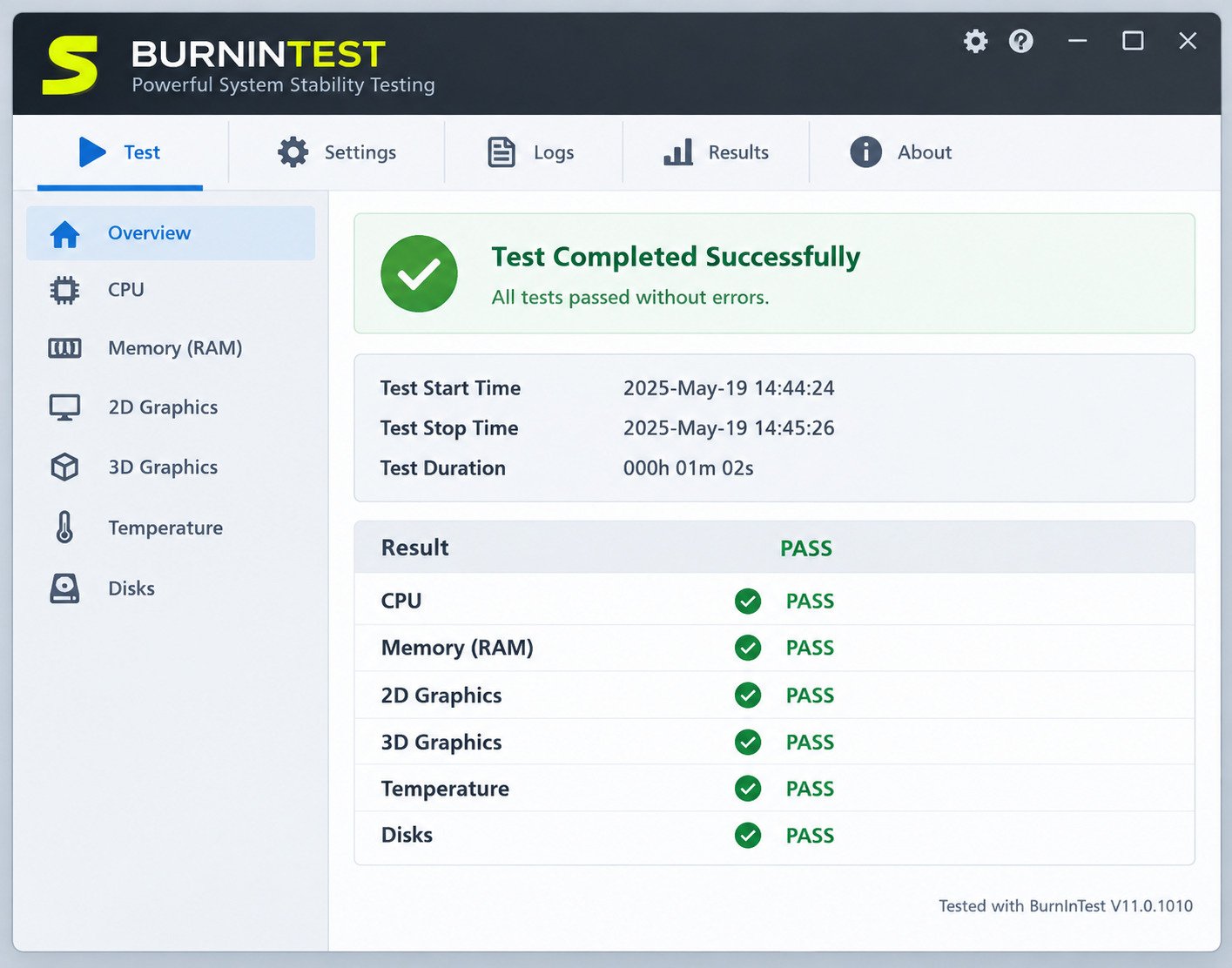
BurnInTest Features
PC Stress Testing and Hardware Load Testing
The core feature is simultaneous, configurable load testing across every major subsystem, with adjustable intensity so you can run a light validation pass or push components to their absolute ceiling.
CPU, GPU, and RAM Testing
Each component gets a dedicated test module: CPU testing covers integer, floating point, and cryptographic workloads; GPU testing covers 2D, 3D, and GPGPU compute; RAM testing checks for read/write errors under continuous load.
Hard Drive and SSD Testing
Disk tests can run read/write cycles against real files or a dedicated test file, checking throughput and error rates without needing a separate disk benchmarking tool.
Test Configuration and Custom Test Profiles
You can enable or disable individual test modules, set test duration, and adjust load intensity per component, then save the configuration as a reusable profile for repeat testing across multiple machines.
Test Results and Hardware Test Reports
Once a test finishes (or is stopped manually), BurnInTest generates a detailed report showing pass/fail status per component, error counts, and duration — exportable for record-keeping or warranty claims.
BurnInTest PC Stress Test
Full PC Stress Test
Running the default full test exercises every enabled subsystem at once, which is the recommended starting point for validating a freshly built or newly purchased PC.
PC Load Test and System Load Test
Beyond a pass/fail check, BurnInTest’s combined load also reveals thermal behavior — if your CPU throttles or your system shuts down unexpectedly under sustained multi-component load, that’s a cooling or power supply issue worth addressing before it causes real damage.
Computer Stress Testing for Desktop and Laptop PCs
BurnInTest works on both desktops and laptops, though laptop users should watch battery and thermal behavior more closely, since compact cooling systems are more prone to throttling under extended load.
BurnInTest CPU Stress Test
CPU Stress Testing and Processor Stability
CPU tests hammer every logical core with a mix of workloads, useful for confirming a new CPU, cooler, or overclock is stable before you trust it with daily use.
CPU Temperature Stress Test
BurnInTest itself doesn’t directly report temperatures, but running it alongside a monitoring tool like HWiNFO lets you watch thermals climb in real time as the CPU load ramps up.
Multi-Core CPU Stress Testing
Modern CPUs with many cores benefit from BurnInTest’s multithreaded design, since it can load every core simultaneously rather than leaving some idle the way older single-threaded stress tools do.
BurnInTest GPU and Graphics Card Testing
GPU Stress Testing and Graphics Card Stability
The GPU module tests 2D rendering, 3D graphics, GPGPU compute, and video RAM together, catching driver crashes or artifacting that a pure gaming benchmark might not surface.
GPU Stress Test on Windows
On Windows, BurnInTest’s GPU test requires DirectX 11 for GPGPU testing specifically, so make sure your graphics drivers and DirectX runtime are current before running a full test.
BurnInTest RAM and Memory Testing
RAM Stress Testing and Memory Stability
The RAM module continuously writes and verifies data patterns across available memory, flagging inconsistencies that point to a failing or incompatible memory module.
RAM Diagnostic Testing
If BurnInTest’s RAM test reports errors, it’s worth following up with a dedicated tool like MemTest86, which runs outside the OS and can isolate faulty memory more precisely over a longer, uninterrupted pass.
BurnInTest Hard Drive, HDD, and SSD Testing
Hard Drive and SSD Diagnostics
Disk tests can run against a specific drive letter or file, checking for read/write failures — a practical way to validate a new SSD before migrating your OS onto it.
Disk Performance Testing
While not a dedicated benchmarking suite, BurnInTest’s disk module reports throughput figures that give a reasonable sense of whether a drive is performing within its expected range.
BurnInTest Hardware Diagnostic and Component Testing
PC Hardware Diagnostic Testing
Beyond the core components, BurnInTest can test optical drives, network ports, sound cards, and printers in the same session, making it genuinely useful for full-system validation before shipping a build to a client.
USB, Network, Audio, and Peripheral Testing
The Professional edition extends coverage to USB 2.0/3.0 ports, serial and parallel ports (using physical loopback plugs), webcams, microphones, and even battery health — features aimed squarely at OEMs and IT technicians validating hardware at scale.
BurnInTest Benchmark and PC Performance Testing
Benchmark Results vs Stress Test Results
It’s worth distinguishing the two: a benchmark measures peak performance for comparison against other systems, while BurnInTest’s stress test measures stability under sustained load — the goal isn’t a high score, it’s zero errors over time.
BurnInTest Download and Installation
BurnInTest Free Download and Trial
PassMark offers a free 30-day evaluation of BurnInTest with full functionality and email support, available directly from PassMark’s official download page.
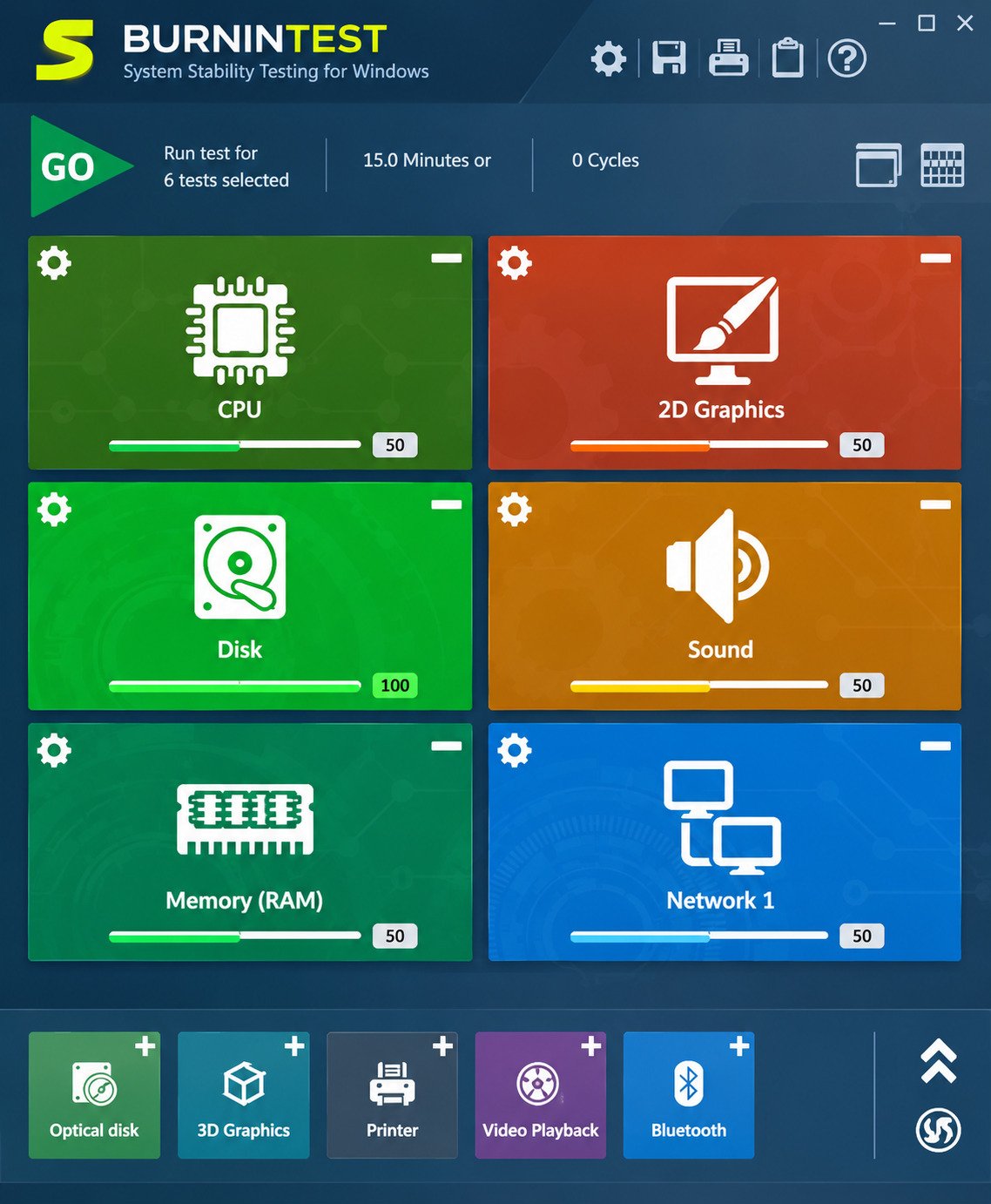
BurnInTest Software Editions
| Edition | Best For | Key Additions |
|---|---|---|
| Standard | Home users, enthusiasts | CPU, RAM, disk, GPU, network, sound, optical drive tests |
| Professional | IT technicians, OEMs, system builders | Adds USB/serial/parallel port testing, webcam, microphone, battery, tape drive tests |
| Linux | Servers and Linux workstations | Core subsystem testing on Linux platforms |
BurnInTest System Requirements
Recent versions need roughly 256 MB of RAM, DirectX 9.0c (DirectX 11 for GPGPU testing), and around 225 MB of free disk space, though disk testing itself requires additional free space depending on test file size.
How to Install BurnInTest
Download the installer from PassMark’s site, run it with administrator privileges, and follow the standard setup wizard — a portable version is also available for running from a USB drive without installation.
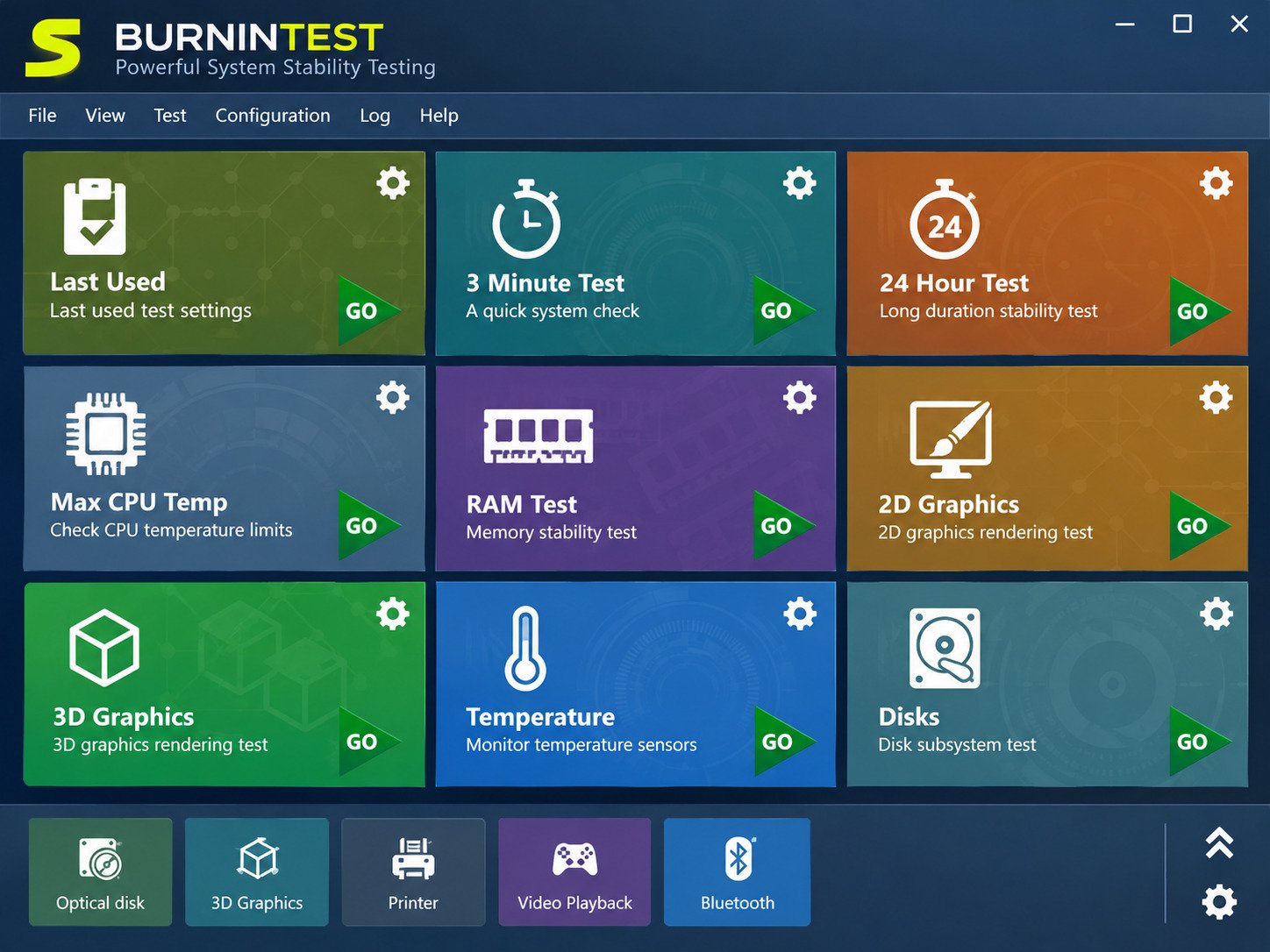
BurnInTest for Windows
BurnInTest Windows 11
Current BurnInTest releases officially support Windows 11, alongside Windows 10 and recent Windows Server versions, with both x86-64 and ARM64 builds available.
PC Benchmark Software for Windows
Since BurnInTest isn’t primarily a benchmarking tool, users wanting comparative performance scores often pair it with PassMark’s own PerformanceTest software for a fuller picture alongside stability data.
How to Use BurnInTest
How to Set Up a BurnInTest Hardware Test
- Launch BurnInTest and review the default test configuration.
- Enable or disable specific component tests under the Configuration menu.
- Set your desired test duration or number of cycles.
- Click Start to begin the combined stress test.
- Monitor the live status window for errors as the test progresses.
- Let the test run for at least an hour for meaningful results.
- Review the generated report once testing completes or is stopped.
How to Interpret BurnInTest Test Results
A clean pass means zero errors were logged across all enabled test modules during the run; any errors, crashes, or unexpected shutdowns point to a specific component worth investigating further with a dedicated diagnostic tool.
BurnInTest Test Results and Hardware Reports
Identifying Hardware Errors and Failures
The results screen breaks errors down per test module, so a failure in the disk test versus the RAM test points you toward a specific component rather than leaving you guessing.
When Should You Stop a Hardware Stress Test?
You notice unusual noises, a burning smell, or temperatures climbing well beyond your component’s rated limits. A stress test should validate stability, not risk permanent hardware damage.
BurnInTest Troubleshooting and Common Errors
BurnInTest Not Working: Common Causes and Fixes
| Symptom | Likely Cause | Fix |
|---|---|---|
| GPU test won’t run | Outdated graphics driver or missing DirectX 11 | Update GPU drivers and DirectX runtime |
| Test fails immediately | Insufficient permissions | Run BurnInTest as administrator |
| License activation error | Incorrect key or expired trial | Re-enter license key or renew via PassMark account |
| Disk test error | Insufficient free space for test file | Free up space or point the test at a different drive |
| Random test failures | Genuine hardware instability | Investigate the specific failing component (RAM, disk, GPU) individually |
PC Stress Test Failed: What Should You Check?
Start with the basics: confirm adequate cooling, check that your power supply has sufficient headroom for full-load testing, and verify drivers are current before assuming a component itself is defective.
It’s also worth testing components one at a time if a combined run keeps failing. Disabling every module except the one you suspect narrows things down quickly — if the CPU-only test passes cleanly but the combined test fails, the issue is more likely related to power delivery or cooling under total system load rather than the CPU itself being faulty.
BurnInTest for Hardware Reliability and Stability Testing
How Burn-In Testing Helps Find Hardware Problems
Running a burn-in test before deploying a system in production catches early-failure hardware components that would otherwise fail within the first weeks of use — before they become a costly on-site repair.
Stress Testing After a PC Upgrade
Anytime you add new RAM, swap a GPU, or apply an overclock, a fresh BurnInTest pass confirms the change didn’t introduce instability that might not show up during light everyday use.
How Long Should You Run a PC Burn-In Test?
A general guideline is one to several hours for a basic stability check, though technicians validating systems for resale or deployment often run overnight tests of 8–24 hours to catch intermittent issues.
There’s a genuine trade-off here between thoroughness and practicality. A 30-minute test will catch obvious, severe instability, but intermittent problems — a RAM module that only errors out once temperatures climb after several hours, for instance — need a longer window to surface. If the machine is heading into production use or being sold to a customer, the extra overnight run is worth the wait.
Best PC Stress Test and Hardware Diagnostic Software
Best PC Stress Test Software
| Tool | Best For | Free Version |
|---|---|---|
| BurnInTest | All-in-one combined stress testing | 30-day trial |
| Prime95 | Dedicated CPU stress testing | Yes |
| FurMark | Dedicated GPU stress testing | Yes |
| MemTest86 | Dedicated RAM diagnostics | Yes (limited) |
| AIDA64 | System benchmarking and monitoring | Trial only |
| OCCT | Combined CPU/GPU/PSU stress testing | Yes |
BurnInTest vs Other Stress Test and Diagnostic Tools
BurnInTest vs Prime95
Prime95 focuses exclusively on CPU stress via prime-number calculations, making it more intense for CPU-specific testing, while BurnInTest trades some of that intensity for broader, simultaneous system coverage.
BurnInTest vs AIDA64
AIDA64 leans more toward system information, monitoring, and benchmarking, whereas BurnInTest is purpose-built around sustained stability testing across combined hardware.
BurnInTest vs MemTest86
MemTest86 runs outside the operating system for a more isolated, thorough RAM test, while BurnInTest’s RAM module runs within Windows alongside other simultaneous tests — each has its place depending on how deep you need to go.
BurnInTest vs FurMark
FurMark is a free, GPU-only stress test known for pushing graphics cards particularly hard thermally, while BurnInTest’s GPU module is one part of a broader system-wide test rather than a maximum-intensity GPU torture test.
BurnInTest Review: Is It Worth Using?
Hardware Coverage and Stress Testing Features
Few tools match BurnInTest’s breadth — testing CPU, GPU, RAM, storage, network, and peripherals together genuinely saves time compared to running five separate applications one after another.
BurnInTest Performance and Resource Usage
The application itself is lightweight, with modest system requirements that leave the vast majority of your CPU, GPU, and memory available for the actual stress test workloads rather than being consumed by the testing software itself.
BurnInTest Pros and Cons
Pros
- Tests nearly every major subsystem simultaneously
- Configurable test intensity and duration
- Detailed, exportable test reports
- Available for Windows and Linux
- Reasonable pricing for a professional-grade tool
Cons
- Not the most intense single-component stress test compared to dedicated tools
- Professional-only features (USB, serial/parallel port testing) require the pricier edition
- No built-in temperature monitoring — needs a companion app
Who Should Use BurnInTest?
System builders, IT technicians validating new hardware, PC enthusiasts confirming an overclock is stable, and anyone setting up a machine that absolutely cannot afford unexpected downtime are the best fit.
BurnInTest Alternatives
Best BurnInTest Alternatives
For readers who also work with automated deployment pipelines and want their hardware validation process to fit into a broader DevOps workflow, this related resource on Octopus Deploy is worth checking out.
- Prime95 – free, CPU-only, very high intensity
- FurMark – free, GPU-only stress testing
- MemTest86 – free/paid, dedicated RAM diagnostics
- OCCT – free, combined CPU/GPU/power supply testing
- AIDA64 – paid, broader system monitoring and benchmarking
When Should You Choose a BurnInTest Alternative?
If you only need to validate a single component intensively — say, confirming a new CPU cooler under maximum thermal load — a dedicated free tool like Prime95 or FurMark may be simpler than configuring a full BurnInTest profile.
According to PassMark’s official BurnInTest product page, the tool is built specifically to simultaneously stress test all major subsystems for endurance, reliability, and stability validation.
Frequently Asked Questions About BurnInTest
It’s used to stress test a computer’s CPU, GPU, RAM, storage, and other hardware simultaneously to check for stability and reliability issues.
Yes, BurnInTest includes a dedicated disk test module for both HDDs and SSDs, checking read/write reliability under load.
Yes, current BurnInTest versions officially support Windows 11 on both x86-64 and ARM64 systems.
BurnInTest offers a full-featured 30-day free trial, after which a paid license is required to continue using it.
The Professional edition adds testing for USB ports, serial/parallel ports, webcams, microphones, batteries, and tape drives on top of the Standard edition’s core subsystem tests.
A failed test usually points to a specific unstable component — overheating, insufficient power delivery, or a genuinely faulty part — so check the per-module error report to narrow it down.
For CPU-only testing, Prime95 is a strong free choice; for GPU-only testing, FurMark is the most commonly recommended alternative.
Final Verdict: Is BurnInTest the Right PC Testing Tool?
If you build, repair, or deploy computers regularly, BurnInTest earns its place as a genuinely efficient way to validate hardware before it ever reaches a user’s desk. Running one combined test instead of five separate tools saves real time, and the detailed reports give you something concrete to point to if a component turns out to be defective.
For casual users just wanting peace of mind after a new build, the free 30-day trial is more than enough to run a thorough validation pass without spending anything. Either way, a burn-in test is cheap insurance against the frustration of discovering a faulty part months down the line.