Bluebeam Revu Download, Features, Setup, and Alternatives
If you work in construction, architecture, or engineering, chances are someone on your team has already said “just send it in Bluebeam.” Bluebeam Revu has become the default way AEC professionals mark up drawings, measure quantities, and review project documents without printing a single page.
This guide breaks down what Bluebeam Revu actually does, its markup and takeoff tools, how Bluebeam Studio collaboration works, pricing and licensing changes for 2026, installation steps, and how it compares to alternatives like Adobe Acrobat and PlanSwift.
What Is Bluebeam Revu and What Is Bluebeam Used For?
Bluebeam Software Overview
Bluebeam Revu is a PDF-based markup, drawing review, and quantity takeoff platform built specifically for architecture, engineering, and construction (AEC) document workflows, rather than as a general-purpose PDF editor.
What Is Bluebeam Revu?
Direct answer: Bluebeam Revu lets teams create, edit, mark up, measure, and collaborate on PDF drawings and documents, combining desktop editing tools with a cloud-based collaboration space called Studio.
What Is Bluebeam Software Used For?
Common uses include:
- Marking up architectural and engineering drawings during design review
- Performing digital quantity takeoffs for cost estimating
- Comparing drawing revisions to spot changes between versions
- Running real-time collaborative reviews with project stakeholders
Bluebeam Revu as a PDF Editor for Construction
While it can edit standard PDFs like any editor, Revu’s real strength is handling 2D and 3D construction drawings, where measurements, layers, and markup accuracy matter far more than in a typical office document.
Who Is Bluebeam Revu Best For?
Bluebeam Revu is aimed at:
- General contractors and estimators running digital takeoffs
- Architects and engineers managing drawing sets and revisions
- Project managers coordinating markup reviews across teams
- Owners and consultants who need a shared, trackable review process
Bluebeam for Architects, Engineers, and Construction Professionals
Because it integrates with CAD tools like AutoCAD and Revit, Bluebeam fits naturally into workflows where drawings originate in design software but need to be reviewed, marked up, and shared more broadly.
Bluebeam Revu for AEC Workflows
From design development through construction administration and closeout, Revu’s tools are built around the full AEC project lifecycle rather than a single stage of it.
Bluebeam Revu Features
PDF Editing and Document Management
Revu can generate PDFs directly from CAD and design applications while preserving both 2D and 3D data, then let you edit text, images, and page order to keep drawing sets consistent.
PDF Markup and Annotation Tools
Markup tools add comments, highlights, shapes, and custom symbols directly onto drawings, with each markup automatically tagged by author, date, and status.
Construction Drawing Markup and Plan Review
Markups can be color-coded by contributor, making it easy to see at a glance who flagged what during a multi-party plan review.
PDF Measurement and Scaling
Measurement tools calculate length, area, perimeter, angles, count, and volume directly on a scaled drawing — no separate takeoff software required.
Digital Takeoff and Quantity Measurement
The Dynamic Fill tool lets estimators quickly calculate area by clicking to “fill” a space on a plan, which speeds up repetitive takeoff work considerably.
PDF Comparison and Revision Tracking
Revu can overlay and compare two versions of a drawing, visually highlighting what changed between revisions instead of requiring a manual side-by-side review.
OCR and Searchable PDF Creation
Built-in OCR converts scanned drawings and documents into searchable PDFs, which matters when your archive includes decades of paper plans that were only ever scanned.
PDF Collaboration With Bluebeam Studio
Studio is Revu’s cloud-based collaboration space, letting multiple people mark up the same PDF simultaneously in real time from different locations.
Bluebeam Tool Chest and Custom Toolsets
The Tool Chest lets teams save frequently used markups and symbols, then reuse them across projects for consistency instead of rebuilding the same annotations repeatedly.
Markups List and Markup Management
The Markups List tracks every annotation’s author, status, and timestamp, functioning as a built-in audit trail for review comments across a project.
Bluebeam Profiles and Workspaces
Profiles bundle a specific set of toolsets, shortcuts, and preferences, so a project manager can distribute a standardized review setup to every reviewer on a project.
Stamps, Layers, and Document Organization
Custom stamps, layered documents, and columns/pages management help keep large drawing sets organized as they move through multiple review cycles.
Batch Processing and PDF Automation
Batch tools like Batch Link and Batch Slip Sheet automate repetitive tasks — hyperlinking hundreds of sheet references or replacing outdated drawing pages across an entire set in one operation.
Bluebeam Revu for Construction and AEC
Construction PDF Software and Document Management
Because Revu handles both drawings and specifications inside the same PDF-based system, teams can avoid juggling separate viewers for different document types.
Construction Drawing Review and Plan Review Software
Reviewers can annotate directly on scaled drawings, with measurements and markups staying accurate even as documents are resized or reprinted.
Digital Construction Documents and Workflow
Digital handover packages — searchable, organized, and markup-complete — replace paper closeout binders at the end of a project.
PDF Software for Architects and Engineers
Architectural and engineering firms use Revu’s precision measurement tools for design checks, code compliance reviews, and clash identification between disciplines.
Construction Collaboration and Document Review
Studio Sessions let architects, engineers, and contractors mark up the same live document together, reducing the back-and-forth of emailing individual PDF copies.
Bluebeam PDF Markup and Annotation
PDF Markup Tools and How to Mark Up a PDF
- Open the PDF and select a markup tool from the toolbar or Tool Chest
- Place the markup — text, shape, cloud, or stamp — directly on the drawing
- Add a comment or status to the markup if needed
- Save, and the markup appears automatically in the Markups List
How to Annotate Construction Drawings
Construction-specific markup tools include cloud call-outs for revisions, punch tools for QA/QC issues, and dimension lines that stay tied to the drawing’s scale.
Architectural and Engineering PDF Markup
Discipline-specific toolsets — structural, mechanical, electrical — let each team member work with symbols relevant to their trade without cluttering the toolbar with unrelated tools.
Markups List in Bluebeam Revu
Direct answer: the Markups List is a searchable, sortable table of every annotation on a document, showing author, subject, status, and creation date in one place.
Bluebeam Toolsets, Tool Chest, and Stamps
Saved toolsets can be shared across a firm so every project starts with the same standardized markup symbols, reducing inconsistency between reviewers.
Bluebeam Layers and Document Organization
Layers let you toggle visibility of specific drawing elements like MEP systems or structural grids without permanently altering the underlying PDF.
Bluebeam Revu Takeoff and Measurement Tools
PDF Takeoff and Digital Takeoff
Direct answer: digital takeoff means measuring quantities — length, area, volume, or count — directly from a digital drawing instead of manually scaling a printed plan with a ruler.
Construction Quantity Takeoff and Estimating Workflows
Estimators typically calibrate the drawing’s scale first, then use measurement tools to generate quantities that feed directly into a bid or cost estimate.
How to Measure Distance, Area, and Length in a PDF
- Calibrate the page scale against a known dimension on the drawing
- Select the appropriate measurement tool (length, area, or count)
- Click along the relevant edges or points on the drawing
- Read the calculated measurement directly in the Markups List
PDF Scale Measurement
Accurate takeoffs depend entirely on correct scale calibration — an incorrectly calibrated page will produce wrong quantities no matter how carefully you click.
Bluebeam Dynamic Fill for Measurements and Takeoffs
Dynamic Fill automatically detects enclosed areas on a plan, letting you calculate square footage with a single click instead of manually tracing every boundary.
Quantity Link and Excel Integration
Higher subscription tiers connect measurements directly to Microsoft Excel, so takeoff quantities update automatically as drawings change, cutting down manual re-entry during revisions.
Bluebeam Revu PDF Comparison
PDF Compare and Document Comparison
Direct answer: Bluebeam’s comparison tools overlay two versions of a drawing and visually highlight the differences, rather than requiring manual side-by-side review.
How to Compare Two PDF Files
- Open both versions of the drawing
- Select the Overlay Pages or Compare Documents tool
- Review the visual difference markup that’s automatically generated
- Save or export the comparison for the project record
Compare Construction Drawings and Revisions
This is especially useful during construction administration, when confirming exactly what changed between an issued-for-construction set and a prior draft matters for cost and schedule impact.
Bluebeam Batch Compare and Batch Slip Sheet
Batch tools extend comparison and page-replacement functions across an entire drawing set at once, rather than repeating the process sheet by sheet.
Bluebeam OCR and Searchable PDFs
Bluebeam OCR and How It Works
Direct answer: OCR (Optical Character Recognition) scans the text within an image-based PDF and converts it into searchable, selectable text without altering the visual appearance of the document.
How to Make a Scanned PDF Searchable
- Open the scanned PDF in Revu
- Run the OCR tool from the Document menu
- Select the language and page range
- Save the processed file, which is now fully searchable
OCR for Construction, Architectural, and Engineering Documents
OCR is particularly valuable for older, scanned drawing archives, letting teams search decades of paper records by keyword instead of manually flipping through files.
Bluebeam Studio for PDF Collaboration
What Is Bluebeam Studio?
Direct answer: Bluebeam Studio is a cloud-based collaboration environment built into Revu, split into two main tools: Sessions for real-time markup and Projects for centralized file storage.
Bluebeam Studio Sessions
Sessions let multiple users mark up the same PDF simultaneously, seeing each other’s changes live and following along with another user’s view during a review call.
Bluebeam Studio Projects
Projects function as shared cloud folders that store unlimited PDFs and other file types, keeping the latest version accessible to the whole team regardless of location.
How to Use Bluebeam Studio
- Start a new Session or Project from within Revu
- Invite collaborators by email
- Assign each participant a profile with relevant markup tools
- Track contributions through the Markups List and generate summary reports when the review closes
Bluebeam Studio for Construction Projects
Studio is commonly used for design reviews, RFI tracking, and punch-list coordination, replacing email chains full of individually marked-up PDF attachments.
Bluebeam Studio Document Management
Because Sessions and Projects sync automatically, teams working from different offices or job sites always reference the same up-to-date drawing set.
Bluebeam Revu Advanced Tools and Workflow Automation
Bluebeam Batch Link and Batch Processing
Batch Link automatically generates hyperlinks between referenced sheets across an entire drawing set — a task that would take hours to do manually on a large project.
Bluebeam Stapler and Bluebeam PDF Printer
The Stapler tool combines multiple documents into a single organized PDF, while the built-in PDF printer lets you generate PDFs directly from any Windows application, similar to a standard virtual printer.
Bluebeam Plugins, Scripting, and API
Direct answer: higher subscription tiers include scripting commands and API access for building custom automations, along with plug-ins for AutoCAD, Revit, and other CAD software.
Automating PDF and Construction Document Workflows
Common automation use cases include batch digital signatures, scripted markup reporting, and automated Studio Session integrations triggered from other project management tools.
Bluebeam Revu Download
Bluebeam Revu Latest Version
Direct answer: the current supported release is Revu 21, available through a Bluebeam subscription plan; the previous perpetual-license version, Revu 20, is being phased out.
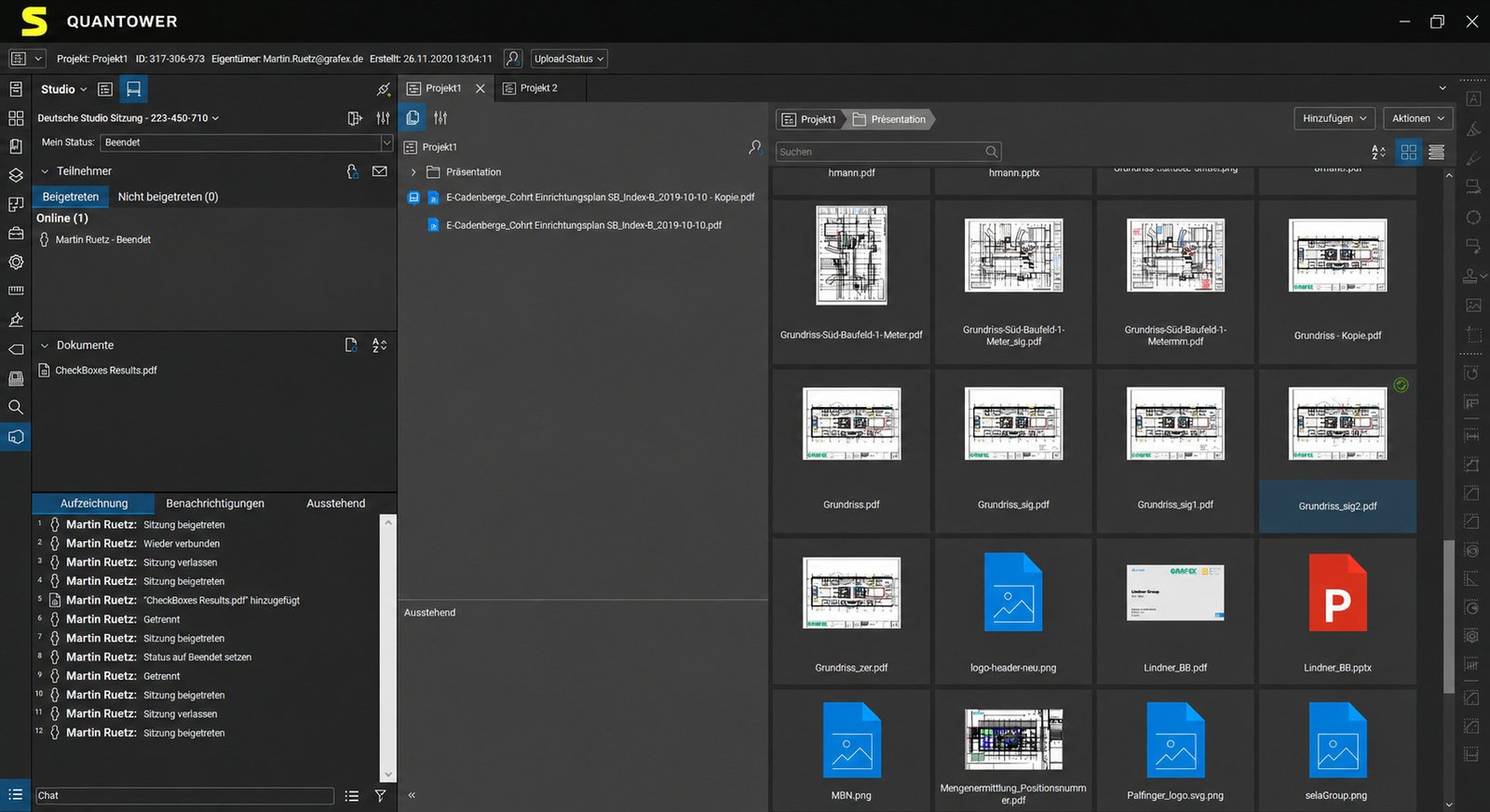
Bluebeam Revu Download for PC and Windows
Bluebeam Revu is downloaded directly from a Bluebeam account after purchasing or starting a subscription, then installed through a standard Windows installer.
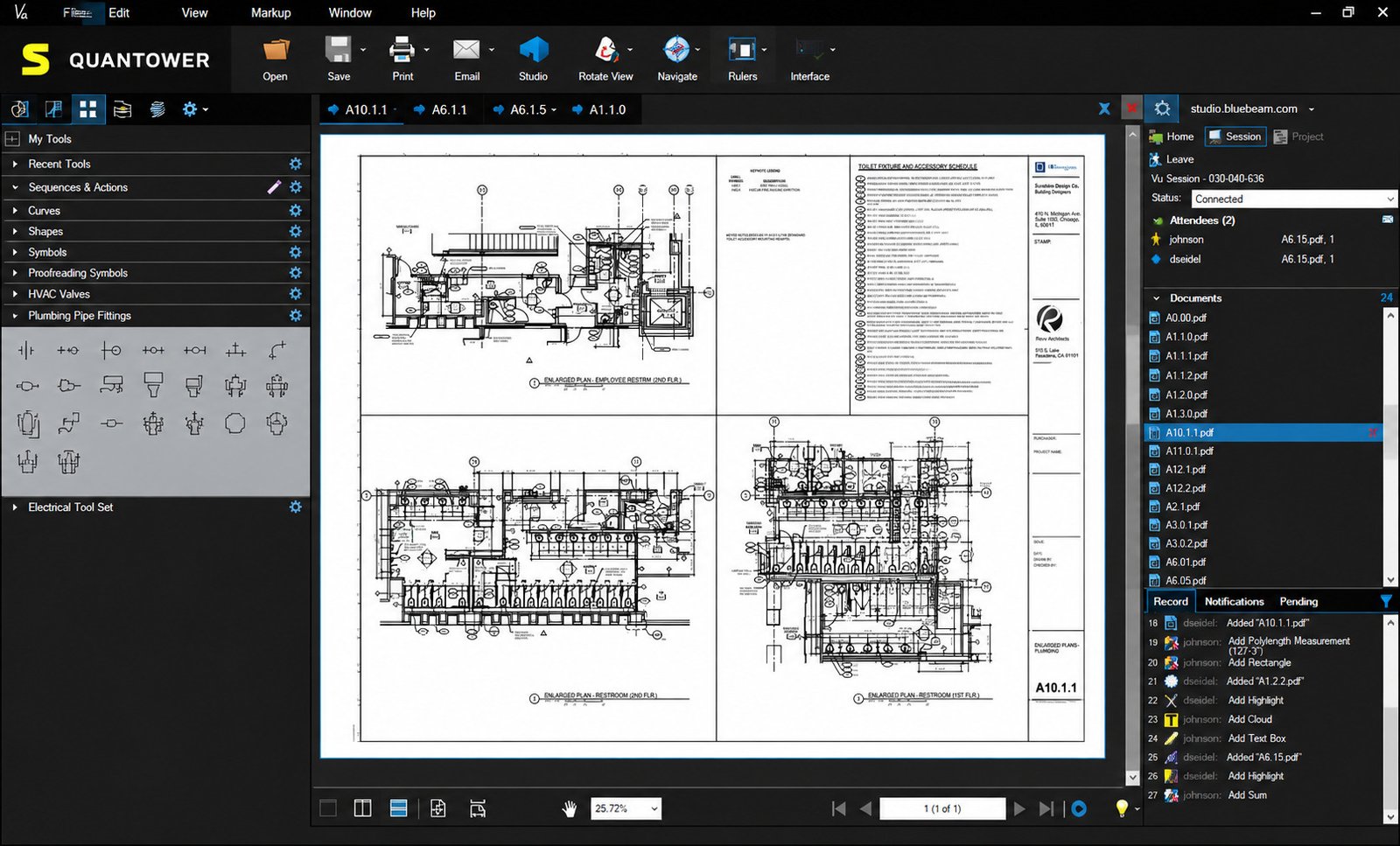
Bluebeam Revu Installer Options
Both standard and offline installer packages are available for teams needing to deploy without a live internet connection during setup.
Bluebeam Revu 64-Bit Download
Current versions of Revu are distributed as 64-bit software, aligning with modern Windows systems and larger drawing file handling.
Bluebeam Revu for Windows
Bluebeam Revu Windows 11 and Windows 10
Bluebeam Revu runs on Windows, with Revu 21 built for current Windows 10 and Windows 11 systems.
Bluebeam Revu System Requirements and Compatibility
Beyond the desktop app, subscribers can also access Bluebeam through a web browser and mobile app, so field teams aren’t limited to a single installed machine.
Bluebeam Revu Installation and Setup
How to Install Bluebeam Revu
- Purchase or start a trial of a Bluebeam subscription plan
- Download the Revu 21 installer from your Bluebeam account
- Run the installer and sign in with your Bluebeam ID (BBID)
- Set up your initial profile and toolsets
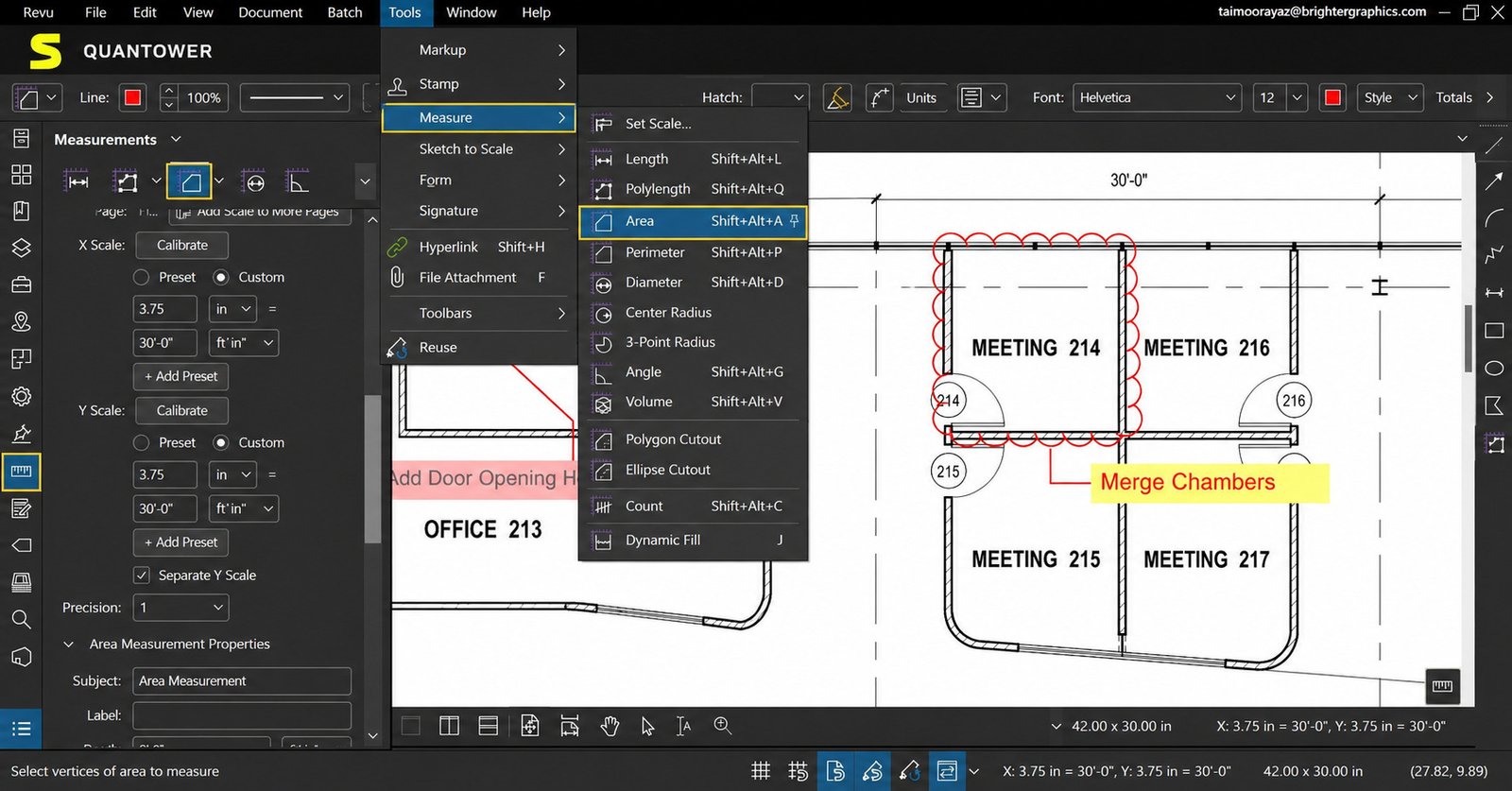
Bluebeam Revu Upgrade and Update
Subscribers on Revu 21 receive ongoing feature updates as part of their plan, rather than needing to purchase a new major version license.
Setting Up Bluebeam Profiles and Toolsets
New users typically start with a default profile, then customize toolsets and keyboard shortcuts to match their specific discipline or role on a project.
Bluebeam Revu Versions
Bluebeam Revu 21
Revu 21 is the current subscription-based release, tied to Bluebeam’s Basics, Core, Complete, and Max plans rather than a one-time purchase.
Bluebeam Revu 20 and the Move Away From Perpetual Licenses
Bluebeam stopped selling Revu 20 licenses in 2023. Revu 20 reaches end of support on July 31, 2026, and end of life on December 31, 2026, after which it will lose access to Studio Sessions and Projects entirely.
Should You Use an Older Version of Bluebeam Revu?
If you’re still on a perpetual Revu 20 license, planning your migration to a Revu 21 subscription before the end-of-life date is worth doing sooner rather than later, since license reassignment support ends first.
Bluebeam Revu Pricing, Plans, and Licensing
Bluebeam Revu Pricing and Subscription Plans
Bluebeam has moved to an entirely subscription-based model, with four main tiers priced per user, per year.
| Plan | Approx. Annual Price (per user) | Best For |
|---|---|---|
| Basics | $260 | Simple markups, basic measurements, joining Studio |
| Core | $330 | Advanced markups, hosting Studio, CAD plug-ins |
| Complete | $440 | OCR, scripting, batch automation, advanced measurements |
| Max | $590 (introductory) | AI-powered drawing review, comparison, and automation |
Bluebeam License Options: Perpetual vs Subscription
Direct answer: Bluebeam no longer sells new perpetual licenses — all current purchases are subscription-based, though existing Revu 20 perpetual licenses remain usable until their end-of-life date.
Bluebeam Revu Free Trial
A free trial (commonly cited around 14 to 30 days) is available with most or all features unlocked, though no credit card is typically required to start.
Is There a Free Version of Bluebeam Revu?
No — Bluebeam does not offer a permanent free tier, positioning itself instead as a premium, professional-grade tool for AEC teams.
Is Bluebeam Revu Worth the Cost?
For teams running frequent takeoffs, drawing comparisons, or multi-party Studio reviews, the time saved on manual measurement and markup coordination often justifies the subscription cost.
Bluebeam Administration and License Management
Bluebeam Admin and Organization Management
Organization admins manage subscription seats, assign licenses to team members, and control which users have access to Studio hosting privileges.
Managing Bluebeam Users and Seats
Seats can typically be reassigned between employees as staffing changes, though the exact reassignment rules depend on your specific plan tier.
Bluebeam Sign In and Account Management
Users sign in with a Bluebeam ID (BBID), which ties their subscription, Studio access, and settings to a single account usable across desktop, web, and mobile.
Bluebeam Training and Certification
Bluebeam Revu Tutorial and Training for Beginners
New users generally benefit from starting with markup basics and measurement calibration before moving into batch automation or scripting tools.
Bluebeam Software Training and Certification
Bluebeam University, included with subscription plans, offers structured training courses covering everything from basic markup to advanced automation workflows.
How to Learn Bluebeam Revu
Most professionals pick up core markup and takeoff skills within a few project cycles, though mastering scripting and API-based automation takes considerably longer.
Bluebeam Revu for iPad and Mac
Bluebeam for iPad and Mobile Workflows
Field teams can view and mark up drawings from an iPad through Bluebeam’s mobile app, syncing changes back to Studio Projects when connectivity allows.
Bluebeam for Mac and macOS Compatibility
Direct answer: Revu itself runs on Windows only; Mac users typically access Bluebeam through the web app, mobile app, or a Windows virtual machine.
Bluebeam Alternatives for Mac
Photographers and design teams fully committed to macOS sometimes choose a native Mac-compatible PDF markup tool instead, if Revu’s Windows-only desktop requirement is a dealbreaker.
Bluebeam Revu Review
Bluebeam Revu Review and Performance
Bluebeam Revu is widely regarded as one of the most capable PDF markup and takeoff tools built specifically for construction and design review workflows.
Bluebeam PDF Markup and Takeoff Experience
Users consistently point to markup and takeoff tools as Revu’s strongest features, especially compared to general-purpose PDF editors not built for scaled drawings.
Bluebeam Studio Collaboration Review
Real-time Studio Sessions are frequently praised for cutting down email-based review cycles, though some users note that simultaneous markup editing by multiple people has occasional limitations.
Bluebeam Revu Pros and Cons
Pros
- Best-in-class construction takeoff and measurement tools
- Real-time collaborative markup through Studio
- Deep integration with CAD tools like AutoCAD and Revit
- Extensive automation options at higher subscription tiers
Cons
- No permanent free tier, and pricing has shifted entirely to subscription
- Windows-only desktop application
- Steeper learning curve for advanced automation and scripting features
Is Bluebeam Revu Worth It?
For AEC professionals whose daily work involves drawing review, takeoffs, or multi-party markup collaboration, Bluebeam Revu remains one of the most purpose-built tools available, even with the shift away from perpetual licensing.
Bluebeam Revu vs Adobe Acrobat
Bluebeam Revu vs Adobe Acrobat
Direct answer: Acrobat is a general-purpose PDF editor, while Bluebeam Revu is purpose-built for scaled construction drawings, takeoffs, and multi-user markup review.
Bluebeam vs Adobe for Construction and Takeoffs
Acrobat lacks native takeoff and measurement tools comparable to Revu’s, making it a weaker fit for estimators and construction document review specifically.
Bluebeam vs Acrobat for PDF Markup
Both support basic markup, but Revu’s construction-specific toolsets, Markups List, and Studio collaboration give it a clear edge for AEC-specific review processes.
Bluebeam Revu vs Other Construction and PDF Software
| Software | Best Known For | How It Compares to Bluebeam |
|---|---|---|
| Adobe Acrobat | General PDF editing | Weaker takeoff/measurement tools, stronger general document features |
| PlanSwift | Dedicated takeoff and estimating | More estimating-focused, less collaborative markup depth |
| Procore | Full construction project management | Broader platform; often used alongside Bluebeam, not instead of it |
| AutoCAD | CAD drafting and design | Different purpose entirely — Bluebeam reviews/markups what AutoCAD creates |
| PDF-XChange | Lightweight PDF editing | Cheaper, but lacks construction-specific measurement tools |
| Nitro PDF | Business PDF editing | General office use, not built for scaled drawings |
| Drawboard PDF | Tablet-based PDF markup | Simpler, tablet-first markup without Revu’s takeoff depth |
Choosing the Right PDF Software for Construction
If takeoffs, drawing comparison, and real-time multi-party review are central to your workflow, Bluebeam remains the more purpose-built choice; for simple document editing without construction-specific needs, a general PDF editor may be sufficient and cheaper.
Best Bluebeam Revu Alternatives
- Best for pure takeoff/estimating: PlanSwift, for teams focused primarily on cost estimation rather than broad markup review
- Best general-purpose PDF editor: Adobe Acrobat, for teams that need standard PDF editing beyond construction documents
- Best for full project management alongside markup: Procore, often paired with Bluebeam rather than replacing it
- Best budget PDF markup tool: PDF-XChange, for lighter markup needs without takeoff requirements
- Best for Mac-based teams: a native macOS PDF markup tool, since Revu’s desktop app is Windows-only
Bluebeam Revu Problems and Troubleshooting
| Problem | Likely Fix |
|---|---|
| Revu not opening or crashing | Update to the latest version and check Windows compatibility |
| Running slowly on large drawing sets | Close unused toolsets/panels and confirm adequate RAM |
| OCR not working | Confirm the document isn’t already text-based; reprocess with correct language settings |
| Studio Session not connecting | Check internet connection and confirm Studio server status |
| License or login problems | Verify Bluebeam ID (BBID) credentials and active subscription status |
| Markup or Markups List errors | Rebuild the document’s markup summary or reopen the file |
| Not working on Windows 11 | Update to the latest Revu 21 build, since older builds may lack full compatibility |
Is Bluebeam Down? Checking Service Status
If Studio Sessions or cloud features aren’t loading, checking Bluebeam’s official status page or support channels can confirm whether it’s a local issue or a broader service outage before troubleshooting further.
If your firm also needs to manage guest or project-related bookings alongside document workflows — for example, coordinating site visits or contractor lodging — a resource like this hotel reservation system overview can be a useful reference for project teams managing multiple moving pieces.
For an authoritative technical reference on PDF standards that Bluebeam and other tools build on, the ISO PDF standard overview (iso.org) is a solid external resource.
Frequently Asked Questions About Bluebeam Revu
It’s used for marking up, measuring, and collaborating on construction and design drawings, including digital takeoffs and drawing comparisons.
No, Bluebeam Revu does not offer a permanent free tier, though a free trial is available before purchasing a subscription.
Subscription plans currently range from around $260 to $590 per user per year, depending on the tier.
Yes, the current Revu 21 release is built to run on Windows 10 and Windows 11.
Not natively — the desktop app is Windows-only, though Mac users can access Bluebeam through its web and mobile apps.
Yes, digital takeoff and measurement tools, including Dynamic Fill, are core features of Revu.
Yes, OCR is available starting at the Complete subscription tier, letting you convert scanned drawings into searchable PDFs.
Final Verdict: Is Bluebeam Revu the Right PDF and Construction Software?
Bluebeam Revu has earned its place in construction and design offices because it solves a problem general PDF editors were never built for: precise, collaborative markup on scaled drawings. Between takeoff tools, real-time Studio Sessions, and deep CAD integration, it covers the entire document review lifecycle in one application.
The shift to subscription-only pricing means there’s an ongoing cost to weigh, and Revu 20 users on perpetual licenses do need a migration plan before the 2026 end-of-life deadline. But for AEC teams whose daily work depends on accurate takeoffs and coordinated drawing reviews, Bluebeam Revu remains one of the most trusted tools in the industry.