Capture & Playback / Driver Guide
Blackmagic Desktop Video Download: Drivers, Capture Software & DeckLink Setup
If your DeckLink card just vanished from your editing software, or your UltraStudio box won’t show up in DaVinci Resolve, the culprit is almost always the same thing: Blackmagic Desktop Video, the driver and utility package every Blackmagic capture device depends on. Without it installed, and installed in the right version, your hardware is just an expensive paperweight sitting in a PCIe slot or plugged into a Thunderbolt port. This guide walks through what Desktop Video actually is, where to download it safely, how to install and update it on Windows and Mac, and how to fix the handful of problems that account for most support tickets.
What Is Blackmagic Desktop Video?
Blackmagic Desktop Video Software Overview
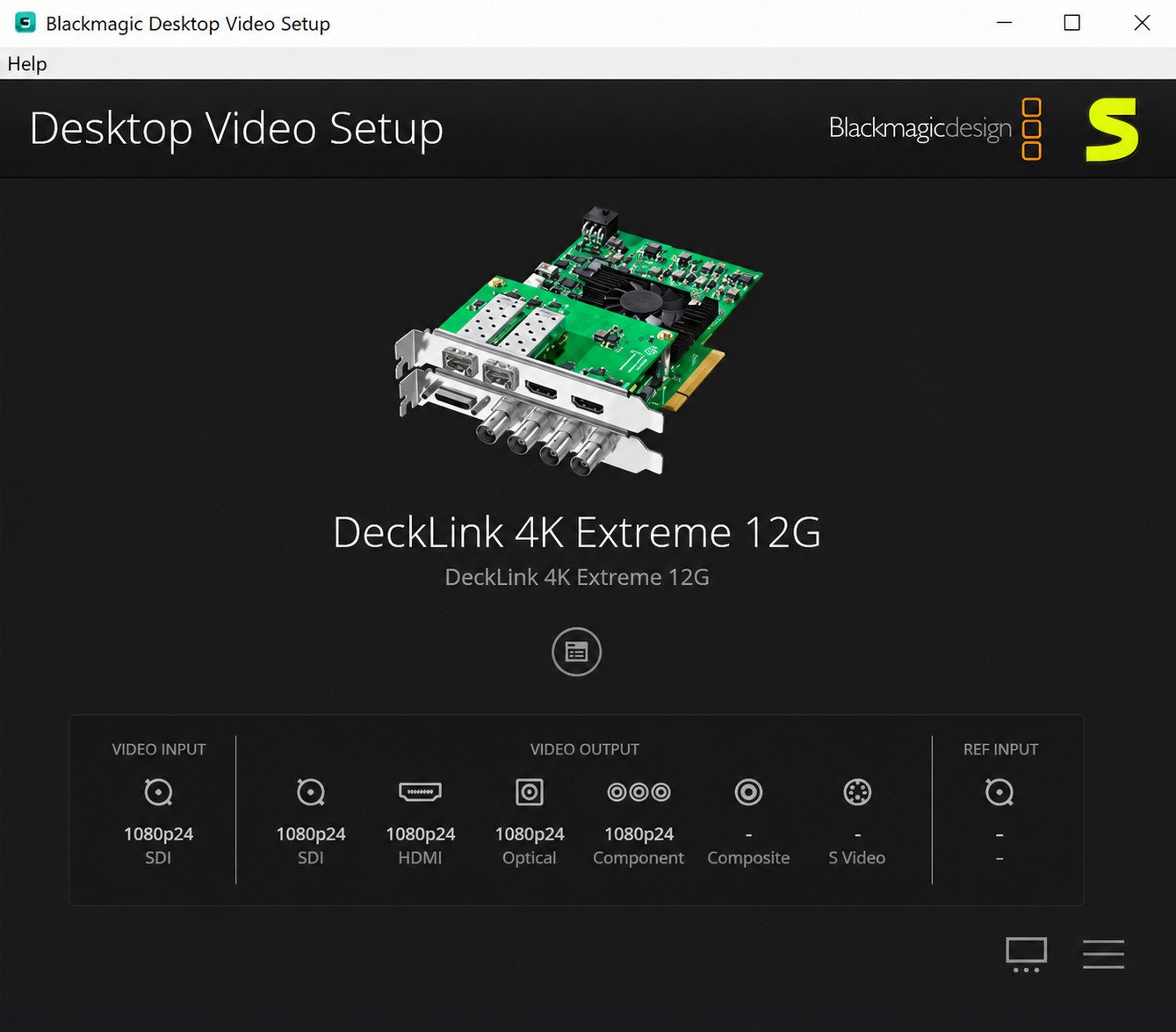
Blackmagic Desktop Video is a free driver and utility bundle made by Blackmagic Design. It’s not an editing app, it’s the plumbing that lets a DeckLink, UltraStudio, or Intensity device talk to your operating system and, in turn, to whatever software you’re capturing or monitoring through.
The package includes:
- Device drivers so Windows or macOS recognizes the hardware
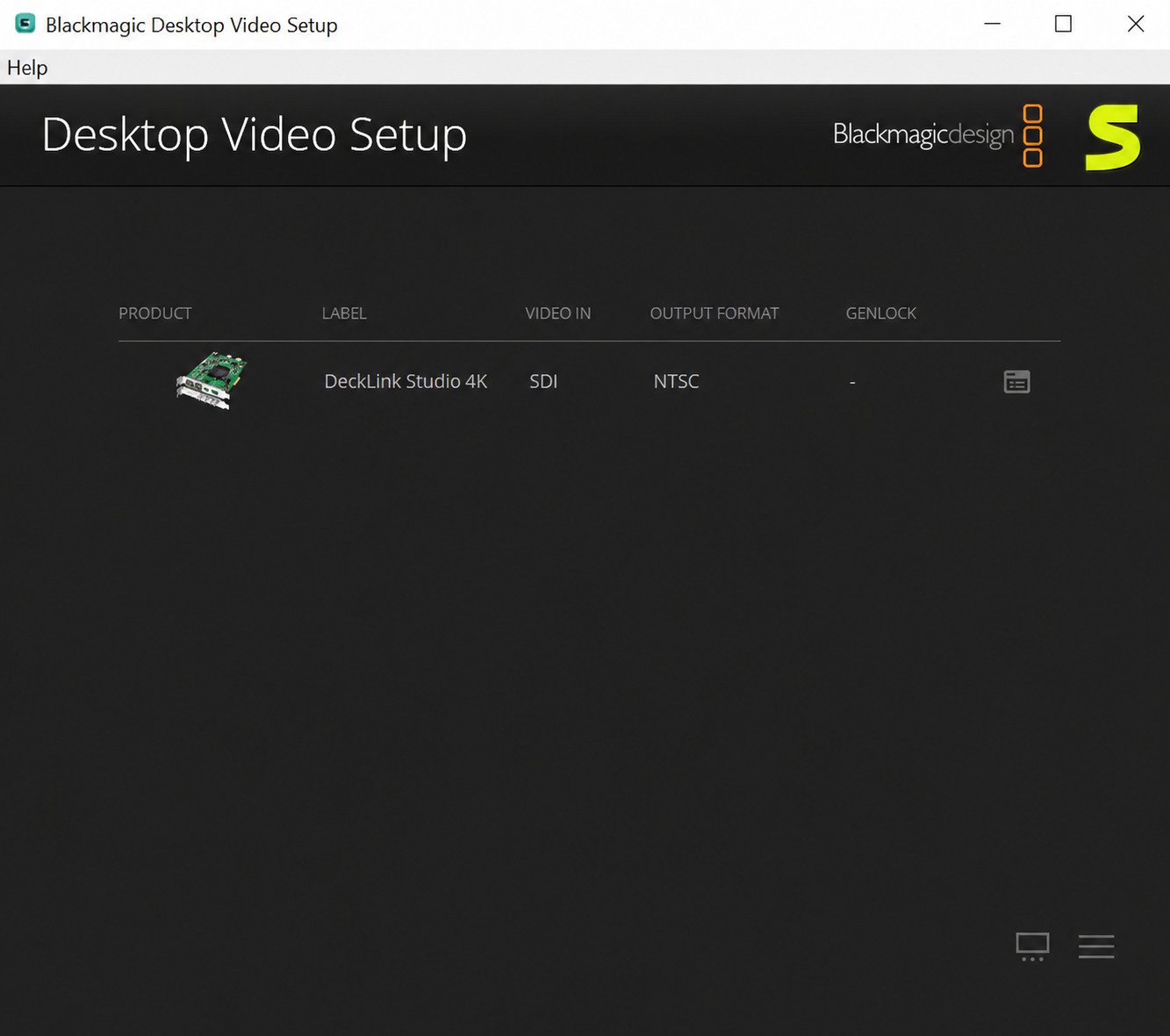
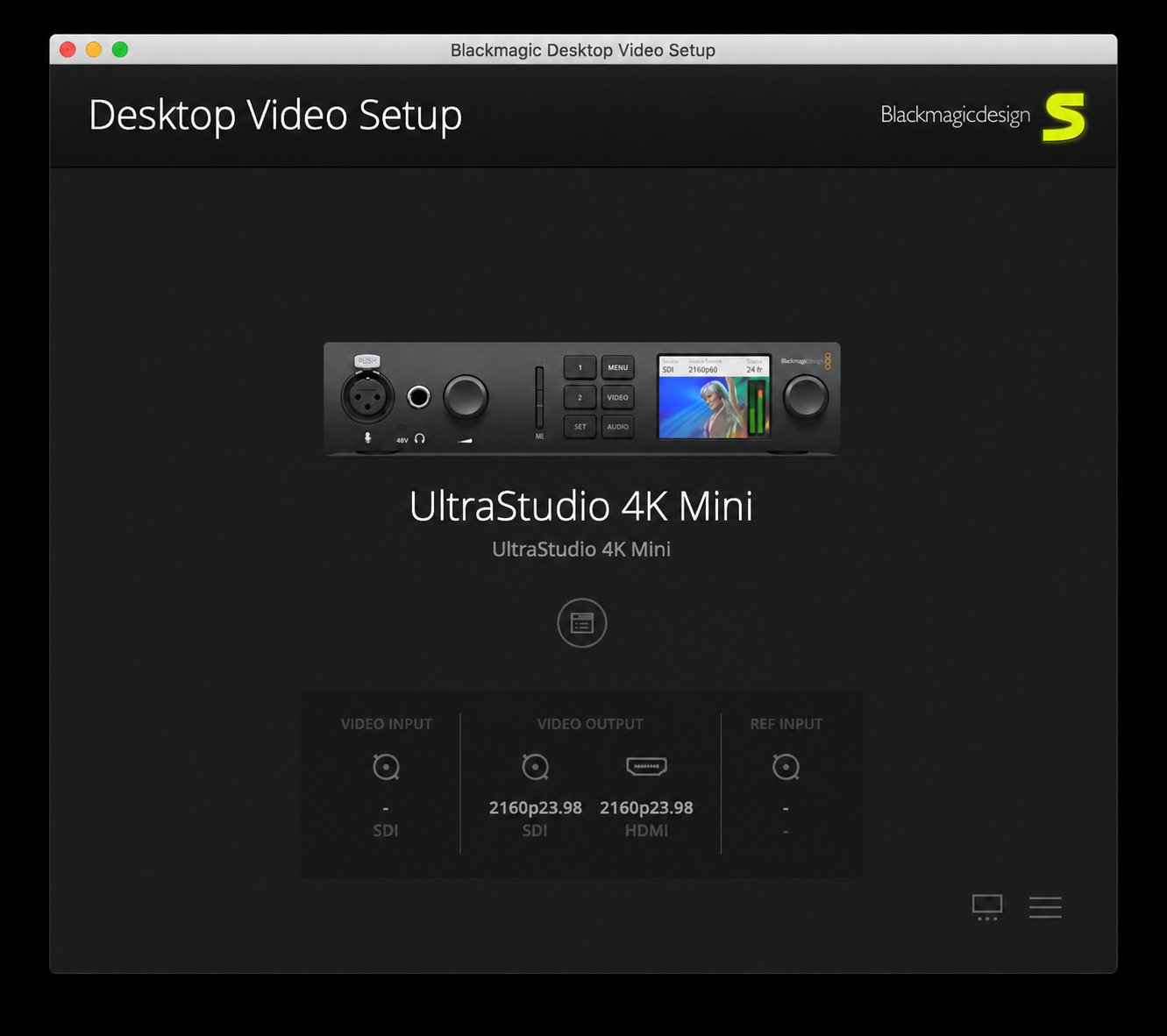
- Blackmagic Desktop Video Setup, a utility for configuring video/audio formats per device
- Blackmagic Media Express, a lightweight capture and playback app
- Blackmagic Disk Speed Test, for checking whether your storage can keep up with your capture format
- Plugins that let NLEs like DaVinci Resolve, Premiere Pro, and Media Composer see the hardware as an I/O device
What Does Blackmagic Desktop Video Do?
In practical terms, it turns your computer into a broadcast-capable machine. It handles:
- Capturing video and audio from an SDI, HDMI, or analog source into your NLE
- Outputting your timeline to an external monitor for accurate color and broadcast-safe review
- Frame-accurate playback for tape-out workflows, live events, and QC
- Genlock and timecode sync across multiple devices in a studio setup
Blackmagic Video I/O and Capture Support
Desktop Video supports SDI (SD, HD, and 12G), HDMI, and analog component/composite I/O depending on the specific device. It’s format-aware, meaning the Setup utility lets you lock a device to a broadcast standard, like 1080p59.94 or UHD 2160p29.97, so every app on the machine uses the same signal path.
Supported Blackmagic DeckLink and UltraStudio Devices
Desktop Video covers the full current DeckLink and UltraStudio lineup, plus legacy Intensity hardware still in service in many edit bays. That includes DeckLink 8K Pro, DeckLink Quad HDMI Recorder, DeckLink Mini Monitor/Recorder, UltraStudio 4K Mini, UltraStudio HD Mini, and the UltraStudio Express Monitor/Recorder 3G models, among others.
| Device Family | Typical Use Case | Connection |
|---|---|---|
| DeckLink (PCIe) | Studio edit bays, fixed workstations | PCIe, internal |
| UltraStudio | Laptops and mobile edit rigs | Thunderbolt, USB-C |
| Intensity | Prosumer/hobbyist capture | HDMI, USB, PCIe |
| Teranex | Format/standards conversion | SDI, HDMI |
Blackmagic Desktop Video Download
Blackmagic Desktop Video Latest Version
As of late August 2026, the current release is Desktop Video 16.3, published August 12, 2026. It added horizontal ancillary data (HANC) capture and playback support for DeckLink 8K Pro Mini, improved HANC capture on DeckLink 8K Pro G2, and fixed an intermittent playback issue on UltraStudio Express Monitor 3G in 1080p23.98/29.97.
Blackmagic Desktop Video Free Download
Desktop Video is completely free, regardless of which Blackmagic device you own. There’s no license key, subscription, or paywall, Blackmagic bundles the driver cost into the hardware price. The only “catch” is that you need to pick the correct build for your OS and, in older environments, your OS version.
Blackmagic Desktop Video Software Download
Always download Desktop Video from Blackmagic Design’s own support site, not a third-party mirror. Third-party download sites for driver packages are a common vector for bundled adware or outdated, unpatched builds, and there’s no upside to using one, Blackmagic’s downloads are already free and don’t require a purchase to access.
- Go to Blackmagic Design’s support center
- Select Capture and Playback under product family
- Choose your device (or “Desktop Video” generally if you’re not sure)
- Pick Windows or Mac under Latest Downloads
- Download directly, registration is optional, look for a “Download Only” link if you’d rather skip the form
Skip third-party mirrors entirely. Since Desktop Video is free on Blackmagic’s own site, a mirrored copy adds risk (adware, stale builds) with zero benefit.
Blackmagic Desktop Video Installer
The installer is a single package that installs drivers, Setup, Media Express, and Disk Speed Test together, you don’t install them separately. On Windows it’s an .msi-based installer; on Mac it’s a .dmg containing both an installer and uninstaller.
Blackmagic Desktop Video Driver Download
The driver itself isn’t offered as a standalone download, it’s part of the full Desktop Video package. Trying to source just the driver file from a forum or file-sharing site is a bad idea; mismatched driver/utility versions are one of the most common causes of “device not detected” issues.
Blackmagic Desktop Video for Windows and Mac
Blackmagic Desktop Video for Windows 11
Desktop Video 16.x runs natively on Windows 11 (64-bit only). If you’re running a DeckLink or UltraStudio card that’s more than a few years old, double-check Blackmagic’s compatibility notes before jumping straight to the newest build, very old cards sometimes need an intermediate driver version.
Blackmagic Desktop Video for Windows 10
Windows 10 64-bit is still supported for current Desktop Video releases, though Microsoft’s own end-of-support timeline for Windows 10 means new machines and most fresh installs should be on Windows 11 going forward.
Blackmagic Desktop Video for Mac
The Mac build is a single Universal Binary that runs on both Apple Silicon and Intel Macs. As of Desktop Video 16.x, macOS 15 or later is required, so if you’re on an older macOS version you’ll need to either update the OS or stay on an older, compatible Desktop Video release.
Blackmagic Desktop Video for macOS
macOS installs bring a small extra step Windows doesn’t need: after installing, you have to explicitly allow Blackmagic’s driver extension and background item in System Settings → General → Login Items & Extensions.
Skipping the Login Items & Extensions approval is the single most common reason a fresh Mac install “doesn’t work” even though the installer reported success.
Blackmagic Video Driver for Windows and Mac
| Windows | Mac | |
|---|---|---|
| Current version | 16.3 | 16.3 |
| Minimum OS | Windows 10/11, 64-bit | macOS 15.0+ |
| Architecture | x64 only | Universal (Apple Silicon + Intel) |
| Extra setup step | Approve driver install prompt | Enable driver extension + login item |
| Install format | .msi via installer | .dmg with install/uninstall pair |
Blackmagic Desktop Video Drivers and Capture Software
Blackmagic Video Driver Software
The driver is what makes a DeckLink or UltraStudio device show up as a selectable input/output in your OS and in third-party apps. It sits at the kernel level on both platforms, which is why a bad install, or a conflicting older driver left behind, can cause anything from a missing device to a full system crash on boot.
Blackmagic Capture Card Driver
For PCIe DeckLink cards specifically, the driver also handles PCIe lane negotiation and firmware communication. If Device Manager (Windows) or System Information (Mac) shows the card but Desktop Video Setup doesn’t, that’s usually a driver-level problem rather than a hardware fault.
Blackmagic Video Capture Software
Media Express, included in the Desktop Video package, is the simplest way to confirm a device is working before you even open your NLE. It can capture straight to disk, play back existing clips, and show live input, a fast way to isolate whether a problem is with the driver or with your editing app’s plugin.
Blackmagic Video I/O Software
Beyond Media Express, Desktop Video Setup is where you configure the actual video standard (resolution, frame rate, color format) each device should output or expect on input. Mismatches here, for example a device locked to 1080i59.94 while your source is 1080p23.98, are a frequent cause of “black output” complaints that have nothing to do with drivers at all.
SDI Driver and Video Capture Support
SDI-equipped devices (most DeckLink and higher-end UltraStudio models) support embedded audio over SDI, so a single cable typically carries both picture and sound. If audio drops out while video stays clean, check the embedded audio channel mapping in Desktop Video Setup before assuming it’s a cabling issue.
Blackmagic DeckLink Software and Drivers
Blackmagic DeckLink Driver
DeckLink cards are internal PCIe devices, so their driver has to load early in the boot process.
A DeckLink driver conflict is one of the few Desktop Video issues that can actually prevent Windows from booting cleanly, which is why a clean uninstall (not just overwrite) is recommended before a major version jump.
Blackmagic DeckLink Capture Software
DeckLink cards work with Media Express out of the box, and with professional NLEs (Resolve, Premiere, Avid, Final Cut) via Blackmagic’s plugin layer, installed automatically as part of Desktop Video.
DeckLink Driver Download for Windows
Same process as the general Windows download: Blackmagic support site → Capture and Playback → your specific DeckLink model → Windows build. There’s no separate “DeckLink-only” installer distinct from the standard Desktop Video package.
DeckLink Driver Download for Mac
Identical process on the Mac side. One thing worth checking on Apple Silicon Macs specifically: confirm you’re grabbing a build that lists Apple Silicon support if you’re on an older card, since very early DeckLink models needed a later Desktop Video release to gain native (non-Rosetta) support.
DeckLink Video Driver and SDI Support
Most current DeckLink models support 12G-SDI, which carries up to UHD 2160p60 over a single BNC cable, a big simplification compared to older quad-link 3G-SDI setups that needed four cables for the same resolution.
Supported DeckLink Capture Cards
| Model Family | Notable Feature |
|---|---|
| DeckLink 8K Pro / 8K Pro G2 | 8K support, dual 12G-SDI |
| DeckLink 8K Pro Mini | Compact 8K-capable card |
| DeckLink Quad HDMI Recorder | Four independent HDMI capture channels |
| DeckLink Mini Monitor/Recorder | Low-profile, single-channel |
| DeckLink IP HD / IP 100G | NMOS/ST 2110 IP workflows |
Blackmagic UltraStudio Software and Drivers
Blackmagic UltraStudio Software
UltraStudio devices use the exact same Desktop Video package as DeckLink, there’s no separate “UltraStudio edition.” The difference is purely hardware: Thunderbolt or USB connectivity instead of an internal PCIe slot, which makes UltraStudio the go-to choice for laptop-based editing rigs.
Blackmagic UltraStudio Driver
Because UltraStudio connects externally, driver issues here are more often about the connection itself, a Thunderbolt port that’s actually USB-C-only-no-Thunderbolt, an underpowered hub, or a cable that doesn’t support full Thunderbolt bandwidth, than about the driver install itself.
UltraStudio Driver Download
Same Blackmagic support site path as everything else in this guide. There is no standalone UltraStudio driver separate from the full Desktop Video package.
UltraStudio Video I/O Support
Newer UltraStudio models like the Express Monitor 3G and Express Recorder 3G were specifically added in the 16.1 update, so if you’ve got one of the newest units, make sure you’re on 16.1 or later, earlier Desktop Video builds simply won’t recognize them.
How to Install Blackmagic Desktop Video
How to Install Blackmagic Desktop Video on Windows
- Download the Windows installer from Blackmagic’s support site
- Close any app that might be using a Blackmagic device (NLEs, Media Express, live-production software)
- Run the installer and approve the driver installation prompt when Windows asks
- Restart when prompted
- Plug in (or power on) your Blackmagic device after the restart, not before
- Open Desktop Video Setup to confirm the device appears and configure your video standard
How to Install Blackmagic Desktop Video on Mac
- Download the Mac
.dmgfrom Blackmagic’s support site - Mount it and run Install Desktop Video
- Restart if prompted
- Go to System Settings → General → Login Items & Extensions and enable Blackmagic’s driver extension and background items
- Reconnect your device and open Desktop Video Setup to verify it’s detected
How to Install DeckLink Drivers on Windows
The process is identical to the general Windows installation above, DeckLink doesn’t require a separate driver path. Just make sure the card is properly seated in its PCIe slot before you boot, since Windows needs to enumerate it during startup for the driver to bind correctly.
How to Install DeckLink Drivers on Mac
Same as the general Mac steps.
For desktop Macs with PCIe slots, power the machine down fully before installing or removing a DeckLink card, never hot-swap an internal PCIe device.
Blackmagic Desktop Video Setup and Configuration
Once installed, Desktop Video Setup is where the real configuration happens: choosing input/output video standard, audio channel mapping, genlock reference source, and (on multi-connector cards) which physical port is active. Get comfortable with this utility, it’s where most day-to-day tweaks happen, not in your NLE’s preferences.
How to Update Blackmagic Desktop Video Drivers
How to Update Blackmagic Desktop Video
Desktop Video doesn’t auto-update. Blackmagic ties driver releases to new hardware support and to compatibility with new NLE versions, so it’s worth checking Blackmagic’s support page whenever you update DaVinci Resolve or another editing app to a major new version.
How to Update the Blackmagic DeckLink Driver
- Quit every app that touches the device
- Uninstall the current Desktop Video version first (don’t just install over it)
- Restart
- Install the new version
- Restart again, then reconnect the device
Updating Blackmagic Drivers for Windows 11
The uninstall-then-reinstall approach matters more on Windows 11 than it used to, since Windows is stricter about driver signing and can leave orphaned driver files behind after an in-place overwrite, which occasionally causes the “yellow triangle” warning in Device Manager even when the new install technically succeeded.
Updating Blackmagic Drivers on macOS
On macOS, always use the Uninstall Desktop Video tool bundled in the .dmg before installing a new version, and re-approve the driver extension afterward, macOS treats each Desktop Video version as needing fresh permission, even if you approved a previous version.
Blackmagic Desktop Video Troubleshooting
Blackmagic DeckLink Not Detected on Windows
- Confirm the card is fully seated and the PCIe slot is getting power
- Check Device Manager for a warning icon under Sound, video and game controllers
- Uninstall and cleanly reinstall Desktop Video rather than repairing
- Try a different PCIe slot if your motherboard has more than one available
Blackmagic DeckLink Not Showing Up
If Device Manager sees the card but Desktop Video Setup and Media Express don’t, that’s almost always a driver-version mismatch, reinstall the exact current version rather than assuming a repair install will fix it.
Blackmagic Capture Card Not Detected
For UltraStudio (Thunderbolt/USB) devices specifically, check that the device is actually powered, some models need external power beyond what the Thunderbolt or USB connection alone provides, and a partially-powered unit can show up intermittently rather than failing cleanly.
Blackmagic Desktop Video Not Detecting Hardware
Try these in order:
- Reboot with the device connected from a cold start
- Try a different cable, especially for Thunderbolt (not all USB-C cables carry Thunderbolt data)
- Test the device on a different machine if one’s available, to isolate hardware vs. driver
- Fully uninstall Desktop Video, restart, then do a fresh install
Blackmagic Desktop Video Driver Not Working
A driver that installs but doesn’t function correctly is often a leftover-file problem from a previous version. Skipping the uninstaller in favor of installing the new version over the old one causes more of these tickets than any other single mistake.
DeckLink Driver Not Working on Windows 11
Windows 11’s driver signature enforcement occasionally blocks an older Desktop Video release outright. If you’re stuck supporting an older card that needs an older driver, check Blackmagic’s release notes for the minimum version confirmed to work on Windows 11 rather than guessing.
Blackmagic Desktop Video Compatibility and Hardware
Blackmagic Design Drivers and Supported Hardware
Desktop Video covers DeckLink, UltraStudio, Intensity, and Teranex product lines. It does not cover Blackmagic cameras (those use separate camera firmware) or ATEM switchers (which use ATEM Software Control instead).
DeckLink Capture Cards and Video Interfaces
Interface support varies by model: entry-level cards may offer HDMI only, while pro models add 12G-SDI, analog component, and even fiber options on select high-end units.
Blackmagic UltraStudio Devices
UltraStudio is the external, portable counterpart to DeckLink, same driver, same core feature set, different physical connection method (Thunderbolt/USB instead of PCIe).
SDI, HDMI and Video I/O Compatibility
HDMI and SDI are not interchangeable at the driver level. A device with only HDMI ports can’t be configured for SDI output in software, the interface support is fixed in hardware, so double-check the exact model before buying if you need SDI specifically.
Blackmagic Desktop Video System Requirements
| Requirement | Windows | Mac |
|---|---|---|
| OS | Windows 10/11, 64-bit | macOS 15.0+ |
| RAM | 4GB minimum (8GB+ recommended) | 4GB minimum (8GB+ recommended) |
| Connection | PCIe, Thunderbolt, or USB 3.0 depending on device | PCIe, Thunderbolt |
| CPU | 64-bit x86 | Apple Silicon or Intel |
Blackmagic Design Software Ecosystem
Blackmagic Media Express
A free, no-frills capture and playback app bundled with Desktop Video. Good for quick ingest jobs or verifying hardware without opening a full NLE.
Blackmagic ATEM Software Control
Separate software entirely, used to control ATEM live production switchers, not related to Desktop Video, though many studios run both on the same machine.
Blackmagic Camera Setup Utility
Used for updating firmware on Blackmagic’s camera line (Pocket Cinema Camera, URSA, etc.), again a distinct download from Desktop Video.
Blackmagic VideoHub Software
Controls VideoHub routing switchers. If your facility uses one to route SDI signals between rooms, this is the companion app for it.
Blackmagic Studio Converter Software
Handles configuration for Blackmagic’s standalone format converters (SDI-to-HDMI and similar), useful in hybrid setups mixing consumer and broadcast gear.
Blackmagic RAW SDK and Related Tools
For developers working with Blackmagic RAW footage programmatically, Blackmagic offers a separate SDK worth knowing about if you’re building custom ingest or transcode tools, though it’s unrelated to Desktop Video’s capture/playback function.
Frequently Asked Questions About Blackmagic Desktop Video
It’s the driver and utility package that lets Blackmagic capture and playback devices work with your computer and editing software.
Yes, it’s free for anyone with compatible Blackmagic hardware, no license or subscription required.
DeckLink, UltraStudio, Intensity, and Teranex devices all need it installed to function.
Yes, current versions fully support 64-bit Windows 11.
Yes, it runs as a Universal Binary on both Apple Silicon and Intel Macs, with current releases requiring macOS 15 or later.
Download the installer from Blackmagic’s official support site, run it, restart when prompted, then connect your device and confirm it in Desktop Video Setup.
Most often it’s a driver mismatch or incomplete uninstall from a previous version, a clean uninstall followed by a fresh install resolves the majority of cases.
Uninstall the current version using Blackmagic’s uninstaller, restart, then install the latest version and restart again before reconnecting your device.
There isn’t one, both use the same Desktop Video package. The difference is entirely in the hardware: DeckLink is internal PCIe, UltraStudio is external Thunderbolt/USB.
Conclusion
Desktop Video isn’t glamorous software, but it’s the piece that quietly decides whether your entire capture chain works or not. Getting the install right the first time, official source, clean uninstall before any update, and the right OS-specific extra step (driver approval on Windows, extension permissions on Mac), saves far more time than it costs.
If a device ever goes missing after an update, resist the urge to layer a new install on top of the old one. A clean uninstall and reinstall, matched to your current OS and NLE version, fixes the vast majority of DeckLink and UltraStudio issues without needing to touch the hardware at all.
One Response