YouTube to MP3 Converter – Download, Features, Setup, and Alternatives
Turning a YouTube video into an audio file sounds simple, but choosing the right YouTube to MP3 converter can make a big difference. Some tools are fast and straightforward, while others are crowded with pop-ups, confusing download buttons, unnecessary installers, or misleading quality claims.
A good converter should make the basic process easy: provide a video link, select an audio format, choose a suitable quality level, and save the resulting file. However, there is another side to the subject that is just as important. You need to consider audio quality, device compatibility, security, copyright, and YouTube’s own download options before deciding how to save content.
This guide explains how YouTube-to-MP3 conversion works, what features matter, how desktop and browser-based tools compare, why quality can vary, and how to troubleshoot common problems. It also explains when an alternative approach may be better.
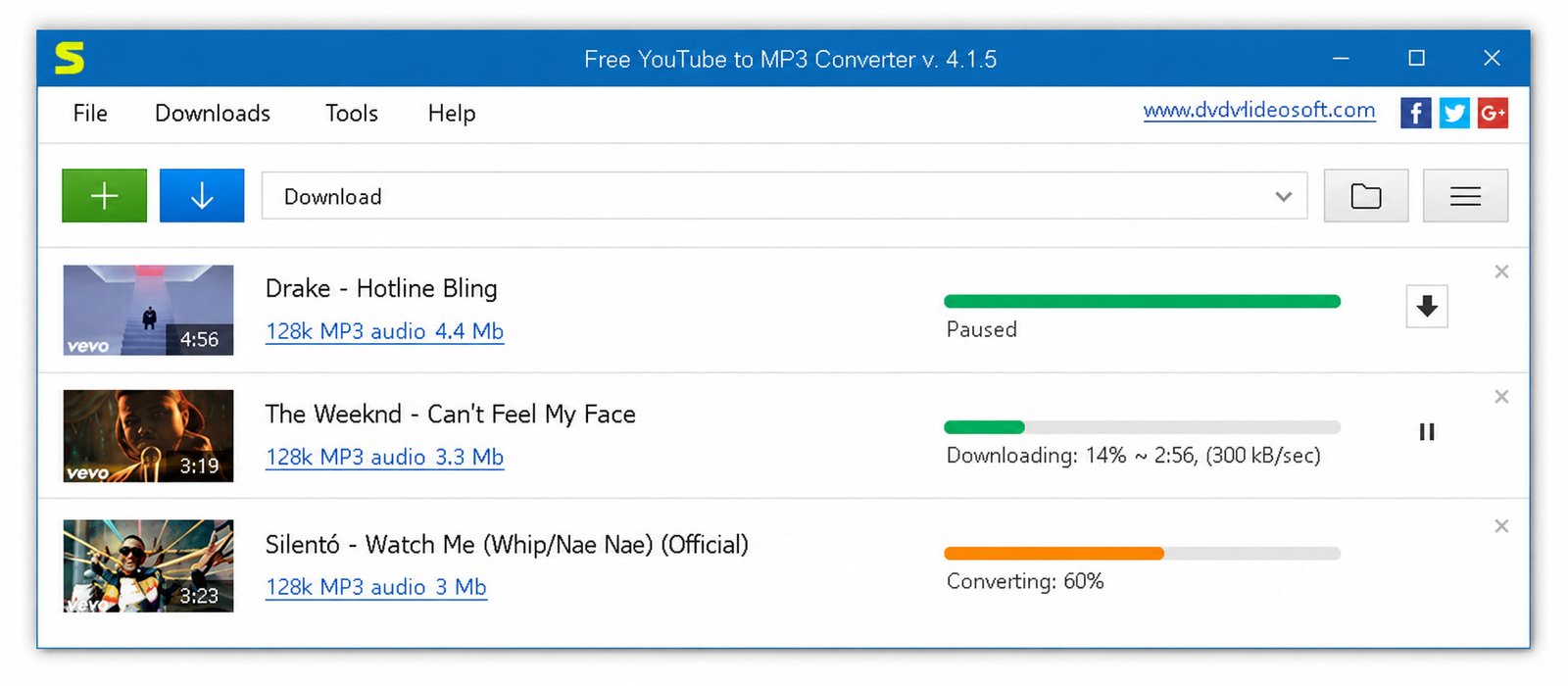
What Is a YouTube to MP3 Converter?
A YouTube to MP3 converter is a tool designed to extract audio from a compatible online video and save that audio in MP3 format. Depending on the software or website, it may also support formats such as M4A, AAC, WAV, or other audio types.
The basic idea is easy to understand. A video normally contains both visual and audio information. A converter processes the available media stream and creates an audio-only file instead of keeping the complete video.
This can be useful for legitimate purposes such as working with your own uploaded videos, converting material you have permission to use, or preparing compatible audio files for editing. It is different from simply pressing YouTube’s own offline-download button, because YouTube’s official downloads remain within its supported playback system rather than becoming ordinary MP3 files. YouTube states that audio, music, or MP3 files cannot be downloaded directly through the standard YouTube app.
How YouTube to MP3 Conversion Works
Most converters follow a similar technical workflow.
First, the user supplies a video URL. The service identifies the video and determines which media streams are available. It then selects or processes an audio stream and, when necessary, converts it into the requested format.
For MP3 output, the source audio is encoded into the MP3 format. The final file is then made available for saving to the computer or device.
YouTube Audio Converter vs. Video Converter
A YouTube audio converter focuses on extracting sound, while a video converter normally keeps or changes the visual portion as well.
An audio converter is useful when you only need speech, music, an interview, a lecture, or another audio track. The resulting file is generally smaller than the original video and can be easier to organize. A video converter is more appropriate when you need the complete picture and sound, want to change video resolution, or need a different container such as MP4.
| Tool type | Main purpose | Typical output |
|---|---|---|
| YouTube MP3 converter | Extract audio | MP3 |
| Audio converter | Change audio formats | MP3, AAC, WAV, M4A |
| Video converter | Change video formats | MP4, MKV, MOV |
| Downloader | Save supported media | Video or audio |
| Audio editor | Edit existing audio | WAV, MP3, FLAC and more |
Choosing the correct category prevents unnecessary conversion steps.
MP3, Audio Quality, and Supported Formats
MP3 remains popular because it is widely supported by phones, computers, car stereos, portable players, and editing applications.
Its main advantage is compatibility and relatively small file size. However, MP3 uses lossy compression, meaning some information is discarded during encoding.
Other formats can be useful in different situations. M4A may provide efficient compression, while WAV is commonly used when an uncompressed working format is preferred. AAC can also provide good quality at relatively efficient bitrates.
The best format depends on what you plan to do with the file. For ordinary listening and broad compatibility, MP3 is often convenient. For further editing, another format may be more appropriate.
Is a YouTube to MP3 Converter Free to Use?
Many online converters advertise free conversion, and some desktop programs also offer free versions. However, “free” can mean different things.
A free service may limit the number of conversions, show advertising, restrict quality, provide fewer features, or offer optional paid upgrades. Some desktop applications use a free version alongside a premium edition.
YouTube to MP3 Converter Features
Not every converter offers the same experience. The most useful features are usually the ones that reduce unnecessary steps while giving you control over output quality and file management.
Current comparison articles commonly evaluate converters according to speed, supported quality, playlist handling, ads, ease of use, and whether they work through a browser or desktop application.
Convert YouTube Videos to MP3 Audio
The primary feature is straightforward audio extraction. A capable tool should recognize a supported video URL, identify the available audio, and provide an MP3 option without making the user navigate through unnecessary settings. For occasional use, simplicity is usually more valuable than a long list of advanced controls.
High-Quality YouTube Audio Conversion
Quality options can make a noticeable difference, particularly with music and other content where clarity matters. However, users should not automatically select the largest number available. A converter may advertise 320 kbps output, but that does not mean the original YouTube source contained 320 kbps of equivalent audio information. The sensible approach is to choose the highest reasonable quality supported by the source and your intended use.
Fast MP3 Conversion and Downloads
Speed depends on several factors, including the length of the video, the converter’s servers, your internet connection, and the processing method. Short clips may finish quickly, while long recordings can take considerably longer. A desktop application can also behave differently from a browser service because processing may happen locally.
Convert YouTube Music and Videos to Audio
Many people search for a YouTube music converter because they want audio-only playback. The same basic conversion concept can apply to music videos, podcasts, interviews, tutorials, lectures, and other videos. The important distinction is whether you are authorized to save and reuse the material.
YouTube itself provides offline listening through YouTube Music Premium for supported content, which may be a better option when your goal is simply listening offline rather than creating a separate MP3 file.
Simple YouTube MP3 Converter Interface
A clean interface normally has only a few essential controls:
- Video URL field
- Analyze or convert button
- Output format selection
- Quality selection
- Download or save button
Extra settings can be useful for advanced users, but they should not make the basic process confusing. A page filled with several similarly styled “Download” buttons can be a warning sign — clear interfaces are generally easier to use safely.
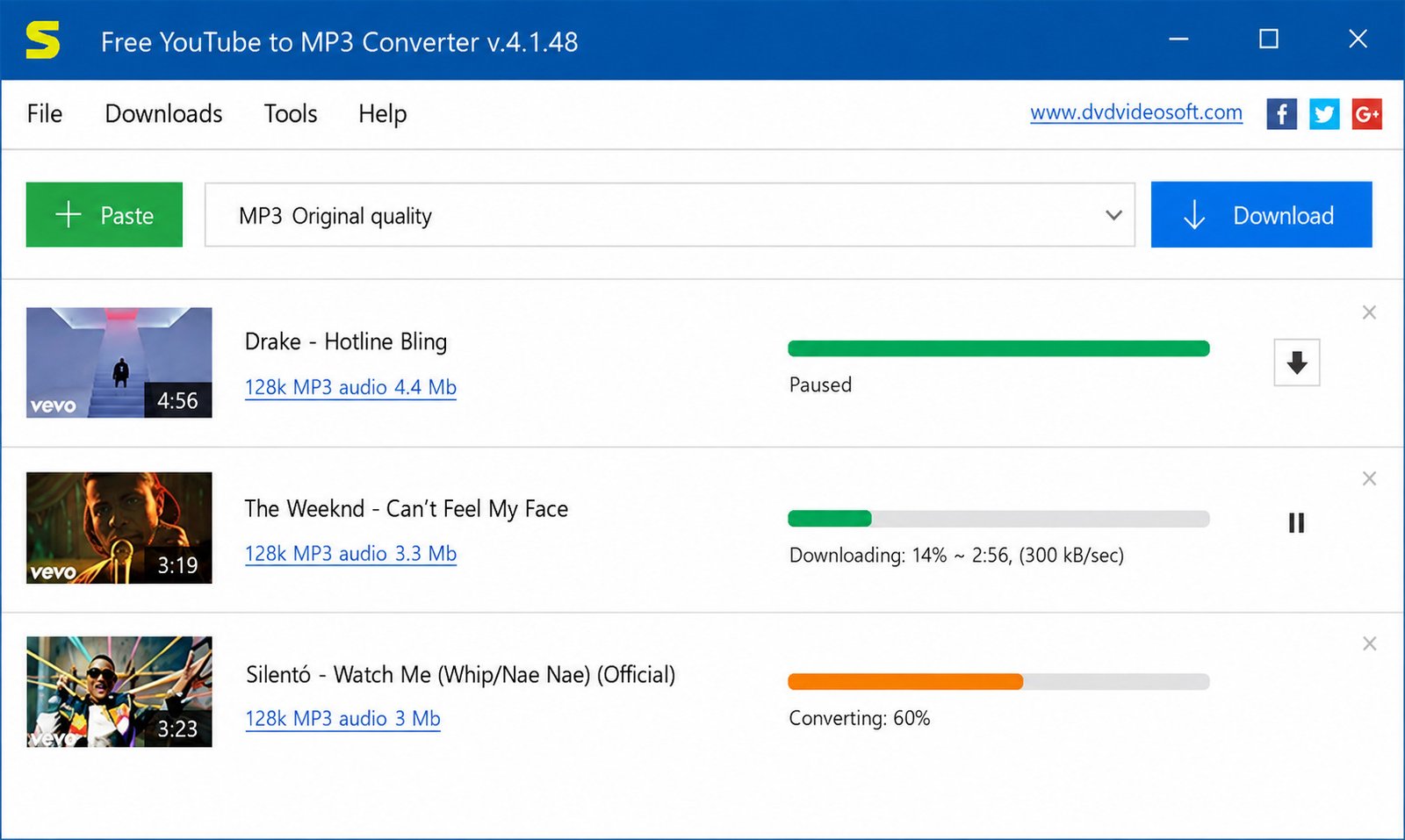
Online and Desktop Conversion Options
There are two major approaches. Online converters work inside a web browser and normally require no installation — they are convenient for occasional tasks. Desktop converters require installation but may offer batch processing, playlist handling, download management, metadata controls, and more predictable workflows. The better choice depends on how frequently you convert files and how much control you need.
YouTube to MP3 Converter Download
The phrase “YouTube to MP3 converter download” can refer to two different things: downloading the converter software itself or downloading an MP3 created by a converter. That distinction is important.
Free YouTube to MP3 Converter Download
A free desktop converter can be useful when you regularly process audio. Before installing one, check:
- The developer’s official website
- Supported operating systems
- Recent update history
- Privacy information
- Installation requirements
- Whether additional software is bundled
- Independent reputation
A free application should not require disabling antivirus protection or changing browser security settings just to install it. One widely referenced option is DVDVideoSoft’s Free YouTube to MP3 Converter, which is worth evaluating against the checklist above like any other tool.
YouTube MP3 Converter for PC
Windows users have a large selection of desktop media applications. A PC converter can be useful for long videos, repeated conversions, batch processing, and organizing a large audio library. Desktop applications can also avoid some browser limitations. For occasional conversion, however, installing a full application may be unnecessary — a browser-based workflow can be quicker when the task is small and legitimate.
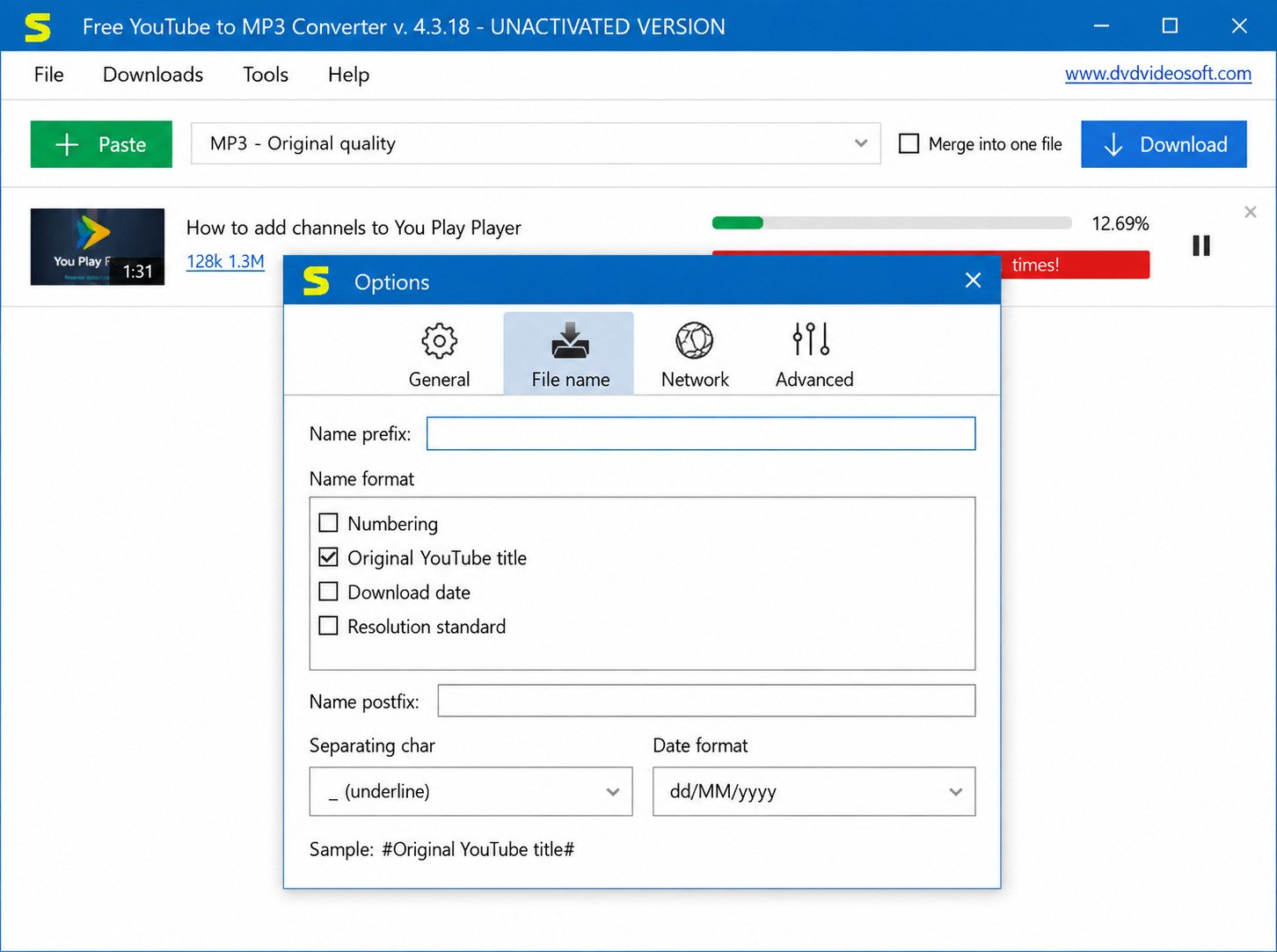
YouTube to MP3 Converter for Windows
When choosing software for Windows, compatibility should be checked before installation. Look for support for your Windows version and verify that the application comes from the expected developer. If a program has not been updated for a long time, newer YouTube changes may cause it to stop working. Windows users should also pay attention to installer behavior — a legitimate installer should clearly explain what it is installing.
YouTube MP3 Converter Software and Installer
An installer is not automatically safer than an online converter, and an online converter is not automatically safer than desktop software. Security depends on the specific service, its implementation, its advertising practices, and the files it asks you to download.
Latest Version and Updates
Media platforms change regularly, so converters can occasionally stop working. A current release may fix compatibility issues, improve performance, update dependencies, or address security problems. If your converter suddenly stops recognizing YouTube links after previously working, check whether a newer version is available from the official developer.
How to Convert YouTube Videos to MP3
The general conversion process is simple when using a compatible and legitimate tool. The exact buttons vary between services, but the workflow usually looks like this:
- Open the video you are authorized to convert.
- Copy its URL.
- Open the chosen converter.
- Paste the URL.
- Select MP3.
- Choose an appropriate quality level.
- Start conversion.
- Save the resulting file.
Do not assume that every converter supports every YouTube URL. Live streams, age-restricted material, private videos, region-restricted content, and other special cases may behave differently.
How to Convert YouTube Video to MP3
Start by copying the complete video address from your browser. Paste it into the converter’s URL field. After the service analyzes the link, look for MP3 or an equivalent audio-only option.
Choose your quality and begin processing. When the conversion finishes, save the file to a folder you can easily find. If the tool displays multiple download buttons, verify which one actually corresponds to the converted file.
How to Download YouTube Audio as MP3
The safest approach is to use a method appropriate for the rights associated with the content.
If the video is yours, YouTube provides official methods for downloading your uploaded videos. YouTube Studio can save eligible uploaded videos to your device.
If your goal is simply offline playback of supported YouTube content, YouTube Premium provides an official download feature. These downloads are designed for playback through YouTube rather than as ordinary MP3 files.
How to Convert YouTube Music to MP3
Music requires extra care because songs are often protected by copyright. If you own the recording, have permission, or are working with material that is explicitly licensed for downloading and conversion, an appropriate converter can be used according to those terms.
For ordinary personal listening, YouTube Music Premium offers an official offline listening option without requiring you to create a separate MP3 file.
How to Convert a YouTube Video Link to MP3
A URL-based converter generally needs only the video link. Copy the address, paste it into the converter, wait for the video to be identified, and choose the audio output. If the URL is rejected, check that you copied the complete address and that the video is publicly accessible and supported by the service.
How to Save Converted Audio Files
Create a dedicated folder such as “YouTube Audio” or “Converted Audio.” For larger collections, organize files by subject, creator, project, or year. Rename files clearly rather than keeping generic names such as “audio123.” If the converter preserves metadata, check the artist, title, album, and artwork fields before adding music to a larger library.
How to Use a YouTube to MP3 Converter
A typical converter can be used without advanced technical knowledge. The following five-step process covers most browser and desktop tools.
Step 1: Add a YouTube Video or Link
Open the video and copy its URL. Paste it into the converter’s input field. If the software provides a clipboard button, you may be able to insert the link with one click. Make sure you are using the actual video URL rather than a search-result page or unrelated address.
Step 2: Choose MP3 as the Output Format
Select MP3 from the format menu. Some applications may show MP3 alongside M4A, WAV, AAC, or other formats. If compatibility is your priority, MP3 remains a practical choice. If you plan to edit the audio extensively, consider whether another format would better suit your workflow.
Step 3: Select Audio Quality
Quality selection normally involves bitrate. Common options include 128 kbps, 192 kbps, 256 kbps, and 320 kbps. Higher bitrate generally means a larger file and potentially better preservation of the source’s available detail. For spoken content, a moderate bitrate is often sufficient. Music may benefit more from a higher setting.
Step 4: Start the Conversion
Click the conversion button and wait for processing to finish. Do not repeatedly press the button if nothing appears immediately — multiple clicks can create duplicate jobs or trigger additional advertising elements on poorly designed websites. For longer recordings, allow the converter enough time to process the source.
Step 5: Save the MP3 Audio File
When the conversion is complete, download or save the resulting file. Check the file extension before opening it — a genuine MP3 should normally end with “.mp3.” If a webpage instead downloads an executable file unexpectedly, stop and inspect what you are downloading.
YouTube to MP3 Conversion Quality and Formats
Audio quality is one of the most misunderstood parts of YouTube conversion. A converter can produce a technically large MP3 without producing better sound — the source stream sets an important ceiling on the final result.
MP3 Audio Quality Explained
Bitrate describes how much data is allocated to audio each second. Higher bitrate generally allows more information to be preserved during lossy encoding, but the improvement becomes less obvious as quality rises. File size also increases. A simple guide is:
| Bitrate | Typical use | Approximate character |
|---|---|---|
| 96 kbps | Speech | Small, acceptable for basic voice |
| 128 kbps | Podcasts, casual listening | Compact and practical |
| 192 kbps | General music | Good balance |
| 256 kbps | Higher-quality listening | Strong quality-to-size balance |
| 320 kbps | Maximum MP3 bitrate | Largest common MP3 option |
These values describe the MP3 output, not necessarily the original YouTube stream.
Best Quality for YouTube to MP3 Conversion
There is no single best setting for every listener. For speech, 128 kbps may be more than adequate. For music, 192 or 256 kbps can provide a useful balance between file size and quality. If you want the highest MP3 bitrate and storage space is not a concern, 320 kbps is an option.
MP3 vs. Other Audio Formats
MP3 is convenient because almost every modern device supports it. M4A and AAC can offer efficient compression, while WAV is useful when an uncompressed working file is needed. FLAC is another option when lossless storage is important and supported by the workflow. For everyday playback, MP3 is often the easiest choice; for production or archiving, another format may make more sense.
YouTube Video to Audio Conversion
Video-to-audio conversion removes the visual portion and keeps the sound. This is useful for lectures, interviews, educational videos, personal recordings, and other material where the video itself is not required. The resulting audio can be imported into compatible music players, editing programs, transcription workflows, or mobile devices.
YouTube to MP3 Converter Online vs. Desktop Software
Both approaches have advantages. Online tools prioritize convenience, while desktop applications often provide more control. Current comparison guides commonly separate converters into these two categories because their strengths are different.
Online YouTube MP3 Converter
An online converter runs in a browser. You normally do not need to install anything, which makes it convenient for one-time conversions or occasional use. The downside is that you are trusting a third-party website with the conversion process — advertising, redirects, rate limits, privacy policies, and availability can vary significantly.
YouTube MP3 Converter Software
Desktop software is installed on your computer. Depending on the program, it may support batch processing, playlists, metadata, download queues, file naming, and conversion presets. This can be valuable for regular users who convert many files or need a more organized workflow.
Advantages of Online Conversion
- No installation required
- Works through a browser
- Convenient on supported devices
- Good for occasional tasks
- Usually simple to operate
Advantages of Desktop Conversion
- Batch processing
- Better file organization
- Conversion queues
- More output options
- Metadata controls
- Local processing for some workflows
- More predictable interfaces
Which YouTube MP3 Converter Is Better?
There is no universal winner. Choose an online converter if you need an occasional, simple conversion and have identified a trustworthy service. Choose desktop software if you regularly process files, want batch features, or need greater control. If security, reliability, and long-term use matter, researching the developer and software reputation is more important than simply choosing the fastest-looking website.
Is YouTube to MP3 Conversion Safe and Legal?
Safety and legality are separate questions. A converter can be technically safe but still be inappropriate for converting copyrighted material without permission. Likewise, a service can offer a legitimate conversion function while using unsafe advertising or deceptive downloads.
YouTube explains that copyright generally gives creators control over how their original works are used. It also identifies permission, applicable copyright exceptions, Creative Commons licensing, public-domain material, and authorized sources such as YouTube Audio Library or Creator Music as relevant ways to use content safely.
Are YouTube MP3 Converters Safe?
Some converters may be safe, while others may expose users to aggressive advertisements, misleading buttons, unwanted downloads, or privacy concerns. Do not judge safety from the word “free” or from a professional-looking interface alone. Before using a converter, consider the developer or website reputation, browser behavior, download type, privacy policy, and whether your security software reports anything suspicious.
What to Check Before Using an Online Converter
Look for a clean and understandable workflow. Be cautious when a site:
- Opens repeated pop-up windows
- Redirects you to unrelated pages
- Shows fake virus warnings
- Requests unnecessary browser permissions
- Requires an unknown extension
- Downloads executable files unexpectedly
- Claims your computer is infected
- Uses multiple misleading download buttons
Never provide sensitive account information simply to convert an ordinary public video.
Copyright and Personal-Use Considerations
Personal use does not automatically eliminate copyright restrictions. Copyright rules differ by country, and exceptions such as fair use or fair dealing depend on specific circumstances. YouTube itself notes that different regions can have different rules.
The safest approach is to convert material you own, material you have permission to use, or material whose license clearly allows the intended use. If you are unsure about a specific legal situation, consult the relevant copyright rules in your country or obtain professional legal advice.
Avoiding Malicious Downloads and Misleading Converter Sites
The biggest practical risk with many free converter websites may not be the conversion process itself — it may be the advertising environment surrounding it.
Common YouTube to MP3 Converter Problems
Converters can fail for many reasons. The problem may involve the video, the converter, your browser, your network, or a recent platform change.
YouTube to MP3 Converter Not Working
First, try a different supported URL to determine whether the problem affects one video or every video. Then check your internet connection and the converter’s current status. If the application is installed locally, check for updates. Do not immediately assume that your computer is broken.
YouTube Video Cannot Be Converted to MP3
Some videos may not be supported because of restrictions, availability, technical changes, or the converter’s limitations. Private videos and certain restricted content can be particularly problematic. If the video is your own, consider using YouTube’s official download tools first — YouTube provides a method through YouTube Studio for downloading eligible videos you have uploaded.
MP3 Conversion Failed or Stopped
Long videos require more processing than short clips. Try checking available storage, restarting the application, updating the software, or using a different legitimate workflow. If the same video repeatedly fails while other videos work, the source may be the issue.
Poor Audio Quality After Conversion
Check the selected bitrate and the original source quality. A higher MP3 bitrate may increase file size without improving the actual audio. If the source is already compressed, the conversion cannot restore information that has already been discarded.
YouTube Link Not Recognized
Copy the URL again directly from YouTube. Remove unnecessary spaces if the converter does not accept them. Also verify that you are using a supported video URL rather than a playlist, channel, search, or shortened link that the service does not recognize.
Download or Conversion Errors
If a download stops, check your connection and available disk space. For browser tools, clearing an old page session or trying another current browser can sometimes help. For desktop applications, restarting the program and checking for updates may resolve compatibility issues. YouTube itself recommends checking account status, connection strength, and download limits when its official download features fail.
YouTube to MP3 Converter Alternatives
A converter is not always the best answer. Depending on your goal, an official offline feature, a desktop media application, an audio editor, or a dedicated downloader may be more appropriate.
Best YouTube to MP3 Converter Alternatives
Popular categories include:
- YouTube Premium offline playback
- YouTube Music Premium
- Desktop media downloaders
- General audio converters
- Audio editing software
- Official downloads for your own content
- Licensed music and audio libraries
The right alternative depends on whether you need offline listening, editing, archiving, or a standalone MP3 file.
Free YouTube MP3 Converter Alternatives
Free desktop media applications can provide more control than browser-based services. Some general-purpose converters can process locally stored video files — useful when you already have a video that you are authorized to use and simply need to extract its audio. This workflow separates the downloading question from the conversion question.
Best Online YouTube Audio Converter Alternatives
If your main goal is occasional audio extraction, an online tool can be convenient. But do not choose a service solely because it advertises “fastest” or “320 kbps.” Compare its interface, reputation, privacy practices, restrictions, and download behavior.
YouTube Video Downloader and Audio Converter Alternatives
A full media application can sometimes download and convert content within one interface. This may be convenient for people who regularly manage legitimate media collections and can reduce the need to move files between multiple programs. However, additional features mean additional software complexity, so choose a reputable application rather than installing several unknown utilities.
When to Choose an Alternative Converter
Consider an alternative when:
- The current converter repeatedly fails
- You need batch processing
- You need editing tools
- You need a different audio format
- You want official offline playback
- You need to process your own uploaded videos
- You need stronger file-management features
The best tool is the one that matches the actual task. It’s also worth comparing related software guides before committing to one tool — for example, SoftFolders’ MaxAI ME page covers other utilities and workflows worth researching alongside a converter.
YouTube to MP3 Converter vs. Other Audio Tools
Different tools solve different problems. Understanding the difference can save time and prevent unnecessary conversions.
YouTube MP3 Converter vs. YouTube Audio Converter
The terms are often used interchangeably. A YouTube MP3 converter specifically emphasizes MP3 output, while a YouTube audio converter may support several audio formats. If you only need MP3, the narrower tool may be simpler; if you need flexibility, a multi-format audio converter is more useful.
YouTube MP3 Converter vs. Online Video Converter
An online video converter generally handles video formats and may also provide audio extraction. A dedicated MP3 converter usually has a simpler interface because audio is the primary target. Choose a video converter when you need video output; choose an audio-focused tool when the visual component is unnecessary.
YouTube MP3 Converter vs. Dedicated Audio Software
Audio software such as an editor can do much more than conversion — it may let you trim recordings, normalize volume, remove unwanted sections, adjust levels, or export multiple formats. If your goal is simply to create an MP3, dedicated editing software may be excessive. If you need to modify the audio afterward, it becomes much more valuable.
YouTube Downloader vs. MP3 Converter
A downloader focuses on obtaining media, while a converter focuses on changing the media into a different format. Some applications combine both functions. The distinction matters because downloading and converting involve different technical and legal considerations — having a conversion button does not automatically grant permission to copy copyrighted material.
Frequently Asked Questions About YouTube to MP3 Converters
The best option depends on your needs, but a reputable converter should prioritize security, reliability, clear controls, and appropriate audio quality rather than advertising claims alone.
Technically, compatible tools can extract audio from supported videos, but you should only convert content when you have the necessary rights or permission to do so.
For authorized content, copy the video URL into a compatible converter, select MP3 and an appropriate quality level, then save the resulting audio file.
Yes, many browser-based services advertise free conversion. However, quality, safety, availability, advertising, and usage restrictions vary, so evaluate the service carefully before using it.
For music, 192–320 kbps can be reasonable depending on the source and storage needs; for speech, 96–128 kbps is often sufficient. Higher output bitrate cannot restore missing source quality.
The problem may be caused by a changed YouTube interface, unsupported content, a network issue, outdated software, or converter-side limitations. Try another authorized video and check for updates.
It can be technically safe when using a trustworthy tool, but third-party converter sites can expose users to misleading ads or unwanted downloads. Copyright and YouTube’s rules should also be considered.
Final Verdict: Is a YouTube to MP3 Converter Worth Using?
A YouTube to MP3 converter can be useful when you need audio from content you are authorized to copy or convert. The best tools are not necessarily the ones making the biggest promises; they are the ones that offer a clear workflow, sensible quality choices, reliable processing, and a trustworthy environment.
Before choosing a converter, think about your real goal. If you simply want official offline playback, YouTube’s own Premium features may be the cleaner solution. If you are working with your own videos or properly licensed material, a suitable desktop or online converter can make audio extraction convenient.
Best Use Cases for YouTube Audio Conversion
Audio conversion can be useful for several legitimate workflows.
- Personal content: Creators can work with audio extracted from their own recordings.
- Educational projects: Teachers, students, and researchers may work with material that is openly licensed or otherwise authorized for use.
- Podcast and lecture editing: If you have permission to process the recording, an audio-only file can be easier to edit and organize.
- Creative projects: Licensed, public-domain, or permission-based material can be prepared for editing and production.
- File compatibility: Converting an authorized video into a widely supported audio format can make playback easier across devices.
The key is not simply whether a converter can perform the technical operation. The key is whether the source material can lawfully and appropriately be copied.
What to Consider Before Choosing a Converter
Use this checklist before selecting any YouTube MP3 tool:
| Factor | What to look for |
|---|---|
| Security | Reputable provider and no suspicious downloads |
| Ease of use | Clear URL, format, quality, and save controls |
| Audio quality | Sensible bitrate options |
| Compatibility | Works with your operating system or browser |
| Speed | Reasonable processing time without unrealistic promises |
| Privacy | Clear information about data handling |
| Updates | Recent maintenance and compatibility fixes |
| File management | Useful naming, metadata, or batch features |
| Legal use | Content you own, have permission to use, or are otherwise authorized to copy |
One useful way to improve your software research is to compare related utilities rather than choosing the first converter that appears in a search. For example, you can explore other software guides and product information through SoftFolders’ MaxAI ME page when researching alternative tools and workflows.
For official information about copyright, licensing, and YouTube’s content policies, consult YouTube Help’s copyright guidance. YouTube explains that creators generally control the use of their original works and that permissions, applicable copyright exceptions, Creative Commons licensing, and public-domain status can affect what users may legally reuse.
Key Takeaways
A YouTube-to-MP3 converter is essentially an audio extraction and conversion tool. It can turn supported video content into an MP3 file, but the final quality depends heavily on the source.
For everyday listening, MP3 remains convenient because of its broad compatibility. Choose the bitrate according to your needs rather than assuming that the highest number always means better sound.
Online converters are convenient, while desktop applications can offer stronger organization and batch-processing features. Neither category is automatically safe, so check the provider, avoid suspicious downloads, and keep your security software current.
4 Responses