TimeBolt Download, Features, Setup, and Alternatives
Editing out every awkward pause, “um,” and dead-air gap in a long recording by hand can eat up more time than actually filming it. TimeBolt was built to solve exactly that problem — scanning your footage’s waveform and cutting silence automatically, often in seconds rather than hours.
This guide covers what TimeBolt actually does, how to download and set it up, its pricing, and how it stacks up against alternatives like Descript and Gling so you can decide if it belongs in your editing workflow.
What Is TimeBolt?
TimeBolt is a desktop video and audio editing tool built around one core job: automatically detecting and removing silence, pauses, and filler words from your recordings. It’s used heavily by podcasters, YouTubers, and anyone producing long-form talking-head content.
Rather than relying purely on a transcript (which can misjudge where speech actually starts and stops), TimeBolt reads the audio waveform directly, aiming to cut dead air without clipping real words.
What Is TimeBolt Used For?
TimeBolt is primarily used to turn raw, unedited recordings into tighter cuts by stripping out silences, awkward pauses, and repeated takes before the file ever reaches a full editing timeline.
TimeBolt Video Editor Overview
At its core, TimeBolt functions less like a traditional timeline-based editor and more like a pre-editing pass — you load a file, let it detect silence and filler, review the cuts, and either export a finished video or send the edit to another program.
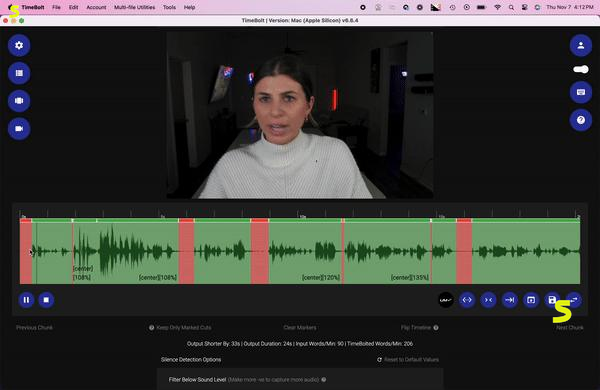
How TimeBolt Automatically Edits Videos
The software scans the waveform of your file to map every silence at a fine level of precision, then applies jump cuts across those gaps automatically, letting you preview the tightened result almost immediately.
TimeBolt for YouTube and Podcast Editing
Because so much of YouTube and podcast content is unscripted talking, TimeBolt has become a common first step in many creators’ workflows, specifically to avoid the tedious manual work of scrubbing through an hour of footage looking for gaps.
TimeBolt Features
TimeBolt’s feature set is focused squarely on speeding up the roughest part of long-form editing.
Automatic Silence Removal and Jump Cuts
The headline feature detects silence throughout your file and automatically creates jump cuts across those sections, condensing a long recording down to just the parts where someone is actually speaking.
Silence Detection and Filler Word Removal
Beyond plain silence, TimeBolt can also flag and remove common filler words (“um,” “uh,” and similar), which is especially useful for creators who want a cleaner, more polished final cut without re-recording.
Automatic Video Editing
The combination of silence and filler removal effectively automates the first, most repetitive pass of editing — the part most editors find the least enjoyable and the most time-consuming.
TimeBolt Video Editing Tools
Inside the app, you can manually keep, cut, punch in, or fast-forward through any section with a single keypress, giving you quick manual control on top of the automated pass.
Fast Editing for Podcasts and YouTube Videos
For long recordings, TimeBolt is built to process an hour of footage in well under a minute, which matters most for creators publishing on a regular schedule.
TimeBolt Video and Audio Editing Workflow
The typical workflow looks like: import file, let TimeBolt detect silences and filler, review or adjust the cuts, then export either a finished video or a timeline for further editing elsewhere.
TimeBolt for Windows and Mac
TimeBolt is built as a cross-platform desktop application.
TimeBolt for Windows
The Windows version installs through a standard downloadable executable and supports both video and audio file formats for editing.
TimeBolt for Mac
The Mac version offers the same core feature set, with a single license typically covering use on both platforms if you switch machines.
TimeBolt Windows and Mac System Requirements
TimeBolt is a relatively lightweight desktop app, though processing longer or higher-resolution files benefits from a reasonably modern CPU and enough free storage for temporary render files.
Note: The free tier exports are watermarked and limited to video files, with no project saving or XML/NLE export.
Is TimeBolt Free to Use?
TimeBolt offers a free tier that lets you use the full editor, though exports are watermarked and limited to video files without project saving or XML/NLE export.
TimeBolt Download
Getting started with TimeBolt takes just a few minutes.
How to Download TimeBolt
The safest route is downloading directly from TimeBolt’s official website, where both the free and paid versions are available for Windows and Mac.
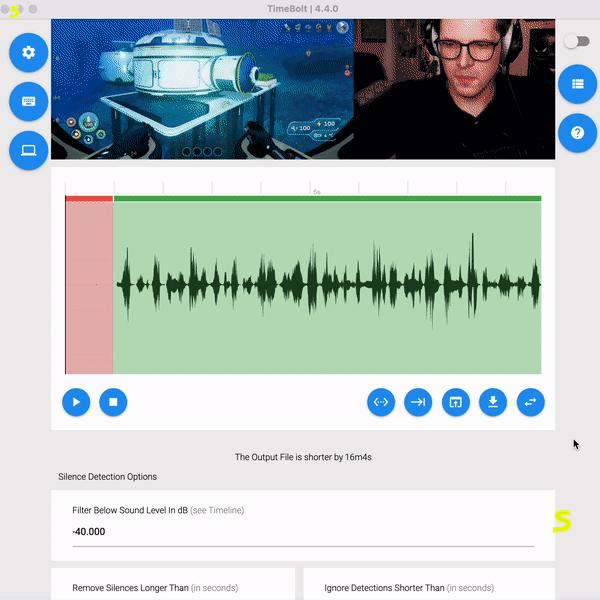
TimeBolt Download for Windows
The Windows installer downloads as a standard executable file, which walks you through a typical setup wizard.
TimeBolt Mac Download
The Mac version is distributed as a standard app installer, compatible with recent macOS versions.
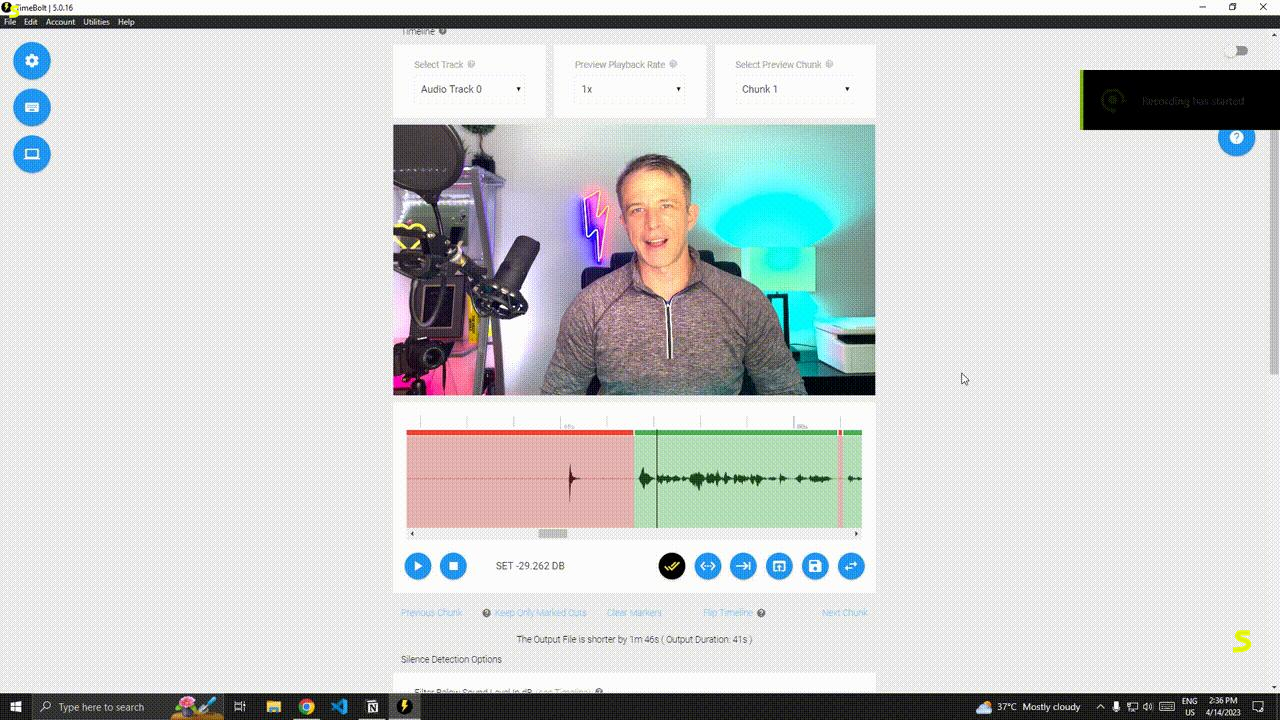
How to Install TimeBolt
- Visit the official TimeBolt download page
- Choose the Windows or Mac installer
- Run the installer and follow the setup prompts
- Launch TimeBolt once installation finishes
- Import a test file to confirm everything works
How to Use TimeBolt
Once installed, TimeBolt’s workflow is designed to get you to a rough cut quickly.
TimeBolt Tutorial for Beginners
Start by importing a file, letting the automatic silence detection run, then previewing the result before deciding whether to export directly or send it to another editor for polishing.
How to Edit Videos With TimeBolt
After the automatic pass, you can manually review each cut, restoring any sections that were trimmed too aggressively or removing extra ones the software missed.
How to Remove Silence With TimeBolt
Silence removal runs automatically on import, scanning the waveform and marking gaps based on your configured detection sensitivity.
How to Remove Filler Words With TimeBolt
Filler word detection layers on top of the silence pass, using transcript-assisted analysis to flag common verbal tics for removal alongside the silent gaps.
How to Create Jump Cuts Automatically
Every detected silence or filler segment becomes a jump cut by default, though you can adjust padding around each cut to avoid the trimmed footage feeling too abrupt.
How to Export an Edited Video From TimeBolt
Once you’re happy with the cuts, export directly to a finished MP4, or send the edit as an XML or FCPXML file to continue working in a full timeline editor.
TimeBolt Silence Removal and Automatic Editing
Silence removal is TimeBolt’s core strength, so it’s worth understanding how the detection actually works.
How TimeBolt Detects Silence
TimeBolt analyzes the raw audio waveform rather than relying solely on a transcript, aiming to catch quiet passages that transcript-based tools sometimes miss, like soft pauses or low-volume breathing gaps.
TimeBolt Automatic Silence Removal
By default, sections below a configurable decibel threshold are treated as silence and marked for removal, condensing the timeline without requiring manual scrubbing.
Watch out: Overly aggressive detection settings can clip natural breathing pauses that make speech sound normal.
Adjusting Silence Detection Settings
You can fine-tune the decibel threshold and minimum silence duration, which matters since overly aggressive settings can clip natural breathing pauses that make speech sound normal.
Removing Pauses and Unwanted Gaps
Beyond full silence, short awkward pauses between sentences can also be trimmed, tightening pacing without making the final cut feel choppy if padding is set thoughtfully.
TimeBolt Filler Word Removal
Filler word removal typically works alongside a transcript pass, letting the software recognize and flag specific words or phrases you want stripped from the final edit.
Creating Natural-Looking Jump Cuts
Adding small amounts of left/right padding around each cut point helps jump cuts feel less jarring, since a hard cut directly on speech can sound unnatural without a little breathing room.
TimeBolt for Podcast and YouTube Editing
Long-form creators are TimeBolt’s core audience, and the tool reflects that focus.
TimeBolt Podcast Editing
For podcasts, TimeBolt can process an audio-only file the same way it handles video, trimming dead air between guest responses without needing a full video editing suite.
TimeBolt Video Editor for Podcasts
Video podcasts benefit from the same silence and filler detection applied across both audio and visual tracks simultaneously, keeping them in sync through the cutting process.
TimeBolt Video Editor for YouTube
YouTubers editing long talking-head content, tutorials, or vlogs commonly use TimeBolt as the first pass before adding graphics, music, or B-roll in a dedicated editor.
Editing Talking-Head and Long-Form Videos
Because talking-head content is dialogue-heavy, it tends to have the most silence and filler to remove, which is exactly the scenario TimeBolt is optimized for.
Speeding Up Podcast and YouTube Workflows
Creators publishing multiple videos or episodes per week often cite the time saved on this first editing pass as the main reason the tool earns a spot in their pipeline.
TimeBolt Premiere Pro, DaVinci Resolve, and Final Cut Pro
TimeBolt isn’t meant to fully replace professional editors — it’s designed to feed into them.
TimeBolt and Adobe Premiere Pro
TimeBolt can export a cut timeline directly compatible with Premiere Pro, either through an XML sequence or a dedicated extension that applies cuts to an existing project.
TimeBolt Premiere Pro Plugin and Workflow
The Premiere workflow typically involves cutting your silence and filler in TimeBolt first, then importing the resulting sequence to continue adding transitions, graphics, or color work natively in Premiere.
TimeBolt and DaVinci Resolve
DaVinci Resolve support works through standard XML import, letting you bring TimeBolt’s cuts into Resolve’s timeline for color grading and further editing.
TimeBolt DaVinci Resolve Integration
Because the export preserves cut points rather than baking them into a rendered file, you retain full editing flexibility once the project lands in Resolve.
TimeBolt and Final Cut Pro
Final Cut Pro users can bring TimeBolt edits in through FCPXML export, keeping the workflow consistent with Mac-based editing pipelines.
When to Use TimeBolt With a Professional Video Editor
If your project needs color grading, complex graphics, or multi-camera editing, running TimeBolt first for the rough cut and finishing in Premiere, Resolve, or Final Cut is generally the most efficient combination.
TimeBolt Export Options
Export flexibility is a major part of how TimeBolt fits into different workflows.
TimeBolt XML Export
XML export creates an editable timeline that preserves every cut, letting you continue fine-tuning in another editor without re-doing the silence removal work.
TimeBolt SRT Export
TimeBolt can also export SRT caption files matched to your final cut timeline, including any speed changes or filler removal, so captions stay in sync without manual re-timing.
TimeBolt Video Export
For simpler projects, exporting directly to a finished MP4 skips the extra editor entirely, which works well for quick-turnaround content that doesn’t need heavy post-production.
Using TimeBolt Edits in Other Video Editors
Because XML and FCPXML formats are widely supported, the cuts you make in TimeBolt aren’t locked into the app — they travel cleanly into most major professional editing tools.
TimeBolt Pricing and Free Version
Pricing is one of the more common questions creators have before committing to a new tool.
| Plan | Price | Key Limitations |
|---|---|---|
| Free | $0 | Watermarked exports, video only, no XML/NLE export, no project saving |
| Pro (Monthly) | $17/month | Full features, no watermark |
| Pro (Annual) | $97/year | Same as monthly, discounted |
| Lifetime | One-time fee | Full features, all future updates included |
Is TimeBolt Free?
Yes, a free version exists, but it’s best treated as a trial — exports carry a watermark and you can’t save projects or export to XML for other editors.
TimeBolt Pricing and Plans
Paid plans unlock full-length exports without a watermark, XML and plugin export for NLEs like Premiere and DaVinci Resolve, and support for any file duration.
What Does the TimeBolt Free Version Include?
The free version includes the core silence detection and removal engine, so you can fully test the editing experience before deciding whether the paid features are worth it for your workflow.
Is TimeBolt Worth the Price?
For creators publishing multiple long-form videos or episodes weekly, the time saved on manual silence removal often justifies the subscription cost within the first month of use.
TimeBolt Review
So how does TimeBolt actually perform in real use?
TimeBolt Video Editing Performance
TimeBolt is built for speed, processing long recordings in a fraction of the time it would take to manually scrub through and cut silence by hand.
Silence Removal and Automatic Editing Accuracy
Because it reads the waveform directly rather than depending entirely on a transcript, TimeBolt tends to avoid clipping quiet or low-volume speech that transcript-only tools sometimes miss.
TimeBolt Ease of Use
The keyboard-driven workflow (keep, cut, punch in, fast-forward) has a short learning curve, and most users get comfortable with the basic controls within their first project.
TimeBolt Pros and Cons
PROS
- Fast, waveform-based silence detection
- Exports to Premiere, DaVinci Resolve, Final Cut
- Filler word removal alongside silence cutting
- SRT caption export included
CONS
- Free version is limited to watermarked exports
- Jump cuts can feel abrupt without padding adjustments
- Not a full replacement for a timeline editor
- Subscription cost adds up for infrequent users
Who Should Use TimeBolt?
Podcasters, YouTubers, course creators, and anyone regularly editing long, unscripted recordings are the users who benefit most from the time TimeBolt saves.
TimeBolt Alternatives
TimeBolt isn’t the only option in this space, and the right pick depends on your workflow.
Best TimeBolt Alternatives
Descript and Gling are the two most commonly compared alternatives, each taking a slightly different approach to automated editing.
TimeBolt vs Descript
Descript leans heavily on its transcript-editing interface, letting you cut video by deleting text, while TimeBolt’s waveform-first approach is built specifically to avoid the word-clipping issues that can happen when a transcript slightly misaligns with the audio. Vendor-published benchmarks from TimeBolt have claimed faster processing and less leftover redundant content compared to Descript, though since TimeBolt ran those tests itself, it’s worth treating the specific numbers as a starting point rather than the final word, and testing both tools on your own footage.
TimeBolt vs Gling
Gling is also built around automated silence and filler removal for long-form creators, with a reputation for producing cuts that feel more naturally paced out of the box, while TimeBolt is generally positioned as the faster option for a first-pass rough cut.
TimeBolt as a Descript Alternative
For creators who specifically want a lighter, faster tool focused on silence removal rather than Descript’s broader all-in-one editing and transcription platform, TimeBolt fills that gap well.
Which TimeBolt Alternative Is Best for Video Editing?
If you want an all-in-one platform with deep transcript editing, Descript is worth considering; if you want a fast, dedicated silence-removal pass before finishing in a professional editor, TimeBolt or Gling are the more focused choices.
Frequently Asked Questions About TimeBolt
TimeBolt is a desktop tool that automatically detects and removes silence, pauses, and filler words from video and audio recordings.
It functions more as an automated pre-editing tool than a full timeline editor, though it does include basic manual editing controls.
Yes, a free version is available, but exports are watermarked and limited compared to the paid plans.
Yes, automatic silence detection and removal is TimeBolt’s core feature, working directly from the audio waveform.
Yes, it can detect and remove common filler words like “um” and “uh” alongside its silence removal pass.
Yes, TimeBolt has a dedicated Windows installer with full feature support.
Yes, a native Mac version is available with the same core feature set as Windows.
Yes, TimeBolt supports audio-only files, making it a common tool for trimming dead air in podcast episodes.
Yes, it’s widely used by YouTubers to remove silence and tighten pacing in long-form video content before publishing.
Yes, TimeBolt exports XML sequences and offers a dedicated extension for continuing your edit inside Premiere Pro.
Yes, exported XML timelines can be imported directly into DaVinci Resolve for further editing and color work.
Descript and Gling are the two most commonly recommended alternatives, depending on whether you want an all-in-one platform or another fast silence-removal tool.
Final Verdict on TimeBolt
Should You Download and Use TimeBolt?
If your editing routine involves long, unscripted recordings full of pauses and filler words, TimeBolt genuinely solves a real problem — and it does it fast enough to change how much time you spend on the least enjoyable part of editing. It won’t replace a full editor like Premiere or DaVinci Resolve, but it was never trying to.
Used as the first step in a longer workflow, it turns hours of manual scrubbing into a quick review pass, freeing up your time for the creative work that actually matters. Try the free version on a real recording first, and let your own footage — not just the marketing copy — tell you whether it earns a permanent spot in your editing toolkit.
Need to pull audio from source clips before editing? Our YouTube to MP3 converter guide covers another handy tool for creators building out a lean content workflow. For an independent look at automated video editing tools, PCMag’s roundup of AI video editors is a useful starting point.