Sidify All-In-One Download, Features, Setup, and Alternatives: Complete Music Converter Guide
Everything you need to know about the multi-platform streaming music converter — supported services, formats, setup, pricing, safety, and alternatives.
Streaming services make it incredibly easy to discover and enjoy music, but they can also make personal music management complicated. Songs may remain inside a particular streaming app, playlists can depend on an active subscription, and moving your listening library between devices is not always straightforward.
Sidify All-In-One is designed to address that problem by bringing support for multiple streaming platforms into one desktop application. Instead of installing a separate converter for every service, users can manage music from services such as Spotify, Apple Music, Amazon Music, Tidal, Deezer, and YouTube Music from one interface.
The software currently supports Windows and macOS, provides several output formats, preserves music metadata, and includes additional audio tools beyond basic conversion. Sidify’s current download center lists version 2.6.3 for both Windows and macOS.
This guide explains what Sidify All-In-One does, which services and formats it supports, how the conversion process works, what the free trial offers, whether it is safe, and which alternatives may be worth considering.
What Is Sidify All-In-One Music Converter and How Does It Work?
Sidify All-In-One is a desktop music downloading and conversion application intended for people who use multiple streaming services. Rather than maintaining separate programs for Spotify, Apple Music, Amazon Music, Tidal, and other platforms, the application places many of these workflows inside one program.
The basic workflow is straightforward. You choose a supported service, select the music you want to process, configure the output settings, and start the conversion. Depending on the service and mode being used, the program can process individual tracks, playlists, albums, podcasts, radio content, audiobooks, and other supported media.
Sidify All-In-One as a Music Converter and Downloader
The software combines two closely related functions: downloading supported streaming content and converting it into common local audio formats. This means the final files can be stored on your computer rather than remaining exclusively inside a streaming application’s library. Sidify advertises support for MP3, AAC, WAV, FLAC, AIFF, and ALAC output.
Supported Streaming Music Services
The current Sidify documentation lists Spotify, Apple Music, Amazon Music, Tidal, Deezer, YouTube Music, Pandora, and Line Music among its supported music services. It also supports services and websites such as Audible, YouTube, SoundCloud, Dailymotion, and Vimeo for particular types of content.
Support can change as streaming platforms update their websites or applications, so users should always check the current official compatibility list before relying on a particular service.
Music, Audio, Playlist, and Album Conversion
Sidify is not limited to individual songs. The software supports playlist and album processing, making it more practical for people who want to build a larger offline library. Batch conversion is especially useful when dealing with dozens or hundreds of tracks because users can add multiple songs before starting the process.
How Sidify All-In-One Processes Music for Conversion
The application provides settings for output format, quality, destination folder, file organization, and related conversion preferences. Sidify’s Windows guide describes a workflow in which users select a platform, customize output parameters, add music, and begin conversion.
Users should remember that conversion speed and available quality can vary according to the source platform, selected mode, internet connection, computer performance, and current software implementation.
Sidify All-In-One Features
Sidify All-In-One stands out mainly because it combines several music-related functions in one application.
Streaming Music Downloader and Converter
The central feature is downloading music from supported streaming services and exporting it into local audio files. For someone who regularly switches between several services, having one application can be more convenient than maintaining several separate programs.
Convert Songs, Playlists, and Albums
Users can process individual songs as well as larger collections. Playlist and album conversion can save considerable time when creating an offline music library.
Multiple Audio Output Formats
The program supports MP3, AAC, WAV, FLAC, AIFF, and ALAC. MP3 is generally useful for broad device compatibility, while FLAC and ALAC are better suited to users who want lossless storage.
High-Quality and Lossless Audio Conversion
Sidify advertises preservation of source audio quality for supported workflows. However, the output quality cannot magically exceed the quality of the original source. Choosing FLAC does not turn a lower-quality source into genuine high-resolution audio. This distinction is important when evaluating any music converter.
Music Metadata and ID3 Tag Preservation
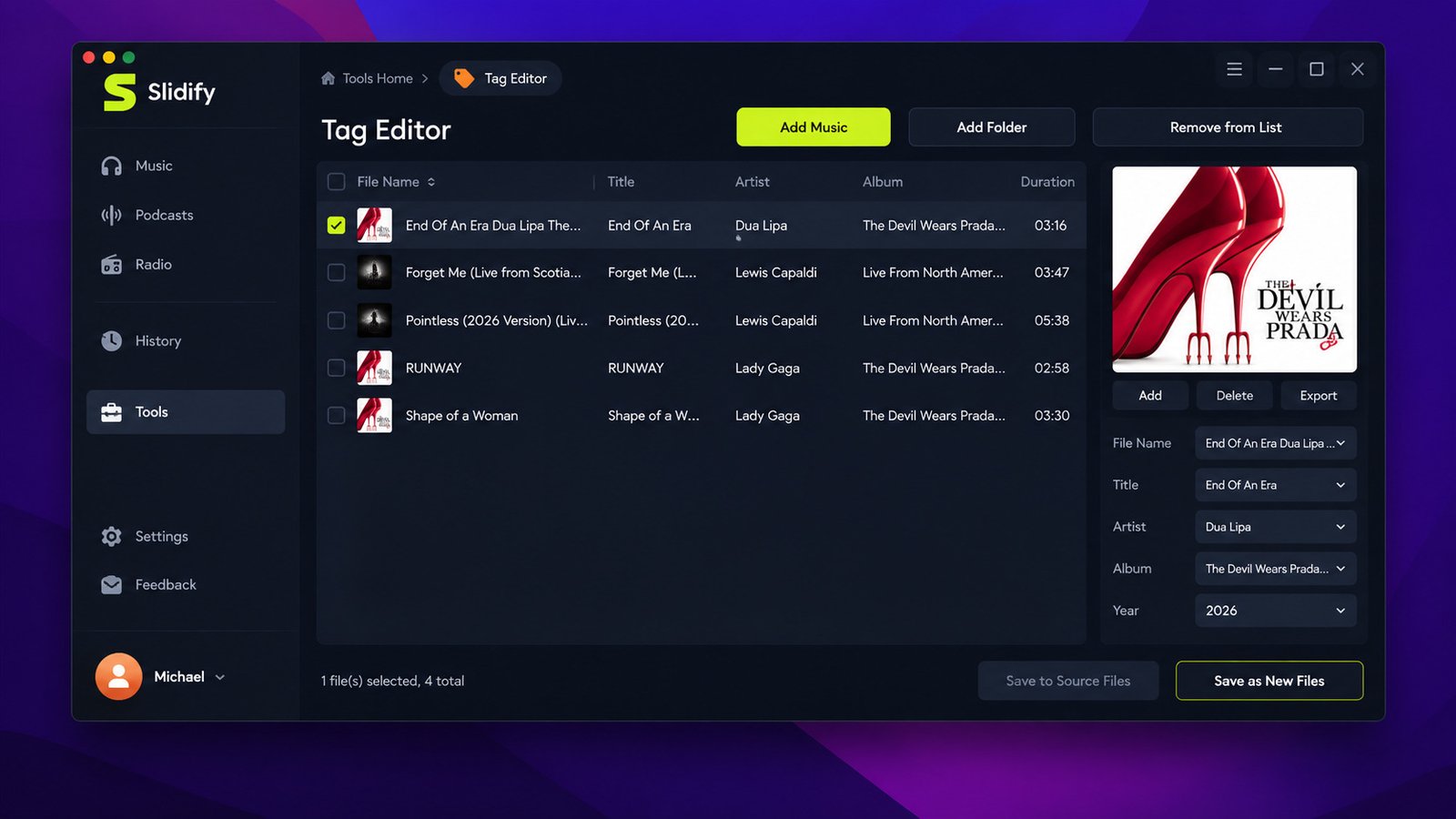
Music files are much easier to organize when their metadata remains intact. Sidify lists support for information such as title, artist, album, artwork, track number, disc number, and year.
Album Artwork and Track Information
Keeping album artwork and track information can make converted libraries look much cleaner in desktop music players and compatible portable devices.
Batch Music Conversion
Batch conversion is one of the most useful features for large libraries. Instead of processing every song separately, users can add multiple tracks or entire playlists and process them together.
Built-In Music Management and Conversion Tools
Sidify All-In-One goes beyond its primary converter. Its Windows help documentation lists tools including a podcast downloader, radio recorder, Audible AA/AAX converter, audio format converter, tag editor, audio editor, CD burner, and AI-based vocal/instrumental splitter. That broader toolset is one reason the All-In-One edition can make more sense than buying a converter dedicated to a single platform.
Sidify All-In-One Supported Music Services
The software’s biggest selling point is its broad platform support.
| Service | Supported Content or Function |
|---|---|
| Spotify | Songs, playlists, albums, podcasts and more |
| Apple Music | Songs, albums and playlists |
| Amazon Music | Music from supported Amazon services |
| YouTube Music | Music and playlists |
| Tidal | Songs, albums and playlists |
| Deezer | Songs, albums and playlists |
| Pandora | Supported music content |
| Line Music | Supported music content |
| Audible | AA/AAX audiobooks |
| YouTube | Audio and supported media |
| SoundCloud | Supported audio |
| Qobuz | Supported music |
| Dailymotion | Supported media |
| Vimeo | Supported media |
The precise availability of features differs between services. Sidify’s technical documentation distinguishes music services from websites and audiobook sources, so users should not assume every service has identical functionality.
Spotify Music Conversion With Sidify All-In-One
Spotify is one of the most common reasons people search for music conversion software.
Spotify Music Converter
Sidify can process Spotify music through its dedicated Spotify workflow. The software documentation states that Spotify songs, albums, playlists, podcasts, radio content, and audiobooks can be handled depending on the supported workflow.
Convert Spotify Songs to MP3
MP3 is a practical choice when compatibility and file size matter more than maximum lossless storage. Sidify provides multiple quality settings, including commonly used bitrate options.
Spotify Playlist and Album Conversion
Instead of adding songs individually, users can process playlists and albums in batches. This is particularly useful for creating a local collection for personal offline listening.
Spotify to WAV, FLAC, AAC, and M4A
Sidify supports several audio formats, including WAV, FLAC, AAC, and ALAC. The exact file extension depends on the selected format and software settings.
Spotify Music Metadata and Album Artwork
The application can preserve relevant music tags and artwork, helping users maintain an organized collection after conversion.
Apple Music Conversion With Sidify All-In-One
Apple Music users can similarly use the application to process supported Apple Music content.
Apple Music Converter
Sidify’s All-In-One edition includes Apple Music support alongside other major streaming services.
Convert Apple Music to MP3
MP3 is a convenient option for users who want files that work across a wide range of players, cars, portable devices, and media applications.
Apple Music Playlist and Album Conversion
Large Apple Music collections can be processed in batches rather than one track at a time, depending on the current supported workflow.
Apple Music to WAV, FLAC, AAC, and M4A
For users who prioritize lossless storage, FLAC or ALAC may be more appropriate than MP3. WAV is also useful in professional audio environments but usually produces larger files.
Apple Music Metadata and Track Information
Track titles, artists, albums, artwork, and other supported metadata can be retained during conversion.
Amazon Music Conversion With Sidify All-In-One
Sidify also supports Amazon Music workflows, including Amazon Music Prime and Unlimited according to its support documentation.
Amazon Music Converter
Users can select Amazon Music inside the application and process supported songs and playlists.
Convert Amazon Music to MP3
MP3 provides a useful balance between compatibility, storage requirements, and everyday listening.
Amazon Music Playlist and Album Conversion
Batch processing can make larger Amazon Music collections easier to handle.
Amazon Music to WAV, FLAC, AAC, and M4A
Users can choose from multiple formats depending on whether they prioritize compatibility, file size, or lossless storage.
Preserve Amazon Music Metadata and Artwork
Supported metadata can remain attached to the resulting files, making the local collection easier to sort and browse.
YouTube Music Conversion With Sidify All-In-One
YouTube Music is another supported service.
YouTube Music Converter
The program can download supported YouTube Music content and save it in common audio formats. Sidify lists YouTube Music among its major supported services.
Convert YouTube Music to MP3
MP3 is usually the simplest option when the goal is playback on a wide range of devices.
YouTube Music Playlist and Album Conversion
Batch processing allows users to handle collections rather than repeatedly downloading individual tracks.
YouTube Music to WAV, FLAC, AAC, and M4A
Several output formats are available, although users should select a format according to the original source quality rather than assuming a larger file automatically means better sound.
YouTube Music Metadata and Audio Quality
Metadata preservation helps keep converted files organized. Audio quality depends on the source and selected settings.
Tidal Music Conversion With Sidify All-In-One
Tidal is particularly relevant for listeners who care about higher-quality audio.
Tidal Music Converter
Sidify supports Tidal music downloads and provides several output options.
Convert Tidal to MP3
MP3 can be useful for everyday playback where storage efficiency is important.
Tidal Playlist and Album Conversion
Users can process playlists and albums in batches, reducing manual work.
Tidal to WAV, FLAC, AAC, and M4A
FLAC and WAV can be suitable when maintaining lossless files is important.
Tidal Metadata and Lossless Audio
Sidify advertises lossless-quality workflows, but actual quality should always be evaluated relative to the source and selected mode.
Deezer Music Conversion With Sidify All-In-One
Deezer is also included among the supported streaming services.
Deezer Music Converter
Users can select Deezer and process supported tracks and playlists through the All-In-One interface.
Convert Deezer to MP3
MP3 remains the most convenient choice for broad compatibility.
Deezer Playlist and Album Conversion
Batch processing makes it easier to handle complete collections.
Deezer to WAV, FLAC, AAC, and M4A
Multiple formats give users flexibility over file size and quality.
Deezer Metadata and Album Artwork
Metadata preservation helps maintain a structured music library after conversion.
Sidify All-In-One Output Formats and Audio Quality
Format selection is an important part of the conversion process.
| Format | Best For | Main Advantage |
|---|---|---|
| MP3 | Everyday listening | Excellent compatibility |
| AAC | Modern devices | Efficient quality-to-size ratio |
| FLAC | Music libraries | Lossless compression |
| WAV | Editing and production | Uncompressed audio |
| AIFF | Apple/pro audio workflows | Uncompressed audio |
| ALAC | Apple users | Lossless compression |
Convert Music to MP3
MP3 is usually the easiest format for general users. It offers relatively small files and broad support.
Convert Music to WAV
WAV is uncompressed and therefore requires substantially more storage than compressed formats.
Convert Music to FLAC
FLAC provides lossless compression. It is a strong option for users building a high-quality archival library.
Convert Music to AAC
AAC is a practical compressed format and can provide good quality without the storage requirements of lossless audio.
Convert Music to M4A
M4A commonly serves as a container for AAC or other audio formats and is widely supported by modern software and devices.
MP3 Bitrate and High-Quality Audio
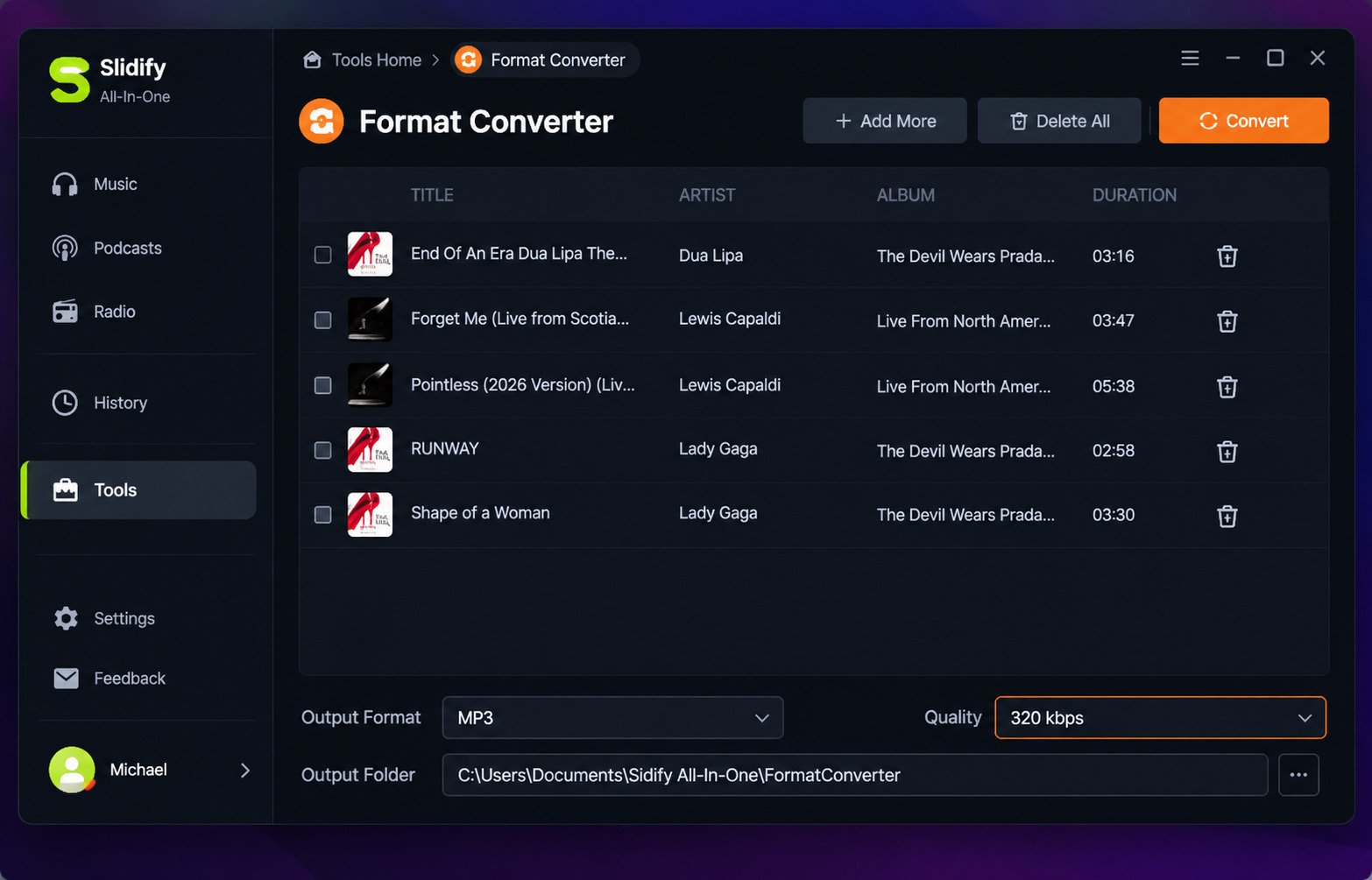
Sidify’s Windows guide lists quality options including 128, 192, 256, and 320 kbps for applicable workflows. Higher bitrate generally means a larger file, but the best setting depends on the source and intended use.
Note: Lossless output is valuable when preserving source quality matters, but it cannot restore information that was already absent from the original stream.
Choosing the Right Audio Format
For simple playback, MP3 is usually enough. For archival libraries, FLAC or ALAC may be preferable. For audio editing, WAV or AIFF can be more appropriate.
Sidify All-In-One Playlist, Album, and Song Conversion
One of the software’s practical advantages is its ability to work with different collection sizes.
Convert Music Playlists
Choose the desired playlist, add the tracks, configure the output settings, and start conversion.
Convert Music Albums
Albums can be processed together while retaining track information and organization.
Convert Individual Songs
For occasional downloads, processing a single song is quick and uncomplicated.
Batch Convert Multiple Tracks
Batch processing eliminates repetitive setup and makes larger libraries much easier to manage.
Download or Convert Multiple Music Files at Once
The ability to queue multiple tracks makes Sidify more useful for users with substantial collections.
Sidify All-In-One Metadata and Music Library Management
A converted music folder can quickly become messy if files lose their metadata. Sidify addresses this by retaining supported tags.
Preserve ID3 Tags and Music Metadata
Sidify’s technical specifications list title, artist, album, artwork, track number, disc number, and year among supported metadata fields.
Track Names, Artists, Albums, and Genres
Metadata allows media players to sort tracks by artist, album, and other categories instead of treating everything as anonymous audio files.
Preserve Album Artwork
Album artwork can make a local library considerably easier to navigate visually.
Organize Converted Music Files
Users can configure destination folders and naming preferences before starting conversion.
Music Metadata After Conversion
It is still a good idea to inspect several converted files after a large batch. Metadata behavior can vary according to the source service and current software version.
Sidify All-In-One Download and Latest Version
The official Sidify download center currently lists Sidify All-In-One version 2.6.3 for Windows and macOS. The Windows build is listed at approximately 7.35 MB, while the macOS version is approximately 10.2 MB.
Sidify All-In-One Download
For security, download the installer from the official Sidify website rather than random third-party download pages.
Sidify All-In-One Free Download
Sidify provides a free trial/download option, but that does not mean the complete commercial functionality is permanently free. The official Windows tutorial states that the trial limits conversion to the first minute of each file.
Sidify All-In-One Latest Version
The current official download center identifies version 2.6.3. Version numbers can change, so users should verify the official download page before installing an update.
Sidify All-In-One Full Version
The full version requires a valid license. Sidify describes All-In-One as shareware rather than unrestricted freeware.
Sidify All-In-One Windows Download
The current official download center lists Windows 7 or later with both 32-bit and 64-bit support.
Sidify All-In-One Mac Download
The current download center lists macOS 11 and later for the Mac version.
Sidify All-In-One for Windows and Mac
Sidify All-In-One is designed for desktop users rather than as a browser-only converter.
Sidify All-In-One for Windows
The technical requirements list Windows 7, 8, 10, and 11, with both 32-bit and 64-bit support.
Sidify All-In-One for Windows 11
Windows 11 is supported according to Sidify’s current technical documentation.
Sidify All-In-One for PC
The Windows version is suitable for desktop and laptop computers that meet the minimum requirements.
Sidify All-In-One for Mac
The Mac edition supports macOS 11 and later according to the official download information.
Windows and macOS Compatibility
The current platform support makes the software useful for people who work across both major desktop operating systems.
How to Install and Set Up Sidify All-In-One
Installation is similar to other desktop applications.
Install Sidify All-In-One on Windows
Download the current installer from the official website, run it, follow the installation prompts, and launch the application.
Install Sidify All-In-One on Mac
Download the Mac package, install the application, and open it from your Applications folder or the location selected during installation.
First-Time Setup and Configuration
After launching the application, review the settings before starting a large conversion. This can prevent unnecessary reprocessing later.
Choose Output Format and Audio Quality
Select MP3, AAC, FLAC, WAV, AIFF, or ALAC according to your needs. Then select an appropriate quality setting where available.
Configure Output Folder and File Naming
Choose a dedicated music folder so converted files do not become mixed with unrelated downloads.
Configure Conversion and Download Settings
Sidify’s guide indicates that users can configure output location, quality, format, speed, and organization settings before conversion.
Sidify All-In-One Tutorial: How to Convert Music
The general process is simple enough for beginners.
How to Convert Streaming Music
- Launch Sidify All-In-One.
- Choose the desired streaming platform.
- Select the song, album, or playlist.
- Open the output settings.
- Choose the format and quality.
- Select the destination folder.
- Start the conversion.
- Check the completed files in the History or Converted section.
Sidify’s official guide follows a similar platform-selection, settings, conversion, and history workflow.
How to Convert Songs to MP3
Choose MP3 as the output format and select the desired bitrate before beginning conversion.
How to Convert a Playlist
Open the relevant service, select the playlist, add the tracks to the conversion queue, and begin batch processing.
How to Convert an Album
Select the album and add its tracks to the queue. Review the output settings before starting.
How to Batch Convert Music
Add multiple songs, playlists, or albums to the queue and process them together.
How to Choose Audio Quality and Output Format
Choose MP3 for compatibility, FLAC or ALAC for lossless storage, and WAV or AIFF when uncompressed audio is useful.
How to Preserve Music Metadata and Artwork
Keep the metadata options enabled and check the output files after conversion to ensure the expected information has been retained.
Sidify All-In-One Free Version, Trial, and Full Version
Sidify uses a trial model rather than providing the complete commercial application permanently free of charge.
Is Sidify All-In-One Free?
You can download and try the software without immediately purchasing a license, but the trial has limitations. Sidify’s official Windows documentation says the trial converts only the first minute of each file.
Sidify All-In-One Free Version vs Full Version
The trial is primarily useful for testing compatibility and workflow. A paid license is required to remove the trial limitation.
Sidify All-In-One Trial
The trial gives users an opportunity to check whether their computer, streaming service, and desired workflow work correctly before purchasing.
Sidify All-In-One License and Activation
Sidify uses registration information to activate the full version. Its FAQ notes that registration codes are case-sensitive and that Windows and Mac licenses are platform-specific.
Sidify All-In-One Price
Sidify’s current store lists the All-In-One plan at $6.66 per month when billed annually, or $79.90 annually. Pricing and promotional offers can change, so the official store should be checked before purchase.
Sidify All-In-One Key and Activation
Sidify All-In-One License Key
A legitimate license should be obtained through Sidify’s official purchasing system. Avoid websites offering supposedly free keys because they may expose users to malware, scams, or invalid activation information.
How Sidify All-In-One Activation Works
After purchasing a license, users can enter the supplied registration information through the application’s registration interface. Sidify recommends copying the information carefully because registration details are case-sensitive.
Troubleshooting License and Activation Problems
If activation fails, verify that the correct Windows or Mac edition is installed and that the registration details contain no extra spaces.
Avoid unauthorized keys and cracks. Cracked applications and unauthorized keys create unnecessary security risks and can also result in unstable software, broken updates, or stolen account information. The safer option is to use the official trial and purchase process.
Sidify All-In-One Not Working and Common Errors
Even mature software can encounter problems because streaming platforms change frequently.
Sidify All-In-One Not Working
Start by checking whether you have the latest version, whether your internet connection works correctly, and whether the relevant streaming service is currently supported.
Sidify All-In-One Download Failed
Retry with a smaller selection and verify that the source content is accessible. Updating the application can also help if the issue is caused by a compatibility change.
Sidify All-In-One Conversion Failed
Check the selected output folder, available disk space, format settings, and source accessibility.
Sidify All-In-One Cannot Convert Music
A failed conversion does not necessarily mean the entire program is broken. Test another track or service to determine whether the problem is platform-specific.
Sidify All-In-One Playlist Not Converting
Try processing a single track first. If individual songs work but a playlist fails, the issue may involve playlist access or a particular track.
Sidify All-In-One Activation and License Errors
Confirm the correct product version and carefully re-enter the registration information. Sidify specifically recommends checking the case-sensitive license details.
Sidify All-In-One Windows 11 Problems
Make sure the latest release is installed and that Windows has completed pending updates.
Sidify All-In-One Mac Problems
Confirm that your Mac meets the supported macOS version and reinstall the latest official build if necessary.
Audio Quality and Metadata Problems
Check the source quality and selected output settings first. Also inspect the resulting files in another media player to determine whether the issue is caused by the player rather than the converted file.
Is Sidify All-In-One Safe and Legit?
Safety is an important question whenever desktop software handles music accounts or downloaded content.
Is Sidify All-In-One Safe to Use?
The safest approach is to download the application directly from the official Sidify website. Third-party installers can be modified, bundled with unwanted software, or simply become outdated.
Sidify All-In-One Security and Privacy
Users should still apply normal security practices: keep the software updated, use strong account passwords, and avoid installing unofficial modified versions.
Downloading the Software From a Trusted Source
The official download center currently provides the Windows and macOS installers and identifies the supported operating systems and versions.
Copyright and Terms of Service. The legality of downloading or converting streaming content can depend on the content, jurisdiction, copyright status, and terms of the relevant service. Users should only download content when they have the necessary rights or permission. For general copyright information, the U.S. Copyright Office provides authoritative educational material about copyright and digital works.
Sidify All-In-One Review: Is It Worth Using?
Sidify All-In-One makes the most sense for users who regularly work with multiple streaming platforms.
Ease of Use and Interface
The overall workflow is relatively straightforward: choose a service, select content, adjust settings, and start processing. Current review material also highlights the application’s simplified workflow and broad feature set.
Supported Streaming Services
Its strongest advantage is the breadth of supported services. Users can work with Spotify, Apple Music, Amazon Music, Tidal, Deezer, YouTube Music, Pandora, Line Music, Audible, YouTube, SoundCloud, Qobuz, and other supported sources.
Conversion Speed and Performance
Sidify advertises speeds of up to 10X for applicable workflows. Actual performance depends on the selected mode, source service, connection, computer, and number of files.
Audio Quality and Format Support
The combination of MP3, AAC, FLAC, WAV, AIFF, and ALAC provides useful flexibility for different users.
Metadata and Playlist Handling
Metadata retention and batch playlist handling are strong practical features, especially for users building a large local library.
Sidify All-In-One Pros and Cons
Pros
- Supports many major streaming platforms
- Works on Windows and macOS
- Offers several audio formats
- Supports batch conversion
- Preserves supported metadata
- Includes additional audio tools
- Provides a free trial
- Suitable for users managing multiple services
Cons
- Full functionality requires a paid license
- Some workflows may stop working temporarily when platforms change
- Output quality depends on the source
- Advanced features can be unnecessary for single-service users
- Platform and service support can change over time
Sidify All-In-One Alternatives and Competitors
No converter is perfect for every user. Some people only need Spotify support, while others want a completely free solution. If you’re mainly focused on one platform, our YouTube to MP3 converter guide may also be useful.
Best Sidify All-In-One Alternatives
Popular alternatives include TunePat, ViWizard, TuneBoto, AudFree, NoteBurner, and other dedicated music converters. Current comparison pages show that these products often share similar workflows, including batch processing, metadata preservation, multiple output formats, and Windows/Mac support.
Best Music Converter Software
For users who want broad platform coverage, an All-In-One product is usually more convenient. For people focused on a single service, a dedicated converter may be simpler.
Best Streaming Music Converter
The best option depends on the service you use most, desired output format, price, and whether you need batch processing.
Free Music Converter Alternatives
Free and open-source projects can reduce cost, but they may require more technical knowledge and may not provide the same interface or customer support.
Sidify vs TunePat
TunePat and Sidify have similar conversion concepts and both support multiple common streaming platforms. Sidify’s advantage is its broader All-In-One ecosystem and collection of additional audio utilities.
Sidify vs ViWizard
ViWizard is another established converter family covering multiple streaming services. It can be a strong alternative for users who prefer its interface or supported workflow.
Sidify vs TuneBoto
TuneBoto focuses on streaming conversion products and can be worth considering when a user only needs specific services.
Sidify vs AudFree
AudFree provides dedicated music conversion tools. It may appeal to users who want a more focused converter rather than the wider Sidify toolset.
Sidify vs NoteBurner
NoteBurner is one of the closest alternatives in terms of supported services, output formats, batch processing, and metadata handling. Current comparison resources place both products among established desktop conversion solutions.
Sidify All-In-One FAQs
Sidify All-In-One is a Windows and macOS application for downloading and converting supported streaming music and other audio content into local formats such as MP3, AAC, FLAC, WAV, AIFF, and ALAC.
It offers a free trial, but the trial is limited. Sidify states that trial conversions are restricted to the first minute of each file.
Download it from the official Sidify website and avoid cracked or modified installers. Users should also review the terms of the streaming service and applicable copyright rules.
Supported services include Spotify, Apple Music, Amazon Music, Tidal, Deezer, YouTube Music, Pandora, Line Music, and other supported platforms and websites.
Yes. Spotify is one of the primary supported platforms, and MP3 is one of the available output formats.
The official technical specifications list MP3, AAC, FLAC, WAV, AIFF, and ALAC among the supported output formats.
Yes. The current documentation supports Windows 11, while the current download center lists macOS 11 and later for the Mac version.
Final Verdict: Should You Use Sidify All-In-One?
Sidify All-In-One is a practical choice for people who use several streaming services and want one desktop application for managing supported music downloads and conversions. Its broad platform compatibility, multiple audio formats, batch processing, metadata preservation, and additional audio tools give it considerably more flexibility than a basic single-purpose converter.
However, it is not automatically the best choice for everyone. If you only use one service, a dedicated converter may be simpler and less expensive. Before buying, use the trial to test the services, formats, quality, and workflow that matter most to you. And because streaming platforms regularly change their technology and policies, always verify current compatibility before relying on any converter for a large music library.