Toolwiz Time Freeze Download, Features, Setup, and Alternatives
Ever installed a program, regretted it ten minutes later, and wished Windows had a big undo button? That is exactly the itch Toolwiz Time Freeze tries to scratch.
It is a small, free-to-try Windows utility that freezes your PC in a protected state, so changes made during a session disappear after a restart. Below, you will find what it does, how to set it up, where it falls short, and which tools can replace it.
Quick answer: Toolwiz Time Freeze is a system protection tool for Windows that creates a virtual copy of your system. Anything you install, change, or download while protection is active can be rolled back on the next reboot.
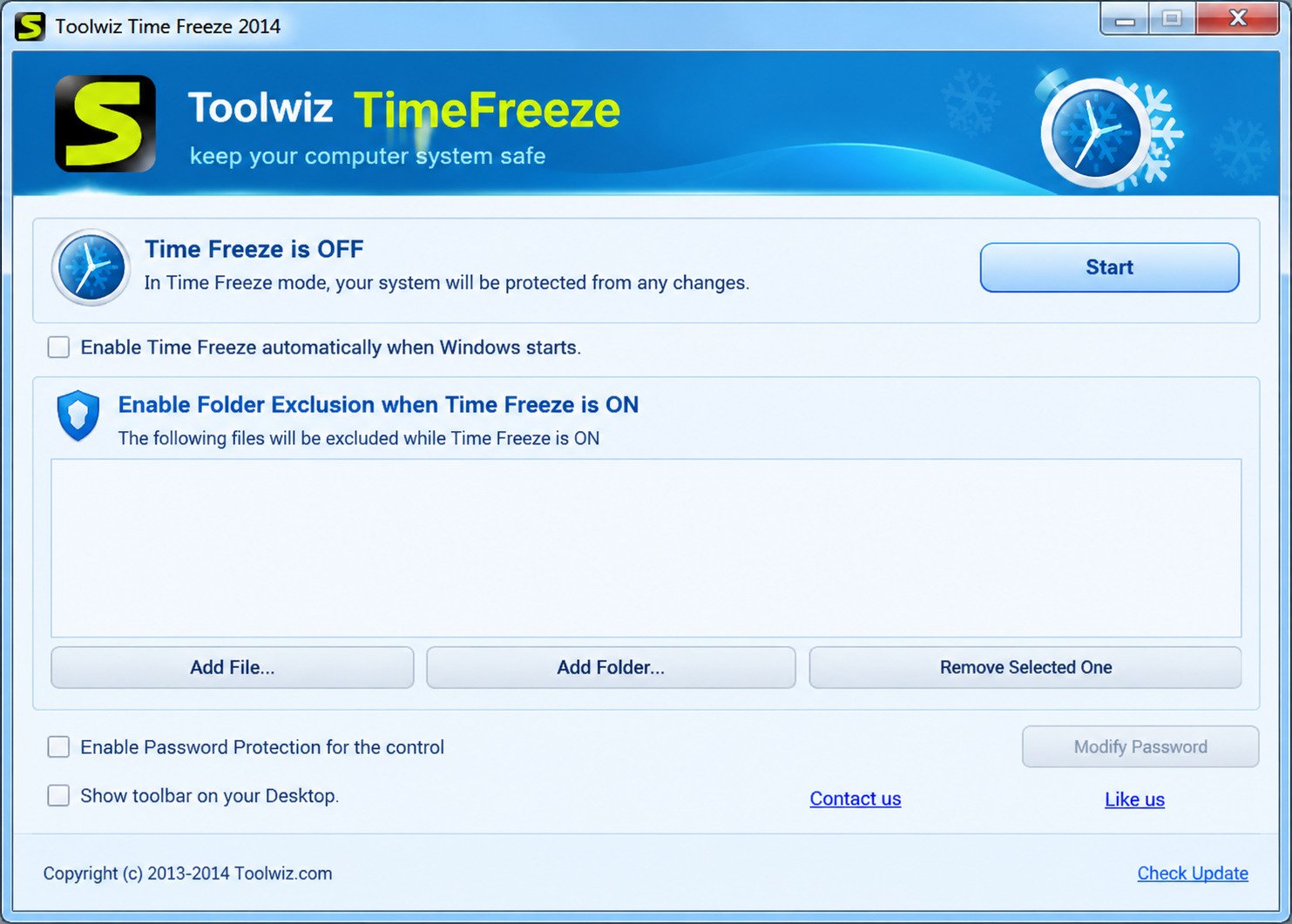
What Is Toolwiz Time Freeze?
Toolwiz Time Freeze is an instant system restore and virtualization utility made by Toolwiz Software, the same developer behind the Toolwiz Care suite. The installer is tiny, around 2.8 MB, and the file is usually named Setup_TimeFreeze.exe.
Think of it as a “reset on restart” switch for Windows. You turn protection on, use the computer normally, and restart when you want a clean slate.
What Does Toolwiz Time Freeze Do?
In short: it shields your real system by running Windows inside a virtual layer, then discards the changes made in that layer when you reboot.
While protection is on, the program redirects changes away from your actual system partition. You can install software, browse risky websites, or tweak settings, and the original state stays untouched.
Download listings describe it as working much like a sandbox for the whole system. Only changes to items on the exclusion list are kept.
Who Should Use Toolwiz Time Freeze?
This tool suits people who experiment a lot. It is not a replacement for security software, but it is a handy safety net in the right hands.
- Software testers who try unknown programs often
- Students and lab users sharing one computer
- Families with a PC that kids use for games and downloads
- Tinkerers who customize Windows and sometimes break things
- Owners of older PCs running Windows 7, 8, or XP
Picture a typical weekend. You download a free video converter, a PDF tool, and a font pack from three different sites. By Monday, your startup is slower and your browser has a new toolbar you never asked for.
A freeze tool prevents that slow drift. Instead of cleaning up afterward, you simply restart and the clutter is gone.
Toolwiz Time Freeze Features
The feature set is compact on purpose. It does a few things, and it tries to do them with very little fuss.
| Feature | What It Does |
|---|---|
| System freeze | Locks the system in a protected, virtual state |
| Revert on restart | Discards changes after a reboot |
| Virtual system | Runs a copy of your system for safe testing |
| Password protection | Stops others from changing settings |
| Exclusion list | Keeps chosen files and folders permanently |
| System tray control | Quick access to enable or disable protection |
| Protection mode | A lighter mode aimed at better efficiency |
System Freeze and Virtual System Protection
With one click, the program puts your actual system under virtual protection. A virtual environment is created as a copy of the real one.
Software descriptions note that you can enter and exit this virtual system with a single click, and some versions avoid a full reboot to apply the switch. That convenience is a big part of the appeal.
Password Protection
Setting a password prevents other users from turning protection off or altering settings. This matters on shared computers, where a curious teenager or coworker could otherwise disable everything.
During installation, the setup offers a few customization choices. These include enabling the service on the C drive each time, disabling the app in Safe Mode, and password-protecting the main core.
File and Folder Exclusions
Here is a practical trick: protection is only useful if you can keep the files you actually want. The exclusion list solves that.
Add your Documents folder, a work directory, or a download folder to the list. Changes inside those locations are saved even after a restart, while everything else is wiped.
Virtual System Environment
The virtual system is the heart of the program. It mirrors your installed software and settings, then lets you work inside that mirror.
Because the mirror is temporary, mistakes cost almost nothing. Delete a system folder by accident, restart, and Windows comes back as it was.
Protection Mode and System Tray Controls
The newer Protection Mode was designed to make the virtual system more efficient. In plain terms, it reduces the performance cost of running protected.
The system tray icon gives you quick access. You can check the current state, switch modes, or turn protection off without digging through menus.
How Toolwiz Time Freeze Works
The idea behind the software is simple, even if the engineering is not. It sits between Windows and your disk, then catches changes before they land.
This section is worth reading slowly, because understanding the mechanism helps you avoid the biggest mistake: losing files you wanted to keep.
What Happens When Time Freeze Is Enabled?
Direct answer: once enabled, write operations are redirected to a temporary virtual layer instead of your real system partition.
Windows keeps working as usual. You open apps, save settings, and install updates, but those changes live in the temporary layer.
Because the real system stays “frozen,” a restart simply throws away the layer. The next boot starts from the saved state.
How Windows Changes Are Isolated
Think of a transparent sheet laid over a printed page. You can draw on the sheet all day, but the page underneath never changes.
Time Freeze works in a similar way. Your edits land on the sheet, and a restart removes the sheet. The printed page, your saved system state, stays exactly as it was.
Which Changes Are Kept and Which Are Reverted?
Everything on the protected drive is reverted unless it sits on the exclusion list. That includes more than most people expect.
| Item | After Restart in Freeze Mode |
|---|---|
| Programs installed during protection | Removed |
| Files downloaded to a protected folder | Removed |
| Documents saved on the protected drive | Removed |
| Registry and setting changes | Reverted |
| Files in excluded folders | Kept |
| Files saved on unprotected drives | Kept |
⚠ Warning: Save important work to an excluded folder or another drive before you rely on the freeze.
How System Rollback Works
Rollback here is not a long restore process. Because the real system never changed, there is nothing to rebuild.
The program simply stops using the temporary layer. That is why a restart feels quick compared with a traditional restore, which can take many minutes.
Toolwiz Time Freeze vs. Traditional System Restore
Windows System Restore creates restore points, usually before big events like updates or driver installs. You then roll back manually, and it mainly targets system files and settings.
Time Freeze takes the opposite approach. It reverts automatically on restart and covers almost everything on the protected partition.
| Point | Toolwiz Time Freeze | Windows System Restore |
|---|---|---|
| Rollback trigger | Every restart | Manual restore point |
| Covers personal files | Yes, unless excluded | No |
| Setup effort | Turn on once | Create points as needed |
| Best for | Repeated testing | Fixing a bad update or driver |
| Fine-grained history | No | Multiple restore points |
When should you pick one? Use System Restore to repair a specific problem. Use Time Freeze when you want everything to reset by default.
Toolwiz Time Freeze for Safe Software Testing
Testing is where this tool shines. Unknown installers can leave behind registry entries, startup items, and stray files that linger after uninstalling.
Test Programs Without Permanently Changing Windows
Turn on protection, install the program, try it, then restart. If you liked it, you can repeat the install with protection off.
This workflow keeps your system tidy. It is also kinder to older machines that slow down after years of installs and removals.
Is It a Sandbox or a Virtual Machine?
Not exactly. It behaves like a sandbox-style safety layer, but it is not a dedicated virtual machine and it is not Microsoft’s Windows Sandbox.
A full virtual machine runs a separate operating system with its own virtual hardware. Time Freeze protects the system you are already using.
| Tool | Runs Separate OS? | Needs Special Windows Edition? | Persists After Restart? |
|---|---|---|---|
| Toolwiz Time Freeze | No | No | No (unless excluded) |
| Windows Sandbox | Yes, lightweight | Pro, Enterprise, Education | No |
| Full virtual machine | Yes | Depends on software | Yes, if you save it |
Can It Protect Against Malware?
It can undo many malware effects after a restart, because infected changes live in the temporary layer. That makes it a decent safety net for casual risk.
⚠ Risk: Do not treat it as an antivirus. It does not detect threats, and malware that steals passwords or sends data out can do damage before you reboot.
Limitations for Malware Testing
Serious malware analysts use isolated virtual machines for good reason. A freeze tool shares your hardware, network, and files.
Malware can also reach unprotected drives or excluded folders. Treat Time Freeze as protection against accidents, not as a lab for dangerous samples.
Real-Life Example: Testing a Free Converter
Imagine you want to try a free file converter from a site you have never used before. You turn on protection, run the installer, and notice it adds two extra programs.
You close it, restart, and everything is gone, including the extras. If the converter was genuinely useful, you install it again with protection off. That small habit keeps your PC clean.
Toolwiz Time Freeze for Windows
Compatibility is a common worry, and it deserves an honest answer. The latest listed build is old, so results vary on modern systems.
| Windows Version | Support Status |
|---|---|
| Windows 10 (32/64-bit) | Listed as supported |
| Windows 8 / 8.1 | Listed as supported |
| Windows 7 | Listed as supported |
| Windows Vista and XP | Listed as supported |
| Windows 11 | Not clearly listed; test carefully |
Many download sites list Windows 10, 8, 7, Vista, and XP for both 32-bit and 64-bit. Some pages mention Windows 11, but that claim is less consistent.
⚠ Caution: If you run Windows 11, create a full backup first. Kernel-level tools can behave unpredictably after major Windows updates.
Toolwiz Time Freeze Download, Installation, and Setup
Getting started takes only a few minutes. A little preparation saves a lot of regret later.
What to Check Before Installation
Before you install anything that touches system-level behavior, run through this checklist:
- Back up important files to an external drive or cloud storage.
- Create a Windows restore point.
- Confirm you run a supported Windows version.
- Close other security or disk tools.
- Make sure you have free space on your system drive.
How to Download Toolwiz Time Freeze
Look for the official Toolwiz page first. If it is unavailable, well-known software archives such as MajorGeeks, Softpedia, and FileHippo list the installer.
Avoid random mirror sites that bundle extras. After downloading, scan the setup file with your antivirus before running it.
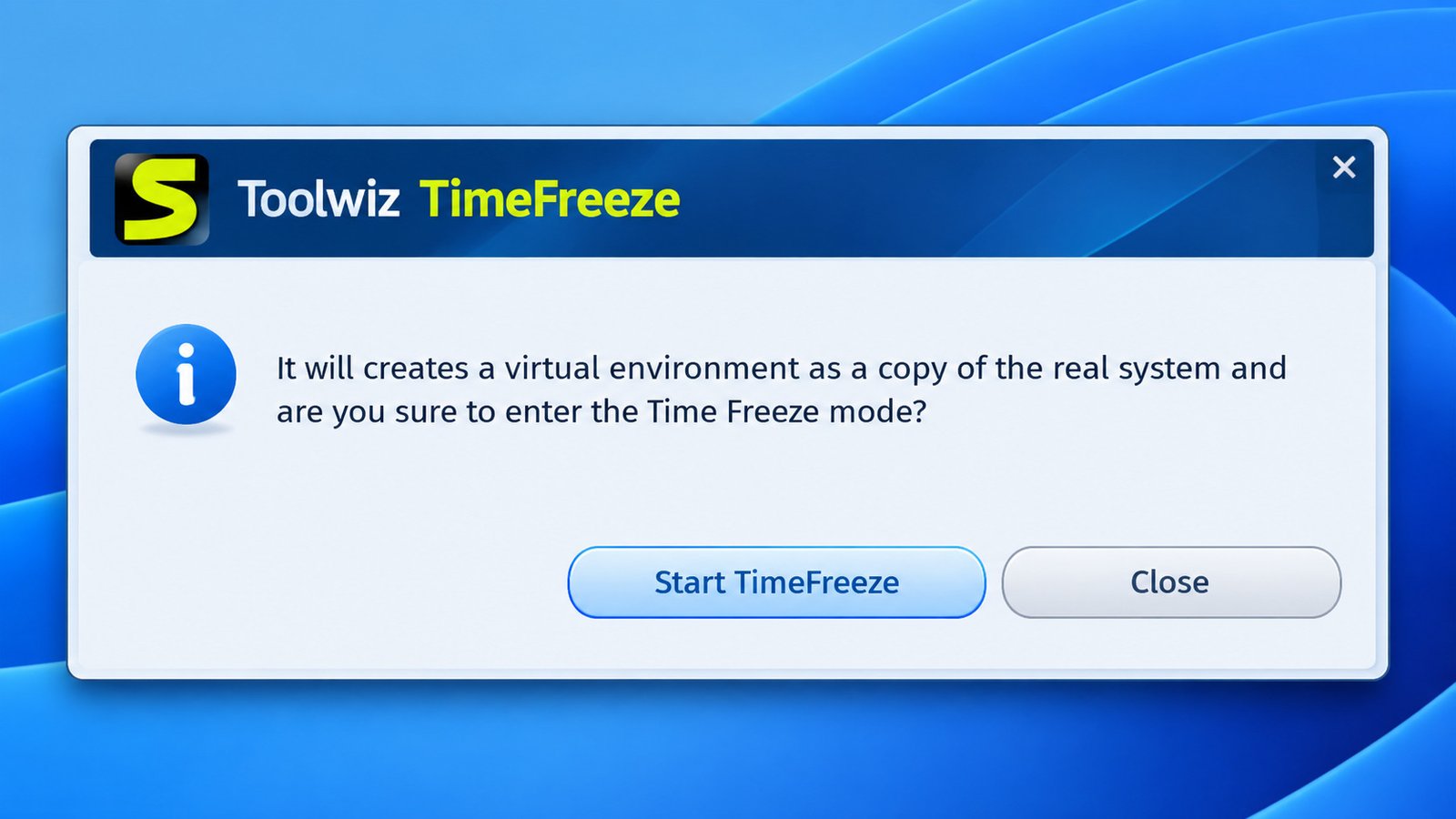
How to Install Toolwiz Time Freeze
- Run Setup_TimeFreeze.exe as administrator.
- Choose your language and accept the license terms.
- Pick the installation folder.
- Review the options, such as protecting the C drive, disabling it in Safe Mode, and setting a password.
- Finish setup and restart if prompted.
Setting a password at this stage is smart. It prevents accidental or unwanted changes later.
How to Use Toolwiz Time Freeze
Using the program is refreshingly simple. Here is the everyday routine most people follow.
How to Enable Protection
- Open Toolwiz Time Freeze from the Start menu or system tray.
- Select the freeze or protection option.
- Choose the drive to protect, usually the system drive.
- Confirm, and wait for the status to show protection is active.
How to Enter and Exit Virtual Mode
Use the main window or tray icon to enter the virtual system. When you are done, choose the exit option.
Some builds ask for a restart when switching modes. Save your work before you click anything.
How to Keep Changes Permanently
Want to keep a new program? Disable protection, install the software normally, then re-enable protection.
For files, simply add their folder to the exclusion list. That way, you never lose them.
How to Manage Protected Files and Folders
Open the file protection or exclusion section and add folders you want to keep or shield. Remove entries you no longer need.
Review the list occasionally. A forgotten exclusion can quietly keep unwanted changes alive.
Pro tip: give yourself a two-minute test run first. Enable protection, create a test file on the desktop, restart, and confirm it disappears. Then you know the tool works on your exact PC.
Toolwiz Time Freeze Settings and Configuration
The settings are minimal, which is both a strength and a weakness. You will not find a long list of scheduling or reporting tools.
Protection and Virtual Mode
Protection Mode is the efficient option for everyday use. Virtual mode places you in the virtual copy of the system for testing.
Choose Protection Mode for daily browsing and basic safety. Choose virtual mode when you plan to install and test unknown programs.
Both modes share one rule: whatever happens inside them is temporary. Knowing which one you are in at any moment is the best habit you can build.
A quick glance at the tray icon before you start working takes two seconds and can save hours.
Password and Exclusion Settings
Enable a password if anyone else uses the PC. Pick a strong one and store it safely, because losing it can lock you out of changes.
Keep the exclusion list short and intentional. Include only folders where you genuinely need persistent data, such as documents or downloads.
Configure It for Different Use Cases
| Use Case | Suggested Setup |
|---|---|
| Family PC | Password on, protect system drive, exclude a shared documents folder |
| Software testing | Virtual mode on, no exclusions except test logs |
| Public or lab computer | Password on, protect all drives, minimal exclusions |
| Everyday safe browsing | Protection Mode with a downloads exclusion |
How to Revert Changes After Reboot
This is the moment of truth. A restart is the “undo” button, and it works by discarding the temporary layer.
What Happens to Files and Software After Restart?
Direct answer: programs, files, and settings changed on the protected drive during freeze mode are gone after a normal restart, unless they are excluded.
That means a game you installed vanishes. A document saved to the desktop vanishes too, because the desktop lives on the system drive.
Returning Windows to a Previous State
Because the saved state is whatever you froze, choose the moment wisely. Freeze after your system is clean, updated, and running well.
If you later want a newer baseline, turn protection off, install updates and software you want to keep, then freeze again.
Common Mistakes to Avoid
- Saving work to the desktop or default Documents folder without excluding it
- Installing important updates while protection is on
- Forgetting protection is active and losing a whole afternoon of work
- Downloading files to a protected folder and rebooting
⚠ Windows updates: If updates install during protection, they will be rolled back, and Windows may try again repeatedly. Turn protection off before updating.
Toolwiz Time Freeze Troubleshooting
Because the tool works deep inside Windows, problems usually trace back to conflicts or compatibility. Start with the simple fixes.
Protection Will Not Enable
Run the program as administrator and check that no other freeze or disk tool is active. Two similar tools on one PC rarely cooperate.
Also try reinstalling the latest available build. A corrupted setup file is a common culprit.
Cannot Enter or Exit Virtual Mode
Restart Windows and try again. If the tray icon is missing, launch the program from the Start menu.
If a password blocks you, enter it carefully. There is no friendly recovery path for forgotten passwords.
Changes Are Not Reverted
First, check whether the file sits in an excluded folder or on an unprotected drive. That explains most “it did not revert” complaints.
Next, confirm protection was actually active before the changes happened. The status indicator should show it clearly.
Compatibility and Driver Issues
Newer Windows builds sometimes clash with older system-level software. Symptoms include failed startup, error messages, or slow boots.
If that happens, boot into Safe Mode, where the program can be disabled by default, then uninstall it. Restore from your backup if needed.
How to Disable Time Freeze When It Causes Problems
Open the program, turn protection off, and restart. If you cannot reach the window, use Safe Mode to uninstall it from Programs and Features.
A word on expectations: software like this changes how Windows saves data. That is powerful, but it also means you should treat it with the same respect you give disk partition tools.
Toolwiz Time Freeze Safety and Security
Safety deserves a clear, balanced look. The tool itself is widely listed as clean by major download sites, but a few cautions apply.
Is Toolwiz Time Freeze Safe to Use?
For most users, yes, when downloaded from a reputable source. Archive sites describe it as free of viruses and malware.
Still, the latest build dates back several years, and there are no recent updates. Old system-level software always carries compatibility risk on new Windows releases.
Does It Replace Antivirus Software?
No. It reverses changes, but it does not scan, block, or remove threats. Keep a real antivirus running.
For deeper privacy tweaks on Windows 10, you may also want to read our guide on Windows 10 privacy settings.
Protecting Important Files Before Using Time Freeze
Create a simple routine. Keep your important documents, photos, and project files on a separate drive or inside an excluded folder.
Then copy them to cloud storage or an external disk once a week. Even the best protection tool cannot rescue a drive that fails or a file you accidentally delete from an excluded folder.
Risks of Relying on System Freeze Alone
Freeze tools handle one job: reversing changes on restart. They do not encrypt your data, block phishing, or stop a data thief in real time.
Also, if you keep a PC running for weeks without restarting, the protection never gets a chance to clean anything. A routine restart is part of the deal.
Safe Practices for Testing Software
- Back up your files before experimenting.
- Disconnect from the internet when testing suspicious programs, if possible.
- Never enter real passwords inside a test session.
- Turn protection off before installing Windows updates.
- Use a virtual machine for high-risk files.
Privacy-minded readers sometimes ask whether freezing a system also hides activity. It does not. Browsing history and cookies are removed on restart, but your internet provider and the websites you visit can still see your activity.
Toolwiz Time Freeze Versions and Downloads
Several versions float around the web. Knowing the differences helps you choose.
| Version | Notes |
|---|---|
| 4.3.1.5000 | Latest listed build, about 2.8 MB, dated 2016 on major archives |
| 4.3 / 4.3.1 | Earlier builds in the same line |
| 3.2.0.2000 | Older build still hosted on some sites |
| 2.x | Legacy versions for very old systems |
For most people, version 4.3.1.5000 is the right pick. Choose an older version only if the newest one fails on your old PC.
Is Toolwiz Time Freeze Free?
Mostly, yes. MajorGeeks lists it as freeware, while other sites label it shareware or mention a demo. These labels conflict.
Because listings differ, check the license on the page you download from. Do not assume any “premium” upgrade is official unless the developer’s site says so.
Whichever license applies, the download is small, so trying it on a spare or older computer first costs almost nothing but a few minutes.
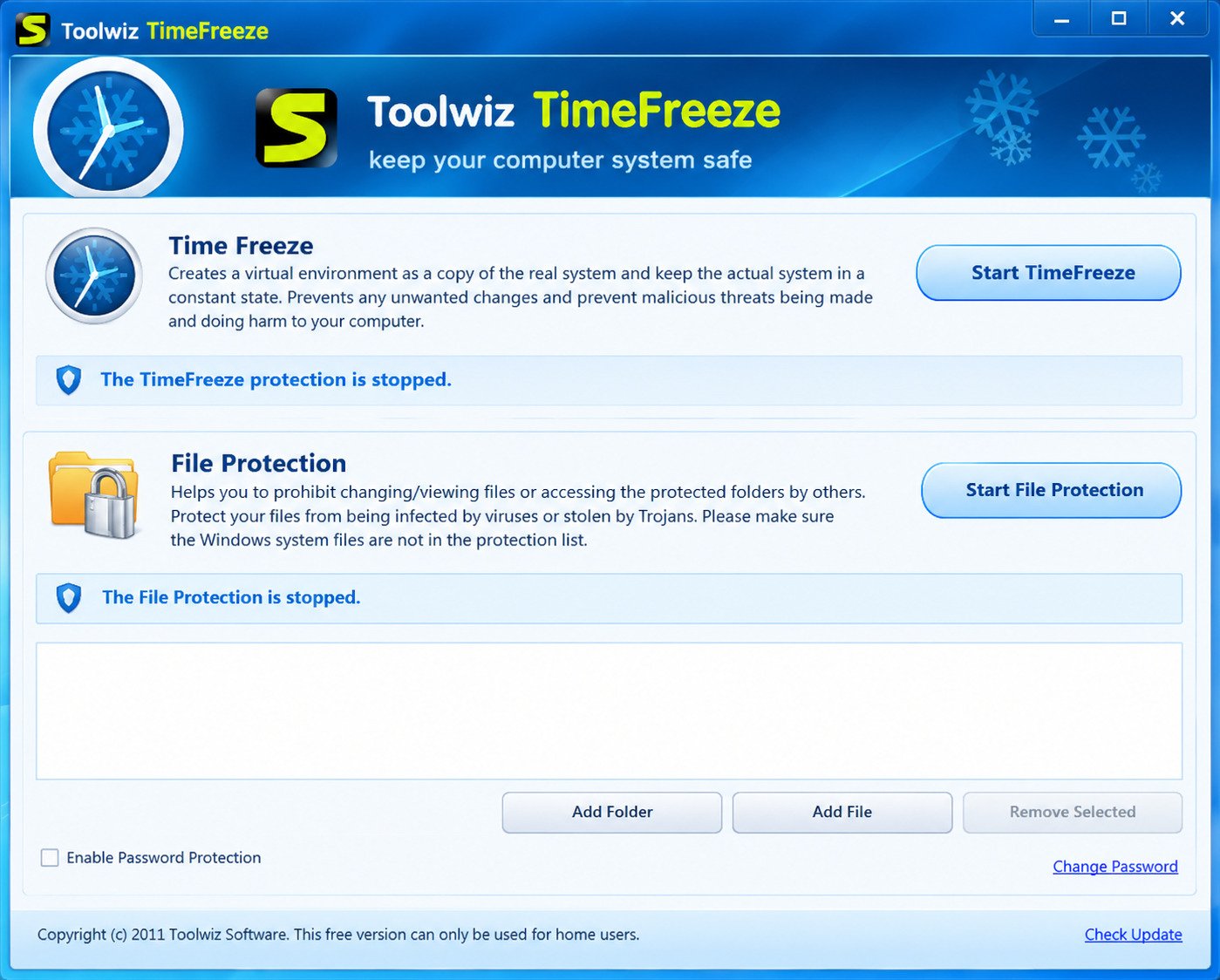
Toolwiz Time Freeze Review
After looking at how it behaves and what users and reviewers say, here is a balanced summary.
Pros
- Very small download
- Simple, quick setup
- Password protection
- Exclusion list for important data
- Works on older Windows versions
Cons
- Last major build is old
- Few advanced options
- Unclear Windows 11 support
- Not a true sandbox or virtual machine
- Does not detect malware
Ease of use: very good. Most tasks take a couple of clicks.
Protection experience: strong for casual testing and shared PCs. Control: limited compared with modern tools that offer snapshots and scheduling.
Who should consider it? People on older Windows versions who want a basic reset-on-restart tool. If you run Windows 11, newer options are likely a better fit.
Best Toolwiz Time Freeze Alternatives
If compatibility or features hold you back, several alternatives are worth a look. Each covers a slightly different need.
| Alternative | Best For | Notes |
|---|---|---|
| Windows Sandbox | Safe app testing | Built into Windows Pro, Enterprise, Education; not on Home |
| Windows System Restore | Fixing system problems | Built in, uses restore points |
| Reboot Restore Rx | Reset-on-restart protection | Free for personal use |
| Deep Freeze | Schools and labs | Paid, widely used in institutions |
| Sandboxie-Plus | App isolation | Runs programs in an isolated space |
| VirtualBox | Full virtual machines | Free, runs a separate OS |
Windows Sandbox
Microsoft describes Windows Sandbox as a lightweight desktop environment for running applications in isolation. Every launch starts clean, like a fresh Windows installation.
Learn more in Microsoft’s official documentation.
Sandbox Software and Virtual Machines
If you want stronger isolation, move up to a sandbox or virtual machine. Sandboxie-Plus wraps individual programs in an isolated space, which suits quick tests of single apps.
VirtualBox, on the other hand, runs a whole separate operating system. It takes longer to set up, but it gives you the safest place to open suspicious files because it keeps your real system out of reach.
How to Choose an Alternative
Ask yourself three questions:
- Do I need to test one app, or protect my whole PC?
- Does my Windows edition support the tool?
- Do I want a free option or paid support?
For one-off app tests, Windows Sandbox is hard to beat. For whole-PC reset-on-restart protection, Reboot Restore Rx or Deep Freeze fit better.
Frequently Asked Questions About Toolwiz Time Freeze
It is a Windows utility that freezes your system in a protected state. Changes made during a session are discarded after restart.
Most archives list it as freeware, though some call it shareware. Check the license on your download page.
Windows 10 is commonly listed as supported. Windows 11 support is unclear, so back up and test first.
Yes. That is its main purpose, except for files in excluded folders or on unprotected drives.
No. Windows Sandbox is a Microsoft feature that runs a lightweight, separate environment, while Time Freeze protects your current system.
It can undo many changes after a restart, but it does not detect or block threats. Keep antivirus software active.
Open the program, turn protection off, and restart. If it fails, uninstall it from Safe Mode.
Final Thoughts on Toolwiz Time Freeze
Toolwiz Time Freeze is a simple idea done in a small package. It gives older Windows PCs a quick way to experiment without worrying about clutter or mistakes. Used with care, it can save you real time and stress.
Still, it works best as a safety net, not a shield. Back up your files, keep your antivirus running, and test it on your own Windows version before trusting it. If it does not suit your PC, the alternatives above are ready.