SquirrelDisk Review: Features, Download, Disk Space Analysis, and How to Use It
Your drive says it’s almost full, but you have no idea why. SquirrelDisk is a free, open-source disk space analyzer that answers that question with one colorful chart.
I checked the project’s GitHub page, its release notes, and independent reviews before writing this. Some outdated sites still describe an old version, so every claim here is tied to what the project documents today.
SquirrelDisk scans a drive or folder and draws its contents as an interactive chart, so you can spot the biggest files in seconds. It runs on Windows, macOS, and Linux.
What Is SquirrelDisk and How Does It Work?
SquirrelDisk is a desktop app that shows where your storage went. It’s built with Rust and React using Tauri, and describes itself as an open-source alternative to WinDirStat, WizTree, TreeSize, and DaisyDisk. You pick a disk or folder, the app scans it, and big items stand out immediately.
What Is SquirrelDisk Used For?
- Finding what fills a nearly full drive
- Spotting forgotten downloads, old backups, and bloated caches
- Deciding what to move, archive, or delete
How Does SquirrelDisk Analyze Disk Usage?
It walks the folder tree and adds up file sizes. The project credits the open-source parallel-disk-usage tool and Tauri as foundations. One reviewer noted that visuals start appearing quickly instead of making you wait for the whole scan.
Who Should Use It, and Is It Free?
It suits laptop owners with small SSDs, gamers with huge libraries, and photographers with overflowing archives. It’s free under the GNU Affero General Public License v3.0, so you can download it, read the source, and use it without paying.
What Makes It Different?
Polish, platform coverage, and charts. Most older analyzers look dated or run on one operating system only. SquirrelDisk looks modern and works on all three major desktop systems.
SquirrelDisk Download and Installation Guide
Always download from the project’s official GitHub releases page, or start from the official SquirrelDisk website. Third-party download sites sometimes bundle extras or host outdated builds.
SquirrelDisk Free Download and Latest Version
The most recent release I found was version 2.5.0, with 2.4.0 and 2.3.1 before it. Newer versions may exist by the time you read this, so check the releases page.
| File type | Best for | Installation needed |
|---|---|---|
| Windows MSI installer | Everyday use | Yes |
| Windows portable EXE | USB drives, quick checks | No |
| macOS DMG | Mac users (Apple silicon and Intel) | Drag to Applications |
| Linux AppImage | Most Linux distros | No, just make executable |
Windows 10 and Windows 11
The same files serve both systems. Pick the MSI for a normal install, or the portable file to skip installation. Portable mode arrived in version 2.4 for Windows and Linux.
The binary isn’t code-signed, so Windows may warn you. Click “More info” and then “Run anyway,” but only for files from the official page. On Mac, right-click the app and choose Open on first launch.
macOS and Linux
The macOS download is a single DMG covering Apple silicon and Intel. On Linux, download the AppImage (recommended) or the tar.gz archive, make it executable, and run it. One reviewer said the AppImage worked without any configuration.
How to Install and Set Up SquirrelDisk
- Download the file for your system from GitHub.
- Run the installer, or open the portable file.
- Approve any unsigned-app warning if you trust the source.
- Launch the app and choose a drive.
System Requirements
The project doesn’t publish a strict requirements list. One reviewer measured memory use at about 73 MB on Linux, so even older machines should cope.
How to Use SquirrelDisk to Analyze Disk Space
Pick, scan, read the chart, then decide. You can finish a first scan in minutes.
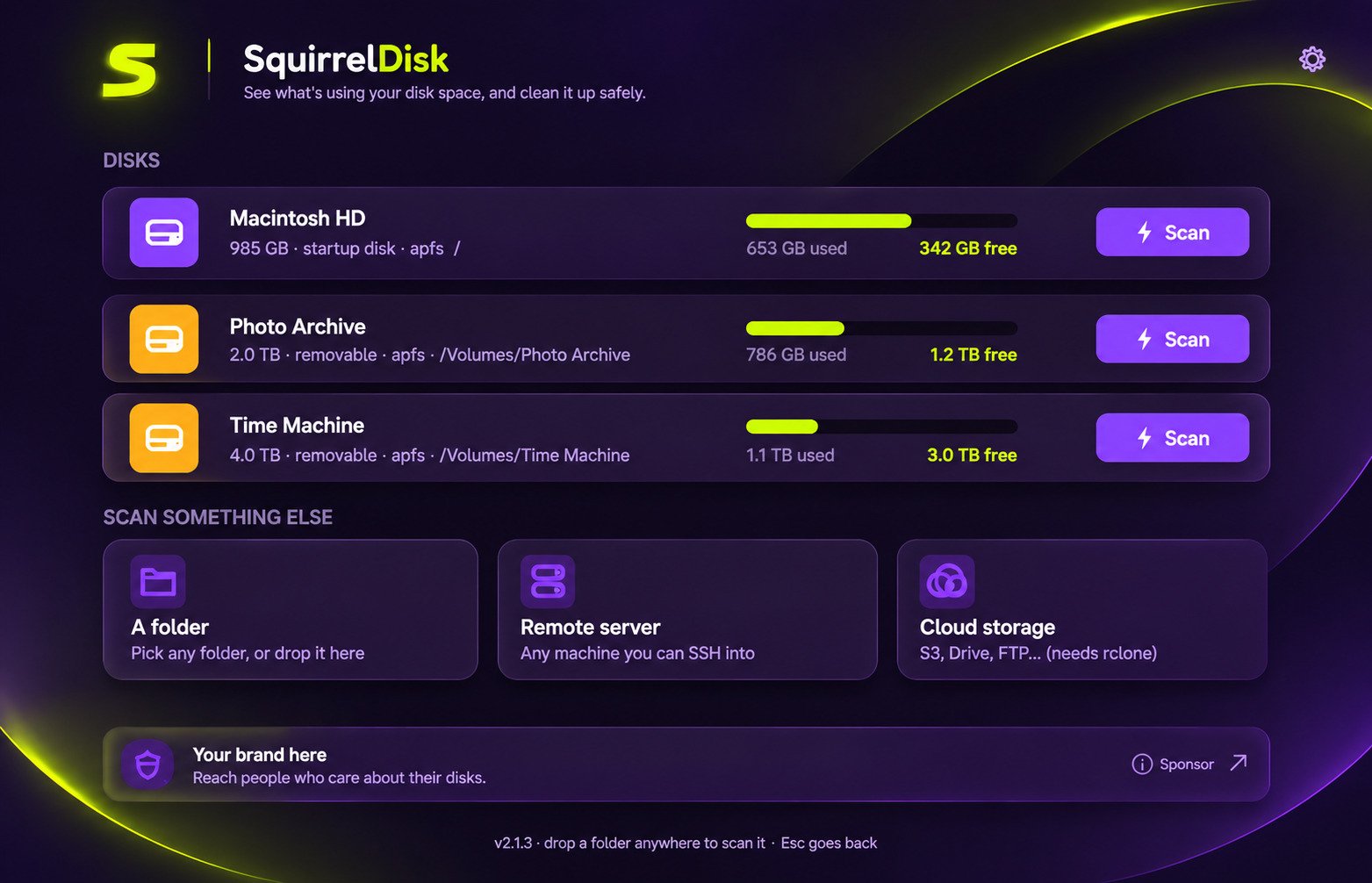
- Open the app and click the disk you want, or pick a single directory.
- Let the scan finish, then hover over any chart segment to see its name and size.
- Click a segment to zoom into that folder.
- Repeat until you reach individual large files.
Find What Is Taking Up Space on Your C Drive
Scan the C drive and look for the widest slices. Common culprits:
- The Users folder (downloads, videos, desktop clutter)
- Program Files and game libraries
- Temporary and cache folders
Look at Windows system folders, but don’t delete from them. If some folders refuse to open, run the app with higher permissions.
Largest Files, External Drives, and Results
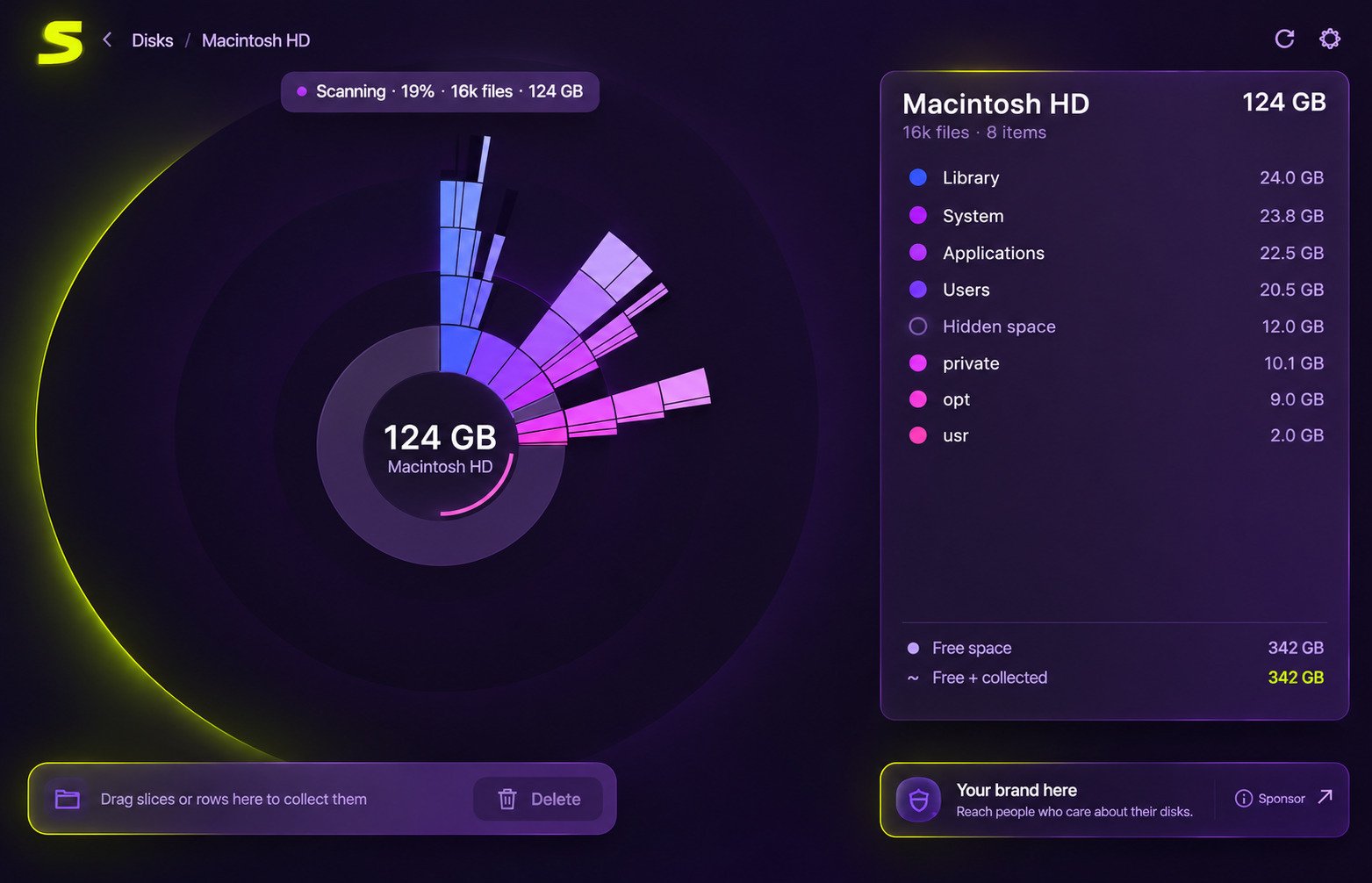
Version 2.5 added a terminal command that prints the biggest items. The app also detects external disks in real time, so a plugged-in USB drive should appear in the list. Wider segments mean more space, and rings farther from the center are deeper folders. Don’t judge by color alone.
SquirrelDisk Disk Space Analysis and Storage Management Features
| Feature | What it does |
|---|---|
| Fast scanning | Builds results quickly |
| Chart views | Sunburst and treemap |
| External disk detection | Shows plugged-in drives |
| Drag and drop | Collects items to delete |
| Command-line scan | Prints biggest items |
The README also mentions right-clicking items to open them in your file explorer.
Find Large Files and Hidden Storage Hogs
Large files hide in odd places: old installers, video exports, virtual machine images, and forgotten ISO files. One 40 GB file can matter more than 10,000 tiny ones. App caches and leftover project folders add up too. Research unfamiliar folders before touching them.
Manage Disk Space and Multiple Locations
If your drive stays above 90 percent full, performance and updates can suffer. Trim in order of size, since the top three folders usually solve most of the problem. You can also scan your main drive, an external backup, and a games drive in one sitting.
SquirrelDisk Sunburst Chart and Disk Visualization
The chart is the heart of the app. A sunburst chart is a set of rings: the center is your starting folder, and each outer ring is one level deeper. Slice width equals storage share.
How to Read the Interactive Chart
- Start at the center.
- Find the widest slice in the first ring.
- Click it to zoom in.
- Repeat until you find individual files.
Ignore thin slivers at first. Chasing them wastes time.
Sunburst Chart vs Treemap
Version 2 offers both views of the same data.
| Chart | Looks like | Strength |
|---|---|---|
| Sunburst | Concentric rings | Shows folder hierarchy clearly |
| Treemap | Nested rectangles | Compares sizes at a glance |
SquirrelDisk Disk Cleanup and File Deletion Safety
SquirrelDisk helps you find what to remove, and you stay in control of what goes. It’s an analyzer, not an automatic cleaner, which is safer than tools that delete in the background.
How to Free Up Disk Space on Windows
- Scan the drive.
- Open the largest folders.
- Pick files you’re sure you don’t need.
- Remove them and rescan to confirm.
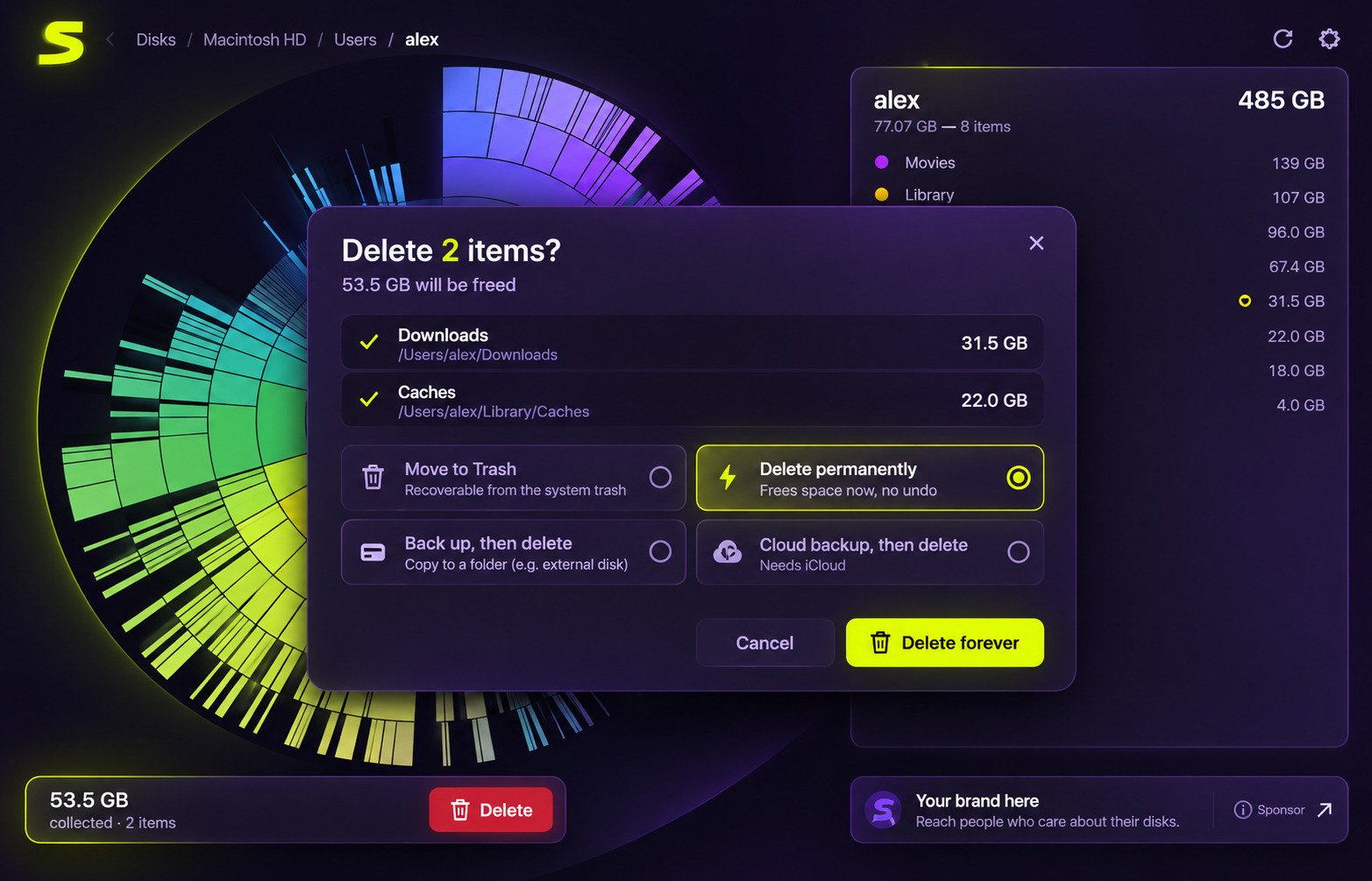
The app lets you drag items into a collection of things to delete, which gives you a review step before anything leaves your drive.
Ask three questions: Do I recognize this file? Do I have a backup if it matters? Is it part of Windows, macOS, or an installed app? If any answer is “no,” pause. One reviewer noted built-in safeguards for your home directory or an entire disk, but still preferred a file manager for deletions.
Trash, Permanent Deletion, and Secure Erasure
I couldn’t confirm exactly how every version handles the Trash on every system, so read the prompt wording and test with a harmless file first. Secure erasure isn’t a documented feature. If you’re selling or recycling a drive, use a proper drive-wiping tool.
Back Up Before Cleanup
- Copy important folders to an external drive or cloud service.
- Confirm the copy opens correctly.
- Then clean up the original.
Is SquirrelDisk Safe to Use?
It’s open source, so anyone can inspect the code. One reviewer said the developer wrote the core scanner, chart, and cleanup logic himself, while noting generative AI was used in parts of development. The README warns that earlier versions weren’t fully stable. The same reviewer noted opt-out sponsor statistics, so check Settings if privacy matters to you.
SquirrelDisk Duplicate File Detection
Many articles claim SquirrelDisk finds duplicates, but I couldn’t find that in the project’s documented features. It shows size and location, not file content comparisons. Treat any site claiming otherwise with caution.
You can still spot likely duplicates by eye, like “Photos” and “Photos Copy” with nearly identical sizes. That’s a hint, not proof. Use a dedicated duplicate finder, review matches manually, and keep a backup.
| Task | SquirrelDisk | Dedicated finder |
|---|---|---|
| Show largest folders | Excellent | Limited |
| Compare file content | Not documented | Core feature |
| Visual overview | Excellent | Usually basic |
SquirrelDisk Compatibility With Windows, macOS, and Linux
| System | Format | Notes |
|---|---|---|
| Windows | MSI or portable EXE | Unsigned warning possible |
| macOS | DMG | Apple silicon and Intel |
| Linux | AppImage or tar.gz | AppImage recommended |
Same app, same chart, same habits on every system. On Windows, each drive and USB stick shows up as its own entry. On Linux, one reviewer noted mounted AppImages also appear in the disk list, a small annoyance.
Arch Linux and Homebrew
I couldn’t verify an official Arch package or Homebrew formula. Community packages may exist, but the AppImage and DMG from GitHub are the safer routes.
SquirrelDisk Remote Server, NAS, and Cloud Analysis
Version 2 added remote scanning, a major upgrade over older versions.
SSH, Linux Servers, and NAS
SquirrelDisk can scan remote machines over SSH and show their storage like a local drive. Servers fill up quietly with logs, backups, and temp files, and a visual scan makes the problem obvious. A NAS that offers SSH can be scanned the same way. Use read-only accounts if you can.
rclone, Google Drive, Dropbox, and S3
The app can scan cloud storage through rclone, a separate tool that connects to many storage services. Google Drive, Dropbox, or S3-style storage may work if rclone supports and has been configured for them. I couldn’t verify service-specific documentation, so test with a small folder first.
- Scans depend on connection speed
- Setup takes extra steps
- Large remote trees take longer
SquirrelDisk Settings and Troubleshooting
Open Settings to adjust options. Reviewers describe plenty of useful configuration, and version 2.5 added a Settings entry for the command-line tool. Pick a full drive for the big picture, or one folder for faster, focused scans.
Not Scanning a Drive or Can’t Access Folders
Common causes are missing permissions, a disconnected external drive, or a very large or slow drive.
- Close the app.
- Reopen with higher permissions (administrator on Windows, Full Disk Access on macOS).
- Scan again.
Slow Scans and Installation Problems
Spinning hard drives and network locations scan slower than SSDs, so close heavy apps first. For installation errors, redownload from GitHub, since partial downloads cause problems. Report bugs with screenshots on the project’s GitHub issues page.
SquirrelDisk License, Pricing, and Availability
The app is free to download and use, with no license key. AGPL-3.0 is a strong copyleft license: modified versions shared over a network must also share their source code. Businesses should read the terms or consult a lawyer before building on the code.
Some directory sites list one-time and subscription pricing, but I couldn’t confirm that on the official GitHub page. Treat third-party pricing claims carefully, and get your download from the official GitHub page.
SquirrelDisk Review: Features, Pros, and Cons
Pros
- Free and open source
- Attractive, beginner-friendly interface
- Windows, macOS, and Linux
- Sunburst and treemap charts
- SSH scanning and command-line mode
- Low memory use
Cons
- No documented duplicate finder
- Unsigned installers trigger warnings
- Not a one-click cleaner
- Documentation is thin
A reviewer called the interface attractive and responsive, with fast local scans. Results match what your operating system reports, though small differences can appear with hidden or protected files. Is it worth using? Yes, if you want a friendly, free visual tool. If you need duplicate finding or Windows-only raw speed, look at the alternatives below.
Best SquirrelDisk Alternatives for Disk Space Analysis
- WizTree: very fast scans on Windows. See our WizTree guide.
- WinDirStat: a classic free Windows analyzer with a colored block map. Reliable but dated.
- TreeSize: detailed folder reports, popular with IT staff. Advanced features need a paid license.
- DaisyDisk: polished, Mac-only, sunburst-style, and paid.
- Disk Inventory X: a free, simple Mac treemap tool.
SquirrelDisk vs WizTree
| SquirrelDisk | WizTree | |
|---|---|---|
| Platforms | Windows, macOS, Linux | Windows |
| Open source | Yes | No |
| Style | Modern charts | Speed-focused |
SquirrelDisk vs WinDirStat, DaisyDisk, and TreeSize
WinDirStat is older and Windows-focused, while SquirrelDisk is more modern and cross-platform. DaisyDisk is Mac-only and paid, while SquirrelDisk is free. TreeSize is stronger for reporting and business use, while SquirrelDisk is simpler.
Which Free Disk Space Analyzer Should You Choose?
- Windows only, speed first: WizTree
- Open-source classic: WinDirStat
- Windows, Mac, and Linux: SquirrelDisk
- Free on Mac: Disk Inventory X or SquirrelDisk
Frequently Asked Questions About SquirrelDisk
It shows which files and folders use the most storage, using interactive charts.
Yes. It’s free to download and uses the AGPL-3.0 license.
It’s generally considered safe when downloaded from GitHub. Back up files before deleting anything.
Yes. The same MSI or portable file works on both.
Yes. It offers a DMG for Mac and an AppImage or archive for Linux.
Yes. It detects connected external disks so you can scan them.
Yes, version 2 supports SSH scanning, though setup takes a few extra steps.
Conclusion
SquirrelDisk turns a frustrating mystery into a clear picture. You scan, you look, and suddenly the space hog is staring back at you.
It won’t clean your drive for you, and it doesn’t hunt duplicates. But it does its main job beautifully, and it costs nothing to try. Download it from GitHub, scan one folder, and see what you’ve been carrying around.