Hasleo Backup Suite Download, Features, Setup, and Alternatives
Losing years of photos, documents, or a perfectly configured Windows setup to a failed hard drive is one of those things you never plan for until it happens. Hasleo Backup Suite has become a popular free answer to that problem, giving Windows users backup, restore, and disk cloning tools without a subscription. This guide covers what Hasleo Backup Suite actually does, its free vs. paid features, how to back up and clone drives, SSD migration steps, and how it stacks up against alternatives like Macrium Reflect and AOMEI Backupper.
What Is Hasleo Backup Suite and How Does It Work?
Hasleo Backup Suite Overview
Hasleo Backup Suite is a Windows backup, restore, and disk cloning tool that lets you protect your operating system, files, and entire disks, while also making it easy to migrate Windows to a new drive.
What Is Hasleo Backup Suite Free?
Direct answer: Hasleo Backup Suite Free is the no-cost edition of the software, offering full system backup, file backup, and disk/partition cloning — a notably generous feature set for a free tool.
How Hasleo Backup Suite Works
The software creates compressed backup image files of your system, disk, or selected files, which can later be restored to the same drive, a different drive, or even different hardware using its recovery environment.
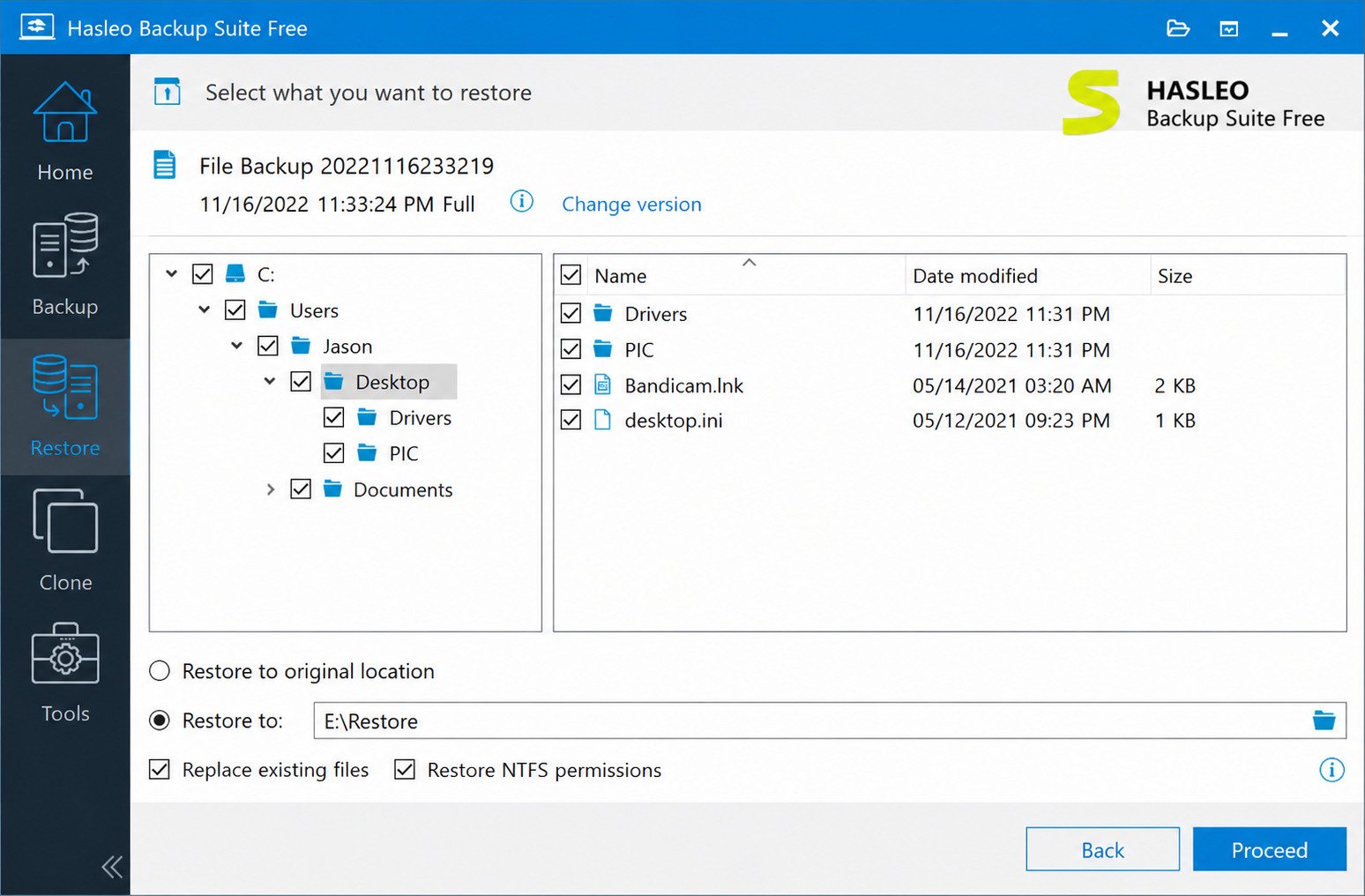
Hasleo Backup Suite for Windows Backup and Data Protection
It’s designed to work on both Windows PCs and Windows Server systems, covering home users and small business environments alike.
Who Is Hasleo Backup Suite Best For?
Hasleo tends to suit:
- Home users wanting free, reliable system and file backups
- Anyone upgrading to an SSD who wants to migrate Windows without reinstalling
- Small IT setups needing backup and cloning tools without licensing costs
Hasleo Backup Suite Features
Windows System Backup
System backup captures your Windows installation, boot-related partitions, user settings, drivers, and installed applications, so a crashed system can be restored quickly rather than rebuilt from scratch.
File and Folder Backup
Instead of backing up an entire drive, you can back up specific files or folders to another location, which is faster and uses less storage for protecting just your important documents.
Disk Backup and Disk Imaging
Disk backup creates a complete image of an entire disk, capturing every partition and file in one operation, useful before major system changes or upgrades.
Disk Cloning and Drive Migration
Cloning copies the entire contents of one disk directly to another, ensuring the destination disk matches the source disk exactly — commonly used for drive upgrades.
SSD and HDD Cloning
Direct answer: Hasleo can clone an HDD directly to an SSD (or vice versa), migrating your existing Windows installation to new storage without a fresh install.
Backup and Restore
Restoring a backup returns your system, disk, or files to their state at the time the backup was created, either to the original location or to different hardware.
System Restore and Recovery
If Windows becomes unbootable, a previously created system backup can be restored using Hasleo’s recovery environment, even without a working Windows installation.
Scheduled and Automatic Backups
Backup jobs can be scheduled to run automatically on a daily, weekly, or custom interval, removing the need to remember manual backups.
Incremental and Differential Backups
Hasleo supports full, incremental, and differential backup types, letting you balance storage space against backup and restore speed depending on your needs.
Bootable Recovery and WinPE Tools
A bootable rescue disk built on WinPE lets you restore a system backup even when the computer can’t start Windows normally.
Backup Encryption and Data Security
Backup files can be protected to keep sensitive data secure, which matters if backup drives are stored off-site or shared among multiple people.
Hasleo Backup Suite Free
Is Hasleo Backup Suite Free?
Yes, the Free edition includes system backup and restore, file backup, disk/partition backup, and full disk/system/partition cloning at no cost.
Hasleo Backup Suite Free Features
The free version covers the core protection most home users need:
- System backup and restore
- Disk and partition backup and restore
- File and folder backup
- System, disk, and partition cloning
- Incremental, differential, and full backup types
Hasleo Backup Suite Free vs Paid Options
| Feature | Free Edition | Paid Editions |
|---|---|---|
| System/disk/file backup | Yes | Yes |
| Disk and partition cloning | Yes | Yes |
| Scheduled backups | Yes | Yes |
| Backup encryption | Limited | Full support |
| Universal Restore (dissimilar hardware) | No | Yes |
| Server OS support | Limited | Full support |
| Priority technical support | No | Yes |
Free Disk Cloning and SSD Migration
Unlike many competitors that lock cloning behind a paid tier, Hasleo includes full disk cloning and SSD migration in its free edition, which is a significant part of its popularity.
Is Hasleo Backup Suite Free Good Enough for Home Users?
For most home users backing up a single PC and occasionally upgrading storage, the free edition alone typically covers everything needed without upgrading to a paid plan.
Hasleo Backup Suite Download
Hasleo Backup Suite Free Download
The software is downloaded directly from Hasleo’s official website, distributed as a standard Windows installer for the free or paid edition.
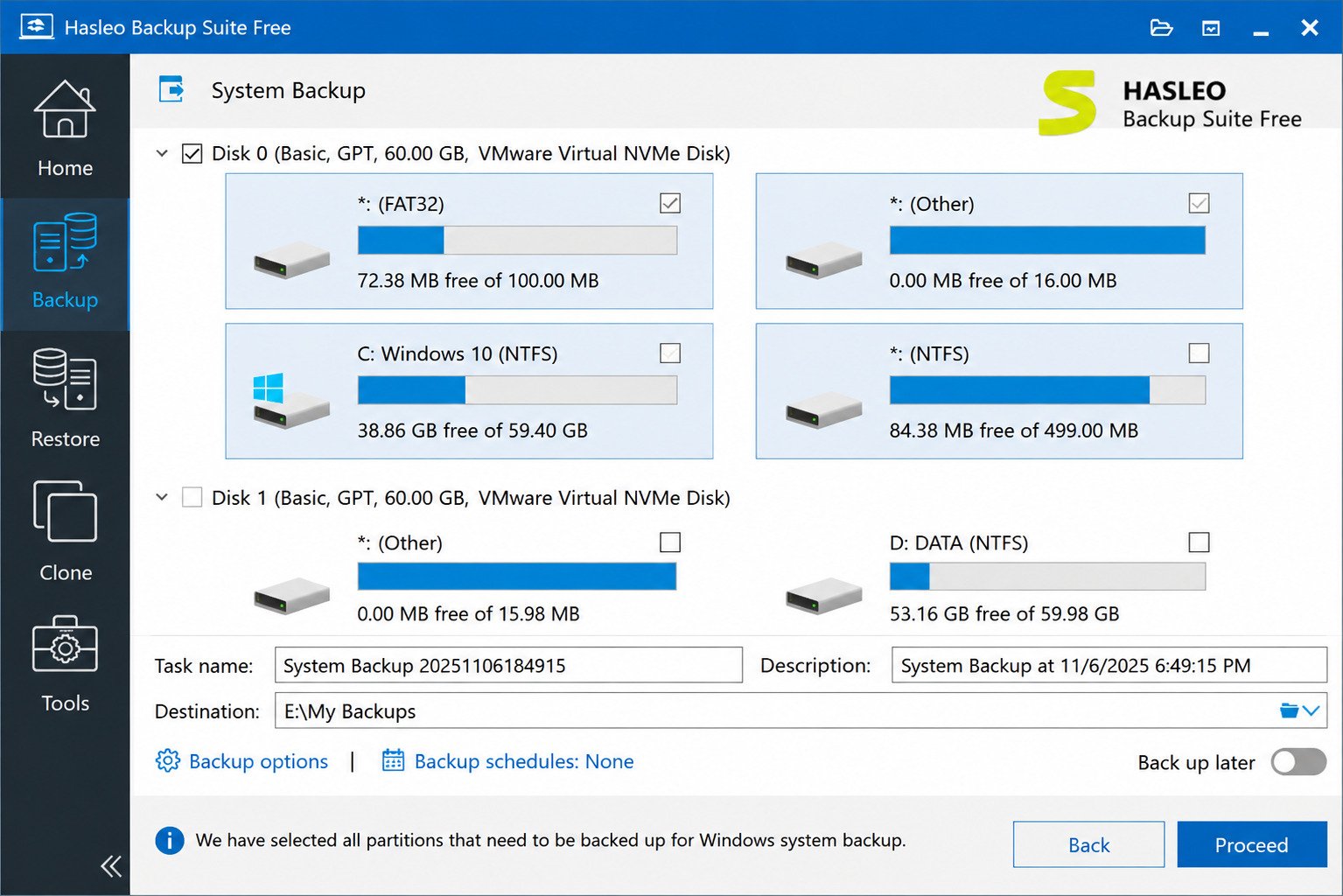
Hasleo Backup Suite Latest Version
Direct answer: Hasleo Backup Suite receives regular updates, with recent releases in the 5.x version series adding refinements to backup speed and hardware compatibility.
Hasleo Backup Suite for PC and Windows
Downloads are available for both 32-bit and 64-bit Windows systems, covering desktops, laptops, and Windows Server machines.
Hasleo Backup Suite Installer Options
Alongside the standard installer, a portable version is available for users who want to run the tool without a full installation — useful for quick, one-off recovery tasks.
Hasleo Backup Suite for Windows
Hasleo Backup Suite Windows 11 and Windows 10
Hasleo Backup Suite supports Windows 10 and Windows 11, in addition to older supported releases going back to Windows Vista and Server 2008, per the developer’s documentation.
Windows Backup Software for PC
Because it works at the disk and partition level, Hasleo functions independently of whichever specific Windows edition or build you’re running, as long as it falls within supported versions.
Hasleo Backup Suite System Requirements and Compatibility
The software supports a wide range of storage interfaces, including IDE, SATA, SCSI, USB, and NVMe drives, which covers virtually any modern PC configuration.
How to Install and Set Up Hasleo Backup Suite
How to Install Hasleo Backup Suite
- Download the installer from the official Hasleo website
- Run the setup file and follow the installation wizard
- Launch the application once installation completes
- Choose whether to start with a backup, clone, or restore task
Setting Up a Windows Backup and Configuring Destinations
When creating your first backup, you’ll choose a destination — an external drive, network location, or another internal disk — and Hasleo will handle compression and image creation automatically.
Creating Your First Backup Job
- Open Hasleo Backup Suite and select Backup
- Choose System Backup, Disk Backup, Partition Backup, or File Backup
- Select your destination and backup type (full, incremental, or differential)
- Review settings and start the backup
Scheduling Automatic Backups
Within the backup job settings, a scheduling option lets you set the interval and trigger — such as daily, weekly, or at system startup — so backups continue running without manual action.
Windows System Backup and System Imaging
What Is a Windows System Image?
Direct answer: a system image is a complete snapshot of your Windows installation, including the operating system, installed programs, settings, and drivers, packaged as a single restorable file.
How to Create a Windows 11 System Image
- Open Hasleo Backup Suite
- Select System Backup
- Choose a destination drive with enough free space
- Start the backup and wait for it to complete
How to Restore Windows From a System Image
Restoring can be done from within Windows if the system still boots, or from a bootable rescue disk if Windows can no longer start — both restore the system to the exact state captured in the image.
Backing Up Windows Before Upgrading an SSD
Creating a full system backup before any major hardware change is good practice, giving you a fallback if the migration or upgrade doesn’t go as planned.
Windows 11 Backup and Restore
Windows 11 Backup Software and System Backup
Hasleo’s Windows 11 backup process mirrors earlier Windows versions — system, disk, partition, and file backups all work the same way regardless of OS version.
Windows 11 Disk Backup and File Backup
Whether you need a full disk image or just specific folders backed up, both options are available through the same interface without needing separate tools.
Best Free Backup Software for Windows 11
Hasleo is frequently recommended among free Windows 11 backup tools specifically because cloning and full system imaging aren’t restricted to a paid tier.
Hasleo Disk Backup and Disk Imaging
Disk Backup Software and Windows Disk Image Backup
Disk backup differs from system backup by capturing an entire physical disk including all partitions, not just the ones Windows needs to boot.
Full Disk Backup and Imaging
This is useful when a drive contains multiple partitions with important data beyond the operating system itself, ensuring nothing is left out of the backup.
Restore a Disk Image to a New Drive
A disk image can be restored to the original drive, a replacement of the same size, or a larger drive, giving flexibility if the original hardware fails.
Hasleo Disk Clone and Disk Cloning
Hasleo Disk Clone Overview
Direct answer: disk cloning creates an exact, bootable copy of an entire drive on a different physical disk, letting you switch hardware without reinstalling anything.
Disk Cloning Software for Windows
Hasleo’s cloning tool subdivides this into System Clone (migrating just the OS), Disk Clone (copying an entire disk), and Partition Clone (copying a single partition).
Clone Windows Without Reinstalling
System cloning specifically focuses on migrating the operating system and boot files, ensuring the destination drive can boot Windows immediately after cloning.
Clone HDD to SSD and Clone Windows 11 to SSD
- Connect the target SSD to your PC (internally or via USB adapter)
- Open Hasleo Backup Suite and select Clone
- Choose System Clone, Disk Clone, or Partition Clone depending on your goal
- Select the source and destination drives, then start cloning
Before you clone: cloning overwrites everything on the destination drive. Double-check you’ve selected the correct target disk, and make sure it’s equal to or larger than the used space on your source disk.
SSD Migration and Windows Drive Migration
SSD Migration Software and How to Migrate Windows to an SSD
Migrating to an SSD through cloning avoids the time-consuming process of reinstalling Windows, drivers, and every application from scratch.
How to Move Windows to an SSD
The process is effectively the same as HDD-to-SSD cloning: select the SSD as your destination, run System Clone, then physically swap the drives once cloning finishes.
Upgrade From HDD to SSD Without Reinstalling Windows
Hasleo also supports adjusting partition size during cloning, so if you’re moving to a larger SSD, you can expand the main partition to use the extra space instead of leaving it unallocated.
Move Windows From HDD to SSD: Key Considerations
| Consideration | Why It Matters |
|---|---|
| SSD capacity | Must be equal to or larger than the used space on the source disk |
| Connection method | Internal SATA/NVMe slot or a USB-to-SATA/NVMe adapter for external cloning |
| Partition alignment | Proper alignment affects SSD performance and lifespan |
| Boot mode (MBR/GPT) | Hasleo supports converting between MBR and GPT during cloning |
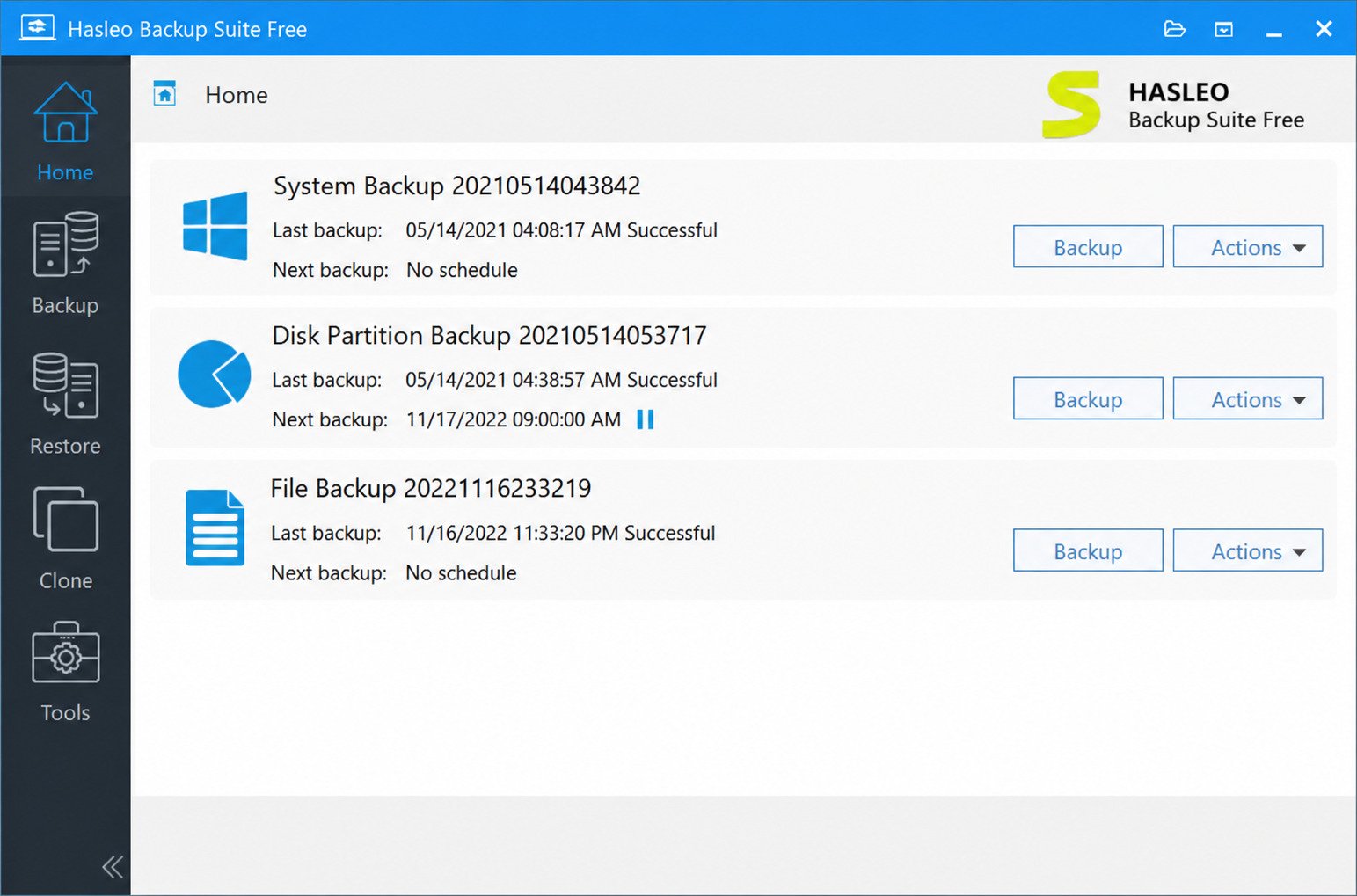
File and Folder Backup
File Backup Software for Windows
File backup targets specific documents, photos, or folders rather than the entire system, making it a lighter, faster option for protecting personal data.
How to Back Up Selected Files and Folders
- Open Hasleo Backup Suite and select File Backup
- Choose the specific files or folders you want protected
- Select a backup destination, such as an external hard drive
- Set a schedule if you want this backup to repeat automatically
Back Up Personal Files to an External Hard Drive
Storing file backups on a separate physical drive (or in the cloud) protects against the same drive failure taking out both your original files and your backup copy.
Full, Incremental, and Differential Backup
What Is a Full Backup?
A full backup copies all selected data every time it runs, producing the largest file size but the simplest, fastest restore process.
What Is an Incremental Backup?
An incremental backup only saves changes made since the last backup of any type, resulting in smaller, faster backups but a restore process that may need multiple backup files.
What Is a Differential Backup?
A differential backup saves changes made since the last full backup, striking a middle ground between incremental’s speed and full backup’s simpler restore process.
Incremental vs Differential Backup
| Backup Type | Backup Speed | Restore Speed | Storage Used |
|---|---|---|---|
| Full | Slowest | Fastest | Highest |
| Differential | Medium | Medium | Medium |
| Incremental | Fastest | Slowest (multiple files needed) | Lowest |
Choosing the Right Backup Type
For most home users, running an occasional full backup combined with regular incremental backups balances storage use and restore convenience reasonably well.
Automatic and Scheduled Backups
Automatic Windows Backup and Scheduled Backup Software
Scheduling removes the human error factor from backups — once configured, jobs run in the background without requiring you to remember.
Creating a Reliable Backup Schedule
- Decide how often your data changes meaningfully (daily, weekly)
- Set a full backup on a longer interval (e.g., monthly)
- Layer incremental or differential backups on a shorter interval (e.g., daily)
- Periodically verify backups are completing successfully
Bootable Backup and WinPE Recovery
Bootable Backup Software and Hasleo Bootable Rescue Disk
Direct answer: a bootable rescue disk is a self-contained recovery environment (built on WinPE) that lets you restore a backup even if Windows itself can’t start.
Creating a Bootable Windows Backup
- Open Hasleo Backup Suite and locate the rescue disk creation tool
- Choose a USB drive or blank disc as the target media
- Build the bootable recovery environment
- Store it safely for emergency use
How to Recover Windows When It Cannot Boot
Boot from the rescue media, select the backup image to restore, choose the destination drive, and let the recovery process run — this works even on a completely blank replacement drive.
Backup Encryption and Data Security
Encrypted Backup Software and Secure Windows Backup
Password protection on backup files prevents unauthorized access if a backup drive is lost, stolen, or accessed by someone else.
Backup Security Best Practices
- Store at least one backup copy off-site or in the cloud
- Use encryption for backups containing sensitive personal or business data
- Test restores periodically rather than assuming a backup will work when needed
- Keep more than one backup generation rather than overwriting the only copy each time
Hasleo Backup Suite Tutorial
How to Use Hasleo Backup Suite: A Quick Workflow
A typical first-time workflow looks like this: create a full system backup, set up a recurring incremental schedule, build a bootable rescue disk, and test a restore on non-critical data to confirm everything works as expected.
How to Clone Windows to an SSD (Recap)
Connect the new SSD, choose System Clone, select source and destination, then physically swap drives once the clone finishes and Windows boots successfully from the new disk.
Hasleo Backup Suite Review
Hasleo Backup Suite Review and Performance
Hasleo Backup Suite is generally well-regarded for offering paid-tier features in a free product, particularly full disk cloning and SSD migration.
Backup and Restore Performance
Backup and restore speeds are competitive with other consumer backup tools, especially when using incremental backups to reduce the amount of data processed each run.
Disk Cloning and SSD Migration Performance
Cloning performance depends heavily on the connection method — internal SATA or NVMe connections are noticeably faster than cloning over a USB adapter.
Ease of Use and Backup Workflow
The interface organizes tasks into clear categories (Backup, Restore, Clone), which keeps the tool approachable even for users without prior backup software experience.
Hasleo Backup Suite Pros and Cons
PROS
- Full disk/system cloning included free, unlike many competitors
- Supports full, incremental, and differential backups
- Bootable WinPE rescue media for disaster recovery
- Wide storage interface support, including NVMe
CONS
- Free edition has limited encryption and no Universal Restore for dissimilar hardware
- Windows-only, no Mac or Linux support
- Interface is functional but less polished than some premium competitors
Is Hasleo Backup Suite Safe and Reliable?
For a widely used, actively updated backup tool, Hasleo is generally considered safe and reliable, though as with any backup software, testing your restore process before you actually need it is essential.
Is Hasleo Backup Suite Worth Using?
For home users and small setups wanting free, capable backup and cloning tools, Hasleo is one of the stronger free options currently available for Windows.
Hasleo Backup Suite Problems and Troubleshooting
| Problem | Likely Fix |
|---|---|
| Backup Suite not opening | Reinstall the latest version and check Windows compatibility |
| Backup job failing | Check destination drive space and permissions |
| Restore failing | Confirm the backup image file isn’t corrupted or incomplete |
| Clone failing | Ensure destination drive is large enough and properly connected |
| Not detecting SSD or hard drive | Check cable/adapter connection and confirm the drive is initialized in Windows Disk Management |
| Bootable USB not working | Rebuild the rescue media and confirm BIOS/UEFI boot order settings |
| WinPE rescue disk not booting | Verify Secure Boot settings and try Legacy/UEFI boot mode as needed |
| Backup running slowly | Use incremental backups instead of full, and check for USB 2.0 vs. USB 3.0 connection speed |
How to Fix Common Hasleo Backup Suite Errors
Most common errors trace back to either insufficient destination space, a disconnected or sleeping drive, or an outdated software version — updating to the latest release resolves many reported issues.
If a specific backup job repeatedly fails at the same point (for example, always stalling partway through), it’s worth checking the destination drive’s health directly through Windows Disk Management or a SMART diagnostic tool, since a failing drive can cause backups to error out inconsistently rather than failing cleanly every time.
Hasleo Backup Suite for Small Business and Server Environments
Backup Suite for Windows Server
Because Hasleo works on both desktop and server editions of Windows, small businesses running a single file server can use the same tool they’d use on a workstation, without needing a separate enterprise backup license just to protect one machine.
Planning Backup Storage for Multiple Machines
If you’re backing up more than one PC, it helps to organize destinations by machine name and date, and to periodically confirm that older backup sets are being cleaned up so a single external drive doesn’t silently fill up over time.
When to Consider a Paid Edition Instead
Growing beyond a handful of machines, needing centralized backup management, or requiring Universal Restore to move a backup onto genuinely different hardware are the most common reasons small businesses eventually move from the free edition to a paid Hasleo license or a dedicated business backup product.
Hasleo Backup Suite vs Other Backup Software
| Software | Free Cloning? | Known For |
|---|---|---|
| Hasleo Backup Suite | Yes | Full disk/system cloning included free |
| Macrium Reflect | Limited (cloning restricted in free tier) | Strong reputation, reliable imaging engine |
| AOMEI Backupper | Limited (some cloning free) | User-friendly interface, broad feature set |
| EaseUS Todo Backup | Limited | Strong file recovery integration |
| Clonezilla | Yes (open-source) | Powerful but technical, command-line-heavy |
| Veeam | No (enterprise-focused) | Business-grade backup and virtualization support |
| Acronis | No (paid) | Comprehensive suite with cybersecurity features |
| Windows Backup (built-in) | Yes (basic) | Very limited compared to dedicated tools |
For a closer look at the leading paid contender, EasyUEFI’s Backup Suite Free comparison is worth a read.
Which Backup Software Is Best for Windows?
If your priority is free disk cloning and SSD migration, Hasleo stands out clearly; if you need enterprise features, encryption, or dissimilar-hardware restore, a paid tool like Acronis or a Hasleo paid edition may fit better.
Best Hasleo Backup Suite Alternatives
- Best for enterprise/business backup: Acronis or Veeam, for organizations needing advanced security and virtualization support
- Best established free imaging tool: Macrium Reflect, for users who value a long-standing reputation, with some features gated behind payment
- Best user-friendly alternative: AOMEI Backupper, for a similarly approachable interface with slightly different free-tier limits
- Best open-source option: Clonezilla, for technically comfortable users who don’t mind a command-line-style workflow
- Best for basic built-in backup: Windows Backup, for very light needs where a dedicated third-party tool feels unnecessary
If you’re also managing other Windows-based utility tools alongside backups — such as game asset or file extraction software — a resource like this AssetRipper overview may be a useful reference for your toolkit.
For an authoritative overview of backup best practices, Microsoft’s own guidance on backup and recovery strategies (support.microsoft.com) is a solid external resource to cross-check before finalizing your setup.
Frequently Asked Questions About Hasleo Backup Suite
Yes, the Free edition includes system, disk, partition, and file backup, along with full disk/system/partition cloning.
Yes, it’s a widely used and regularly updated tool, though you should always download it from the official Hasleo website.
Yes, it supports Windows 11 and Windows 10, along with several older Windows and Server versions.
Yes, HDD-to-SSD cloning is one of its core free features, letting you migrate Windows without reinstalling.
Yes, full Windows system imaging is supported and can be restored later, even from a bootable rescue disk.
Yes, both backup types are supported alongside full backups, letting you balance speed and storage use.
Macrium Reflect and AOMEI Backupper are the most commonly compared alternatives, depending on whether you prioritize free cloning or a specific paid feature set.
Final Verdict: Is Hasleo Backup Suite a Good Free Backup and Cloning Tool?
Hasleo Backup Suite earns its reputation by giving away features — full disk cloning and SSD migration chief among them — that many competitors save for paid tiers. For anyone who just wants reliable Windows backups and an easy way to upgrade storage down the road, that’s a genuinely useful deal.
It won’t replace enterprise-grade backup software for a business with complex needs, and the free edition does have a few reasonable limits. But for home users and small setups looking for dependable, no-cost protection, Hasleo Backup Suite remains a smart, low-risk choice worth having installed before you ever need it.
One Response