KeepStreams Download, Features, Setup, and Alternatives
Ever tried to watch your favorite show offline, only to realize your streaming app won’t let you save it? That’s a problem millions of people run into every day, and it’s exactly why tools like KeepStreams have become so popular.
If you’re searching for a way to save streaming videos for offline viewing, you’ve probably come across KeepStreams already. In this guide, we’ll walk through everything — what it does, how to install it, which platforms it supports, pricing, common issues, and whether it’s actually worth your time.
Let’s get into it.
What Is KeepStreams and How Does It Work?
KeepStreams is a streaming video downloader designed to save movies, TV shows, and other content from popular streaming platforms directly to your computer. Instead of relying on an internet connection every time you want to rewatch something, you get a local copy you can play anytime.
KeepStreams Overview
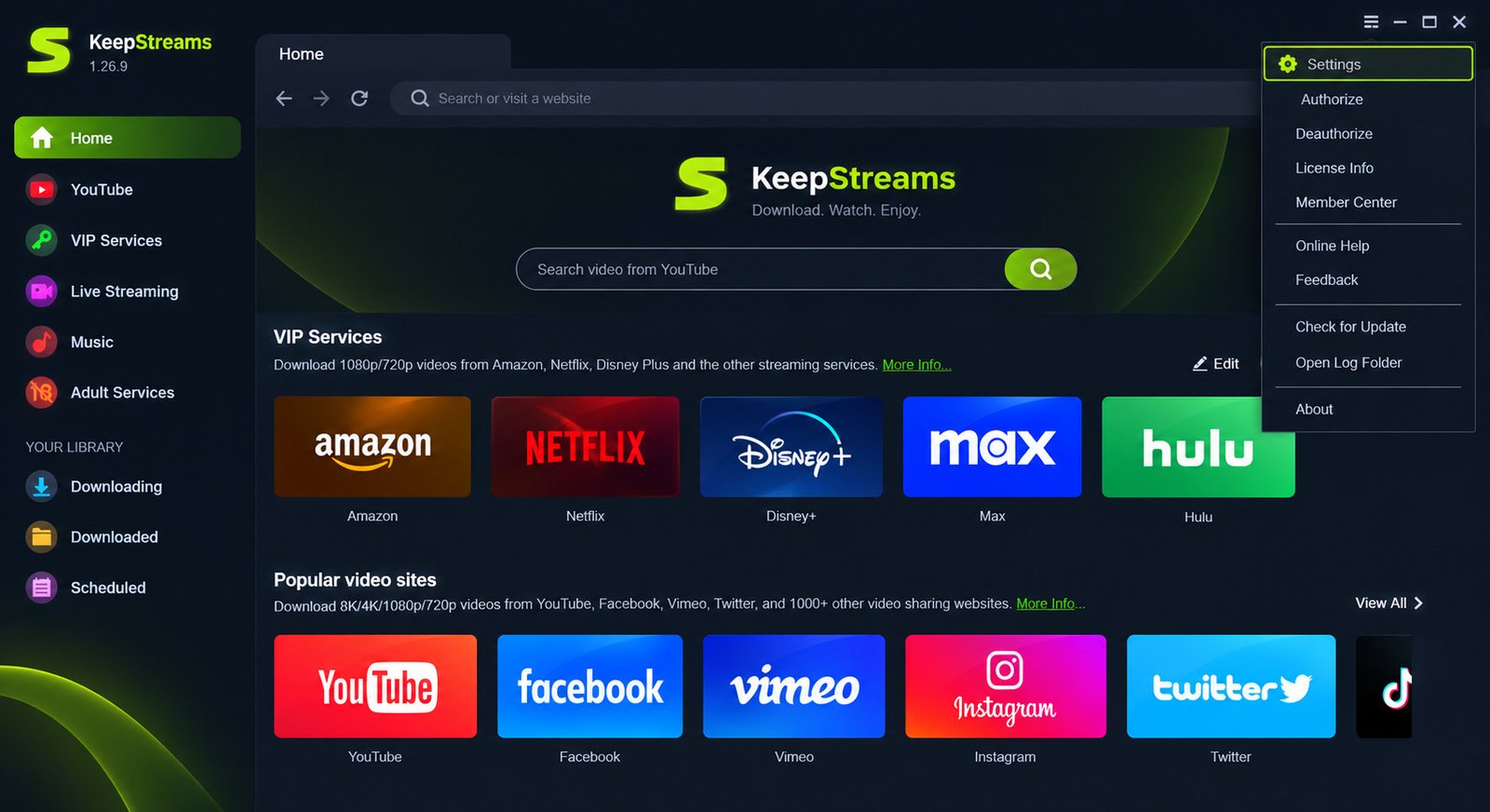
At its core, KeepStreams works like a bridge between your streaming account and your hard drive. You open the supported streaming service inside the KeepStreams app, play the content you want, and the software captures and saves it in a playable video format.
It’s built for people who travel often, have unreliable internet, or simply want a backup library of shows they’ve already paid to access through their subscriptions.
What Can KeepStreams Do?
Here’s a quick snapshot of its core abilities:
- Downloads movies and TV episodes from supported streaming platforms
- Saves videos in MP4 or MKV format
- Supports resolutions up to 1080p and 4K
- Grabs subtitles and multiple audio tracks
- Allows batch downloading of multiple episodes at once
KeepStreams One: All-in-One Downloader
Instead of buying separate tools for each streaming platform, KeepStreams One bundles support for multiple services into a single application. This means one subscription can cover Netflix, Prime Video, Disney Plus, and more, depending on your plan.
This all-in-one approach is honestly one of the smartest things about the software — it saves you from juggling five different apps just to download content from five different platforms.
KeepStreams Key Features
Let’s break down what actually makes KeepStreams stand out from a basic screen recorder or browser extension.
Movie and TV Show Downloads
Whether it’s a two-hour movie or a twelve-episode season, KeepStreams handles both. It’s designed to detect episodes automatically, so you’re not stuck manually searching for each one.
MP4 and MKV Output
You get a choice between two of the most widely used video formats. MP4 works well for compatibility across devices like phones, tablets, and smart TVs, while MKV is better if you want to preserve multiple audio tracks and subtitle files within a single file.
1080p and 4K Quality
Quality matters, especially if you’re watching on a bigger screen. KeepStreams supports:
| Resolution | Best For |
|---|---|
| 720p | Mobile devices, saving storage space |
| 1080p | Standard HD viewing on laptops and TVs |
| 4K | Large screens and high-end displays |
Keep in mind that actual output quality depends on what the original streaming source offers and your subscription tier on that platform.
Subtitles and Multiple Audio Tracks
If you watch foreign shows or need accessibility options, this feature matters a lot. KeepStreams can capture subtitles in formats like SRT and preserve multiple audio language tracks in one download.
Batch and Automatic Downloads
Nobody wants to click download twenty times for a full season. KeepStreams lets you queue multiple episodes or videos and download them one after another without babysitting the app.
KeepStreams Download and Latest Version
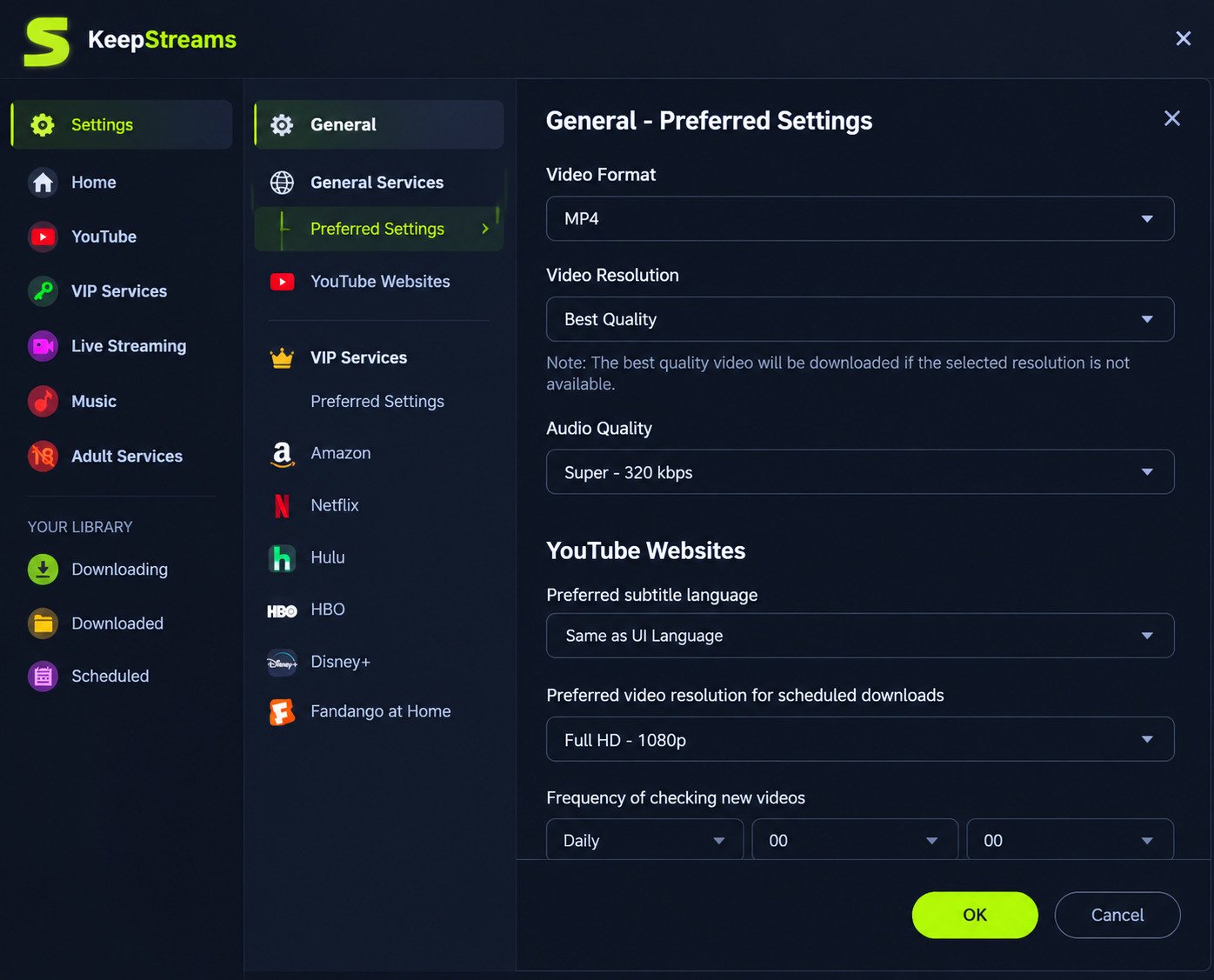
Download for Windows
KeepStreams is compatible with both Windows 10 and Windows 11. The Windows version is generally the most feature-complete, since most streaming downloader tools prioritize Windows compatibility first.
Download for Mac
Mac users aren’t left out either. KeepStreams offers a macOS version, though it’s worth checking the official source for the latest supported macOS versions before installing, since Apple updates its system requirements often.
Free Trial vs Full Version
Most users start with the free trial to test compatibility before committing. Here’s a simple comparison:
| Version | Access | Limitations |
|---|---|---|
| Free Trial | Basic download testing | Limited downloads or watermark restrictions |
| Full Version | Unlimited downloads | Requires paid license |
If you’re unsure whether it works smoothly with your streaming service and system, trying the free version first is the smart move.
How to Install and Set Up KeepStreams
Installation Steps
Setting it up isn’t complicated. Here’s the general process:
- Download the installer from the official KeepStreams website
- Run the setup file and follow the on-screen prompts
- Launch the application once installation completes
- Sign in with your KeepStreams account (or create one)
- Select the streaming service module you want to use
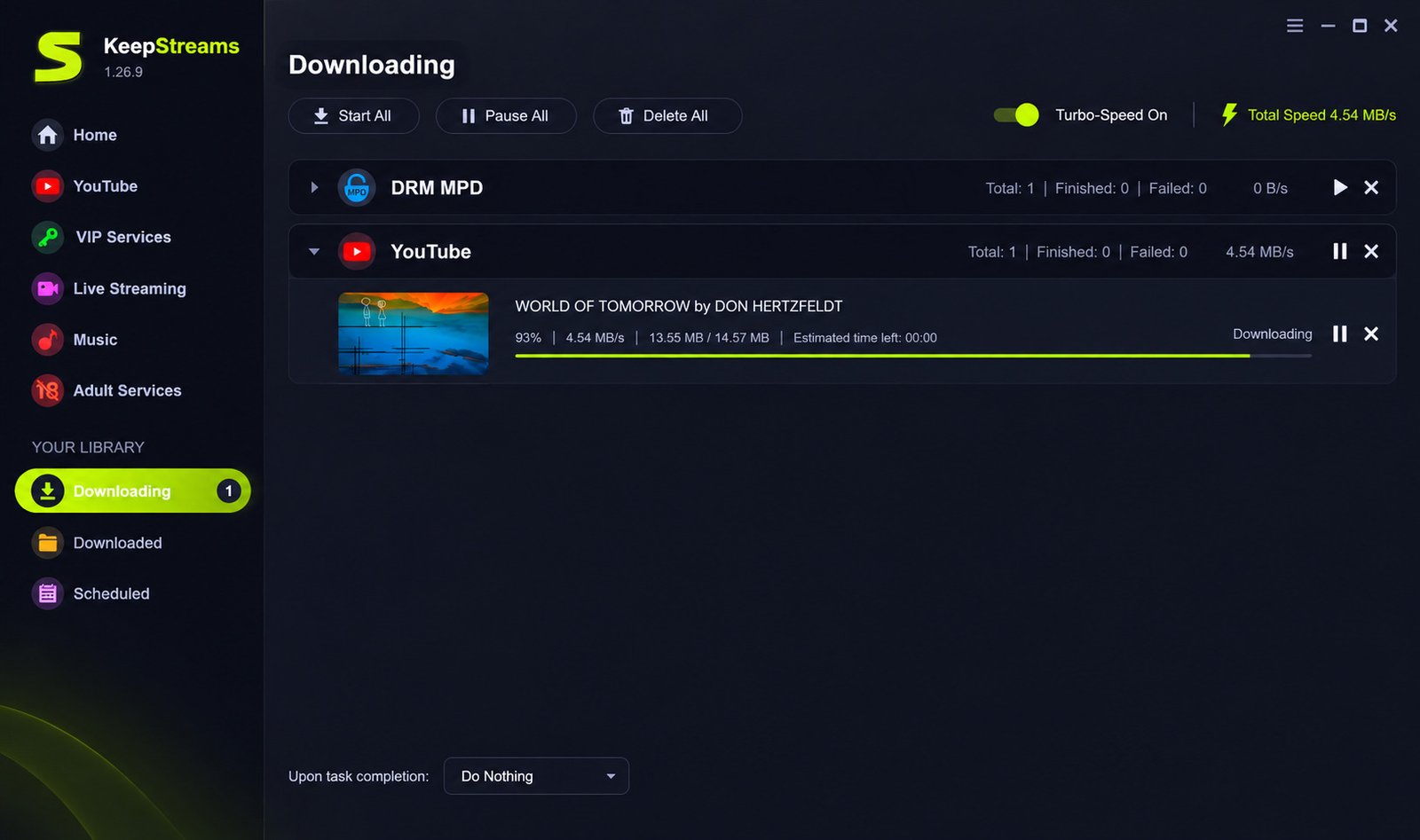
Sign In and First-Time Setup
Once installed, you’ll typically log into your streaming service account within the KeepStreams interface. This allows the software to access the content you’re already subscribed to and authorized to watch.
First-time setup usually takes less than ten minutes, including account verification.
How to Download Streaming Videos With KeepStreams
Step-by-Step Download Guide
Here’s how the actual downloading process generally works:
- Open KeepStreams and choose your streaming platform
- Log in to your account inside the app
- Search for the movie or show you want
- Select your preferred resolution, format, subtitle, and audio options
- Click download and let it process
Downloading Multiple Episodes Automatically
For binge-worthy series, KeepStreams can detect all available episodes in a season and let you select multiple at once. This is a huge time-saver compared to downloading one episode, waiting, then repeating the process manually.
KeepStreams for Netflix, Prime Video, Disney Plus, and Hulu
This is probably the section most people are here for — platform-specific support.
KeepStreams for Netflix
Netflix is one of the most requested platforms, and KeepStreams supports downloading Netflix movies and TV shows in MP4 or MKV, complete with subtitles and multiple audio language tracks where available.
KeepStreams for Amazon Prime Video
For Prime Video, the tool works similarly — letting you save movies and series locally, with support for batch downloads across full seasons.
KeepStreams for Disney Plus
Disney Plus downloads are supported too, covering both movies and episodic content, with options for 1080p and higher-quality output depending on availability.
KeepStreams for Hulu
Hulu support rounds out the major US streaming platforms, allowing similar batch downloading and format flexibility.
Other Streaming Services Supported by KeepStreams
Beyond the big four, KeepStreams also extends support to a range of other services, including:
- Crunchyroll
- HBO Max
- Paramount Plus
- Peacock
- Discovery Plus
- Rakuten Viki
- U-NEXT
- BBC iPlayer
- Apple TV, Pluto TV, Tubi, and Roku Channel
- ESPN Plus, Coursera, and ReelShort
Not every service is supported under every plan, so it’s worth checking which module you actually need before purchasing.
KeepStreams Video Quality, Subtitles, and Audio Options
MP4 vs MKV
Choosing between these two formats really comes down to what you plan to do with the file afterward.
| Format | Pros | Best Use Case |
|---|---|---|
| MP4 | Widely compatible, smaller file size | Mobile devices, casual viewing |
| MKV | Supports multiple tracks and subtitles better | Home media servers, archiving |
Subtitle and Audio Track Support
KeepStreams captures subtitles as separate files or embeds them directly, depending on your settings. It also supports downloading multiple audio language tracks in a single file, which is great for multilingual households.
KeepStreams Pricing and Free Trial
Is KeepStreams Free?
The base app is free to download, but full downloading functionality typically requires a paid license. The free version is mainly there to let you test compatibility and interface before buying.
KeepStreams One Pricing
Pricing generally varies based on:
- Monthly subscription
- Yearly subscription
- Lifetime license option
Lifetime License Option
For frequent users, a lifetime license often ends up being more cost-effective than paying monthly, especially if you plan to use it long-term across multiple streaming platforms.
Always check the official KeepStreams website for current pricing, since software pricing tends to change with updates and promotions.
Common KeepStreams Problems and Fixes
No software is perfect, and KeepStreams users occasionally run into a few common hiccups.
Download Errors and Slow Speed
If downloads are failing or slow, try:
- Checking your internet connection stability
- Restarting the app
- Making sure you’re running the latest version
Subtitle and Audio Issues
If subtitles or audio tracks aren’t downloading correctly, double-check that you selected them before starting the download, since some settings can’t be changed mid-process.
Login and Activation Problems
Login issues are often tied to expired sessions or incorrect credentials. Logging out and back in, or reinstalling the app, usually resolves activation errors.
Is KeepStreams Safe and Legal to Use?
Safety and Privacy
Downloading software from the official source only is the golden rule here. Third-party download sites can bundle unwanted software, so always verify you’re getting KeepStreams from its official website.
Legal Considerations
Most streaming platforms include terms of service that restrict downloading content outside their official apps. Using tools like KeepStreams may conflict with those terms, even if the content is something you’ve paid to access.
Copyright law also plays a role here. According to the U.S. Copyright Office, reproducing or redistributing copyrighted material without permission can carry legal consequences, even for personal use in some jurisdictions.
Our honest advice: use tools like this strictly for personal, offline backup of content you already have legal access to, and never for redistribution or piracy.
KeepStreams Review: Pros, Cons, and Final Thoughts
Let’s be real about what works and what doesn’t.
Pros
- Supports a wide range of major streaming platforms
- Good video quality options up to 4K
- Batch downloading saves serious time
- Subtitle and multi-audio support is solid
Cons
- Requires a paid license for full functionality
- Legal gray area depending on your region and platform terms
- Mac support may lag behind Windows updates
- Occasional bugs with newer streaming platform updates
Overall, if you’re someone who frequently loses internet access, travels a lot, or wants a personal backup library, KeepStreams delivers solid value for the price. It’s not flawless, but few tools in this category are.
KeepStreams Alternatives
If KeepStreams doesn’t fit your needs, there are other tools worth considering depending on what you’re downloading.
For example, if you’re focused specifically on music or audio streaming platforms rather than video, a tool like TunePat is worth checking out, since it specializes in audio downloads with similar batch and format flexibility.
When comparing alternatives, look at:
- Which streaming platforms are supported
- Output format options (MP4, MKV, MP3, etc.)
- Subtitle and multi-language support
- Pricing structure and refund policy
- Update frequency, since streaming platforms change often
FAQs About KeepStreams
The app itself is free to download, but full download features usually require a paid license after the trial period.
Yes, KeepStreams is compatible with both Windows 10 and Windows 11 systems.
Yes, Netflix is one of the core supported platforms, including subtitle and audio track downloads.
Yes, depending on the source content and your subscription, 4K downloads are supported.
It depends on your region and the streaming platform’s terms of service, so it’s best used only for personal, offline backups of content you already have access to.
Yes, there’s a macOS version available, though it’s worth confirming compatibility with your current OS version first.
Yes, batch downloading lets you queue and download several episodes or videos in one go.
Final Verdict
At the end of the day, KeepStreams solves a real problem for people who want offline access to their favorite shows without relying on shaky Wi-Fi or limited data plans. It’s not a perfect tool, and the legal side of things is something you genuinely need to think about before using it regularly.
If you decide to give it a try, start with the free trial, test it with your most-used streaming platform, and see if it fits naturally into how you actually watch content. Used responsibly and for personal backups only, it’s a genuinely handy addition to your digital toolkit.
Visit KeepStreams Official Site
2 Responses