O&O ShutUp10++ Download, Features, Setup, and Alternatives
Windows has quietly become one of the most data-hungry operating systems around, and most people have no idea how many of its “phone home” settings are switched on by default. That’s exactly the gap O&O ShutUp10++ fills — a free, portable tool that puts nearly every hidden Windows privacy and telemetry setting into one simple checklist.
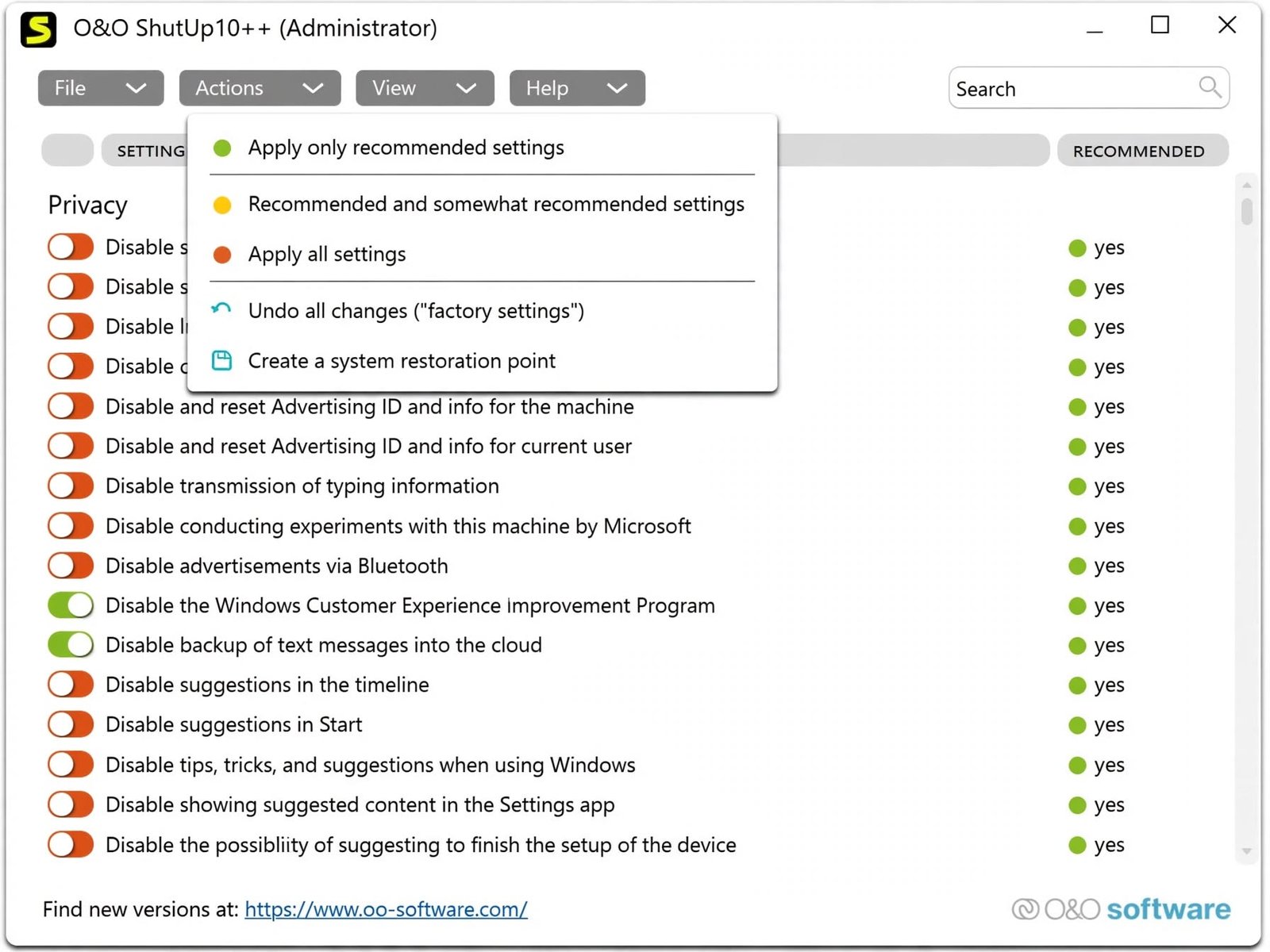
This guide covers what it does, how to set it up safely, and what to watch out for.
What Is O&O ShutUp10++ and What Does It Do?
O&O ShutUp10++ Windows Privacy Tool Explained
O&O ShutUp10++ is a free privacy utility made by German software company O&O Software. It scans your Windows installation and presents dozens of privacy-related toggles in one clean interface, letting you disable telemetry, tracking, and other data-collection features with a single click each.
How O&O ShutUp10++ Controls Windows Privacy Settings
Instead of manually hunting through Settings, Group Policy, and the Registry, O&O ShutUp10++ groups related settings into categories and lets you flip them on or off directly, applying the underlying registry or policy change for you in the background.
Windows Privacy, Telemetry, and Data Collection Controls
The tool covers telemetry level, advertising ID, location tracking, diagnostic data, activity history, Cortana/search behavior, and more — essentially every privacy-adjacent switch Microsoft has buried across Windows 10 and 11.
O&O ShutUp10++ Free Edition and Portable Software
O&O ShutUp10++ is completely free and distributed as a portable application — there’s no installer, no admin setup wizard, and nothing left behind if you delete the executable.
O&O ShutUp10++ Features
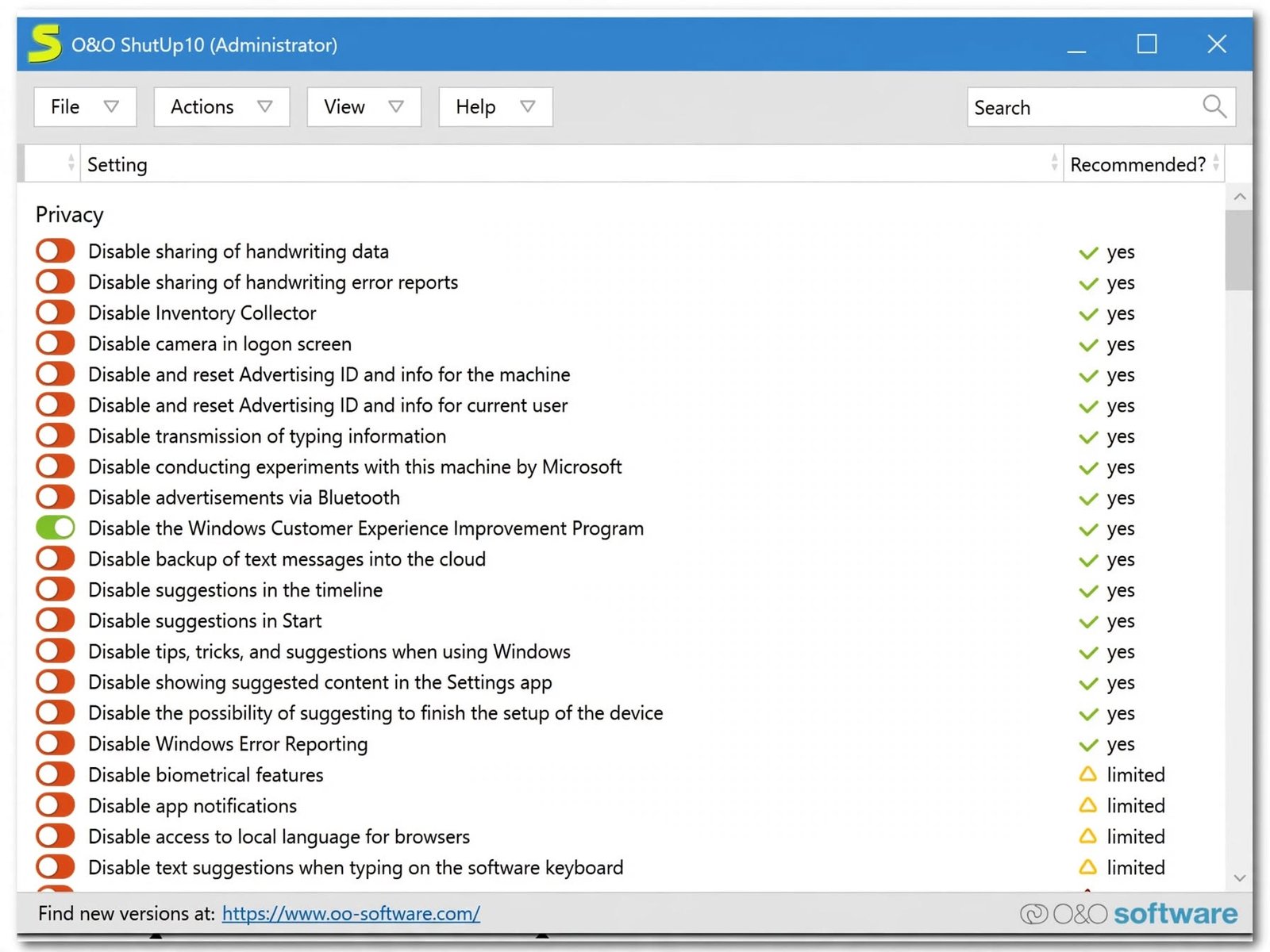
Windows Privacy and Privacy Settings Management
At its core, the tool exposes close to 50+ individual privacy-related settings, organized into logical tabs so you’re not scrolling through one giant unsorted list.
Windows Telemetry and Diagnostic Data Controls
You can lower or fully disable the diagnostic data Windows sends to Microsoft, including usage statistics and error reporting data.
Tracking and Data Collection Controls
Settings here cover things like Wi-Fi Sense, typing/inking data collection, and various background data-sharing features tied to Microsoft accounts.
Advertising ID and Personalized Advertising Controls
One of the most commonly disabled settings: the Advertising ID, which Windows uses to serve personalized ads across apps.
App Permissions and Background Activity Controls
You can restrict which categories of apps run in the background and control blanket permissions like camera, microphone, and location access at a system level.
Location, Search, and Windows Suggestions Settings
This section handles location services, Bing-integrated search results in the Start menu, and the suggested apps/tips Windows likes to surface uninvited.
OneDrive, Copilot, and Windows Feature Controls
Recent builds added dedicated controls for removing Copilot and disabling OneDrive integration, reflecting Microsoft’s more recent AI-feature rollouts.
Activity History, Clipboard, and Notification Controls
You can also manage Windows Timeline/activity history syncing, clipboard history, and which notifications get surfaced.
Windows Error Reporting and Diagnostic Settings
Separate toggles exist for Windows Error Reporting, letting you stop crash reports from being sent automatically to Microsoft.
O&O ShutUp10++ Windows 11 Settings and Privacy
Does O&O ShutUp10++ Work on Windows 11?
Yes. O&O ShutUp10++ is fully compatible with Windows 11, including on ARM-based devices, and receives regular updates to track new privacy settings Microsoft introduces.
O&O ShutUp10++ Windows 11 Privacy Settings
Windows 11 introduced additional data-sharing features tied to widgets, Copilot, and Recall-adjacent functionality, all of which the tool has extended coverage for.
O&O ShutUp10++ Windows 11 Telemetry Settings
Telemetry controls work the same way as on Windows 10 — you can reduce data collection to the minimum level Windows allows for your edition.
O&O ShutUp10++ Windows 11 Recommended Settings
Most users stick to the built-in “Recommended” preset, which disables intrusive tracking and advertising features without touching anything that could break core functionality.
O&O ShutUp10++ Settings to Disable on Windows 11
Commonly disabled items on Windows 11 include the Advertising ID, Copilot access, Widgets suggestions, and background diagnostic data collection.
O&O ShutUp10++ Windows 11 Settings Guide
Direct answer: open O&O ShutUp10++, switch to the “Recommended” view, review each category tab, and apply settings — the tool clearly marks which ones are considered safe defaults for Windows 11.
O&O ShutUp10++ Windows 10 Settings and Privacy
O&O ShutUp10++ Windows 10 Privacy Settings
Windows 10 support remains fully maintained, covering the same core categories: telemetry, advertising, location, and app permissions.
O&O ShutUp10++ Windows 10 Telemetry Settings
Telemetry on Windows 10 Home is generally limited to “Required” as a floor, while Pro and Enterprise editions can go further — the tool respects these edition-based limits automatically.
O&O ShutUp10++ Windows 10 Recommended Settings
The same “Recommended” preset logic applies on Windows 10, giving a safe starting point before diving into more granular, “Restricted” settings.
O&O ShutUp10++ Windows 10 Settings Guide
Direct answer: for Windows 10, start with the Recommended tab, review changes before applying, and create a system restore point first in case anything needs reverting.
O&O ShutUp10++ Settings to Change on Windows 10
Popular changes on Windows 10 include disabling Cortana-related data collection, turning off peer-to-peer Windows Update sharing, and disabling advertising features.
O&O ShutUp10++ Privacy and Telemetry Controls
Windows Telemetry and Diagnostic Data
Telemetry is data Windows automatically sends to Microsoft about system usage, errors, and performance — O&O ShutUp10++ lets you dial this down to the lowest level your Windows edition supports.
Windows Tracking and Microsoft Data Collection
Beyond telemetry, Windows collects behavioral data through search, typing, and app usage — much of which can be independently disabled through the tool’s dedicated tabs.
How to Disable or Reduce Windows Telemetry
- 1Open O&O ShutUp10++
- 2Go to the Windows Update, Security or Telemetry category
- 3Set the telemetry toggle to disabled or minimum
- 4Apply changes and restart if prompted
How to Control Windows Data Collection
Data collection settings are spread across several tabs (Apps, Search, Activity History), so a full privacy pass usually means reviewing each tab rather than one single switch.
How to Manage Windows Tracking and Privacy
For ongoing management, it’s worth re-running O&O ShutUp10++ after major Windows feature updates, since Microsoft occasionally resets some settings during upgrades.
O&O ShutUp10++ Best and Recommended Settings
O&O ShutUp10++ Best Settings Explained
There’s no single universal “best” configuration — it depends on how much functionality you’re willing to trade for privacy — but the built-in Recommended preset is a solid, safe baseline for most users.
O&O ShutUp10++ Recommended Settings
| Setting Category | Recommended Action | Why |
|---|---|---|
| Advertising ID | Disable | Stops personalized ad tracking across apps |
| Telemetry | Minimum/Required | Reduces data sent to Microsoft |
| Location Services | Disable (unless needed) | Prevents unnecessary location tracking |
| Windows Suggestions | Disable | Removes ads/tips in Start menu and lock screen |
| Activity History | Disable | Stops syncing usage timeline to Microsoft account |
O&O ShutUp10++ Settings Guide
Direct answer: stick to “Recommended” settings first; only move into “Restricted” or “Extreme” categories if you fully understand what each toggle disables, since some can affect Windows Update or app functionality.
Understanding Safe, Recommended, and Restricted Settings
O&O ShutUp10++ color-codes settings by risk level — green/recommended options are safe for virtually everyone, while more aggressive settings are flagged for advanced users.
Confirm you’re not disabling something you actively rely on — for example, disabling location services will break location-based apps like Maps or Find My Device.
O&O ShutUp10++ Specific Privacy Settings
Disable Windows Telemetry and Diagnostic Data
Found under the diagnostics/telemetry tab; setting this to the minimum level significantly cuts down data sent to Microsoft.
Disable Advertising ID and Personalized Ads
A single toggle stops Windows from linking your activity across apps for ad personalization purposes.
Disable Windows Suggestions and Recommendations
This removes app suggestions, tips, and promotional content from the Start menu, lock screen, and Settings app.
Control Windows Search and Bing Integration
You can disable web results appearing in Start menu search, keeping search results limited to local files and apps.
Control Location Tracking and App Permissions
Location access can be restricted system-wide or left enabled selectively for specific app categories.
Manage Background Apps and Activity History
Background app permissions and activity history syncing are grouped together since both relate to ongoing device usage tracking.
Control OneDrive and Windows Spotlight
Settings here disable OneDrive-related nudges and Windows Spotlight’s rotating lock-screen images and tips.
Manage Copilot and Other Windows Features
Newer versions include dedicated Copilot removal options, going beyond simply hiding the icon to fully removing the feature using bundled O&O AppBuster components.
Control Clipboard History and Notifications
You can disable clipboard history syncing across devices and adjust which notification types are allowed to appear.
O&O ShutUp10++ Download and Latest Version
O&O ShutUp10++ Download for Windows
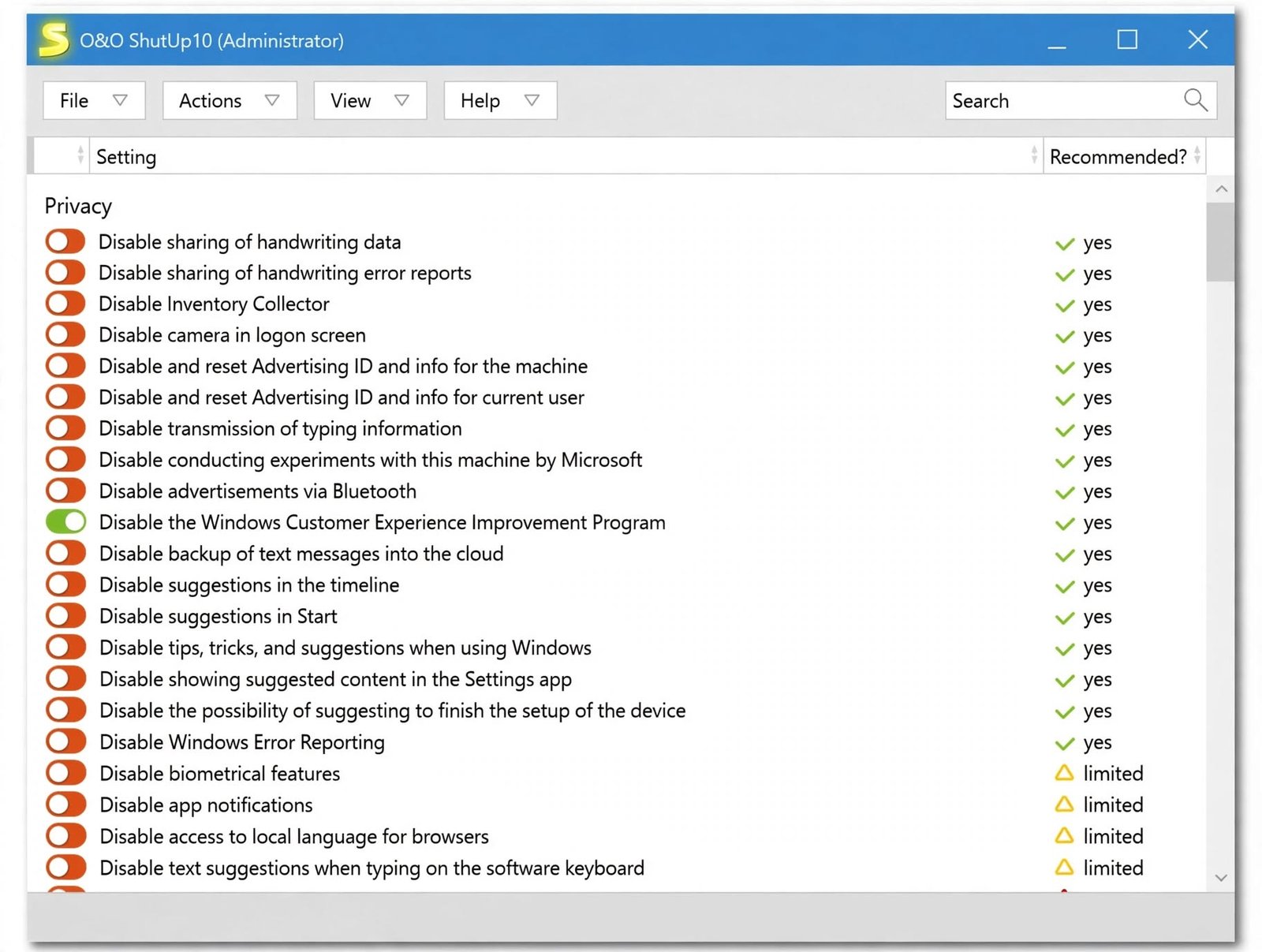
O&O ShutUp10++ is downloaded directly from O&O Software’s official site as a single portable executable — no third-party installer required.
O&O ShutUp10++ Latest Version and Updates
As of late 2025, the current build is version 2.1.1015, following a major update in October 2025 that rebuilt the app on .NET 8 and added dedicated Copilot-removal functionality.
O&O ShutUp10++ Free Download
The tool remains entirely freeware. O&O doesn’t charge for it — the developers only include an optional, entirely voluntary donation link on their site.
O&O ShutUp10++ Portable Download
Since the 2.0 rebuild, the entire application ships as a single self-contained executable, meaning all required runtime components are bundled in and it runs portably with no separate .NET installation needed.
O&O ShutUp10++ No-Installation Version
There’s no installed version at all — download, run, and delete when you’re done. Nothing is left in your system beyond whatever registry/policy changes you explicitly applied.
How to Install and Set Up O&O ShutUp10++
O&O ShutUp10++ Installation and First Launch
There’s technically nothing to “install.” Download the executable, run it, and accept the license prompt on first launch.
How to Set Up O&O ShutUp10++
- 1Download the latest build for your architecture (x86, x64, or ARM)
- 2Run the executable directly — no admin install wizard needed
- 3Review the welcome/disclaimer screen
- 4Choose whether to view “Recommended,” “Custom,” or “All” settings
How to Create a Restore Point Before Changing Settings
O&O ShutUp10++ includes a built-in option to create a Windows System Restore point before applying changes — always use it the first time you run the tool.
How to Backup and Export O&O ShutUp10++ Settings
The tool lets you export your current configuration to a file, which is useful if you’re setting up multiple PCs with the same privacy profile.
How to Import and Restore Saved Settings
A saved configuration file can be re-imported on the same or a different machine, applying every saved toggle in one pass instead of reconfiguring manually.
O&O ShutUp10++ Tutorial: How to Use the Privacy Tool
How to Use O&O ShutUp10++
Using the tool is genuinely straightforward — it’s built around toggles, not command-line flags or config files.
How to Review Windows Privacy Recommendations
Each setting includes a short description explaining what it does, which is more transparent than most privacy tools that just list cryptic registry names.
How to Apply Individual Privacy Settings
You can toggle settings one at a time and apply immediately, or batch several changes together before hitting Apply.
How to Undo or Restore O&O ShutUp10++ Changes
Reverting is as simple as switching a toggle back to its default state and re-applying, or rolling back to your earlier system restore point.
How to Reset O&O ShutUp10++ Settings
There’s a dedicated “reset to defaults” option that reverts every setting the tool manages back to Windows’ original values.
What to Do After a Windows Update
Feature updates occasionally reset certain Windows settings; it’s good practice to re-run O&O ShutUp10++ and re-check your preferred configuration after major updates.
O&O ShutUp10++ Free vs Premium
O&O ShutUp10++ Free Edition Features
Unlike many privacy tools, O&O ShutUp10++ doesn’t actually run on a freemium model. Every feature — from basic telemetry toggles to Copilot removal — is included in the single free build.
O&O ShutUp10++ Premium Features
There is no separate paid “Premium” tier of ShutUp10++ itself. O&O’s website simply includes an optional, voluntary donation option — it doesn’t unlock anything extra.
O&O ShutUp10++ Free vs Premium
| Aspect | O&O ShutUp10++ |
|---|---|
| Cost | Completely free |
| Feature restrictions | None — full toggle set available to everyone |
| Optional donation | Yes, purely voluntary |
| Paid tier | Does not exist |
Automatic Privacy Setting Monitoring
The tool doesn’t run continuously in the background monitoring settings — it’s a run-when-needed utility, not a persistent service.
Reapplying Privacy Settings After Windows Updates
Since there’s no background monitoring, reapplying your preferred settings after major Windows updates is a manual step worth adding to your update checklist.
Is O&O ShutUp10++ Safe?
Is O&O ShutUp10++ Safe to Use on Windows?
Yes, when downloaded from O&O Software’s official site. It’s a long-standing, widely reviewed tool that only modifies documented Windows settings, registry keys, and group policies.
Is O&O ShutUp10++ Legitimate Software?
O&O Software is an established German developer known for other Windows utilities like O&O Defrag and O&O SafeErase, adding a layer of credibility beyond a random freeware download.
Does O&O ShutUp10++ Modify Windows Settings?
Yes — it directly changes registry values and Group Policy settings tied to privacy features. This is exactly what makes it powerful, but also why caution and a restore point matter.
What to Know Before Changing Privacy and Telemetry Settings
Some restricted-level settings can affect Windows Update behavior or certain app functionality, so it’s worth reading each setting’s description rather than blindly applying every toggle.
Creating a Restore Point and Reversing Changes
Because the tool offers a one-click restore point option, reversing an unwanted change is usually just a system restore away — a real safety net most tweak tools don’t offer.
O&O ShutUp10++ Not Working and Common Problems
O&O ShutUp10++ Settings Not Working
If a toggle doesn’t seem to take effect, it’s often because the setting is managed by a Group Policy that overrides local changes (common on managed/work PCs).
O&O ShutUp10++ Errors and Compatibility Issues
Occasional issues have been reported around system restore point creation failing on some Windows 11 builds; more recent versions have specifically addressed and fixed this.
Privacy Settings Reverting After a Windows Update
This is expected behavior for certain settings, since major Windows updates can reset some privacy defaults — simply re-run the tool afterward.
How to Restore O&O ShutUp10++ Settings
Use your saved configuration export (if you made one) to quickly reapply your full settings profile after a reset.
How to Undo Changes Made by O&O ShutUp10++
Toggle the affected setting back to default within the app, or use System Restore if you created a restore point beforehand.
O&O ShutUp10++ Review: Features, Privacy, and Usability
What Works Well
- One of the most complete free privacy tools available
- Beginner-friendly, color-coded categories with plain-language descriptions
- Actively maintained for both Windows 10 and 11
- Zero-install, zero-cost, nothing to uninstall
- Built-in restore points and config export/import
Worth Knowing
- Some Restricted/Extreme toggles can affect app or Update functionality
- Group Policy on managed PCs can override certain changes
- No background monitoring — settings can revert after feature updates
- Restore point creation has had isolated issues on some Windows 11 builds
Ease of Use and Settings Organization
The interface is genuinely beginner-friendly — clear categories, plain-language descriptions, and color-coded risk levels make it approachable even for non-technical users.
Windows 10 and Windows 11 Compatibility
Both operating systems are actively supported, with new toggles added as Microsoft introduces new data-related features (Copilot being the most recent example).
Free and Portable Edition
The zero-install, zero-cost model is a genuine advantage — there’s nothing to uninstall and no ongoing subscription to manage.
Settings Backup, Restore, and Reversibility
Built-in restore points and configuration export/import give it more safety nets than most comparable privacy utilities.
O&O ShutUp10++ Alternatives and Competitors
Windows Privacy Tools and Utilities
Several other free tools tackle similar territory, each with a slightly different approach.
Windows Telemetry and Tracking Control Alternatives
- W10Privacy — a German alternative with similarly deep registry-level controls
- privacy.sexy — a script-based, browser-driven tool that generates a custom privacy script rather than a standalone app
- Windows’ built-in Privacy Dashboard — limited, but doesn’t require third-party software
Privacy Settings Management Software
For organizations, Group Policy and Intune-based configuration profiles offer centralized privacy management across many machines — overkill for home users, but relevant for IT admins.
O&O ShutUp10++ vs Other Windows Privacy Tools
| Tool | Interface Style | Best For |
|---|---|---|
| O&O ShutUp10++ | GUI toggles | Most users wanting a simple visual tool |
| W10Privacy | GUI, more technical | Advanced users wanting deeper control |
| privacy.sexy | Script generator | Users comfortable running scripts |
| Windows Privacy Dashboard | Built-in | Minimal, no third-party install needed |
If you’re already streamlining how you organize downloaded utilities like this, a tool such as Futuremark SystemInfo pairs well for quickly checking your system specs before deciding which privacy or performance tweaks actually apply to your hardware.
O&O ShutUp10++ FAQs
Final Verdict: Should You Use O&O ShutUp10++?
If Windows’ data collection habits have ever bothered you, O&O ShutUp10++ is one of the easiest ways to actually do something about it. It turns a genuinely confusing set of hidden settings into something anyone can understand and control in a few minutes.
Just take the sensible precaution of creating a restore point first, stick to the Recommended settings unless you know exactly what a more aggressive toggle does, and you’ll walk away with a noticeably more private Windows setup. For the official downloads and release notes, O&O Software’s own site remains the safest and most authoritative source.