Office Timeline Download, Features, Setup, and Alternatives
Anyone who’s tried to build a Gantt chart by stacking invisible bar charts in PowerPoint knows exactly why Office Timeline exists. It turns a task that usually eats an entire lunch break into something you can finish before your coffee gets cold.
Rebrand note: Office Timeline has rebranded to Lucen Software, and the product itself is now called Lucen Timeline (formerly Office Timeline). The tool, the PowerPoint add-in, and the core feature set are the same — only the name and, in places, the plan structure have changed. This guide uses “Office Timeline” throughout since that’s still how most people search for it, and notes the new naming where it matters.
If you’re returning to this tool after using an older version, or you’ve bookmarked a review from a year or two ago, don’t be surprised if a few screens look slightly different or a plan name has changed — the underlying workflow of building a timeline inside PowerPoint hasn’t moved.
What Is Office Timeline and How Does It Work?
Office Timeline is a PowerPoint add-in that creates professional Gantt charts, project timelines, and roadmaps directly inside your slides, without you needing to manually build shapes, bars, or SmartArt from scratch.
Office Timeline Overview
Once installed, it adds a new ribbon tab in PowerPoint. From there, you pick a template, enter your dates and milestones, and the add-in generates a fully editable timeline as native PowerPoint shapes.
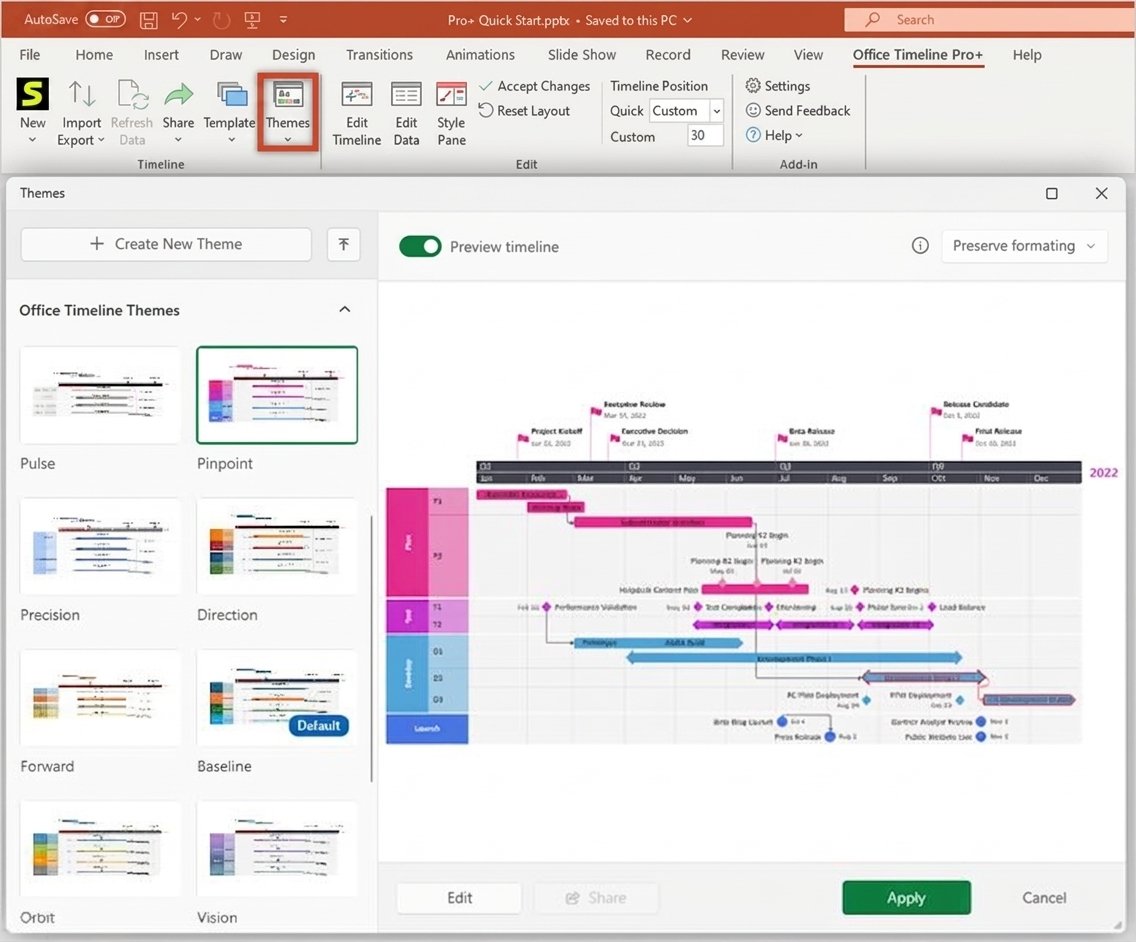
Office Timeline for PowerPoint / Office Timeline PowerPoint Add-In
It’s built specifically to work inside PowerPoint rather than as a separate app, which means your finished timeline drops straight into a slide you can present, edit, and rebrand without exporting images or juggling file formats.
Office Timeline as a Timeline Maker and Project Planning Tool
While it’s best known for Gantt charts, it also functions as a lightweight project planning tool — letting you track milestones, phases, and progress without needing full project management software.
What Can You Create With Office Timeline?
- Project timelines and milestone charts
- Gantt charts with task bars and dependencies
- Product and technology roadmaps
- Swimlane diagrams for multi-workstream projects
- Executive summary slides built from detailed project data
Office Timeline vs Traditional PowerPoint Timeline Creation
Building a timeline manually in PowerPoint using a stacked bar chart with a hidden “start” series typically takes 45 to 60 minutes and breaks the moment a date changes. Office Timeline does the same job through a drag-and-drop wizard in a fraction of the time.
Who Typically Uses Office Timeline?
The add-in shows up most often in three kinds of workflows:
- Project and program managers who need to update a status slide every week or two without rebuilding it from scratch
- Consultants and strategists presenting phased plans to clients or leadership
- Product managers communicating release roadmaps to non-technical stakeholders
In each case, the common thread is the same: someone has detailed schedule data somewhere else — Excel, Microsoft Project, Jira — and needs a simplified, presentation-ready version of it that a busy executive can actually read at a glance.
Office Timeline Features
The add-in’s popularity comes down to a fairly simple pitch: professional results without needing design skills.
Timeline Maker and Project Timeline Creator
At its core, Office Timeline turns a list of dates and milestones into a styled visual — you don’t need to calculate spacing or align shapes manually.
Gantt Chart Maker
Task bars, durations, and milestones render automatically along a timescale, with the option to show percent-complete or task dependencies.
Project Roadmap Creator
Roadmap templates group initiatives by theme, quarter, or team, which makes them useful for both product roadmaps and company-wide strategy decks.
Timeline Templates and Presentation Templates
A built-in template library covers dozens of pre-styled layouts, so you can start from a design that’s already close to what you need.
Project Milestones and Project Progress
Milestones can be marked with icons or flags along the timeline, and progress bars can show how far along a task is relative to its planned duration.
Editable and Professional Timeline Designs
Because the output is native PowerPoint shapes rather than an image, colors, fonts, and layout remain fully editable after generation — useful when a project date shifts the day before a meeting.
Automatic Timeline Creation
Enter your data once, and the add-in handles spacing, alignment, and scaling automatically, which is the main time-saver compared to manual chart building.
Timeline Visualization for Presentations
Because the goal is always a presentation slide rather than a technical project document, Office Timeline leans toward clean, simplified visuals — it deliberately hides granular task detail that would clutter an executive-facing chart, while keeping that detail available if you click into an individual item.
Business and Project Timelines Side by Side
It’s worth noting the add-in doesn’t force you into one style. A single project can have both a detailed internal Gantt chart for the working team and a simplified milestone timeline for leadership, built from the same underlying data.
Office Timeline Plans: Free, Lite, Plus, and Expert
If you’ve seen references to “Office Timeline Plus, Pro, and Pro+” in older reviews, note that the plan lineup has since been restructured under the Lucen Software rebrand. As of 2026, the current PowerPoint add-in plans are Free, Lite, Plus, and Expert.
| Plan | Billed Annually | Best For | Key Capabilities |
|---|---|---|---|
| Free | $0 | Trying it out, simple slides | Up to 10 items per timeline, basic formatting |
| Lite | ~$9/user/month | Individuals presenting regularly | More templates, 2 swimlanes, basic Excel copy-paste |
| Plus | ~$17/user/month | Teams managing projects | Unlimited swimlanes, dependencies, full Excel import & refresh, MS Project import |
| Expert | ~$21/user/month | Organizations with advanced reporting needs | Planned vs. Actual tracking, Jira/Smartsheet/Wrike import, advanced templates |
Which Office Timeline Version Should You Choose?
- Choose Free if you only need occasional, simple timeline slides with fewer than 10 items.
- Choose Lite if you present timelines regularly but don’t need swimlanes or dependencies.
- Choose Plus if you manage multi-workstream projects and need Excel or Microsoft Project data flowing directly into your slides.
- Choose Expert if your organization needs Jira, Smartsheet, or Wrike integration, or planned-vs-actual progress tracking for executive reporting.
Upgrades are prorated — if you start on Lite and later need Plus-level features, you’re typically only charged the price difference rather than paying for a second full subscription. And if you’re not on PowerPoint at all, or you work primarily on a Mac, a separate browser-based “Timeline Online” edition covers the same core functionality without needing the desktop add-in.
Office Timeline Download
Office Timeline Download and Free Download
The add-in is available as a free download directly from the official site (now under the Lucen Software domain), with paid plans unlocked by entering a product key after installation — no separate installer is needed to upgrade.
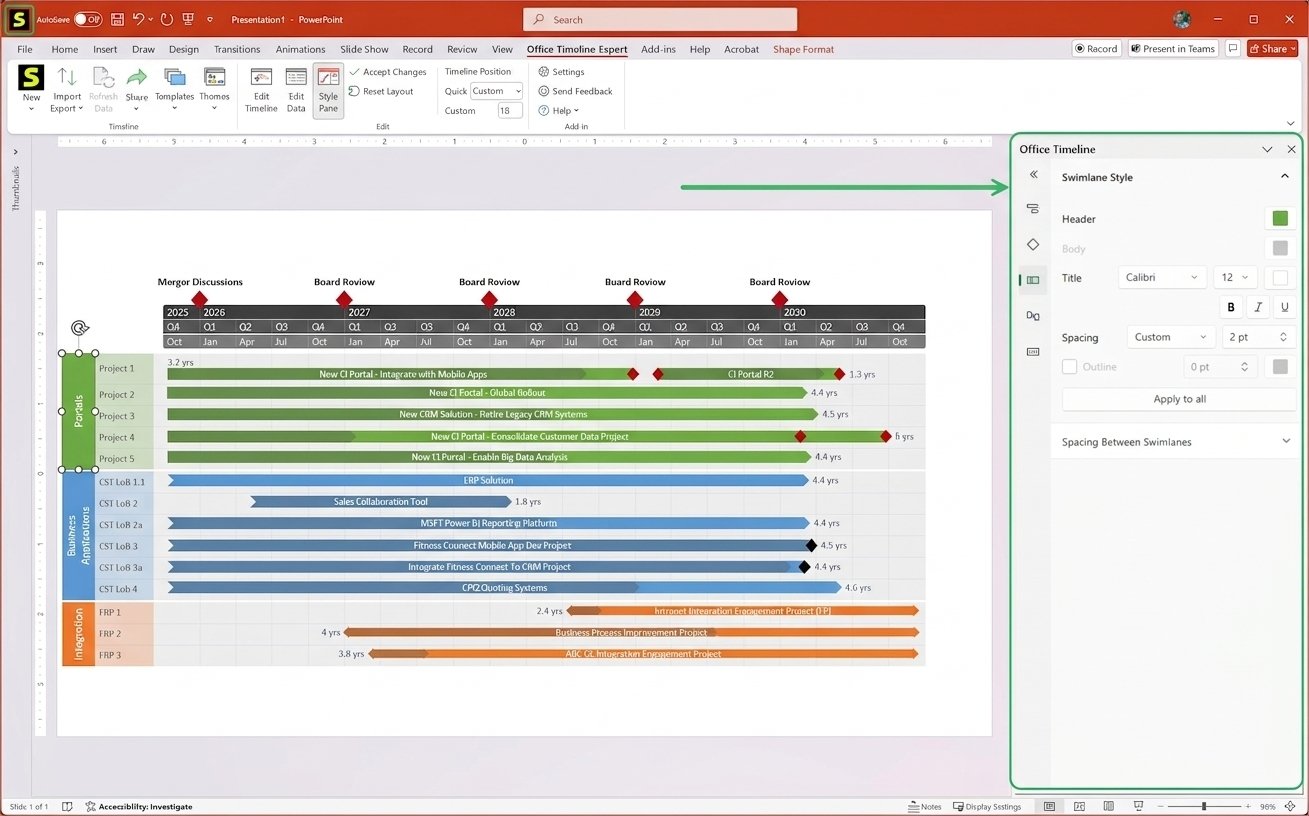
Office Timeline Latest Version
The add-in receives regular updates, and since the 2026 rebrand, new feature releases are being rolled out under the Lucen Timeline name while remaining backward-compatible with existing Office Timeline files.
Office Timeline Free Trial
Paid plans typically include a short free trial period, letting you test Plus- or Expert-level features like swimlanes and data imports before committing to a subscription.
Office Timeline PowerPoint Add-In Download
Because it installs as a PowerPoint add-in rather than a standalone application, the download process is quick — a small installer adds the ribbon tab directly into your existing PowerPoint installation.
Office Timeline Windows Download
The desktop add-in is built for Windows versions of PowerPoint. Mac users are directed to the browser-based Timeline Online edition instead, since the native add-in isn’t available for Mac.
How to Install and Set Up Office Timeline
Office Timeline Installation
- Download the installer from the official site.
- Close PowerPoint if it’s open, then run the installer.
- Reopen PowerPoint — a new Timeline tab should appear in the ribbon.
How to Enable Office Timeline in PowerPoint
If the tab doesn’t appear automatically, check PowerPoint’s Add-ins manager (File > Options > Add-ins) to confirm the add-in is enabled rather than disabled or blocked.
Office Timeline System Requirements
The add-in requires a licensed, desktop version of Microsoft PowerPoint on Windows; it does not currently run inside PowerPoint for the web or the Mac desktop app.
Office Timeline Add-In Not Showing in PowerPoint
This is one of the most common setup issues, and it’s almost always caused by one of a few things:
- The add-in was installed while PowerPoint was still open
- Antivirus software quarantined part of the installer
- PowerPoint’s add-in security settings are blocking it
Reinstalling with PowerPoint fully closed resolves this in most cases. If it still doesn’t appear, check whether your organization’s IT policy restricts third-party add-ins — some corporate PowerPoint deployments block unsigned or unapproved add-ins by default, which would need an exception from an IT administrator rather than anything fixable on your end.
How to Create a Timeline in PowerPoint With Office Timeline
How to Make a Timeline in PowerPoint
- Open the Timeline tab in PowerPoint.
- Choose “New” and select a template style.
- Enter your project’s start and end dates.
- Add milestones and tasks with their own dates.
- Click Create — the timeline appears directly on your slide.
Add Project Milestones to a PowerPoint Timeline
Milestones are added as single-date markers rather than duration bars, and can be styled with icons, colors, or callout labels to highlight key deadlines.
Customize Timeline Dates, Events, and Milestones
After generation, double-clicking any element opens a side panel where you can adjust dates, descriptions, or styling without rebuilding the whole chart.
Create an Editable PowerPoint Timeline
Because everything is built from native shapes, you can also select and adjust individual elements manually in PowerPoint, the same way you would with any other shape. This matters more than it sounds — it means you’re never locked into the add-in’s own editor; if a client asks for a last-minute color change during a meeting, you can make it directly on the slide.
How to Automatically Back Up a Timeline’s Underlying Data
Since the visual on the slide is generated from source data, it’s worth keeping that source (an Excel file, a Project schedule, or your manually entered milestones) saved separately, so you can regenerate or update the timeline later without rebuilding it by hand.
PowerPoint Timeline Maker and Timeline Templates
PowerPoint Timeline Templates
The built-in library spans dozens of layouts — from minimal single-line timelines to detailed multi-swimlane project charts organized by style and complexity.
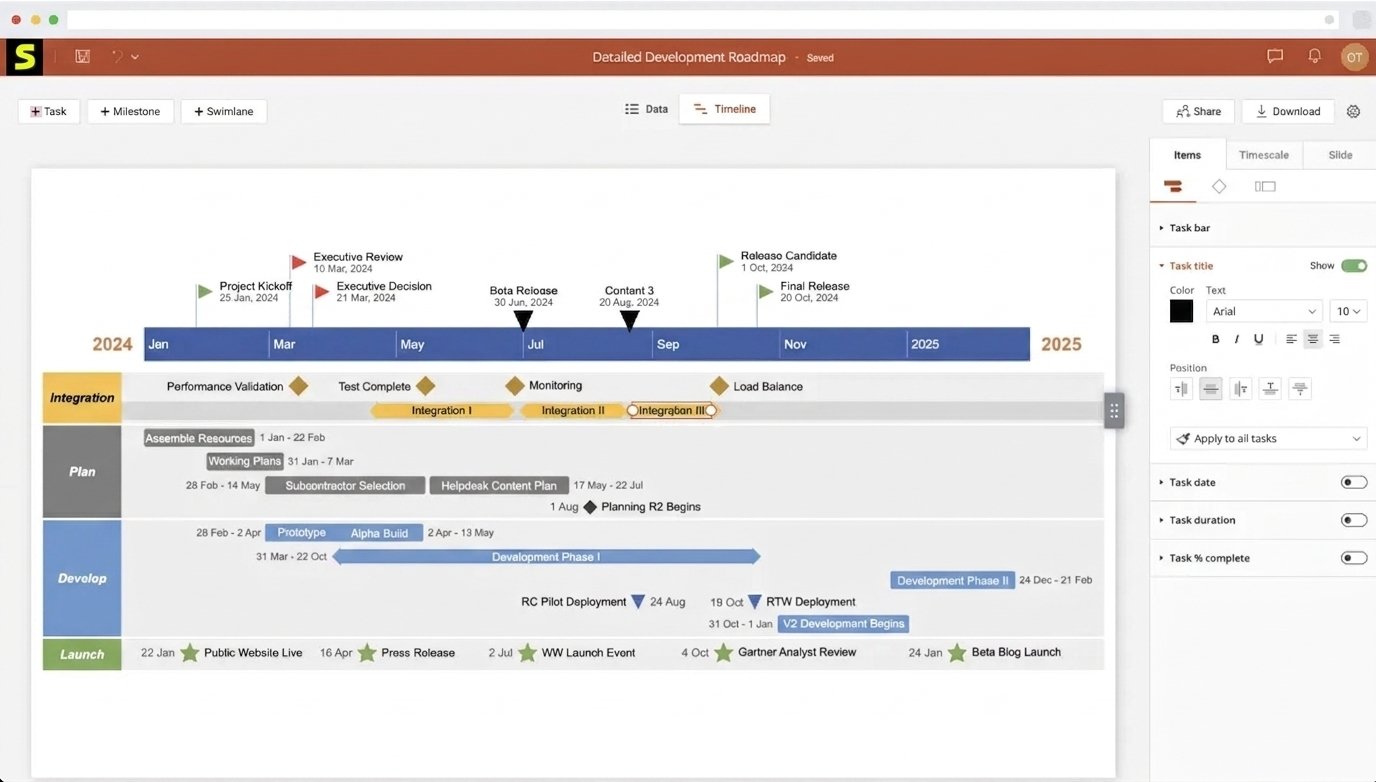
Editable and Professional Timeline PowerPoint Templates
Templates are meant as starting points rather than fixed designs; colors, fonts, and shapes can all be changed to match a company’s branding.
Free Timeline Templates for PowerPoint
A handful of templates are available even on the Free plan, though the more advanced multi-swimlane and dependency-based templates are gated behind Plus and Expert.
Office Timeline Gantt Charts
Gantt Chart Maker for PowerPoint
Gantt charts in Office Timeline show tasks as horizontal bars along a timescale, with optional percent-complete shading and dependency lines connecting related tasks.
Editable Gantt Chart PowerPoint
Since the chart is built from editable shapes, resizing a task bar to reflect a schedule change is as simple as dragging its edge, though in more complex charts this can mean adjusting several related shapes individually.
Gantt Chart Timeline and Project Schedule
Gantt-style timelines work well for status updates where stakeholders need to see not just what’s happening, but how far along each task actually is.
Choosing Between a Gantt Chart and a Simpler Timeline
Not every update needs full Gantt detail. As a rough rule: use a Gantt chart when the audience needs to see task duration, overlap, and dependencies; use a simpler milestone timeline when the audience just needs to know what’s happening and when key dates land. Mixing the two into one slide usually makes it harder to read, not easier.
Office Timeline Project Timelines and Roadmaps
Project Timeline Software and Project Timeline Creator
For pure project timelines without full Gantt-style task bars — the tool offers simpler milestone-based layouts that read faster in an executive setting.
Roadmap Maker and Roadmap Software
Roadmap templates are designed around themes, quarters, or workstreams rather than exact task durations, which suits product and strategy roadmaps better than detailed schedules.
Product Roadmap and Technology Roadmaps
Product teams commonly use these roadmap layouts to communicate release plans without exposing the level of granular task detail a Gantt chart would show.
Business Roadmap and Strategy Roadmaps
The same roadmap templates adapt well to company-wide strategic initiatives, where the goal is aligning stakeholders around phases rather than day-by-day scheduling.
Roadmaps vs Gantt Charts: Which Should You Use?
It’s easy to reach for a Gantt chart out of habit, but roadmaps and Gantt charts serve different audiences. A Gantt chart answers “what’s happening and when, in detail” — useful for the team doing the work. A roadmap answers “what are we prioritizing and roughly when” — better suited to leadership updates where exact dates matter less than direction and sequencing.
Import Excel Data Into Office Timeline
Office Timeline Excel Integration and Import
Rather than typing every task manually, you can import a structured Excel spreadsheet of tasks, dates, and milestones directly into the add-in.
Create a PowerPoint Timeline From Excel Data
- Prepare a spreadsheet with columns for task name, start date, end date, and any milestones.
- In the Timeline tab, choose Import from Excel.
- Map your spreadsheet columns to the corresponding timeline fields.
- Generate the timeline from the imported data.
Excel Refresh and Ongoing Updates
On Plus and Expert plans, timelines can refresh automatically when the source Excel file changes, so you’re not re-importing data every time a date shifts.
Preparing Excel Data for a Clean Import
A few habits make Excel imports go smoothly: keep one row per task, use consistent date formats throughout the sheet, and avoid merged cells in your header row. Most import errors trace back to inconsistent formatting rather than a limitation in the add-in itself.
Office Timeline and Microsoft Project
Office Timeline Microsoft Project Integration
For teams already managing detailed schedules in Microsoft Project, the add-in can import that data directly rather than requiring a manual re-entry into Excel first.
Import Microsoft Project Into PowerPoint
The import process mirrors the Excel workflow — select the Project file, map the relevant fields, and generate a presentation-ready timeline from data that already exists.
Project Schedule and Milestone Visualization
This is particularly useful for turning a detailed, technical Project schedule into a simplified visual that’s actually readable in a stakeholder meeting.
Office Timeline With Other Project Management Tools
Office Timeline and Smartsheet / Wrike
On the Expert plan, direct import and refresh from Smartsheet and Wrike is supported, letting PMOs pull live project data into recurring status slides without manual exports.
Using Office Timeline With Existing Project Data
The general pattern across all these integrations is the same: your source data stays in its original tool, and Office Timeline generates and refreshes a presentation layer on top of it.
How to Create Timelines, Gantt Charts, and Roadmaps
How to Make a Gantt Chart in PowerPoint
Select the Gantt chart template type when creating a new timeline, then enter task durations rather than single milestone dates — the add-in handles bar placement automatically.
How to Create a Roadmap in PowerPoint
Choose a roadmap-specific template, group items by theme or time period, and label each phase — roadmaps generally use broader time blocks than detailed Gantt charts.
How to Create a Business Timeline
For high-level business timelines, a simpler milestone template usually communicates the message more clearly than a detailed Gantt layout would.
Office Timeline Review
Office Timeline Ease of Use
The learning curve is genuinely short — most first-time users can produce a usable timeline within 10–15 minutes of installing the add-in. The interface leans on familiar PowerPoint conventions (ribbon tabs, side panels, click-to-edit shapes), so it doesn’t feel like learning a separate piece of software.
Office Timeline Performance
For typical timelines with a few dozen tasks or milestones, generation is close to instant. Very large, complex Gantt charts with many dependencies can generate a large number of individual shape objects on the slide, which can make manual repositioning slower than you’d expect for a “few clicks” tool.
Office Timeline PowerPoint Integration
Because everything happens inside PowerPoint rather than a separate app, there’s no exporting or importing images — the finished timeline is just another slide.
Data Import and Project Management Features
Excel and Microsoft Project import both work reliably for most standard use cases, and the Expert-level integrations extend that to tools like Jira and Smartsheet for teams already using them.
Office Timeline Pros and Cons
Pros
- Fast, drag-and-drop timeline creation
- Native, fully editable PowerPoint output
- Strong Excel & Microsoft Project import
- Free tier available
- Regularly updated (now under Lucen Software)
Cons
- Desktop add-in is Windows-only
- Only creates timelines/Gantt charts — no other chart types
- Complex timelines can generate many individual shape objects
- Paid plans required for swimlanes, dependencies, and integrations
- Some users report formatting shifts after edits
Is Office Timeline Worth Using?
If you regularly build timeline or Gantt chart slides in PowerPoint on Windows, it’s a genuinely time-saving, purpose-built tool. If your presentations also need other chart types like waterfall or Mekko charts, you’ll likely need a second tool alongside it, since Office Timeline is intentionally narrow in scope.
Office Timeline vs Other Timeline and Project Planning Tools
Office Timeline vs PowerPoint (Manual Method)
Manual PowerPoint timelines offer total design freedom but take far longer and break easily when dates change; Office Timeline trades a little of that flexibility for speed and easier updates.
Office Timeline vs Excel
Excel can technically build a Gantt-style chart using conditional formatting, but the result rarely looks presentation-ready without significant manual styling — something Office Timeline handles automatically.
Office Timeline vs Other Timeline Makers
| Tool | PowerPoint Add-In | Mac Support | Excel Import | Free Option |
|---|---|---|---|---|
| Office Timeline | Yes (Windows) | Online version only | Yes | Yes |
| GanttProject | No | Yes | Limited | Yes (open-source) |
| Preceden | No (image export only) | Yes (browser) | No | Yes (limited) |
| Native PowerPoint | N/A | Yes | Manual | Included with Office |
Office Timeline Alternatives
If Office Timeline’s Windows-only add-in or narrower feature scope doesn’t fit your workflow, a few alternatives are worth comparing:
- GanttProject — a free, open-source Gantt chart tool with cross-platform support, though it doesn’t integrate with PowerPoint directly
- Preceden — a browser-based timeline maker that works on any device, though exported slides aren’t editable PowerPoint shapes
- Manual PowerPoint (SmartArt or stacked bar charts) — free and fully customizable, but slow and prone to breaking when dates change
Best free alternative: GanttProject, if you don’t need native PowerPoint integration and just want a standalone Gantt chart tool.
Best for non-PowerPoint workflows: Preceden, since it runs entirely in the browser and works on Mac without needing PowerPoint at all.
Best if you need consulting-style charts too: if your presentations regularly need waterfall or Mekko-style charts alongside timelines, it’s worth looking at PowerPoint add-ins built for broader chart libraries rather than timeline-only tools, since paying for two separate single-purpose add-ins often costs more than one broader one.
For a broader look at what’s out there, GetApp’s Office Timeline comparison page tracks verified user reviews and side-by-side alternatives that are updated regularly.
If you’re building out client-facing tools beyond presentations, this hotel reservation system overview is worth a look too, particularly if your timeline work involves hospitality or booking-based project planning.
Office Timeline Add-In Not Working? Common Problems and Fixes
Most of the problems people run into come down to installation timing, file compatibility, or version mismatches — genuine bugs are relatively rare compared to these everyday causes.
| Problem | Likely Cause | Fix |
|---|---|---|
| Add-in not showing in PowerPoint | Installed while PowerPoint was open, or blocked by antivirus | Fully close PowerPoint, reinstall, check antivirus exceptions |
| Timeline not generating | Missing or invalid dates in the input form | Double-check date formats match your regional settings |
| Excel import not working | Column headers don’t match expected fields | Manually map columns during the import step |
| Microsoft Project import fails | Unsupported file version | Export from Project in a compatible file format before importing |
| Formatting resets after editing | Known issue with certain style changes | Reapply formatting after edits, or check for the latest add-in update |
| Older files show missing data | Opened with an older add-in version than the one used to create it | Update to the latest add-in version before opening |
Office Timeline FAQs
Yes, a Free plan exists with basic timeline creation for up to 10 items, though swimlanes, dependencies, and integrations require a paid Lite, Plus, or Expert plan.
Yes, it installs directly as an add-in inside PowerPoint on Windows, generating timelines as native, editable slide elements.
Download the installer from the official site, close PowerPoint before running it, then reopen PowerPoint to find the new Timeline ribbon tab.
Yes, Gantt-style charts with task bars, durations, and dependencies are one of its core features, available from Free up through Expert.
Yes, both are supported, with automatic Excel refresh and Microsoft Project import available on the Plus and Expert plans.
Lite adds templates and light styling; Plus adds swimlanes, dependencies, and full data import; Expert adds Jira, Smartsheet, and Wrike integration plus planned-vs-actual tracking.
GanttProject is the strongest free, cross-platform alternative, while Preceden suits browser-based, non-PowerPoint workflows.
Final Verdict: Is Office Timeline Worth Using?
If your job involves regularly turning messy project dates into a clean slide someone else has to understand in thirty seconds, Office Timeline solves a real, recurring problem — and it does it well enough that most users stop thinking about the manual alternative entirely. The rebrand to Lucen Software hasn’t changed what the tool actually does; it’s still the same fast, PowerPoint-native timeline builder people have relied on for years.
Where you land — Free, Lite, Plus, or Expert — really just depends on how complex your projects get and whether your data already lives in Excel, Microsoft Project, or tools like Jira and Smartsheet. Either way, the real payoff isn’t the software itself; it’s walking into a meeting with a timeline that actually looks like you meant to make it that way.